

From the Python Workspace to Job results
Register a script in Python Scripts, inspect the installed API, validate the Job, and find its logs, Datasets, and plots in the Session.
Numerical computing, models, statistics, and Datasets with Python
Register a script in the Session
Open GX-TXT and click New Session in the top bar. Choose a distinct name, select a project if you want to link the Session to one, and confirm. In Viewers, find Python Scripts and open its tile. Use File → New Script, enter a stable identifier without spaces in ID, and set Name to the name you want to see in the Runner. Keep Scope set to Session to share the script in the current context. Paste the code in the central panel and choose File → Save. After saving, check the status bar for session: followed by your ID.
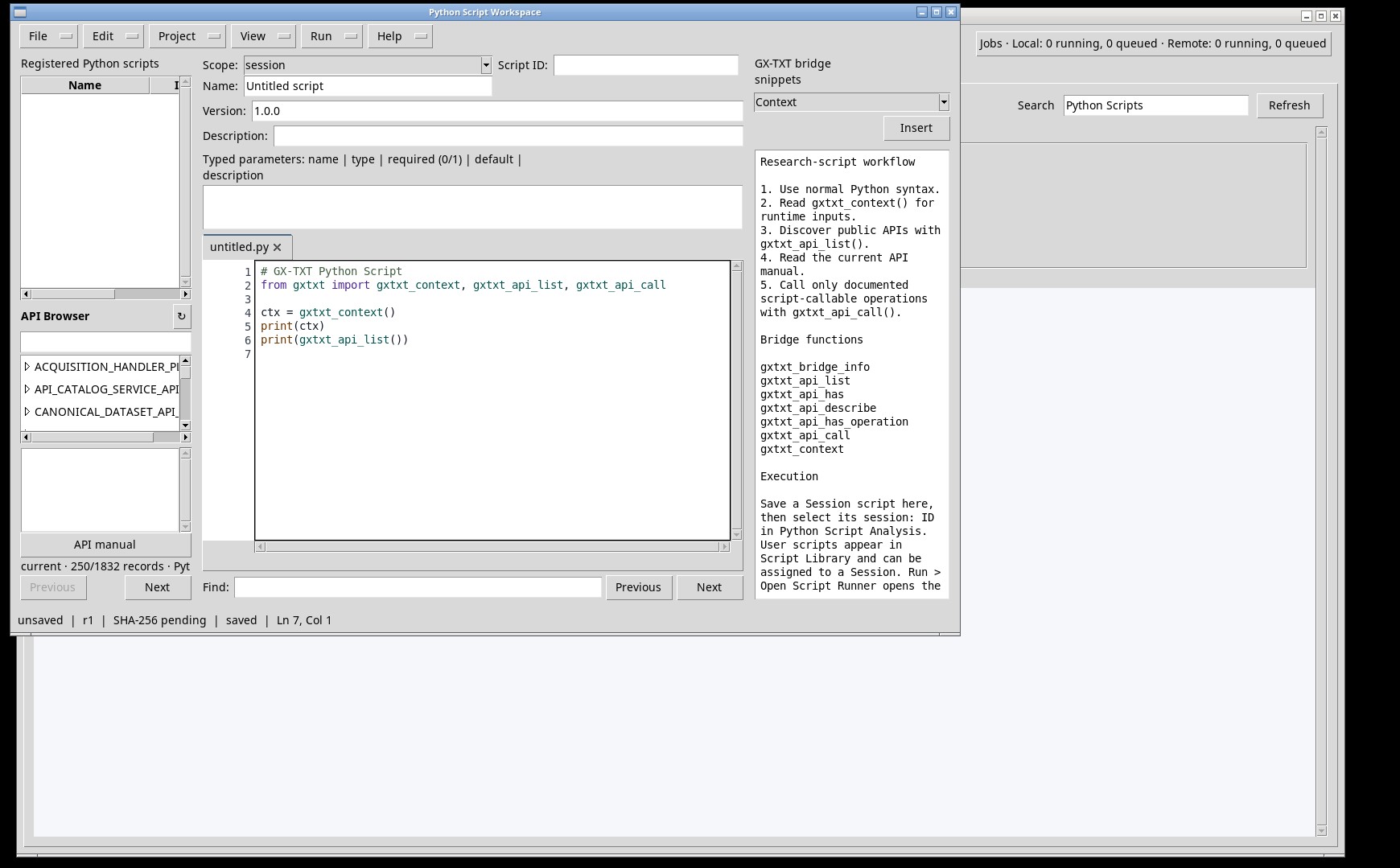
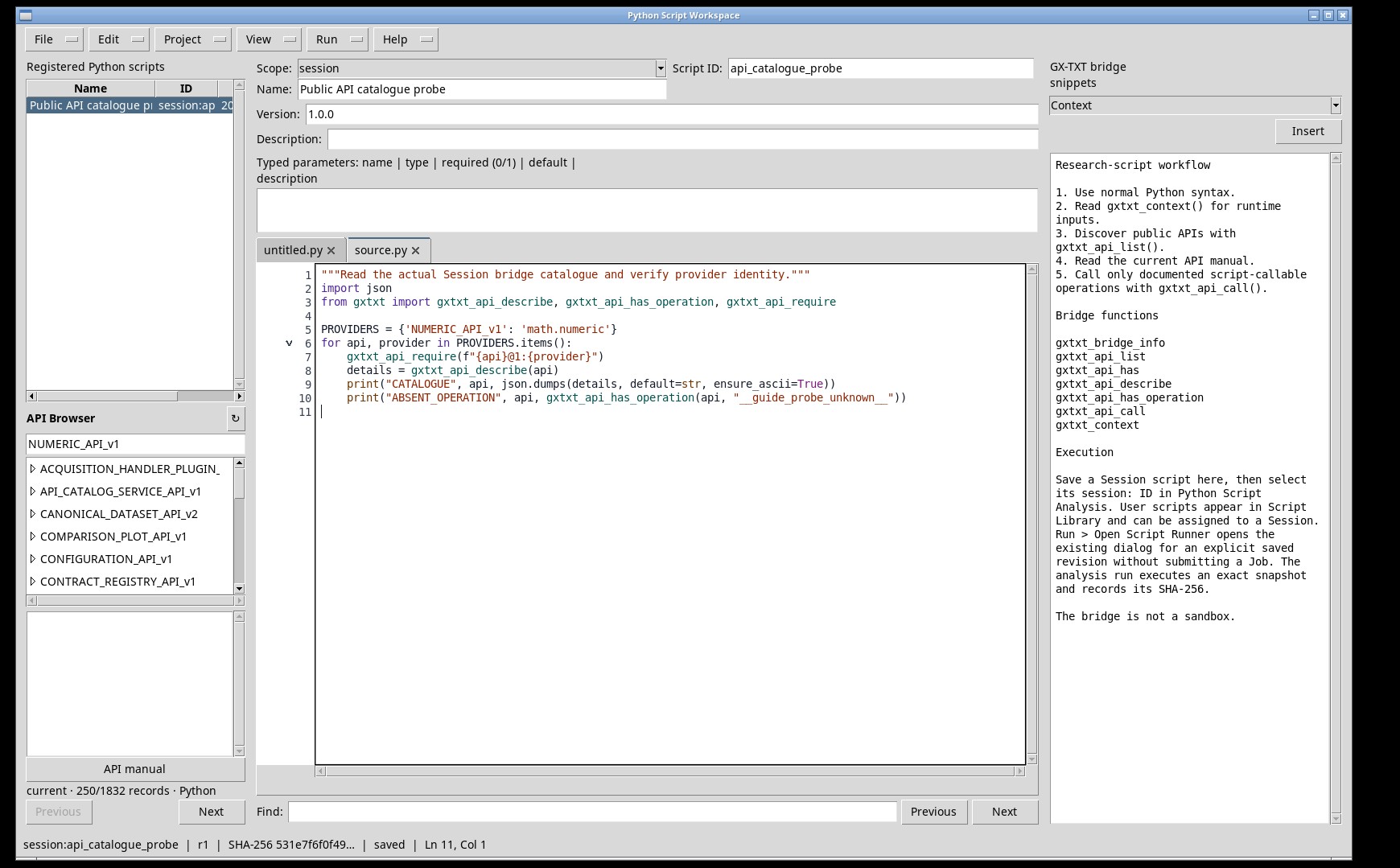
Pane controls and states
- Open the menu and choose an available value. The field displays the current value. Observed state: readonly.
- Select Session files from the drop-down menu. This changes the content or context of the associated pane. Observed state: option.
- Select Session scripts from the drop-down menu. This changes the content or context of the associated pane. Observed state: option.
- Select Workspaces from the drop-down menu. This changes the content or context of the associated pane. Observed state: option.
- Select Configuration / Manifest from the drop-down menu. This changes the content or context of the associated pane. Observed state: option.
- Select Session Parameters from the drop-down menu. This changes the content or context of the associated pane. Observed state: option.
- Select Experiment from the drop-down menu. This changes the content or context of the associated pane. Observed state: option.
- Select Instrumentation from the drop-down menu. This changes the content or context of the associated pane. Observed state: option.
- Select Preview Cache from the drop-down menu. This changes the content or context of the associated pane. Observed state: option.
- Refresh
- Control in the indicated pane. The reported state reflects the context shown in the procedure. Observed state: normal.
- Copy file text
- Control in the indicated pane. The reported state reflects the context shown in the procedure. Observed state: normal.
- Session: Ricognizione_Numeric — 5 text/data file(s)
- Information displayed by the pane. It updates with the selected Session, record, or state. Observed state: normal.
- Jobs
- Control in the indicated pane. The reported state reflects the context shown in the procedure. Observed state: normal.
- Edit note…
- Control in the indicated pane. The reported state reflects the context shown in the procedure. Observed state: normal.
- ⌂ Project Home
- Control in the indicated pane. The reported state reflects the context shown in the procedure. Observed state: normal.
- Session
- Control in the indicated pane. The reported state reflects the context shown in the procedure. Observed state: normal.
- Instruments
- Control in the indicated pane. The reported state reflects the context shown in the procedure. Observed state: normal.
- Configuration
- Control in the indicated pane. The reported state reflects the context shown in the procedure. Observed state: normal.
- Tools
- Control in the indicated pane. The reported state reflects the context shown in the procedure. Observed state: normal.
- tree
- Select a row to activate the corresponding record and update the details pane. Observed state: active.
- txt
- The control is disabled in the illustrated state. Availability depends on the selection, editing mode, and current context. Observed state: disabled.
- Open in Script Library
- Opens the selected entry in the library with the actions its registration permits. Observed state: normal.
- Run selected
- Starts the review for the script selected in Session scripts. Observed state: normal.
- Delete selected…
- Control in the indicated pane. The reported state reflects the context shown in the procedure. Observed state: normal.
- File
- Control in the indicated pane. The reported state reflects the context shown in the procedure. Observed state: normal.
- Edit
- Control in the indicated pane. The reported state reflects the context shown in the procedure. Observed state: normal.
- Project
- Control in the indicated pane. The reported state reflects the context shown in the procedure. Observed state: normal.
- View
- Control in the indicated pane. The reported state reflects the context shown in the procedure. Observed state: normal.
- Run
- Control in the indicated pane. The reported state reflects the context shown in the procedure. Observed state: normal.
- Help
- Control in the indicated pane. The reported state reflects the context shown in the procedure. Observed state: normal.
- Registered Python scripts
- Information displayed by the pane. It updates with the selected Session, record, or state. Observed state: normal.
- Scope:
- Choose session to keep the registration in the experiment or user to make it available in the user profile’s library. Observed state: normal.
- se
- Open the menu and choose an available value. The field displays the current value. Observed state: readonly.
- se = session
- Registers the script in the active Session under the session: prefix. Observed state: option.
- se = user
- Registers the script in the User scope catalog under the user: prefix. Observed state: option.
- Script ID:
- Persistent identifier, separate from the display name. Use an ID accepted by the registration. Observed state: normal.
- ie
- Fill in this field for the current pane. Check its value before saving or validating. Observed state: normal.
- Name:
- Display name used in the Workspace, Runner, and Script name column in the Jobs view. Observed state: normal.
- ne
- Fill in this field for the current pane. Check its value before saving or validating. Observed state: normal.
- Version:
- Declared script version. The Jobs manager stores the revision and SHA of the executed code separately. Observed state: normal.
- e
- Fill in this field for the current pane. Check its value before saving or validating. Observed state: normal.
- Description:
- Registration description. Use it to specify expected data, purpose, and units. Observed state: normal.
- Typed parameters: name | type | required (0/1) | default | description
- Information displayed by the pane. It updates with the selected Session, record, or state. Observed state: normal.
- t
- Control in the indicated pane. The reported state reflects the context shown in the procedure. Observed state: normal.
- Find:
- Enter a search term for the source or active view. Browse matches with Find next or Find previous. Observed state: normal.
- Previous
- Shows the previous page when available. Observed state: normal.
- Next
- Shows the next page when available. Observed state: normal.
- book
- Control in the indicated pane. The reported state reflects the context shown in the procedure. Observed state: active.
- text
- Control in the indicated pane. The reported state reflects the context shown in the procedure. Observed state: normal.
- status
- Information displayed by the pane. It updates with the selected Session, record, or state. Observed state: normal.
- GX-TXT bridge snippets
- Information displayed by the pane. It updates with the selected Session, record, or state. Observed state: normal.
- snip
- Open the menu and choose an available value. The field displays the current value. Observed state: readonly.
- snip = Context
- Inserts an example that reads parameters and keys from the current context. Observed state: option.
- snip = Discover APIs
- Inserts code to discover available public APIs. Observed state: option.
- snip = Require API
- Inserts an API requirement declaration and availability check. Observed state: option.
- snip = Describe API
- Inserts a query for the signature and registered operations. Observed state: option.
- snip = Call API
- Inserts a template for calling a public operation. Observed state: option.
- Insert
- Inserts the selected Bridge snippet at the current editor position. Observed state: normal.
- ref
- The control is disabled in the illustrated state. Availability depends on the selection, editing mode, and current context. Observed state: disabled.
- unsaved | r1 | SHA-256 pending | saved | Ln 7, Col 1
- Information displayed by the pane. It updates with the selected Session, record, or state. Observed state: normal.
- Save or explicitly register this script in Session or User scope first. Existing legacy documents remain unchanged. Run > Script Library is available for other registered scripts.
- Information displayed by the pane. It updates with the selected Session, record, or state. Observed state: normal.
- bitmap
- Information displayed by the pane. It updates with the selected Session, record, or state. Observed state: normal.
- OK
- Control in the indicated pane. The reported state reflects the context shown in the procedure. Observed state: normal.
- File / New Script
- Creates a blank source tab. Set ID and Name before saving. Observed state: normal.
- File / Import .py…
- Opens the file picker and imports Python source into the editor. Check ID and Scope before saving. Observed state: normal.
- File / Save
- Saves the active tab. A new registration appears in the list of scripts available to the Runner. Observed state: normal.
- File / Save All
- Saves modified editable Workspace tabs. Observed state: normal.
- File / Save As…
- Creates a registration with the destination or ID selected in the dialog. Observed state: normal.
- File / Export .py…
- Writes a copy of the source to an external Python file. Observed state: normal.
- File / Delete
- Removes the selected registration after confirmation. The selected registration must be editable. Observed state: disabled.
- File / Copy ID
- Copies the saved script ID for references to that same registration. Observed state: disabled.
- File / Close tab
- Closes the active tab only. A modified document may prompt you to save. Observed state: normal.
- File / Close
- Closes the active window. Closing the Runner leaves an already submitted Job active. Observed state: normal.
- Edit / Undo
- Undoes the most recent available edit in the active buffer. Observed state: disabled.
- Edit / Redo
- Reapplies the last undone edit, if available. Observed state: disabled.
- Edit / Cut
- Copies the selected text to the clipboard and removes it from the editable buffer. Observed state: disabled.
- Edit / Copy
- Copies the current selection to the clipboard. Observed state: disabled.
- Edit / Paste
- Inserts the clipboard contents at the cursor. Observed state: normal.
- Edit / Select all
- Selects all text in the active pane. Observed state: normal.
- Edit / Manage imports…
- Opens the script’s import manager so you can inspect dependencies before execution. Observed state: normal.
- Edit / Find
- Control in the indicated pane. The reported state reflects the context shown in the procedure. Observed state: normal.
- Edit / Find next
- Moves to the next match in the current search. Observed state: normal.
- Edit / Find previous
- Moves to the previous match in the current search. Observed state: normal.
- Edit / Go to line…
- Moves the cursor to the specified source line. Observed state: normal.
- Edit / Fold current block
- Folds the recognized code block around the cursor. Observed state: normal.
- Edit / Fold all
- Folds recognized code blocks in the document. Observed state: normal.
- Edit / Unfold all
- Expands folded blocks in the document. Observed state: normal.
- Edit / Edit Notes
- Opens the script’s notes for editing and formatting. Observed state: normal.
- Edit / Note format
- Applies the selected format to the note text or current selection. Available while editing notes. Observed state: disabled.
- Edit / Note format / Heading
- Applies the selected format to the note text or current selection. Available while editing notes. Observed state: disabled.
- Edit / Note format / Heading / Heading 1
- Applies the selected format to the note text or current selection. Available while editing notes. Observed state: disabled.
- Edit / Note format / Heading / Heading 2
- Applies the selected format to the note text or current selection. Available while editing notes. Observed state: disabled.
- Edit / Note format / Heading / Heading 3
- Applies the selected format to the note text or current selection. Available while editing notes. Observed state: disabled.
- Edit / Note format / Bold
- Applies the selected format to the note text or current selection. Available while editing notes. Observed state: disabled.
- Edit / Note format / Italic
- Applies the selected format to the note text or current selection. Available while editing notes. Observed state: disabled.
- Edit / Note format / Inline code
- Applies the selected format to the note text or current selection. Available while editing notes. Observed state: disabled.
- Edit / Note format / Code block
- Applies the selected format to the note text or current selection. Available while editing notes. Observed state: disabled.
- Edit / Note format / Text color…
- Applies the selected format to the note text or current selection. Available while editing notes. Observed state: disabled.
- Edit / Note format / Bullet list
- Applies the selected format to the note text or current selection. Available while editing notes. Observed state: disabled.
- Edit / Note format / Numbered list
- Applies the selected format to the note text or current selection. Available while editing notes. Observed state: disabled.
- Edit / Note format / Insert table
- Applies the selected format to the note text or current selection. Available while editing notes. Observed state: disabled.
- Edit / Note format / Insert link
- Applies the selected format to the note text or current selection. Available while editing notes. Observed state: disabled.
- Edit / Note format / Insert quote
- Applies the selected format to the note text or current selection. Available while editing notes. Observed state: disabled.
- Edit / Note format / Insert rule
- Applies the selected format to the note text or current selection. Available while editing notes. Observed state: disabled.
- Edit / Note images
- The control is disabled in the illustrated state. Availability depends on the selection, editing mode, and current context. Observed state: disabled.
- Edit / Note images / Insert image…
- The control is disabled in the illustrated state. Availability depends on the selection, editing mode, and current context. Observed state: disabled.
- Edit / Note images / Replace image…
- The control is disabled in the illustrated state. Availability depends on the selection, editing mode, and current context. Observed state: disabled.
- Edit / Note images / Remove image
- The control is disabled in the illustrated state. Availability depends on the selection, editing mode, and current context. Observed state: disabled.
- Project / New Project…
- Manages Python project files and the entry point. Open or create a project to enable commands for its files. Public APIs shows saved and draft declarations. Observed state: normal.
- Project / Open Project…
- Manages Python project files and the entry point. Open or create a project to enable commands for its files. Public APIs shows saved and draft declarations. Observed state: normal.
- Project / Import Project…
- Manages Python project files and the entry point. Open or create a project to enable commands for its files. Public APIs shows saved and draft declarations. Observed state: normal.
- Project / Manage Project…
- Manages Python project files and the entry point. Open or create a project to enable commands for its files. Public APIs shows saved and draft declarations. Observed state: normal.
- Project / Public APIs
- Manages Python project files and the entry point. Open or create a project to enable commands for its files. Public APIs shows saved and draft declarations. Observed state: normal.
- Project / Public APIs / Saved Public APIs
- Manages Python project files and the entry point. Open or create a project to enable commands for its files. Public APIs shows saved and draft declarations. Observed state: normal.
- Project / Public APIs / Preview draft APIs
- Manages Python project files and the entry point. Open or create a project to enable commands for its files. Public APIs shows saved and draft declarations. Observed state: normal.
- Project / Public APIs / Open implementation
- Manages Python project files and the entry point. Open or create a project to enable commands for its files. Public APIs shows saved and draft declarations. Observed state: disabled.
- Project / Public APIs / Cancel API inventory
- Manages Python project files and the entry point. Open or create a project to enable commands for its files. Public APIs shows saved and draft declarations. Observed state: disabled.
- Project / Open project file…
- Manages Python project files and the entry point. Open or create a project to enable commands for its files. Public APIs shows saved and draft declarations. Observed state: disabled.
- Project / New file…
- Manages Python project files and the entry point. Open or create a project to enable commands for its files. Public APIs shows saved and draft declarations. Observed state: disabled.
- Project / Rename/move file…
- Manages Python project files and the entry point. Open or create a project to enable commands for its files. Public APIs shows saved and draft declarations. Observed state: disabled.
- Project / Remove file
- Manages Python project files and the entry point. Open or create a project to enable commands for its files. Public APIs shows saved and draft declarations. Observed state: disabled.
- Project / Set entrypoint
- Manages Python project files and the entry point. Open or create a project to enable commands for its files. Public APIs shows saved and draft declarations. Observed state: disabled.
- Project / Return to code
- Manages Python project files and the entry point. Open or create a project to enable commands for its files. Public APIs shows saved and draft declarations. Observed state: disabled.
- View / Script Explorer / Registered scripts
- Shows or hides the named editor pane. A check mark indicates its current state. Note commands are active in the note document context. Observed state: normal.
- View / GX-TXT Bridge Snippets
- Shows or hides the named editor pane. A check mark indicates its current state. Note commands are active in the note document context. Observed state: normal.
- View / Debugger
- Shows or hides the named editor pane. A check mark indicates its current state. Note commands are active in the note document context. Observed state: normal.
- View / Call Stack
- Shows or hides the named editor pane. A check mark indicates its current state. Note commands are active in the note document context. Observed state: normal.
- View / Variables / Locals
- Shows or hides the named editor pane. A check mark indicates its current state. Note commands are active in the note document context. Observed state: normal.
- View / Debug Output / Console
- Shows or hides the named editor pane. A check mark indicates its current state. Note commands are active in the note document context. Observed state: normal.
- View / Breakpoints
- Shows or hides the named editor pane. A check mark indicates its current state. Note commands are active in the note document context. Observed state: normal.
- View / API Browser
- Shows or hides the named editor pane. A check mark indicates its current state. Note commands are active in the note document context. Observed state: normal.
- View / Focus source / restore panes
- Shows or hides the named editor pane. A check mark indicates its current state. Note commands are active in the note document context. Observed state: normal.
- View / Reset editor layout
- Shows or hides the named editor pane. A check mark indicates its current state. Note commands are active in the note document context. Observed state: normal.
- View / Script properties
- Shows or hides the named editor pane. A check mark indicates its current state. Note commands are active in the note document context. Observed state: normal.
- View / Parameters
- Shows or hides the named editor pane. A check mark indicates its current state. Note commands are active in the note document context. Observed state: normal.
- View / Version
- Shows or hides the named editor pane. A check mark indicates its current state. Note commands are active in the note document context. Observed state: normal.
- View / Additional required APIs
- Shows or hides the named editor pane. A check mark indicates its current state. Note commands are active in the note document context. Observed state: normal.
- View / Show Notes
- Shows or hides the named editor pane. A check mark indicates its current state. Note commands are active in the note document context. Observed state: normal.
- View / Note panes and zoom
- Shows or hides the named editor pane. A check mark indicates its current state. Note commands are active in the note document context. Observed state: disabled.
- View / Note panes and zoom / Source
- Shows or hides the named editor pane. A check mark indicates its current state. Note commands are active in the note document context. Observed state: disabled.
- View / Note panes and zoom / Rendered preview
- Shows or hides the named editor pane. A check mark indicates its current state. Note commands are active in the note document context. Observed state: disabled.
- View / Note panes and zoom / Outline
- Shows or hides the named editor pane. A check mark indicates its current state. Note commands are active in the note document context. Observed state: disabled.
- View / Note panes and zoom / Properties
- Shows or hides the named editor pane. A check mark indicates its current state. Note commands are active in the note document context. Observed state: disabled.
- View / Note panes and zoom / Resources
- Shows or hides the named editor pane. A check mark indicates its current state. Note commands are active in the note document context. Observed state: disabled.
- View / Note panes and zoom / Zoom in
- Shows or hides the named editor pane. A check mark indicates its current state. Note commands are active in the note document context. Observed state: disabled.
- View / Note panes and zoom / Zoom out
- Shows or hides the named editor pane. A check mark indicates its current state. Note commands are active in the note document context. Observed state: disabled.
- View / Note panes and zoom / Reset zoom
- Shows or hides the named editor pane. A check mark indicates its current state. Note commands are active in the note document context. Observed state: disabled.
- View / Note panes and zoom / Reset note layout
- Shows or hides the named editor pane. A check mark indicates its current state. Note commands are active in the note document context. Observed state: disabled.
- Run / Debug Session script…
- Starts debugging in the Session so you can inspect state and execution steps. Observed state: normal.
- Run / Open Script Runner…
- Opens review for the current registration. Use Save first to create a runnable ID. Observed state: normal.
- Run / Script Library…
- Shows the available Session or user registrations. Select a script to inspect or run. Observed state: normal.
- Run / Script Jobs Manager…
- Opens execution receipts, log previews, and actions for the selected Job. Observed state: normal.
- Help / Script Bridge help
- Control in the indicated pane. The reported state reflects the context shown in the procedure. Observed state: normal.
- Help / Viewer manual / Debugger guide…
- Control in the indicated pane. The reported state reflects the context shown in the procedure. Observed state: normal.
- Help / About…
- Control in the indicated pane. The reported state reflects the context shown in the procedure. Observed state: normal.
Inspect the installed API
In View → API Browser, search for the complete API ID and press Enter. Expand the family and select a Script Bridge entry. Check its exact name, signature, type, and status in the details. Use Previous and Next to browse the result pages. Manual opens the reference for the selected family. Change the search to find another family. To confirm that a key is callable from a Job, run gxtxt_api_has_operation(api, nome) in that same context.
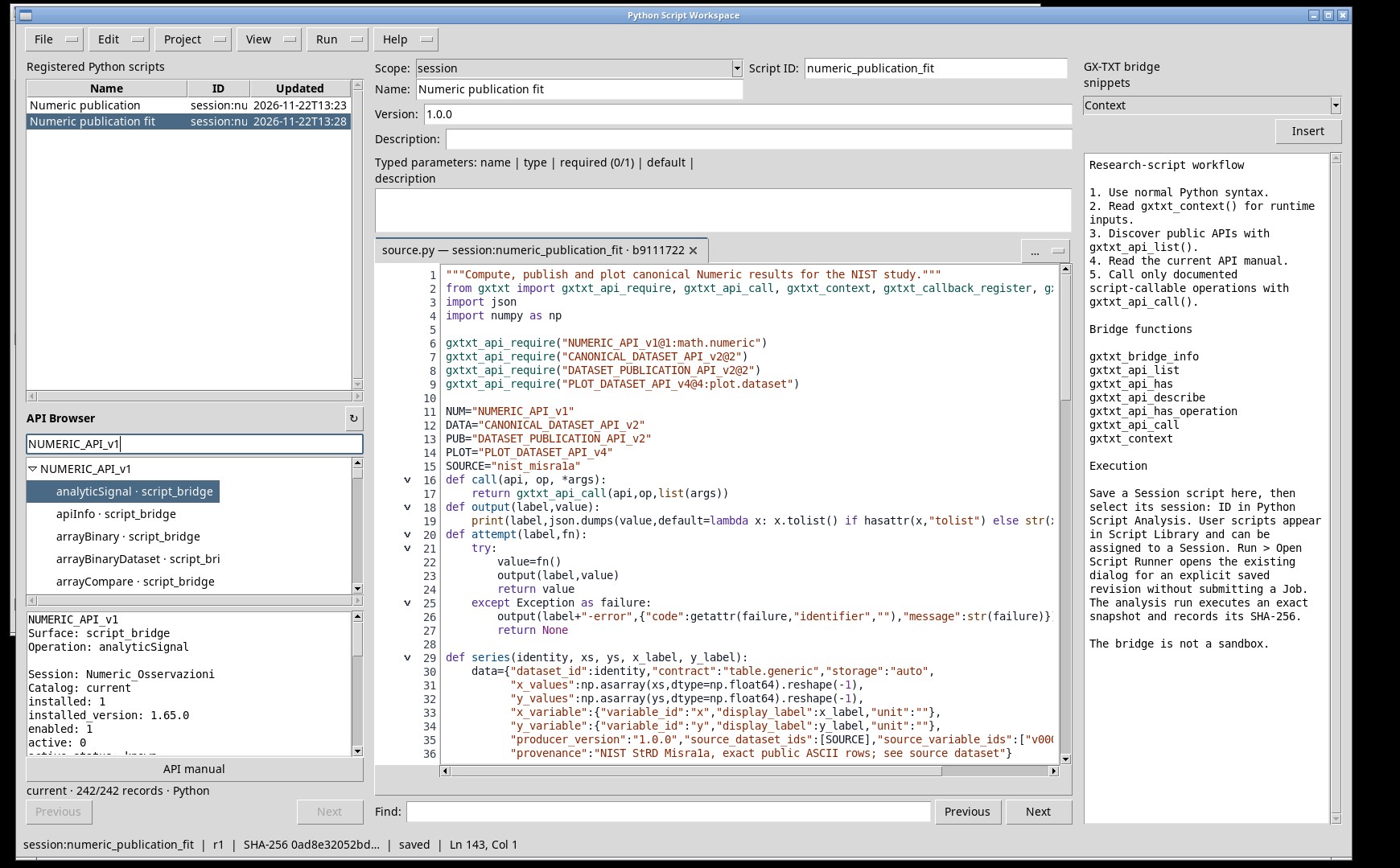
Pane controls and states
- API Browser
- Information displayed by the pane. It updates with the selected Session, record, or state. Observed state: normal.
- ↻
- Control in the indicated pane. The reported state reflects the context shown in the procedure. Observed state: normal.
- query
- Enter a family or operation search term and press Enter. Observed state: normal.
- Previous
- Shows the previous page when available. Observed state: disabled.
- Next
- Shows the next page when available. Observed state: normal.
- current · 250/1832 records · Python
- Information displayed by the pane. It updates with the selected Session, record, or state. Observed state: normal.
- API manual
- Control in the indicated pane. The reported state reflects the context shown in the procedure. Observed state: normal.
- tree
- Select a row to activate the corresponding record and update the details pane. Observed state: active.
- text
- The control is disabled in the illustrated state. Availability depends on the selection, editing mode, and current context. Observed state: disabled.
Validate and submit the Job
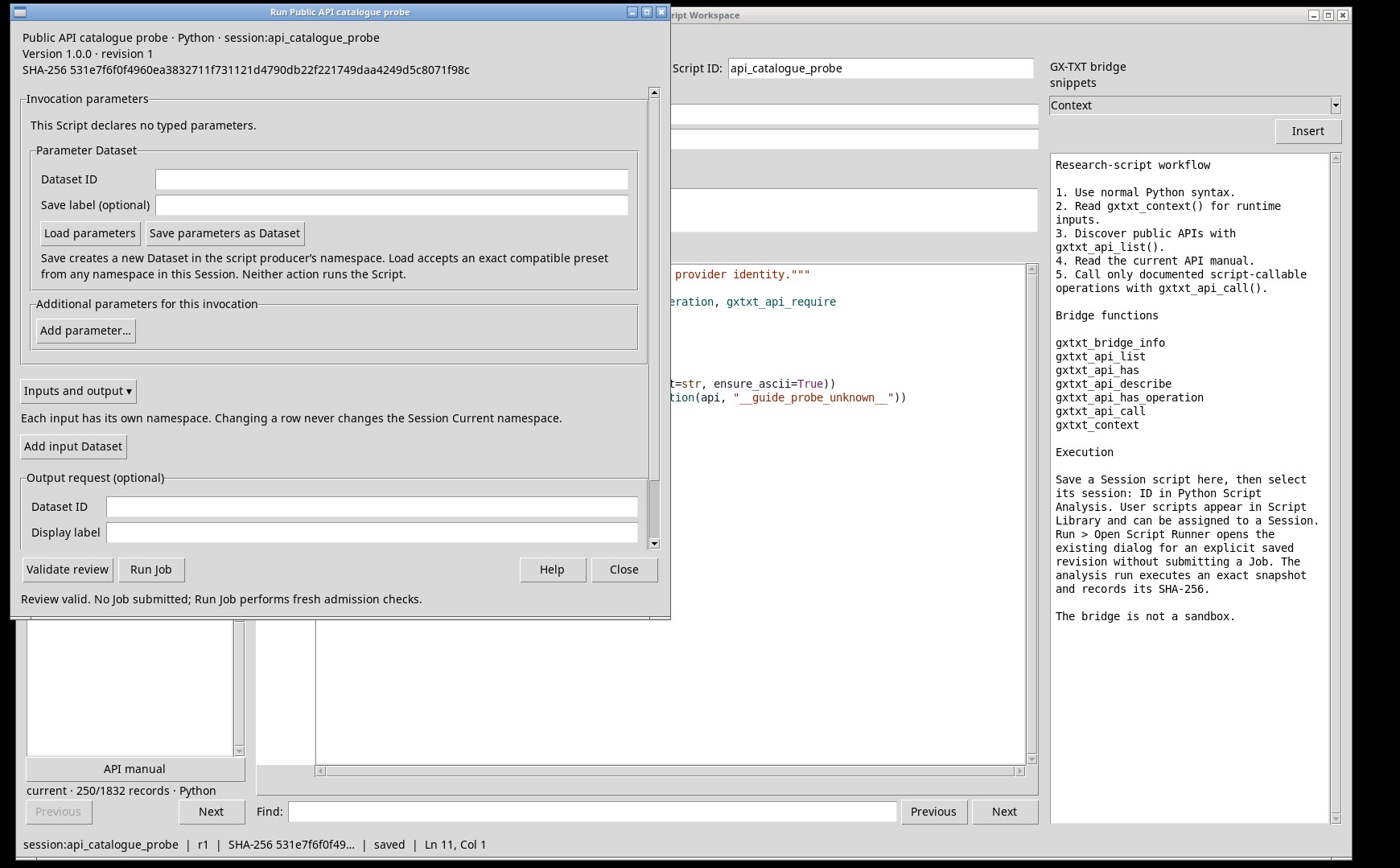
Open Run → Open Script Runner… and check the script and Session. If the script declares parameters, select Datasets or enter values according to the displayed type. Additional required APIs lists the declared requirements. Click Validate review and read the validation receipt. Click Run Job to submit the run. The preliminary check verifies requirements and configuration. The API checks the numerical constraints of each operand when it receives the call.
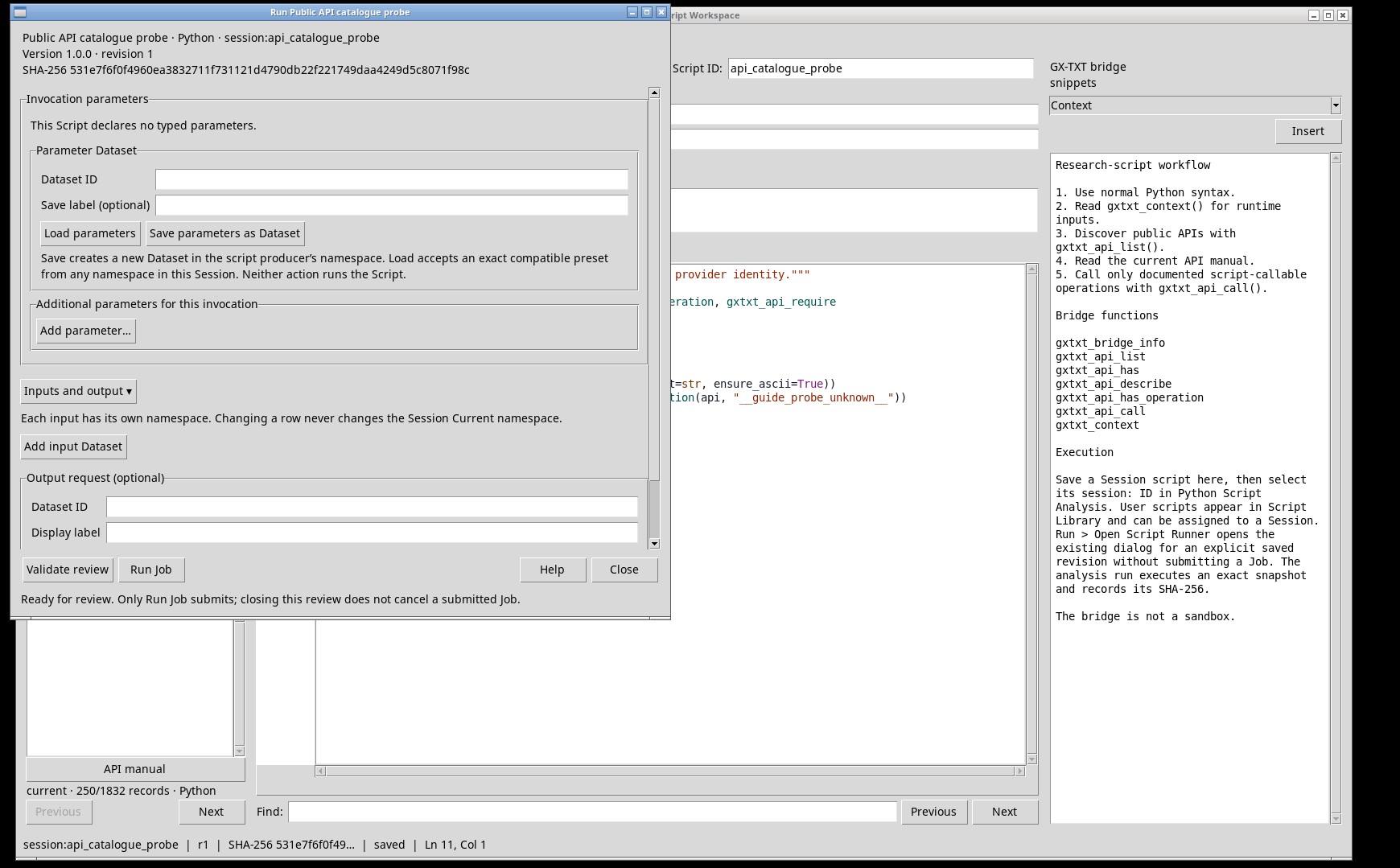
Pane controls and states
- Public
- Information displayed by the pane. It updates with the selected Session, record, or state. Observed state: active.
- This Script declares no typed parameters.
- Information displayed by the pane. It updates with the selected Session, record, or state. Observed state: normal.
- Dataset ID
- Identifies the Dataset or preset for this row. Use the persistent ID shown in the Dataset browser. Observed state: normal.
- id
- Fill in this field for the current pane. Check its value before saving or validating. Observed state: normal.
- Save label (optional)
- Optional display name for the saved parameter Dataset. Observed state: normal.
- name
- Fill in this field for the current pane. Check its value before saving or validating. Observed state: normal.
- Load parameters
- Loads a compatible preset from the Session and repopulates the parameters. Observed state: normal.
- Save parameters as Dataset
- Saves the parameters as a preset in the producer namespace. Observed state: normal.
- Save creates a new Dataset in the script producer’s namespace. Load accepts an exact compatible preset from any namespace in this Session. Neither action runs the Script.
- Information displayed by the pane. It updates with the selected Session, record, or state. Observed state: normal.
- Add parameter…
- Creates a typed parameter for this run only. Editing or removing it leaves the registration intact. Observed state: normal.
- Inputs and output ▾
- Expand to bind Dataset inputs and configure publication permissions. Observed state: normal.
- Each input has its own namespace. Changing a row never changes the Session Current namespace.
- Information displayed by the pane. It updates with the selected Session, record, or state. Observed state: normal.
- Add input Dataset
- Adds a binding row for a Dataset. Choose its namespace, ID, and label. Observed state: normal.
- Display label
- Display name for the bound input in the Runner. The data identity remains in Dataset ID. Observed state: normal.
- label
- Fill in this field for the current pane. Check its value before saving or validating. Observed state: normal.
- Replace owned output
- Allows existing output from the same producer to be replaced if policy permits. Observed state: normal.
- Publication defaults to the script producer’s private namespace. Input namespaces grant no output rights. Blank keeps the script’s output policy; only a real Publication commit creates output.
- Information displayed by the pane. It updates with the selected Session, record, or state. Observed state: normal.
- Validate review
- Checks the registration, parameters, dependencies, and context policy. Read the outcome before selecting Run Job. Observed state: normal.
- Run Job
- Submits the current revision. The Job appears in the manager with its ID and status. Observed state: normal.
- Close
- Closes the active window. Closing the Runner leaves an already submitted Job active. Observed state: normal.
- Help
- Control in the indicated pane. The reported state reflects the context shown in the procedure. Observed state: normal.
- Ready for review. Only Run Job submits; closing this review does not cancel a submitted Job.
- Information displayed by the pane. It updates with the selected Session, record, or state. Observed state: normal.
- Review valid. No Job submitted; Run Job performs fresh admission checks.
- Information displayed by the pane. It updates with the selected Session, record, or state. Observed state: normal.
Read status and logs
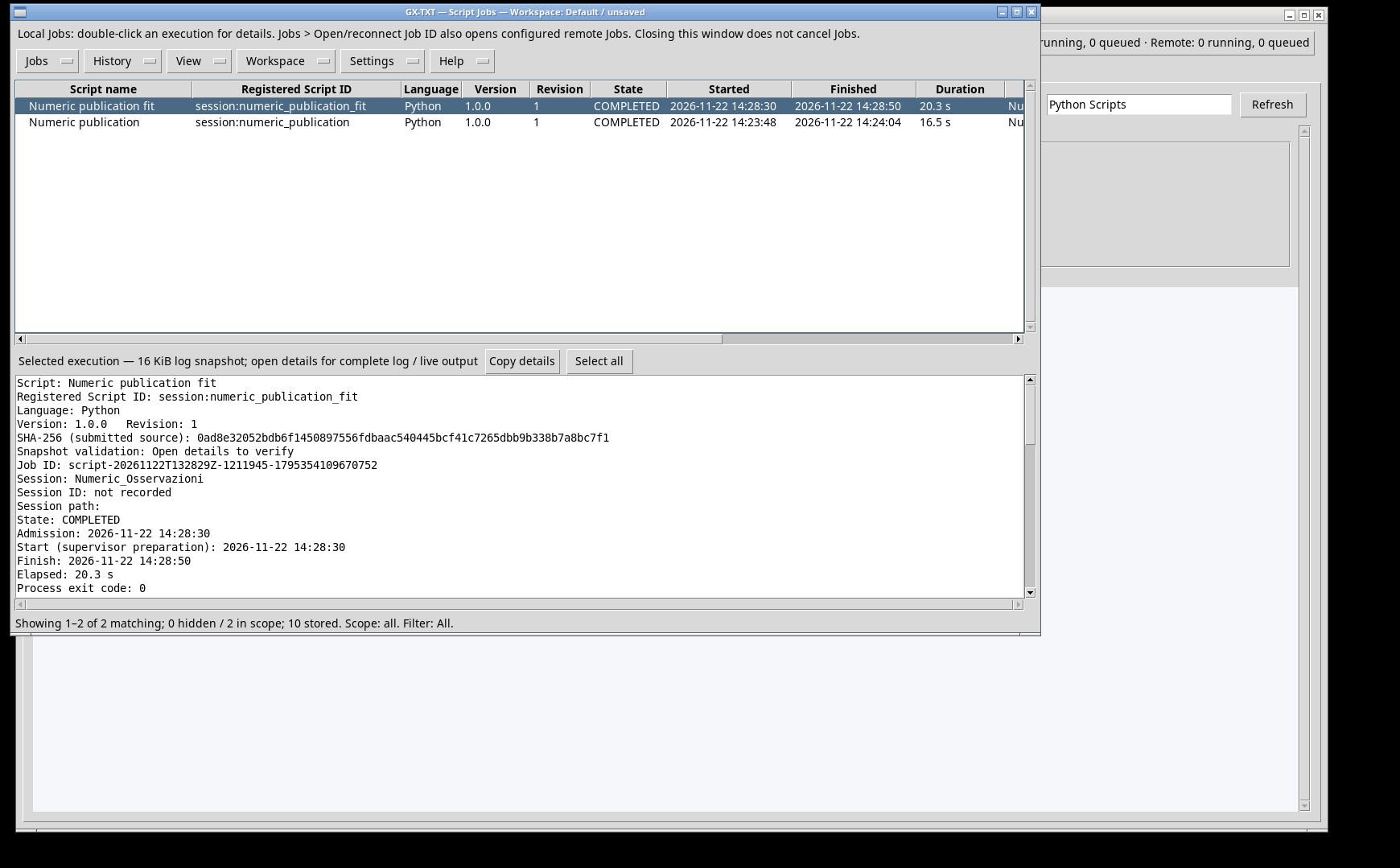
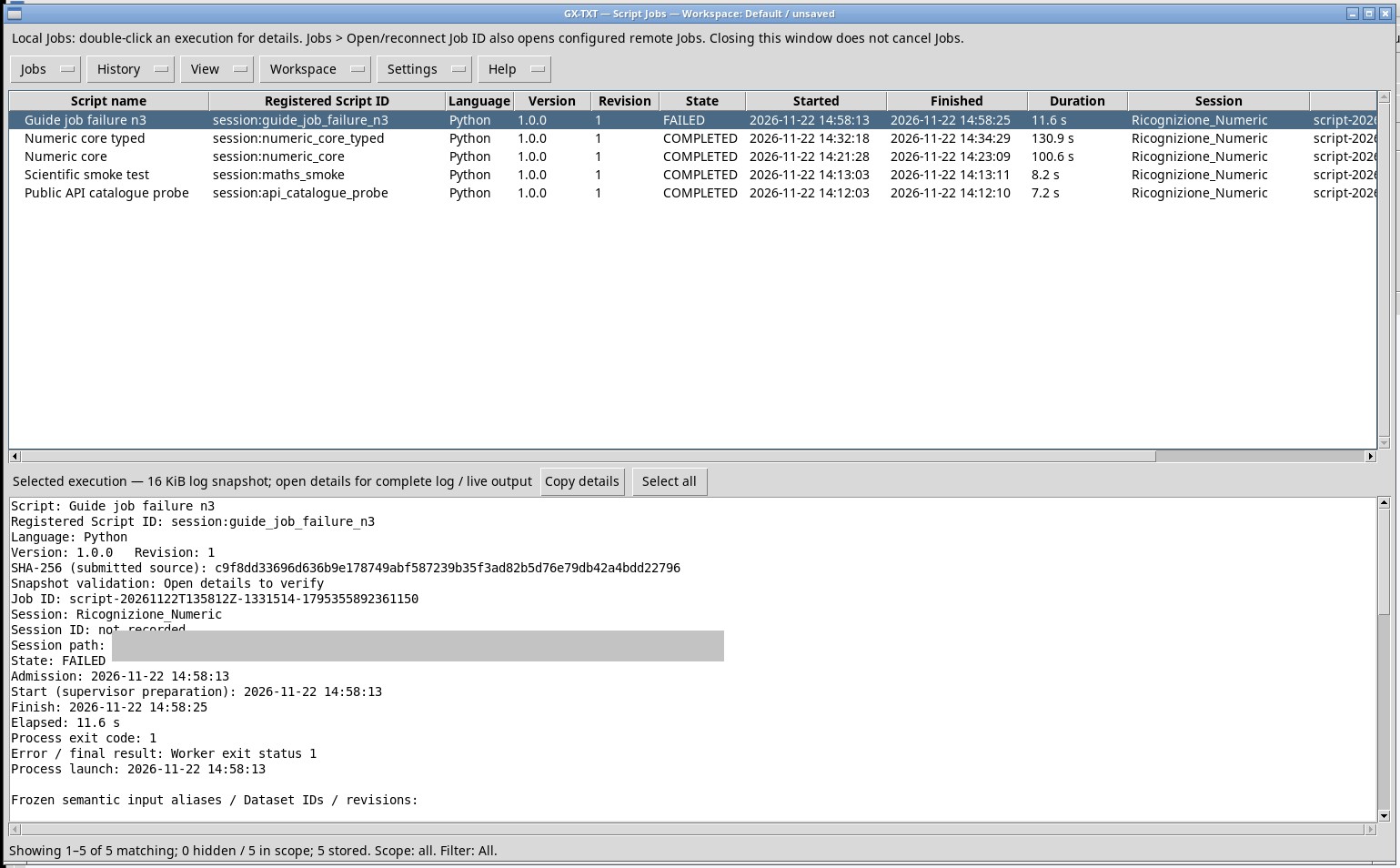
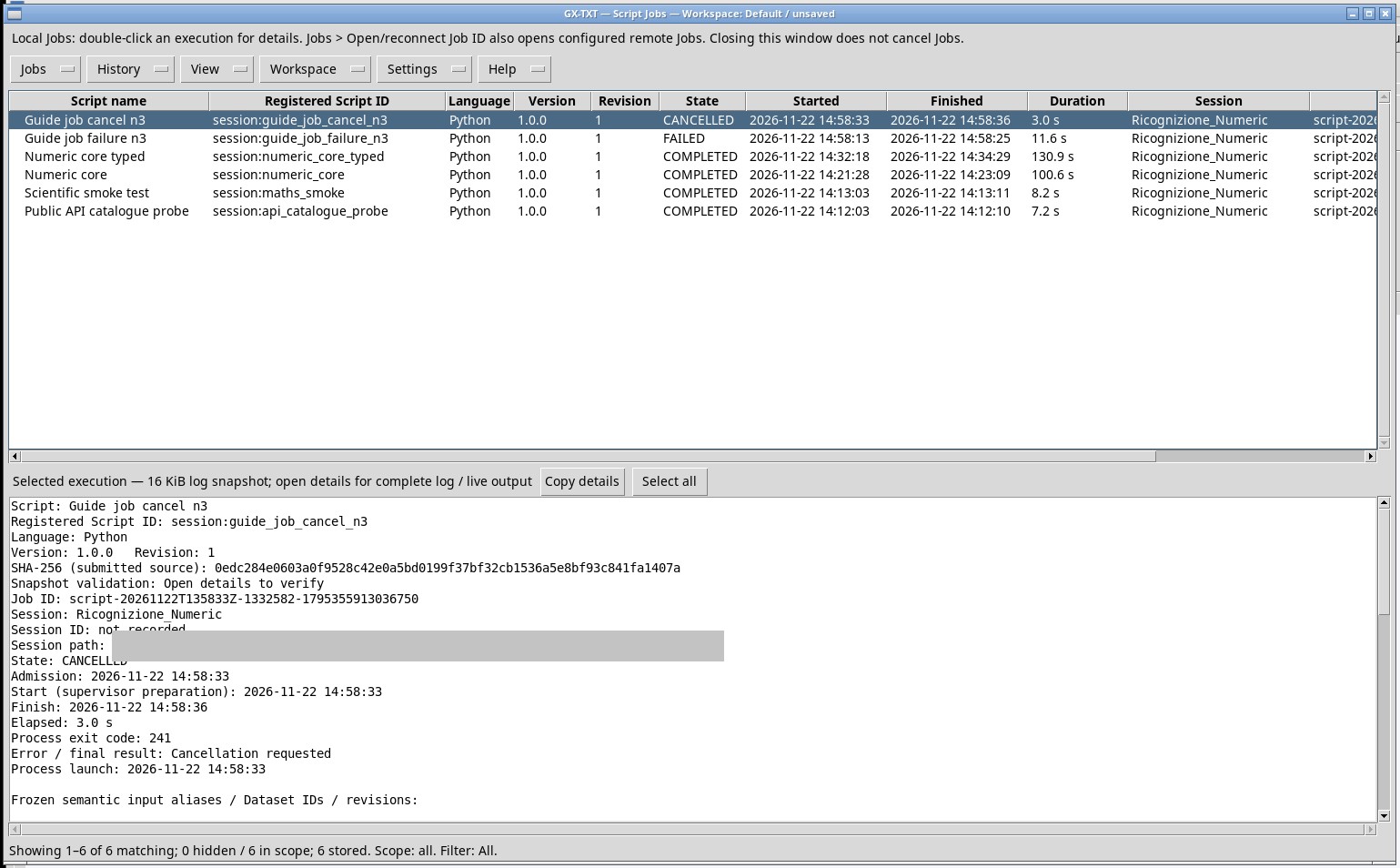
Open Run → Script Jobs Manager… or the Session’s Jobs view. Select the run you just submitted, verify its ID and name, and open its summary. The stdout log shows test output and any receipts. The stderr log reports exceptions that escape the script. A result handled by the script may appear in stdout even if the Job finishes successfully. To cancel an active run, select its exact ID and choose Jobs → Cancel running jobs. Follow the same row until it reaches a terminal state. A Job may already have published data by the time you request cancellation. Check the commit receipts and the resulting Dataset.
Pane controls and states
- Local Jobs: double-click an execution for details. Jobs > Open/reconnect Job ID also opens configured remote Jobs. Closing this window does not cancel Jobs.
- Information displayed by the pane. It updates with the selected Session, record, or state. Observed state: normal.
- Jobs
- Control in the indicated pane. The reported state reflects the context shown in the procedure. Observed state: normal.
- History
- Control in the indicated pane. The reported state reflects the context shown in the procedure. Observed state: normal.
- View
- Control in the indicated pane. The reported state reflects the context shown in the procedure. Observed state: normal.
- Workspace
- Control in the indicated pane. The reported state reflects the context shown in the procedure. Observed state: normal.
- Settings
- Control in the indicated pane. The reported state reflects the context shown in the procedure. Observed state: normal.
- Help
- Control in the indicated pane. The reported state reflects the context shown in the procedure. Observed state: normal.
- Selected execution — 16 KiB log snapshot; open details for complete log / live output
- Information displayed by the pane. It updates with the selected Session, record, or state. Observed state: normal.
- Copy details
- Copies the displayed details so you can compare IDs and diagnostics. Observed state: normal.
- Select all
- Selects all text in the active pane. Observed state: normal.
- jobs
- Select a row to activate the corresponding record and update the details pane. Observed state: active.
- details
- The control is disabled in the illustrated state. Availability depends on the selection, editing mode, and current context. Observed state: disabled.
- Information displayed by the pane. It updates with the selected Session, record, or state. Observed state: normal.
- Information displayed by the pane. It updates with the selected Session, record, or state. Observed state: normal.
Datasets and plots in the Session
Import the CSV from Acquisition using Generic CSV. Add the file, set the ID required by the example, configure Variables, and assign roles and units before choosing Import current. The Job reads columns by Variable ID and publishes new Datasets with provenance. An XY variant stores links to the Datasets and Variable IDs. After reopening the Session, go to Plots and open the desired variant. In the Dataset browser, expand the producer namespace, click the small activation icon on the row, and choose Open active Dataset. In the viewer, open Canonical table or Schema and provenance. Verify numerical results against the Dataset and the receipt, since the plot may decimate points during rendering.
Pane controls and states
- Refresh
- Control in the indicated pane. The reported state reflects the context shown in the procedure. Observed state: normal.
- Selection
- Control in the indicated pane. The reported state reflects the context shown in the procedure. Observed state: normal.
- Render
- Control in the indicated pane. The reported state reflects the context shown in the procedure. Observed state: normal.
- Presentation
- Control in the indicated pane. The reported state reflects the context shown in the procedure. Observed state: normal.
- Data / Variants
- Control in the indicated pane. The reported state reflects the context shown in the procedure. Observed state: normal.
- Graph
- Control in the indicated pane. The reported state reflects the context shown in the procedure. Observed state: normal.
- Import / Export
- Control in the indicated pane. The reported state reflects the context shown in the procedure. Observed state: normal.
- tree
- Select a row to activate the corresponding record and update the details pane. Observed state: active.
- No graph selected.
- Information displayed by the pane. It updates with the selected Session, record, or state. Observed state: normal.
- views
- Control in the indicated pane. The reported state reflects the context shown in the procedure. Observed state: active.
- Use
- Selects the columns to include in acquisition and the Dataset schema. Observed state: normal.
- CSV col
- Index of the imported column. Check it against the header row. Observed state: normal.
- Original header
- Column name in the source file. Use it to verify the mapping before import. Observed state: normal.
- Canonical variable
- Identifier assigned to the canonical variable. This is the key the Job uses with read_range. Observed state: normal.
- Unit
- Variable unit metadata. Use the scale of the values already in the CSV. Observed state: normal.
- Semantic role
- Assigns the variable’s scientific role, such as x for the horizontal coordinate and y for the measurement. Observed state: normal.
- Instrument
- Information displayed by the pane. It updates with the selected Session, record, or state. Observed state: normal.
- Instrument channel
- Information displayed by the pane. It updates with the selected Session, record, or state. Observed state: normal.
- refresh
- Control in the indicated pane. The reported state reflects the context shown in the procedure. Observed state: normal.
- save
- Control in the indicated pane. The reported state reflects the context shown in the procedure. Observed state: normal.
- open
- Control in the indicated pane. The reported state reflects the context shown in the procedure. Observed state: normal.
- edit
- Control in the indicated pane. The reported state reflects the context shown in the procedure. Observed state: normal.
- Control in the indicated pane. The reported state reflects the context shown in the procedure. Observed state: normal.
- actions
- Control in the indicated pane. The reported state reflects the context shown in the procedure. Observed state: normal.
- manage
- Control in the indicated pane. The reported state reflects the context shown in the procedure. Observed state: normal.
- Current:
- Information displayed by the pane. It updates with the selected Session, record, or state. Observed state: active.
Typed parameters, presets, and bindings
Declare a field in the source with gxtxt_parameter_declare('frequency_hz','double',default=8.,min=1.,max=40.) and save to update the registration schema. The Runner displays a numeric field for double and a menu for choice, with the default value and a Reset command. Add parameter… adds a field for the current run only. Give the preset a Dataset ID and an optional Save label, then select Save parameters as Dataset. Change the values and use Load parameters with the same ID to restore them. Check gxtxt_context()['parameters'] once the Job starts. Use Inputs and output to assign a namespace to each input and, when necessary, allow replacement of outputs owned by the same producer.