

Multi-file projects
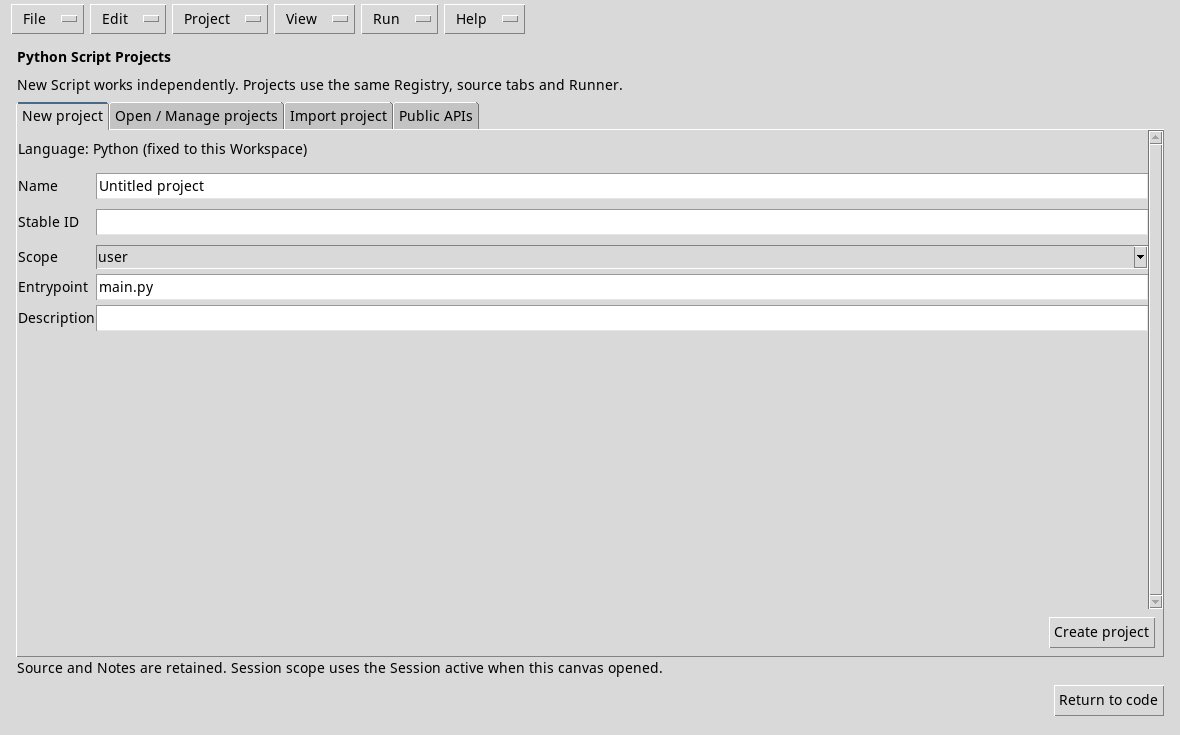
Set the scope and language in the metadata of the draft or current record, then choose File → New Project. The Language Workspace opens. In the New project card, it indicates name, Stable ID, Scope and Entrypoint file, for example main.py, then press Create project. In the Workspace use Project → New file to add a relative path, such as helper.py; write the content in the corresponding tab and choose File → Save All. The Project menu also offers Open project file, Rename/move file, Remove file and Set entrypoint. Notes are associated with individual files. Go back to the Library and update the list.
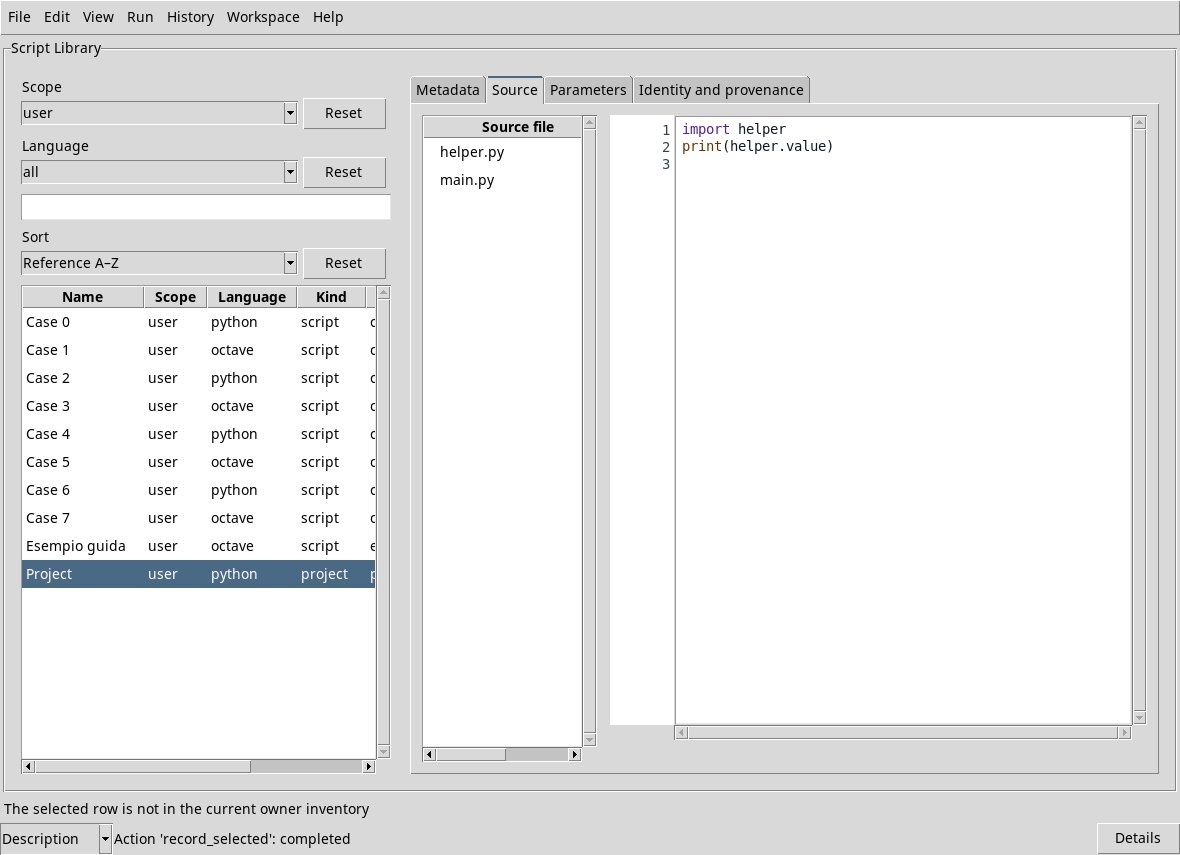
When selecting a project in the Library, the Source tab presents the list of files: select the file to be examined and edited. The input file and other sources belong to the same registered project. To create or manage files, use the Language Workspace, which can also be opened by View → Open language Workspace.
File operations
Select a file in the Workspace project pane. Open project file opens it in a tab. New file asks for a relative path. Rename/move file asks for the new path. Set entrypoint makes the selected file the entry point. Use File → Save All to save changes. Remove file asks for confirmation and saves the other modified files. Check the file name before confirming. The current entry point is marked “(main)” in the list.