

Digitizer sources
Use the Digitizer preparation when the Session contains a publication of the Curve Digitalizer with canonical ties of curve and calibration. The operations of this chapter choose already published lines. To analyze them, you must then press Analyze.
Add Digitizer source…
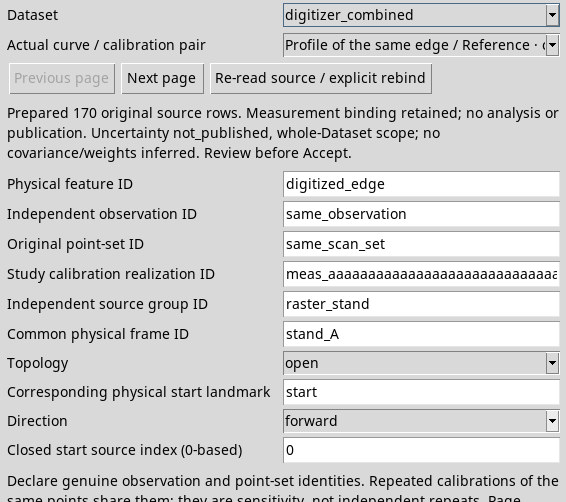
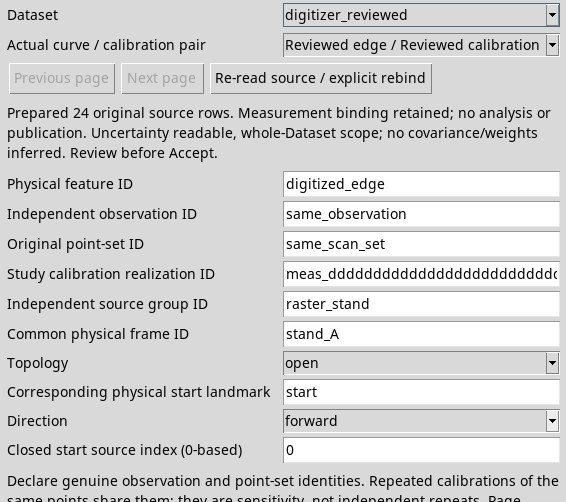
Choose Sources → Add Digitizer source… to open Published Digitizer source — prepare and review. This command requires the optional producer and its APIs to be active. If you see No published Curve Digitizer Dataset is available in this Session, first publish a Dataset from Curve Digitalizer or choose Add source… for a generic canonical table. A source image alone does not supply a Dataset of digitized points.
- Dataset
- Choose the Dataset ID published in the Session. Changing the source requires a new verification of the physical identities and selection of the pair.
- Actual curve / calibration pair
- Choose a pair observed in the rows. Labels help you recognize it. Also check curve ID and measurement ID, essential if names match. The selection of a new pair can reset the observation statements.
Browse curve–calibration pairs
- Previous page
- It reaches the previous page, when present. It is disabled on the first.
- Next page
- Read up to 256 later canonical rows. It is disabled when there are no other lines. The Canonical rows … summary indicates the offset, the rows read and the total. Counts next to each pair indicate how many rows of the pair appear on the page.
- Current choice outside this page
- The selected pair remains in the menu when you do not see on the current page. The page count can be 0. Prepare selected source decides whether the pair actually settles in the canonical rows.
- Re-read source / explicit rebind
- Rereads the source and returns to the first page with the new identity. Use this when the summary refuses to read a changed revision. Verify and re-enter any cleared declarations, then repeat Prepare and Accept. Explicitly revalidate sources that are already associated.
Set the identities
- Physical feature ID
- Same value for the same physical feature throughout the study. Starts blank on a new source.
- Independent observation ID
- Identity of the observation that produced the curve. For two calibrations of the same acquisition, it reuses the same value.
- Original point-set ID
- Identity of the original points. More calibrations of the same points share this field.
- Study calibration realization ID
- The measurement ID of the chosen pair is proposed. It allows to declare the name of the realization in the study. Change this text does not select rows of another calibration.
- Independent source group ID
- Group of origin of the measure, for example the same test bench. Use distinct groups if they are really independent.
- Common physical frame ID
- The current frame of the study is proposed. Confirms the same physical origin and the same orientation before adopting the source.
- Topology, Corresponding physical start landmark, Direction and Closed start source index (0-based)
- For xy_path, declare whether the path is open or closed, along with its starting landmark, direction and phase if applicable. Follow the rules for generic sources. Prepare and Accept save the declarations in the recipe. Geometry is validated when you run Analyze.
Prepare and confirm
- Prepare selected source
- Fix the pair in the original rows. Read how many lines have been found and the state of uncertainty. For example, the summary can show 170 original rows even if the pair appeared with 86 rows on the page.
- Add prepared observation
- It is enabled after a successful preparation. Read the summary and confirm. The source appears on the study list. If you change declarations or the pair after Prepare, repeat Prepare before accepting.
- Cancel
- Closes the form and discards the candidate. Esc also closes the dialogue. Sources already confirmed remain in the study.
Read the published uncertainty status
The state appears during the choice of the pair and in the summary after Prepare. It refers to the entire Dataset published. The validity of the lines and that of uncertainty have distinct controls. In the tests below, the Add prepared observation button enabled when the lines and declarations were valid, even with missing or rejected uncertainty.
not_published- The Dataset does not declare a scheme of uncertainty and does not preserve recognised fields of a publication of uncertainty. If you need to check the uncertainty, go back to the configuration of the Curve Digitalizer and publishes through a declared model.
incomplete_publication- One or more fields of uncertainty remain, for example the count of points, and the version of the schema is missing. Search for a full or regenerated publication from the producer.
unsupported_schema- The declared version is other than 2, for example 1. Open the Dataset with compatible tools or republish from the original setup with a producer that writes schema 2.
refused- The Dataset declares version 2, but the report fails verification. For example, the report may be missing or may disagree with the point count bound by CORE. Check the original Dataset and the producer’s publication result before treating the uncertainty as valid.
readable- The producer and CORE verified that the schema 2 report is linked to the canonical data and the Dataset point count. In the 24-row fixture, the report uses declared standard uncertainties of 0.02 mm in X and 0.03 mm in Y. The viewer retains that qualification for the entire Dataset. The summary displays no covariance/weights inferred. The report supplies neither a covariance mapping nor weights for the selected pair.
With readable, the technical descriptor can also record the original raster status without showing the details in the dialog. verified means the hash was verified, changed means it differs, missing means the raster is absent from the registry, and unverified means an entry exists but the actual file or hash could not be verified. To reconstruct the measurement, check the actual raster in the producer. The status readable alone does not establish that the current raster is the one used for digitization.
Editing, missing sources and rebinding
Select a Digitizer source in the main window and use Edit selected source…. The module opens on the stored pair. Resolve the selection with Prepare selected source and confirm with Accept prepared edit / rebind. The viewer controls the freshness even in case of confirmation without modification.
If a saved page or source is changed, use Re-read source / explicit rebind, confirms the actual identities and repeats preparation and acceptance. A missing source, a disabled role or the uncoherent published source require before recovering or reprinting valid data. The viewer retains the current recipe during a refusal. If multiple associations of the same Dataset are obsolete, check them all and, if they prevent a new acceptance, remove and explicitly add obsolete rows.
During the consultation of History returns to the latest version before changing a Digitizer connection. The viewer may refuse to replace additional filters or extensions that cannot be resolved by the GUI. Cancel and rebuild the recipe from the lines and identities you have verified.