

Workspace
Workspace manages the recipe of the study and the resources associated with it. Name of Workspace and Unique analysis ID perform two distinct functions: the first identifies the context in Session Workspaces, the second identifies the study and published results.
Save and recover the study recipe
Press Save in the bar, in the Workspace menu or with Ctrl + S. The first time registers the context with a proposed name, normally Replicate study made unique. The following times updates the current context. Check Workspace saved; scientific sources remain unchanged and check the voice in Session Workspaces.
In the proven version, Save retains the scientific request that the viewer applied. ID, method, design, units and frames you just typed can be lost at closing if they have not passed by Analyze. Write down this data until the request has been validated. After completion of a Job, Save can be refused with Workspace schema has no typed field ‘requested_limits’. After Publish Graph, a module_id field error may also appear.
If you need the result as data, publish it first. Immediately after the result is adopted, if History shows Adopt completed scientific study as the latest step, use Edit → Undo to return to Configure scientific study, then press Save. The reopened Workspace contains the recipe. Run Analyze to regenerate the plot. Any published Datasets and plots remain in the Session. If you made more changes after result adoption, identify the appropriate checkpoint in Description and History.
Session Workspaces
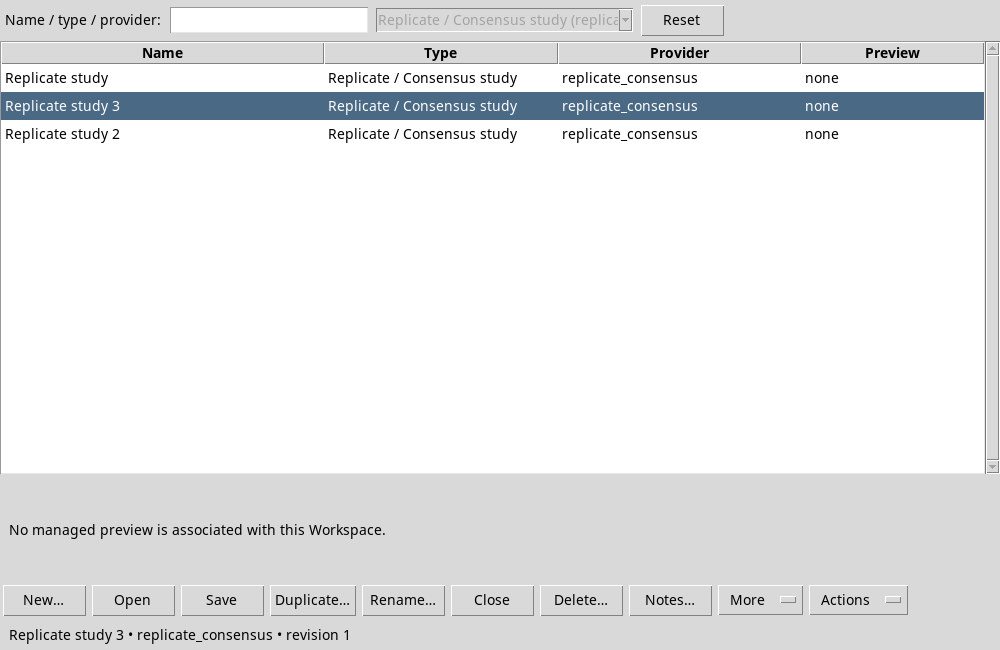
In Name / type / provider: he searches for text. Reset restores the filter, including the scope of the provider. Opening from the viewer, the provider is set on its type. The Name table identifies the item, Type and Provider indicate the owner, Preview indicates whether a managed preview is available. Scroll and select a row to read the details below the table.
Open, double-click or Enter open the compatible line. New… creates a draft with an active environment available. Save saves the current viewer, Duplicate… duplicates the selected line, Rename… renames it. Close closes the active viewer when the command is available. To close only the operator uses the closing of the window. Delete…, Notes…, Preview, Import…, Export…, Refresh and Actions operate as in the menu of the same name, on the operator selection. In a narrow window, open More to reach the shifted commands. When Preview indicates No managed preview is associated with this Workspace, you can still reopen a compatible Workspace and run Analyze to rebuild the view.
Workspace changes and recovery
Workspace changes asks what to do with unsaved changes when closing or switching to another context. Yes saves and continues if the save succeeds. No discards pending changes and continues. Cancel keeps the draft open. If Save fails, keep the draft open and use the workaround above.
If Recover unsaved History appears, the viewer has found a recoverable history draft at the Session. Yes recovers the most recent draft. No stores that draft and opens a new context. Cancel cancels the opening and preserves the draft. At the next opening from the Viewers tab, you can choose Yes and check the restored sources in the list.
Study notes
Use Notes… → Edit to annotate origin, independence and matching choices. In GX-Markup / Markdown source write the note and look at Preview to the right. Undo and Redo cancel or repeat changes to the text. Wrap alternates the line wrapping. Use H1, H2, H3 to structure titles, Italic and Bold to format selection, Inline code for short expression or Code block for multiple rows. Color… opens the color selector to be applied to the text. Refresh preview regenerates the preview, Save records the note and Close closes the editor.