

Workspace and History
Save and reopen an analysis recipe
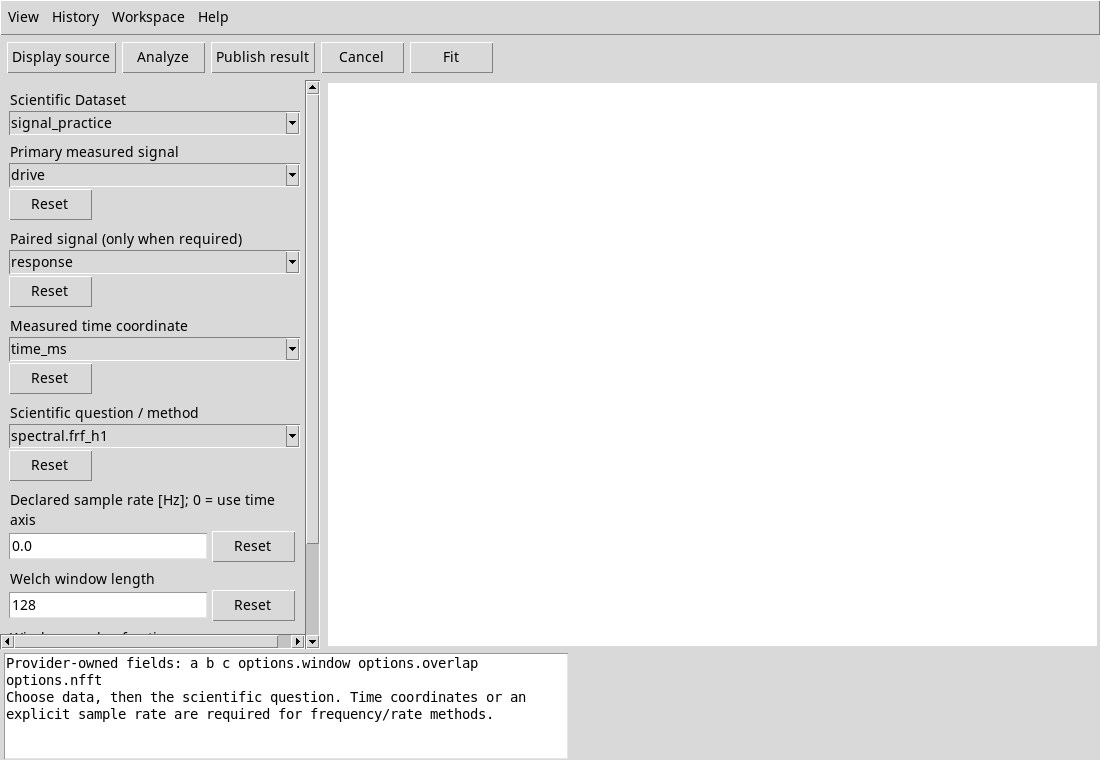
- Select Dataset, channels, method, sampling and options. If needed, tie the source to the chart with Display source.
- Before Analyze choose Workspace → Save. The proposed initial name is Signal Analysis Viewer. Check the item in Session Workspaces…. You can also choose Save As… to assign another name and store a copy.
- Close and go back with Workspace → Open workspace…. Select row and press Open. Check that the Dataset, variables, source binding and options are back. Run Analyze again to obtain the scientific result.
In the tried version, after Analyze the Save can show Native Viewer Workspace codec ‘job_id’ is unavailable. It also happens after a Job canceled. The normal rescue of the recipe before Analyze is possible. To store the product, please publish the table if the method produces it. Job and published resources have a life cycle independent of the recipe. At the change of Session the previous viewer can close after confirming the changes. Open Signal Analysis in the new Session and select its Dataset.
Use Session Workspaces
The Name / type / provider: field filters the rows. The provider’s selector can narrow the search. Reset restores filters. Name identifies Workspace, Type status type, Provider owner and Preview availability of a managed preview. Select a row to see the details below.
Open acts on the selected row and can also be recalled by pressing Enter or double-clicking. New…, Save and Close use the associated viewer when available. Duplicate…, Rename…, Delete… and Notes… act on selection. More exposes commands moved out of the toolbar when space is limited, such as Preview, Import, Export and Refresh. The ability depends on the line and adapter available.
Description, History, and Details
Below, the Description selector shows the last state, while History shows the history of recorded operations. Details opens an extended reading. A starting item Baseline precedes operations. Select a step to consult it and return to the last before working. Changes to the plot view are also recorded.
- Undo and Redo
- In History or with Ctrl+Z and Ctrl+Y they navigate the operations recorded. Look at the cursor and check the fields after navigation. System operations and external outputs do not cancel with these commands.
- Show / hide Description / History strip
- Hide or show the bottom bar. The menu remains available to restore it.
- History details…
- Opens details of operations and cursor. The Details button performs the same function when History is selected.
- Save History As…
- Assign a name and press Apply to store the sequence in the Workspace. Close leaves the form.
- Named History…
- Select a history. The Name, Count and Cursor columns indicate name, operations and location. Inspect reads the content, Restore restores the sequence, Rename changes the name, Delete removes it after confirmation. Before Restore controls the current draft. If Restore named History appears, choose Yes to save it first, No to replace it or Cancel to continue editing.
History timeline context menu
Right-click the sequence while it is in History mode. Previous history step and Next history step consult recorded operations. They disable themselves to the corresponding extreme. Return to latest returns to the latest step. Restart here / discard later local history… allows you to resume from a previous step. OK discards the local part next to the step, Cancel keeps it. The scientific outputs already published remain.
For groups of operations, Expand / collapse individual operations toggles between grouped and detailed steps. When a Workspace is saved and its current step has recorded operations, Clear History… clears the history while retaining the current context as the new baseline. Yes asks where to save a backup archive, No clears the steps without backing up, and Cancel preserves them. The menu also provides access to named histories and Hide Description / History strip.
If Recover unsaved History appears at the opening, a recoverable history draft is available. Yes resumes it, No stores it and opens a new context, Cancel cancels the opening while keeping the draft.