Use Datasets and IR Candidates
Session spectrum, candidate ranking, saved state and Workspaces.
Add a canonical Session spectrum
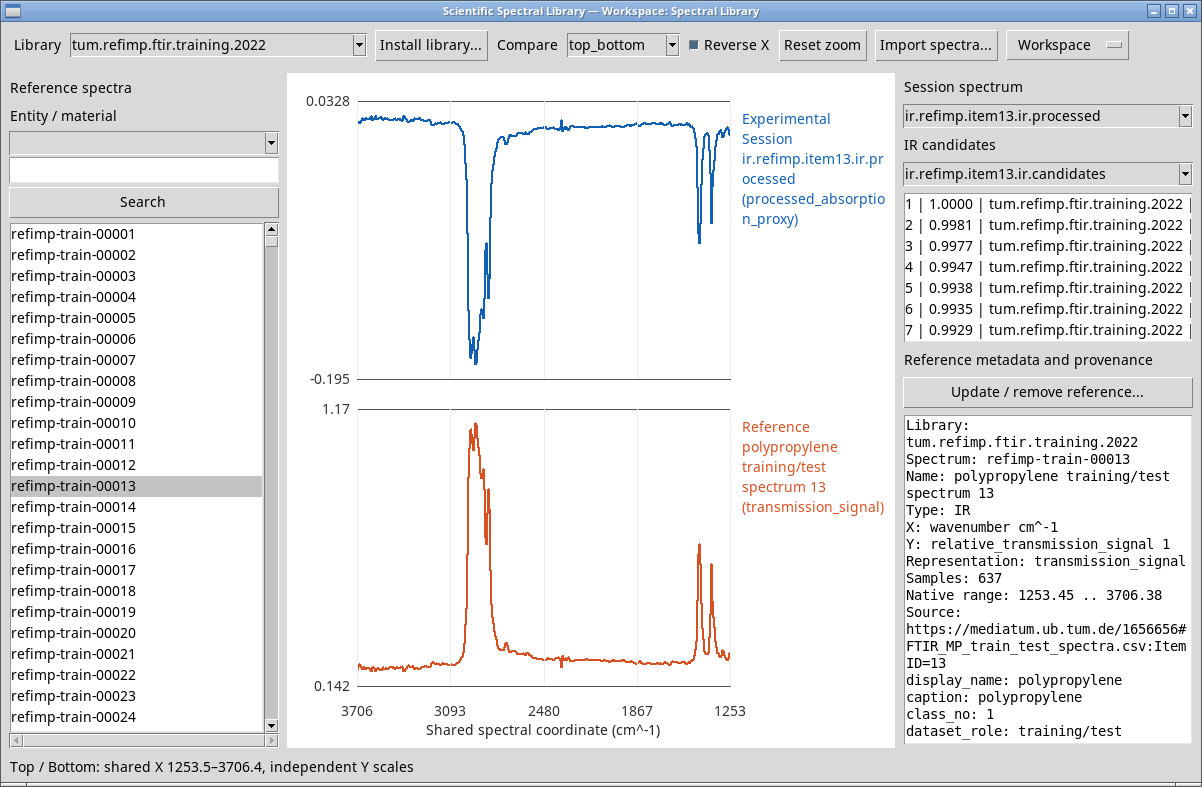
Open a Session with a compatible spectrum.scientific Dataset and select it in Session spectrum. The viewer looks for the first independent variable and the first measured or derived response among canonical attributes. The legend distinguishes Session from the library reference. Select the blank entry to remove the Session curve.
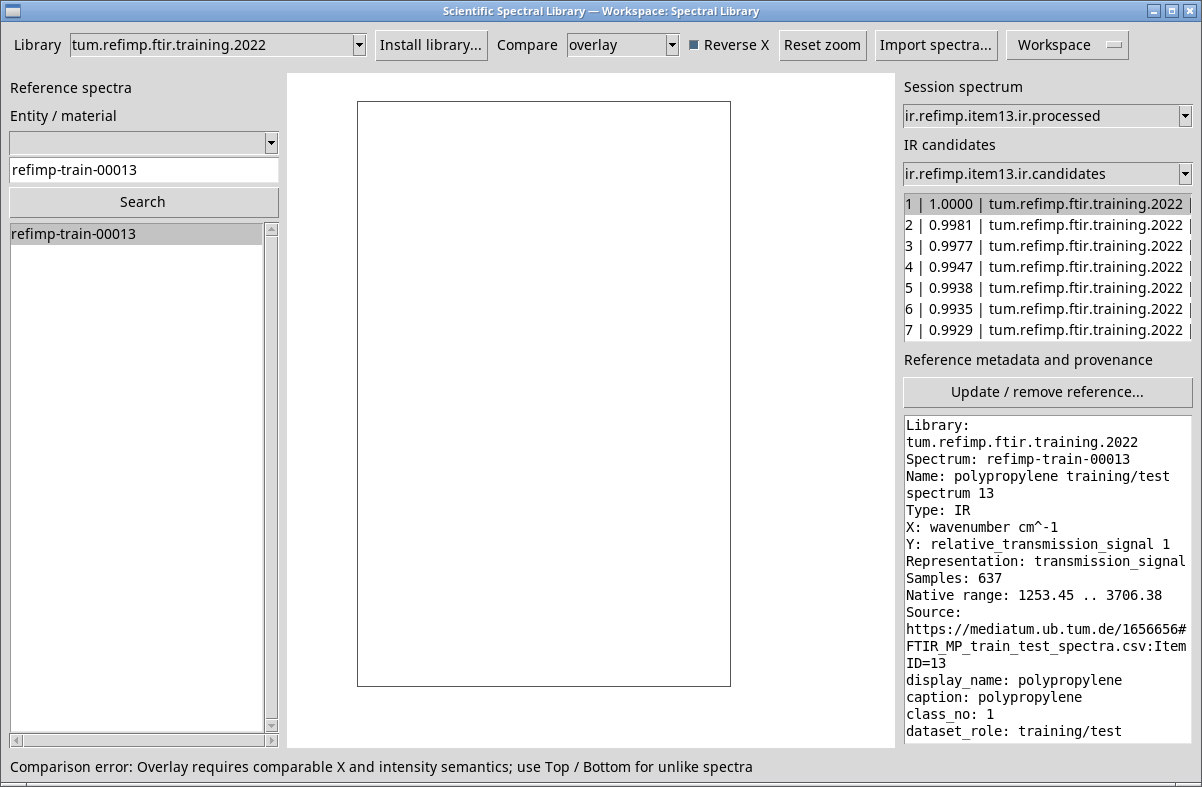
In the RefIMP example Session, ir.refimp.item13 contains 637 pairs of wavenumber in cm⁻¹ and relative transmission signal. ir.refimp.item13.ir.processed uses a different representation, processed_absorption_proxy. To compare it with a transmission curve, use top_bottom with compatible X axes. Overlay and difference reject this pair.
Open the reference associated with a candidate
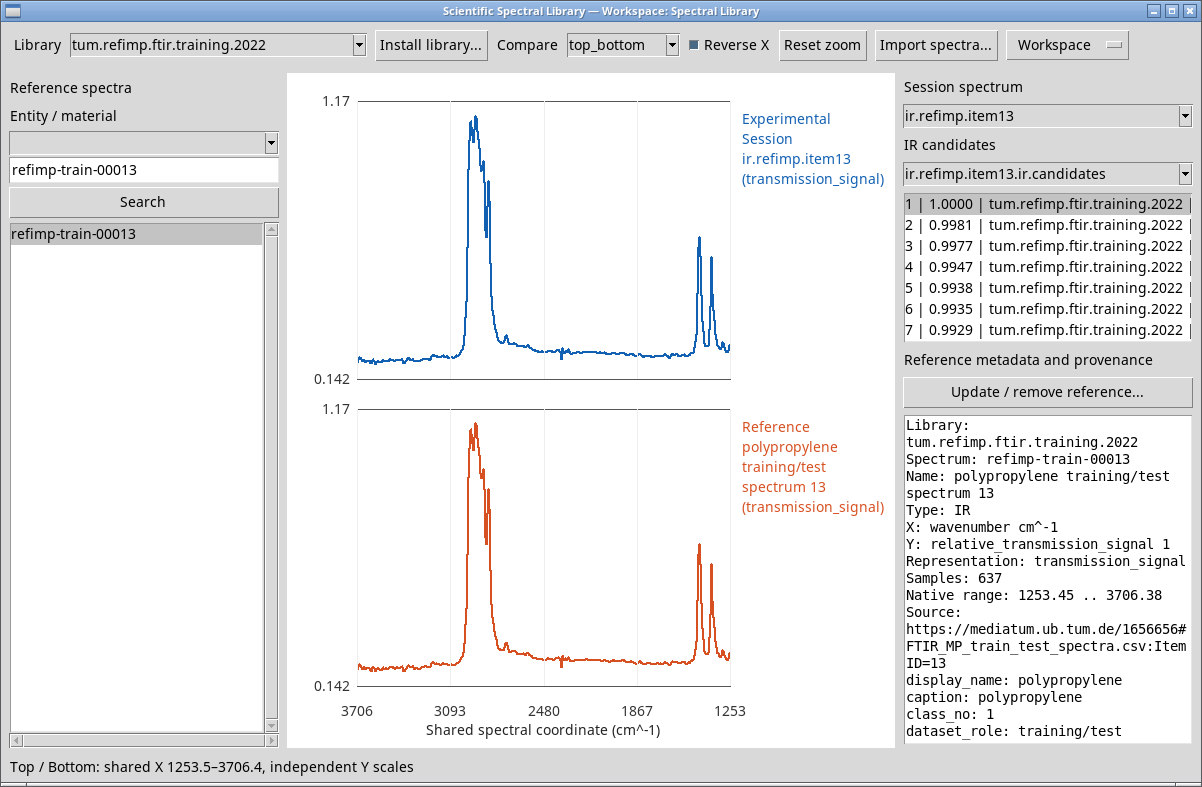
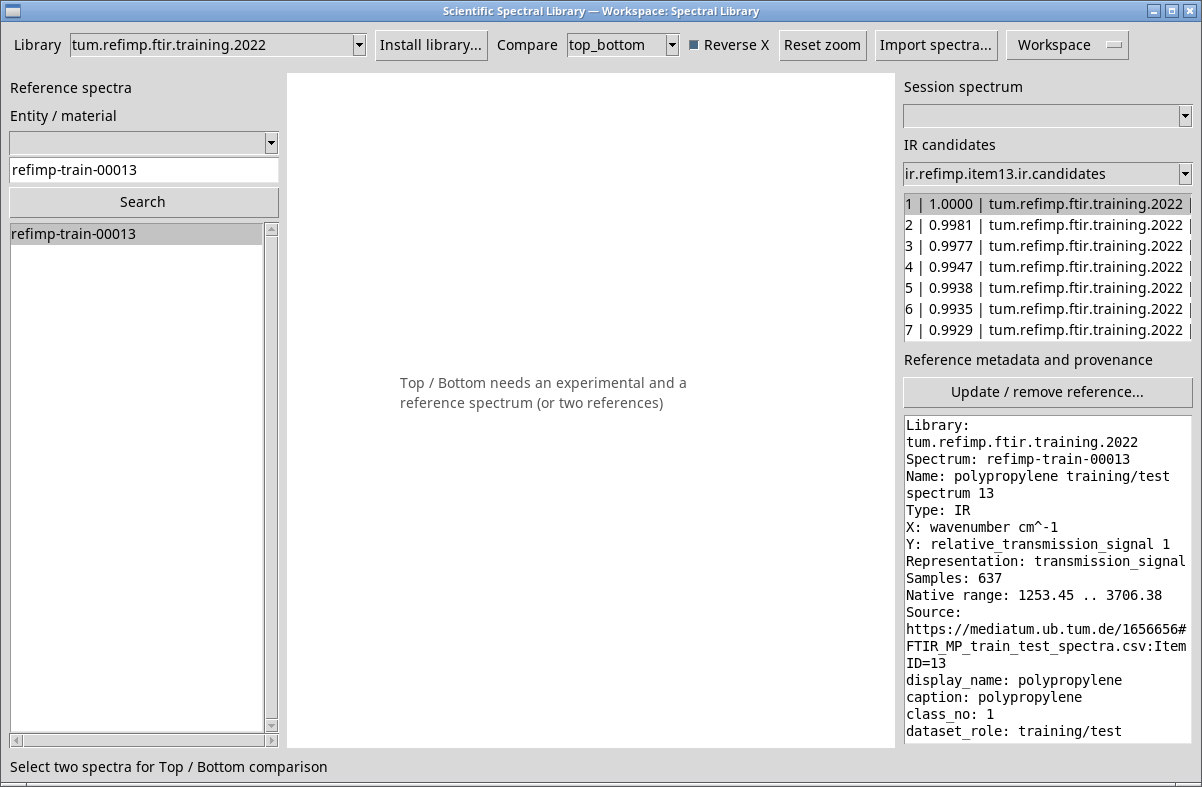
In IR candidates, choose the ranking Dataset produced by IR Analysis, such as ir.refimp.item13.ir.candidates. Each row shows the rank, score, library ID and spectrum ID. The score indicates the order produced by the comparison procedure. Click a row to select the exact reference in its library. Check that Library, the selected row and the provenance match.
The RefIMP example Session uses the tum.refimp.ftir.training.2022 library with 9,537 spectra. If a candidate’s library is missing, the viewer may show the new ID in the field while keeping the previous results in the list. Install the matching package with Install library… and repeat the selection. The compact 15-reference library has a different ID. Select the blank entry in IR candidates to clear the ranking.
RefIMP Dataset and corpus by Jana Weisser and Teresa Pohl (2022), licensed CC BY-SA 4.0. In the example, ItemID 13 comes from that same corpus. A high similarity score reflects retrieval of the same reference under that procedure and corpus. Original data on mediaTUM · CC BY-SA 4.0.
Save and resume the context
With a Session open, Workspace → Save retains the library, entity, selected references, comparison mode, X orientation, range, Session spectrum and candidate Dataset. Libraries remain in the persistent configuration and Datasets stay in their Session. Close the viewer and reopen the same Session to resume. If a library ID is missing or unavailable, reinstall the library required by the Workspace.
- New workspace…
- Creates a viewing context in the Session. In this release, the viewer may use a default name such as Spectral Library 2 even after you complete Name. Use Rename… in the new Workspace to assign the name you want. Libraries are shared within the same profile.
- Open workspace… / Session Workspaces…
- Opens the Session Workspace manager. Select a Workspace and use Open.
- Save as / Duplicate…
- Makes a copy with a new name.
- Rename…
- Changes the Workspace name.
- Close
- Closes the current view and handles changes through any save prompt.
- Delete…
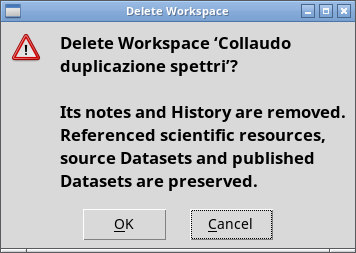
- Removes the selected Workspace, including its notes and history. Check the name in the dialog and choose OK to confirm or Cancel to cancel. Session Datasets and reference resources are retained.
- Notes… / Preview…
- Open the notes or the manager’s read-only view for the selected Workspace.
- Export… / Import…
- Transfer the Workspace state as a ZIP package and prompt for a distinct name on import. The linked scientific resources must be available in the destination profile and Session.
- Refresh / Actions
- Refresh reloads the Workspace catalog. Actions shows any provider-specific actions. In this test it shows
No owner-defined actions.