

Paths and compositions
Join and split paths, manage nodes and branches, and rebuild point curves with fragments and explicit bridges.
Share a knot during drawing
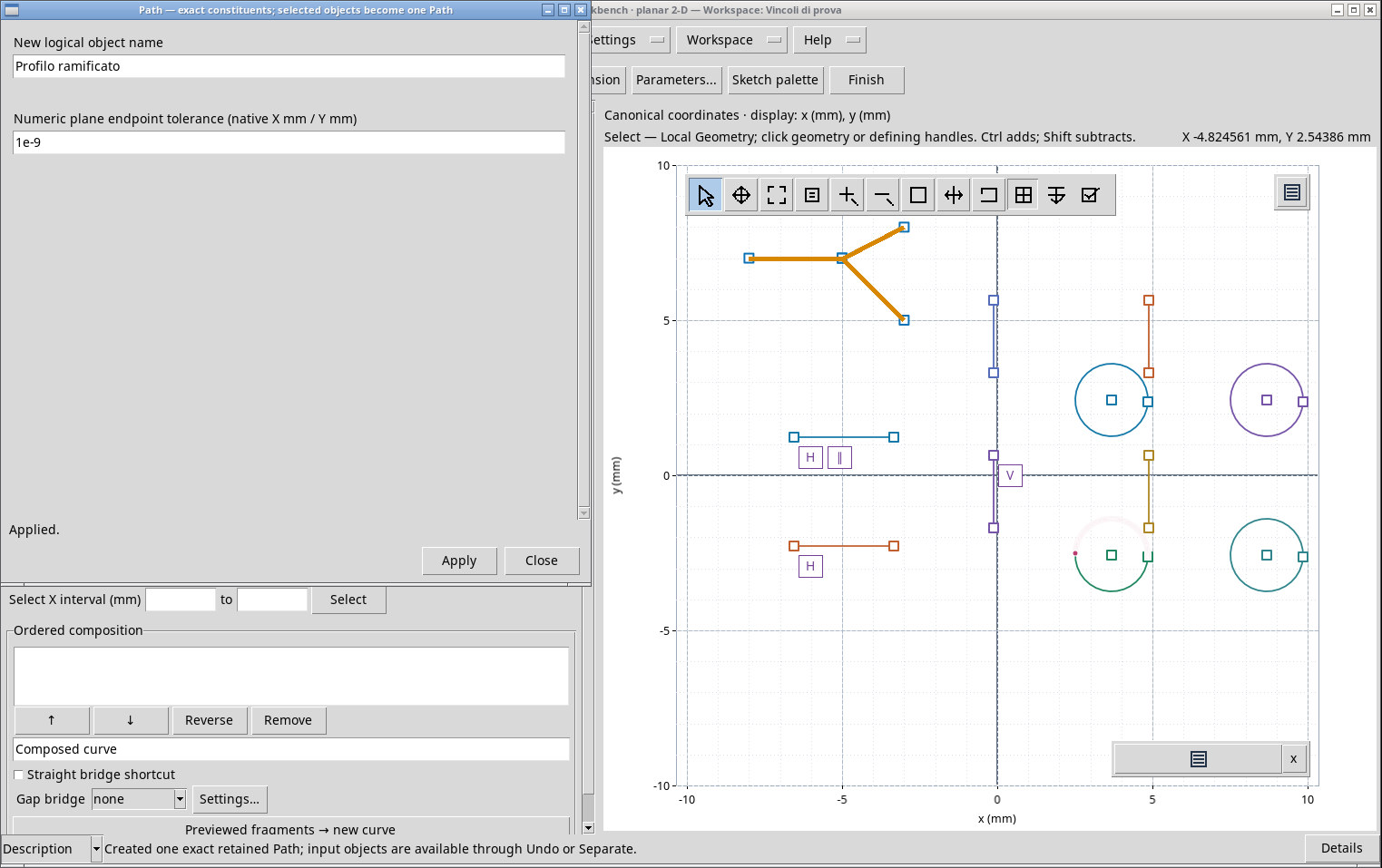
Draw a Path with Create → Line and click Finish. To continue from a node, start the next segment at an existing handle. A segment can also end at an existing compatible handle. The shared node stays connected during edits. A branched path appears as a single object. Use Local Geometry Selection to select its internal segments and spline arms.
Objects or Modify → Join Path
Select the connected constituents and use J or Join Path…. Set New logical object name and Numeric plane endpoint tolerance, initially 1e-9 in the native coordinates indicated. Press Apply. The result is a path that preserves the exact types of constituents, such as segment, arc or spline, and common knots. The joint requires compatibility of references and the physical plane. A constraint to external objects can prevent it. To separate disconnected components, use a Compound. Undo restores the starting objects after a Join.
Connect two points while maintaining the distinct bodies
- Sketch… → Join point on canvas
- Select the source handle in local mode. Pass on an extreme of another object. A green ring indicates a compatible target and an orange signals incompatibility. Click to move the source point and create a Coincident bond. Press Esc to cancel.
- Sketch… → Join point numerically…
- Select the source point. From a Relationship name, choose Target geometry logical ID and Target point index. Move source onto target (supported endpoints/points) is initially active to move the source. If it is switched off, the coincidence already meets Numeric plane coincidence tolerance, default to
1e-8. A blocked or physically incompatible reference may prevent jointing. Remove the report to disconnect points.
Separate and group constituents
- Split selected Path / entity…
- Select the location or local element in the object and open the command from Objects or Modify. Review the proposal for subdivision. The selection must identify a position or a divisible element. A branched path can offer Reviewed split junction. Select the joint listed after the constituent and press Apply. The command creates exact copies of the parts that become addressable separately, with the path of origin still available.
- Combine / Compound…
- Select multiple figures and use the menu or Shift + J. Give a New logical object name and press Apply. Use the Compound for closed or disconnected figures. The new object retains distinct constituents and the sources remain available.
- Separate exact constituents
- Select the compound path or Compound. The command creates editable copies of the exact definitions of the individual constituents. The compound object remains in the Workspace.
- Convert Selected Spline Segment to Line
- In local selection, choose a convertible spline, then apply Modify. It is replaced by a straight line stroke that uses the selected extremes. Check existing constraints.
Cut and rebuild points curves
Make a Native point curve active. If you leave from an unchangeable Dataset, Create a copy first. For a range count the first and last point selected in the order of the curve.
- Keep range
- It keeps the range between the two ends included and eliminates the rest of the active curve.
- Remove range
- Removes the range included. Internal removal leaves a discontinuity. The command requires at least two surviving points.
- Trim before
- Removes the points before the first selected point and retains the cutting point.
- Trim after
- Removes the points after the last selected point and keeps the cutting point.
- Delete points
- Delete selected points individually. A curve must keep at least two.
- Point earlier / Point later
- Choose a single point to move it to a position along the way. The command rejects an extreme already in the required direction or a curve already disconnected.
- View → Insert Native point
- Make a Native dot turn on, unlocked. Pane the section and click the segment where you want to insert the point. Return to Select with Esc. In DEV112 P011-bis the click can bring you back to Select without adding points. Check the count in the table. For a short profile you can recreate the XY pairs with the new point from Scientific point curved…. This procedure creates a new object.
- Linear from selection / Spline from selection
- Select at least two exact controls even from multiple pages of the same curve. Linear connects points with segments and admits up to 65 536 controls. Spline creates a Catmull–Rom with editable controls and 4096 limit. In both cases a new curve appears.
- Snap to reference
- Open View → Compare / residuals and choose a different curve in Reference path. In the active curve table, select exactly one editable point and use Points / ranges → Snap to reference. Check the new coordinates in the table: the point is projected on the reference geometry.
Draw stretches with an explicit bridge
- Select a range of points and use Points / ranges → Add selected fragment ↓. Add at least the next section in the same way.
- In Ordered composition, select a voice. ↑ and ↓ change its position, Reverse reverses its direction, Remove removes it from the composition. The Composed curves field with initial value becomes the name of the new object.
- Choose Gap bridge and check the green dotted preview. Straight bridge shortcut offers the quick choice for the straight line bridge.
- Press Previewed fragments → new curve. The new Native curve corresponds to the accepted preview. The command requires a valid preview and creates a passage of History.
- Gap bridge
- none retains disconnected intervals. straight adds a cord with continuity of position. quadratic uses tangent beam intersection and can refuse incompatible directions. cubic and smooth collect drifts at the extremes, with a cubic or Hermite construction. They need compatible work coordinates for geometric bridges.
- Settings → Composition settings… / Ordered composition → Settings…
- Bridge subdivisions (explicit sampling) starts from 32 and admits 3 – 4096 subdivisions. Endpoint derivative tolerance (numeric plane) starts from
1e-9and regulates continuity numerical control. The accepted bridge is a materialization to explicit samples. Analytical controls and the outcome of continuity remain as a source. A changeable composition allows up to 65 536 samples.