

Organize a drawing
Manage names, attributes, groups, layers, and views. Create series and use drawing references and measurement tools.
To show extended controls, use Modify → Native point operations / groups…. Compare the CAD target bar with the Sketch… menu.
Transforming groups and selections
- CAD target
- selected applies commands to selected objects. group applies to the group chosen from the nearby list. Check the target before any transformation.
- Group selected, Add members, Remove members and Ungroup
- Select objects, type the name in the field initially Group and press Group selected. Choose the group in the list to add or remove items currently selected via Add members or Remove members. Ungroup dissolves the group by keeping objects.
- Gizmo
- none deactivates the manipulator. translate offers free displacement and axis, rotate the rotation arc around the pivot, mirror the reference points of the reflection axis. Object snap (8 px) controls the coupling when the reference geometry is suitable.
- Move…
- Set X displacement and Y displacement, initially 1 and 0 in the view units. Apply moves the target. An object blocked can reject the whole transformation.
- Save after Move… in DEV112 P011-bis
- After a numeric move, Save may display Workspace schema has no typed field ‘presentation_input’. To save again, select the step before the move in History and use Restart here / discard later local history…. Confirming discards the move and subsequent local steps. Check the position and retry Save. Interactive movement can also interfere with saving on DEV112 P011-bis. See Translate and the message on world_point.
- Rotate…
- Set Numeric plane rotation (degrees), initially 90 °, compared to the current pivot. It requires a compatible Euclidean plan.
- Physical scale…
- Coordinates scales X (sizeless) and Coordinates Y scales (sizeless) are positive-dimensional factors, predefined at 1. They change the size of the geometry compared to the pivot.
- Mirror copy…
- Fill Axis point A: X, Axis point A: Y, Axis point B: X and Axis point B: Y for two separate axle points. You can prepare them with the mirror gizmo. Apply creates independent specular copies.
- Pivot…
- In Pivot policy, bounds uses the center of the pane, centroid the centerpiece, origin the origin, custom the Custom pivot X and Custom pivot Y values. The pivot becomes the center of the next compatible transformation.
Sketch… → Names / Attributes…
Choose Logical sketch entity between document, geometry, group and fragment already present. Name (empty preserves current) changes the readable name while keeping the ID. Namespaced attribute key (empty skips attribute) accepts a key such as sample.material. Fill Attribute text value or activate Remove this attribute to remove the selected key. Apply changes the record. The design name is not the ID required by the publication of a Dataset.
Sketch… → Fragments…
The Named parent-linked fragments table shows Id, Name, Parent, Status, Interval, First and Last. A change of topology or order can produce stale and the removal of the father missing.
- Create…
- Set Fragment name and Parent logical curve ID. Use retained parameter interval (otherwise inclusive point ordinals) uses primitive domain, typically 0 – 1. For a discreet curve, use the whole inclusive indices. First parameter / point ordinal and Last parameter / point ordinal delimite the part.
- Update interval…
- Select a row and change the limits to explicitly reconnect a fragment or review its extension.
- Sample to Native…
- Indica New geometry name and Uniform fragment sample count (1 – 65 536), then accept to create a distinct and editable geometry.
- Remove
- Deletes the definition of the selected fragment. The father remains available.
Sketch… → Selection Sets / Layers…
The Selection Sets and Layers table shows Type, Id, Name, Status and Members. A Set recalls selected references. A Layer controls the presentation of its members. Each curve belongs to the maximum of a Layer.
- Create Set…
- Select the elements on the plane or table, then assign Selection Set name. Logical references is pre-compiled by the selection. For an object use
{kind object id curve1}. For local references choosepoint,controlorsegmentand the appropriateindex. For a fragment use{kind fragment id fragment1}. - Rename Set…, Add member…, Remove member…
- Select a Set. Change the name without replacing the list, add a member by choosing the reference type, ID and index when relevant, or remove the member using the order from scratch listed on the list.
- Create Layer…
- Set Layer name and Presentation member curve IDs (space separated). Visible and Selectable are initially active. Locked part off. Opacity starts from 1 and admits 0 – 1. Changing assignment moves the curve from the old Layer.
- Edit / Rebind…
- Review the name and members of the line. Use the rebind to replace stale-entry indexes after a geometric change.
- Activate Set
- Restores the selection that valid references describe, with dataset row locators when relevant. An obsolete line should be explicitly reconnected.
- Show / Hide Layer
- Alternate the visibility of the selected Layer. The visibility states of objects and groups are also applicable.
- Remove
- Delete the selected Set or Layer. For a Layer, objects pass to the default presentation.
Sketch… → Saved views…
The lines show Id, Name, Mode, Aspect and Bounds. A view preserves frame, plane, grid, background and visibility.
- Capture current view…
- Pane the desired region, enter Saved view name and save the state.
- Update from current view…
- Overwrites the status of the selected view with the current presentation. Use it after changing frames.
- Rename…
- Change the name of the selected bookmark.
- Restore
- Restores a compatible view. If the units have changed, update the view or choose a suitable frame.
- Remove
- Delete the selected view.
Sketch… → Create series…
Select the source geometries first. With Series name assigns the name to the copies. For a rectangular series, Rectangular rows and Rectangular columns start from 2 and admit 1 – 10 000. Column spacing: native X and Row spacing: native Y start from 5. For an oblique base also uses Column step: native Y and Row step: native X, initially zero.
Circular series (otherwise rectangular) enables the generation around a pivot. Circular positions, including position zero starts from 4 and admits 2 – 10 000. Numeric plane angular step (degrees) starts from 90 °. Circular pivot: native X and Circular pivot: native Y start from zero. Rotate geometry around circular pivot is also active to rotate copy orientation. Also create a copy at source position zero, initially switched off, adds a copy in the position already occupied by the source. Apply produces copies and, for the rectangular grid, a reusable container.
Sketch… → Parametric series…
Check the table with name, shape, U/V steps, members and status. Edit / Preview… reviews Series name, Count V / rows and Count U / columns, Step U: X, Step U: Y, Step V: X and Step V: Y and Generate a copy at index [0,0]. Preview only (temporary scene; no history change) uses a temporary scene. Remove the box and apply to regenerate. Transform as unit… acts on the generated members and on the transformation of the container. Set Translate native X and Translate native Y in axle units and Numeric plane rotation about origin (degrees) in grades. The three fields start from scratch. After Apply controls the members in the plane. Explode series retains independent members. Delete series geometry removes the generated members with the container.
Sketch… → Explode editable points materializes a finite primitive in a Native curve at editable points separately. Select the primitive and check the new points in the table. For an endless straight use Sample finite range….
Sketch… → Measurements…
Create… requires Measurement name, Native measurement kind, Geometry A logical ID and, for a two-reference measurement, Geometry B (when required). For points or segments, please fill in the Point/segment index A and Point/segment index B indices, which start from 0. The initial name is measurement and the first proposed geometry is the active one. For two-reference measurements, he uses geometries in the same physical frame. Geometric comparison scientific samples (new comparison kinds only) departs from 257 and admits 6 – 4096. Maximum exact segment-pair evaluations admits 1 – 1 000 000 and starts from the top. If the insufficient budget prevents the measurement, narrow the scope or resell the budget.
- Native measurement kind
point_distancemeasures the distance between points,horizontal_distanceandvertical_distancecomponents.segment_lengthuses segment A. For a preserved primitive calculates the length along the definition in the interval between two consecutive samples.segment_anglemeasures the angle oriented from segment A to segment B.tangent_anglecompares the tangents of the two curves in the points indicated. The corners are radiant.path_length, initial option, measures the entire route.radius,diameterandarc_angleuse the appropriate round geometry.bounding_widthandbounding_heightuse the pane.signed_arearequires a closed curve.point_curve_distancemeasures the point from the curve andobject_distanceuses two objects.geometric_rmseis the middle-class square deviation,hausdorff_sampledthe estimated Hausdorff distance on the samples,curve_length_differenceandcurve_area_differencethe differences between lengths or areas,closest_curve_distancethe minimum distance between the references allowed.- Status, Value, Unit, Exact and Policy
- Id, Name and Kind columns identify the recording. Status is current until references coincide with those of the measurement. Value contains the saved result, Unit the unit or undeclared if absent, Exact is worth 1 for results classified as exact and 0 for estimates or numerical methods. Policy indicates the method used. After a change the row can be stale. After the cancellation of a reference can be missing. Refresh selected explicitly recalculates selected rows. Remove selected eliminates selected measurement records. The operator can store up to 4096 measures. Close closes the window.
- Publish report as Dataset…
- Select current recordings, compile Public Dataset ID, pre-compiled with
measurement_report, and choose Storage. auto delegates the choice to the publication, CSV produces a text table, HDF5 a structured binary table. The result contains values, individual units, references, status and method. Recalculate the stale lines before publication.
Reference images
- Workspace → Background image / reference graphic…
- Choose a raster image, for example PNG. Workspace must be able to use a length drive and save the resource. At the first opening, the scale is 1 and the opacity 70 %. The un calibrated image provides a visual reference.
- Workspace → Reference images…
- Name, Calibration, Opacity (%), Visible and Locked identify image and state. Select a row to read drive and transformation.
- Pick calibration points
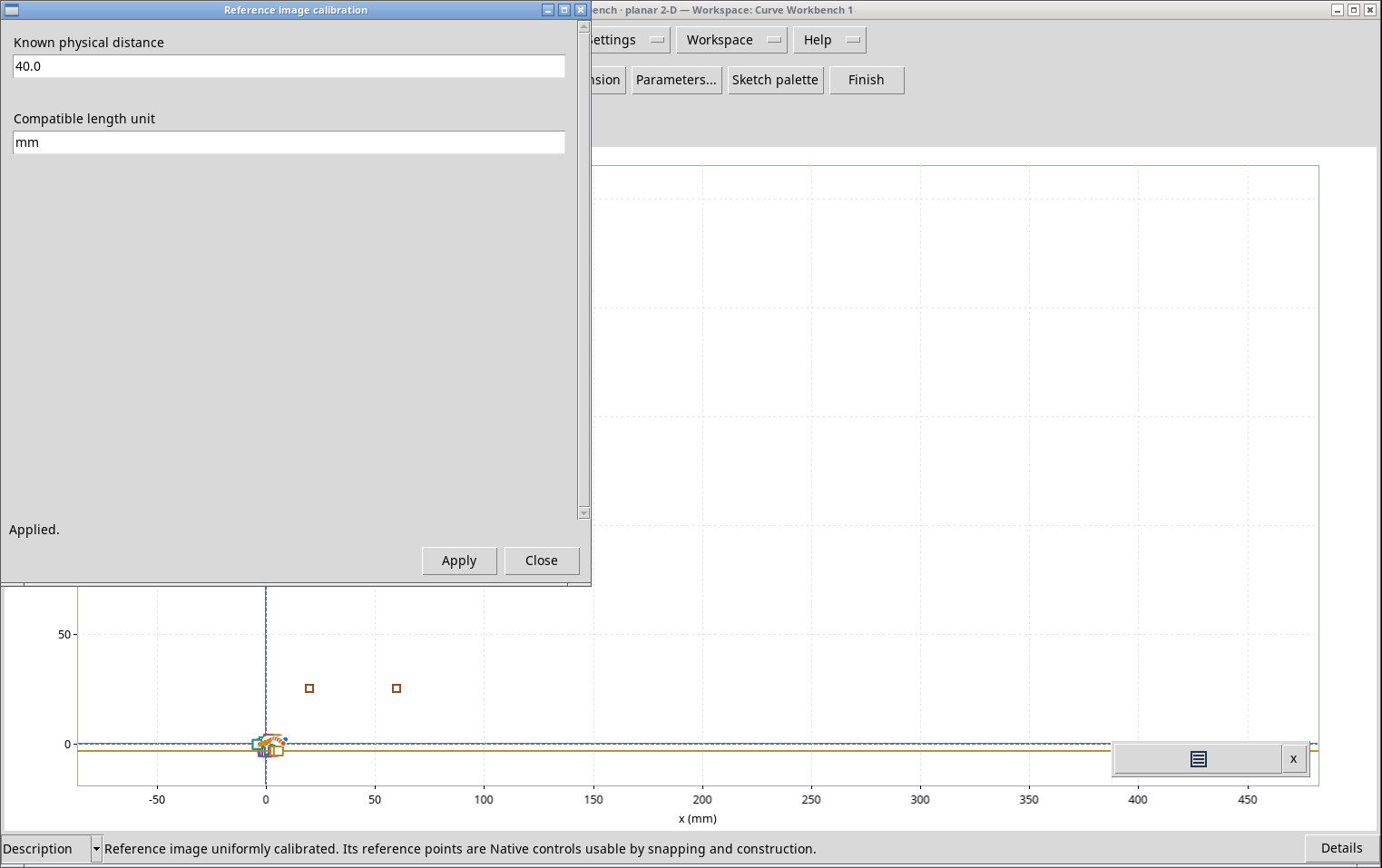
- Choose two distinct references on the bitmap. Set Known physical distance, default to 10, and Compatible length unit, pre-compiled by the image. Press Apply and check the calibrated status. Two points are enough to fix a uniform physical scale. Unlock an image before calibration. Reset calibration eliminates that calibration.
- Transform / opacity / lock…
- Translation X, Translation Y, Rotation (degrees), Uniform scale, Opacity (%) from 0 to 100, Visible and Locked. Calibration makes the Uniform scale field read-only until it remains valid. Check that the drawing references remain superimposed to the raster. Remove detaches the resource from the scene.
Recipes and extensions
- Sketch… → Scientific Recipe Recorder…
- Open the recorder after accepting operations you want to reuse. Refresh rereads the recipe. Public API and Operation columns identify the operation, Targets input references, Results results IDs, and Unit work unit. Validate replay verifies compatibility of plugins, drives, references and sources. Replay current recipe reproduces the sequence by replacing the status of this Workspace with only one unmissable operation. Export recipe as Python script… asks for the file in which to save the executable recipe in the expected stream. The recipe uses geometries and session data that meet recorded references. Even after successful validation, replay may be refused if the new recording exceeds the History limit. If History exceeds the 8 MiB limit appears, keep current work and consult options to export a backup and reset History. Export the Python source to continue in the Script Workspace and Builder stream with the Workbench profile.
- Extensions…
- Extended controls show compatible actions installed and enabled. Choose the action, set its fields and use Apply. If No enabled extension action supports this Workbench appears, there is no compatible action enabled in the catalogue. The message indicates where to enable a module already installed. The Workbench checks geometries, units, blocks and constraints before accepting the change. A mistake rejects the complete operation.