

Open Curve Workbench
Open a Session, import the example Workspace, and draw your first profile. Learn how to open a Sketch from the Dataset browser.
Curve Workbench works on an XY plane. You can draw with exact primitives, starting from table curves, impose geometrical relationships and publish a result in the Session.
Open a Session
- Create or open a Session in GX-TXT. The Session contains the Source Datasets and Workspaces you save.
- Open Viewers → Curves & Digitization → Curve Workbench. You can write
Curve Workbenchin Search and choose the corresponding pane. - Check the name of the Workspace in the title. The word (unsaved) identifies a draft. To recover a different job use Workspace → Open workspace….
Prepare to save for the first time in a new Session
On DEV112 P011-bis, Curve Workbench may display Read-only Workspace database must already exist as a regular file if a new Session lacks a Workspace archive. Even if your line appears on the canvas, you may see key ".curve_workbench" not known in dictionary the first time you use Save. The title still shows (unsaved) and the draft is unsaved.
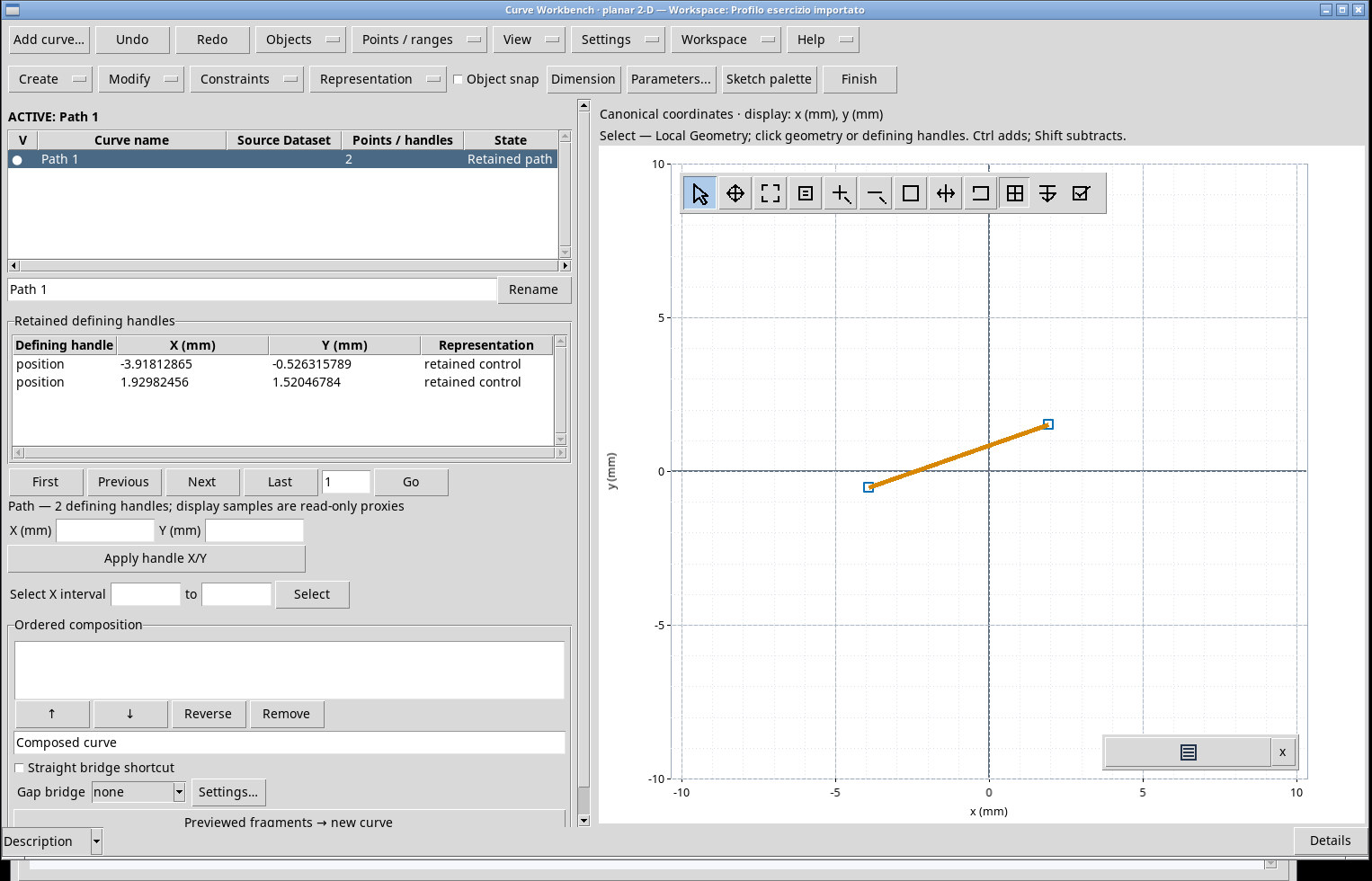
- Before drawing, download the synthetic example Workspace. Contains a segment with History and you can use it without additional Dataset.
- Under Workspace → Import…, select the ZIP file. Enter
Profilo esercizio importatoin Unique Workspace name, then click Apply. - Close Curve Workbench and reopen it from Viewers. Check the imported name in the title, the Path 1 line and History availability. To continue on your design open Workspace → New workspace…. Save and verify the appearance of the name in the manager.
Open a Sketch from the Dataset browser
- In the Dataset main tab, expand the branch containing the canonical Sketch. Click the Dataset Line Activation icon, or choose Activate Dataset from its context menu.
- Check Active Dataset. Press the Open active Dataset folder icon over the tree.
- If Review Sketch coordinate plane appears, read the stored units and the actual size. No, initial choice, keeps the current Workspace. Yes accepts heterogeneous axes for the new draft. The revision does not imply that physical distances or angles can be calculated between different types of quantities. If GX-TXT asks what to do with a previous History, read the three choices before continuing.
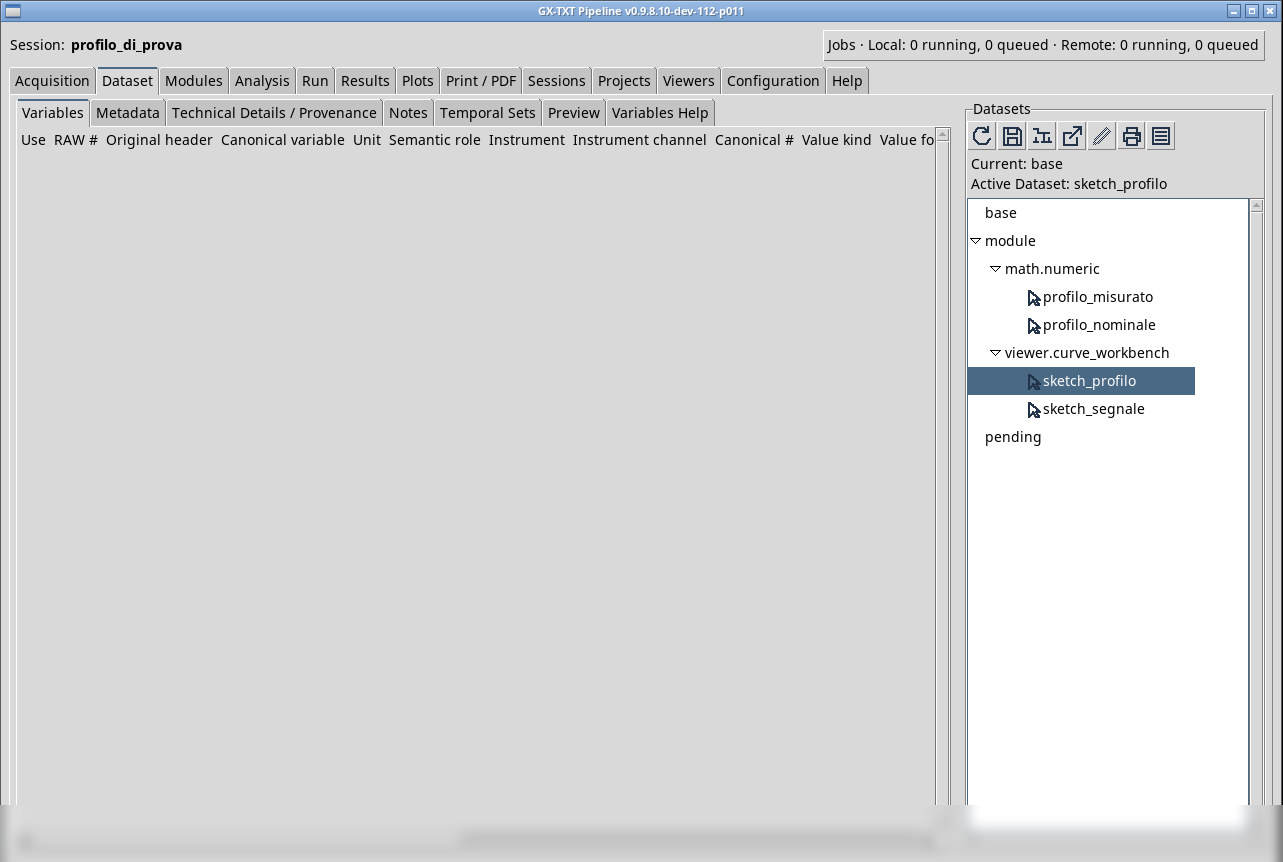
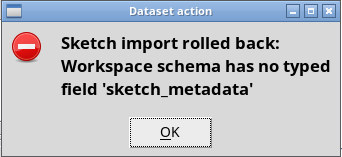
Opening a Sketch on DEV112 P011-bis. After you click Open active Dataset, Curve Workbench may open a blank window, display Sketch import rolled back: Workspace schema has no typed field ‘sketch_metadata’, and roll back the import. The Dataset stays in the browser, even if Curve Workbench just published it. Click OK to dismiss the message. To resume a saved drawing, reopen it with Workspace → Open workspace…. If you need to edit a Sketch after publication, also save the Workspace used to create it. The published Dataset remains available. On this build, the opening failure prevents you from using Commit afterward. To work with an XY table, use Add curve….
Draw and save your first profile
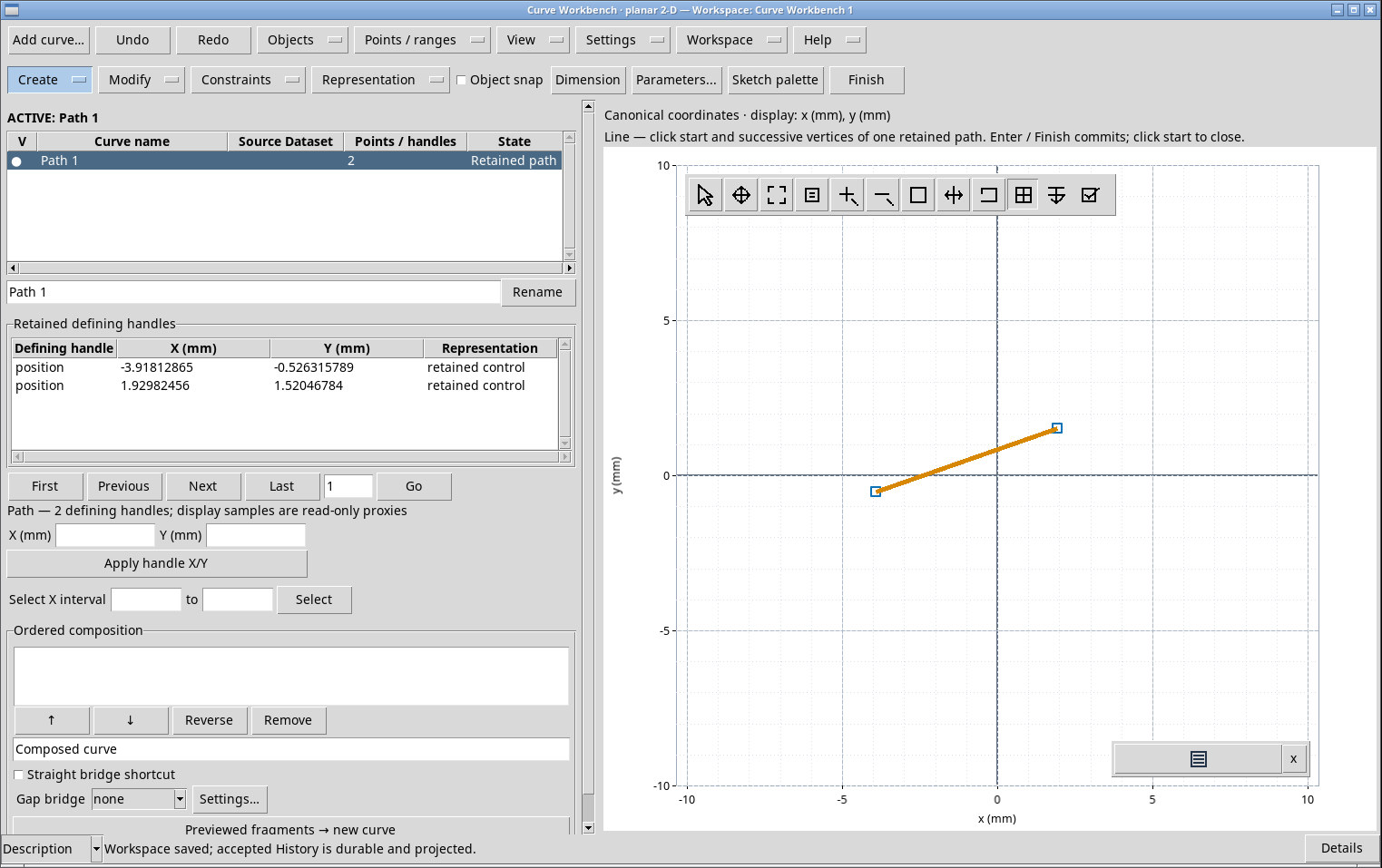
- Choose Create → Line. Click two separate positions on the plane and press Finish or Enter. In Objects list a Path line appears with the handles of the path.
- Press Esc to return to Select. Use View → Fit all to frame the design and click the object name to consult the handles.
- Save with Workspace → Save or Ctrl+S. (unsaved) disappears from the title, and the status at the bottom confirms the save.
Built-in manual and version
- Help → User Manual…
- Also press F1 to open the integrated manual in a separate window. Search and navigation work on the manual. Workspace remains accessible.
- Help → About Curve Workbench…
- See the name, version of the module and description of the window. Close the box to return to the drawing.