

Workspace, History, and recovery
Save and reopen a Workspace, inspect its history, and use named histories and Session recovery tools.
Manage a Session Workspace
- New workspace…
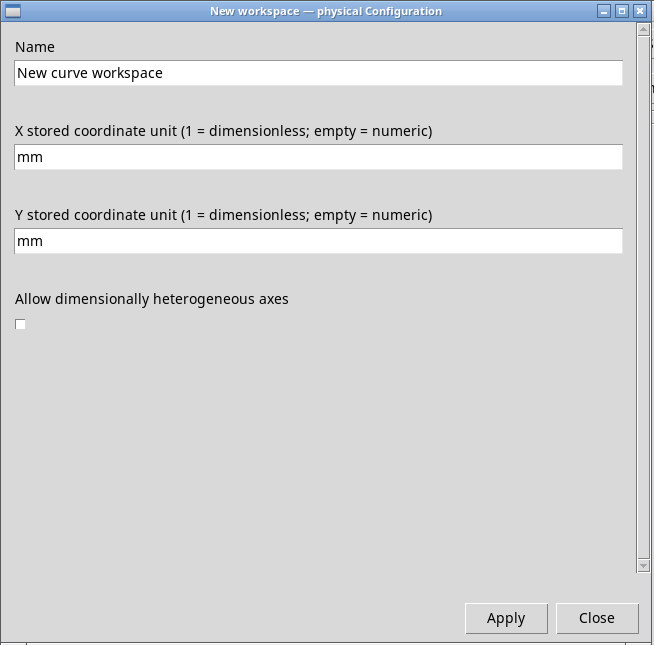
- In the Workspace menu, assign Name, X and Y stored and mixed-axis policy. See configuration units. Apply launches the new draft. If there is an unsaved job, respond to the request to save or recovery before continuing.
- Open workspace…
- Choose a compatible Workspace in the Session to open geometry, units, associations and history. If there is a modified current job, choose whether to save, discard or cancel the replacement.
- Save
- Press the menu or Ctrl + S. Wait for the Workspace saved; accepted History is durable and projected. confirmation The first save assigns the identity of the Workspace. If in the newly created session fails with an error on the Workspace registry, follow importing ZIP and reopening before starting the drawing. The following update the same work. If you are inspecting a historical step, go back to Return to latest or explicitly restart from that step.
- Save as / Duplicate…
- For an existing Workspace, open Duplicate Workspace, edit Name, and click Apply. If there are pending changes, Yes saves the source before copying it. No discards the pending changes and uses the saved state. Cancel returns to editing. Check the new name in the title and in Session Workspaces…. On DEV112 P011-bis, if opening the copy reports an error about
selectionTarget, check the manager for the copy before repeating the command. - Rename…
- Assign a new name to the existing Workspace at the Session. Check it in the title and in the manager.
- Session Workspaces…
- Type the filter in Name / type / provider:. Reset deletes the text and restores the initial filter. In Curve Workbench’s manager, the provider’s selector is bound to this viewer. In the Name, Type, Provider and availability in Preview. Select a single line to see a preview and details. Use Open, double-click or Enter to open it. The New… buttons, Save, Duplicate…, Rename…, Close, Delete… and Notes… correspond to the workspace menu operations. Additional commands such as Preview, Import…, Export… and Refresh can move to More when space is missing. To create or save, you need a viewer available.
- Documents… in the CAD bar
- Show Interactive Documents to consult session documents. To reopen the design, use Curve Workbench from the Workspace menu.
- Close
- Closes the current Workspace. With pending changes, read the request: save to store them, discard to abandon the draft, cancel to stay in the window.
- Delete…
- Select the Workspace to remove. OK deletes the Workspace with notes and History. Referential scientific resources, source dataset and dataset already published remain in the Session. Cancel leaves everything as it is.
- Notes…
- Open existing Workspace notes. Edit opens the text in GX-Markup. Write left and use Refresh preview to see the preview on the right. Undo and Redo change to text. Wrap controls the head of the video. H1, H2 and H3 format title levels, Italic and Bold selection, Inline code or Code block code, Color… color. Press Save to store the note, then Close. Reopen Notes… to control it.
- Preview… / Refresh scene preview
- Preview… opens Session Workspaces. Select the line to see the available preview and revision. In the absence of an associated preview, the pane shows No managed preview is associated with this Workspace. Refresh scene preview requires a new rendering of the scene. In DEV112 P011-bis it can stop with Workspace schema has no typed field ‘mode’ even after Save. To get a view to open separately use Export Current View as PDF… or Export sketch…. These outputs are separated from the preview of the Workspace.
- Import…
- Choose a supported Workspace package and compile Unique Workspace name. Press Apply and check the new name in the list. Open the line to work on the import result.
- Export…
- Save the existing Workspace, then choose the path in the Export workspace package dialog. The package is used to transport the Workspace or have a separate copy. Check that the resources required are available when you reopen it.
- Refresh
- It reads the Workspace list and the status of the Session’s actions.
- Actions
- With a Workspace available, the submenu proposes Parameters… to open the editor of the parameters. With an identity-free draft, Select an available Workspace can be disabled.
Description, History and navigation
- Description
- In the lower strip selector choose Description to read the instructions of the current tool. The visibility of the strip is controlled in Settings.
- History
- Go to History to see the steps. Use the wheel on the strip to scroll horizontally. One click on one step reconstructs that moment for read-only inspection.
- Undo / Redo
- On the history bar or context menu, Undo returns to the previous step and Redo repeats the next available action. The buttons disable at the relevant ends. After Undo a new editing command can ask for confirmation before discarding the next steps. Use Cancel to store them.
- Previous history step / Next history step / Return to latest
- In the strip menu, Previous and Next navigate over time. Return to latest restores the last editable state. Inspection does not publish Dataset.
- Restart here / discard later local history…
- Click on a historical step. Use the context command and confirm to resume editing from that point. Confirmation deletes the next steps of the local history. Cancel keeps the full History. The datasets already published and the exported files remain available.
- Details / Expand / collapse individual operations
- Details opens the step summary. When History takes similar consecutive actions, select the group. From the context menu, choose Expand / collapse individual operations to see or close the internal actions. A constraint step can offer the inspection of the report or the explicit startup from that step before changing it or removing it.
On a constraint step, Select / inspect constraint … (step …) highlights the relationship. Restart here, then edit constraint … and Restart here, then remove constraint … ask to explicitly restart from the point indicated before editing or removing. Inspect constraints / dimensions… opens the palette. Hide Description / History strip hides the strip, which you can reactivate from Settings.
Accepted changes appear in History immediately. The application writes them to disk in the background. If a write error appears, keep the window open and retry saving when possible. View-only changes can be saved in the Workspace presentation separately from scientific edits.
Named histories
- Save History As…
- Save Workspace first. In the right-click on History menu assigns Name to the full sequence copy and applies.
- Named History…
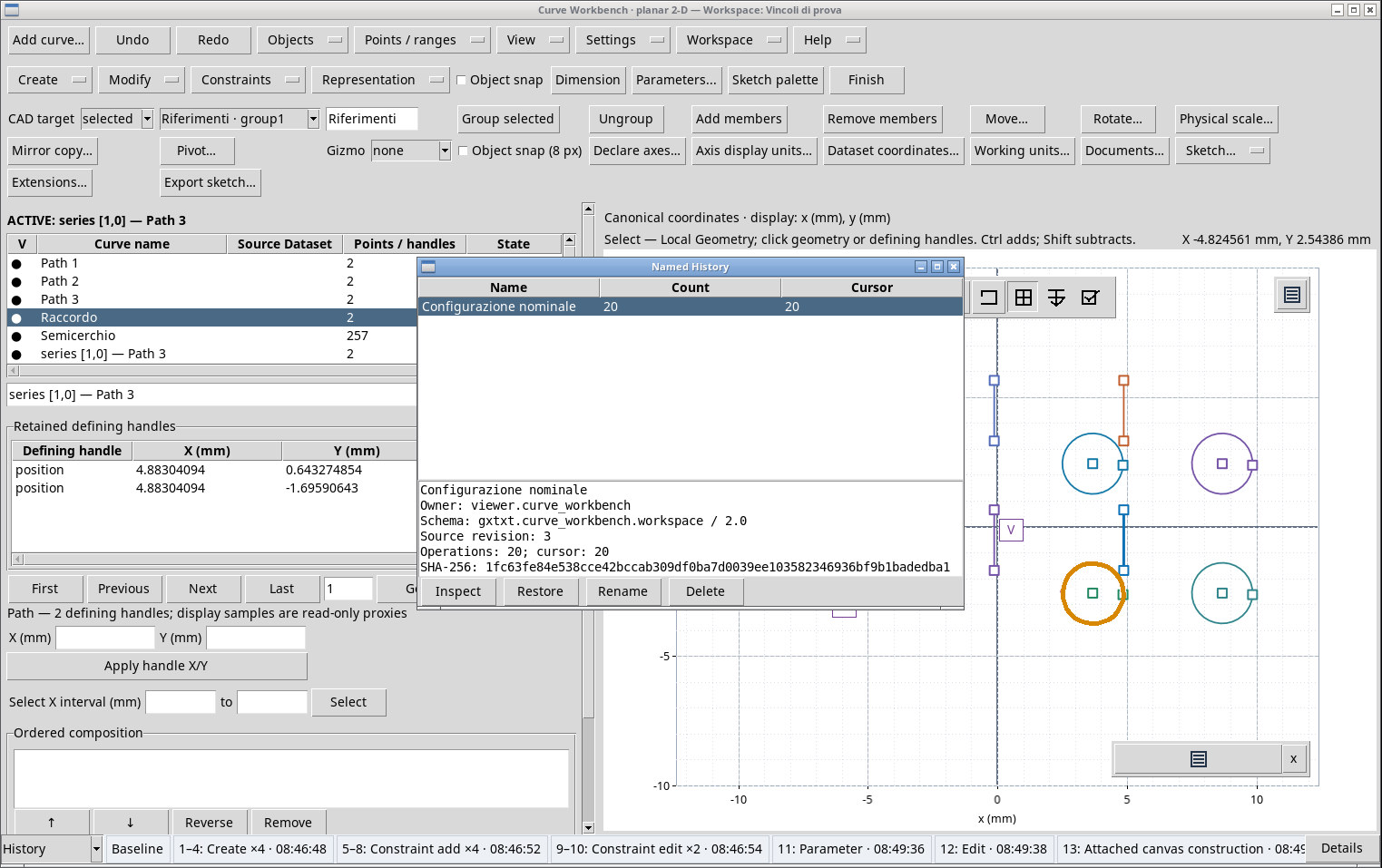
- Select a Workspace archive in the Name table, Count, Cursor. Inspect shows owner, scheme, revision, count and footprint. Rename asks for the new Name and Delete asks for confirmation before removing the archive. Restore explicitly restores the chosen history and its status. Read the confirmation before accepting the replacement.
- Workspace → Clear History…
- Return to Return to latest. Open the command and read the summary. Yes opens Save protected Workspace backup. Choose the destination of the ZIP file and press Save to create backup before resetting steps. Close the selector without choosing a file retains the history. No clears the steps without copy. Cancel, default, retains History. The current geometry remains. Named archives are managed in Named History….
If Save shows Workspace transport graph exceeds bound, the package containing the current state and history exceeds a limit. In a Workspace with many recorded measurements, Clear History… → No made it possible to save again and retained the geometry and measurements. This option removes access to earlier history steps and skips the backup. Use it only if you can discard those steps or already have a usable copy.
Resume after an interruption
When Recover unsaved History appears, Yes restores the latest available draft, No archives it and continues with the new Workspace, and Cancel stops the opening operation. If recovery failed because a source changed or went missing, check the source, then explicitly restore or reconnect it. The Workspace protection message indicates that a recovery attempt failed.