

GX-TXT Curve Digitalizer: From a Raster Graph to a Scientific Dataset
A graph embedded in an image contains numerical information, but that information is not always available in a table. Recovering it correctly takes more than clicking on points: we must establish how image coordinates map to physical quantities, preserve the order of the data, and document their origin.
In this first tutorial, we will use GX-TXT Curve Digitalizer to digitize four points from a teaching graph, check the calibration, and publish the result as a Dataset in the Session. This deliberately simple exercise introduces the method before we move on to more complex families of curves.
1. Prepare the experiment in GX-TXT
We will use a Session created with the standard GX-TXT Generate Session command. The example is identified by the following pair:
- Generator library:
org.giuxlab.gxtxt.numerical_examples - Generator:
calibrated_digitizer
Create a Session with a name that has not been used before, such as tutorial01_four_points, selecting the desired Project and Location. Disable Copy previous Experiment documentation so the experiment’s own notes are used, then confirm Generate Session.
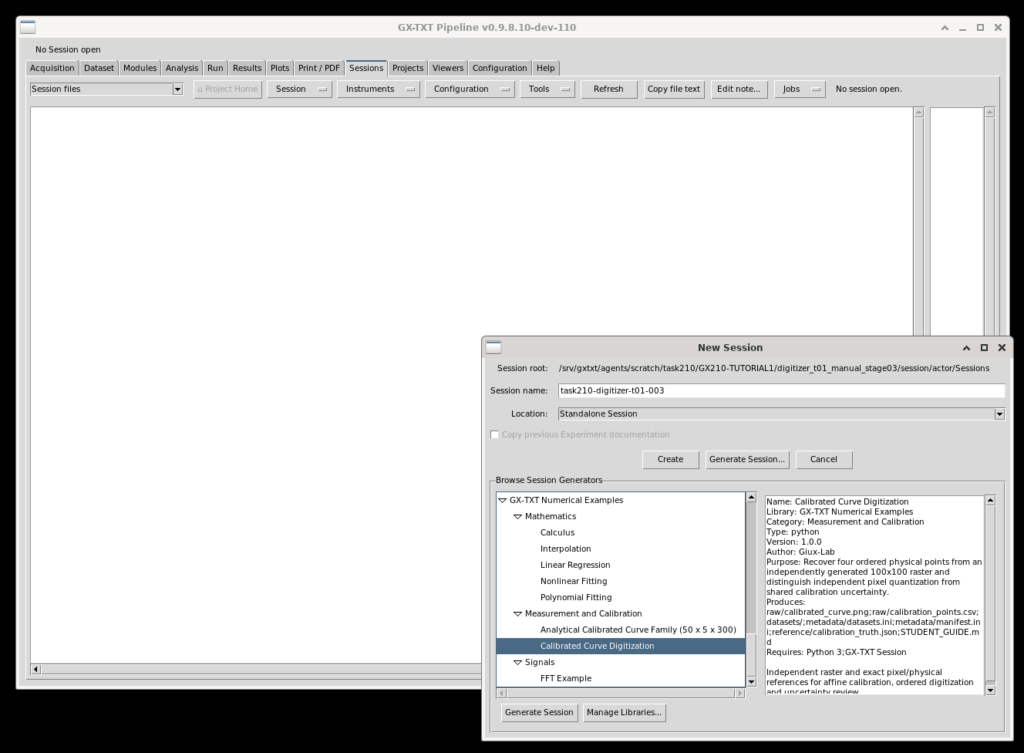
The Session contains two Datasets with different purposes:
| Dataset | Purpose |
|---|---|
digitizer.calibration.image | Original image to digitize, 100 × 100 pixels |
digitizer.calibration.points | Independent table containing the reference values for the exercise |
The reference table is provided for comparison: it is not the Dataset we will create with Curve Digitalizer.
2. Open the image and create a configuration
From the Imaging & Documents group, open Curve Digitalizer. Create a configuration named Tutorial 01 - Four points and, in the Source tab, select the digitizer.calibration.image Dataset already registered in the Session.
The advantage of this approach is that we do not import the same file twice. Curve Digitalizer works with the canonical GX-TXT resource, retains a reference to its source, and stores the digitization configuration separately. Pixel coordinates belong to the original image: zooming or panning the canvas does not change point coordinates.
3. Calibrate the graph
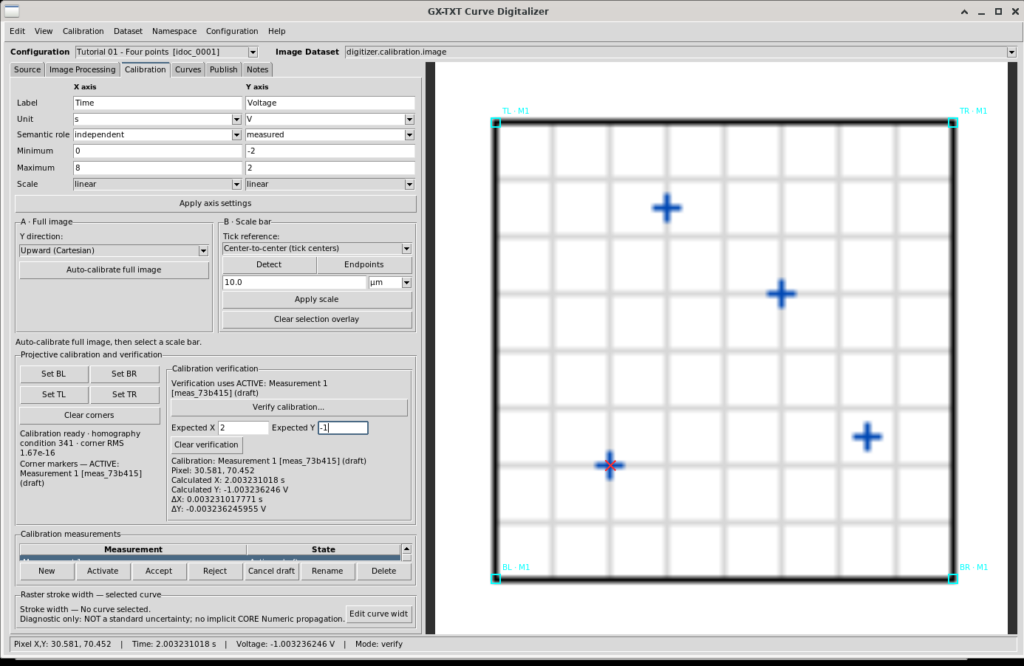
Switch to the Calibration tab. We need to transform each pixel position into two scientific coordinates: time and voltage. Enter and apply the following properties:
| Property | X axis | Y axis |
|---|---|---|
| Quantity | Time | Voltage |
| Unit | s | V |
| Minimum | 0 | −2 |
| Maximum | 8 | 2 |
| Scale | linear | linear |
Next, use four-corner calibration. Each Set BL, Set BR, Set TL, or Set TR button prepares the acquisition of one point only: after pressing the button, click the corresponding corner in the image.
| Corner | Reference pixel coordinates | Scientific coordinates |
|---|---|---|
| BL — Bottom-left | (10, 90) | (0 s; −2 V) |
| BR — Bottom-right | (90, 90) | (8 s; −2 V) |
| TL — Top-left | (10, 10) | (0 s; 2 V) |
| TR — Top-right | (90, 10) | (8 s; 2 V) |
For this ideal geometry, the relationship between raster coordinates (pₓ, pᵧ) and scientific coordinates (t, V) is particularly simple:
t = (pₓ − 10) / 10 s
V = (50 − pᵧ) / 20 V
The sign in the second equation matters: in raster images, the vertical coordinate increases downward, while voltage increases upward on the graph. In practice, the four clicks may differ slightly from the ideal positions; Curve Digitalizer computes the transformation from the points actually selected.
Verify the calibration before acquiring data
Using Verify calibration, select a known reference point corresponding to 2 s and −1 V. Enter these coordinates as the expected values and select the corresponding reference on the image.
In the documented example, Curve Digitalizer displayed approximately 2.003231 s and −1.003236 V, with differences of +0.003231 s and −0.003236 V, respectively. This comparison shows how to read a verification result and assess deviations from a reference. It is not an estimate of the uncertainty of the original electrical measurement.
After the check, clear the temporary marker without acquiring it as a curve point, and accept the calibration we intend to use.
4. Acquire the curve points
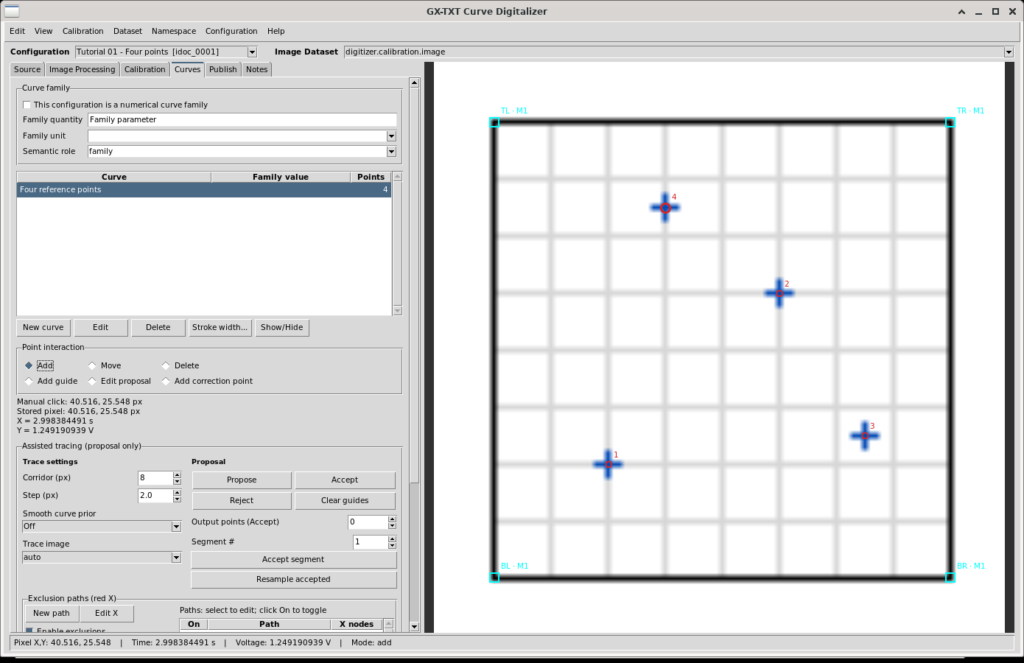
In the Curves tab, create a curve named Four reference points. For this exercise, open Configuration → Viewer settings → Digitizing and use:
- Monotonicity:
None - Point ordering source:
Insertion order - Snap to dark: disabled during the first acquisition
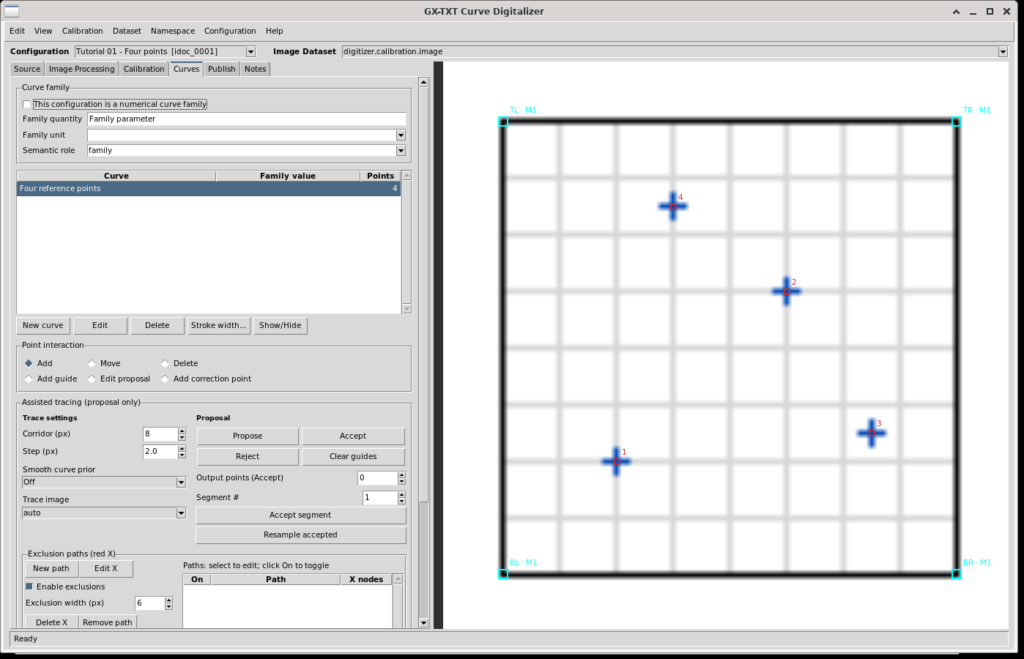
This ordering choice is intentional. The four points are not entered in increasing time order: the fourth point lies to the left of the third. Automatically sorting by X would change the acquisition sequence that we want to study.
Select Add and locate the four points in the image in the order P1, P2, P3, and P4. The following table shows both the exercise targets and the values actually displayed in one demonstration Session:
| Point | Expected coordinates (s; V) | Digitized coordinates (s; V) |
|---|---|---|
| P1 | (2; −1) | (2.003231; −1.003236) |
| P2 | (5; 0.5) | (5.001616; 0.498382) |
| P3 | (6.5; −0.75) | (6.500808; −0.750809) |
| P4 | (3; 1.25) | (2.998384; 1.249191) |
These differences are consistent with selecting points graphically rather than at their ideal positions. They must not automatically be interpreted as errors in a physical experiment.
Correct a point and use Undo/Redo
We can now check that edits are reversible. Use Edit → Undo to undo the last acquisition: three points remain visible. Use Redo to return to four. You can also use Move to correct a point position or Delete to remove a point, while retaining the ability to undo the operation.
The key distinction is that point order and point identity are not the same thing. The labels P1–P4 help us describe the exercise; the Dataset uses its own persistent identifiers, separate from the displayed labels.
Before continuing, restore the intended four points, the accepted calibration, and the Insertion order setting. In the Notes tab, you can record the source, calibration choices, and method used.
5. Publish the result as a Dataset
Switch to Publish. For this first experiment, choose the Separate layout and select only one accepted calibration. Use cd.tutorial01 as the base name, check the identifier preview, and click Publish selected calibrations.
In the documented run, the resulting Dataset was:
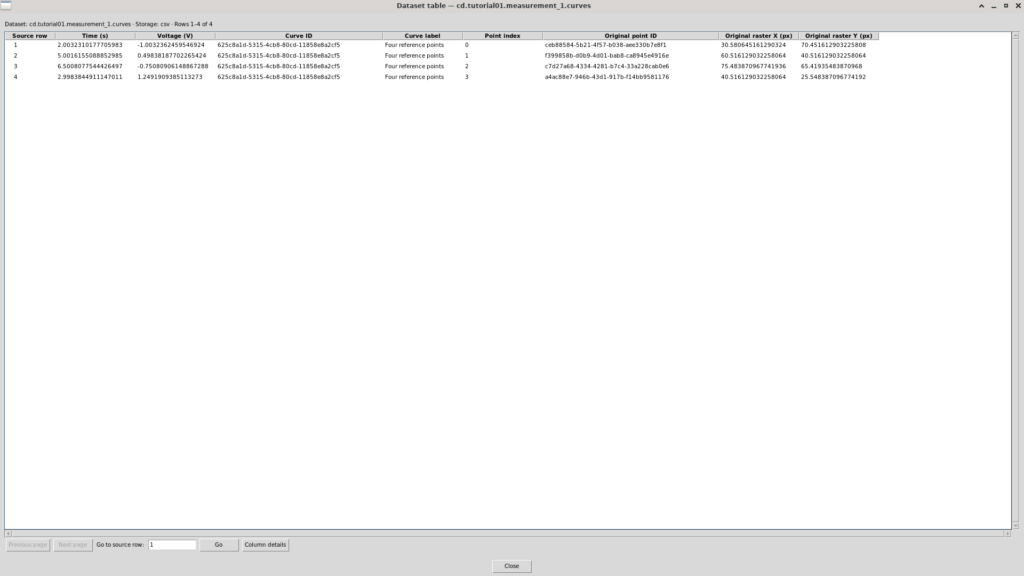
cd.tutorial01.measurement_1.curves
Its contract is table.generic, and it contains four rows, one for each acquired point.
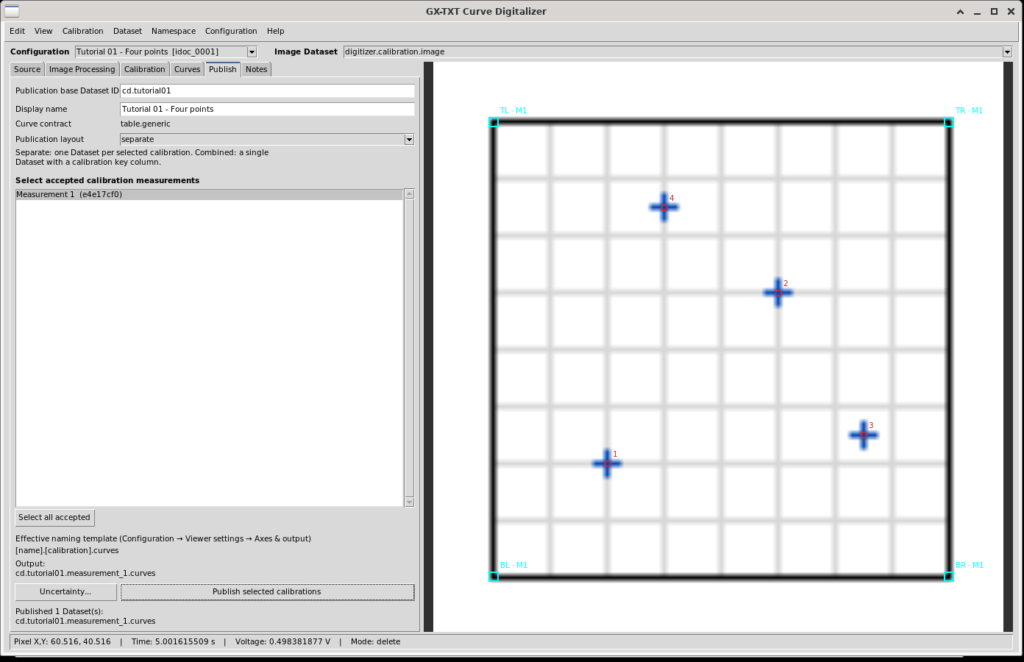
The Dataset contains more than two numerical columns. It also stores information that allows other GX-TXT tools to identify points, curves, and coordinates in the source image:
| Variable ID | Contents |
|---|---|
x | Calibrated time, in seconds |
y | Calibrated voltage, in volts |
curve_id | Stable curve identifier |
curve_label | Human-readable curve name |
point_index | Position of the point in the sequence |
point_id | Stable identifier for an individual point |
pixel_x | Original raster X coordinate, in pixels |
pixel_y | Original raster Y coordinate, in pixels |
A note on uncertainty
For this first exercise, leave the uncertainty model set to none. This means we have not declared or propagated an uncertainty; it does not mean that we have demonstrated zero uncertainty. The width of a drawn line, pixel size, and click precision do not by themselves justify assigning a standard deviation. We will examine uncertainty models and their assumptions in a later tutorial.
6. Examine the resulting Dataset
Select the new Dataset in the Session and inspect its information and variable schema. The row count, X/Y units, identifiers, and raster coordinates should be consistent with what we published.
When supported by the installed GX-TXT version, open Dataset Preview and use the available controls to display the curve, show or hide the geometry, fit the view, and zoom. Control placement can vary between Preview versions: the essential goal here is to verify the canonical Dataset, not to memorize a particular interface layout.
Do not confuse the generator’s independent reference table, digitizer.calibration.points, with the result cd.tutorial01.measurement_1.curves. The former provides the reference; the latter contains the digitization actually published.
7. Save and reopen the Session
Complete the exercise by saving the Session using the normal GX-TXT command. Close Curve Digitalizer, reopen the Session, and launch the viewer again. Select the original configuration and check that the source image, calibration, four-point sequence, and notes are still present.
Also verify that the published Dataset is still available under its identifier. This distinguishes two complementary levels:
- Curve Digitalizer configuration: stores the operator-editable calibration and digitization work.
- Published Dataset: stores the scientific values, identifiers, and provenance information available to other GX-TXT modules.
Conclusion
We have turned a small raster image into a scientific Dataset through verifiable calibration, ordered point acquisition, reversible editing, and publication with its own identity and provenance.
We will apply the same method to more demanding graphs: electronic component characteristics, curves from scientific publications, and experimental images. In the next tutorial, we will move on to families of curves and multiple calibrations, including assisted tracing.
Materials for the exercise
There is no need to download images, tables, or sample files. GX-TXT includes a dedicated generator that automatically prepares the required Datasets.
Open Generate Session, select the org.giuxlab.gxtxt.numerical_examples library and the calibrated_digitizer generator. Give the new Session a name and confirm generation.
The image to digitize and the reference data will be available in the newly created Session.