Import and open a PDF
Import the teaching documents and open the reader from the tile or from the Dataset.
Import a PDF as a Dataset
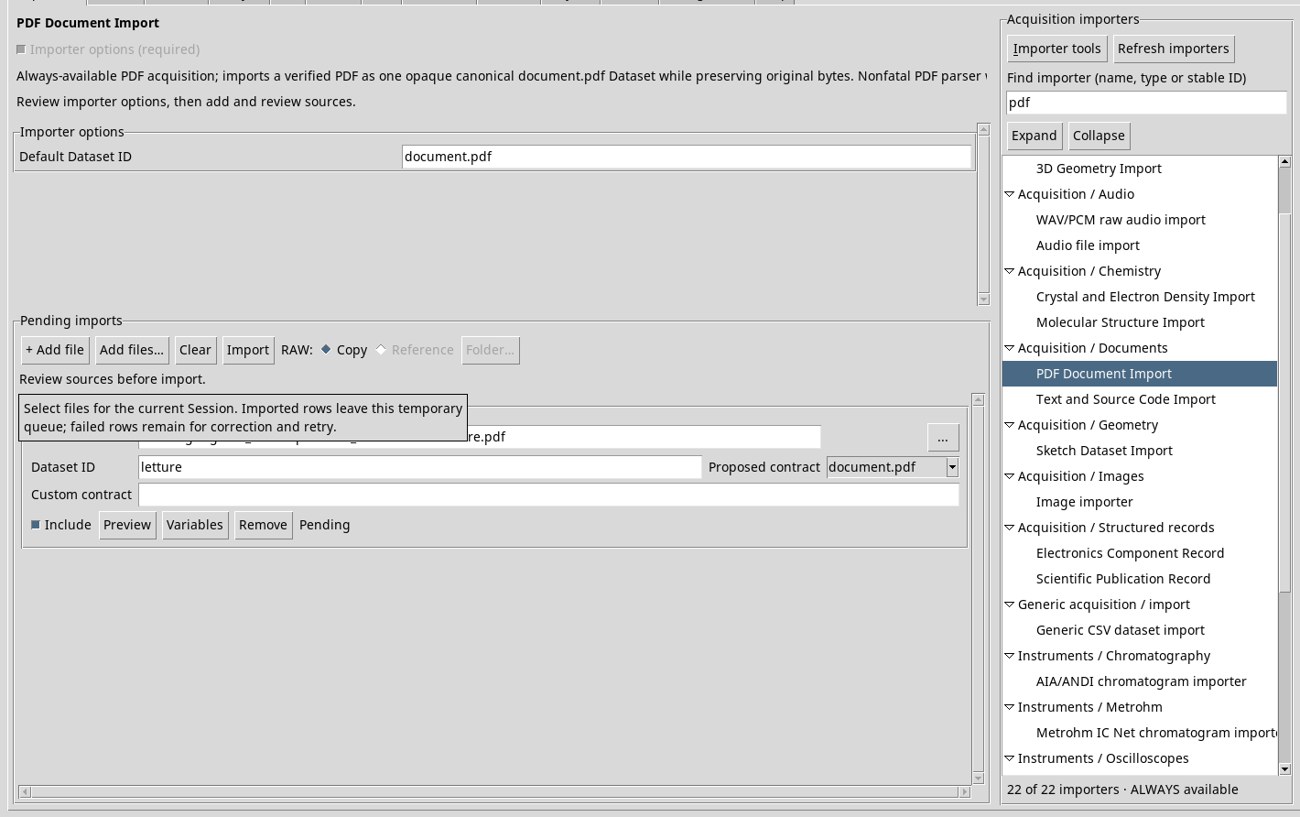
- Download letture.pdf and nota.pdf. Open a GX-TXT Session and go to Acquisition.
- Select PDF Document Import in the Acquisition / Documents group. You can find it by typing
PDFin Search. - Use + Add file. In the Add acquisition source dialog choose the file and press Open. For the exercise, repeat with the second PDF.
- In Pending imports leave Include selected and check the name, Dataset ID and Proposed contract. For
letture.pdfthe expected Dataset isletture, with thedocument.pdfcontract. Confirm with Import and look for the ID in the Dataset tab.
The importer registers the canonical PDF and keeps the original file. Existing text, scans and drawings are consulted with the same reader. OCR recognition has its own separate workflow.
Open from the PDF tile
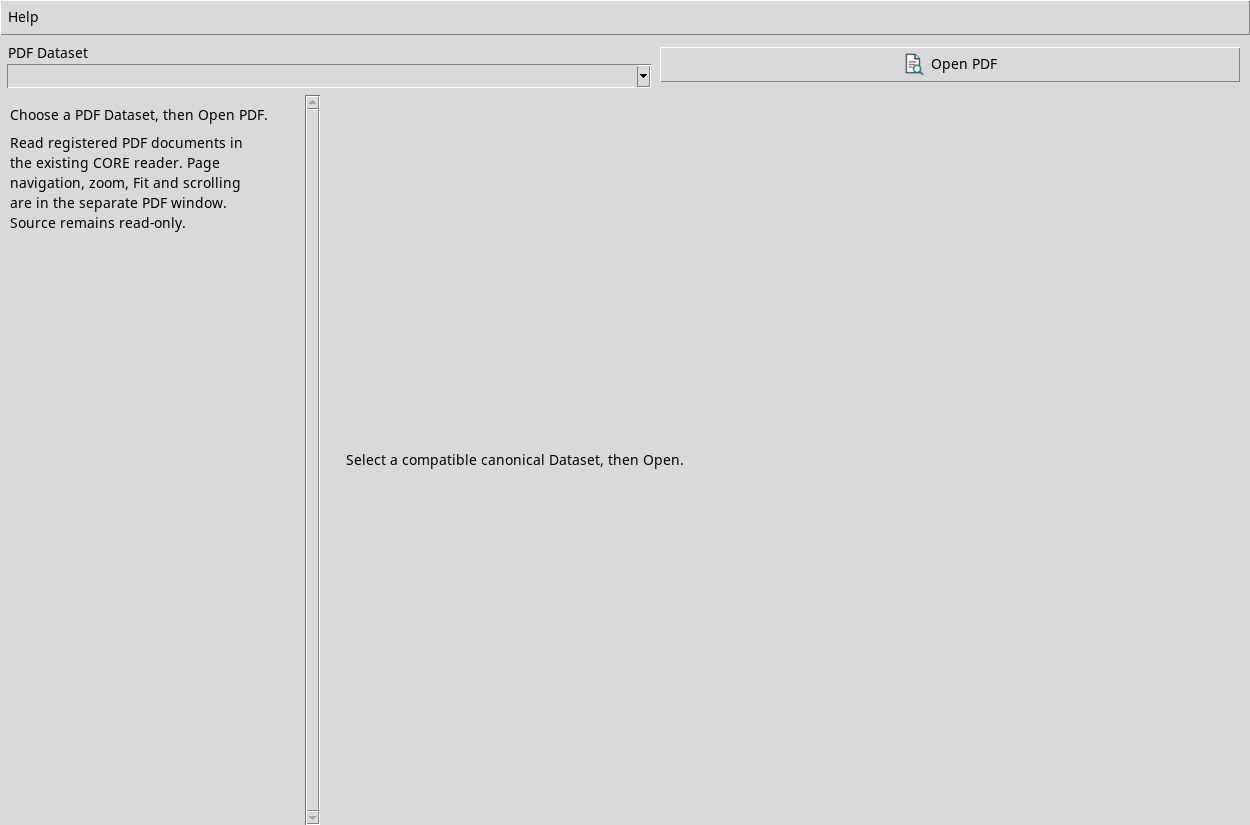
- In the Viewers tab search for
PDFand choose the PDF tile in the Documents group. The icon shows a folded page and a magnifying glass. - In the PDF Reader window choose
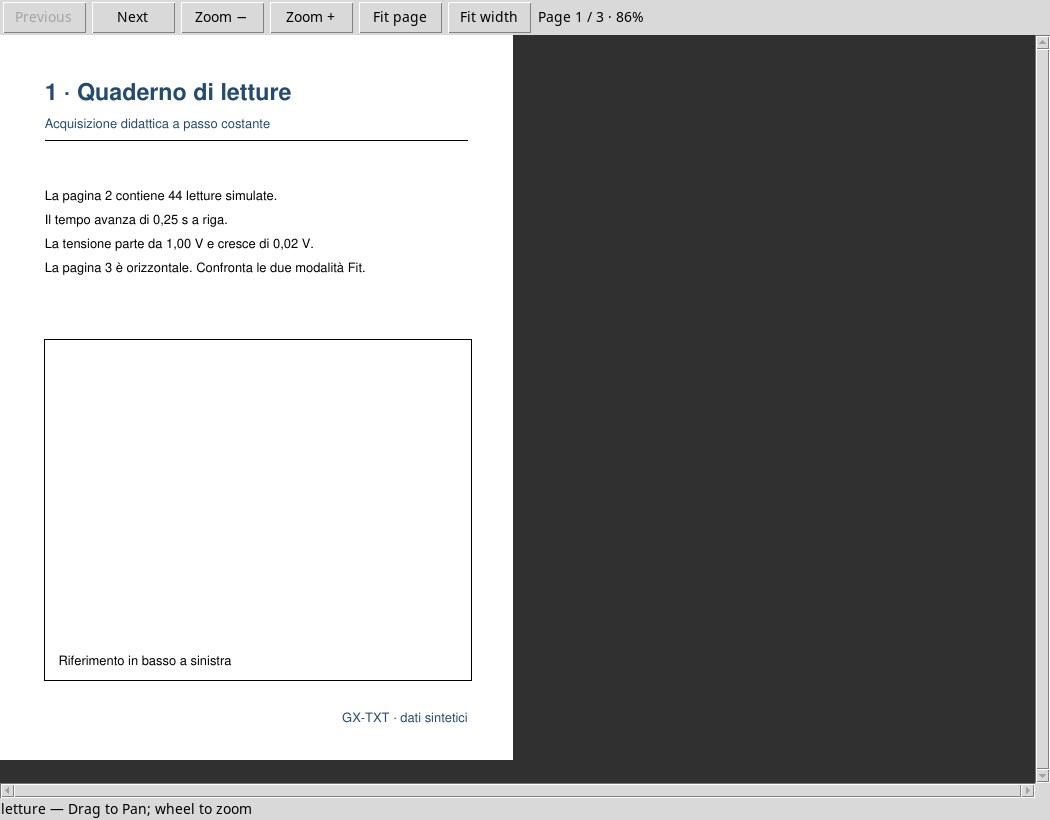
letturein PDF Dataset and press Open PDF. In a Session with compatible documents, the list may still open with an empty selection. - The separate window GX-TXT PDF Dataset — letture opens. The launcher panel confirms PDF opened in the CORE read-only reader: letture. The commands to change page and scale are in the separate window.
Open from the Dataset tab
In the main window go to Dataset, right-click the letture row and choose Activate Dataset. Press the Open Dataset command in the toolbar. For the canonical PDF, the CORE reader of the active document opens. Check that the page and the ID match the chosen row. This route opens the destination of the Dataset directly.
Open the built-in manual and the version dialog
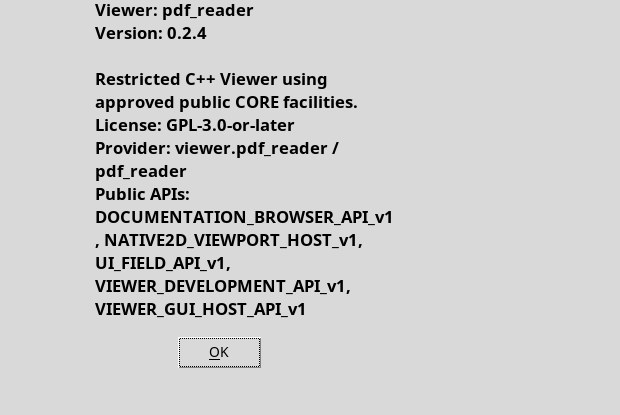
With the PDF Reader launcher in the foreground, Help → User Manual… or F1 open the built-in documentation. Help → About Module… shows the name, module and version in the dialog. Press OK to close it. To find Help while you are reading, go back to the launcher window.