Fit the page and scroll
Compare Fit page and Fit width, zoom in on details and move with bars, keyboard and dragging.
Fit the whole page with Fit page
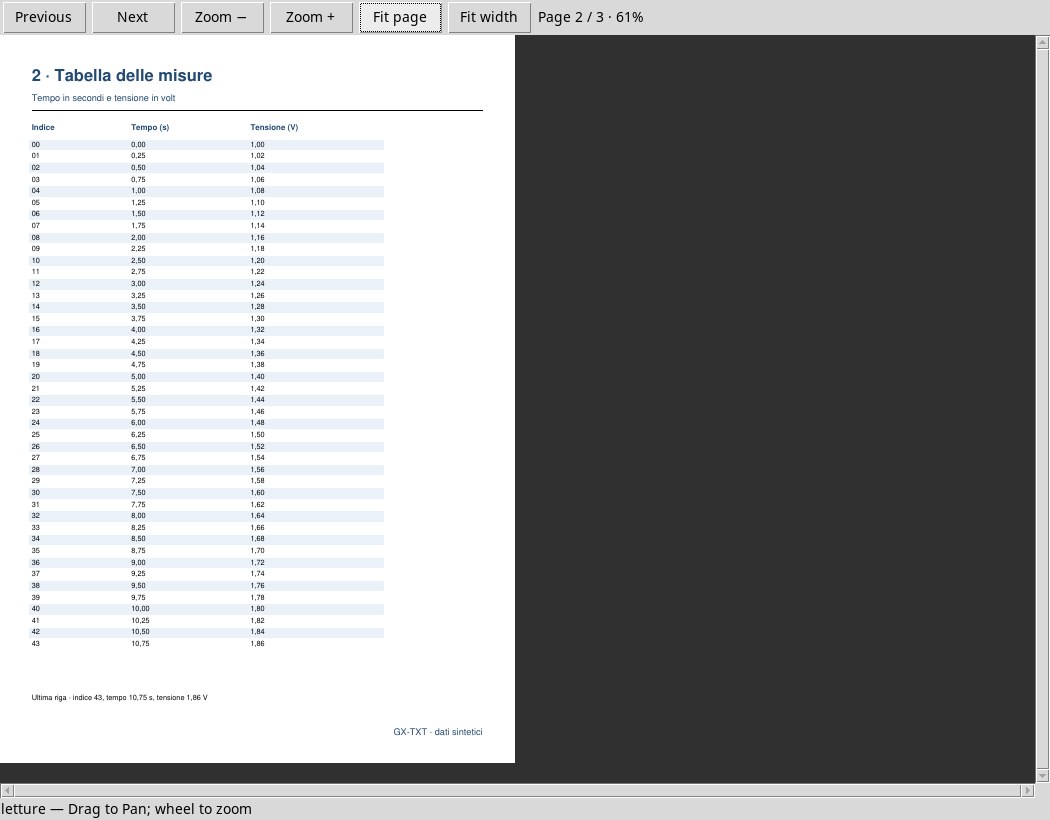
Go to the table in letture. Press Fit page. The reader calculates a scale that makes the page fit both in width and in height. In the test at 1050 × 820 it is about 61% on page 2. Check that you can see the title at the top, row 43 and the note at the bottom. The page number stays 2.
Enlarge the columns with Fit width
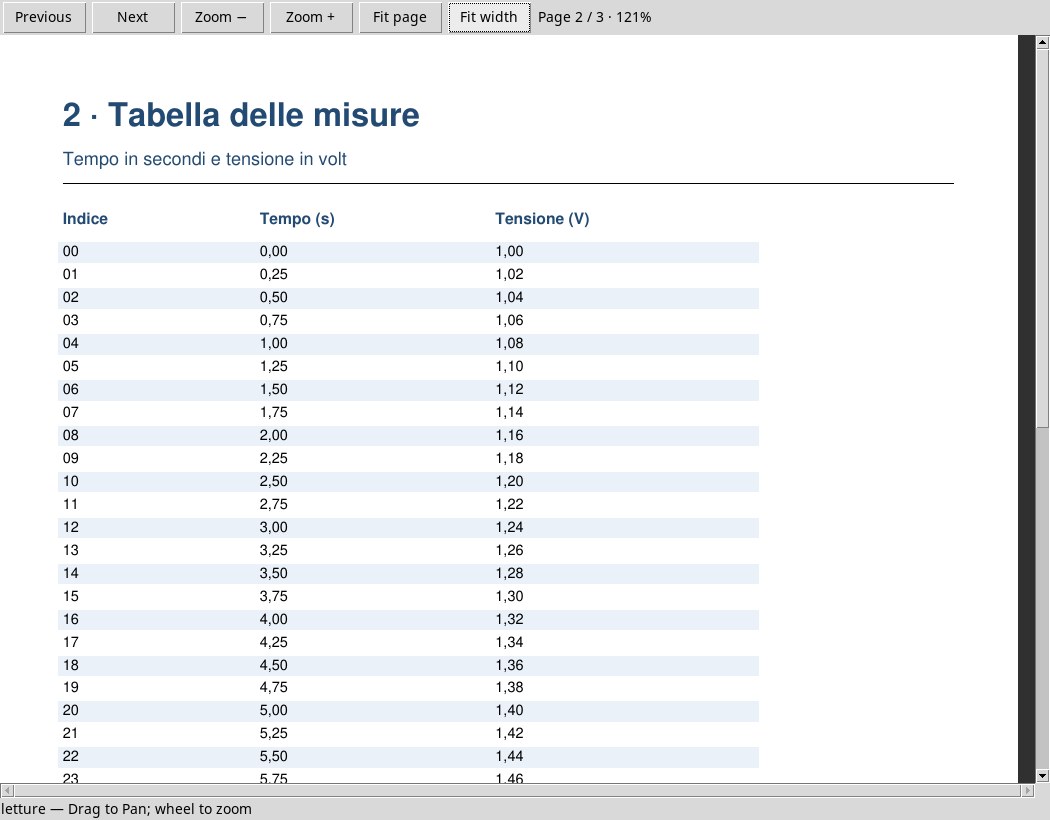
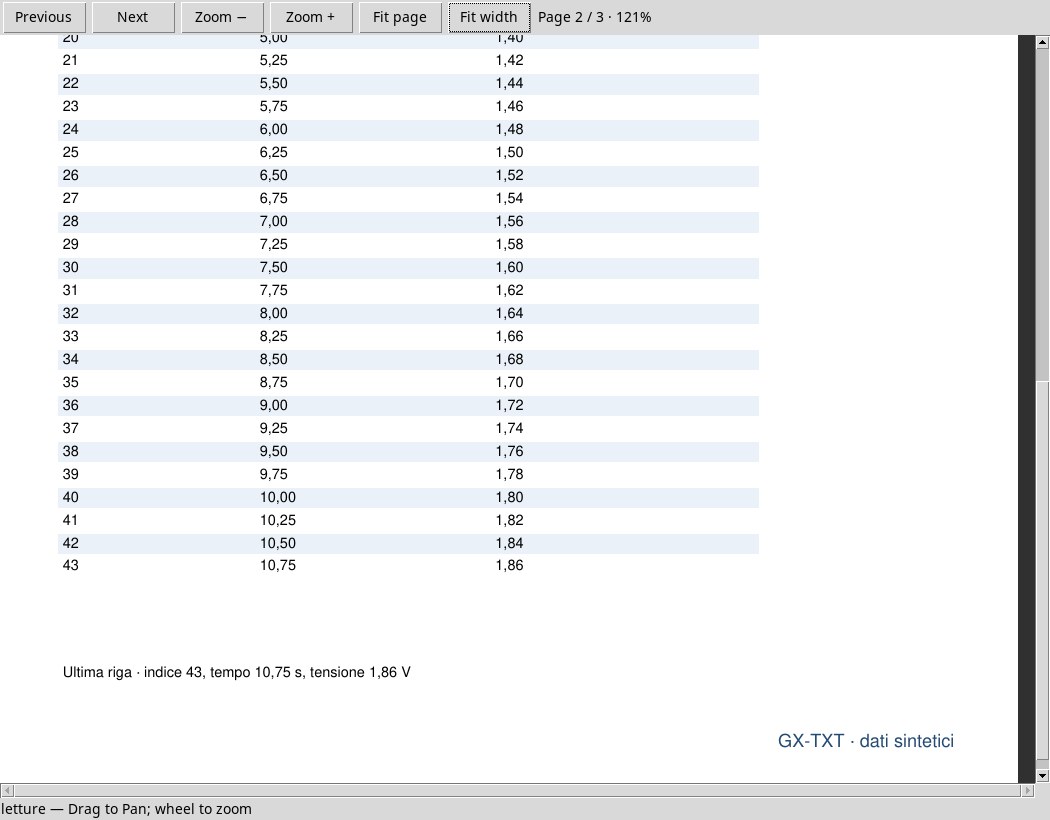
On the same page press Fit width. The scale uses the available width. In the test it goes from 61% to about 121%. The values become readable at a larger size and the lower part leaves the window. Use the vertical bar on the right and scroll down to row 43. The value is 10.75 s and 1.86 V in the synthetic data.
Change the scale with buttons and wheel
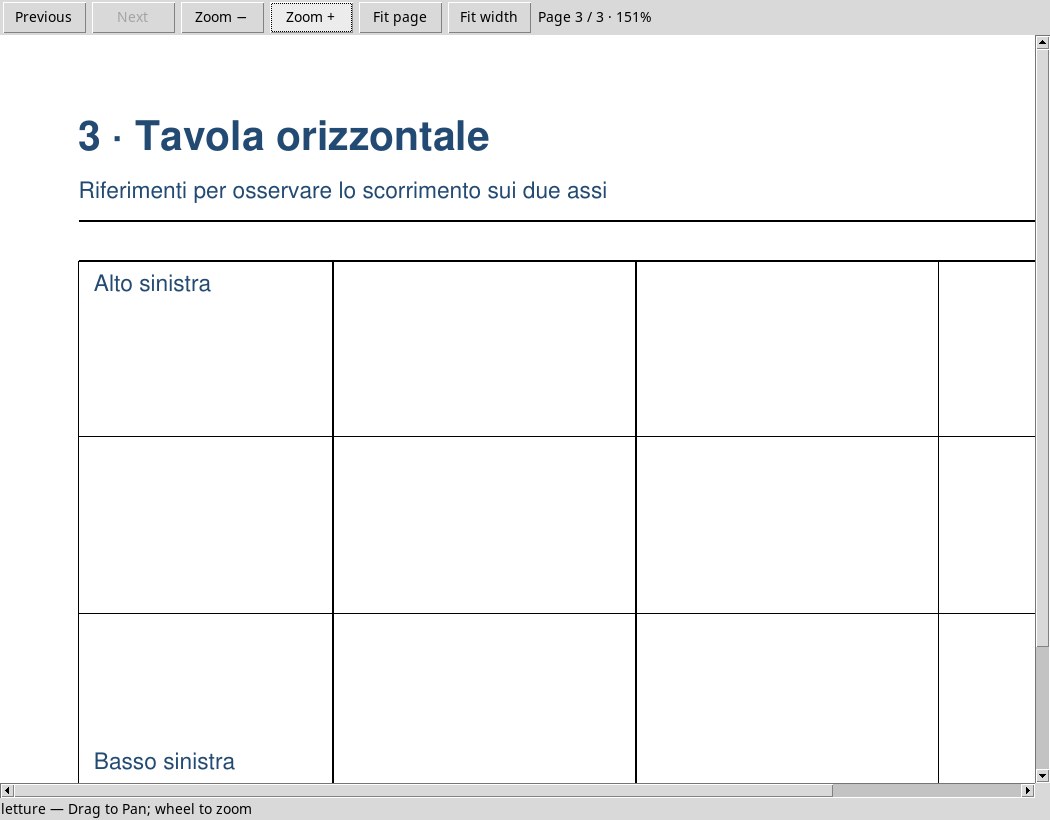
Zoom + increases the scale by a factor of 1.25 and Zoom − multiplies it by 0.8. For example, on the landscape drawing the value goes from about 121% to 151% and back to 121%. You can do the same with the wheel over the page. Upwards zooms in, downwards zooms out. After each action check the percentage next to Page. The current page stays the same. The scale is limited to the 10–400% range.
Move around the enlarged page
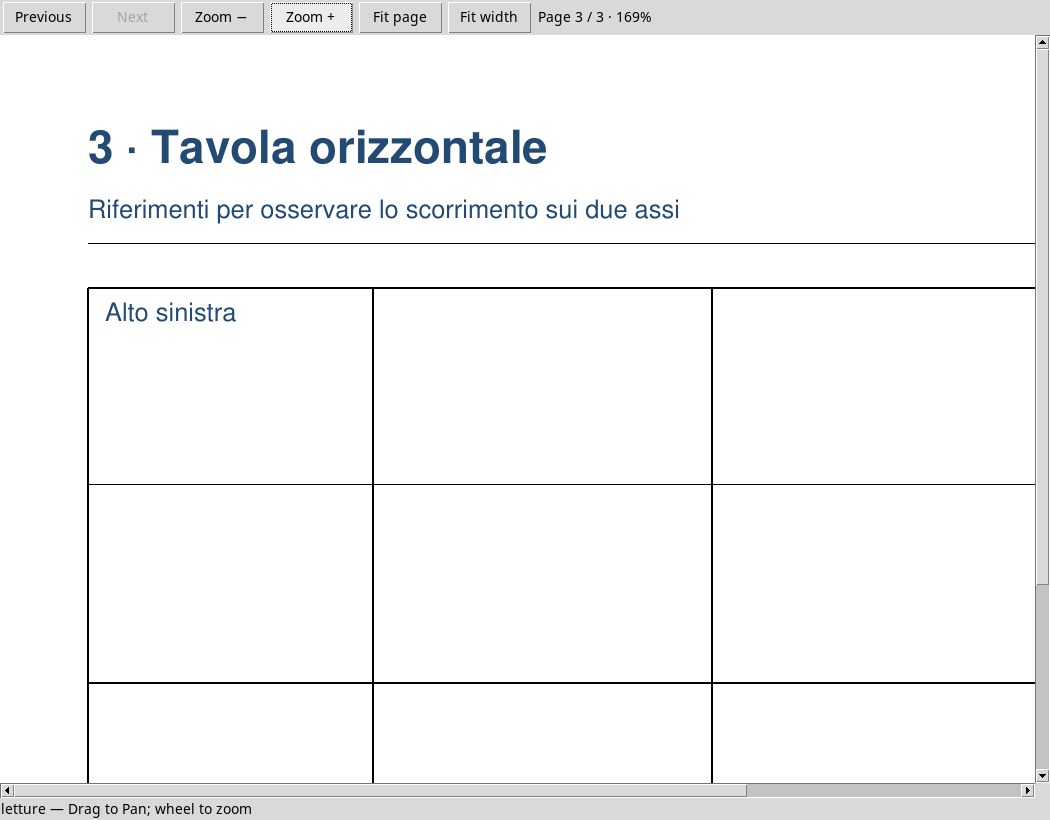
On the landscape drawing use Zoom + until the page exceeds the frame on both axes. The bottom bar moves the view left and right. The bar on the right moves the view up and down. You can click the track or drag the bar’s slider.
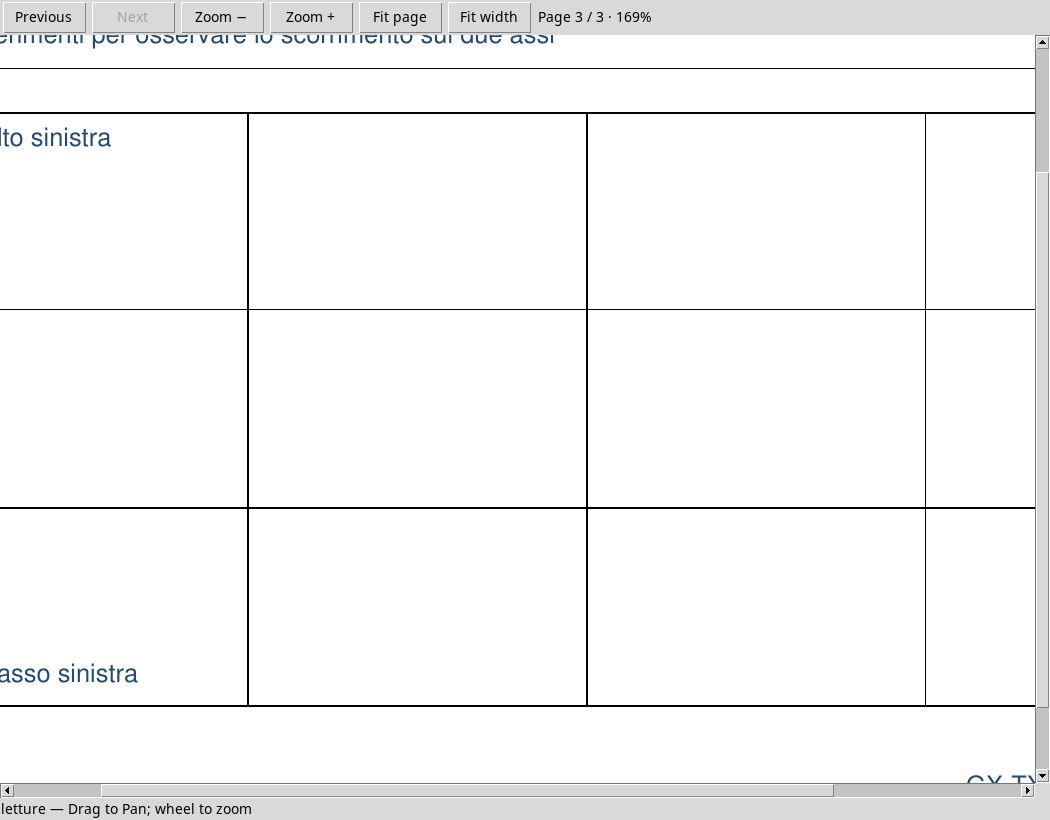
Press and hold the left button directly on the page. Drag the sheet to the left and upwards to look at the lower right area. Moving it in the opposite direction takes you back towards the top left corner. If the page fits in the frame on one axis, scrolling on that axis is already at its limit.
To use the keyboard, first click inside the document. ← and → move the view horizontally. ↑ and ↓ act vertically. The counter and the zoom keep their values.
Fit again after resizing
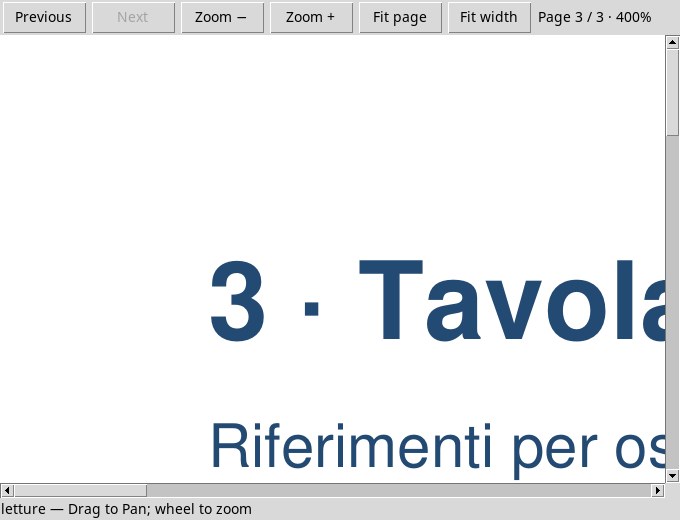
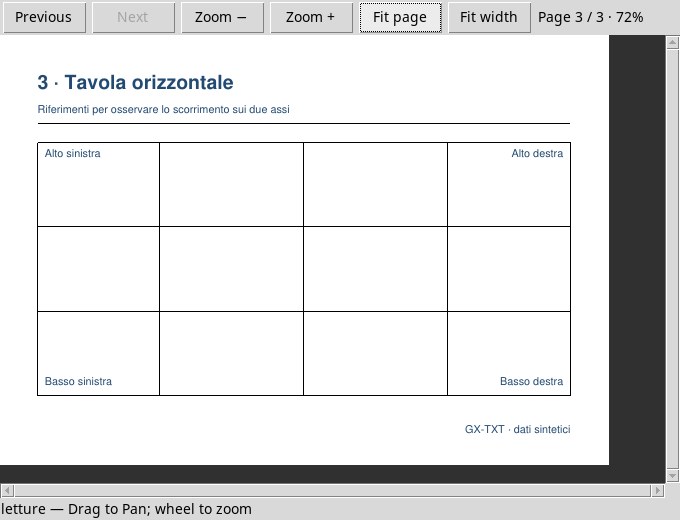
Resize the reader window by dragging its edge. The active page and the scale stay as they were set. Press Fit page or Fit width to recalculate the scale for the new window. In the test at 680 × 520, Fit page took the drawing from 400% to about 72%.