

Repeat the reading in a new Session
Take the files with you and check the result on a table, a drawing and a second source.
Take the exercise documents with you
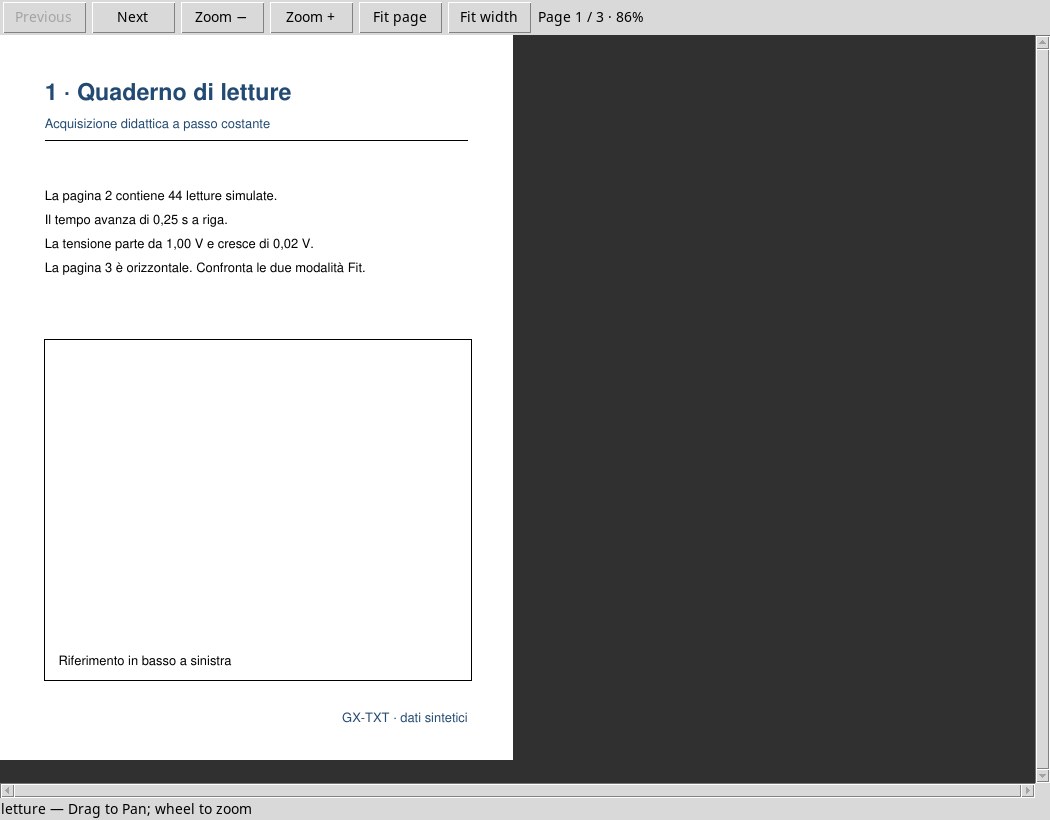
Create a new Session and acquire letture.pdf and nota.pdf following the acquisition workflow. Both are synthetic. If you want to regenerate them, use make_pdfs.py (ZIP) with Python and ReportLab. The first PDF contains a portrait A4 cover, a portrait A3 table and a landscape A4 drawing. The second contains a single landscape page.
Read a value and find the position again
- Open
letturefrom the PDF tile. Press Next, then Fit page. Check the title, the columns and the final note of page 2. - Press Fit width and look for the last row with the vertical bar. Index 43 corresponds to 10.75 s and 1.86 V. For each row the time increases by 0.25 s and the voltage by 0.02 V. It is a teaching progression.
- Press Next for the drawing. Zoom in and reach Basso destra by dragging or with the bars. Then use Fit page to see the four references again.
- Go back to the launcher, choose
notaand press Open PDF. Check Page 1 / 1 and the two disabled page buttons. Close the separate window and reopen it from the launcher.
Check the integrity of the PDFs
The reader opens PDFs read-only. The actions change page, scale and position in the window. In the acceptance test, the canonical files of letture and nota keep the same SHA-256 as the two teaching PDFs. To modify a PDF, work on the file with an authoring tool and acquire the output into the Session.