Read and change page
Use Previous and Next, identify the open PDF and recognise the limits of navigation.
Recognise page, total and source
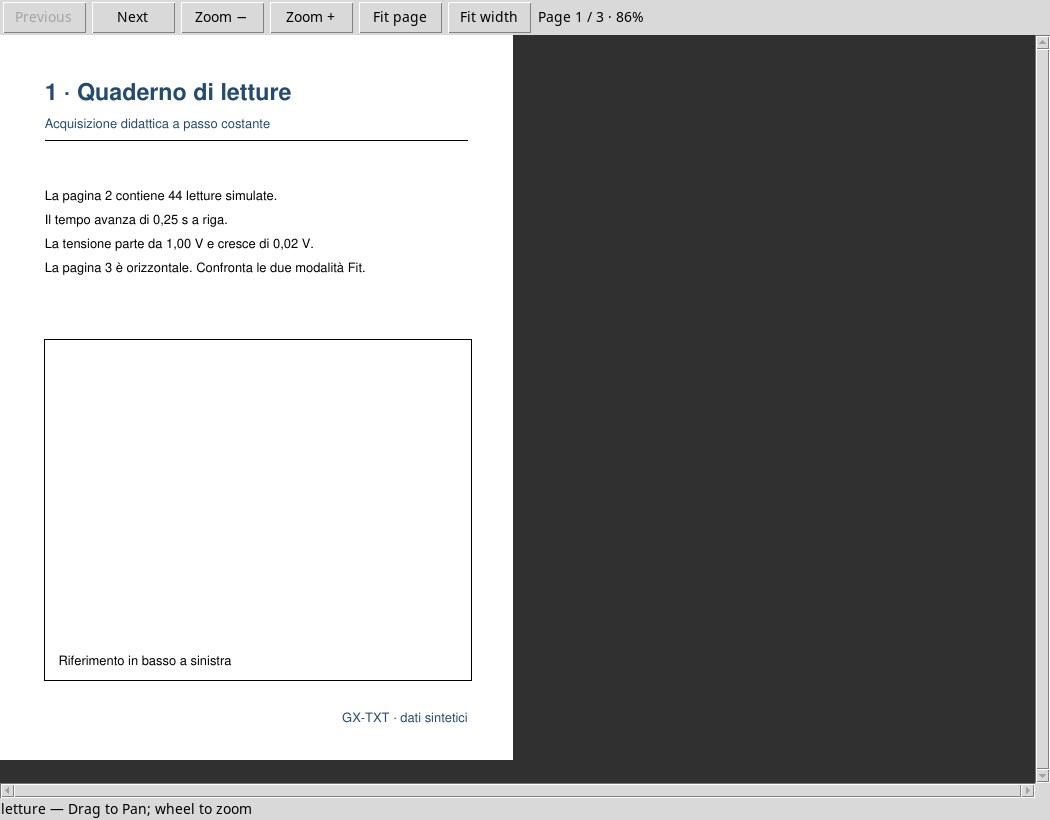
The reading window shows the name of the Dataset in the title and in the text at the bottom. To the right of the six buttons you read Page 1 / 3 · 86% in the test window. It means the first page of three, at the current scale rounded to a whole number. The PDF opens at page 1 and initially fits the page to the window. The figure depends on the page size and the space available.
Go to the next page
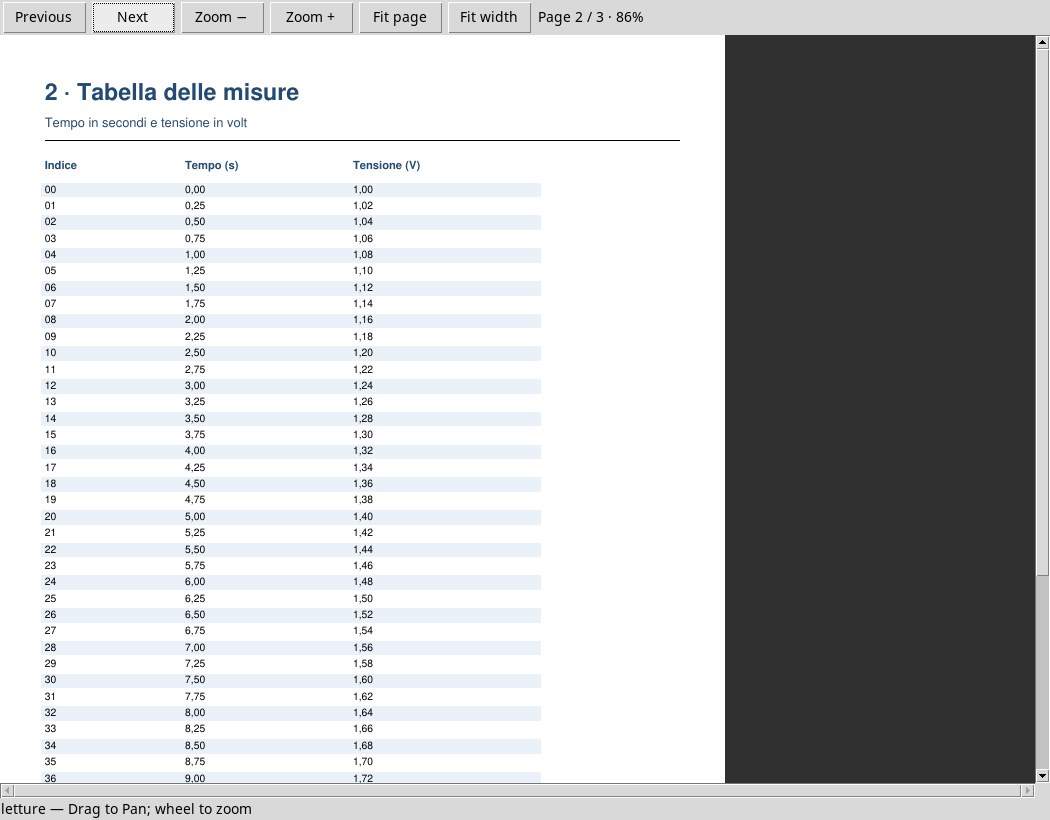
Next increases the page by one. From letture, press it to open 2 · Tabella delle misure. The counter shows Page 2 / 3. The initial scale is kept during the change and this A3 page is taller than the A4 cover, so part of the table may need scrolling.
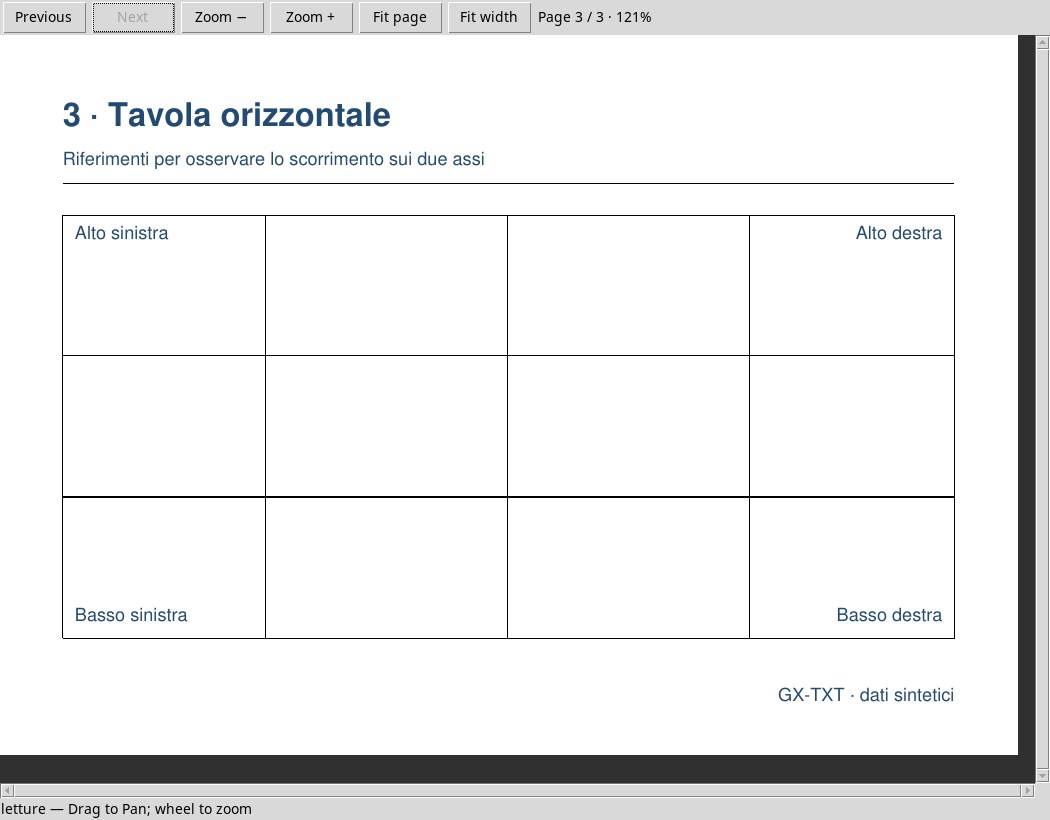
Press Next again to see 3 · Tavola orizzontale. At Page 3 / 3 the command is disabled. To explore the details on the page, use zoom and scrolling.
Go back to the previous page
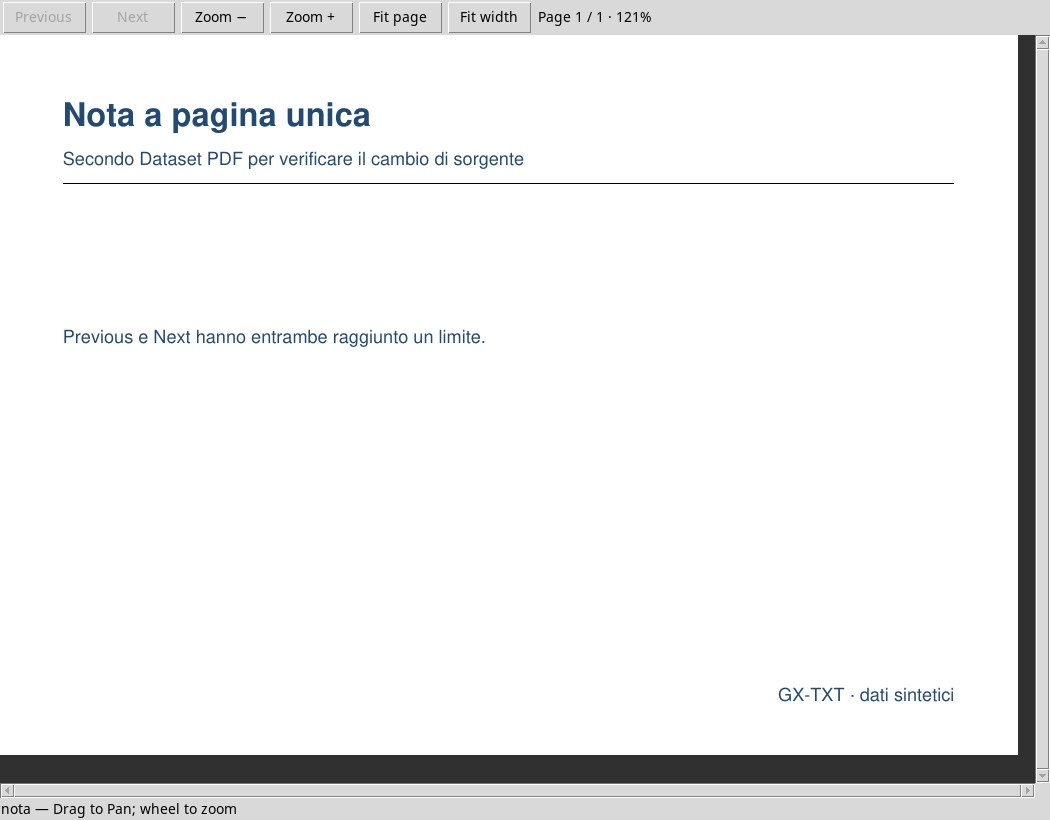
Previous decreases the page by one. From the drawing it goes back to the table and then to the cover. On the first page it is disabled. With the nota PDF, which has a single page, the counter reads Page 1 / 1 and both navigation commands are disabled at the same time.