Compose a figure
Compose a figure with one or more panels
- Select
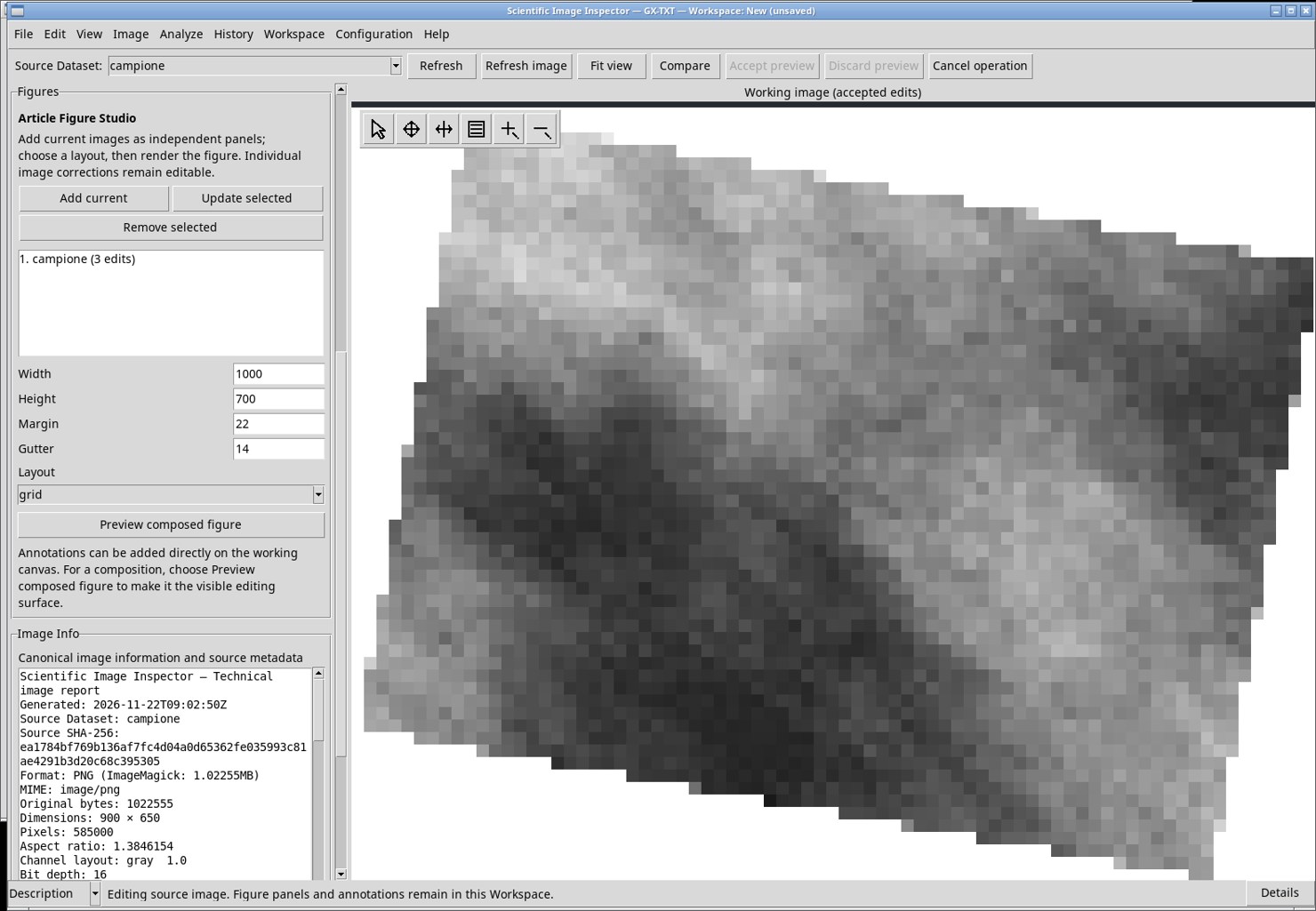
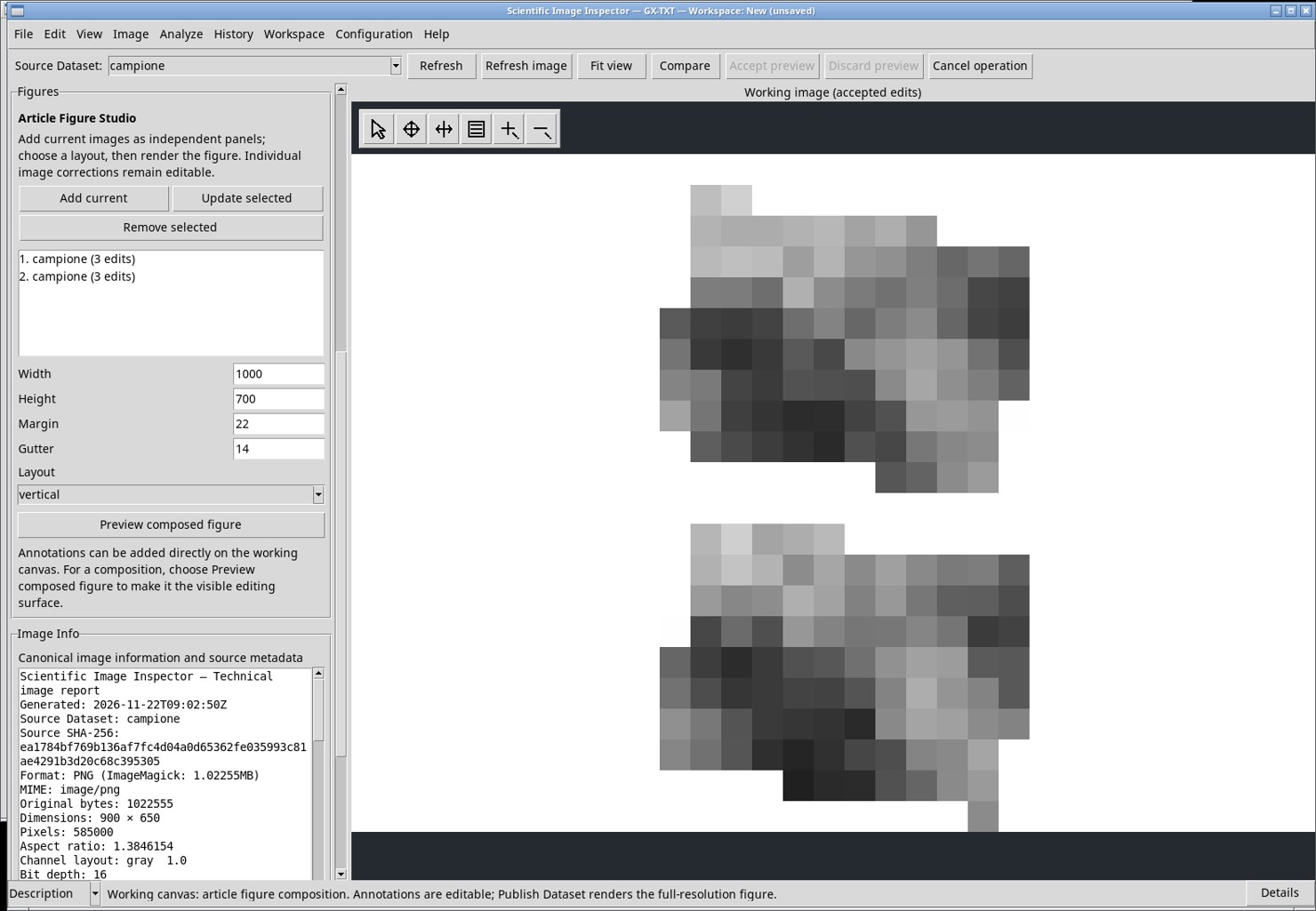
campioneand accept any correction you want to include. Open Image → Figure Studio. In Figures → Article Figure Studio, Add current saves a panel with the source and current processing steps. - Select a row in the panel list. Update selected replaces its contents with the current working image. Remove selected removes it. The list shows the step count in parentheses.
- Set Width, Height, Margin, and Gutter in pixels. The dialog defaults to 2400×1600, a margin of 32, and spacing of 24. Try 1000×700, a margin of 22, and spacing of 14. Choose
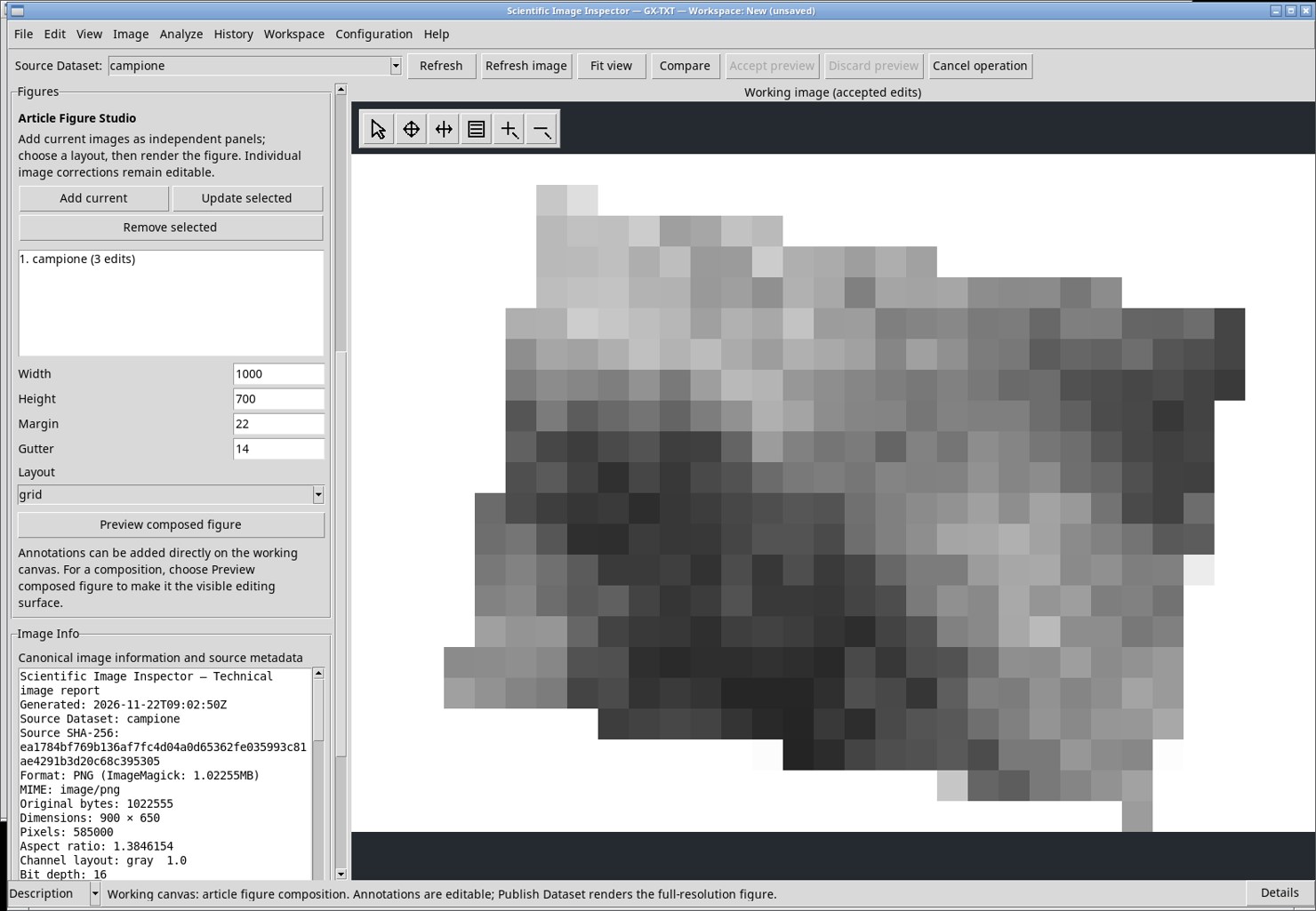
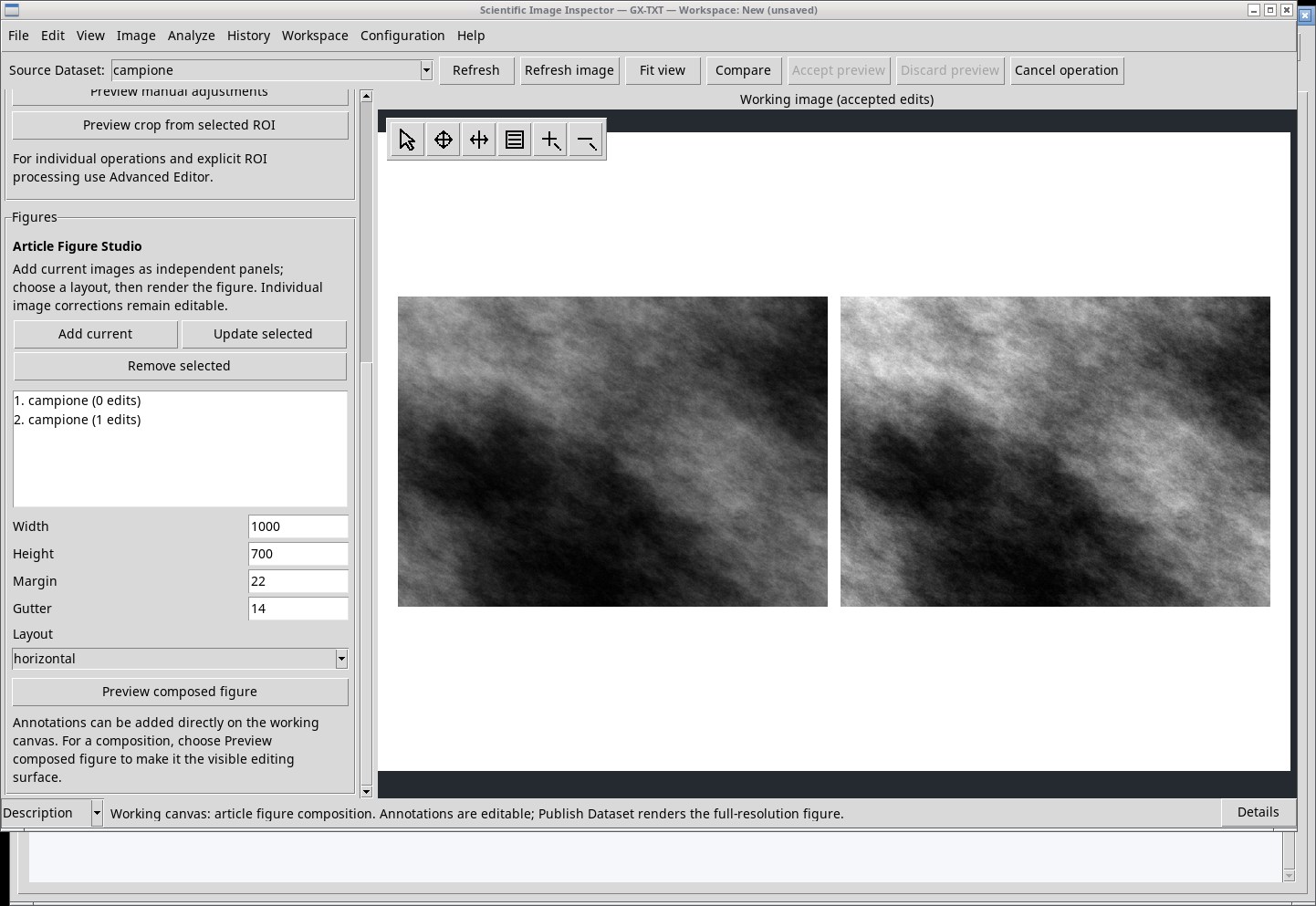
gridfor a grid,horizontalfor a row, orverticalfor a column. You can add multiple panels from the same source. To compare two recipes without changing the source, add the first panel with zero steps. Open Basic Editor, preview and accept the default preset Photo | Balance tonal range, return to Figure Studio, and add the second panel. The test in a new session shows0 editsand1 edits. - Click Preview composed figure. Description identifies the composition as the active surface. Add any labels to the figure. Image → Edit source image returns to the single-image surface. Figure annotations are separate from working-image annotations. The composition’s context menu also offers Figure Studio settings… to review the settings and Publish composed figure as Dataset… to open publishing for the active surface.
Compose a figure with different Datasets
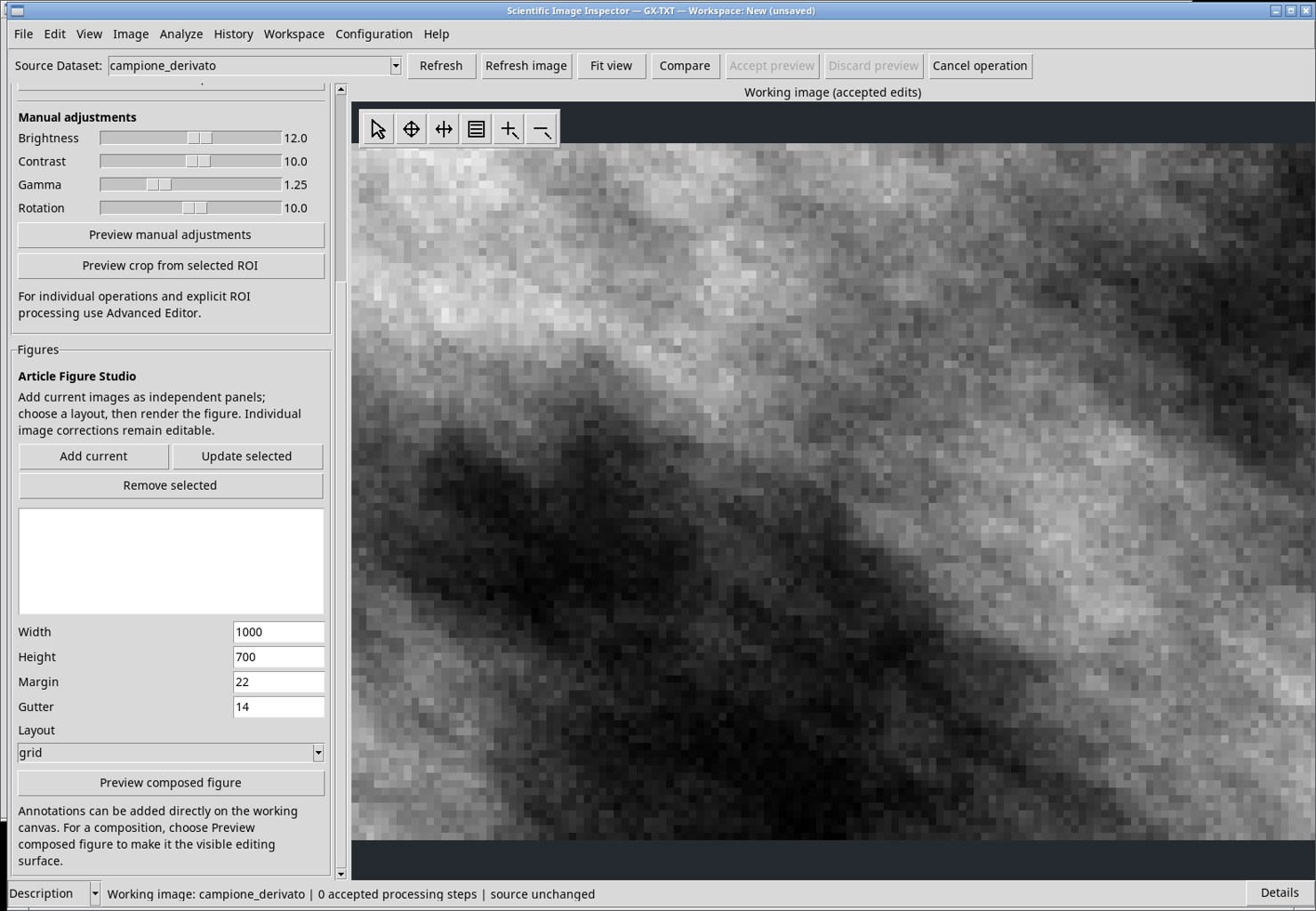
The intended workflow starts with campione, adds the first panel with Add current, switches Source Dataset to campione_derivato, and adds the second panel. In DEV112 P011-bis with viewer 0.4.37, switching sources clears the panel list (bug 002). The second Add current then creates a new list with just one panel. Save the Workspace before switching sources to restore the previous composition and source by reopening that Workspace.
To produce a verified figure in this version, keep one source and add one or more panels from it. To obtain outputs from different images, keep two Workspaces or publish two separate Datasets. Composing a single figure with both Datasets and reopening the saved figure still need to be tested again after the fix.