

Description and History
The bottom bar passes from Description to History. History records study operations such as adding or removing a source, application of configuration, adoption of a result and changes in visibility. The already published outputs have a separate life cycle.
Description, History and Details
- Description
- Show the last message. Press Details to open a scrollable view of the full message.
- History
- Shows a sequence from Baseline. Scroll horizontally with the wheel in the sequence and click a step to inspect it. The highlighted step is the one you are viewing. Inspection is read-only.
- Details and History details…
- They open a scrollable window with slider, operation list and timestamp when available. Close with window control or with Esc.
- Previous history step and Next history step
- In the context menu of the sequence, switch to the previous or next checkpoint without rewriting the current. At the two extremes, the direction that would exit the sequence is disabled.
- Return to latest
- It comes out of consultation and returns to the working environment. Use it before resuming the changes, especially for Digitizer sources.
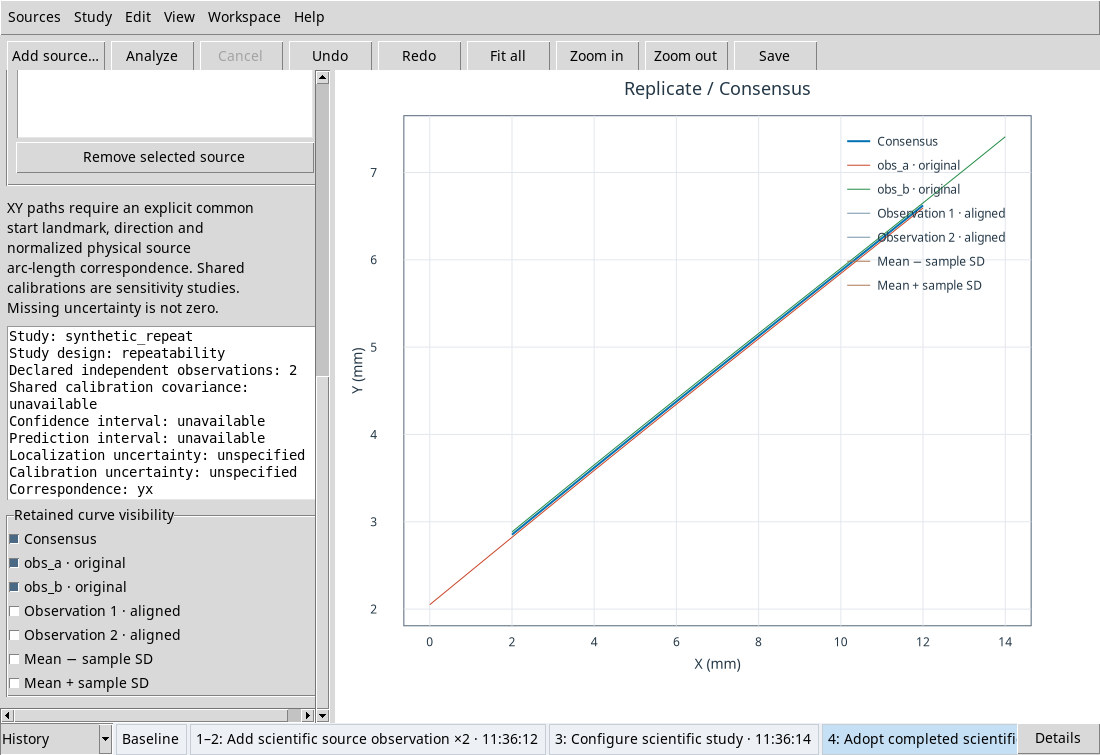
Undo, Redo and resume from a step
Undo retracts the working environment of an operation. Redo advances again when there are subsequent operations. They are located in Edit, in the bar and in the context menu of the history. You must have a registered change to cancel or repeat. If the result scroll has restored a no Job recipe valid for publication, repeat Analyze before posting.
- Restart here / discard later local history…
- During the consultation of a previous step, it explicitly creates a branch from that point. Check the pass and confirm with OK. Later local steps are discarded and the previous publications remain. Cancel retains history.
- Branch Workspace History
- If after Undo performs a change that would replace the next steps, the viewer asks for confirmation. Proceed with OK only if you want to start from the previous state.
- Expand / collapse individual operations
- If the current passage belongs to a block of operations grouped in the sequence, it alternates the grouped view and that of the individual steps.
- Hide Description / History strip
- It hides the entire lower strip. The strip reappears opening a new window of the viewer. Save what you need before you close it.
Clear History…
In the context menu of a Workspace saved at the most recent step, Clear History… opens Clear History. Clearing History retains the current state as a base. Yes asks first where to save a Protected ZIP, No deletes steps without backup, Cancel keeps everything. It is appropriate to read the state and consequences in the dialogue before confirming. Clearing local History does not remove already published outputs.
Save History As… and Named History…
With a registered Workspace, open the context menu of the history. Save History As… asks for a Name, starting from New workflow. Write a recognizable name and press Apply; Close abandons the module. The archive retains a workflow named for the Workspace. Named History… opens the recorded entries. On the list, Name is the name of the archive, Count the number of operations and Cursor the active step at the time of registration.
- Inspect
- Read the name, owner, schema, revision, operation count, cursor and SHA-256 hash in the read-only pane.
- Restore
- Restores the selected named history. When Restore named History appears, Yes attempts to save the Workspace first, No replaces the pending draft, and Cancel continues without restoring. After Yes or No, check the source list and History cursor against the selected workflow.
- Rename
- Opens the Rename History module. Change the name and press Apply. Check out the new name on the list.
- Delete
- Proposes to delete the selected archive. Confirm with OK or keep it with Cancel. The active history and scientific resources are kept.