

Open Signal Analysis
Signal Analysis Viewer offers fifteen analysis methods for numerical series in a canonical Dataset. The selected method determines the result and the controls you can adjust. Previewing a signal, running a calculation, and publishing the result are separate operations.
Open the viewer
In the GX-TXT window, open the Session that contains the data. Go to Viewers → Scientific Analysis → Signal Analysis. You can search for Signal Analysis in the Search field and click the matching tile. The window is named Signal Analysis Viewer. You can also open without Session to consult the controls, but Analyze requires a Session. Without selected Dataset, Analyze can respond to Unknown Dataset ''.
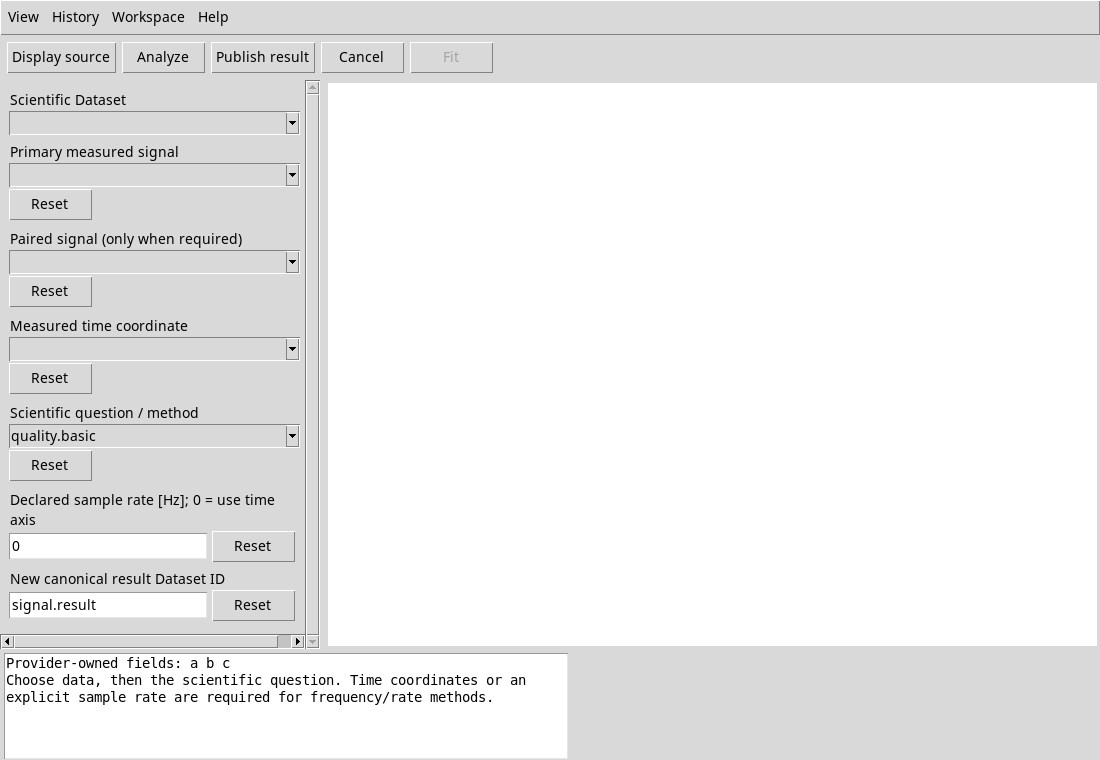
Actions and panels
- Display source
- Plots the primary signal against the selected time coordinate. Both fields are required, even if you declared a sample rate. This command does not start a Job.
- Analyze
- Use the current values of the inspector to submit a Job. Display source is optional. Wait for the result below before you change method or start another Job.
- Publish result
- Publish the Job table from which the viewer is reading the result. Choose a free ID and wait for the receipt.
- Cancel
- Requests cancellation of a running Job or of a result import that is still in progress. While idle, the command may remain enabled without changing anything.
- Fit
- Adapt the chart to the visible data. It is the same command as View → Fit. It is enabled after loading a curve.
Drag the divider between inspector and chart to change the widths. When needed, use horizontal and vertical scrollbars. The bottom report pane contains field explanations, JSON reports or receipts. Read also the Description status line. Details opens the full status or history text.
Help, User Manual…, and About Module…
Open Help → User Manual… or press F1 while the viewer has focus. About Module… shows name, version and module, and closes with OK.
In the manual, Manual shows the text. Interactive Tutorial shows the state of the lessons, which require an installed package. Use Find and Find next to search for text. View → Find… and Ctrl + F focus the search field. Back and Forward move between visited pages. User Manual returns to the home page and Close closes the window, from the bar or from File. Zoom out, Actual size (100%) and Zoom in are disabled on the manual page in text format.
- Technical manual (Markdown)
- In References, it opens the technical text installed.
- VIEWER_GUI_HOST_API_v1
- It describes the structure of controls, the canvas and the host.
- SCIENTIFIC_EXECUTION_API_v1
- It describes Job admission, receipts, and scientific resources.
- MODULE_TARGETED_ANALYSIS_API_v1
- It describes the input contract for targeted analyses.
- SIGNAL_ANALYSIS_VIEWER_API_v1
- Describes the viewer contract by request, Job and state.