Jobs and publication
Analyze, status, and Cancel
- Check Dataset, channels, method, rate and options. Press Analyze. Action ‘analyze’: completed concerns the command of the GUI. The Submitted message with the ID indicates submission.
- Wait for the current Job.
QUEUEDis queued,PREPARINGprepares resources,RUNNINGperforms,FINALIZINGrecords the outcome. A quick Job can skip a visible state between two updates. The calculation uses the whole source. The chart already present can remain on the previous signal. - To stop the job press Cancel. Wait for
CANCELLED. If the Job was already finished, Cancel can leave the previous result. If you readFAILED, open Jobs from the Session bar and the corresponding Job details with double click. Worker exit status 1 is generic. In the details stream selector choose Program stderr for the worker’s cause. With Latest page, you can reach the last log page. Validation errors before submission appear directly in the status line.
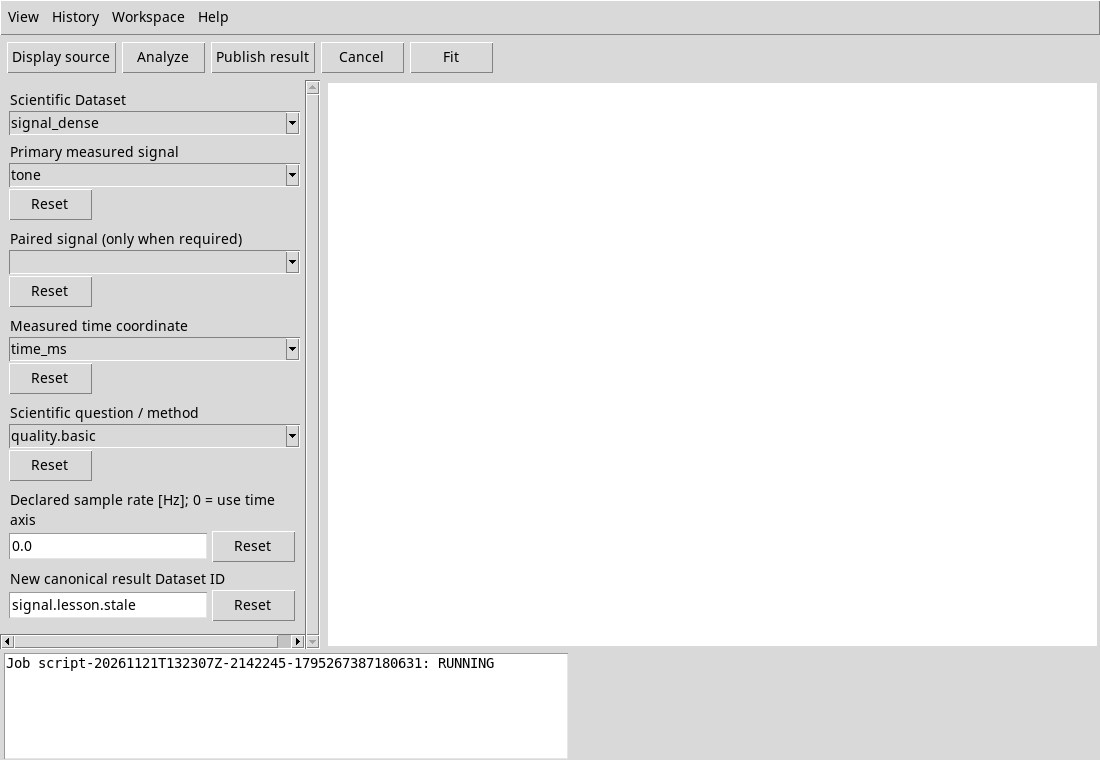
The bar does not necessarily disable Analyze, Publish result or Cancel during work. To associate a result with the newly set request, use a Job at a time and always reconcile ID, Dataset, variables and method reported.
Read the result before publishing
At the end the pane can replace the status with the JSON of the summary. public_signal_provider_completed indicates scientific completion. operation, source_dataset_id and source_variables report the actual request. full_input_rows counts the lines read, sample_rate_hz and sampling describe the sampling. columns and units describe the table, scalar_fields measurements, counts and algorithm choices. Empty derived units report an unassigned unit. Real and imaginary components keep explicit names.
The Job maintains a summary output and, for vector methods, a signal_result output with values. quality.basic has only the summary. Calculating the result does not yet create a new canonical Dataset in Session.
Publish result and the new Dataset ID
- After the Job, type a free ID in New canonical result Dataset ID. The default and value of Reset are
signal.result. Use a different name to compare multiple executions. - Press Publish result. You publish the most recent Job associated with this window, even if you have already changed the selectors. To publish with the new configuration, run Analyze again. If the canonical revision of the Job source has changed, Scientific Dataset changed; rerun before publication appears. Reread the source and repeat the calculation.
- In the report,
ok 1anddataset_idare required. The output is a canonical HDF5 table. An ID already occupied is refused. The status row can show rejection while the panel still shows the previous receipt. If Cancel intercepts the still active publication, Result publication cancelled confirms the cancellation. If the request fails, read both areas before repeating.
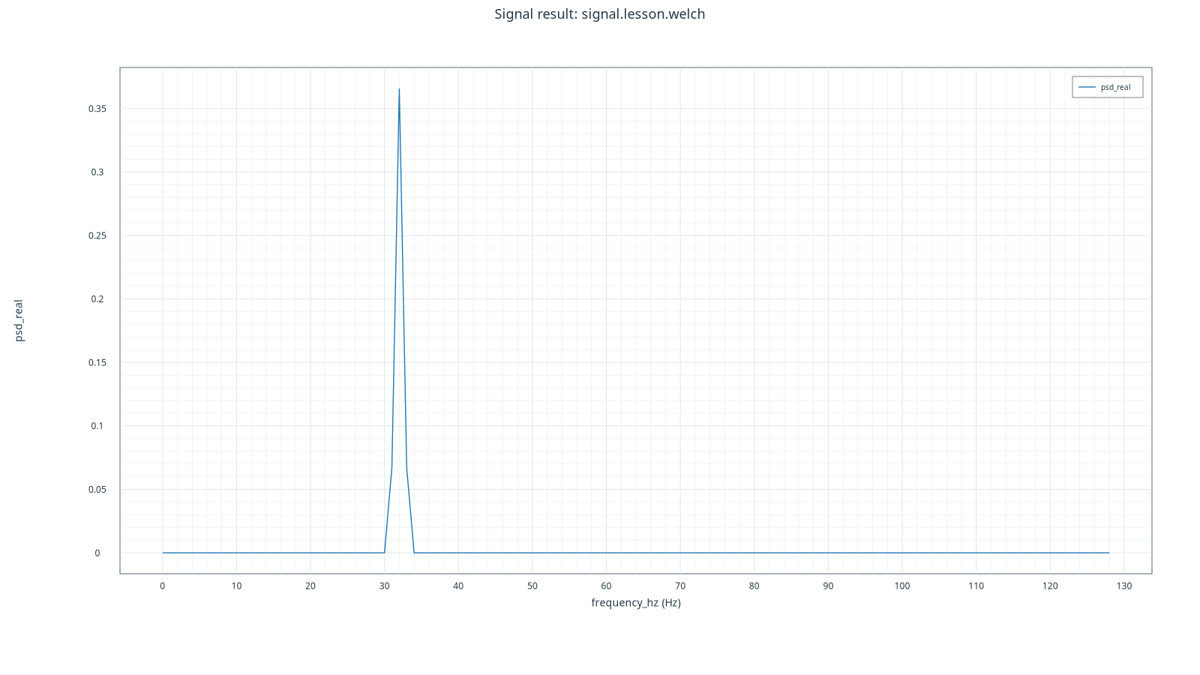
For vector results, the viewer also builds a Plot v4 variant identified by plot_id. The chart uses the first column for X and the second column for Y. The additional columns remain available in the Dataset. For PSD and FRF, the default curve is the real part. The data of the chart are those published, distinct from the preview of the source and from the preserved Job.
In this version the receipt may include Native Viewer Workspace codec ‘job_id’ is unavailable in plot_diagnostic after you have already created table and variant. Check the table ID, plot_id and the GX-TXT variant before repeating the operation. Use Save Config in the main window to store the chart configuration in the Session.
To view independently from the viewer canvas, go to Analysis → Scientific Dataset 2D → Variants… in the main window, select the ID indicated in the receipt and use Render. After Save Config, the variant and table can be found by reopening the Session. Plot rerendering completed confirms regeneration.