Settings, menus, and shortcuts
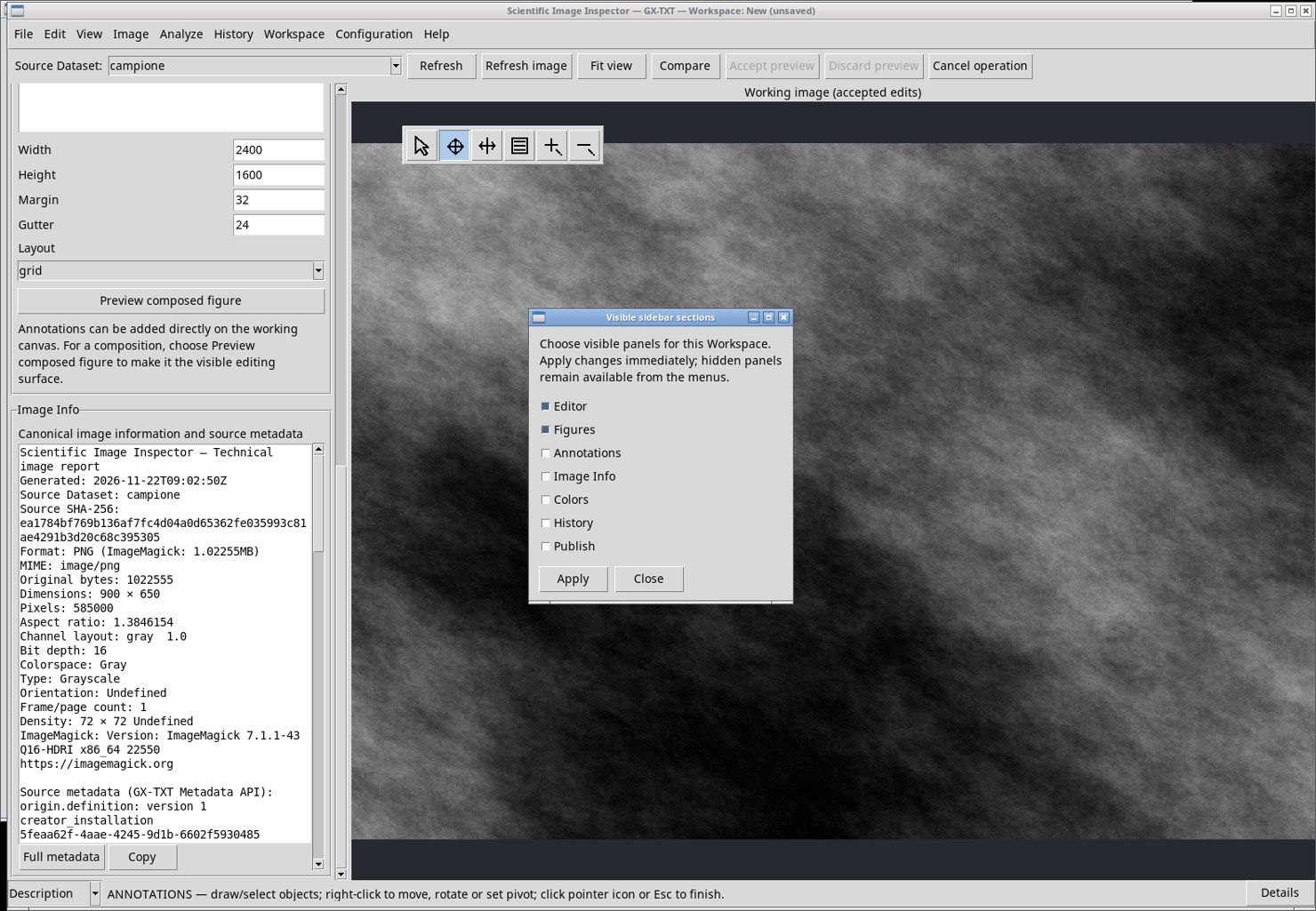
Choose visible sections
Open Configuration → Visible sidebar sections…. Enable Editor, Figures, Annotations, Image Info, Colors, History, and Publish as needed. Apply updates the current project and keeps the selection in the Workspace. Close closes the window. Some actions open a relevant section even when it is hidden. New drafts use the module configuration defaults.
Check display, coordinates, and engine settings
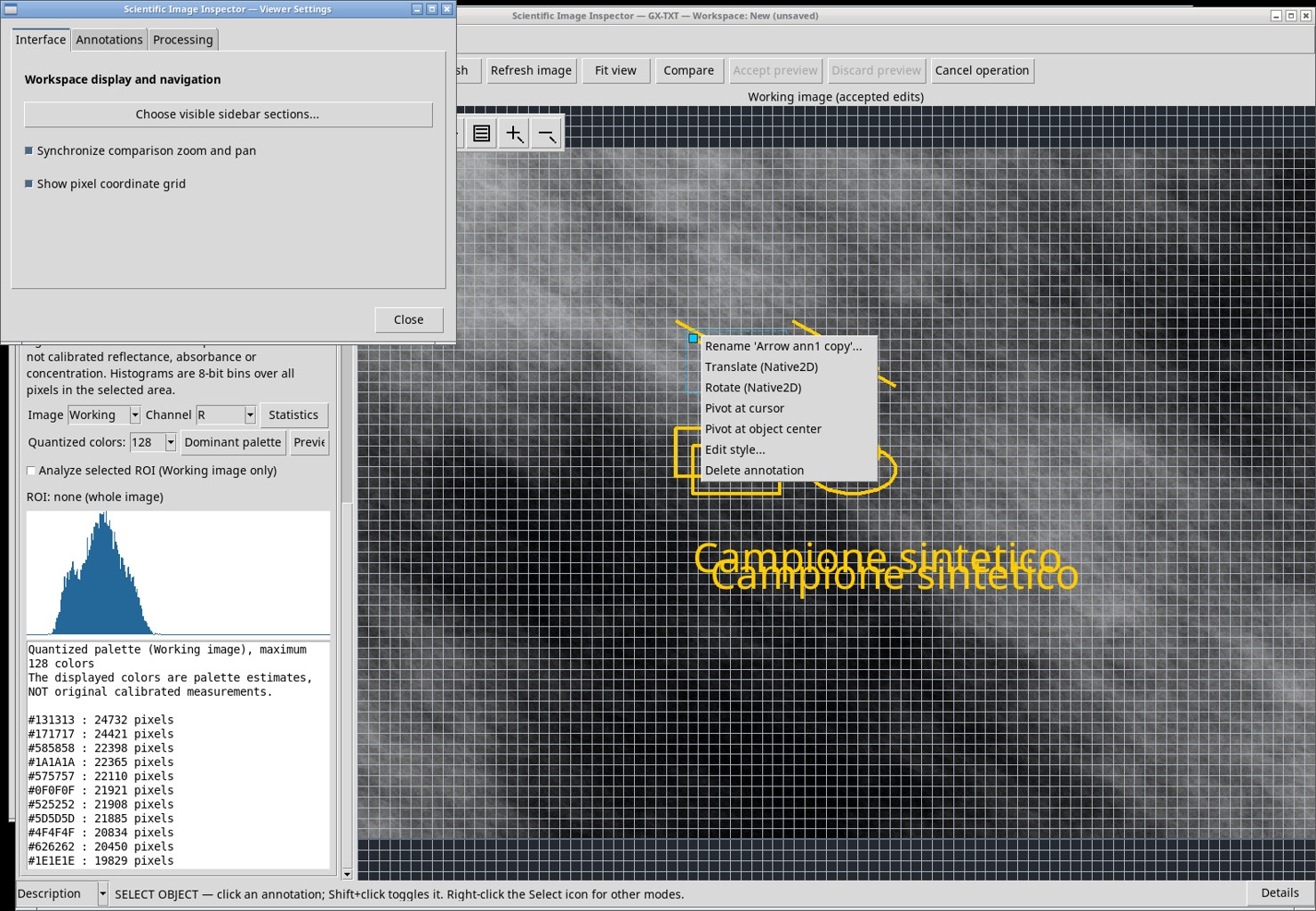
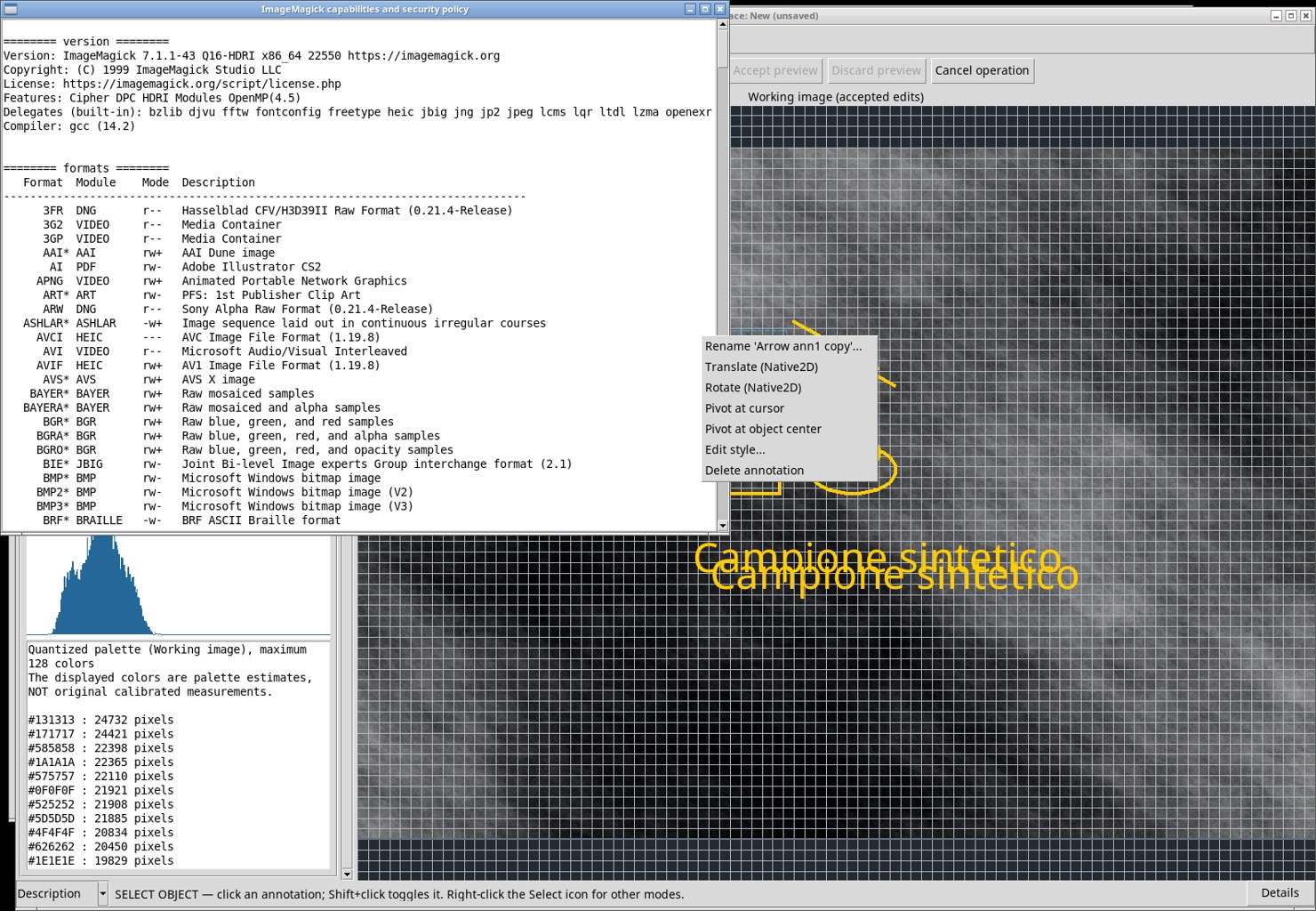
Configuration → Viewer settings… contains three tabs. In Interface, Choose visible sidebar sections… opens the section selector. Synchronize comparison zoom and pan synchronizes navigation across the comparison panes. Show pixel coordinate grid enables the grid at a suitable zoom level. In Annotations, Show exact annotation coordinates exposes numerical fields. In Processing, use Inspect ImageMagick capabilities and policy… to check the available program’s version, format support, and limits. Close closes the settings.
The viewer locates ImageMagick through the GX-TXT configuration. PNG and TIFF support and usable bit depth depend on the installed engine. If a format or operation is rejected, check engine capabilities and policy before changing the recipe.
View technical information
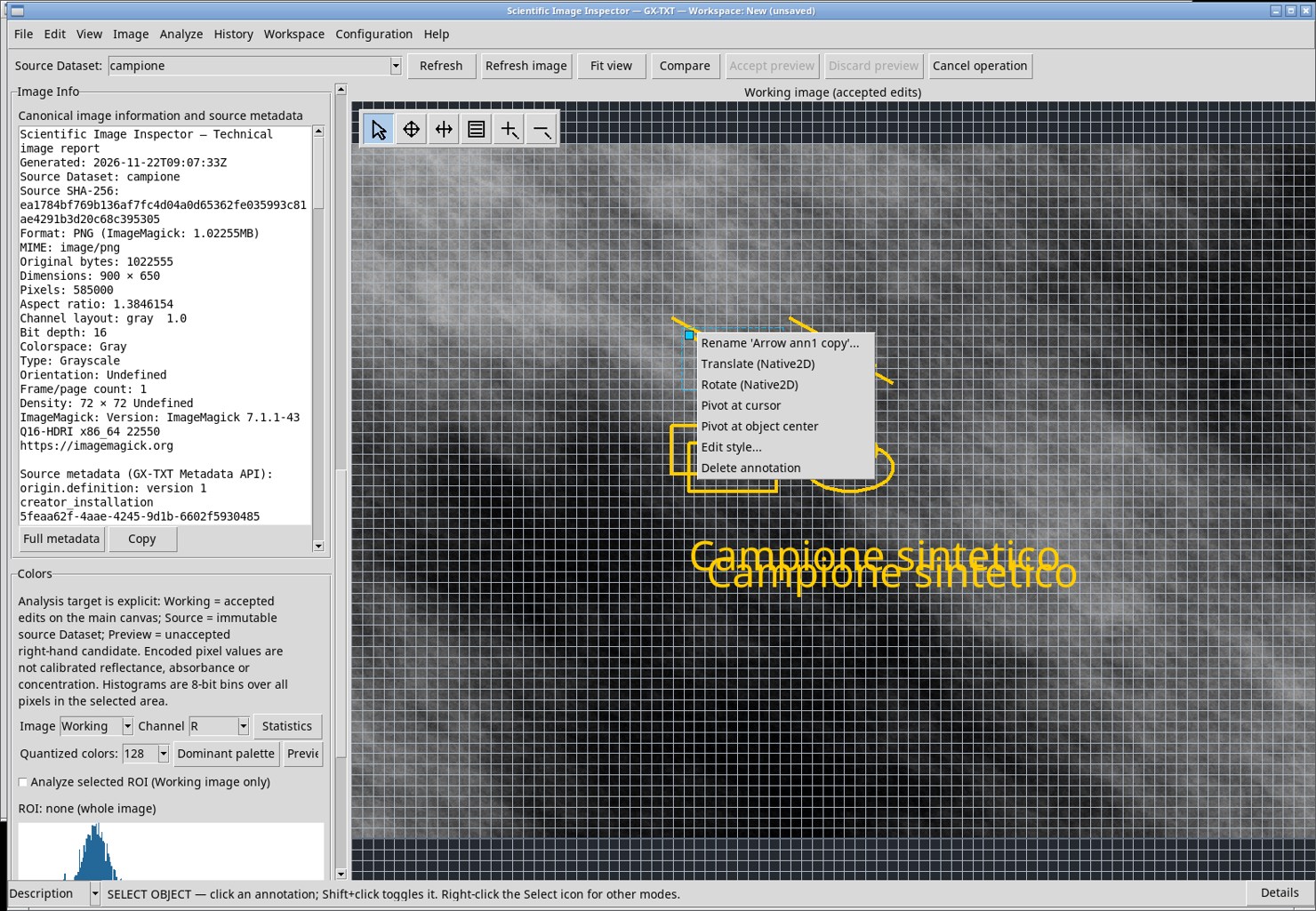
Open Image → Image Information. Image Info shows the source ID and hash, format, MIME type, dimensions and pixel count, channels, bit depth, color space, orientation, density, frames, and available metadata. Full metadata adds properties inspected by the engine. Copy or File → Copy Technical Report copies the report to the system clipboard. Paste it into an editor to save the text.