Save, reopen, and duplicate a Workspace
Keep the Viewer’s work in the Session and check which sources and results you will find when you reopen it.
GX-TXT DEV112 P011-bis
Save your work in the Session
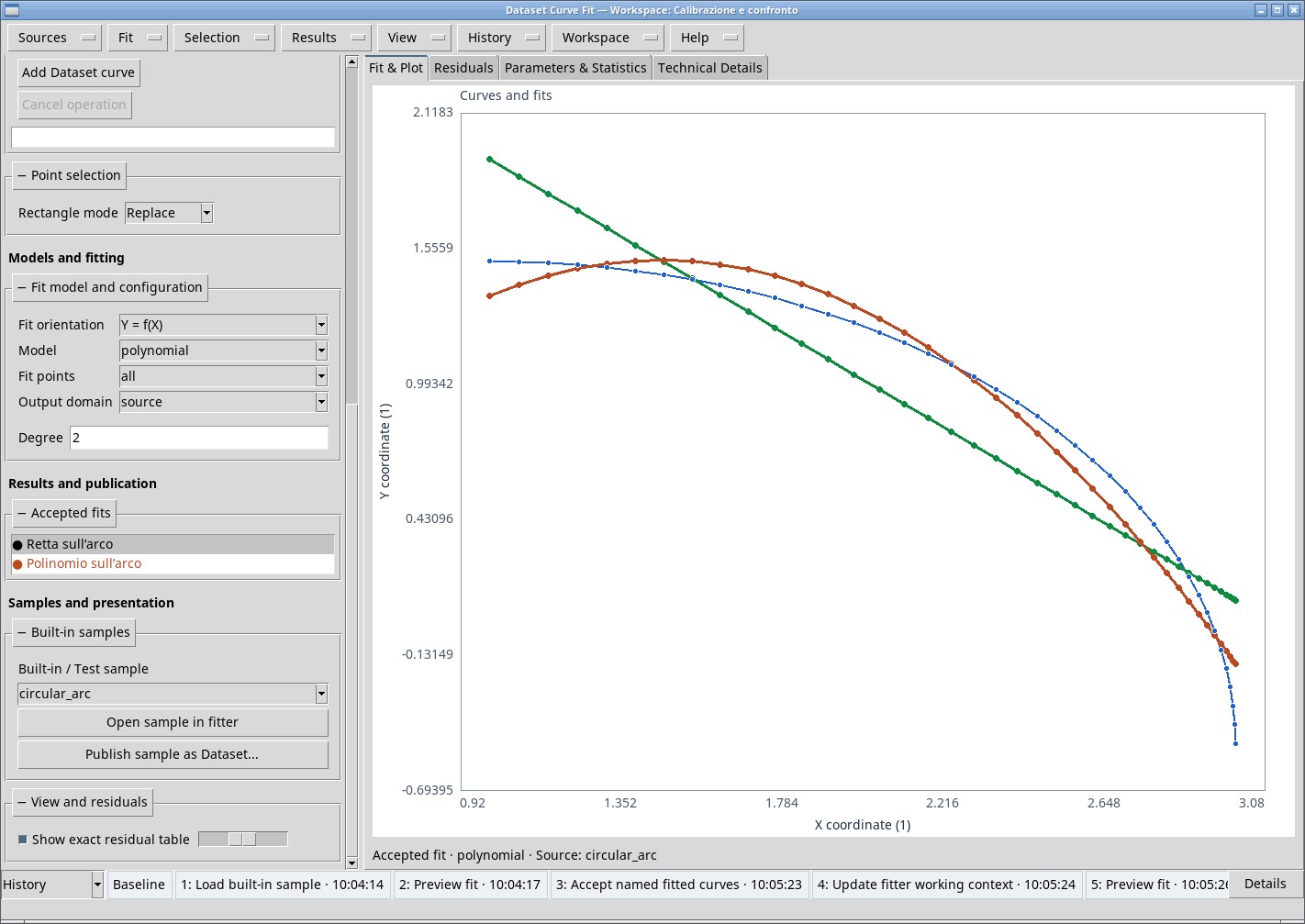
After loading the source and accepting the fit, choose Workspace → Save. The first save associates the work with a Workspace entry and may assign an automatic name. Read the name in the window title. New workspace… opens a new piece of work in the Session. Close closes the Viewer’s work. Before closing, save the draft you want to keep.
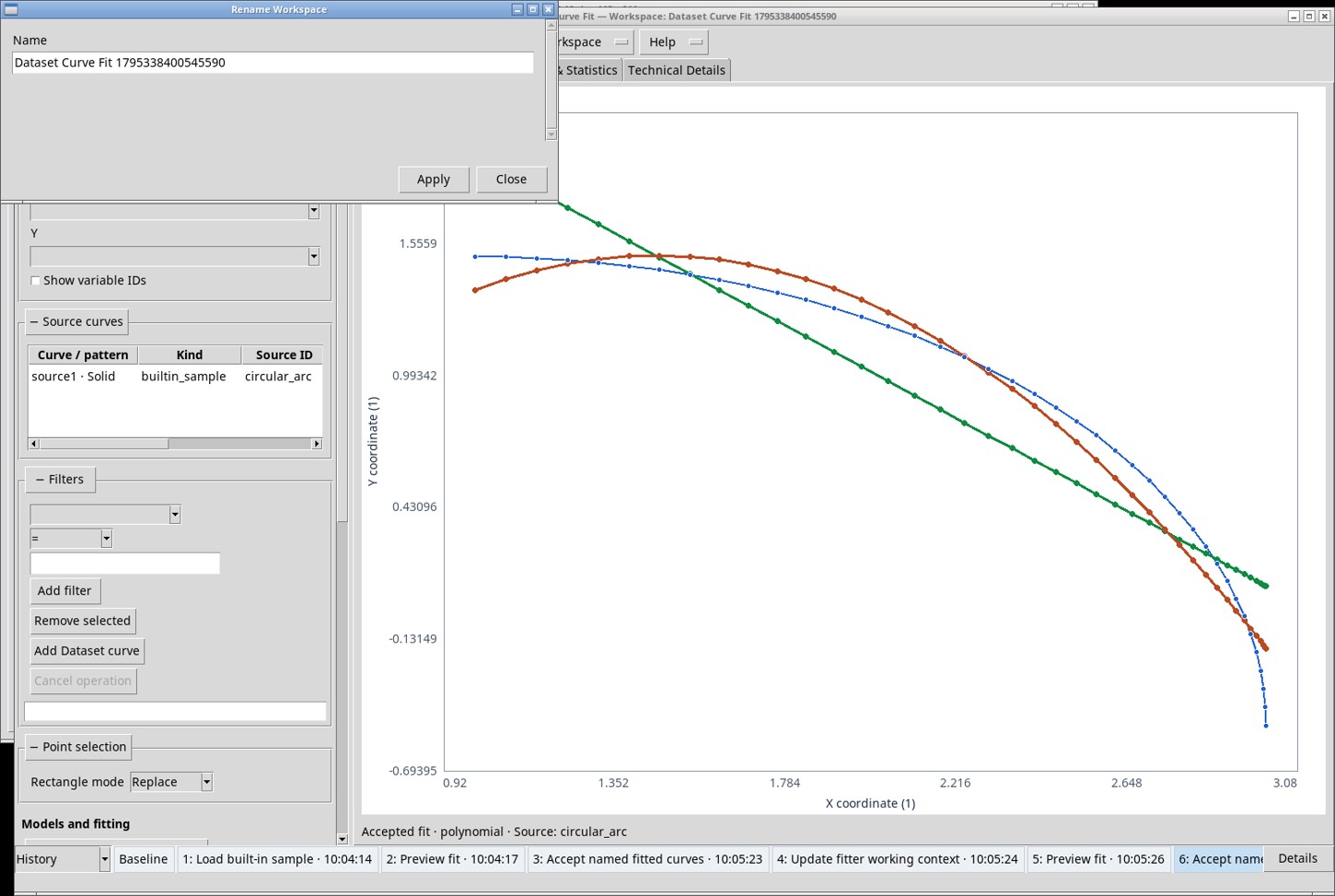
Rename… changes the name of the current entry. Write the new name and press Apply. Close in the dialog exits without changes. With Save as / Duplicate… you create a copy with a distinct name. Both Calibration and comparison and Copy for tests appeared in the test.
Use the Session Manager
Workspace → Session Workspaces… shows the session entries by name, type and provider. The Name / type / provider field filters the list. Reset restores the whole list. Select a row and choose Open to reopen it. Open workspace… lets you look for a Workspace directly from the Viewer. In the test the original Workspace reopened with both Line on the arc and Polynomial on the arc in Accepted fits.
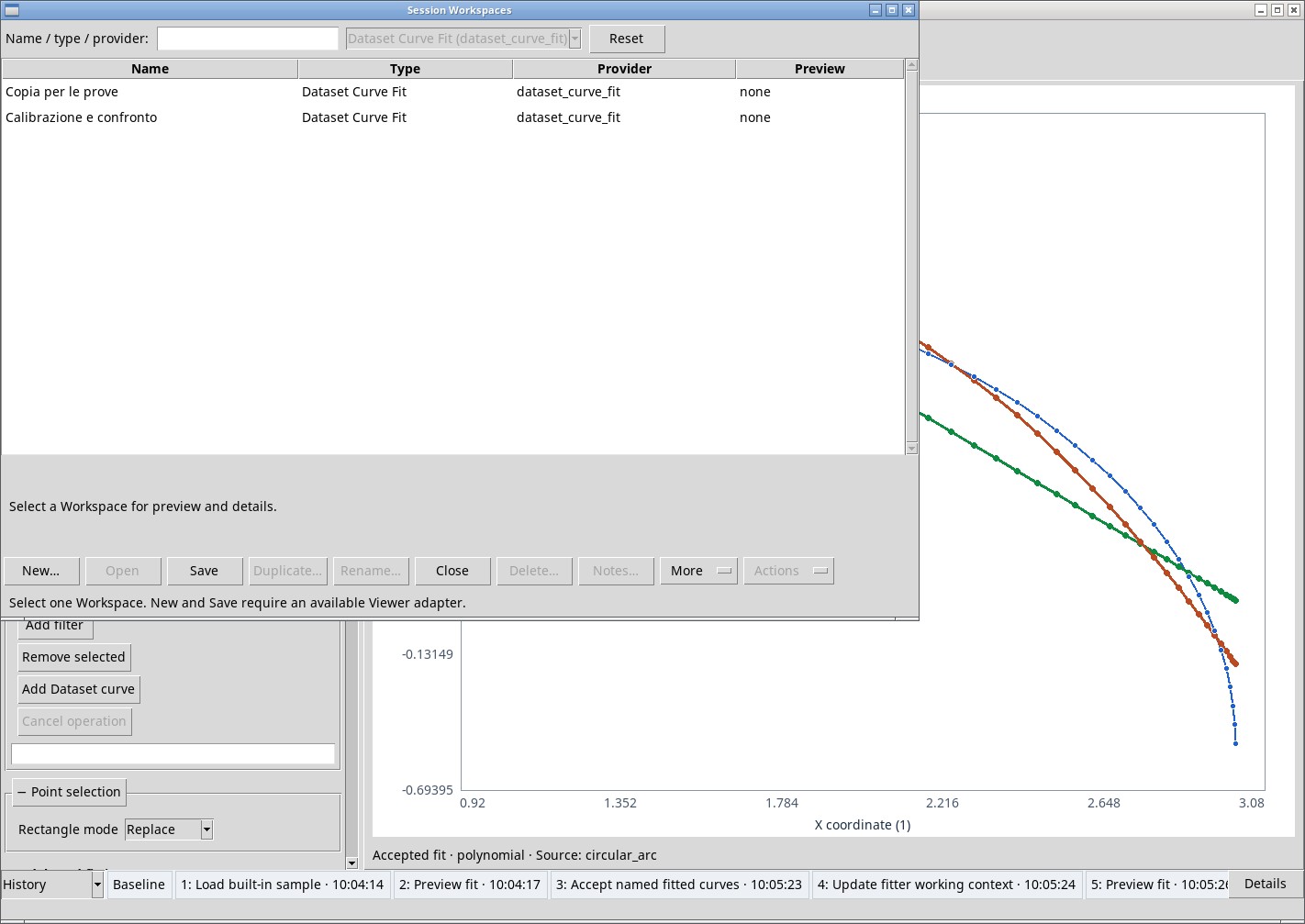
- New, Save, Duplicate…, Rename… and Close
- Each button performs the corresponding operation on the selected entry or on the open work, depending on the button state.
- Notes…
- Opens the Workspace notes, useful for recording purpose and decisions. Preview… opens the available representation of saved work. The Preview column shows the state of the persisted preview.
- Refresh
- Re-reads the Session entries. Actions shows the actions offered by the Workspace type and may indicate that they are not available.
- Delete…
- Asks for confirmation before deleting the selected Workspace. Check the name and Session in the confirmation, then use No to stop the deletion.
- Import… / Export…
- Transfer a Workspace as a portable resource. In the dialog, check the type, name and availability of the sources. The test exported
calibration.gxtxt-workspace.zipand reimported it into the same Session with the unique name Calibration from archive. Use the manager to open the copy and check the sources. The reuse procedure is in Reproducing a fit.
What to check after reopening
Always check the Session, Dataset, variables, settings and the list of stored fits. Save keeps the working state. To create a numerical scientific resource in the Dataset browser, you need to publish. To go back in the history or restart from an earlier state use History.