Open the HTML viewer
Open HTML Dataset Viewer from the viewer catalog or the Dataset tab, recognize its initial state, and find the built-in help.
Open from the HTML tile
- Open a GX-TXT Session and choose the Viewers tab in the main window.
- Enter
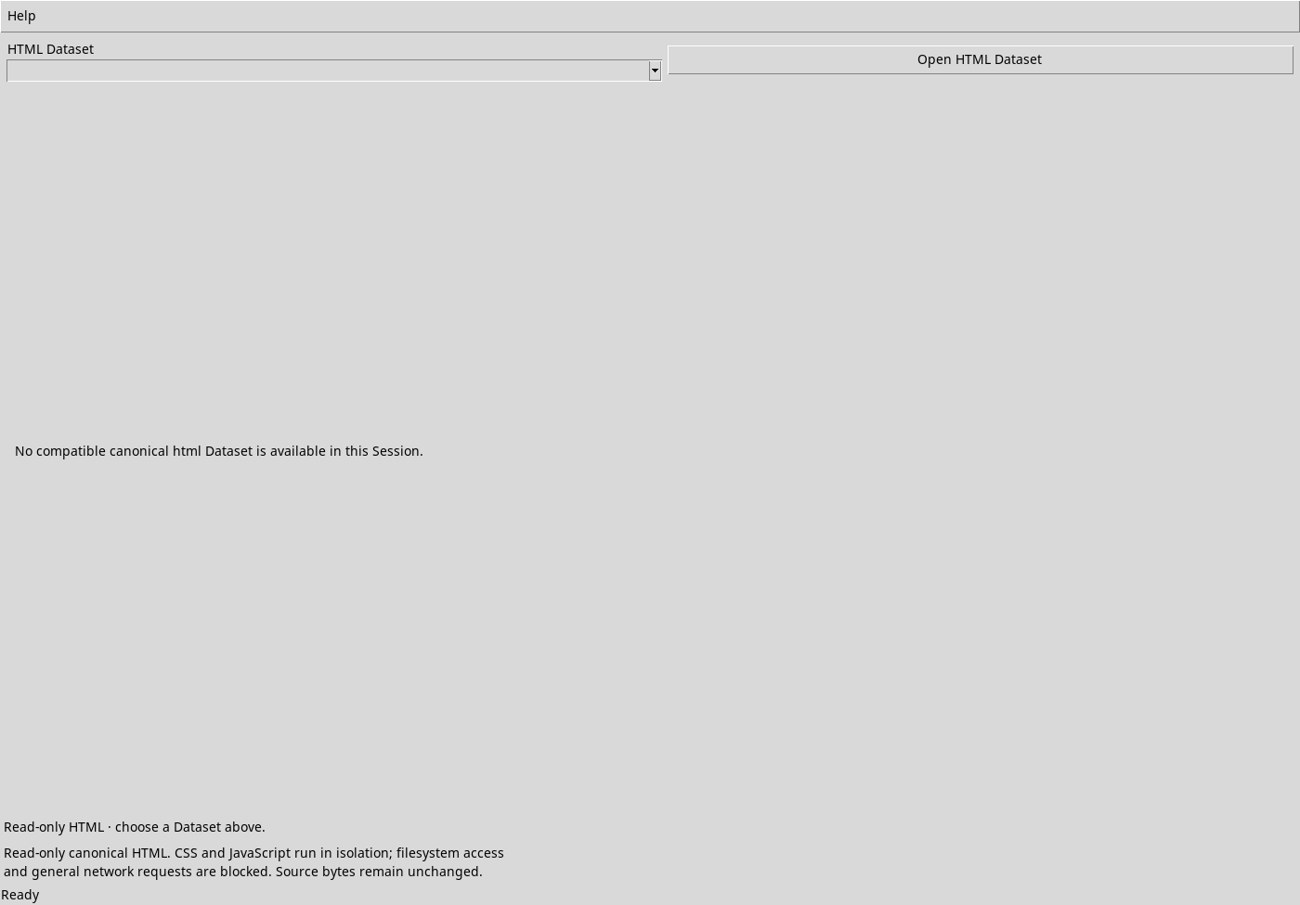
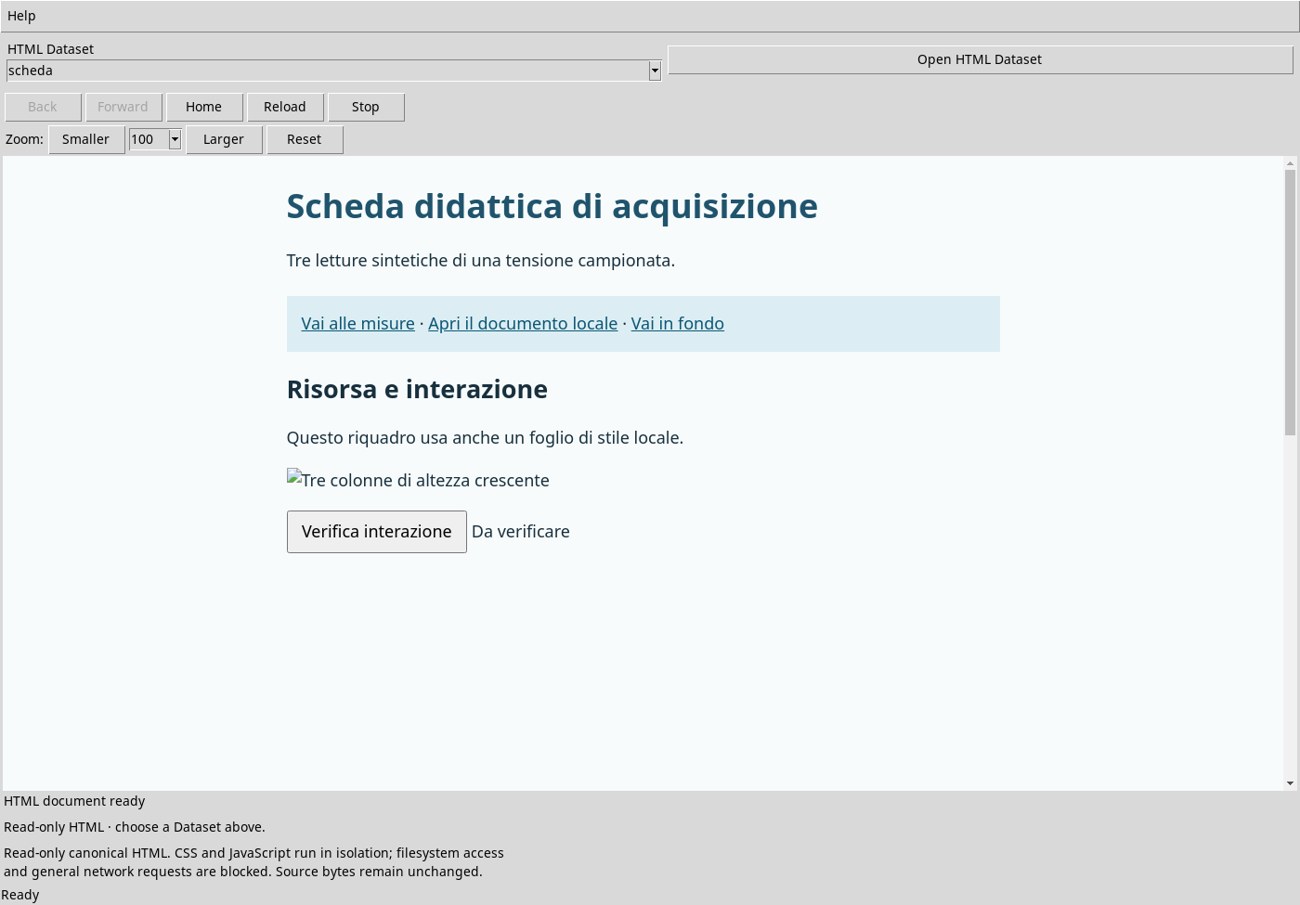
HTMLin Search and click the HTML tile. HTML Dataset Viewer opens. - The HTML Dataset selector lists compatible sources in the Session. Choose an ID and click Open HTML Dataset. The pane displays the page once you see HTML document ready.
Open from the Dataset tab
In the main window, go to Dataset and find the row for the imported document. Right-click it and choose Activate Dataset. Check the ID next to Active Dataset, then click Open Dataset in the toolbar. If GX-TXT recognizes the document as HTML, it opens the same viewer with the selected source already linked.
Recognize when the viewer is waiting for a source
The selector is empty when there is no compatible Dataset. Open HTML Dataset may report Action ‘open_html’: completed while the pane is still waiting. Check the message in the pane and import a source. If the viewer was already open before you imported the source, close it and reopen it from the tile to refresh the list.
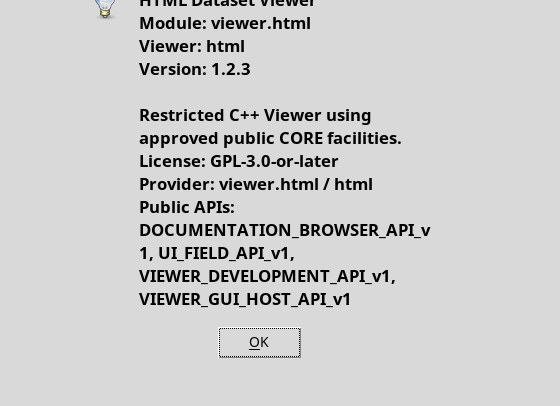
Open the built-in help and check the version
Help → User Manual… and F1 open the module manual. Help → About Module… opens a dialog showing the name HTML Dataset Viewer, the module ID viewer.html, and the version. Click OK to return to the viewer.