

Adjust zoom and the viewing pane
Set the zoom percentage, change it one step at a time, and return to the document’s default scale.
Choose a zoom level
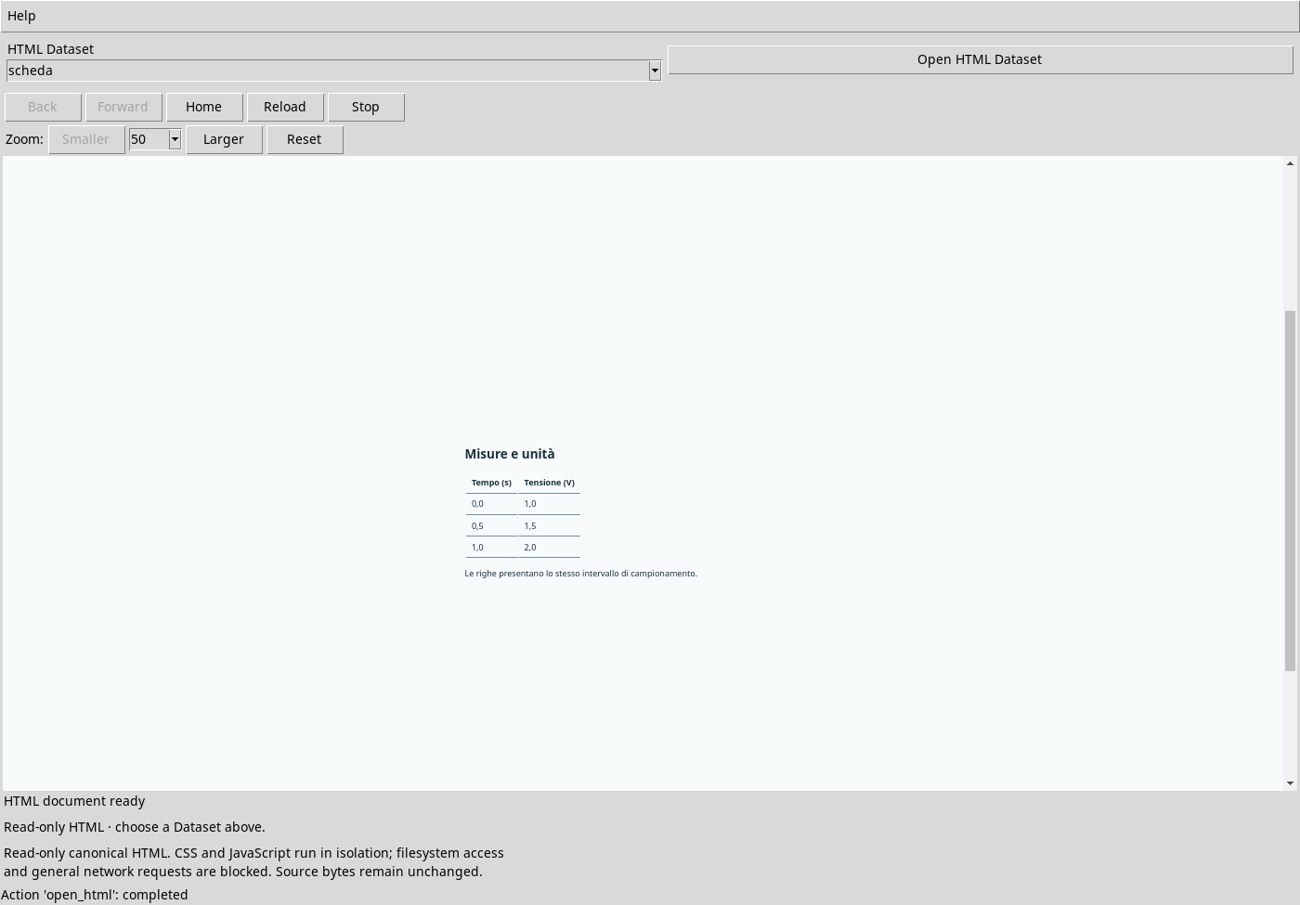
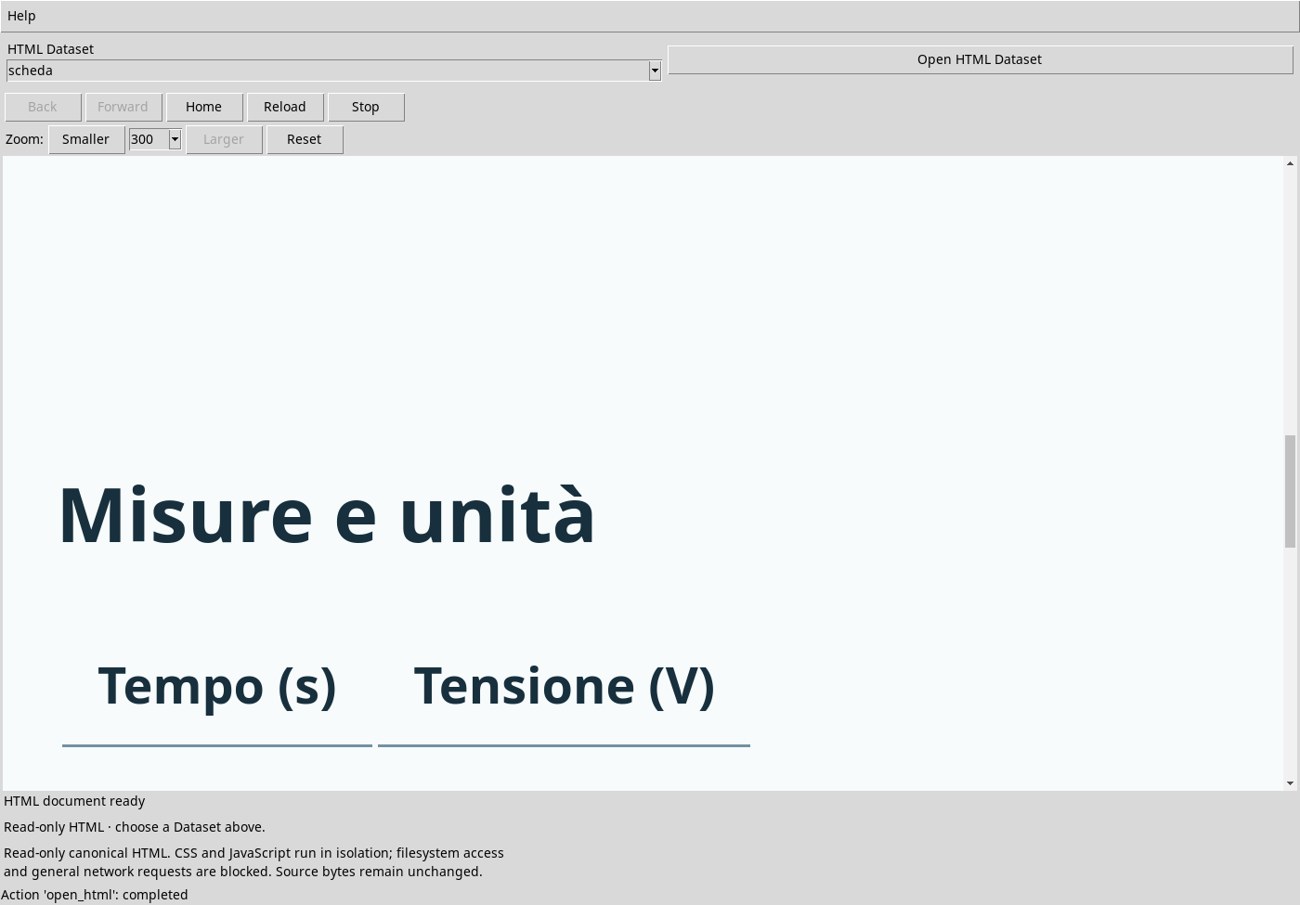
Open the list next to Zoom when the document is ready. The available percentages are 50, 75, 100, 125, 150, 175, 200, 225, 250, 275, and 300. The list shows the confirmed value. At 50%, more rows fit in the pane. At 300%, the document takes up more space and you need to scroll to read it. Follow Vai alle misure to check the effect on the table.
Change the zoom by one step
Smaller selects the previous percentage in the list and Larger selects the next. For example, at 300%, click Smaller to reach 275%, then Larger to return to 300%. The value stays within 50–300%. Reset returns directly to 100%. In the pane, testing Ctrl+-, Ctrl+=, and Ctrl+0 left the percentage unchanged. Use the buttons or the list to adjust zoom.
Check the source after viewing
Zoom affects presentation, and the Dataset source is read-only. Opening the page, following links, running JavaScript, copying, and zooming left the SHA-256 of scheda.html unchanged. After reopening the document, check the zoom shown in the toolbar and click Reset if you want to explicitly return to 100%.