

GNU Octave with GX-TXT — Lesson 04: Conditions, Loops, and Functions. Simulating Newton’s Law of Cooling
In the previous lessons, we learned to use GNU Octave to perform calculations, define variables, and work with vectors and matrices. We can now take an important step forward: writing programs that can make decisions, repeat operations, and organize calculations into reusable functions.
These three ideas are fundamental to scientific programming. A program does not have to execute a fixed sequence of instructions. It can evaluate conditions, choose different actions, repeat a computation until a specified result is reached, and break a complex problem into smaller tasks.
To learn these constructs, we will perform a small numerical experiment: simulate the cooling of a warm body in an environment at constant temperature, using Newton’s law of cooling.
A physics experiment to learn programming
Imagine a body initially at 80 °C, placed in an environment maintained at 22 °C.
From everyday experience, we know that the body will cool. Its temperature, however, will not decrease at a constant rate. Cooling is faster at first and gradually slows as the body’s temperature approaches the ambient temperature.
Newton’s law of cooling describes this behavior using a relatively simple differential equation.
Our goal is to write a program that calculates the body’s temperature at regular intervals and reconstructs its evolution over 60 minutes.
More specifically, we will use:
if,elseif, andelseconditions to validate parameters and make decisions according to the temperature reached.- The
forloop to calculate temperature at regular time intervals. - The
whileloop to continue computing until the body comes sufficiently close to ambient temperature. - Functions to separate mathematical operations and make the program easier to read and reuse.
We will also compare the results from the Euler numerical method with the equation’s analytical solution to see how the choice of time step affects the accuracy of the simulation.
The role of GX-TXT
As in the other lessons, GNU Octave is the language in which we write the program, while GX-TXT provides the execution environment and tools for managing scientific results.
Rather than merely printing a table of numbers, our script will produce two scientific Datasets: one holding the numerical solution and the other the analytical solution. Both will be registered in the Session through the framework’s public APIs.
Finally, we will use GX-TXT’s plotting APIs to compare the two curves visually.
The experiment was executed and verified with GX-TXT 0.9.8.10-dev-111, patch P019, using the sources published in the official GitHub repository (reference commit).
This example therefore lets us learn new Octave language constructs while also practicing the correct use of GX-TXT’s public APIs.
Newton’s law of cooling
To describe the cooling of our body mathematically, we use Newton’s law of cooling.
According to this model, the rate at which the body’s temperature changes is proportional to the difference between the body’s temperature and that of its surroundings.
The differential equation is:
\[\frac{dT}{dt}=-k\left(T-T_{\mathrm{amb}}\right)\]
Here:
- T is the body’s temperature, in kelvin (K).
- Tamb is the ambient temperature, also in kelvin.
- t is time.
- k is the cooling coefficient, which depends on the system’s characteristics and heat-transfer conditions.
- dT/dt is the rate of change of temperature with respect to time.
The negative sign is essential: when the body is warmer than the surroundings, the temperature difference is positive and its temperature decreases over time.
As the body approaches ambient temperature, the difference gets smaller and cooling slows down.
This simple model assumes a uniform body temperature, constant ambient conditions, and a cooling coefficient that remains constant throughout the experiment. It does not attempt to capture every aspect of heat transfer, but it is particularly well suited to introducing numerical methods.
Parameters of our experiment
To make the simulation reproducible, we assign specific values to the physical parameters.
| Parameter | Value |
|---|---|
| Initial temperature | 80 °C = 353.15 K |
| Ambient temperature | 22 °C = 295.15 K |
| Cooling coefficient | 0.08 min−1 |
| Calculation interval | 0.5 minutes |
| Simulation duration | 60 minutes |
Because we express time in minutes, the cooling coefficient must have compatible units: min−1.
We will use kelvin, the SI unit of thermodynamic temperature, for the calculations and published data. For easier interpretation, we will sometimes also display results in degrees Celsius.
From the differential equation to Euler’s method
Newton’s equation describes a continuous change in temperature. A numerical program, on the other hand, can calculate temperature at a succession of discrete points in time.
We therefore need to transform the continuous problem into a procedure made up of repeatable operations.
One of the simplest approaches is the explicit Euler method.
The idea is to use the rate of temperature change at the current instant to estimate the temperature at the next instant.
In general, Euler’s method is written as:
\[y_{n+1}=y_n+\Delta t\,f(t_n,y_n)\]
Applying it to our cooling equation gives:
\[T_{n+1}=T_n-k\,\Delta t\left(T_n-T_{\mathrm{amb}}\right)\]
This expression is especially interesting from a programming perspective.
To calculate the next temperature, we need only the current temperature, the ambient temperature, the cooling coefficient, and the time interval.
We can repeat exactly the same operation for every interval in our simulation. This is what we will do with a GNU Octave for loop.
A manual calculation
At the beginning of the simulation:
\[T_0=353.15\ \mathrm{K}\]
The ambient temperature is:
\[T_{\mathrm{amb}}=295.15\ \mathrm{K}\]
With a time interval of 0.5 minutes and a cooling coefficient of 0.08 min−1, the formula becomes:
\[T_1=353.15-0.08\cdot0.5\cdot(353.15-295.15)\]
We obtain:
\[T_1=350.83\ \mathrm{K}=77.68\,{}^\circ\mathrm{C}\]
After just 30 seconds, the body has cooled by 2.32 °C.
We can now repeat the calculation with the preceding result:
\[T_2=350.83-0.08\cdot0.5\cdot(350.83-295.15)\]
Therefore:
\[T_2=348.6028\ \mathrm{K}=75.4528\,{}^\circ\mathrm{C}\]
We have calculated the first two intervals of the simulation. Repeating this operation 120 times reconstructs the temperature evolution over the full 60-minute period.
The initial temperature is retained as the first sample, so the complete result is a vector of 121 values, paired with 121 corresponding times.
The analytical solution: our reference
Newton’s law of cooling also has an analytical solution: a formula that calculates the temperature directly at any time, without computing all the previous steps.
The solution is:
\[T(t)=T_{\mathrm{amb}}+(T_0-T_{\mathrm{amb}})\,e^{-kt}\]
Here, e is the base of natural logarithms and T0 is the initial temperature.
For our experiment, the formula becomes:
\[T(t)=295.15+58\,e^{-0.08t}\]
Time is expressed in minutes.
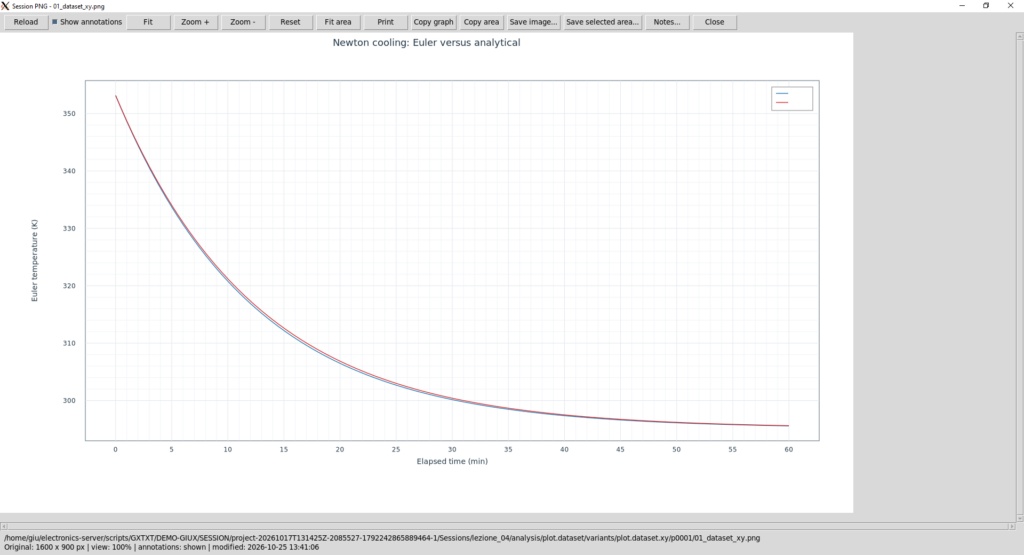
After 60 minutes, for example, the analytical solution gives approximately 22.4773 °C. Euler’s method, using our chosen time step, gives approximately 22.4325 °C.
The difference at the end of the simulation is therefore approximately 0.0448 K.
This is a numerical discretization error: it does not arise from experimental measurements but from the approximation introduced by Euler’s method.
The maximum error over the entire simulation can be larger than the error at the final time. Comparing the two solutions allows us to assess the approximation and understand why the choice of time step matters.
We will now translate these formulas into GNU Octave instructions, introducing the conditions, loops, and functions that are the central topic of this lesson.
From the mathematical model to an Octave program
We have seen how Euler’s method calculates a new temperature from the previous one. To build a complete simulation, however, the formula alone is not enough. Our program must check parameters, repeat calculations, and deal with unexpected conditions.
We begin by defining the experiment’s parameters in GNU Octave.
T_initial_K = 80 + 273.15;
T_ambient_K = 22 + 273.15;
cooling_k_per_min = 0.08;
dt_min = 0.5;
duration_min = 60;
threshold_K = 1.0;
max_threshold_steps = 120;
Each instruction assigns a value to a variable. The names are chosen to make the meaning—and, where appropriate, the unit—easy to recognize.
T_initial_K contains the initial temperature in kelvin, whereas T_ambient_K contains the ambient temperature. The coefficient cooling_k_per_min determines the rate of cooling, and dt_min specifies the time interval used in each iteration.
The variable threshold_K gives the greatest temperature difference we will accept when declaring that the chosen threshold has been reached.
Conditional statements: if, elseif, and else
In scientific programming, we must check that the input parameters are valid before beginning numerical processing.
What would happen if we entered a negative time interval? Or set the cooling coefficient to zero?
To avoid meaningless results or unexpected behavior, we can introduce conditional statements.
In GNU Octave, their general form is:
if condition_1
  % Instructions executed when condition_1 is true.
elseif condition_2
  % Instructions executed when condition_2 is true.
else
  % Instructions executed when no preceding condition is true.
endif
Octave evaluates the first condition. If it is true, Octave executes the associated instructions and skips the other branches.
If the first condition is false, Octave evaluates the condition after elseif. The optional else branch executes only when none of the preceding conditions is true.
The keyword endif closes the conditional statement. Octave also accepts end, but our course favors explicit closing keywords because they make the code structure easier to recognize.
A practical example: classifying temperature
For this experiment, we want to distinguish three situations:
- The body is within the specified tolerance of ambient temperature.
- The body is near ambient temperature but has not yet reached the tolerance.
- The body is still in the main cooling phase.
We can implement these decisions using the classify_state() function in our lesson script.
function label = classify_state(T, Ta, tolerance)
  gap = abs(T - Ta);

  if gap <= tolerance
    label = 'Within ambient tolerance';
  elseif gap <= 5 * tolerance
    label = 'Approaching ambient temperature';
  else
    label = 'Cooling in progress';
  endif
endfunction
Let us examine how the function works. The first instruction uses abs() to calculate the absolute difference between the body’s temperature and ambient temperature. The absolute value matters because we want the size of the temperature difference, regardless of sign.
The first condition, gap <= tolerance, checks whether the difference is less than or equal to the chosen tolerance. If so, the function returns Within ambient tolerance.
If the first condition is false, elseif checks whether the difference is no more than five times the tolerance. If this condition is true, the body is classified as approaching ambient temperature.
If neither condition is met, Octave executes the else branch.
These categories were defined for our teaching experiment; they are not a universal physical classification of thermal states.
Validating parameters before calculating
Conditional statements are also useful for checking inputs. Our script defines a second function, validate_experiment(), which validates the parameters before starting the simulation.
function validate_experiment(T0, Ta, k, dt, duration, tol, max_steps)

  parameters = [T0, Ta, k, dt, duration, tol, max_steps];

  if any(!isfinite(parameters))
    error('All experiment parameters must be finite numbers.');
  elseif T0 <= Ta
    error('Initial temperature must exceed ambient temperature.');
  elseif k <= 0 || dt <= 0 || duration <= 0 || tol <= 0
    error('Rate, time step, duration, and tolerance must be positive.');
  elseif k * dt > 1
    error('Euler step is too large for monotonic cooling (k*dt > 1).');
  elseif max_steps <= 0 || max_steps != round(max_steps)
    error('Maximum iteration count must be a positive integer.');
  endif

endfunction
In this function, we encounter several important Octave language features:
isfinite()checks that a number is neither infinite nor NaN.any()returns true when at least one element of the vector satisfies the condition.!means logical NOT.||means short-circuit logical OR, used here to combine scalar conditions.error()interrupts execution with a diagnostic message.
The check k * dt > 1 has a specific numerical meaning. For our model, starting with a body warmer than its surroundings, we require the Euler step not to overshoot the ambient temperature. This is not a general stability condition for every numerical method.
Notice also that the function has no else branch. This is valid: both elseif and else are optional. If every check passes, the function finishes normally and the program continues.
How the script calls the functions
In the complete program, the parameter check is invoked with a simple function call:
validate_experiment(T_initial_K, T_ambient_K, cooling_k_per_min, ...
                    dt_min, duration_min, threshold_K, max_threshold_steps);
The arguments are passed in the same order as the parameters in the function definition.
This function does not return a numerical value. Its job is to check whether the parameters are acceptable. If there is a problem, it stops the program; otherwise control returns to the main script.
GX-TXT execution note: in the tested version of our script, local functions are defined before the instructions that call them. The file also begins with 1; to establish the correct structure of an Octave script containing function definitions. This arrangement matters when the source is loaded by the GX-TXT runner.
We have now introduced the first key aspect of control flow: a program can make different decisions according to the input data.
Next, we will see how to repeat the temperature calculation automatically with a for loop and build the complete time series.
In-depth explanation — What is a function in GNU Octave, and why do we use functions?
What is a function?
When writing a program, we often need to perform the same operation at different points in the code.
Imagine, for example, that we frequently have to convert temperatures from degrees Celsius to kelvin.
We could write the following instruction every time:
T_kelvin = T_celsius + 273.15;But if the operation is repeated many times, it is more convenient to define it once and call it whenever it is needed.
A function is a named block of instructions that can receive values, process them, and return one or more results.
Think of a function as a small machine: Inputs → Processing → Outputs.
Once defined, this machine can be reused without rewriting its internal instructions.
Our first function
Let us define a function that converts a temperature from Celsius to kelvin:
function T_kelvin = celsius_to_kelvin(T_celsius)
  T_kelvin = T_celsius + 273.15;
endfunction
Look carefully at the first line:
function T_kelvin = celsius_to_kelvin(T_celsius)It contains four important elements:
functiontells Octave that we are defining a function.T_kelvinis the output variable that will contain the returned result.celsius_to_kelvinis the function’s name, used to call it.T_celsiusis the input parameter, through which the function receives the value to process.
The second line performs the actual calculation:
T_kelvin = T_celsius + 273.15;Finally, endfunction marks the end of the definition.
How do we call a function?
Defining a function does not immediately perform the calculation. It only tells Octave what to do when that function is called.
To use it, we write:
result = celsius_to_kelvin(25);When Octave executes this instruction, it recognizes the function name, passes 25 to the input parameter T_celsius, calculates 25 + 273.15, assigns 298.15 to the output variable T_kelvin, and returns this value to the calling program.
The variable result will therefore contain 298.15.
We can call the same function with different values:
T1 = celsius_to_kelvin(0);
T2 = celsius_to_kelvin(20);
T3 = celsius_to_kelvin(100);
The three results are 273.15 K, 293.15 K, and 373.15 K, respectively.
The variable receiving a function result does not need to have the same name as the function’s output variable. We can call it T1, T2, or result. What matters is the value returned by the function.
Are parameters and arguments the same thing?
These terms are sometimes used interchangeably, but in programming there is a useful distinction.
Parameters are the names declared in a function definition. Arguments are the actual values supplied when the function is called.
function result = double_value(number)
  result = 2 * number;
endfunction

x = double_value(7);
Here, number is the parameter, and 7 is the argument. The function returns 14, which is assigned to x.
A function can accept several parameters
Our Newton cooling experiment uses the function cooling_step():
function next_T = cooling_step(T, Ta, k, dt)
  next_T = T - k * dt * (T - Ta);
endfunction
This function has four input parameters: T (current body temperature), Ta (ambient temperature), k (cooling coefficient), and dt (time interval).
It applies Euler’s method and returns the temperature at the next time step.
next_temperature = cooling_step(353.15, 295.15, 0.08, 0.5);The result is 350.83 K.
The argument order is important: the first value goes to T, the second to Ta, the third to k, and the fourth to dt. Swapping two numeric arguments can produce an incorrect result without necessarily causing an execution error.
Local variables in a function
Another important concept is variable scope. Parameters and variables defined inside an ordinary Octave function belong to that function’s local workspace.
function result = square_number(x)
  result = x * x;
endfunction

a = 5;
b = square_number(a);
The function receives the value of a through its local parameter x, calculates 25, and returns it. The main script stores that value in b.
The local variable x does not automatically become a variable in the main program. This separation helps prevent functions from accidentally modifying variables used elsewhere.
Must every function return a value?
No. A function can perform an operation without returning an explicit result.
Our validate_experiment() function, for example, checks the experiment parameters. If it finds a problem, it raises an error with error(); otherwise, it simply finishes.
function validate_experiment(T0, Ta, k, dt, duration, tol, max_steps)There is no output variable because the function’s job is validation rather than producing a temperature or number.
Does Octave already provide functions?
Of course. GNU Octave includes many built-in functions, some of which we have already used:
abs(x): absolute value.sqrt(x): square root.exp(x): exponential function.zeros(m,n): create a matrix of zeros.round(x): round to the nearest integer.disp(x): display a value.
We do not need to understand their internal implementation to use these functions; we do need to understand their purpose and calling conventions. We can create our own functions in exactly the same spirit.
Functions versus scripts
A script is a file containing Octave instructions that run in the current execution workspace. A function has its own workspace and can explicitly accept arguments and return results.
Octave allows functions to be defined in dedicated files or, following the language rules, inside a script.
In our case, GX-TXT runs a registered script and automatically manages its connection with the framework. To ensure the local functions are available, we use this arrangement:
1;

function result = double_value(number)
  result = 2 * number;
endfunction

% Main script instructions.
value = double_value(7);
disp(value);
The initial 1; makes the file an Octave script instead of a file whose first executable statement is a function definition. The functions appear before the main instructions that call them.
We adopted this organization in Lesson 04 after the first test run inside GX-TXT.
Why write functions?
Functions offer several advantages:
- Reuse: write a formula once and call it many times.
- Readability: a meaningful name such as
cooling_step()describes an operation’s purpose. - Maintenance: correct a calculation in one place.
- Testing: check individual operations separately.
- Organization: divide a complex problem into simpler steps.
Our experiment has four functions:
| Function | Purpose |
|---|---|
validate_experiment() | Validate input parameters. |
cooling_step() | Perform one Euler time step. |
cooling_exact() | Calculate the analytical temperature. |
classify_state() | Classify the cooling state. |
In short: a function gives an operation a name and defines which input values it receives and which results it produces. Functions are essential tools for writing clear, testable, reusable scientific programs.
Repeating an operation: the for loop
Imagine measuring the temperature of a sample every 30 seconds over 60 minutes.
If we recorded all measurements manually, we would repeat the same operation 120 times. Likewise, a calculation for each interval could be written as 120 nearly identical statements.
That would be impractical: the program would be long, hard to inspect, and easy to get wrong.
Programming offers a better approach: write the instructions once and ask the computer to repeat them automatically.
That is the purpose of a loop. GNU Octave offers several kinds of loops. We will start with for, which is especially useful when we know in advance which iteration values we want to process.
Our first for loop
Before dealing with Newton’s law, let us try a much simpler example:
for n = 1:5
  disp(n);
endfor
There are only three lines, yet they illustrate a fundamental programming idea. Let us examine them one by one.
First line: for n = 1:5. The keyword for begins the loop. The variable n acts as the loop counter and takes the values specified by the sequence 1:5, one after another.
In Octave, the colon operator : creates a numeric sequence. Here it generates the integers from 1 through 5, including both endpoints:
1 2 3 4 5Second line: disp(n);. The disp() function displays the current value of n. Because it is inside the loop, it runs once for each counter value.
Third line: endfor. This marks the end of the block of instructions to be repeated.
The output consists of the numbers 1 through 5, one per iteration.
What actually happens during execution?
Imagine watching Octave execute the program, one instruction at a time.
| Iteration | Value of n | Operation |
|---|---|---|
| 1 | 1 | Display 1 |
| 2 | 2 | Display 2 |
| 3 | 3 | Display 3 |
| 4 | 4 | Display 4 |
| 5 | 5 | Display 5 |
In the first iteration, Octave assigns 1 to n and executes disp(n). When that instruction finishes, execution returns to the top of the loop, where n receives the next value, 2.
This continues until 5 has been processed. Once all the values in the sequence have been used, the loop finishes and execution moves to the instruction following endfor.
Each execution of the loop body is called an iteration.
Remember that we are not copying the same instruction five times. We have written one instruction and asked Octave to execute it five times, automatically changing the counter.
The colon operator and the sequence step
In our first example, we used 1:5. By default, Octave increments the sequence by 1.
We can specify a different increment:
for n = 0:2:10
  disp(n);
endfor
Now the counter takes the values:
0
2
4
6
8
10
The full notation is:
start_value : step_value : end_valueThe first value is the starting point, the second the increment, and the third the ending limit.
Negative increments work too: 5:-1:1 produces 5, 4, 3, 2, 1.
The endpoint is included only if the sequence actually reaches it. For example, 0:2:5 produces 0, 2, and 4—not 5.
The counter does not have to be named n. Names such as i, step, or index are equally valid. Our experiment uses index.
Using a for loop in the cooling simulation
Let us return to our scientific problem.
We want to calculate the body’s temperature every 0.5 minutes, starting at 80 °C and ending after 60 minutes.
Our first question is: how many numerical steps must we execute?
We divide the total duration by the time interval:
\[N=\frac{60}{0.5}=120\]
Our program must therefore calculate 120 temperature updates.
The script determines the number of steps with:
step_count = round(duration_min / dt_min);The function round() rounds to the nearest integer. Here the ratio is already an integer. The program also checks that the duration really is a multiple of the chosen step.
Why are there 120 steps but 121 temperatures?
This is an important detail.
At the start of the simulation, at time zero, we already know the body’s temperature: 80 °C. We do not need to calculate it; it is an initial condition.
We then calculate a new temperature every 30 seconds:
| Vector position | Time (min) | Temperature |
|---|---|---|
| 1 | 0 | 80 °C, initial value |
| 2 | 0.5 | First calculated value |
| 3 | 1.0 | Second calculated value |
| 4 | 1.5 | Third calculated value |
| … | … | … |
| 121 | 60.0 | Last calculated value |
Thus, the number of stored temperature samples is:
\[N_{\mathrm{samples}}=N_{\mathrm{steps}}+1\]
Here we have 120 steps and 121 samples.
Important: Octave numbers vector elements starting at 1, not 0. The first element is T(1), the second T(2), and so forth. This convention matters greatly when loops read or change vector elements.
Preparing the vectors before the loop
Our script uses these instructions:
time_min = (0:step_count)' * dt_min;

T_euler_K = zeros(step_count + 1, 1);
T_exact_K = zeros(step_count + 1, 1);
absolute_error_K = zeros(step_count + 1, 1);
The first line builds the time vector. The expression 0:step_count generates numbers from 0 through 120. The apostrophe ' transposes the row vector into a column vector. For our real-valued data, there is no practical difference between transpose and conjugate transpose.
Multiplying the entries by dt_min, which is 0.5, yields the physical times: 0, 0.5, 1, 1.5, and so on up to 60 minutes.
The following three instructions use zeros().
For instance:
T_euler_K = zeros(121, 1);This creates a column vector with 121 entries, initially all zero.
Why create zeros when the temperatures are not yet known? Because we want to reserve the necessary storage in advance. This technique is called preallocation.
It is generally more efficient than repeatedly expanding a vector inside a loop, particularly with thousands or millions of observations.
We have prepared three vectors: T_euler_K for numerical temperatures, T_exact_K for analytical temperatures, and absolute_error_K for absolute differences between the two.
The separate vector time_min contains the corresponding time coordinates.
Entering the initial temperature
Before running the loop, we assign the initial conditions:
T_euler_K(1) = T_initial_K;
T_exact_K(1) = T_initial_K;
The parentheses specify which vector element to modify. The first instruction places the initial temperature in the first position of T_euler_K; the second does the same for T_exact_K.
Because both methods describe the same experiment, they must start from the same temperature.
The complete for loop in our experiment
We can now examine the loop actually used in the Lesson 04 script:
for index = 2:(step_count + 1)

  T_euler_K(index) = cooling_step(T_euler_K(index - 1), ...
                                   T_ambient_K, cooling_k_per_min, dt_min);

  T_exact_K(index) = cooling_exact(time_min(index), T_initial_K, ...
                                   T_ambient_K, cooling_k_per_min);

endfor
This is the heart of the simulation. The instructions inside it are executed 120 times, once per new time interval.
First line: why does the loop start at 2?
The declaration:
for index = 2:(step_count + 1)means that index takes the integer values 2 through 121.
We do not start at 1 because the first element already contains the initial temperature. We only need to calculate the subsequent values.
The first value of index is 2, the next is 3, and the last is 121.
There is another essential distinction: index is not physical time; it is the position of a sample in the vector.
When index equals 2, the corresponding time is 0.5 minutes, not 2 minutes. The actual time is stored in time_min(index).
Second line: calculating the new temperature
Consider the main instruction:
T_euler_K(index) = cooling_step(T_euler_K(index - 1), ...
                                 T_ambient_K, cooling_k_per_min, dt_min);
To understand it, read the right-hand and left-hand sides of the equals sign separately.
The right-hand side calls cooling_step(), supplying four values: the previously calculated temperature, ambient temperature, cooling coefficient, and time interval.
The function applies Euler’s method and returns the new temperature.
The left-hand side tells Octave where to store the result: at position index in T_euler_K.
The expression index - 1 matters because the new temperature must be calculated from the preceding temperature.
When index is 2, index - 1 is 1, so Octave reads T_euler_K(1), the initial value.
When index is 3, Octave reads T_euler_K(2), the value calculated during the first iteration.
This dependence of each new value on the preceding one allows the program to build the simulation progressively.
Following the first two iterations manually
Before the loop, we have:
T_euler_K(1) = 353.15 K

index = 2
First iteration. The program computes:
\[T_1=353.15-0.08\cdot0.5\cdot(353.15-295.15)\]
The result is 350.83 K, stored at the second position:
T_euler_K(2) = 350.83;Now the vector has two meaningful temperatures:
Position 1: 353.15 K
Position 2: 350.83 K
Second iteration. The counter automatically becomes 3. This time the program uses the recently calculated temperature, 350.83 K:
\[T_2=350.83-0.08\cdot0.5\cdot(350.83-295.15)\]
The result, 348.6028 K, is stored at the third position:
T_euler_K(3) = 348.6028;The vector now contains:
Position 1: 353.1500 K
Position 2: 350.8300 K
Position 3: 348.6028 K
In the third iteration, the program reads the third element to calculate the fourth, and so on.
We do not need to write any more formulas: the loop automatically repeats the operations.
Third line: calculating the analytical solution too
In the same loop, we find another instruction:
T_exact_K(index) = cooling_exact(time_min(index), T_initial_K, ...
                                 T_ambient_K, cooling_k_per_min);
This calls the cooling_exact() function, which implements Newton’s analytical solution.
Unlike the Euler method, the analytical solution does not require the previously calculated temperature. It needs only the current time, the initial temperature, the ambient temperature, and the cooling coefficient.
We obtain the current time from time_min(index). This is 0.5 minutes in the first iteration, 1 minute in the second, and 60 minutes in the last.
Thus, each iteration calculates two temperatures at the same instant: one from Euler’s method and one from the analytical solution.
We can compare them directly without interpolating the results.
Why are there three dots at the end of some lines?
You may have noticed that some instructions end with three dots:
T_euler_K(index) = cooling_step(T_euler_K(index - 1), ...
                                 T_ambient_K, cooling_k_per_min, dt_min);
In GNU Octave, the sequence ... allows a statement to continue on the next line.
It is mainly a readability feature. Without it, function calls with several arguments could become very long.
The three dots do not perform a calculation and do not alter the simulation result.
A second for loop: calculating numerical error
After calculating the temperatures, our script uses a second loop to determine the absolute difference between the numerical and analytical solutions:
for index = 1:(step_count + 1)

  if index == 1
    continue;
  endif

  absolute_error_K(index) = abs(T_euler_K(index) - T_exact_K(index));

endfor
This loop starts at 1 because we want to inspect all samples, including the initial one.
The instruction:
absolute_error_K(index) = abs(T_euler_K(index) - T_exact_K(index));calculates the absolute temperature difference between the two methods and stores it in absolute_error_K.
We use abs() because we want the error magnitude, regardless of sign.
But the loop begins with another instruction:
if index == 1
  continue;
endif
The continue statement: skipping an iteration
The continue statement tells Octave to stop the current iteration and move directly to the next one.
When index is 1, the program executes continue and does not recalculate the first sample’s error.
Why is this safe? Both methods start at exactly the same temperature, so their initial difference is zero. The absolute_error_K vector was also initialized with zeros.
When index becomes 2, the condition index == 1 is false and the error calculation runs normally.
Notice that == is a comparison operator: it tests equality. It must not be confused with =, used for assignment.
Also distinguish continue from break: continue skips only the current iteration; break ends the loop altogether. We will use break in the while loop.
What do the two loops produce?
After the first loop, we have two vectors of 121 temperatures: the numerical Euler series and the analytical series, both evaluated at the same time coordinates.
The second loop fills the vector of absolute differences.
We can now find the largest error with a simple instruction:
max(absolute_error_K)The function max() returns the largest vector element.
In our experiment, the maximum absolute error is approximately 0.434 K. This differs from the error at the last instant because the difference between the solutions changes throughout the simulation.
What have we learned from the for loop?
The for loop has transformed a single mathematical formula into a complete simulation without manually repeating hundreds of statements.
We have also introduced several concepts that recur throughout scientific programming:
- The counter identifies the current position in the iteration sequence.
- Indexing lets us read and modify vector and matrix elements.
- Preallocation reserves storage for results.
- Functions let us reuse a mathematical operation.
continueskips an iteration when a condition calls for it.
The for loop is particularly useful when the iteration sequence is known beforehand.
But what if we do not know how many steps will be needed? For example, instead of stopping after 60 minutes, we may wish to stop when the body comes within 1 °C of ambient temperature.
The required number of steps depends on the model parameters and is not necessarily known in advance. That problem calls for another fundamental GNU Octave construct: the while loop.
The while loop: repeating a calculation while a condition is true
We used a for loop to calculate the body’s temperature over 60 minutes in regular 30-second intervals.
In that case, we knew the number of iterations in advance: 120.
Now consider a slightly different question:
How long will it take for the body’s temperature to come within 1 °C of ambient temperature?
We do not necessarily want to simulate a predetermined duration. We want to keep calculating until a specific condition is reached.
GNU Octave provides the while loop for this purpose.
The difference between for and while
A for loop processes a predefined sequence of values. A while loop executes its instructions for as long as a condition is true.
The general structure is:
while condition
  % Instructions repeated while the condition is true.
endwhile
The word while describes exactly what happens: while the condition is true, keep executing the instructions.
Importantly, the condition is evaluated before each iteration. If it is false at the very first check, the loop body never executes.
A first example without physics formulas
Consider this simple program:
n = 1;

while n <= 5
  disp(n);
  n = n + 1;
endwhile
We initialize n to 1 before entering the loop.
The condition n <= 5 means that the loop should continue while n is less than or equal to 5.
Inside the loop, we perform two operations: display the current value and then increase it by one.
Pay attention to this instruction:
n = n + 1;It is not a mathematical equation to solve. It is an assignment: Octave reads the current value of n, adds 1, and stores the result back in the same variable. If n is 3, the new value is 4.
Let us follow the execution:
| Check | Value of n | n <= 5? | Action |
|---|---|---|---|
| 1 | 1 | True | Print 1, then increment |
| 2 | 2 | True | Print 2, then increment |
| 3 | 3 | True | Print 3, then increment |
| 4 | 4 | True | Print 4, then increment |
| 5 | 5 | True | Print 5, then increment |
| 6 | 6 | False | Exit loop |
The output is the same as our first for example: the numbers from 1 to 5.
The difference is how execution is controlled. In a for loop, the counter automatically takes values from a sequence. In a while loop, we must explicitly update the variables that determine when the loop ends.
A common mistake: failing to update the condition
Consider what would happen if we removed n = n + 1:
n = 1;

while n <= 5
  disp(n);
endwhile
Now n always stays equal to 1, and n <= 5 is always true.
The program would keep displaying 1 without stopping on its own.
This is called an infinite loop.
An infinite loop can stall a computation, consume resources, and require manual interruption.
For this reason, a while loop should have a reachable termination condition. For numerical simulations, it is also good practice to impose a maximum number of iterations.
Applying while to Newton cooling
Let us return to our experiment.
The body starts at 80 °C and the environment remains at 22 °C. We want to stop the calculation when their temperature difference becomes less than or equal to 1 °C.
Because we are comparing temperature differences, a difference of 1 °C is exactly equal to a difference of 1 K.
Our stopping condition is:
\[|T-T_{\mathrm{amb}}|\leq 1\ \mathrm{K}\]
In Octave, we write:
abs(T_threshold_K - T_ambient_K) <= threshold_KThe abs() function calculates the absolute difference, and threshold_K contains our chosen tolerance of 1 K.
The expression becomes true only when the body is sufficiently close to ambient temperature.
Preparing the variables
The script initializes the calculation with:
T_threshold_K = T_initial_K;
threshold_steps = 0;
The first instruction assigns the initial body temperature to T_threshold_K. The second initializes a counter that records how many numerical updates have been performed.
Unlike the fixed-duration simulation, we do not need to keep every temperature in a vector here. To determine when the threshold is reached, the current temperature and the step count are sufficient.
The while loop used in the script
Here is the actual Lesson 04 code:
while threshold_steps < max_threshold_steps

  if abs(T_threshold_K - T_ambient_K) <= threshold_K
    break;
  endif

  T_threshold_K = cooling_step(T_threshold_K, T_ambient_K, ...
                                 cooling_k_per_min, dt_min);

  threshold_steps = threshold_steps + 1;

endwhile
There are two different ways for this loop to end: reaching the maximum iteration count or reaching the desired temperature threshold.
First check: the maximum number of iterations
The first line is:
while threshold_steps < max_threshold_stepsThe variable max_threshold_steps is set to 120.
Therefore, the loop can continue only while the number of updates already performed is below 120.
This is a safety measure. Even if the temperature never reaches the requested threshold, the program cannot keep updating forever.
The limit does not guarantee that the physical objective will be achieved. It guarantees only that the computation will stop after a bounded number of steps.
Second check: have we reached the desired temperature?
Inside the loop, we find:
if abs(T_threshold_K - T_ambient_K) <= threshold_K
  break;
endif
This condition checks whether the body is sufficiently close to ambient temperature.
If it is true, Octave executes break.
break immediately ends the loop that contains it.
The rest of the current iteration is skipped and execution continues with the first instruction after endwhile.
Recall the distinction from the previous section: continue skips only the current iteration, whereas break ends the loop entirely.
We use break because once the tolerance is met, there is no reason to continue the threshold calculation.
Third operation: updating the temperature
If the threshold has not been reached, Octave executes:
T_threshold_K = cooling_step(T_threshold_K, T_ambient_K, ...
                               cooling_k_per_min, dt_min);
We recognize cooling_step(), previously used inside the for loop.
The function receives the current temperature and returns the value for the following interval. The returned value replaces the previous contents of T_threshold_K.
This demonstrates the advantage of functions: we reuse the same mathematical operation in two different parts of the program without rewriting Euler’s formula.
Fourth operation: updating the counter
Finally, we have:
threshold_steps = threshold_steps + 1;This increases the number of completed steps by one.
The counter serves two purposes. It enforces the maximum iteration limit, and it lets us compute elapsed time by multiplying the number of steps by the duration of each interval.
The order of the instructions matters: first the temperature is updated, then the counter is incremented. Each increment therefore corresponds to a numerical update that was actually performed.
Following the evolution of the loop
At the start of the simulation, the temperature difference between the body and the environment is 58 K.
With our chosen parameters, this difference is multiplied by 0.96 at every Euler step.
The difference after an integer number of steps is therefore:
\[\Delta T_n=58(0.96)^n\ \mathrm{K}\]
We can inspect several meaningful points:
| Completed steps | Time (min) | Difference from ambient (K) |
|---|---|---|
| 0 | 0 | 58.0000 |
| 1 | 0.5 | 55.6800 |
| 2 | 1.0 | 53.4528 |
| 99 | 49.5 | Approximately 1.019 |
| 100 | 50.0 | Approximately 0.978 |
After 99 steps, the difference is still above the 1 K tolerance.
The program performs one more update. On the next check, the difference has fallen below 1 K and break ends the loop.
Thus, the threshold is reached after 100 steps, corresponding to 50 minutes of simulated time.
This is not necessarily the exact instant at which the continuous analytical solution crosses the threshold; the result also depends on the chosen 0.5-minute time step.
Checking that the loop ended correctly
After endwhile, the script performs one more check:
if abs(T_threshold_K - T_ambient_K) > threshold_K
  error('Temperature threshold was not reached within the step limit.');
endif
Why is this necessary?
The loop may have ended because the threshold was reached or because the maximum number of steps was reached. A finished loop does not, by itself, prove that the objective was achieved.
If the remaining temperature difference still exceeds the tolerance, the script raises an explicit error.
This prevents us from treating an incomplete computation as a successful one.
It illustrates an essential scientific programming principle: a program that finishes without hanging has not necessarily produced a valid result.
Calculating elapsed time
Once the check passes, we calculate the time required to reach the tolerance:
threshold_time_min = threshold_steps * dt_min;For our experiment:
threshold_steps = 100
dt_min = 0.5
threshold_time_min = 50
The elapsed time is 50 minutes.
The while loop did not need to know this time in advance. It determined the value by running the simulation and repeatedly checking the temperature.
When should we choose for, and when while?
We have used two different constructs to solve two versions of the same problem.
| Characteristic | for | while |
|---|---|---|
| Iteration control | Predefined sequence | Logical condition |
| Number of steps | Determined by the sequence | Depends on how the calculation evolves |
| Counter handling | Automatic | Explicit, where needed |
| In our experiment | Calculate 60 minutes of temperatures | Wait until the threshold is reached |
| Main precaution | Check indices and sizes | Guarantee termination conditions |
No rule dictates that only one of these constructs can solve a given problem. Many tasks can be written in different ways, and sometimes both loops are appropriate.
The best choice is usually the one that makes the program easiest to understand and verify.
In our case, for naturally describes a simulation with a fixed duration, whereas while directly expresses the need to continue until a condition is met.
We have now covered the main control-flow constructs used in our experiment. Next we will examine how functions help us organize the complete program.
Organizing a scientific program with functions
We have learned how to use if, for, and while, and have already explored the idea of wrapping a reusable operation in a function.
Let us now see how the different parts work together in our simulation script.
We defined four functions, each with a specific responsibility:
| Function | Responsibility | Result |
|---|---|---|
validate_experiment() | Check parameters | Finish normally or raise an error |
cooling_step() | Apply one Euler step | Next temperature |
cooling_exact() | Calculate analytical solution | Temperature at a specified time |
classify_state() | Classify cooling state | Descriptive message |
We could put every calculation directly in the main script, but separating responsibilities makes the program easier to read, test, and modify.
validate_experiment(): check before calculating
We already encountered this function in our discussion of conditions. Let us now place it in the overall program structure.
Its declaration is:
function validate_experiment(T0, Ta, k, dt, duration, tol, max_steps)The function accepts seven parameters. Some describe the physical system; others control the numerical procedure.
It checks that all values are finite, that parameters which must be positive are positive, that the initial temperature exceeds ambient temperature, and that the step size meets our Euler method constraints.
In particular, k * dt must not exceed 1 if every numerical step is to keep the temperature between its current value and ambient temperature for this model.
If a check fails, error() stops the program with a diagnostic message. If all checks pass, the function returns normally without an explicit output value.
This is an example of a function that validates execution conditions rather than performing the scientific calculation itself.
cooling_step(): a small calculation repeated many times
This is the central function of our numerical model:
function next_T = cooling_step(T, Ta, k, dt)
  next_T = T - k * dt * (T - Ta);
endfunction
It accepts four parameters and returns a single temperature in next_T.
Its expression is exactly the explicit Euler formula derived from Newton’s law of cooling.
Try it with the initial values:
T_new = cooling_step(353.15, 295.15, 0.08, 0.5);

disp(T_new);
The result is 350.83 K.
The function does not need to know whether it was called from a for loop, a while loop, or an ordinary statement. It receives values, performs the calculation, and returns the result.
If we decide to use a more accurate numerical method later, we can implement a new function and update its callers without rewriting all the surrounding loop logic.
cooling_exact(): calculate a temperature without iterations
Euler’s method reconstructs the cooling process through many small steps. The analytical solution, by contrast, calculates the temperature directly at a specified time.
function T = cooling_exact(time_min, T0, Ta, k)
  T = Ta + (T0 - Ta) * exp(-k * time_min);
endfunction
The function contains one mathematical expression and uses Octave’s predefined exp() function.
exp(x) calculates the natural exponential, that is, Euler’s number raised to the power x.
For example:
T_at_10min = cooling_exact(10, 353.15, 295.15, 0.08);calculates the body’s temperature after 10 minutes directly. We do not need first to calculate the temperatures at 0.5, 1, or 1.5 minutes.
In the for loop, we call this function for each value in the time vector to obtain a reference series for comparison with Euler’s method.
classify_state(): returning a text response
So far, our functions have performed checks or returned numbers. A function can also return a string of text.
This is what classify_state() does:
function label = classify_state(T, Ta, tolerance)

  gap = abs(T - Ta);

  if gap <= tolerance
    label = 'Within ambient tolerance';
  elseif gap <= 5 * tolerance
    label = 'Approaching ambient temperature';
  else
    label = 'Cooling in progress';
  endif

endfunction
The function accepts the body temperature, ambient temperature, and a tolerance. It calculates the absolute difference and chooses one of three messages.
The returned value is not a physical quantity; it is a description of the simulated state.
The script calls it with:
final_state = classify_state(T_euler_K(end), T_ambient_K, threshold_K);Notice the keyword end inside the vector index. In this context, end identifies the last element of the vector.
Thus, T_euler_K(end) retrieves the final temperature produced by Euler’s method. This use of end should not be confused with its possible role as a block terminator.
Because the final temperature is sufficiently close to ambient temperature, the function returns:
Within ambient toleranceHow do the functions work together during execution?
Now that we know each function’s purpose, we can examine the complete execution sequence:
- The script assigns the experiment parameters.
validate_experiment()checks that the parameters are acceptable.- The
forloop repeatedly callscooling_step()andcooling_exact()to build the two time series. - A second loop calculates the absolute differences between the solutions.
- The
whileloop callscooling_step()again to determine when the threshold is reached. classify_state()produces a description of the final state.- The script displays its numerical results and uses GX-TXT public APIs to publish them.
Notice that cooling_step() is used by two different loops. This is a major advantage of functions: the same operation is reused in different contexts while retaining a single definition of the calculation.
Well-organized code is easier to verify
Separating calculations into functions makes it possible to check each part independently.
For instance, before running the complete simulation, we can verify that cooling_step() returns 350.83 K for the first interval’s parameters.
We can check that cooling_exact() returns exactly the initial temperature when time is zero, and that classify_state() returns the expected text for different temperatures.
This is a first introduction to function testing: instead of inspecting only the final output, we verify individual components of the program.
This practice matters in scientific software, where a program may finish without a programming error and still produce numerically or physically incorrect results.
From Octave programming to GX-TXT integration
Up to now, we have used only the GNU Octave language and its mathematical functions.
We have calculated temperatures, built vectors, and checked the results. These data still exist only as numerical variables in the script’s execution workspace.
To integrate the results into our scientific workbench, we need another step: turn them into canonical GX-TXT Datasets with identifiers, units, and information about their origin.
We will not access Session directories directly or modify internal framework files. Instead, we will use the Script Bridge and GX-TXT’s public APIs, which let Octave request scientific services through documented interfaces.
The next section explains how to discover these APIs, call them, and publish the results reproducibly.
GNU Octave and GX-TXT: working through public APIs
So far, we have used GNU Octave to perform all the calculations required by our Newton cooling simulation.
The program has built the time vectors, calculated temperatures with Euler’s method, determined the analytical solution, and checked the results.
But how do we use these data inside GX-TXT?
We could save them manually to a CSV file and then import that file into the Session. This would work, but it would require additional steps and would not take full advantage of the integration between Octave and the framework.
GX-TXT provides a more complete solution: its public APIs, accessible through the Octave Script Bridge.
What is an API?
API stands for Application Programming Interface.
An API defines a set of operations that one program can request from another software component without needing to know every detail of its internal implementation.
We can compare it to a laboratory instrument.
When using a digital multimeter, we select a measurement mode, configure a range, and read the result. We do not need to know its firmware or internal electronics to perform the measurement.
Similarly, when using a GX-TXT API, we request a scientific operation from the framework without directly changing the CORE code.
For example, we can ask GX-TXT to register a new series of scientific data and specify its values, units, and provenance.
The framework handles validation, storage, and updates to the Session’s registries.
Why use public APIs?
GX-TXT manages Sessions, Datasets, Variable IDs, metadata, physical units, plots, and scientific provenance.
These are not merely unrelated files. They form a structured system in which each scientific datum has an identity and can be linked to its origin.
Directly changing the framework’s internal files would bypass CORE checks and could make a Dataset inconsistent with the rest of the Session.
Public APIs instead provide documented, controlled interfaces for permitted operations.
We will follow a strict rule throughout this course: we interact with GX-TXT exclusively through public APIs documented and available in the version used for the lesson.
The Script Bridge: connecting Octave and GX-TXT
The Octave Script Bridge lets GNU Octave scripts communicate with the framework’s public services.
When GX-TXT runs a registered script, it prepares the execution environment and starts the Bridge automatically.
The script can then use special functions with the gxtxt_ prefix to discover and invoke available APIs.
We do not start or stop the Bridge ourselves; its lifecycle is controlled by GX-TXT’s execution system.
Several functions are provided. Our experiment mainly uses:
| Function | Purpose |
|---|---|
gxtxt_api_require() | Declare APIs required by the script. |
gxtxt_api_has_operation() | Check whether a specific operation is available. |
gxtxt_api_describe() | Inspect the public contract of an API. |
gxtxt_api_call() | Invoke a framework public API operation. |
gxtxt_context() | Read information about the current execution context. |
Let us see how they are used in the script.
Declaring required APIs with gxtxt_api_require()
First, we declare which APIs must be available to complete the experiment:
gxtxt_api_require({'DATASET_PUBLICATION_API_v2@2:dataset_publication', ...
                   'PLOT_DATASET_API_v4@4:plot.dataset'});
The instruction requires two APIs:
DATASET_PUBLICATION_API_v2, used to publish scientific Datasets.PLOT_DATASET_API_v4, used to create and manage scientific plots.
These strings are not arbitrary names chosen by the programmer. They are declarations identifying public APIs and their contracts.
Consider:
PLOT_DATASET_API_v4@4:plot.datasetPLOT_DATASET_API_v4 identifies the API. The number after @ requires version 4 of the contract. plot.dataset identifies the expected public provider.
A provider is the framework component that actually supplies those operations.
gxtxt_api_require() checks that the requested declarations are satisfied. If a requirement is unavailable, it raises an error rather than continuing in an incompatible environment.
This is important for reproducibility: a scientific script should explicitly declare the services on which it depends.
Checking the available operations
The general availability of an API does not mean that every imaginable operation is callable from the script.
The Script Bridge therefore provides:
gxtxt_api_has_operation(api_id, operation)It accepts two arguments: the API ID and the operation name.
For example:
available = gxtxt_api_has_operation( ...
  'DATASET_PUBLICATION_API_v2', 'publish_series');
The variable available contains a logical value: true if the operation is available and false otherwise.
Our script checks each required operation:
required_operations = {
  'DATASET_PUBLICATION_API_v2', 'publish_series';
  'PLOT_DATASET_API_v4', 'new_spec';
  'PLOT_DATASET_API_v4', 'upsert_plot';
  'PLOT_DATASET_API_v4', 'render'
};

for index = 1:rows(required_operations)
  api_id = required_operations{index, 1};
  operation = required_operations{index, 2};

  if !gxtxt_api_has_operation(api_id, operation)
    error('Missing public GX-TXT operation: %s / %s', api_id, operation);
  endif
endfor
This example also revisits ideas from earlier lessons.
required_operations is a cell array, an Octave data structure that can contain elements such as text strings.
Each row contains a pair: an API identifier and an operation name.
rows() returns the number of rows, and the for loop examines them one at a time.
Curly braces, as in required_operations{index, 1}, extract the contents of an individual cell.
If a required operation is missing, the if statement raises an error and stops execution.
We now have a practical example of data structures, loops, and conditions working together to verify a software environment.
Inspecting an API with gxtxt_api_describe()
Before using an API, we should understand which operations it exposes and how they must be called.
GX-TXT provides this information through:
descriptor = gxtxt_api_describe(api_id);For example:
publication_api = gxtxt_api_describe('DATASET_PUBLICATION_API_v2');
plot_api = gxtxt_api_describe('PLOT_DATASET_API_v4');
The result is an Octave structure describing the API’s public contract, provider, and available operations, including their argument and result contracts.
Octave structures, or structs, collect several named fields in a single value.
We access a field using the dot operator:
disp(publication_api.api_id);This displays the api_id field of the publication_api structure.
Do not confuse an API’s name with an individual operation’s name. The API is the overall contract; operations are the specific functions offered by its provider.
The execution context: gxtxt_context()
When GX-TXT runs a script, it associates useful identifying information with that execution.
We can inspect it with:
context = gxtxt_context();The function returns a structure with information about the current run, such as the job identifier, the module executing the script, and any bound input Datasets.
Our experiment uses:
context = gxtxt_context();

if isfield(context, 'run_id')
  fprintf('GX-TXT run ID: %s\n', context.run_id);
endif
Octave’s isfield() checks whether a structure contains a field, while fprintf() displays a formatted message.
The execution identifier helps us relate results to the logs and records managed by GX-TXT.
That does not mean we should manipulate internal Session directories; the context exposes public information, while the framework retains ownership of its resources.
Calling a public operation with gxtxt_api_call()
We have learned to check availability and inspect API descriptions. Now we can actually use them.
The main Script Bridge function is:
result = gxtxt_api_call(api_id, operation, args);It takes three essential arguments:
api_ididentifies the public API.operationnames the requested operation.argscontains its arguments, packaged as a cell array in the order required by the operation contract.
The result is returned to the Octave program and can be assigned to a variable.
For example, to publish a scientific series:
result = gxtxt_api_call('DATASET_PUBLICATION_API_v2', ...
                        'publish_series', {request});
Notice that request is enclosed in curly braces.
This is because gxtxt_api_call() expects operation arguments inside a cell array. Here, publish_series has one argument: a structure describing the series to be published.
The key point is that Octave is not directly calling an internal GX-TXT function. It is issuing a request through a registered public Script Bridge contract.
Publishing results with Dataset Publication API v2
We have two temperature vectors, T_euler_K and T_exact_K, and a third vector, time_min, holding their corresponding time coordinates.
We want to make them two scientific Datasets registered in the GX-TXT Session.
For this purpose, we use DATASET_PUBLICATION_API_v2.
The API publishes Datasets through a CORE-managed process: the framework validates scientific declarations, selects the requested storage provider, checks data consistency, and registers the result in the Session.
Our experiment uses the publish_series operation, designed to publish an X/Y scientific series.
Describing the scientific variables
A Dataset should not contain numbers alone. It should also describe what those numbers represent.
We begin by describing the time variable:
x_schema = struct( ...
  'variable_id', 'time_min', ...
  'name', 'elapsed_time', ...
  'display_label', 'Elapsed time', ...
  'unit', 'min', ...
  'semantic_role', 'time');
The Octave struct() function creates a structure by associating field names with values.
The fields used here have the following meanings:
| Field | Meaning |
|---|---|
variable_id | Stable identifier within the Dataset. |
name | Name of the scientific variable. |
display_label | Label intended for presentation. |
unit | Declared physical unit. |
semantic_role | Scientific role assigned to the variable. |
Here, the variable represents elapsed time expressed in minutes.
We define a similar structure for the Euler temperature:
y_schema_euler = struct( ...
  'variable_id', 'temperature_K', ...
  'name', 'temperature_euler', ...
  'display_label', 'Euler temperature', ...
  'unit', 'K', ...
  'semantic_role', 'temperature');
The unit field explicitly states that temperature is expressed in kelvin.
These declarations become part of the variable’s scientific description and are available to GX-TXT components that consult the Dataset through the appropriate APIs.
Preparing the publication request
Next, we create a structure describing the Dataset we want to publish.
Our script uses:
euler_request = struct( ...
  'dataset_id', 'lesson04.newton.euler', ...
  'contract', 'table.generic', ...
  'storage', 'csv', ...
  'replace_owned', true, ...
  'x_values', time_min, ...
  'y_values', T_euler_K, ...
  'x_variable', x_schema, ...
  'y_variable', y_schema_euler, ...
  'source', 'Newton cooling: explicit Euler model', ...
  'provenance', 'GX-TXT dev111 P019; Lesson 04; dt=0.5 min; k=0.08 1/min');
This structure is a declaration of the scientific result to be published.
dataset_id gives the Dataset a logical identifier.
contract declares the data contract. Here we use table.generic, suitable for a simple scientific table.
storage requests CSV storage through the framework-managed provider.
x_values and y_values contain the numeric vectors, which must have the same number of elements.
x_variable and y_variable link the values to their scientific descriptions.
The source field describes where the results come from. The provenance field records information about how they were generated.
Our provenance identifies the GX-TXT version used and the key simulation parameters.
What does replace_owned mean?
The request also contains:
'replace_owned', trueThis option allows a script to request replacement of an existing Dataset, but only when the framework confirms that the Dataset belongs to the same authorized producer and satisfies the Dataset Publication API v2 rules.
It does not allow the script to overwrite any Dataset in the Session.
If a Dataset belongs to another producer, or fails the ownership and replacement requirements, GX-TXT rejects the request.
In our experiment, this option is useful because subsequent runs can update the results without requiring a new Dataset identifier each time.
Executing the publication
Once the request is prepared, we call the public service:
result_euler = gxtxt_api_call( ...
  'DATASET_PUBLICATION_API_v2', ...
  'publish_series', ...
  {euler_request});
The operation receives euler_request, validates its contents, and asks the framework to publish the series using the normal Dataset Publication system.
On success, it returns a structure with information about the publication.
If a problem occurs—an invalid identifier or a violation of ownership rules, for instance—the API raises an error.
The script does not edit Dataset Registry files manually or calculate and insert an authoritative integrity hash. These responsibilities belong to the framework.
Publishing the analytical solution too
We use the same API for the analytical solution, with a second request.
Its Dataset identifier is:
lesson04.newton.analyticalThe X vector is again time_min; the Y vector is T_exact_K.
The Y variable description has the name temperature_analytical and the display label Analytical temperature.
The publication call is:
result_exact = gxtxt_api_call( ...
  'DATASET_PUBLICATION_API_v2', ...
  'publish_series', ...
  {exact_request});
The two Datasets can use the same local variable identifiers, time_min and temperature_K.
That works because the identity of a GX-TXT variable is the pair Dataset ID + Variable ID.
The variables in the two Datasets therefore remain distinct even though they use the same local identifiers.
The result: two scientific Datasets in the GX-TXT Session
When execution finished, GX-TXT had successfully registered both Datasets:
lesson04.newton.euler, containing the numerical solution.lesson04.newton.analytical, containing the analytical solution.
Each Dataset contains 121 time/temperature pairs, with time in minutes and temperature in kelvin.
During the DEV111-P019 test, we confirmed that both Datasets were present in the Session and their values could be inspected in the Table and Plot tabs of Dataset Preview.
Thus the script did more than calculate numerical values: it integrated the results into GX-TXT’s scientific data system through public APIs.
References for the APIs used
The interfaces described in this section are documented in GX-TXT’s official GitHub repository. For reproducibility, we refer to commit 3f516f5b726183ea8f53041888bd67438ee050ee, corresponding to the tested DEV111-P019 version.
- Octave Script Bridge API v1 — Public documentation
- Dataset Publication API v2 — Public documentation
We have learned to discover available APIs, inspect their operations, and publish scientific data with explicit identities, physical units, and provenance.
Next, we will use Plot Dataset API v4 to build a comparison graph from the two published Datasets, keeping the plot linked to their original scientific variables.
Creating scientific plots with Plot Dataset API v4
We have completed the Newton cooling simulation and published two Datasets in our GX-TXT Session.
The first contains temperatures calculated with Euler’s numerical method; the second contains the analytical temperatures.
Now we want to show both series on one graph to see how closely the solutions agree and how their difference changes over time.
For this purpose, we use Plot Dataset API v4, GX-TXT’s public interface for managing scientific graphic representations.
Why not simply use Octave’s plot() function?
GNU Octave already has many plotting functions. For example, two vectors can be plotted using:
plot(time_min, T_euler_K);This is a perfectly valid ordinary Octave instruction for producing a graph.
In our course, however, we want to integrate the results into the GX-TXT scientific environment.
A graph generated directly by Octave’s plotting functions does not automatically become a persistent GX-TXT scientific graph in the Session.
The framework has its own Dataset-linked representation system for configurations, series, variants, and rendering, exposed through public APIs.
That is why we use PLOT_DATASET_API_v4.
The principle is straightforward: we are not asking Octave to draw the data directly; we are asking GX-TXT to represent the Datasets we have published.
Separating scientific data from their representation
Before examining the code, we need to clarify an important distinction.
A Dataset holds scientific information: numeric values, units, Variable IDs, and metadata.
A graph describes how those data should be displayed.
For example, we could use the same Dataset to generate a line chart, a scatter plot, or a view with different axis settings, without changing the original numeric values.
In GX-TXT, the representation is described by a structure called PlotSpec, short for Plot Specification.
A PlotSpec specifies which Datasets to use, which variables belong on each axis, which series to show, and how the graph panels should be arranged.
Our experiment uses PlotSpec v2 through the public Plot Dataset API v4. These two version numbers refer to different contracts: the PlotSpec format and the plotting API.
What are panels and series?
A series represents data to display, usually as a set of X/Y pairs.
Our experiment has two series: the Euler temperatures and the analytical temperatures.
A panel is a plotting area containing one or more series.
A graph may contain just one panel or several panels, each with different axes and series.
We use a single panel containing both curves, so that we can compare them directly on the same axes rather than examining two separate graphs.
First operation: creating a specification with new_spec
The first step is to ask GX-TXT for an initial PlotSpec structure.
We call the public new_spec operation:
spec = gxtxt_api_call('PLOT_DATASET_API_v4', 'new_spec', ...
                      {'plot.dataset.xy', ...
                       'Newton cooling: Euler versus analytical'});
Let us examine the parts of this instruction.
gxtxt_api_call() is the Script Bridge function we already know.
The first argument, PLOT_DATASET_API_v4, identifies the public API.
The second, new_spec, identifies the requested operation.
The third contains a cell array with two elements:
plot.dataset.xy: the type of two-dimensional scientific graph to construct.Newton cooling: Euler versus analytical: the graph title.
The resulting structure is assigned to spec.
We have not yet created or rendered the final graph. We have prepared only the structure describing its configuration.
Accessing the graph panel
The specification contains a collection of panels.
We retrieve the first panel with:
panel = spec.panels{1};This statement combines two Octave concepts that we have already encountered.
spec.panels accesses the panels field of the structure spec.
The braces {1} extract the contents of the first cell-array element.
The variable panel now holds the structure describing our first plotting panel.
Think of PlotSpec as a container and the panel as one of its components.
We must now specify which curves to display there.
Linking series to canonical Datasets
A graph title alone is not enough to draw a curve. We must tell GX-TXT precisely where the data are located.
We already know the IDs of our published Datasets:
lesson04.newton.euler
lesson04.newton.analytical
We also know the local Variable IDs:
time_min
temperature_K
Remember that Variable IDs belong to individual Datasets. The combination Dataset ID + Variable ID identifies a specific scientific variable.
We can now describe two series using these canonical identities.
First series: Euler’s method
The first series is defined as follows:
struct('id', 'euler', ...
       'dataset_id', euler_request.dataset_id, ...
       'x_variable_id', 'time_min', ...
       'y_variable_id', 'temperature_K', ...
       'axis', 'left')
Every field has a specific purpose:
| Field | Meaning |
|---|---|
id | Series identifier within the graph. |
dataset_id | Dataset containing the values. |
x_variable_id | Variable assigned to the horizontal axis. |
y_variable_id | Variable assigned to the vertical axis. |
axis | Y axis used for the series. |
Here, axis = left selects the left vertical axis.
The Euler temperature will therefore be shown as a function of time using the values stored in its canonical Dataset.
Notice that we do not transfer all 121 numbers to the plotting system again. Instead, we specify which Dataset and which variables the framework should read.
Second series: the analytical solution
The second series is defined in the same way:
struct('id', 'analytical', ...
       'dataset_id', exact_request.dataset_id, ...
       'x_variable_id', 'time_min', ...
       'y_variable_id', 'temperature_K', ...
       'axis', 'left')
The main difference is the dataset_id, which now refers to the Dataset holding the analytical solution.
Both curves use time on the X axis and temperature on the Y axis.
Because the quantities have the same units, they can share the same axes.
Adding both series to the panel
Here is the complete fragment from the script:
panel = spec.panels{1};

panel.series = {
  struct('id', 'euler', ...
         'dataset_id', euler_request.dataset_id, ...
         'x_variable_id', 'time_min', ...
         'y_variable_id', 'temperature_K', 'axis', 'left');

  struct('id', 'analytical', ...
         'dataset_id', exact_request.dataset_id, ...
         'x_variable_id', 'time_min', ...
         'y_variable_id', 'temperature_K', 'axis', 'left')
};

spec.panels = {panel};
The panel.series field receives a cell array containing both structures.
The semicolon between the structures separates rows in the cell array; we have two independent series descriptions.
The final statement matters:
spec.panels = {panel};It inserts the modified panel back into the overall plot specification.
Why do this? Because we extracted the panel into a separate variable, panel, and then modified its series field.
Reassigning panel to spec.panels ensures that the specification used by subsequent operations actually contains our two series.
Now spec describes a two-dimensional graph with one panel and two curves linked to scientific Datasets.
Second operation: creating or updating a graph with upsert_plot
Our PlotSpec is ready. We can now ask GX-TXT to create a persistent graph in the Session.
plot_ref = gxtxt_api_call('PLOT_DATASET_API_v4', 'upsert_plot', ...
                          {'lesson04.newton.cooling', spec});
The name upsert combines the English words update and insert.
In computing, it describes an operation that creates an item or updates an existing one according to the system’s rules.
Here, upsert_plot creates or updates a persistent graph owned by the script’s module.
The first argument:
lesson04.newton.coolingis a stable key identifying the graph within the producing module’s scope.
It lets the framework recognize the graph on later script runs, while respecting provider ownership rules.
The second argument is spec, the structure describing the graph.
The operation returns a result which we store in plot_ref.
What does plot_ref contain?
The plot_ref variable holds a structure identifying the persistent graph created or updated by GX-TXT.
This is a public reference that we can use to request further operations on the graph.
We do not need to know the physical path of the resulting image file. We only use the reference returned by the API.
This reflects a recurring design principle in GX-TXT: scripts work with framework-managed identities and references, not private storage paths.
Third operation: generating the graph with render
We have prepared the plot description and received its persistent reference. We can now ask the framework to render it.
render_receipt = gxtxt_api_call('PLOT_DATASET_API_v4', ...
                                'render', {plot_ref});
The render operation requests a graphical representation of the supplied plot reference.
GX-TXT uses the PlotSpec configuration and reads the Datasets specified by the series descriptions.
The result is a scientific representation of both curves, managed by the plotting system.
The variable render_receipt holds the operation’s returned result.
The script does not call figure(), plot(), or saveas() to produce a separate unmanaged image. Rendering and its resources are handled through the framework’s public API.
What we observed during the test
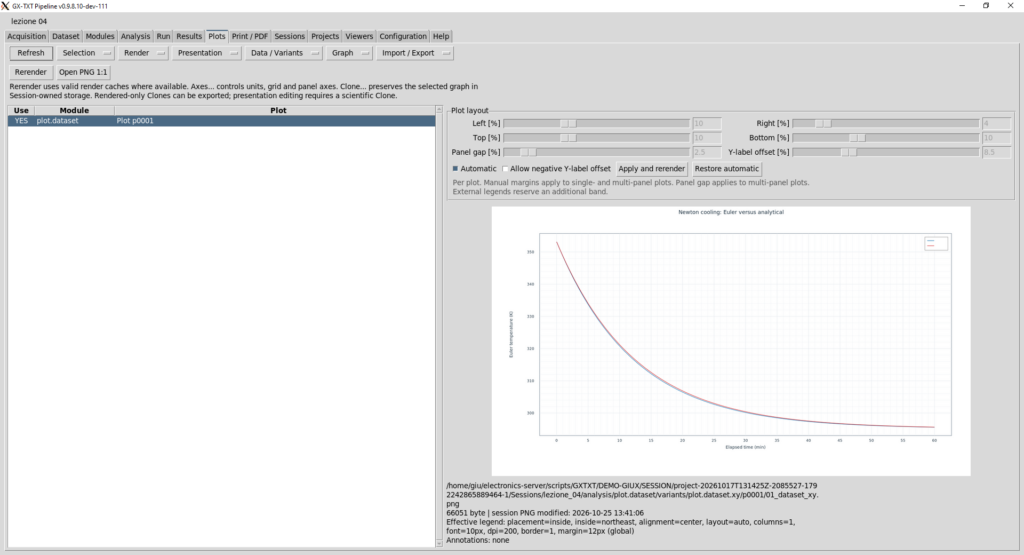
During the Lesson 04 test on GX-TXT DEV111-P019, we verified that the graph was present in the Session’s Plots section.
The graph, shown in the interface as Plot p0001, contains the Euler and analytical cooling curves.
The plot shows temperature over the simulated 60-minute interval, with time on the horizontal axis and temperature in kelvin on the vertical axis.
We also verified that the PNG representation was generated and could be opened in a dedicated GX-TXT window.
This is therefore an actual result of the executed experiment, not an illustration fabricated afterward for the article.
Interpreting the comparison between the two curves
Looking at the graph, the two curves are extremely close.
Both start at 353.15 K (80 °C) and decrease toward the ambient temperature of 295.15 K (22 °C).
Nevertheless, the curve calculated with Euler’s method differs slightly from the analytical one.
For our settings, after the initial sample, the numerical approximation lies slightly below the analytical solution: explicit Euler predicts slightly faster cooling than the exact formula.
This is not a programming mistake. It is a consequence of the approximation introduced by the numerical method.
Euler’s method uses the rate of change at the beginning of each interval to estimate the temperature at the end.
During cooling, however, the magnitude of the rate of temperature change decreases continuously.
Using the initial rate over the entire interval therefore makes the predicted decrease slightly too large.
That is why the numerical curve lies slightly below the analytical one.
How large is the difference?
At the end of the 60-minute simulation:
| Method | Final temperature |
|---|---|
| Explicit Euler | 22.43249 °C |
| Analytical solution | 22.47733 °C |
The absolute difference at the final time is approximately 0.04484 K.
However, the maximum absolute error anywhere in the time series is approximately 0.434 K.
These are different because the error changes during the simulation: it grows initially and then decreases as both temperatures approach ambient temperature.
This error is only the difference between numerical and analytical solutions of the model. It is not an experimental measurement uncertainty, nor does it establish how well Newton’s law describes a particular real body.
Can we improve accuracy?
One straightforward way to improve the accuracy of Euler’s method is to reduce dt_min.
For example, we could compare runs with time steps of 1, 0.5, and 0.25 minutes.
Reducing the time step increases the number of iterations and generally reduces the discretization error for this problem.
This does not mean that an infinitely small step is always best. Numerical methods must also account for computational cost, rounding errors, and method-specific behavior.
For our simple experiment, comparing different steps is nevertheless an excellent exercise in the relationship between time resolution and numerical accuracy.
Dataset Preview and Plot Dataset: two different tools
During testing, we used two ways to view the results.
The first was Dataset Preview, available from the Dataset section of GX-TXT.
It lets us explore a Dataset, select variables to display, and inspect values in graphical or tabular form. We used it to check the Euler and analytical Datasets separately.
The second was the persistent graph created through Plot Dataset API v4.
Here, we explicitly defined the graph composition with PlotSpec and linked two series from different Datasets.
The result is a GX-TXT-managed graph available in the Session’s Plots section.
| Dataset Preview | Plot Dataset v4 |
|---|---|
| Explore and inspect data | Create and manage scientific plots |
| Select variables interactively | Configure declaratively with PlotSpec |
| Tables and graphical preview | Series, panels, and persistent representations |
| Useful for checking a Dataset | Useful for comparing and presenting scientific results |
The two tools are complementary, not mutually exclusive: each serves a different purpose in the same workflow.
A complete example of plotting integration
Let us collect the key statements from our script:
spec = gxtxt_api_call('PLOT_DATASET_API_v4', 'new_spec', ...
                      {'plot.dataset.xy', ...
                       'Newton cooling: Euler versus analytical'});

panel = spec.panels{1};

panel.series = {
  struct('id', 'euler', ...
         'dataset_id', euler_request.dataset_id, ...
         'x_variable_id', 'time_min', ...
         'y_variable_id', 'temperature_K', 'axis', 'left');

  struct('id', 'analytical', ...
         'dataset_id', exact_request.dataset_id, ...
         'x_variable_id', 'time_min', ...
         'y_variable_id', 'temperature_K', 'axis', 'left')
};

spec.panels = {panel};

plot_ref = gxtxt_api_call('PLOT_DATASET_API_v4', 'upsert_plot', ...
                          {'lesson04.newton.cooling', spec});

render_receipt = gxtxt_api_call('PLOT_DATASET_API_v4', ...
                                'render', {plot_ref});
The process has three main steps:
new_spec: prepare the initial graph description.upsert_plot: create or update the persistent graph using PlotSpec.render: request the graphical rendering.
All these operations use gxtxt_api_call() and the public GX-TXT interface.
The framework manages scientific identities and graphics resources; the Octave script specifies what scientific result should be represented.
Reference to the public documentation
The operations in this section were checked against the GX-TXT DEV111-P019 sources, commit 3f516f5b726183ea8f53041888bd67438ee050ee.
The public contract is documented here:
GX-TXT — Plot Dataset API v4, official GitHub documentation
With this operation, we have completed the integration of the simulation: numerical results are stored as canonical Datasets and the comparison is available as a scientific graph in the Session.
We have not edited internal framework files, changed CORE, or managed private plotting file paths.
This is one of our course’s central objectives: learning GNU Octave while using GX-TXT’s public APIs to construct reproducible scientific workflows.
Running and verifying the experiment in GX-TXT
We have examined the script, its control-flow statements, its Octave functions, and the public APIs used to publish and display the results.
Now let us see how to verify its operation inside GX-TXT.
Scientific programming has an important principle: an execution that ends without errors is not, on its own, proof that the results are correct.
We must also inspect numeric values, physical units, published Datasets, and the behavior of the resulting graphs.
Preparing the Session and registering the script
For this experiment, we created a GX-TXT Session named lezione 04.
Using Script Workspace, we registered the GNU Octave program with the following identifiers:
| Property | Value |
|---|---|
| Name | Newton’s Law of Cooling — Euler Simulation |
| Script ID | octave.lesson04.newton_cooling |
| Language | GNU Octave |
| Session | lezione 04 |
| Framework | GX-TXT DEV111-P019 |
The script does not require an input Dataset: all simulation values are generated by the program from its initial parameters.
Once the script is saved in the Session registry, we can execute it through GX-TXT’s normal Script Jobs system.
The framework starts the Octave interpreter, initializes the Script Bridge, checks the declared dependencies, and records information about the execution.
Checking execution status
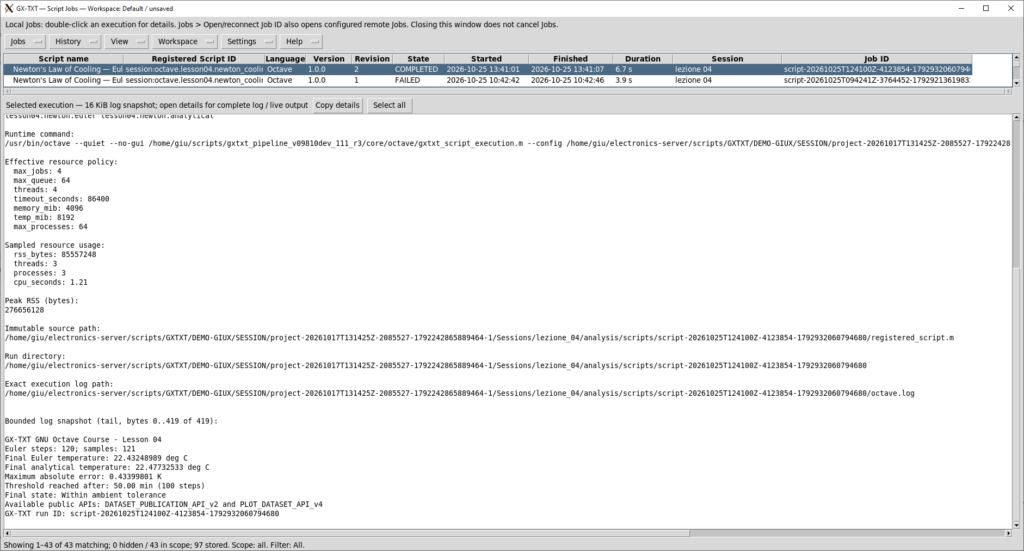
GX-TXT lets us inspect executions through the Script Jobs window.
The interface reports the job state, registered script, source revision, execution times, and associated logs.
During our test, the final state was COMPLETED and the execution took approximately 6.7 seconds.
The log reports the principal numerical results and confirms that the required public APIs were available.
An important excerpt of the output is:
GX-TXT GNU Octave Course - Lesson 04
Euler steps: 120; samples: 121
Final Euler temperature: 22.43248989 deg C
Final analytical temperature: 22.47732533 deg C
Maximum absolute error: 0.43399801 K
Threshold reached after: 50.00 min (100 steps)
Final state: Within ambient tolerance
Available public APIs: DATASET_PUBLICATION_API_v2 and PLOT_DATASET_API_v4
Let us interpret these results.
Interpreting the numerical results
The program performed 120 numerical updates and produced 121 temperature samples, including the initial sample.
After 60 minutes, Euler’s method gives approximately 22.43249 °C, while the analytical solution gives approximately 22.47733 °C.
The maximum absolute error over the entire simulation is about 0.434 K.
The while loop also determined that, according to the numerical approximation used, the body reaches a temperature difference no greater than 1 K from ambient after 100 steps, corresponding to 50 minutes.
The results are summarized below:
| Quantity | Result |
|---|---|
| Simulation duration | 60 minutes |
| Time step | 0.5 minutes |
| Euler steps | 120 |
| Temperature samples | 121 |
| Final temperature, Euler | 22.43249 °C |
| Final temperature, analytical | 22.47733 °C |
| Maximum absolute error | 0.433998 K |
| Threshold-reaching time | 50 minutes |
These values are consistent with Newton’s law of cooling and the numerical method we selected.
Keep in mind, however, that we are validating a mathematical model’s solution, not comparing it with real experimental measurements.
Checking the published Datasets in the Session
The completed job and correct numerical values are only part of the verification.
The script must also publish the data successfully through DATASET_PUBLICATION_API_v2.
To check this, we open the Dataset section of GX-TXT and inspect the Datasets registered in the Session.
Both outputs are present:
lesson04.newton.eulerlesson04.newton.analytical
Both are associated with the producing module analysis.octave_script.
By selecting each Dataset, we can examine values in graphical and tabular preview tabs.
Checking the table of values
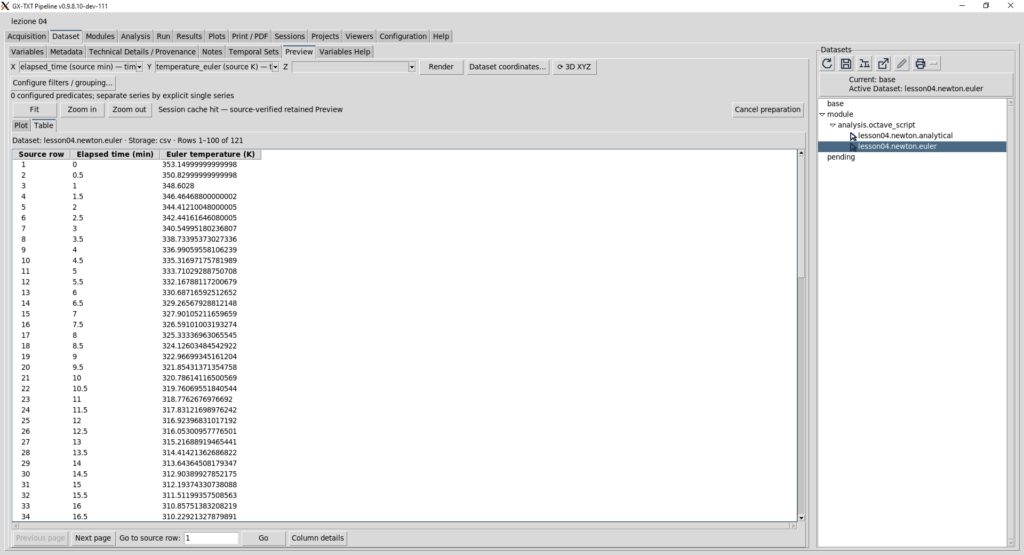
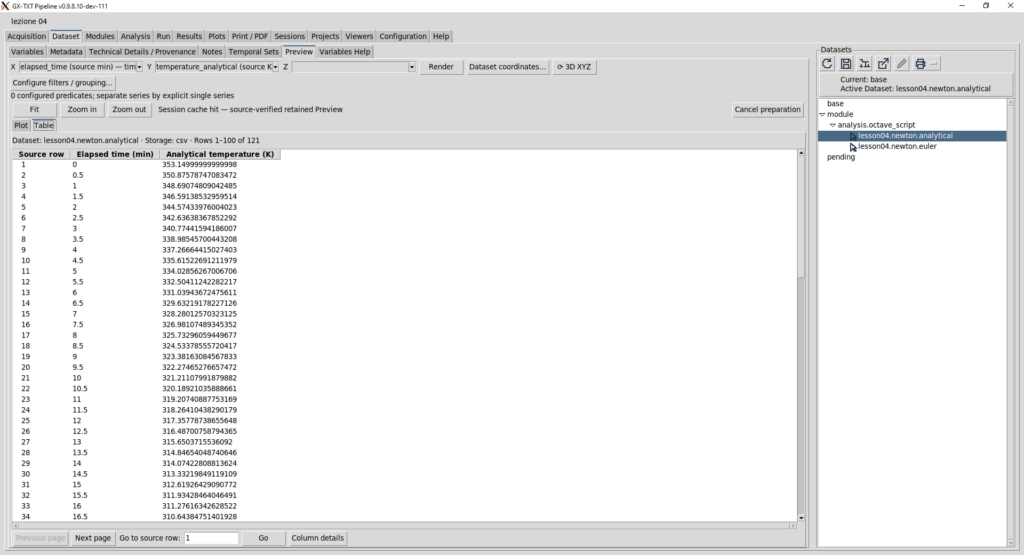
The Table tab lets us inspect the actual published samples.
Both Datasets contain a time variable expressed in minutes and a temperature variable expressed in kelvin.
The first sample is time zero and the initial temperature of 353.15 K.
In the Euler Dataset, the second sample is at 0.5 minutes and has a temperature of 350.83 K.
This is exactly the value we calculated manually when introducing the numerical method.
In the analytical Dataset, the second value is slightly different because it is calculated directly from Newton’s exponential analytical solution.
This is a particularly useful check: it compares a result obtained by hand with the value actually produced and published by the script.
Checking the graphical preview
The Dataset Preview Plot tab lets us inspect the two series separately.
In both cases, temperature decreases progressively and approaches ambient temperature.
The graphs confirm the expected qualitative behavior: cooling is faster initially and slows as the temperature difference decreases.
We have therefore verified that both Datasets are registered, readable, and usable by GX-TXT’s scientific tools.
What did we actually verify?
At the end of the test, we can distinguish several levels of verification:
| Check | Result |
|---|---|
| Octave script execution | Passed |
| Temperature calculations | Passed |
| Loop termination | Passed |
| Availability of required public APIs | Passed |
| Publication of both Datasets | Passed |
| Tabular inspection of results | Passed |
| Dataset Preview | Passed |
| Plot Dataset v4 creation and rendering | Passed |
These checks document that the experiment works in the configuration actually used.
They are not a general validation of every GX-TXT feature or every possible combination of physical and numerical parameters.
The code was tested using GX-TXT 0.9.8.10-dev-111, patch P019, with GitHub commit 3f516f5b726183ea8f53041888bd67438ee050ee as its reference source.
We have now completed the scientific workflow of the lesson: mathematical formulation, Octave implementation, validation of numerical results, and integration into the Session through public APIs.
Course materials and source code
The experiment is available as a GNU Octave script accompanied by two reference documents in English.
The code was developed exclusively against the public APIs of GX-TXT DEV111-P019 and tested in a framework Session.
The available materials are:
- GNU Octave script:
GXTXT_Octave_L04_DEV111_P019_v1.0.1.m— the complete program for the simulation, Dataset publication, and comparison graph. - Teaching Notes:
Lesson_04_Teaching_Notes_DEV111_P019.pdf— teaching notes, concepts covered, and API references. - Experiment Objectives:
Lesson_04_Experiment_Objectives_DEV111_P019.pdf— experiment goals, parameters, and result acceptance criteria.
The two PDF documents can be viewed, downloaded, or printed. The script is distributed under the GNU GPL v3 or later license. Its internal comments are in English so the source can also be used by international readers.
How to reproduce the experiment
To repeat the simulation, you need a GX-TXT installation compatible with the APIs used here and a properly configured GNU Octave environment.
- Open GX-TXT and create or select a working Session.
- Open the GNU Octave Script Workspace.
- Import
GXTXT_Octave_L04_DEV111_P019_v1.0.1.m. - Register the script in the Session and verify that the required APIs are available.
- Save and execute it using Script Jobs.
- Check the execution log.
- Open Dataset and verify the two published series.
- Open Plots and inspect the comparison graph.
You do not need to import experimental data beforehand: the script generates the numerical and analytical temperatures itself.
For initial experiments, use a dedicated Session separate from your laboratory data.
Exercises — Put what you have learned into practice
Programming is learned above all by modifying and running programs.
The exercises below let you develop your understanding of conditional statements, loops, and functions step by step.
Before you begin, keep a copy of the original script or create a new GX-TXT Session for the exercises. That way, you can experiment without replacing the original test results.
Exercise 1 — Change the initial temperature
Our experiment simulated a body initially at 80 °C.
Modify the program to simulate a body starting at 60 °C, keeping all other parameters unchanged.
Find this instruction:
T_initial_K = 80 + 273.15;Modify it appropriately, run the script, and compare the results.
Questions: Will the final temperature after 60 minutes be higher or lower than in the original experiment? Will the time required to reach the 1 K threshold remain the same?
Try to make and explain a prediction before running the program.
Exercise 2 — Change the time step
Repeat the simulation using three time intervals:
dt_min = 1.0;dt_min = 0.5;dt_min = 0.25;
Keep the total simulation duration, initial temperatures, and cooling coefficient unchanged.
Remember to adjust the maximum iteration limit for the while loop. As the time step gets smaller, reaching a given temperature requires more steps.
For this exercise, you can use:
max_threshold_steps = ceil(duration_min / dt_min);The ceil() function rounds upward to the next integer. Here it provides a maximum step count consistent with the total simulation duration.
For each run, record the number of samples, Euler’s final temperature, and the maximum absolute error relative to the analytical solution.
Question: What happens to the numerical error as the time step decreases?
This experiment provides a practical introduction to convergence of numerical methods.
Exercise 3 — Change the stopping condition
In our experiment, the while loop ends when the difference from ambient temperature becomes less than or equal to 1 K.
Change:
threshold_K = 1.0;and try the values 2 K, 0.5 K, and 0.1 K in turn.
For each run, observe the number of iterations and the time required to reach the threshold.
Warning: when the threshold becomes especially small, the maximum step count may not be enough.
If this happens, the program should correctly report that the condition was not reached within the permitted limit.
Question: Why does requiring an ever smaller temperature difference usually require more iterations?
Exercise 4 — Write a new function
Let us now add a function that is not included in the original script.
Write a function named temperature_difference() that accepts two temperatures and returns the absolute value of their difference.
Start with this declaration:
function difference = temperature_difference(T1, T2)Complete the function body using abs() and end it with endfunction.
Then modify the while loop to call your new function instead of directly calculating:
abs(T_threshold_K - T_ambient_K)Goal: verify that the script’s behavior remains unchanged after replacing an expression with a reusable function.
This exercise introduces a key software design principle: code organization can be improved without changing its scientific behavior.
Exercise 5 — Experiment with conditions
Modify classify_state() so that it distinguishes four states instead of three.
For example, you could use:
- Difference at or below the tolerance: Within ambient tolerance.
- Difference above the tolerance but no greater than twice the tolerance: Very close to ambient.
- Difference above twice but no greater than five times the tolerance: Approaching ambient temperature.
- Difference greater than five times the tolerance: Cooling in progress.
Implement the classification with if, elseif, and else, then test it with different temperatures.
Question: Why is the order of conditions important? What would happen if you checked the broadest condition before the more restrictive ones?
Final considerations
In this lesson, we started with a simple physics problem and used it to introduce fundamental GNU Octave programming tools.
We learned to use if, elseif, and else to make decisions; for to repeat operations over a predefined sequence; and while to continue a calculation until a condition is met.
We also used break and continue to control loop execution, and learned to divide the program into reusable functions.
The result was more than a programming exercise.
We built a complete numerical simulation, compared Euler’s method with an analytical solution, and examined the error introduced by numerical approximation.
Through GX-TXT’s public APIs, we then published the results as two canonical Datasets and created a persistent scientific graph—without directly modifying the framework’s internal files.
We will continue using this approach throughout the course: learning GNU Octave through reproducible scientific experiments and using GX-TXT’s public services to manage data, calculations, and graphical representations.
Framework version and references
The experiment was executed and verified using the following configuration:
| Framework | GX-TXT |
|---|---|
| Version | 0.9.8.10-dev-111 |
| Patch | P019 |
| GitHub branch | maintenance/dev111 |
| Reference commit | 3f516f5b726183ea8f53041888bd67438ee050ee |
| Language | GNU Octave |
| Course script | Lesson 04, version 1.0.1 |
| Test result | Completed successfully |
The framework’s official source code is available in the GX-TXT GitHub repository.
This lesson uses the DEV111-P019 commit of October 25, 2026.
The public APIs used in this lesson are documented in the Octave Script Bridge, Dataset Publication API v2, and Plot Dataset API v4 manuals.
Compatibility note: GX-TXT is under active development. The interfaces and procedures described in this article refer to the version actually used for testing. Later versions may introduce changes or new capabilities.