
Lesson 02 — Variables, Data Types and Operators in GNU Octave with GX-TXT
In the first lesson of our course, we began exploring GNU Octave and how it is used within the GX-TXT scientific framework. We saw how a simple script can perform numerical calculations and interact with services provided by the environment.
In this second lesson, we will explore some of the foundations of every programming language: variables, data types, and arithmetic operators. These concepts may seem simple, but they are essential to understanding how information is represented and processed during a scientific calculation.
To practice them, we will build a small scientific calculator capable of performing arithmetic operations, working with vectors and complex numbers, comparing results, and recognizing certain error conditions.
The exercise also introduces important GNU Octave programming tools such as printf(), assert(), struct(), abs(), and the try and catch statements. We will progressively explain how they work, their syntax, and their practical uses, including the operators and other statements in our script.
We will not limit ourselves to native Octave functionality. An important part of this lesson covers integration with GX-TXT public APIs, through which our script can call the framework’s numerical services. We will compare operations performed directly in Octave with those obtained through NUMERIC_API_v1, introducing the Script Bridge and its API calls.
The experiment was developed and validated using GX-TXT 0.9.8.10-dev-109, relying exclusively on public interfaces documented in the GitHub sources. All planned checks passed, including the handling of division by zero.
As in the other course lessons, we will proceed step by step: starting with theory, analyzing the code, and finally examining the script execution and results within GX-TXT.
Variables and data types in GNU Octave
One of the first concepts to understand when learning to program is the concept of a variable.
A variable is a name associated with a value that can be used, processed, and changed while a program runs. In scientific applications, variables can represent experimental measurements, physical constants, intermediate calculation results, or collections of data.
In GNU Octave, you do not need to declare a variable’s type in advance. Simply assign a value using the = operator.
For example:
a = 12;
b = 5;
These two statements create the variables a and b, assigning them the numerical values 12 and 5 respectively.
Let us examine a few details of the syntax:
aandbare variable names. Octave is case-sensitive:aandAidentify two different variables.=is the assignment operator. It stores the value of the expression on the right in the variable on the left. Do not confuse it with==, which compares two values.;is the semicolon. At the end of a statement, it suppresses automatic output in the console without changing the value assigned.
Variables can be used in subsequent operations and can be assigned new values as the script runs.
The main data types
Octave supports several data types. We will start with those used in our experiment: floating-point numbers, integers, logical values, character sequences, and complex numbers.
Our script includes the following statements:
a = 12;
b = 5;

integer_value = int16(7);
logical_value = logical(1);
text_value = 'Scientific calculator';
complex_value = complex(3, 4);
Let us look at them one by one.
Floating-point numbers (double)
The variables a and b hold numbers that Octave represents by default using the double type.
This format normally uses 64 bits under the IEEE 754 standard and can represent both whole numbers and numbers with a fractional part.
For example, 12, 3.14159, and 0.001 can all be represented as double values.
It is important to note that although 12 is mathematically an integer, it does not automatically belong to an integer type such as int16: its default class is double.
Integers (int16)
The statement:
integer_value = int16(7);creates a signed 16-bit integer value.
The int16 type represents values from −32768 to 32767. Unlike double, it does not represent fractional values.
Octave also supports other integer types, including int8, int32, int64, and their unsigned counterparts (uint8, uint16, and so on).
Logical values (logical)
The statement:
logical_value = logical(1);produces a true logical value.
A logical value has two states: true or false. The logical() function converts a value to its logical equivalent.
Logical values are primarily used to control program execution, for example in if statements, and to test mathematical conditions.
Text (char)
The statement:
text_value = 'Scientific calculator';assigns a sequence of characters to the variable.
Here, single quotes identify a character array belonging to the char class.
This representation is useful for messages, labels, names, and other text. In later lessons, we will also examine different text representations and cell arrays.
Complex numbers
GNU Octave natively supports complex numbers, which are especially important when studying electrical circuits, signals, and dynamic systems.
In our script, we use:
complex_value = complex(3, 4);The complex() function constructs a complex number from its real and imaginary components.
The result is:
\[ z = 3 + 4i \]where i is the imaginary unit, defined by the relation:
An interesting detail is that a complex number can belong to the double class, just like an ordinary real number. The class identifies the numerical format, while the presence of an imaginary component is a property of the value.
How to identify a variable’s type
To find the class of a variable, we can use the native class() function.
For example:
class(a)
class(integer_value)
class(logical_value)
class(text_value)
class(complex_value)
The results, respectively, will be:
double
int16
logical
char
double
We can also examine properties of the values with functions such as isnumeric(), islogical(), ischar(), and isreal().
For example:
isreal(complex_value)returns false because our complex number has a nonzero imaginary component.
This distinction between data class and value properties is important: two variables of the same class can contain values with different mathematical characteristics.
Displaying values during execution
In our script, we use fprintf() to display variables together with their class.
One example is:
fprintf('Variable a = %.12g (class: %s)\n', a, class(a));This statement produces:
Variable a = 12 (class: double)The first argument specifies the message format; subsequent arguments provide the values inserted at the corresponding placeholders.
In particular, %.12g displays a numeric value with up to 12 significant digits, %s inserts a character sequence, and \n moves to the next line.
GNU Octave also provides printf(), which behaves very similarly when writing to standard output.
We will explore both functions in more detail when we examine the statements used to display and check our experimental results.
Why this distinction matters in GX-TXT
The data types we have just examined are native GNU Octave types and require no specific GX-TXT API.
When using the framework’s numerical services, however, we will encounter a second layer of data description: typed structures used by the public APIs.
For example, we will see how a numeric variable can be represented by a structure that explicitly specifies whether the data is a scalar, vector, or matrix.
Understanding the difference between native Octave types and the structures used to communicate with GX-TXT is essential to interpreting calls to NUMERIC_API_v1 correctly.
Before exploring this integration, however, we need to learn how to perform calculations directly in Octave.
In the next section we will therefore examine arithmetic operators, operator precedence, and parentheses, starting from the variables a = 12 and b = 5 already defined.
GNU Octave and MATLAB: what they share and what differs
In-depth study — GNU Octave and MATLAB: similarities and differences
GNU Octave and MATLAB share much of their syntax and programming model. Octave was developed with particular attention to MATLAB compatibility, making it relatively straightforward to transfer many numerical scripts between the two environments.
The main similarities
In both languages:
- Variables are created by assignment, without declaring their type beforehand.
- Numeric values are normally represented as
double. - Types such as
int16,logical,char, and complex numbers are available. - The functions
class(),isnumeric(),isreal(),complex(), andabs()have essentially equivalent functionality. - The semicolon
;suppresses automatic display of results. - Variable names are case-sensitive.
For example, the following code works in both environments:
a = 12;
b = int16(7);
z = complex(3, 4);

class(a)
class(b)
abs(z)
Differences worth knowing
- Strings: in GNU Octave double quotes generally produce a
chararray; in modern MATLAB they produce astringobject. Single quotes denotechararrays in both. - Comments: Octave accepts both
%and#; MATLAB uses%. - Control structures: Octave supports specific terminators such as
endifandend_try_catch, whereas MATLAB usesend. - Formatted output: Octave provides
printf()andfprintf(); MATLAB primarily usesfprintf(). - Licensing: GNU Octave is free software under the GNU GPL; MATLAB is a proprietary commercial product.
Consider this statement:
text = "Scientific calculator";
class(text)
In GNU Octave the result is char, whereas in modern MATLAB it is string.
This distinction may affect text operations and how arguments are passed to functions. For compatibility between the environments, single-quoted character arrays are generally a safe choice.
And what about GX-TXT scripts?
Our course scripts are written in GNU Octave, but they also use GX-TXT-specific public APIs.
Native instructions, including arithmetic operations, struct(), assert(), and abs(), are largely transferable to MATLAB. Framework functions such as gxtxt_api_call() and gxtxt_api_require() instead require the GX-TXT environment and its Script Bridge.
In summary: learning GNU Octave builds skills that can also be applied directly to MATLAB. Differences remain, especially in text handling, some syntax extensions, and available libraries, but the foundation of numerical programming is largely shared.
References: GNU Octave — Strings | MATLAB — Character and String Arrays
Arithmetic operators and operator precedence in GNU Octave
Having learned how to create variables and identify their types, we can now use them to perform mathematical calculations.
GNU Octave provides the arithmetic operators commonly used in mathematics, with syntax very similar to MATLAB. We can add, subtract, multiply, divide, and raise values to powers, combining several operations in a single expression.
Basic arithmetic operators
Let us return to the two variables defined earlier:
a = 12;
b = 5;
With these variables we can use the following operators:
| Operator | Operation | Example | Result |
|---|---|---|---|
+ | Addition | a + b | 17 |
- | Subtraction | a - b | 7 |
* | Multiplication | a * b | 60 |
/ | Division | a / b | 2.4 |
^ | Exponentiation | a ^ b | 248832 |
In our script we carry out these operations and store the results in new variables:
native_add = a + b;
native_subtract = a - b;
native_multiply = a * b;
native_divide = a / b;
native_power = a ^ b;
Octave evaluates each statement and assigns the result to the variable on the left of the = operator.
Importantly, an operation does not automatically change the values of the original variables.
For example, after the statement:
native_add = a + b;a and b still contain 12 and 5 respectively, whereas native_add contains 17.
If we instead wrote:
a = a + b;the value of a would become 17. Octave evaluates the right-hand expression using the current variable values, then assigns the result to the variable on the left.
Operator precedence
When an expression contains several operations, Octave must determine the order in which to perform them.
As in conventional mathematics, not all operations have the same precedence.
For basic arithmetic expressions, we can remember the following order:
- Expressions inside parentheses.
- Exponentiation.
- Multiplication and division.
- Addition and subtraction.
Operators with the same precedence follow the language’s associativity rules.
Consider the expression in our script:
\[ \mathrm{precedence\_result} = a + b^{2} \]Octave performs exponentiation first:
b ^ 2produces 25.a + 25produces 37.
Therefore, precedence_result takes the value 37.
Using parentheses to change the order of operations
Parentheses explicitly change the order in which an expression is evaluated.
Our script also contains:
parentheses_result = (a + b) ^ 2;Here Octave calculates the sum inside the parentheses first:
a + bproduces 17.17 ^ 2produces 289.
The result is therefore entirely different from the previous expression.
| Expression | Result |
|---|---|
a + b ^ 2 | 37 |
(a + b) ^ 2 | 289 |
This simple example shows how important it is to use parentheses correctly, especially when translating mathematical formulas into code.
In scientific computing, including parentheses even when they are not strictly required often makes the meaning clearer and reduces the risk of mistakes.
Division and numerical precision
Now consider:
native_divide = a / b;The mathematical result is 2.4.
Octave normally represents numeric results using the double format, based on binary floating-point arithmetic.
This means that some decimal numbers, including 2.4, cannot be represented exactly by a finite number of binary digits.
In most calculations this approximation is negligible, but it matters when comparing numeric results or automatically checking an experiment’s outcome.
For this reason, the script uses a check such as:
assert(abs(native_divide - 2.4) < 1e-12);The statement verifies that the absolute difference between the calculated and expected results is below a specified tolerance.
We will explore assert() and abs() further in the section on validating results.
A first step toward scientific computing
The operators described so far work with scalar values, that is, individual numbers.
GNU Octave, however, is designed primarily for working with vectors and matrices. In these cases we must distinguish ordinary algebraic operations from element-wise operations.
This distinction matters because , /, and ^ may have matrix meanings, while ., ./, and .^ explicitly specify element-wise operations.
In the next chapter we will introduce these operators using a simple numeric vector, preparing for the more detailed study of vectors and matrices in Lesson 03.
Vectors and element-wise operators in GNU Octave
So far we have used variables containing individual numeric values, called scalars. One of GNU Octave’s main strengths, however, is the ability to work directly with collections of numbers arranged into vectors and matrices.
This is especially useful in scientific computing, where we often need to process many experimental measurements, signal samples, or simulation results.
Instead of applying the same operation to each value separately, Octave can apply it to all elements of a vector with a single statement.
What is a vector?
A vector is an ordered collection of numeric elements.
In GNU Octave we can create two basic kinds of vectors: row vectors and column vectors.
Consider these statements:
row_vector = [2, 4, 6];
column_vector = [2; 4; 6];
In the first case, commas separate the elements to form a row vector:
2 4 6In the second case, semicolons separate the elements to form a column vector:
2
4
6Square brackets [] construct numeric arrays. Inside the brackets, commas or spaces separate elements within a row, while semicolons start a new row.
The row vector has dimensions 1×3, whereas the column vector has dimensions 3×1.
This distinction will become essential when we study matrix algebra in Lesson 03.
The vector used in our experiment
Our script defines the following vector:
v = [2; 4; 6];It contains three elements arranged vertically.
We want to multiply each element by the scalar value 3.
Mathematically, this corresponds to:
2 × 3 = 6
4 × 3 = 12
6 × 3 = 18
We could carry out three separate operations, but Octave can produce the same result with a single statement:
result = v .* 3;The result is:
   6
  12
  18
The .* operator specifies element-wise multiplication.
The number 3 is applied to every element of the vector without changing its original shape.
Element-wise operators
In GNU Octave, the dot preceding certain arithmetic operators has a precise meaning.
| Operator | Meaning | Example |
|---|---|---|
.* | Element-wise multiplication | v .* 3 |
./ | Element-wise division | v ./ 2 |
.^ | Element-wise exponentiation | v .^ 2 |
For example, consider:
v = [2; 4; 6];

result_multiply = v .* 3;
result_divide = v ./ 2;
result_power = v .^ 2;
We obtain:
| Original element | v .* 3 | v ./ 2 | v .^ 2 |
|---|---|---|---|
| 2 | 6 | 1 | 4 |
| 4 | 12 | 2 | 16 |
| 6 | 18 | 3 | 36 |
In all three cases, Octave applies the operation individually to the vector’s elements.
Difference between matrix and element-wise operators
It is important to understand that and . are not always equivalent.
The operator performs matrix multiplication, whereas . performs element-wise multiplication.
When one of the operands is a scalar, as in:
v * 3the result is the same as:
v .* 3This is because multiplying a matrix or vector by a scalar amounts to multiplying each of its elements.
The difference emerges when both operands are arrays.
Consider:
a = [1, 2];
b = [3, 4];

result = a .* b;
The result is:
3 8Each element of a is multiplied by the corresponding element of b.
The expression:
a * bis instead invalid: both arrays are 1×2 row vectors, so their dimensions are incompatible with matrix multiplication.
The same distinction applies to powers.
In our example:
v .^ 2squares each of the three elements.
Writing:
v ^ 2does not produce the same result: the ^ operator requires a square matrix for a matrix power with exponent 2.
Our vector is 3×1 and therefore does not meet this requirement.
Likewise, / and ./ have different meanings in the general case: / performs right matrix division, whereas ./ divides corresponding elements or each element by a scalar.
Element-wise operators are especially important when processing experimental data, where we want to apply a formula independently to each observation.
How to determine a vector’s dimensions
GNU Octave provides functions for examining the structure of numeric data.
The size() function returns the dimensions of an array.
For example:
v = [2; 4; 6];

dimensions = size(v);
The variable dimensions will contain:
3 1This means the vector has three rows and one column.
We can also request a particular dimension:
rows = size(v, 1);
columns = size(v, 2);
Here, rows is 3 and columns is 1.
Another useful function is numel(), which returns the total number of elements:
count = numel(v);The result is 3.
The difference is simple: size() describes the shape of an array, while numel() counts its elements.
For example, a 2×3 matrix would have dimensions [2, 3] and contain 6 elements.
Why use vectorized operations?
Suppose we have acquired one thousand voltage measurements and need to convert them from millivolts to volts.
Using a vector, we can simply write:
voltage_v = voltage_mv ./ 1000;Octave applies the conversion to every element.
There is no need to write a loop that processes each value separately.
This programming technique is called vectorization and is one of the defining features of GNU Octave and MATLAB.
Besides making code shorter and easier to read, vectorization often takes advantage of optimized numerical implementations.
Of course, loops are not useless: they are still necessary in many scientific applications. We will learn to use them in later lessons.
Vectors and GX-TXT numerical APIs
Everything we have examined so far uses only native GNU Octave features.
When calling GX-TXT’s public numerical services, however, we must also tell the framework what kind of data we are passing.
For example, a vector can be represented by a structure containing the operand kind and its numeric values:
operand = struct('kind', 'vector', 'value', [2; 4; 6]);Here, kind specifies the operand shape required by the API contract, and value holds the numeric data.
This structure does not change the nature of the Octave values; it simply provides an explicit representation for communication with the public NUMERIC_API_v1 service.
The framework can thus distinguish scalars, vectors, and matrices according to the operation’s contract.
Do not confuse Octave’s native numeric type with the kind field used by GX-TXT APIs: these describe different aspects of the data.
We will examine struct() and calls to public APIs in a dedicated section.
Before doing so, however, we need to learn to display calculation results correctly and, above all, verify that they are as expected.
In the next chapter, we will introduce printf(), fprintf(), assert(), and abs(), which play a key role in reporting and automatically checking our results.
Vectors and matrices: mathematical meaning and the difference between matrix and element-wise products
In mathematics, vectors and matrices are fundamental tools of linear algebra. They represent and manipulate collections of numbers using precisely defined operations.
Scalars, vectors, and matrices
A scalar is a single numeric value, such as 5 or 3.14.
A vector is an ordered set of components. We can write it as a column vector:
\[ \mathbf{v} = \begin{bmatrix} 2\\ 4\\ 6 \end{bmatrix} \]Or as a row vector:
\[ \mathbf{v}^{T} = \begin{bmatrix} 2 & 4 & 6 \end{bmatrix} \]The symbol T denotes transposition, the exchange of rows and columns.
A matrix is a rectangular arrangement of elements in rows and columns. For example:
\[ A = \begin{bmatrix} 1 & 2\\ 3 & 4 \end{bmatrix} \]This matrix has dimensions 2×2: two rows and two columns. More generally, a matrix A with m rows and n columns belongs to the space of real m × n matrices when all its elements are real numbers.
Dot product and matrix multiplication
The dot product of two real vectors of the same dimension is obtained by multiplying corresponding components and adding the products.
\[ \mathbf{a}\cdot \mathbf{b} = \sum_{i=1}^{n} a_i b_i \]For example:
\[ \begin{bmatrix} 1 & 2 & 3 \end{bmatrix} \begin{bmatrix} 4\\ 5\\ 6 \end{bmatrix} = 1\cdot 4+2\cdot 5+3\cdot 6=32 \]Matrix multiplication generalizes this principle. If A has dimensions m × n, matrix B must have n rows for the product AB to be defined.
Each element of the resulting matrix is calculated as:
\[ (AB)_{ij} = \sum_{k=1}^{n} A_{ik} B_{kj} \]Consider two matrices:
\[ A = \begin{bmatrix} 1 & 2\\ 3 & 4 \end{bmatrix}, \qquad B = \begin{bmatrix} 5 & 6\\ 7 & 8 \end{bmatrix} \]Their matrix product is:
\[ AB = \begin{bmatrix} 19 & 22\\ 43 & 50 \end{bmatrix} \]In GNU Octave, this operation is written simply as A * B.
Element-wise product: the Hadamard product
Another operation, called the Hadamard product, multiplies the elements of two matrices at corresponding positions.
\[ (A \circ B)_{ij}=A_{ij}B_{ij} \]Applying this operation to the previous matrices gives:
\[ A \circ B = \begin{bmatrix} 5 & 12\\ 21 & 32 \end{bmatrix} \]In GNU Octave, the Hadamard product is performed with .*:
A = [1, 2; 3, 4];
B = [5, 6; 7, 8];

matrix_product = A * B;
elementwise_product = A .* B;
The two operations therefore have different mathematical meanings and produce different results.
Why are powers different too?
The distinction also applies to exponentiation.
The matrix power A^2 means multiplying the matrix by itself:
An element-wise power, instead, squares each element:
\[ A^{\circ 2} = \begin{bmatrix} 1 & 4\\ 9 & 16 \end{bmatrix} \]In Octave these are written A ^ 2 and A .^ 2, respectively.
Why is this important in scientific computing?
In a numerical simulation, matrix multiplication can represent geometric transformations, systems of equations, or relationships between physical quantities. Element-wise operations are especially useful when applying a formula independently to each experimental sample.
For example, if a vector contains voltages measured in millivolts, we can convert them all to volts with:
voltage_v = voltage_mv ./ 1000;Remember: the dot before an operator in GNU Octave is not merely a syntactic detail. It distinguishes element-wise operations from algebraic operations that may involve the entire matrix structure.
In later lessons we will study linear algebra, matrix transformations, and their use in scientific applications in greater depth.
Displaying results and automatically validating calculations
When writing scientific software, performing mathematical operations correctly is not enough. We must also display the results, interpret them, and verify that they match expectations.
A program that finishes without reporting errors does not necessarily produce correct results. A mistake in the formula, order of operations, or data handling can yield numerically valid yet scientifically incorrect values.
For this reason, our script uses two fundamental GNU Octave tools:
- The
printf()andfprintf()functions, to display information and results. - The
assert()function, to automatically check that specific conditions hold.
We will also see how abs() is used to calculate absolute values and the magnitudes of complex numbers, and to compare numerical results while accounting for precision.
Displaying results with printf() and fprintf()
GNU Octave provides several functions for displaying variables, including disp(), printf(), and fprintf().
The disp() function is the simplest: it displays a value without requiring formatting instructions.
For example:
a = 12;
disp(a);
produces:
12However, when we want to accompany a value with an explanatory message or control the number of digits displayed, formatted output is preferable.
The syntax of printf() is:
printf(format, value1, value2, ...);The first argument specifies the text and formatting rules. Subsequent arguments provide the values inserted into the message.
For example:
a = 12;
b = 5;

printf('The sum of %g and %g is %g\n', a, b, a + b);
The result will be:
The sum of 12 and 5 is 17The format string contains three %g placeholders, replaced in sequence by the values supplied after the format string.
The sequence \n represents a newline character and moves subsequent output to the next line.
The fprintf() function
Our script mainly uses fprintf().
Its general syntax is:
fprintf(format, value1, value2, ...);When writing to standard output, fprintf() and printf() perform essentially the same task.
The difference is that fprintf() can also accept a file or stream identifier as its first argument, making it useful for formatted file output.
In this experiment, we use it only to display results. We do not open or write any files directly.
Consider this statement from the script:
fprintf('Variable a = %.12g (class: %s)\n', a, class(a));The output is:
Variable a = 12 (class: double)Let us examine the parts of this statement.
The format string
The text enclosed in single quotes defines how the message will appear.
It may contain ordinary text, special characters, and placeholders that are replaced with variable values.
The %.12g placeholder
The letter g specifies a general numeric format, choosing decimal or scientific notation according to the value displayed.
The .12 requests up to 12 significant digits in the number’s representation.
This format is particularly useful when working with scientific results on different scales.
The %s placeholder
This placeholder inserts a character sequence.
In our example, class(a) returns the name of the class of variable a, which is inserted into the message.
The \n character sequence
It indicates a new line.
Without it, successive messages could appear one after another on the same line.
Common formatting placeholders
| Placeholder | Meaning | Example |
|---|---|---|
%d | Decimal integer | 12 |
%f | Floating-point number in decimal notation | 2.400000 |
%.2f | Number with two decimal places | 2.40 |
%e | Scientific notation | 2.400000e+00 |
%g | General numeric format | 2.4 |
%.12g | General format with 12 significant digits | 2.4 |
%s | Character sequence | double |
%% | Literal percent sign | % |
Formatting changes only how a number is displayed, not the numeric value stored in the variable.
For example:
x = 2.4;

fprintf('%.2f\n', x);
fprintf('%.8f\n', x);
fprintf('%.12g\n', x);
The three statements display different representations of the same value.
The contents of x do not change.
Displaying our experimental results
Our script contains:
fprintf('E01: a + b = %.12g\n', native_add);
fprintf('E02: a - b = %.12g\n', native_subtract);
fprintf('E03: a * b = %.12g\n', native_multiply);
fprintf('E04: a / b = %.12g\n', native_divide);
fprintf('E05: a ^ b = %.12g\n', native_power);
The statements produce a readable calculation report:
E01: a + b = 17
E02: a - b = 7
E03: a * b = 60
E04: a / b = 2.4
E05: a ^ b = 248832
The labels E01, E02, and so on identify the individual experimental tests.
This organization makes it easy to compare script outputs with the values expected by the validation protocol.
In GX-TXT, messages written to standard output are captured by the script execution system and can be inspected in the Job results’ Program output panel.
We therefore do not need to create log files ourselves: the framework collects execution output.
Automatically checking results with assert()
Displaying results allows a reader to inspect them, but it is not sufficient for reliable scientific programs.
A better approach is for the program to perform some checks itself.
GNU Octave provides assert() to verify that a condition is true.
Its simplest form is:
assert(condition);If the condition is true, execution continues normally.
If it is false, Octave raises an error.
Consider this example:
a = 12;
b = 5;

result = a + b;

assert(result == 17);
The == operator checks whether the result equals the expected value.
Because 12 + 5 equals 17, the check passes.
If instead we wrote:
assert(result == 18);Octave would report a failed assertion.
This is intentional: a check should immediately reveal a condition that has not been met.
In our script, we use assert() to check all the main numerical results.
For example:
assert(native_add == 17);
assert(native_subtract == 7);
assert(native_multiply == 60);
assert(native_power == 248832);
These statements are an early example of automated tests, a widely used technique in scientific software development.
Why two numbers should not always be compared using ==
Floating-point numbers are represented using a finite number of binary digits.
Consequently, many decimal quantities cannot be stored exactly.
This can cause small differences between a calculated value and the theoretically expected result.
It is therefore often better to use a numerical tolerance when comparing approximate results.
Our script contains:
assert(abs(native_divide - 2.4) < 1e-12);This statement includes several important elements.
First, the difference is calculated:
native_divide - 2.4Then abs() returns the absolute value of that difference.
Finally, the result is compared with the tolerance 1e-12, equivalent to 0.000000000001.
The check passes when:
\[ |x_{\mathrm{calculated}} – x_{\mathrm{expected}}| < \varepsilon \]where ε represents the chosen tolerance.
In our case:
\[ \varepsilon = 10^{-12} \]This is known as an absolute-tolerance comparison.
It is suitable for the simple numeric examples used here, but it is not a universal rule: for very large or very small values, or quantities on different scales, relative or combined tolerances may be preferable.
The tolerance should be chosen according to the required numerical precision and the scientific meaning of the calculation.
The abs() function: absolute value and complex magnitude
The native GNU Octave function abs() has two particularly important applications.
Absolute value of a real number
For a real number, abs() returns its unsigned magnitude.
abs(-7)returns:
7Mathematically, the absolute value is the distance of a number from zero on the real number line.
Magnitude of a complex number
For a complex number, abs() returns its magnitude, that is, its distance from the origin in the complex plane.
Consider the number introduced earlier:
z = complex(3, 4);For a complex number z = a + bi, its magnitude is defined by:
In our example:
\[ |3+4i| = \sqrt{3^2 + 4^2} = \sqrt{25} = 5 \]In GNU Octave, we can write:
complex_magnitude = abs(z);The result is 5.
The corresponding check in our script is:
assert(abs(complex_magnitude - 5) < 1e-12);Notice that abs() is used twice for different purposes: first to calculate the complex magnitude, then to check the absolute difference from the expected result.
The same function therefore adapts to the nature of the numeric data supplied to it.
Checking vectors and arrays
So far we have used assert() to validate scalar results, but the same principle applies to arrays.
Our experiment contains:
assert(isequal(size(v), [3, 1]));
assert(isequal(vector_times_three, [6; 12; 18]));
The first statement checks the dimensions of the vector.
The second verifies that every element matches the expected result, including its shape.
The isequal() function returns a logical value indicating whether the supplied arguments are equal.
To compare two sets of floating-point results, however, we use:
assert(all(abs(api_values - native_values) < 1e-12));Let us examine how this statement works:
api_values - native_valuescalculates the differences between corresponding elements.abs()returns the absolute value of each difference.< 1e-12produces an array of logical values.all()checks that all conditions are true.assert()raises an error if the overall check fails.
This test is especially important in our experiment because it compares the results obtained through GX-TXT’s numerical APIs with those calculated directly in Octave.
From displaying output to scientific validation
Printing functions and validation functions play different but complementary roles.
printf() and fprintf() communicate results clearly.
assert() automatically verifies that the program meets specific conditions.
abs() works with real absolute values and complex magnitudes, and also helps construct tolerance-based comparisons.
Together, these functions are a first step toward writing verifiable and reproducible scripts.
In our experiment, the final message:
LESSON 02: ALL CHECKS PASSED.is printed only after the program has passed all planned checks, including those involving GX-TXT’s numerical services and division-by-zero handling.
The absence of errors and successful Job completion allow us to document a genuinely tested experiment, although these tests do not constitute a general proof that every possible error has been excluded.
In the next chapter, we will learn to use struct() and cell arrays to organize structured data and communicate with GX-TXT’s public APIs. We will then examine error handling with try and catch.
Data structures and cell arrays: organizing information in GNU Octave
In previous chapters we learned to work with variables, scalars, vectors, and matrices. These tools represent and process numeric data, but scientific programs often need to organize information of different kinds.
Consider an experimental measurement: in addition to its numeric value, we might want to store the quantity’s name, unit of measurement, experiment date, and other descriptive information.
GNU Octave offers several tools for organizing such data. We will focus on two particularly important ones:
- Structures (
struct), which associate information with named fields. - Cell arrays, which hold elements of different types and dimensions within a single container.
Both are used in our script to communicate with GX-TXT’s public APIs.
What is a structure?
A structure is a data container organized into fields, each identified by a name.
Unlike an ordinary numeric vector, a structure can hold numbers, text, logical values, vectors, and other structures at the same time.
Consider a simple example:
measurement = struct( ...
    'name', 'Voltage', ...
    'value', 12.5, ...
    'unit', 'V', ...
    'valid', true);
We have created a variable named measurement containing four fields.
| Field | Value | Meaning |
|---|---|---|
name | 'Voltage' | Quantity name |
value | 12.5 | Numeric value |
unit | 'V' | Unit of measurement |
valid | true | Logical validity indicator |
The struct() function accepts a sequence of field-name and value pairs.
For fields holding scalar values, the general syntax is:
variable = struct('field1', value1, 'field2', value2);Field names are specified as character strings, while the values can be of different types.
Notice that the example is a normal Octave variable: we have not yet called any GX-TXT function.
Accessing structure fields
We read the contents of a field using the dot (.) operator.
For example:
measurement.name
measurement.value
measurement.unit
measurement.valid
The statements return the corresponding values.
We can also use a field in an expression:
double_voltage = measurement.value * 2;The result is 25.
The dot operator can also change an existing field:
measurement.value = 15.0;After this statement, the value field contains 15.0, while the other fields remain unchanged.
We can also add new fields:
measurement.temperature = 25;The structure now includes information about temperature.
This flexibility makes structures especially useful for representing experimental data and configuration parameters.
Checking a structure with isstruct() and isfield()
When we receive a structure from a function, it is useful to check its contents before using it.
GNU Octave provides isstruct(), which tests whether a value belongs to the structure class.
For example:
isstruct(measurement)returns true.
The isfield() function checks whether a particular field exists:
isfield(measurement, 'value')Here too, the result is true.
If we test for a nonexistent field:
isfield(measurement, 'pressure')we obtain false.
These checks are especially important for functions that return structured results, because they prevent attempts to access fields that may not be present.
For example, our script contains:
context = gxtxt_context();

if (isfield(context, 'script_name'))
  fprintf('Running script: %s\n', context.script_name);
endif
The public gxtxt_context() function returns information about the current script execution within GX-TXT.
Before reading script_name, we check that the field exists.
The if statement performs the printing only if the condition is satisfied.
The block ends with endif, one of the syntactic forms supported by GNU Octave.
What are cell arrays?
Cell arrays are another important container type in GNU Octave.
A regular numeric array contains elements in a homogeneous structure. A cell array, by contrast, can hold elements of different types, each retaining its own nature.
For example:
data = {12.5, 'Voltage', true, [1; 2; 3]};We have created a cell array with four elements:
- A floating-point number.
- A character sequence.
- A logical value.
- A numeric vector.
The defining feature of cell arrays is the use of curly braces {}.
Compare:
numeric_array = [10, 20, 30];

cell_array = {10, 'Voltage', true};
The first statement creates a numeric array.
The second creates a container in which each cell may have a different type.
Accessing cell array elements
To access the elements, we need to distinguish two indexing forms.
Consider:
data = {12.5, 'Voltage', true};Using curly braces:
data{1}we obtain the contents of the first cell directly, namely the number 12.5.
Using parentheses instead:
data(1)we obtain a new cell array containing the first cell.
The distinction matters:
data{1}extracts the value stored in the cell.data(1)extracts a portion of the cell array, retaining the container.
As with numeric arrays, indexing in GNU Octave starts at 1, not 0.
MATLAB shares this convention, unlike languages such as C and Python, where array indices normally start at zero.
Square brackets, parentheses, and braces: three different meanings
Let us summarize the meaning of the brackets we have encountered.
| Symbol | Primary use | Example |
|---|---|---|
[] | Array construction and concatenation | [1, 2, 3] |
() | Function calls and indexing | size(v), v(2) |
{} | Cell array construction and content extraction | {'add', a, b}, data{1} |
Parentheses also group mathematical expressions and can change the order of operations.
It is important to remember that the same notation can serve different purposes depending on context.
Structures and cell arrays in GX-TXT public APIs
We can now understand an essential part of how our script works.
When using the public NUMERIC_API_v1 numerical service, we must represent operands according to the API contract.
Consider these statements from the program:
operand_a = struct('kind', 'scalar', 'value', a);
operand_b = struct('kind', 'scalar', 'value', b);
The structures each contain two fields.
The kind field describes the operand shape according to the API convention.
For the numerical operations in this lesson, accepted kinds include:
scalar: a single numeric value.vector: a numeric vector.matrix: a numeric matrix.
The value field contains the actual numeric data.
In our example, operand_a.value contains 12 and operand_b.value contains 5.
We must distinguish these fields from native Octave classes. The value scalar is not a class like double or int16: it is information required by the specific GX-TXT API contract.
How cell arrays are used in API calls
Now consider the call that performs an addition through GX-TXT:
api_add = gxtxt_api_call('NUMERIC_API_v1', 'array_binary', ...
                         {'add', operand_a, operand_b});
This statement contains several parts, which we will examine more closely in the chapter on APIs.
For now, focus on the third argument:
{'add', operand_a, operand_b}It is a cell array containing three elements:
| Position | Content | Meaning |
|---|---|---|
| 1 | 'add' | Requested arithmetic operation |
| 2 | operand_a | First structured operand |
| 3 | operand_b | Second structured operand |
A cell array therefore passes an ordered sequence of arguments to the framework, even when they have different types.
The gxtxt_api_call() function uses this convention to forward a request to the registered public service.
Argument order matters: for operations such as subtraction or division, reversing the two operands may change the result.
Retrieving the result returned by the API
The gxtxt_api_call() function returns the operation’s result, which in our case is a structure.
For example:
api_add = gxtxt_api_call('NUMERIC_API_v1', 'array_binary', ...
                         {'add', operand_a, operand_b});
For the array_binary operations in this lesson, the numeric result is stored in the public values field.
We can therefore write:
result = api_add.values;The variable result will contain 17.
We have now completed a full communication cycle with GX-TXT:
- Prepare the data using Octave structures.
- Arrange the arguments in a cell array.
- Call the public service through the Script Bridge.
- Receive a structure containing the result.
- Extract the numeric data through the
valuesfield.
Importantly, we did not need to access the framework’s internal files or call private CORE functions.
All interaction takes place through public interfaces.
An example with a vector
The same mechanism works with numeric vectors.
Our script contains:
v = [2; 4; 6];

operand_v = struct('kind', 'vector', 'value', v);
operand_three = struct('kind', 'scalar', 'value', 3);

api_vector = gxtxt_api_call('NUMERIC_API_v1', 'array_binary', ...
                            {'multiply', operand_v, operand_three});
The first operand is a vector, and the second is a scalar.
The numerical service applies the scalar to the individual vector elements according to the API’s expansion rules.
The result in api_vector.values is:
6
12
18
We can compare it with the native calculation:
vector_times_three = v .* 3;This operation, known as scalar broadcasting, illustrates how GX-TXT processes numerical data passed from a script.
Why are structures and cell arrays important?
Structures and cell arrays do more than improve code organization.
Within GX-TXT, they are essential tools for communicating explicitly with public APIs.
Structures associate names and meanings with data. Cell arrays arrange the arguments of a call in a defined order.
Together, they enable programming interfaces in which every operation has a documented contract.
In this lesson we introduced only the structures needed for basic numerical operations. Later lessons will use more elaborate structures to represent Datasets, metadata, selections, and scientific results.
Before exploring all the APIs used by the script, however, we need to examine another fundamental aspect of programming: error handling.
In the next chapter we will use try and catch to intercept abnormal conditions and distinguish expected errors from problems that must stop the program.
Error handling in GNU Octave: try, catch, and preventive checks
When scientific software performs a calculation, we cannot assume that every input is always valid.
A denominator could be zero, a matrix might have dimensions incompatible with an operation, or a function may receive an argument that does not meet its requirements.
In such cases, the program should recognize an abnormal condition and respond in a controlled manner, avoiding scientifically invalid results.
GNU Octave provides several tools for managing these situations. Our experiment mainly uses two techniques:
- Preventive checks, using
ifandelsestatements to avoid operations we know are problematic. - Exception handling, using
tryandcatchto intercept errors raised during execution.
We will examine both techniques with a concrete example: division by zero.
Preventive checks with if and else
Consider a simple division:
a = 12;
b = 0;

result = a / b;
Mathematically, division by zero is undefined.
Using IEEE 754 floating-point arithmetic, GNU Octave can represent certain non-finite operations using special values such as Inf and NaN.
However, being able to represent these values does not mean the result is automatically acceptable in a scientific calculation.
To avoid the problem, we can check the denominator before dividing.
Our script contains:
zero_denominator = 0;

if (zero_denominator == 0)
  fprintf('\nDivision-by-zero guard: native division skipped.\n');
else
  unused_result = a / zero_denominator;
endif
Let us analyze these statements.
The if condition
The if statement executes a block of code only when a condition is true.
Its general syntax is:
if (condition)
  % Statements executed when the condition is true.
else
  % Statements executed when the condition is false.
endif
In our case, the condition is:
zero_denominator == 0The == operator compares two values and returns a logical result.
If the denominator is zero, Octave executes the first block and prints an informative message.
If it is not zero, Octave executes the block after else, performing the division.
The endif keyword
The endif statement marks the end of the conditional structure.
GNU Octave also supports the generic end terminator, but endif makes it immediately clear which structure is being closed.
This form is an Octave syntax extension compared with MATLAB, which uses end.
The difference between preventing and catching an error
A preventive check works when we can identify an invalid condition before executing an operation.
However, we cannot always predict every possible cause of an error.
A function may raise an exception during a calculation, an external service may reject a request, or an API may detect a problem that the script cannot diagnose on its own.
In such cases, we can use try and catch.
The try and catch structure
The general GNU Octave syntax is:
try
  % Operations that may generate an error.
catch err
  % Operations executed if an error occurs.
end_try_catch
The process follows a precise sequence.
- Octave begins executing the statements in the
tryblock. - If no error occurs, the
catchblock is skipped. - If a statement raises an error, execution of the
tryblock stops. - Control passes to
catch, where we can inspect the error and decide how to respond. - After the
catchblock finishes, the program can continue with subsequent statements.
The variable err contains information about the intercepted error.
In particular, err.message contains the diagnostic message.
The name err is our choice; any other valid identifier could be used.
A simple try and catch example
Consider this example:
try
  error('An example error occurred.');
catch err
  fprintf('Caught error: %s\n', err.message);
end_try_catch

fprintf('Program execution continues.\n');
The error() function deliberately raises an error.
Because the statement is inside a try block, the error is caught by catch.
The program then displays:
Caught error: An example error occurred.
Program execution continues.
This example illustrates an important point: a caught error does not necessarily have to terminate the entire program.
We may decide to record it, handle it, and continue, provided that continuing is consistent with the validity of the results.
Division by zero in GX-TXT APIs
In our script, we also want to test the behavior of GX-TXT’s public numerical service.
As we have seen, NUMERIC_API_v1 performs arithmetic operations through the Script Bridge.
For the real-number operations used in this lesson, the service normally requires finite inputs and results unless documented options explicitly state otherwise.
Division by zero must therefore not be accepted as an ordinary finite numeric result.
We prepare an operand containing zero:
operand_zero = struct('kind', 'scalar', 'value', zero_denominator);Next, we define a logical variable:
api_rejected_zero = false;This variable will record whether the call raised an error.
The complete test in our script is:
api_rejected_zero = false;

try
  invalid_result = gxtxt_api_call('NUMERIC_API_v1', 'array_binary', ...
                                  {'divide', operand_a, operand_zero});
catch err
  api_rejected_zero = true;
  fprintf('Expected GX-TXT numerical error was caught: %s\n', err.message);
end_try_catch
Let us examine the program’s behavior.
Before the call
The variable api_rejected_zero is initialized to false.
Inside the try block
The script calls the public array_binary operation, requesting division of 12 by zero.
The request is forwarded to the numerical provider via gxtxt_api_call().
When the error is raised
Control passes to the catch block.
The variable api_rejected_zero is set to true, and fprintf() displays the returned diagnostic message.
Importantly, the script does not attempt to correct the result automatically or replace it with an arbitrary value.
The invalid operation is recognized as such.
Checking that the error was actually caught
After the try and catch block, an additional check appears:
if (!api_rejected_zero)
  error('NUMERIC_API_v1 unexpectedly accepted division by zero.');
endif
The ! operator represents logical negation.
The expression:
!api_rejected_zerois true when the variable api_rejected_zero is false.
In other words, the check raises an error if the previous call completed without an exception.
This allows us to verify not only that the program performs valid operations correctly, but also that it recognizes certain invalid conditions.
A clarification about the test
In our script, catch intercepts any error raised by the call, not just division by zero.
Therefore, the check confirms that the request was rejected, but on its own it does not prove that rejection happened for exactly the expected reason.
A more rigorous test suite could also check the exception identifier or diagnostic message.
For this introductory lesson, we retain the test already validated and examine the message actually returned by the framework separately.
The error() function and how it differs from assert()
We have encountered two tools that can stop execution: error() and assert().
The error() function deliberately raises an error with a specified diagnostic message.
For example:
if (b == 0)
  error('The denominator must not be zero.');
endif
By contrast, assert() is mainly used to check a condition expected to be true.
For example:
assert(b != 0);Both can interrupt execution, but they are normally used for different purposes.
| Tool | Primary use |
|---|---|
if / else | Control program flow |
error() | Explicitly report an invalid condition |
assert() | Check a condition or expected result |
try / catch | Catch and handle errors during execution |
Error handling in the GX-TXT environment
When running a script inside GX-TXT, we must distinguish errors handled within the program from errors that prevent it from completing.
An error caught by catch can be treated as an expected event in the experiment.
An unhandled error, however, may cause execution to fail and is reported by the Job management system.
GX-TXT provides tools for inspecting standard output, standard error, and diagnostic logs associated with an execution.
This is particularly useful in scientific software development: it separates normal numerical results from information needed to identify problems and anomalies.
In our experiment, the division-by-zero check passed and the script reached its final message:
LESSON 02: ALL CHECKS PASSED.Execution finished correctly, as we verified through the Script Library and the GX-TXT dev-109 Job system.
An important principle for scientific programming
Exception handling must not be used to hide errors.
Catching an exception makes sense only when we know how to interpret it and what consequences it should have for the calculation.
If an error can compromise scientific validity, the program should stop or clearly indicate that no valid result is available.
In our example, division by zero is deliberately used as a robustness test: we do not want a numeric result, but to verify how the program reacts to an invalid request.
We have now introduced the main GNU Octave constructs used in our script.
In the next chapter, we can concentrate on GX-TXT public APIs: the Script Bridge, declaring dependencies, discovering available operations, and using the NUMERIC_API_v1 numerical service.
GX-TXT public APIs: using the framework’s numerical services
So far we have examined the main GNU Octave statements used in our experiment. We have learned to define variables, perform mathematical operations, organize structured data, validate results, and handle errors.
These tools are part of GNU Octave and can be used independently of GX-TXT.
Now we can explore what makes our experiment different from an ordinary Octave program: accessing the framework’s scientific services through its public APIs.
Our script uses two fundamental interfaces:
OCTAVE_SCRIPT_BRIDGE_API_v1, which lets Octave scripts discover and call public APIs registered in the framework.NUMERIC_API_v1, which provides mathematical and numerical operations through themath.numericservice.
Both are documented in the public GX-TXT GitHub sources.
The examples in this chapter refer to GX-TXT 0.9.8.10-dev-109, commit 940b94c4cd3cbe4200f23f3eb5a04c9d836bd3f0, used for the experimental validation.
What is an API?
API stands for Application Programming Interface.
An API defines operations through which one program can use functionality provided by another software component.
In our case, the requesting program is a GNU Octave script, and the component providing the service is GX-TXT.
A public API establishes a contract covering, among other things, operation names, required arguments, result formats, and possible error conditions.
This separation matters because we can use framework services without knowing or changing their internal implementation.
For example, our script does not need to know how math.numeric performs division internally; it only needs to know the public contract of the requested operation.
The Script Bridge: connecting Octave to GX-TXT
GX-TXT provides a component called the Octave Script Bridge.
It enables scripts executed by the framework to discover available APIs and invoke their operations through a consistent interface.
We can illustrate the mechanism as follows:
GNU Octave script
       |
       | gxtxt_api_call(...)
       v
Octave Script Bridge
       |
       | Public API dispatch
       v
GX-TXT public API provider
       |
       | Numerical operation
       v
Result returned to Octave
The Bridge does not replace Octave or automatically route every mathematical operation through GX-TXT.
Ordinary statements such as:
result = a + b;continue to be evaluated directly by Octave.
When we instead write:
result = gxtxt_api_call(...);we explicitly request an operation from a public service registered with the framework.
The Bridge is initialized and shut down automatically by GX-TXT’s script execution system. We must not call internal startup, shutdown, or communication functions directly.
Inspecting the execution context: gxtxt_context()
The first public API call in our script is:
context = gxtxt_context();The gxtxt_context() function returns a structure containing information about the current execution.
The context can include script and Job identifiers, the operation being run, arguments, and references to any associated Datasets.
In our experiment, we use only the script name:
context = gxtxt_context();

if (isfield(context, 'script_name'))
  fprintf('Running script: %s\n', context.script_name);
endif
The isfield() function checks whether the structure contains the script_name field.
If the field exists, we display its contents using fprintf().
This small example already illustrates an interesting feature: a GX-TXT API call returns data that can be processed using ordinary Octave functions.
There is therefore no rigid separation between the language and the framework. API results become Octave variables available to the rest of the program.
The context contains logical information about execution and must not be used to reconstruct or manipulate the Session’s internal storage paths.
Declaring dependencies: gxtxt_api_require()
A script using a GX-TXT service must make sure that the service is available.
Our program contains:
gxtxt_api_require('NUMERIC_API_v1@1:math.numeric');This is a particularly important statement.
The gxtxt_api_require() function verifies that the declared dependencies are satisfied in the current environment.
Let us examine the declaration string:
| Element | Meaning |
|---|---|
NUMERIC_API_v1 | Public identifier of the required API |
@1 | Required API version |
math.numeric | Provider identifier |
The API version must not be confused with the framework version.
For example, NUMERIC_API_v1 identifies a programming contract, while 0.9.8.10-dev-109 identifies the GX-TXT version running the script.
The math.numeric provider also has its own implementation version, which is 1.63.0 in the dev-109 build used here.
These three levels of versioning serve different purposes.
If the declared dependency is not satisfied, gxtxt_api_require() raises an error. This prevents the script from continuing with a missing or incompatible service.
This check should take place before calculations that depend on the API.
In the dev-109 Script Workspace 1.7.0, not all dependency metadata can be edited directly in the editor. However, the Script Library can display the required APIs associated with the registered script.
Our experiment also declares the dependency explicitly in code, so the requirement is clear to anyone reading the program.
Inspecting an API: gxtxt_api_describe()
Once service availability has been verified, we can obtain information about its public interface.
Our script uses:
numeric_description = gxtxt_api_describe('NUMERIC_API_v1');The gxtxt_api_describe() function returns a descriptor for the requested API.
The descriptor can contain the API identifier and version, provider, documentation reference, and descriptions of available operations.
This information also includes indications about public-operation arguments and results.
In our experiment, we do not yet inspect every descriptor field; we simply check its structure:
if (!isstruct(numeric_description))
  error('Unexpected NUMERIC_API_v1 descriptor format.');
endif
The isstruct() function verifies that the result is an Octave structure.
If the check fails, we raise an explicit error.
This technique helps us immediately detect a result that does not have the expected form.
It is important to distinguish API availability from inspection of its contract.
gxtxt_api_require() checks a dependency, whereas gxtxt_api_describe() lets us examine its public characteristics.
The Bridge also provides discovery functions such as gxtxt_api_list() and gxtxt_api_has(), which are not called directly in this experiment.
Checking operation availability: gxtxt_api_has_operation()
An API may expose many different operations.
Registration of an API does not necessarily mean that every operation it defines is available through the Script Bridge in the current environment.
GX-TXT therefore provides:
gxtxt_api_has_operation(api_id, operation);The function takes two arguments: the API identifier and the operation name to check.
It returns a logical value indicating whether that operation is available.
Our script performs three checks:
if (!gxtxt_api_has_operation('NUMERIC_API_v1', 'array_binary'))
  error('NUMERIC_API_v1 array_binary is not available.');
endif

if (!gxtxt_api_has_operation('NUMERIC_API_v1', 'array_unary'))
  error('NUMERIC_API_v1 array_unary is not available.');
endif

if (!gxtxt_api_has_operation('NUMERIC_API_v1', 'array_compare'))
  error('NUMERIC_API_v1 array_compare is not available.');
endif
These checks confirm the availability of the three operations we need:
| Operation | Function |
|---|---|
array_binary | Perform an operation on two numeric operands |
array_unary | Perform an operation on one operand |
array_compare | Compare two numeric operands |
If all are available, the script displays:
GX-TXT public numerical API: available.We thus distinguish dependency checking from the subsequent numerical calculations.
The central function: gxtxt_api_call()
The gxtxt_api_call() function is the main entry point to public operations registered with the Script Bridge.
Its general syntax is:
result = gxtxt_api_call(api_id, operation, args);It takes three arguments.
api_id identifies the public API we want to use.
operation specifies the operation exposed by that API.
args contains a cell array of the positional arguments required by the operation.
The function returns a result according to the provider’s contract.
Consider our first GX-TXT addition:
operand_a = struct('kind', 'scalar', 'value', a);
operand_b = struct('kind', 'scalar', 'value', b);

api_add = gxtxt_api_call('NUMERIC_API_v1', 'array_binary', ...
                         {'add', operand_a, operand_b});
We can read this statement as a request:
Use the public numerical API, perform binary addition on the two supplied operands, and return the result.
The operands are the operand_a and operand_b structures we learned to build in the previous chapter.
The cell array places the arguments in the order specified by the operation’s contract.
Notice the ... symbol, which continues a statement onto the next line.
This is a native GNU Octave feature that improves the readability of calls with many arguments.
The NUMERIC_API_v1 service and binary operations
The NUMERIC_API_v1 API is provided by the math.numeric numerical service.
This service exposes many mathematical, statistical, and numerical capabilities through a public interface.
For our calculator, we use only a few elementary operations.
The first is array_binary.
The Script Bridge contract specifies:
gxtxt_api_call('NUMERIC_API_v1', 'array_binary', ...
               {operation_name, left_operand, right_operand});
An optional structure containing supported options may also be supplied.
Our script makes these binary calls:
api_add = gxtxt_api_call('NUMERIC_API_v1', 'array_binary', ...
                         {'add', operand_a, operand_b});

api_subtract = gxtxt_api_call('NUMERIC_API_v1', 'array_binary', ...
                              {'subtract', operand_a, operand_b});

api_multiply = gxtxt_api_call('NUMERIC_API_v1', 'array_binary', ...
                              {'multiply', operand_a, operand_b});

api_divide = gxtxt_api_call('NUMERIC_API_v1', 'array_binary', ...
                            {'divide', operand_a, operand_b});

api_power = gxtxt_api_call('NUMERIC_API_v1', 'array_binary', ...
                           {'power', operand_a, operand_b});
The names add, subtract, multiply, divide, and power select different operations through the same public interface.
In this example, the operands hold 12 and 5 respectively.
The expected results are therefore 17, 7, 60, 2.4, and 248832.
Reading an API result
The array_binary operations return a structure containing the public values field.
For example:
result = api_add.values;The variable result contains 17.
Our script collects all the API results into a single vector:
api_values = [api_add.values, api_subtract.values, ...
              api_multiply.values, api_divide.values, api_power.values];
We also construct another vector containing the results calculated directly in Octave:
native_values = [native_add, native_subtract, native_multiply, ...
                 native_divide, native_power];
We can now compare them automatically:
assert(isequal(size(api_values), size(native_values)));
assert(all(abs(api_values - native_values) < 1e-12));
The first statement checks that the two vectors have the same dimensions.
The second checks that every result agrees within the specified numerical tolerance.
When both checks pass, the script displays:
GX-TXT array_binary: 5 results match native Octave.This comparison is one of the central aims of the experiment: showing that we can call a framework numerical service and validate its results with native Octave tools.
Vector operations: scalar expansion
The NUMERIC_API_v1 service also supports certain operations involving vectors and scalars.
Consider the vector used earlier:
v = [2; 4; 6];We prepare two operands:
operand_v = struct('kind', 'vector', 'value', v);
operand_three = struct('kind', 'scalar', 'value', 3);
The first is identified as a vector, and the second as a scalar.
We can perform multiplication through GX-TXT:
api_vector = gxtxt_api_call('NUMERIC_API_v1', 'array_binary', ...
                            {'multiply', operand_v, operand_three});
The service applies the scalar to every element of the vector according to the API’s documented expansion rules.
The result is equivalent to the Octave operation:
vector_times_three = v .* 3;We obtain the column vector:
6
12
18
To verify it, the script executes:
assert(isequal(size(api_vector.values), size(v)));

assert(all(abs(api_vector.values(:) - vector_times_three(:)) < 1e-12));
The first statement checks that the result retains the original vector’s dimensions.
The second introduces a new notation:
api_vector.values(:)The expression (:) treats all elements of an array as one column vector, preserving Octave’s linear element order.
Our data are already in column form, but this notation makes the element-wise comparison explicit.
A separate dimension check is important: it prevents results containing the same values but organized into different shapes from being considered equivalent.
Unary operations: array_unary
Not every mathematical operation requires two operands.
Consider square roots, absolute values, or trigonometric functions.
For such operations, the numerical service provides array_unary.
Its general calling form is:
result = gxtxt_api_call('NUMERIC_API_v1', 'array_unary', ...
                        {operation_name, operand});
Our script uses:
operand_144 = struct('kind', 'scalar', 'value', 144);

api_sqrt = gxtxt_api_call('NUMERIC_API_v1', 'array_unary', ...
                          {'sqrt', operand_144});
The sqrt operation calculates the square root of 144.
The value returned in the values field is 12.
We verify it using the corresponding native Octave function:
assert(abs(api_sqrt.values - sqrt(144)) < 1e-12);The array_unary family also includes operations such as abs, square, sin, cos, exp, and log.
The numerical contract also defines accepted input domains. For example, real-valued operations must not silently yield complex results when such results are not supported.
Comparison operations: array_compare
Besides arithmetic, we can ask the numerical service to compare two values.
For this, we use array_compare.
The call has a structure similar to binary operations:
result = gxtxt_api_call('NUMERIC_API_v1', 'array_compare', ...
                        {operation_name, left_operand, right_operand});
Our experiment contains:
api_comparison = gxtxt_api_call('NUMERIC_API_v1', 'array_compare', ...
                                {'greater_than', operand_a, operand_b});
The greater_than operation checks whether the first operand is greater than the second.
Since we defined a = 12 and b = 5, the condition is true.
The result is compared with the native > operator:
assert(api_comparison.values == (a > b));Other documented comparison operations include equal, not_equal, less_than, less_equal, and greater_equal.
Numeric comparison results follow the API’s public contract; in our example, the true value corresponds to 1.
This distinction is useful: a comparison result has a logical meaning even when it is transported or represented numerically.
What happens when an operation is invalid?
Public APIs are not responsible only for performing calculations correctly.
They must also validate that requests satisfy the constraints stated in their contracts.
For example, real-valued NUMERIC_API_v1 operations normally require finite values unless documented options expressly allow otherwise.
When our script requests division of 12 by zero, the numerical service raises an error.
The call is:
invalid_result = gxtxt_api_call('NUMERIC_API_v1', 'array_binary', ...
                                {'divide', operand_a, operand_zero});
As we saw in the previous chapter, this statement runs inside a try block.
If the API raises an error, catch intercepts it and the program records what happened.
The Script Bridge must not turn a provider error into an apparently valid numerical result.
The public documentation distinguishes errors caused by unknown APIs, nonexistent operations, invalid arguments, transport problems, and failures returned by the provider.
Our program uses no private operations to bypass these checks: it follows the public contract and handles exceptions using normal Octave tools.
Public APIs and native functions: when should we use each?
At this point, a reasonable question arises: why use a relatively elaborate call such as:
api_add = gxtxt_api_call('NUMERIC_API_v1', 'array_binary', ...
                         {'add', operand_a, operand_b});
when Octave lets us write simply:
native_add = a + b;For an ordinary addition between two scalars, there is no practical need to invoke the framework.
Our experiment is educational: it teaches how public API calls work before we use them for more advanced scientific operations.
In subsequent lessons, we will study services that add GX-TXT-specific functionality, such as access to canonical Datasets, scientific variable management, result publication, and plot generation.
In those cases, public APIs will not just be an exercise: they will be the correct way to integrate scripts into the framework’s scientific environment.
The fundamental distinction is therefore:
- Native GNU Octave functions are the language’s general-purpose tools.
- GX-TXT public APIs give access to framework-managed services and resources through documented contracts.
The two levels complement each other.
Summary of the APIs used in Lesson 02
| Function / operation | Purpose |
|---|---|
gxtxt_context() | Retrieve the execution context |
gxtxt_api_require() | Check required public dependencies |
gxtxt_api_describe() | Inspect an API public descriptor |
gxtxt_api_has_operation() | Check whether a particular operation is available |
gxtxt_api_call() | Invoke operations through the Script Bridge |
array_binary | Arithmetic operations on two operands |
array_unary | Mathematical operations on one operand |
array_compare | Comparison of numeric operands |
Throughout this lesson we have used only functions exposed by the Bridge and public operations of the numerical service.
We have not modified CORE, accessed internal registries, read private files, or written directly to framework directories.
We will follow this principle in every subsequent course experiment.
Official documentation references
To study the API contracts directly, consult these public GitHub repository documents pinned to the commit used for validation:
- Octave Script Bridge API v1 — documentation of discovery functions, calls, and communication contracts.
- NUMERIC_API_v1 — documentation of numerical operations and their arguments.
- Public math.numeric configuration — provider identifier, version, and declared capabilities.
These references distinguish features actually documented in dev-109 from changes introduced by later versions.
We now have all the elements needed to understand how our script works.
In the next chapter we will carry out the experiment inside GX-TXT: registering the script, inspecting dependencies in the Script Library, consulting the API Browser, and validating Job results.
We will use screenshots captured during the actual Lesson 02 validation, distinguishing API behavior from features specific to the Octave Script Workspace 1.7.0 interface.
Running the script in GX-TXT: Script Workspace, Script Library, and results
Having analyzed the GNU Octave statements and public APIs used by our scientific calculator, we can finally run the experiment within GX-TXT.
In this part of the lesson, we will see how to load the script into the workspace, register it in the framework library, check its dependencies, and run it.
We will also examine the tools GX-TXT provides for viewing numerical results, diagnostic messages, and information about the executed process.
The screenshots were captured during the actual validation of Lesson 02 with GX-TXT 0.9.8.10-dev-109, using Octave Script Workspace version 1.7.0.
Remember that GX-TXT is evolving: window organization and some interface features may change in future versions. The concepts concerning public APIs, however, refer to contracts documented in the GitHub repository.
Preparing the script in Octave Script Workspace
The first step is to open Octave Script Workspace, the environment for creating and editing GNU Octave scripts.
The Workspace provides a code editor with syntax highlighting, line numbering, and tools for working with scripts.
For this exercise, we use the file:
GXTXT_Octave_L02.m
The script is commented entirely in English and includes the main experiment information in its header:
% SPDX-License-Identifier: GPL-3.0-or-later
%
% GX-TXT GNU Octave Course - Lesson 02
% Variables, data types, and arithmetic operators
%
% Target framework: GX-TXT 0.9.8.10-dev-109
% Source commit: 940b94c4cd3cbe4200f23f3eb5a04c9d836bd3f0
% Source repository: https://github.com/giuxlab-hub/GX-TXT
This information identifies the script license and the framework version used as a reference.
Once the code has been loaded, we assign the script a name and an identifier.
| Property | Value used |
|---|---|
| Name | GNU Octave Lesson 02 — Variables and Operators |
| Script ID | gxtxt_octave_l02 |
| Language | Octave |
| Description | Learn GNU Octave variables, data types, and arithmetic operators through a scientific calculator using GX-TXT public numerical APIs. |
The Name field is the human-readable script name, while the Script ID is a stable identifier used by the registration system.
Editor version 1.7.0 supports editing code but does not directly expose every piece of metadata that may be associated with a registered script.
This distinction will become clearer when we examine the Script Library.
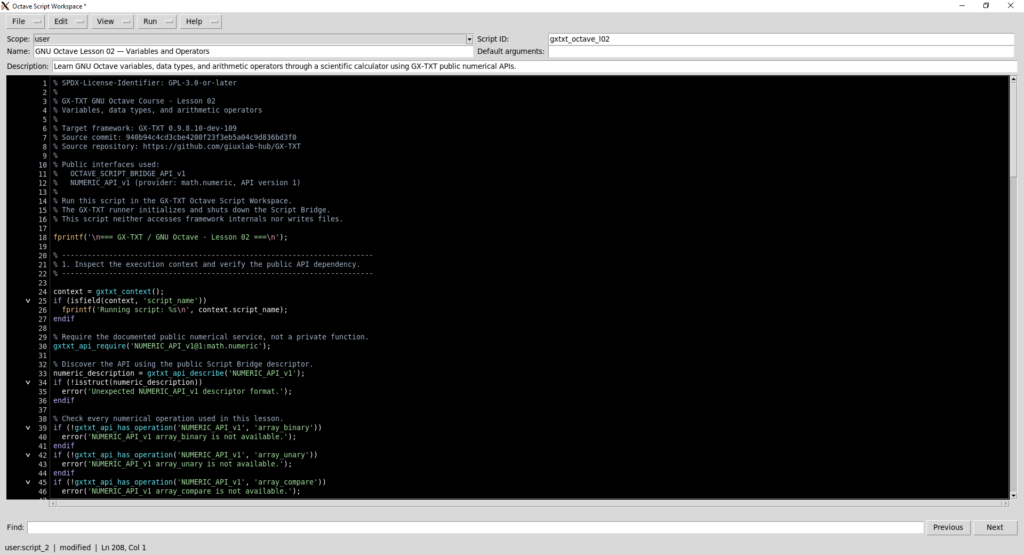
The API Browser: exploring available interfaces
An interesting feature introduced in the interface we are using is an initial implementation of the API Browser.
This tool lets us search available public APIs and inspect some information about framework services.
During our experiment, we searched for:
NUMERIC_API_v1
The Browser found the numerical API and displayed information about the math.numeric provider.
The panel also lets us open the selected API’s documentation using the API manual button.
In version 1.7.0, that button opens the manual in the framework’s Help section, not in the dedicated manual viewer.
Another important distinction is between API discovery and API use.
Finding an API in the Browser does not automatically activate it in the Script Bridge.
The Browser is therefore a reference tool, while the script code must still explicitly declare and verify its dependencies.
In our case, we use:
gxtxt_api_require('NUMERIC_API_v1@1:math.numeric');This statement remains the programmatic way to verify the dependency during execution, regardless of the features provided by the graphical interface.
Registering and inspecting the script in the Script Library
Once the code is ready, we can use the GX-TXT Script Library to manage the script as a resource registered with the framework.
The library does more than store the program text: it also provides information for identifying the script and tracking revisions.
In our experiment, the script registered in the Session has the following properties:
| Property | Value |
|---|---|
| Script ID | gxtxt_octave_l02 |
| Scope | session |
| Language | Octave |
| Version | 1.0.0 |
| Revision | 1 |
| Required APIs | NUMERIC_API_v1@1:math.numeric |
| SHA-256 | Fingerprint of the registered source |
The Scope field indicates where a script is registered. A personal script can be managed as a user resource, while a Session-scoped script belongs to the current experiment’s context.
Our screenshots initially show the script in the editor with user scope and later its registration in the lezione 02 Session.
The library also lets us inspect the registered source code, identified by a revision and a SHA-256 fingerprint.
SHA-256 is especially useful for identifying the exact contents of a file.
If the code changes, the fingerprint of the new content also changes, barring extraordinarily unlikely cryptographic collisions.
This helps distinguish two revisions with the same name but different statements.
The script version, meanwhile, identifies the software resource and must not be confused with the GX-TXT framework version.
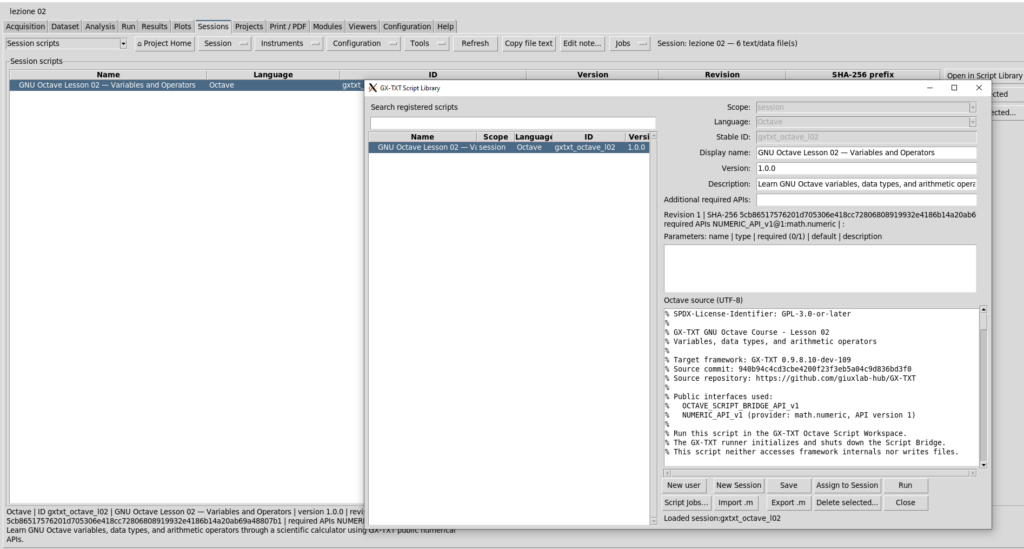
Checking required APIs
In the Script Library screenshot, we can see that GX-TXT recognized the dependency:
NUMERIC_API_v1@1:math.numeric
This is important because it confirms that the registered script declares the expected numerical service.
In this version, the Additional required APIs field may be empty even when the script already has associated dependencies.
We must therefore distinguish additional dependencies from those already registered.
The declaration in the source code remains explicit and readable.
For a complete check, our script also uses:
gxtxt_api_has_operation('NUMERIC_API_v1', 'array_binary');This way we check not only the availability of the API but also the specific operations required by the experiment.
Running the script from the Script Library
After checking registration, we can run the script directly from the library.
Select the Lesson 02 entry and click Run.
GX-TXT opens a launcher window showing the script identity and information about its registered version.
The window also provides configuration for any optional Dataset bindings.
In our case, no Session Dataset needs to be linked, because all numeric input values are defined inside the script.
We can therefore leave optional Dataset bindings empty and start execution.
Importantly, we are not running Octave manually from an external terminal.
Instead, we ask GX-TXT’s execution system to run a registered script and manage its lifecycle.
The framework prepares the execution environment, initializes the Script Bridge, launches the program, and collects its output.
The Script Jobs system
GX-TXT manages each execution as a Job.
This makes it possible to distinguish the registered source code from individual executions.
The same script can be run several times, possibly in different Sessions, producing separate Jobs.
The GX-TXT Script Jobs window displays information including:
- Script name and identifier.
- Language, version, and revision.
- Execution status.
- Start and completion date and time.
- Process duration.
- Associated Session.
- Job identifier.
During our validation, the Lesson 02 Job reached the status:
COMPLETED
The recorded execution time was 4.4 seconds.
This is the overall duration of the execution managed by the framework, not a standalone benchmark of the individual arithmetic operations.
The Job also includes preparation and management work needed to run the script in GX-TXT.
Inspecting results and diagnostic messages
Once the Job is complete, we can open its details window.
In dev-109, this interface provides more detailed access to results than earlier implementations.
Several information sources can be selected:
| Source | Content |
|---|---|
| Program output | Messages written to standard output |
| Program stderr | Messages written to standard error |
| Diagnostic log | Execution diagnostics |
| Legacy combined stream | Combined stream compatible with the earlier inspection mode |
This separation helps distinguish program output from diagnostic messages.
In our experiment, messages generated with fprintf() are collected in Program output.
The window also includes controls for copying Job and script identifiers, viewing execution details, and retrieving the stored source code.
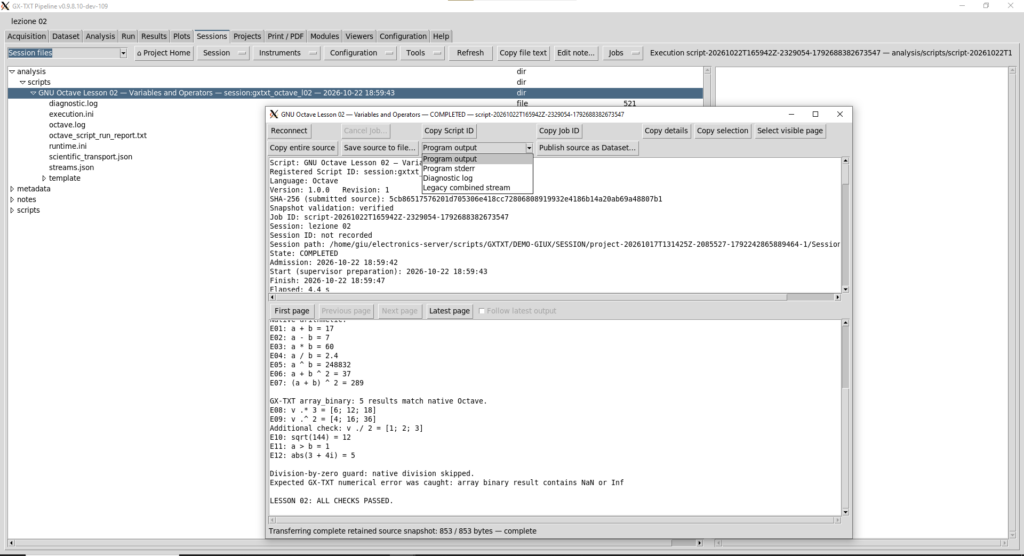
Results obtained
The program performed the planned tests, starting with identifying variable types and proceeding to native Octave arithmetic operations.
For example:
E01: a + b = 17
E02: a - b = 7
E03: a * b = 60
E04: a / b = 2.4
E05: a ^ b = 248832
E06: a + b ^ 2 = 37
E07: (a + b) ^ 2 = 289
It then checked agreement with calculations performed through the public numerical service:
GX-TXT array_binary: 5 results match native Octave.The vector-operation, square-root, logical-comparison, and complex-magnitude checks also passed.
Finally, the script performed the division-by-zero test.
The numerical service returned the message:
Expected GX-TXT numerical error was caught: array binary result contains NaN or InfThis confirms that the program caught an error when attempting an operation that would have produced a non-finite result.
The final output line is:
LESSON 02: ALL CHECKS PASSED.The Job finished with status COMPLETED, confirming successful validation for this exercise.
Preserving execution information in the Session
Another important GX-TXT feature is the ability to inspect a completed execution’s information from the Session.
In the Session files section, we find Job results organized under:
analysis/scripts/
For our experiment, several files produced and managed by the framework are visible, including:
| File | Function |
|---|---|
octave.log | Octave execution output |
diagnostic.log | Diagnostic information |
octave_script_run_report.txt | Execution report |
execution.ini | Execution metadata |
runtime.ini | Runtime information |
scientific_transport.json | Scientific transport information |
streams.json | Output stream information |
These files are managed by the framework.
Our lesson script does not create them directly, choose their paths, or modify them.
This separation keeps a clear boundary between user-authored scientific code and responsibilities of the execution environment.
In particular, there is no need to access the Session’s internal directories directly to inspect the results: GX-TXT provides the required inspection tools through its interface.
Script, revision, and Job: three different concepts
Before finishing, it is useful to distinguish three elements we have encountered.
The registered script is the software resource identified by its Script ID.
The revision identifies a particular version of the source code stored in the library.
The Job represents a single execution of that script.
This distinction lets us know which code was executed and associate its results and diagnostic messages with a specific run.
It is an essential principle of reproducibility: knowing a program’s name is not enough; we must be able to identify the exact code used and the context in which it ran.
In our case, we have retained the key information:
- GX-TXT
0.9.8.10-dev-109. - Script
gxtxt_octave_l02. - Version
1.0.0, revision1. - Public API
NUMERIC_API_v1. - Session
lezione 02. - Job completed successfully.
- Numerical results verified.
Conclusion of the practical experiment
We have followed the entire workflow, from preparing the code to inspecting results in the Session.
The experiment demonstrates that a GNU Octave script can use both native language features and GX-TXT’s public numerical services.
We have also seen how the framework manages code registration, API dependencies, revisions, and execution results.
Lesson 02 was validated without modifying CORE or directly accessing the framework’s private files.
This workflow will serve as the operational reference for subsequent course exercises, which will introduce Datasets and more advanced scientific tools.
Suggested exercises and skills assessment
We have completed our first experiment on variables, data types, and arithmetic operators in GNU Octave.
Throughout the lesson we also learned to use essential language functions and introduced the system for accessing GX-TXT public APIs.
Before moving on, we propose exercises to put these new skills into practice.
The exercises increase in difficulty. The first use only native GNU Octave features; the later ones require integration with the framework’s public APIs.
Tip: complete the exercises in new test scripts rather than changing the original GXTXT_Octave_L02.m file, which has already passed validation.
Exercise 1 — Arithmetic operations and precedence
Define two variables:
a = 18;
b = 4;
Using arithmetic operators, calculate the following expressions:
result_1 = a + b;
result_2 = a * b;
result_3 = a / b;
result_4 = a + b ^ 2;
result_5 = (a + b) ^ 2;
Display each result using fprintf().
Then add five assert() checks to verify that the results match the expected values.
| Variable | Expected result |
|---|---|
result_1 | 22 |
result_2 | 72 |
result_3 | 4.5 |
result_4 | 34 |
result_5 | 484 |
Question: why do a + b ^ 2 and (a + b) ^ 2 produce different results?
Exercise 2 — Data types and conversions
Create four variables:
temperature = 23.5;
sample_count = int16(125);
measurement_valid = logical(1);
sample_name = 'Sample A';
Use class() to identify each variable’s type.
Display the results using fprintf().
Then execute:
converted_count = double(sample_count);Check the class of converted_count and compare it with that of sample_count.
Questions:
- What is the difference between a variable’s numeric value and its class?
- Why might converting an integer to
doublebe useful before numerical processing? - Does the conversion shown change the original variable?
Exercise 3 — Vector operations
Define the following column vector:
v = [3; 6; 9; 12];Calculate:
double_v = v .* 2;
half_v = v ./ 2;
squared_v = v .^ 2;
Use size() and numel() to verify the vector’s dimensions and number of elements.
Then validate the results using assert() and isequal().
| Operation | Expected result |
|---|---|
v .* 2 | [6; 12; 18; 24] |
v ./ 2 | [1.5; 3; 4.5; 6] |
v .^ 2 | [9; 36; 81; 144] |
Question: what would happen if we used v ^ 2 instead of v .^ 2?
Explain why, referring to the array’s dimensions and the mathematical meaning of the operator.
Exercise 4 — Complex numbers and numerical checks
Consider a complex number:
z = complex(5, 12);Calculate its magnitude using abs().
Verify that the result equals 13 within a tolerance of 1e-12.
Then use real() and imag() to extract the real and imaginary components respectively.
These two native GNU Octave functions let us access the components of a complex number separately.
Question: why is the magnitude of a complex number not necessarily equal to the absolute value of its real component alone?
Exercise 5 — Handling an error condition
Create two variables:
numerator = 24;
denominator = 0;
Write a program that checks the denominator before performing division.
If the denominator is zero, display:
Division skipped: denominator is zero.Otherwise, perform the calculation and display the result.
Then create a second version using try, catch, and error().
Questions:
- What is the difference between a preventive check and handling an exception?
- When is it preferable to prevent an operation before executing it?
- Why is systematically ignoring every caught error incorrect?
Exercise 6 — Using NUMERIC_API_v1
This exercise must run inside GX-TXT because it uses the Script Bridge and the framework’s public numerical service.
Define:
a = 18;
b = 4;
First, check API availability:
gxtxt_api_require('NUMERIC_API_v1@1:math.numeric');Next, prepare the two operands:
operand_a = struct('kind', 'scalar', 'value', a);
operand_b = struct('kind', 'scalar', 'value', b);
The goal is to perform an addition through GX-TXT’s public numerical service.
api_result = gxtxt_api_call('NUMERIC_API_v1', 'array_binary', ...
                            {'add', operand_a, operand_b});
Retrieve the result:
result = api_result.values;The expected value is 22.
Add an assert() that compares this result with one obtained using the native + operator.
Repeat the test with subtract, multiply, and divide.
Questions:
- What does
gxtxt_api_require()do? - Why are operands represented with
struct()? - Why are the call’s arguments placed in a cell array?
- What is the difference between
array_binaryandgxtxt_api_call()? - Why must we retrieve the result from the
valuesfield?
Optional exercise — A calculator with operation selection
As an additional exercise, build a calculator that selects an operation using a text variable.
For example:
a = 15;
b = 3;

operation = 'multiply';
Using an if / elseif / else conditional, the program should select the corresponding operation.
The available operations are:
addsubtractmultiplydivide
The script should check the denominator for division and report unknown operations using error().
Once the native Octave version is complete, try building a second version that calls NUMERIC_API_v1.
This exercise introduces programs whose behavior depends on a selected option or parameter.
Lesson 02 summary
In this exercise, we explored several fundamentals of scientific programming in GNU Octave.
We learned to create variables, identify their types, and use arithmetic operators correctly.
We introduced vectors and element-wise operations, distinguishing them from matrix operations.
We studied formatted output using printf() and fprintf(), and learned to use assert() to validate results automatically.
Using abs(), we examined both the absolute value of a real number and the magnitude of a complex number.
We also learned to organize data and arguments using structures and cell arrays, and to handle abnormal conditions with if, try, and catch.
Finally, we took an important step in learning GX-TXT: calling the framework’s public APIs directly from a GNU Octave script.
Comparing native calculations with operations performed through NUMERIC_API_v1 allowed us to validate the Script Bridge and numerical service.
The original experiment ran in GX-TXT dev-109 and finished with the message:
LESSON 02: ALL CHECKS PASSED.This result applies to the tests implemented in the lesson script. The additional exercises in this chapter are for readers and were not part of the original validation.
Looking ahead to Lesson 03 — Vectors and matrices
In the next lesson, we will explore one of GNU Octave’s most important strengths in greater depth: vector and matrix computation.
We will learn to create and manipulate arrays of different dimensions, select elements through indexing, and use the main operations of linear algebra.
These tools will take us beyond simple operations on individual values toward more advanced scientific processing, preparing us to work with GX-TXT Datasets.
Our course will continue to follow the same method: language explanation, reproducible experiment, use of public APIs, and result validation.