
Lesson 05: Scientific Datasets and Variable IDs
In the previous lessons, we learned how to use GNU Octave to perform calculations, manipulate vectors and matrices, and build simple scientific programs. We will now begin working with one of the fundamental elements of GX-TXT: scientific Datasets.
When analyzing experimental data, having a sequence of numbers is not enough. We also need to know where the data came from, what each variable represents, which measurement units are used, how the data is organized, and what information allows us to identify it unambiguously.
GX-TXT manages these aspects through canonical Datasets, stable identifiers, and structured metadata. In this lesson, we will learn to explore them directly from a GNU Octave script, using only the framework’s public APIs.
We will work with real measurements already imported into GX-TXT, without generating artificial Datasets or modifying the original data.
1. Lesson objectives
By the end of this exercise, we will be able to:
- Understand what a canonical Dataset represents within a GX-TXT Session.
- Distinguish a Dataset ID from the name displayed in the interface.
- Understand the difference between a Variable ID, a canonical name, and a variable description.
- Explore Dataset properties through public APIs.
- Use Octave structures (
struct) and cell arrays (cell array) to interpret the results returned by the framework. - Examine numeric types, dimensions, units, and relationships between variables without directly reading the files containing the data.
Our script will act as a small Dataset Inspector, querying GX-TXT and producing a report on the available scientific information.
2. Starting with a real experimental Dataset
For this exercise, we use a Dataset containing electrical current measurements recorded over time and imported into a GX-TXT Session.
The Dataset is identified by meas0195 and contains 942 rows of data, stored by the framework through the CSV provider.
Our first step is to inspect the data through the GX-TXT graphical interface, before running any script.
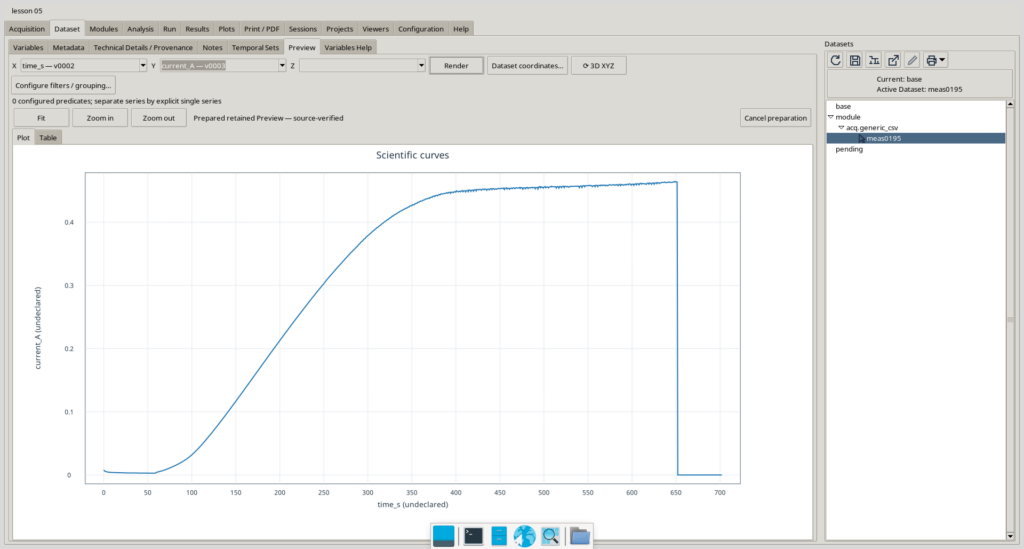
The plot shows an initial phase with relatively low current, followed by a gradual increase to a nearly steady region. Toward the end of the recording, the current drops sharply.
In this lesson, we will not attempt to interpret the physical phenomenon responsible for the observed trend. Instead, we want to understand how GX-TXT organizes, identifies, and describes the information needed to produce this representation.
3. From graphical representation to the canonical table
The curve we have just examined is a representation of the data. The Dataset, however, also has a canonical structure that we can inspect through its table view.
Opening the Canonical table view reveals three columns of scientific variables:
timestamp_s: recorded time values.time_s: elapsed time, used as the horizontal coordinate in the preview.current_A: measured current, used as the vertical coordinate.
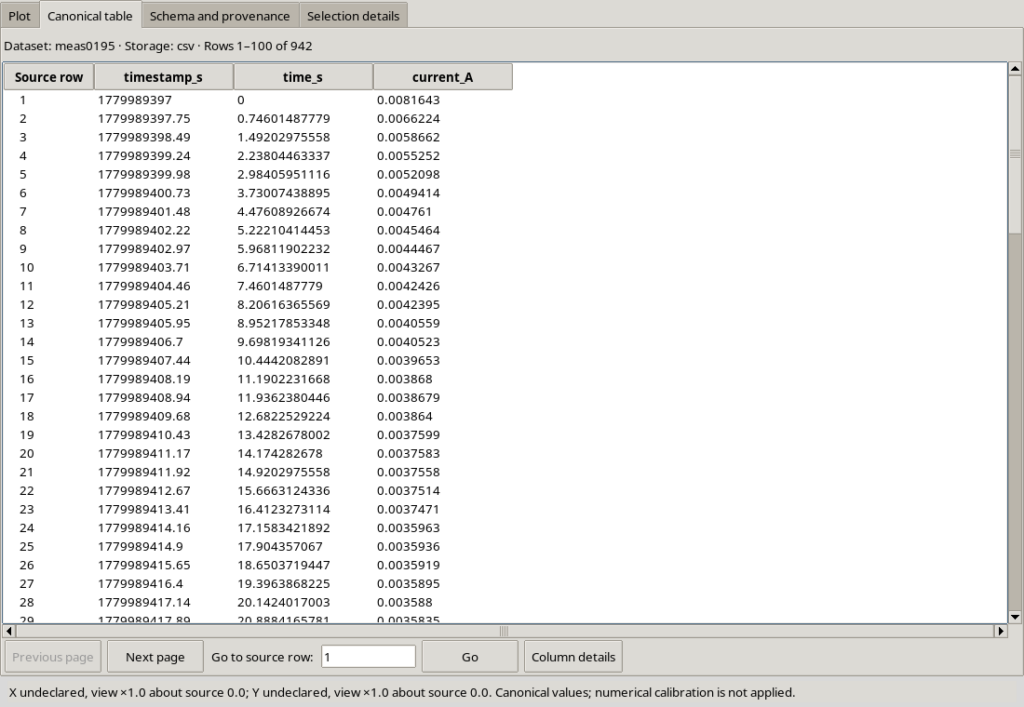
These names make it easy to recognize the contents of the columns, but they also introduce an important distinction.
A column name is not necessarily the variable’s stable identifier.
GX-TXT assigns each variable a Variable ID, independently of the name used to display it.
For our Dataset, the identifiers observed are:
| Canonical name | Variable ID |
|---|---|
timestamp_s | v0001 |
time_s | v0002 |
current_A | v0003 |
The Dataset as a whole has the identifier meas0195.
A variable can therefore be identified by the pair:
(dataset_id, variable_id)
For example, (meas0195, v0001) identifies the first variable in our Dataset.
This distinction is essential: a scientific script should reference the identifiers provided by the framework, rather than relying on column positions or descriptive names.
There is another important point: a variable name does not replace its metadata. Even when a name appears to indicate a physical unit, the unit actually declared must be checked in the variable’s schema.
In the next part, we will see how to retrieve this information directly from GNU Octave using the Script Bridge and GX-TXT’s public APIs.
4. Preparing the GNU Octave script in GX-TXT
Now that we have inspected the Dataset and understood the distinction between variable names and identifiers, we can begin querying it through GNU Octave.
For this exercise, we use GXTXT_Octave_L05.m, a script developed specifically to explore canonical Datasets and their metadata.
The script is a Dataset Inspector: a tool that retrieves information about Datasets and variables without modifying the original scientific data.
Open the GX-TXT Script Workspace, import the .m file, and register it in the Session used for the experiment.
The registration details are:
| Property | Value |
|---|---|
| Script name | GXTXT_Octave_L05.m |
| Script ID | session:lesson05_1 |
| Language | GNU Octave |
| Version | 1.0.0 |
| Scope | Session |
| Description | Lesson 05 – Canonical Dataset and Variable ID Inspector |
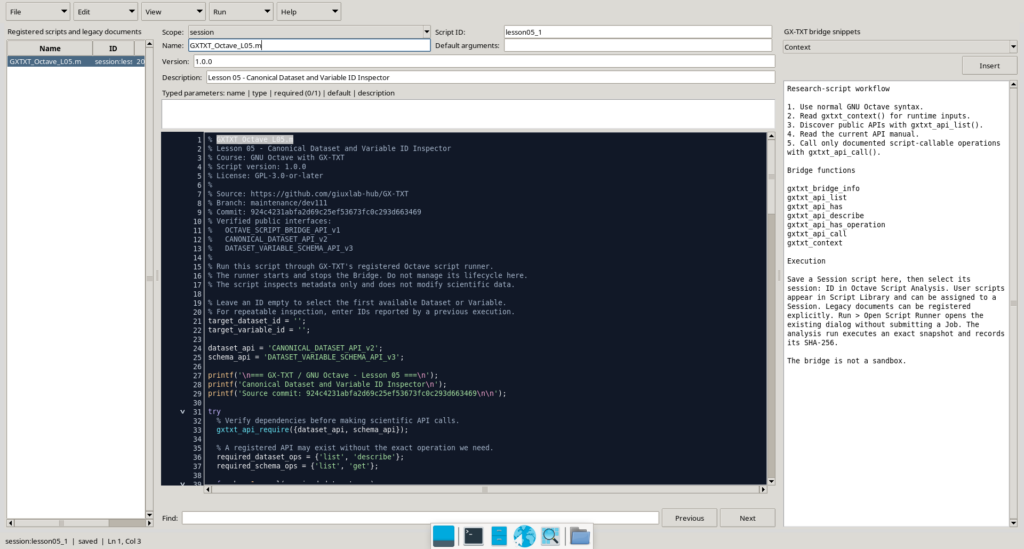
It is important to distinguish the Script ID from the Dataset ID: the former identifies a script registered in GX-TXT, while the latter identifies the scientific Dataset we want to inspect.
In our example, the script is identified by session:lesson05_1, while the experimental Dataset is meas0195. These identifiers belong to different systems and serve different purposes.
The script does not need to know CSV filenames, directory paths, or column positions in advance. It requests the necessary information from the framework through its public APIs.
5. The Script Bridge: how Octave communicates with GX-TXT
GNU Octave is a standalone numerical programming language. However, a script running inside GX-TXT can use additional features provided by the framework.
This communication takes place through the Octave Script Bridge API v1.
The Script Bridge is the public interface that allows a script to discover and call GX-TXT operations authorized for script execution.
The mechanism can be summarized as follows:
GNU Octave script → Script Bridge → GX-TXT public API → framework service → result returned to Octave
There is no need to know the internal implementation of the services or the physical file formats used by GX-TXT. We only need the API identifier, the requested operation, and its arguments.
The framework starts the Script Bridge when a registered script runs and shuts it down when execution ends. Our code must not perform these lifecycle operations manually.
5.1 Checking the required APIs
Before querying a Dataset, we should verify that the APIs we need are available.
In our script, we define two variables:
dataset_api = 'CANONICAL_DATASET_API_v2';
schema_api = 'DATASET_VARIABLE_SCHEMA_API_v3';
These are ordinary Octave variables containing strings. The strings identify two public APIs registered in the framework.
The first provides canonical Dataset access; the second allows us to inspect the structured information associated with Dataset variables.
We then use:
gxtxt_api_require({dataset_api, schema_api});The gxtxt_api_require() function checks that the declared API dependencies are satisfied. Otherwise, it raises an explicit error rather than allowing the script to continue without the required functionality.
Curly braces {} denote an Octave cell array, a structure that groups values into separate elements. Here, it contains the two API identifiers.
However, the presence of an API does not necessarily mean that all its operations can be called.
That is why we also use gxtxt_api_has_operation(), which checks whether a specific public operation is available:
gxtxt_api_has_operation(dataset_api, 'list')The result is a logical value indicating whether the list operation can be called through the Script Bridge.
This check makes the script more robust across different framework versions and configurations.
5.2 Reading the public description of an API
Another useful function is:
dataset_api_info = gxtxt_api_describe(dataset_api);gxtxt_api_describe() returns a description of the registered API, including information such as its version, provider, documentation, and available operations.
The result is stored in an Octave variable and can be examined using ordinary structure operations.
For example, when the documentation_ref field is present, it identifies the API documentation reference.
This is particularly useful in scientific software: a script can inspect the interfaces actually registered in its running environment instead of assuming that every GX-TXT installation is identical.
6. Public APIs for exploring Datasets and variables
We use two distinct scientific APIs to carry out the experiment.
6.1 CANONICAL_DATASET_API_v2
This API provides a canonical interface for discovering and accessing Datasets in the current Session, independently of the underlying storage provider.
In this lesson, we use two operations.
| Operation | Arguments | Result |
|---|---|---|
list | None | List of available Dataset IDs |
describe | Dataset ID | Structure containing Dataset metadata |
The list operation is invoked through the general-purpose gxtxt_api_call() function:
dataset_ids = gxtxt_api_call( ...
    'CANONICAL_DATASET_API_v2', 'list', {});
The call has three components: the API identifier, the operation name, and the arguments.
In this case, the final cell array is empty because the list operation takes no arguments.
The result is a cell array containing the Dataset IDs available in the Session.
To obtain the first identifier, we can use:
dataset_id = dataset_ids{1};In Octave, {1} extracts the contents of the first cell, while (1) would return a cell array containing just that cell.
This distinction is essential when working with GX-TXT APIs.
In our experiment, the identifier found is meas0195.
We can then retrieve the Dataset description:
dataset_info = gxtxt_api_call( ...
    'CANONICAL_DATASET_API_v2', ...
    'describe', {dataset_id});
The result is an Octave structure containing Dataset metadata.
The actual returned information includes:
| Field | Value |
|---|---|
dataset_id | meas0195 |
format | csv |
storage_provider | csv |
row_count | 942 |
contract | table.generic |
These values come directly from the framework. They were not obtained by manually opening the CSV file.
6.2 DATASET_VARIABLE_SCHEMA_API_v3
A Dataset can contain numeric, text, or multidimensional variables. To identify them correctly, knowing a column’s name is not enough: we need to inspect the schema associated with each variable.
The Dataset Variable Schema API v3 provides this information.
For this lesson, we use two operations:
| Operation | Arguments | Result |
|---|---|---|
list | Dataset ID | List of variable descriptor structures |
get | Dataset ID, Variable ID | Description of the requested variable |
The first call is:
variables = gxtxt_api_call( ...
    'DATASET_VARIABLE_SCHEMA_API_v3', ...
    'list', {dataset_id});
The function returns a cell array whose elements are structures containing variable descriptors.
Each descriptor has a stable variable_id.
For example, we can inspect the first element:
first_variable = variables{1};
variable_id = first_variable.variable_id;
The first statement extracts a structure from the cell array; the second accesses its variable_id field using the dot operator ..
Once we have obtained the actual identifier, we can query the variable directly:
descriptor = gxtxt_api_call( ...
    'DATASET_VARIABLE_SCHEMA_API_v3', ...
    'get', {dataset_id, variable_id});
This operation returns metadata for a single variable, including data type, number of dimensions, shape, declared units, and relationships with other variables, when available.
It is important not to invent a Variable ID or derive one from a displayed name. Our script uses only identifiers returned by the framework’s APIs.
In the next section, we will examine the Dataset Inspector code, focusing on the Octave statements used to validate, traverse, and interpret the structures returned by the APIs.
7. Script walkthrough: working with scientific metadata
In the previous lessons, we have already covered the main GNU Octave programming constructs: variables, vectors, matrices, structures, conditionals, loops, and error handling.
There is no need to explain them again from the beginning. Our goal is now to understand how to use them to process information returned by GX-TXT APIs.
Above all, the Dataset Inspector introduces a new programming challenge: receiving structured data from an external service, validating its contents, and locating specific information without making assumptions about how it is organized.
7.1 Validating the result type with iscell()
We encountered cell arrays in Lesson 02. Here, we learn how to verify that a function actually returns the expected data type.
After requesting the Dataset list, the script executes:
dataset_ids = gxtxt_api_call(dataset_api, 'list', {});

if (!iscell(dataset_ids))
  error('Unexpected Dataset list result: expected a cell array');
endif
iscell() is a built-in GNU Octave function that returns a logical value:
truewhen the argument is a cell array.falsewhen it has another type.
For example:
iscell({'v0001', 'v0002'})
iscell([1, 2, 3])
The first expression returns true, while the second returns false, because square brackets create a numeric vector.
This check matters because the public CANONICAL_DATASET_API_v2/list operation specifies that its result is a cell array containing Dataset IDs.
If the response does not match the contract, the script stops with an explicit error. It does not try to interpret an unexpected structure arbitrarily.
The same check is performed on the variable list returned by DATASET_VARIABLE_SCHEMA_API_v3/list.
7.2 Preparing an identifier collection with cell() and size()
In Lesson 03, we used the dimensions of vectors and matrices. Here, we encounter another application of size() together with cell().
After retrieving the variable descriptors, we find:
variable_ids = cell(size(variables));This statement combines two built-in functions.
size(variables) returns the dimensions of the variables cell array.
cell(...) creates a new empty cell array with the specified dimensions.
If variables is a row cell array containing three elements, variable_ids will have the same three-element arrangement.
The new collection is then populated by iterating over the descriptors:
for k = 1:numel(variables)
  item = variables{k};

  if (!isstruct(item) || !isfield(item, 'variable_id'))
    error('Variable descriptor %d has no stable variable_id field', k);
  endif

  variable_ids{k} = item.variable_id;
endfor
We will not revisit how the for loop or structures work, since they were covered earlier.
Instead, observe the transformation:
variablescontains complete descriptors, each with several scientific fields.variable_idscontains only the identifiers extracted from those descriptors.
In our experiment, the result corresponds to:
variable_ids = {'v0001', 'v0002', 'v0003'};This is a useful scientific programming technique: extracting a collection of identifiers from a collection of more complex objects, while keeping descriptive data separate from identity.
7.3 Finding an identifier with strcmp() and find()
One of the script’s most important operations is searching for a specific Dataset.
When target_dataset_id is empty, the first available Dataset is selected. However, we can also request a specific identifier, such as meas0195.
In that case, the script uses:
index = find(strcmp(dataset_ids, target_dataset_id), 1);This statement combines two functions worth examining more closely.
strcmp() — Comparing strings
The function compares the contents of two strings and returns a logical result.
For example:
strcmp('meas0195', 'meas0195')
strcmp('meas0195', 'meas0196')
The first expression returns true; the second returns false.
When the first argument is a cell array of strings, strcmp() can compare each element with a reference string.
Consider the following example:
dataset_ids = {'meas0180', 'meas0195', 'meas0200'};
target_dataset_id = 'meas0195';

matches = strcmp(dataset_ids, target_dataset_id);
We obtain:
0 1 0The second element matches the requested identifier.
find() — Finding the position
The find() function returns the indices of elements that satisfy a condition.
In our example:
index = find(matches, 1);The result is 2.
The second argument, 1, specifies that we want only the first match.
We can then extract the identifier:
dataset_id = dataset_ids{index};The advantage is clear: we do not need to know the position of a Dataset in advance.
If the identifier does not exist, find() returns an empty array. The script recognizes this condition and raises an error rather than silently selecting a different Dataset.
The same technique is used to search for a Variable ID within the selected Dataset’s variable list.
7.4 Accessing structure fields dynamically: .(key)
In Lesson 02, we learned how to read structure fields with the dot operator.
For example:
measurement.unitThis syntax is suitable when we already know the field name.
The Dataset Inspector presents a different situation: we want to inspect a set of fields whose names are stored in a cell array.
The script contains:
dataset_fields = {'dataset_id', 'format', 'storage_provider', ...
                  'row_count', 'contract'};

for k = 1:numel(dataset_fields)
  key = dataset_fields{k};

  if (isfield(dataset_info, key))
    printf('  %-22s : ', key);
    disp(dataset_info.(key));
  else
    printf('  %-22s : (not declared)\n', key);
  endif
endfor
The main new feature is the expression:
dataset_info.(key)The parentheses after the dot mean that the field name is taken from the contents of the key variable.
If key contains row_count, the expression is equivalent to:
dataset_info.row_countIf key contains format in the next iteration, the script reads:
dataset_info.formatThis technique is called dynamic structure field access.
It is particularly useful for inspecting metadata because one code block can handle many different fields.
The isfield() function, introduced in Lesson 02, is used again to avoid accessing nonexistent fields.
Finally, disp() displays the returned value without requiring us to know its type beforehand. This is practical because some fields may contain strings, others numbers, and still others collections of values.
7.5 Distinguishing a missing field from an empty field
This is one of the most scientifically important points in the lesson.
A metadata field can be in at least three different states:
| State | Meaning |
|---|---|
| Field present with a value | The metadata contains declared information |
| Field present but empty | The field exists but contains no value |
| Field absent | The descriptor does not include that field |
The script explicitly preserves this distinction:
if (isfield(descriptor, key))
  value = descriptor.(key);

  if (isempty(value))
    printf('(empty)\n');
  else
    disp(value);
  endif
else
  printf('  %-25s : (not declared)\n', key);
endif
The isempty() function checks whether a value contains zero elements.
An empty field is not necessarily an error. Many scientific metadata fields are optional and may not have been filled in.
In our experiment, GX-TXT returns the following for variable v0001:
variable_id   : v0001
canonical     : timestamp_s
unit          : (empty)
dtype         : float64
rank          : 1
shape         : 942
dimension_ids : row
Consider the unit field.
The canonical name is timestamp_s, but the unit metadata field is empty.
We therefore cannot state that the Dataset formally declares the unit s simply because it appears in the variable name.
A naming convention is not a substitute for a metadata declaration.
This distinction will be essential when working with unit conversions, time coordinates, and comparisons between Datasets from different instruments.
7.6 Interpreting dtype, rank, and shape
The schema returned by GX-TXT contains more than variable names. It can also describe how the data is organized.
For the actual variable v0001, we have:
| Field | Value | Interpretation |
|---|---|---|
dtype | float64 | Declared numeric type: 64-bit floating point |
rank | 1 | The variable has one dimension |
shape | 942 | The declared dimension contains 942 elements |
dimension_ids | row | Logical identifier of the dimension |
coordinate_role | data | Declared role in the schema |
axis_kind | explicit | Declared axis representation mode |
We must not confuse rank with matrix rank in linear algebra: here it means the number of dimensions of the array.
Likewise, shape describes the dimensions of the variable rather than the numerical values of its measurements.
The script is therefore reading a structural description, not the 942 values in the column.
This is precisely the distinction between metadata inspection and scientific data retrieval, which we will explore in Lesson 06.
7.7 Propagating errors correctly with rethrow()
We already studied try and catch in Lesson 02. Here, we introduce an additional detail: how to preserve the original error after adding a diagnostic message.
Our script ends with:
catch err
  fprintf(2, '\nLesson 05 failed: %s\n', err.message);
  rethrow(err);
end_try_catch
err contains information about the error that was caught.
The first statement writes a message to standard error, which GX-TXT can record in the Job log.
The rethrow(err) function raises the original error again, preserving its diagnostic information.
This matters: if an API fails, we do not want the script to appear to have completed successfully just because the error was caught.
In a reproducible scientific workflow, it must be possible to distinguish a successful run from an interrupted computation.
7.8 What we learned from the script
The Dataset Inspector has shown us how to apply Octave programming constructs to structured data returned by a scientific framework.
In particular, we learned how to validate response types, prepare identifier collections, search strings, access structure fields dynamically, and distinguish missing metadata from declared metadata.
The result is a script that does not depend on CSV filenames or the physical location of the data.
All the information is obtained through GX-TXT’s public interfaces, using the stable identifiers defined by the framework.
In the next section, we will examine the results of the actual execution recorded by GX-TXT’s Jobs system, and compare the returned metadata with the Dataset we saw at the beginning of the article.
8. Running the script and validating the results
After examining the Dataset Inspector code, we can now see what happens when it runs inside GX-TXT.
Unlike demonstration examples created directly in Octave, this execution uses a real experimental Dataset that has already been imported into the Session and is managed through the framework’s public APIs.
8.1 Running the script from a GX-TXT Session
GXTXT_Octave_L05.m was registered in the Script Workspace as version 1.0.0, revision 1, with the identifier:
session:lesson05_1
The script runs through GX-TXT’s Jobs system, which manages Octave process startup, Script Bridge initialization, log recording, and the final execution state.
Once the script has been started, we can check the outcome in the Jobs window.
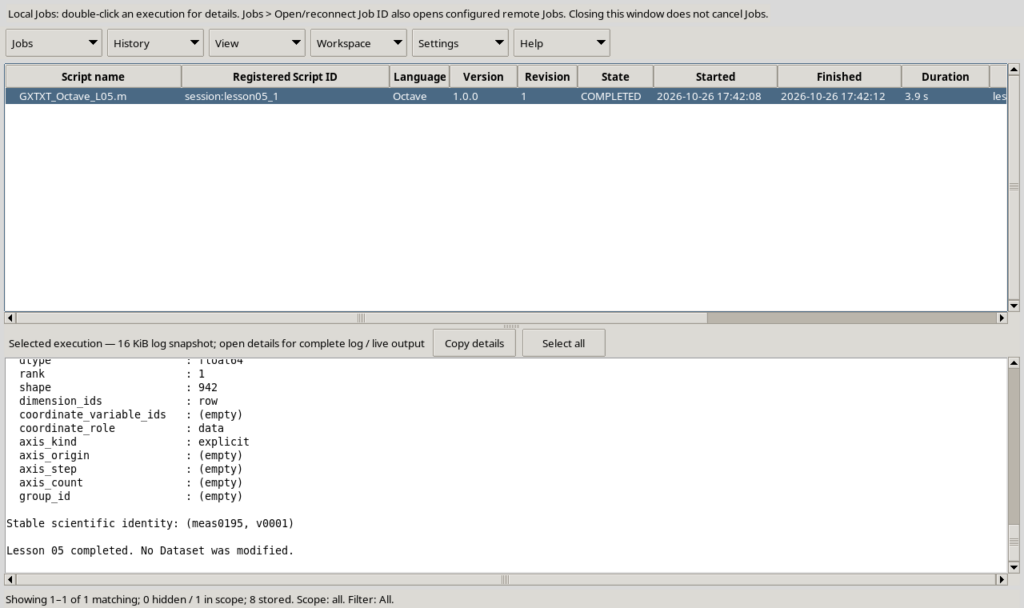
The validation Job returned the following information:
| Property | Value |
|---|---|
| Script | GXTXT_Octave_L05.m |
| Version | 1.0.0 |
| Revision | 1 |
| Status | COMPLETED |
| Exit code | 0 |
| Duration | 3.9 s |
| Errors | None recorded |
The COMPLETED state and exit code 0 indicate that the Octave process finished without reported errors.
Scientific validation, however, requires more than a completed execution: we must also check that the result corresponds to the Dataset we intended to inspect.
8.2 Identifying the real Dataset
The first significant part of the log reads:
Datasets in the active Session: 1
  [1] Dataset ID: meas0195

Selected Dataset ID: meas0195
The framework found a canonical Dataset in the current Session and returned its stable identifier, meas0195.
Because we left target_dataset_id empty in the script, the first available Dataset was selected automatically.
This choice is useful for the exercise, but a reproducible scientific application should preferably specify the identifier of the Dataset to be analyzed explicitly.
Next, the describe operation of CANONICAL_DATASET_API_v2 returned:
Canonical Dataset metadata:
  dataset_id       : meas0195
  format           : csv
  storage_provider : csv
  row_count        : 942
  contract         : table.generic
This information describes the Dataset without requiring direct access to its CSV file.
The row_count field confirms that the Dataset contains 942 rows, as seen in the canonical table preview.
The storage_provider field identifies the provider used by the framework, while contract indicates the scientific contract declared for the Dataset.
In our case, table.generic identifies a generic tabular structure; it does not automatically assign a specific physical meaning to the values.
8.3 Identifying the variables
The second part of the log describes the Dataset’s internal structure:
Variables declared by Schema v3: 3
  [1] Variable ID: v0001
  [2] Variable ID: v0002
  [3] Variable ID: v0003
The DATASET_VARIABLE_SCHEMA_API_v3 API returned three variable identifiers.
We can compare them with the columns previously observed in the graphical interface:
| Variable ID | Observed canonical name |
|---|---|
v0001 | timestamp_s |
v0002 | time_s |
v0003 | current_A |
Notice that the initial result contains only the stable identifiers.
Our script then requested the complete descriptor of the first variable using the public get operation.
This reinforces a key concept of the lesson: a list of identifiers lets us locate variables, while the schema lets us understand their declared properties.
8.4 Interpreting the scientific descriptor
For variable v0001, the log reports:
Selected Variable ID: v0001

Variable Schema v3 metadata:
  variable_id             : v0001
  display_label           : (empty)
  canonical               : timestamp_s
  unit                    : (empty)
  dtype                   : float64
  rank                    : 1
  shape                   : 942
  dimension_ids           : row
  coordinate_variable_ids : (empty)
  coordinate_role         : data
  axis_kind               : explicit
  axis_origin             : (empty)
  axis_step               : (empty)
  axis_count              : (empty)
  group_id                : (empty)
These results support several precise observations.
The variable is identified as v0001 and has the canonical name timestamp_s. Its declared type is float64, while rank=1 and shape=942 describe a one-dimensional array of 942 elements.
The dimension_ids=row field identifies the logical dimension of the array.
The descriptor also reports coordinate_role=data and axis_kind=explicit, but it does not declare a relationship with other variables through coordinate_variable_ids.
We must therefore not automatically infer a particular coordinate relationship from the column name alone.
The unit field is even more interesting: it is empty.
Although the name timestamp_s suggests a time quantity expressed in seconds, the physical unit is not explicitly declared in this schema field.
This absence must be preserved and documented: automatically assigning a unit would introduce information that the metadata does not provide.
This is an important principle when managing scientific data from different instruments.
8.5 The pair of scientific identifiers
At the end of the inspection, the log reports:
Stable scientific identity: (meas0195, v0001)

Lesson 05 completed. No Dataset was modified.
The pair (meas0195, v0001) represents the logical identity of the variable within the Dataset.
The first element identifies the canonical Dataset; the second identifies a specific variable belonging to that Dataset.
The script did not perform any modification or publication operations. Its calls only checked API availability, listed Datasets, and retrieved descriptors.
It did not request the variable’s 942 numerical values: we only read the information needed to identify and describe it.
8.6 Reproducibility and GX-TXT version
For a scientific experiment, saving the result alone is not enough. We must also be able to identify the code and environment used to produce it.
Our validation run is documented by the following references:
| Item | Identification |
|---|---|
| Repository | giuxlab-hub/GX-TXT |
| Branch GitHub | maintenance/dev111 |
| Reference source commit | 924c4231abfa2d69c25ef53673fc0c293d663469 |
| GX-TXT environment used | dev_111_r3 |
| Script | GXTXT_Octave_L05.m |
| Script version | 1.0.0, revision 1 |
| Validation date | October 26, 2026 |
The Jobs system also preserves the execution identifier, the snapshot of the registered script, its SHA-256 hash, and the generated log.
These elements let us distinguish the code actually executed from later revisions of the script.
The GitHub commit, by contrast, identifies the public source revision used to verify the APIs. It must not be confused with the Octave script’s SHA-256 or the Job identifier.
8.7 Validation outcome
The experiment verified that the script can:
- Locate a real Dataset through its stable identifier.
- Read canonical metadata without directly accessing the CSV file.
- Retrieve Variable IDs through Schema API v3.
- Inspect a variable descriptor.
- Distinguish declared properties, empty fields, and identifiers.
- Complete execution successfully through the GX-TXT Jobs system.
This validation applies to the examined Dataset and the operations actually exercised; it is not a general verification of every provider and every API available in GX-TXT.
Lesson 05 has therefore given us the tools needed to identify and understand data before processing it numerically.
9. Downloadable course materials
To help readers reproduce the exercise, we have prepared a teaching package containing the GNU Octave script, the experimental Dataset, and its supporting documentation.
The Dataset used in this lesson comes from a real photocatalysis experiment, during which electrical current measurements were recorded over time.
The values were not generated artificially for this tutorial. We chose authentic experimental data to show how GX-TXT organizes and describes scientific information.
Nevertheless, the purpose of this lesson remains computational and methodological: we will not analyze the mechanisms of the photocatalytic reaction, but rather the data structure and the procedures for accessing it correctly.
9.1 Package contents
The lesson05.zip archive contains four files:
| File | Description |
|---|---|
GXTXT_Octave_L05.m | Octave script used and validated in this lesson |
Lesson_05_Experiment_Objectives.md | Learning objectives and validation criteria |
Lesson_05_Teaching_Notes.md | Technical notes and further details on the APIs |
meas0195.csv | Original Dataset containing 942 experimental measurements |
The script is distributed under the GNU GPL v3 or later license. The documentation supports the experiment, while the Dataset is provided as scientific material for reproducing the exercise.
9.2 Reproducing the exercise in GX-TXT
The package does not contain an exported GX-TXT Session. Instead, it lets you repeat the procedure starting with data import.
To run the experiment:
- Download and extract
lesson05.zip. - Start GX-TXT and create a new Session, or open one dedicated to the exercise.
- Import
meas0195.csvas a Dataset using the framework’s import tools. - Open the GNU Octave Script Workspace and import
GXTXT_Octave_L05.m. - Register the script in the Session, checking that the required public APIs are available.
- Run the script and inspect the result in the Jobs window.
The inspector will locate Datasets in the Session and display their variable identifiers and available metadata.
Important note about identifiers: importing the file again may assign a Dataset ID different from meas0195. If target_dataset_id is left empty, the script automatically selects the first available Dataset. For reproducible results in Sessions containing multiple Datasets, it is preferable to explicitly provide the identifier returned during import.
Canonical names and actual variable identifiers must always be checked through the APIs rather than assumed to be identical to those shown in this article.
9.3 Framework version and API documentation
The exercise was validated using GX-TXT dev_111_r3, with reference to the public source code on the maintenance/dev111 branch.
GitHub commit used for API verification:
924c4231abfa2d69c25ef53673fc0c293d663469
Public documentation:
The links point to a specific commit, preserving the technical documentation associated with this lesson even as the framework is updated.
10. Conclusions and next lesson
In this fifth lesson, we took an important step: we moved from processing variables created directly in GNU Octave to exploring scientific information managed by GX-TXT.
We learned that a Dataset is not simply a file containing numbers, but an organized set of variables, stable identifiers, and metadata.
We also used new Octave programming techniques to inspect structures, locate identifiers, and verify information availability without assuming that every field is necessarily populated.
Our Dataset Inspector completed successfully on a real photocatalysis Dataset, demonstrating the operation of the public APIs used.
In Lesson 06 — Data selection and retrieval, we will take the next step: instead of only describing variables, we will begin reading their numerical values through GX-TXT’s canonical APIs, keeping control over identifiers, dimensions, and the amount of data requested.