

Lesson 06 — Selecting and Reading Experimental Data with GNU Octave and GX-TXT
From Dataset Identification to Reading Experimental Data
In Lesson 05 — Dataset and Variable IDs, we learned to identify the Datasets present in a GX-TXT Session, to recognize scientific variables through their stable identifiers (Variable ID) and to consult their properties using the framework’s public APIs.
We therefore know how to query GX-TXT to find out what data is available, how it is organized and what scientific information describes it.
But knowing the structure of a Dataset does not yet mean using its numerical values.
In this sixth lesson we will take the next step: we will read the experimental samples directly in GNU Octave, select significant intervals and compare different measurements.
To do this we will introduce a new operation of the Canonical Dataset API v2, read_range, which allows you to request only a portion of the data, without necessarily having to load the entire Dataset.
We will also use some fundamental features of the Octave language: vectors, cells, structures, indexing, logical conditions and functions for numerical processing.
All data access operations will be carried out exclusively through the GX-TXT public APIs. We will not directly read the files stored in the Session’s internal directories.
A Real Experiment: ProvaTelecomando IR
For this lesson we chose to use real experimental data, acquired during the development of the ProvaTelecomando IR project, already documented on giux-lab.it.
The circuit allows you to detect the presence of infrared signals emitted by remote controls, using different analogue stages of amplification, sensitivity adjustment and management of the light indication.
The acquisitions were made with a Rigol oscilloscope and subsequently imported into GX-TXT.
The first signal used is a recording of the voltage associated with receiving an infrared command, containing pulses modulated with a carrier of approximately 38 kHz.
The main characteristics of the acquisition are:
- Acquired channel: CH1
- Number of samples: 1,200,000
- Sampling rate: 10 MSa/s
- Interval between samples: 100 ns
- Total duration: 120 ms
- Unit of measurement: volt
The large sample count makes this signal particularly suitable for illustrating the advantage of partial readings.
To study a few pulses it is not necessary to transfer all 1,200,000 values to Octave: we can only request those included in the interval of interest.
From the original measurement to the scientific dataset
After import using the Rigol CSV module, GX-TXT generated a numeric dataset of type timeseries.table, identified by:
vir_10x_dc_10ms_1.2m
The Dataset contains two variables:
v0001—time_s, time expressed in seconds.v0002—CH1, voltage measured in volts.
The importer interpreted the temporal information contained in the header of the Rigol file, constructing a temporal coordinate that can be used for scientific analysis.
In the Dataset preview we can observe the entire acquisition and recognize the different groups of pulses.
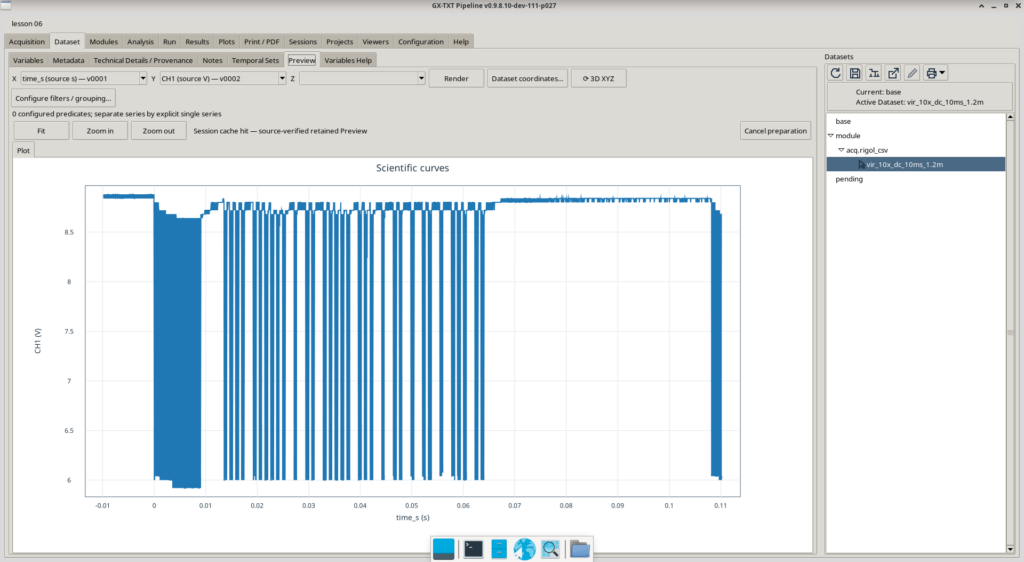
It is important to distinguish this preview from the original numerical content: the graphical representation allows you to observe the signal, while the reading API allows you to retrieve the actual samples for processing in Octave.
Another Representation of the Same Measurement
Along with the CSV file we also imported the original screenshot of the oscilloscope, obtaining a second Dataset:
vir_10x_dc_10ms_1.2m_png
In this case GX-TXT has recorded a Dataset of type image.raster, preserving the image as a binary resource.
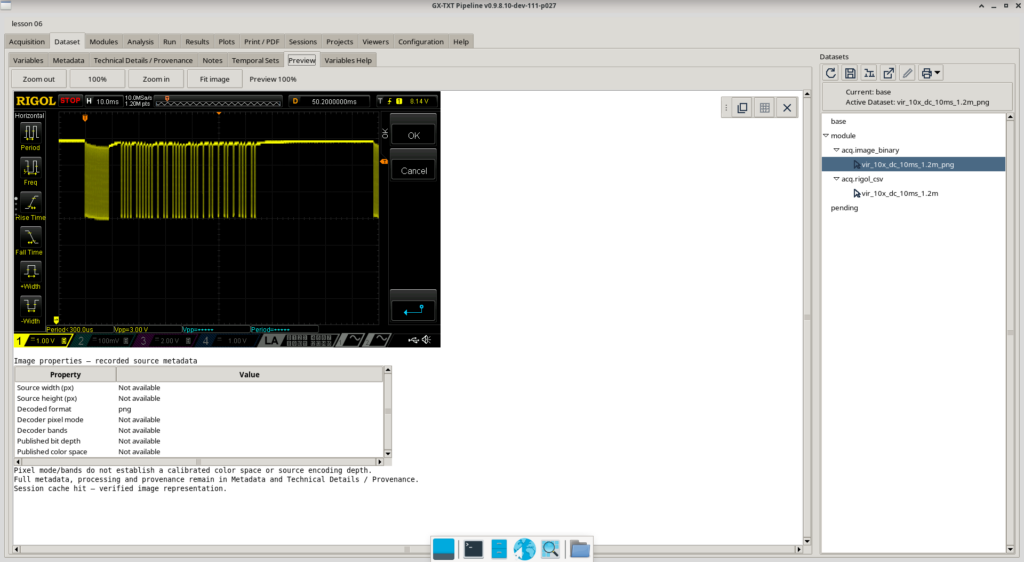
The two Datasets document the same experimental acquisition, but have different characteristics and uses.
The Numeric Dataset contains samples that we can select and process mathematically. The Image Dataset instead preserves a visual representation of the instrument at the time of measurement.
This example introduces an important concept: a GX-TXT Dataset does not necessarily have to contain a numeric table. The framework can manage resources of different nature, maintaining their identity, format and origin information.
During the exercise we will also see how a Markdown document can be imported and consulted as a textual dataset.
Framework Version Used
The examples in this lesson were developed and verified with GX-TXT DEV111-P027, using the sources published in the official GitHub repository.
- Framework: GX-TXT DEV111-P027
- Repository: https://github.com/giuxlab-hub/GX-TXT
- Branch:
maintenance/dev111 - Reference commit:
a3cf459e2b9909c84c6f200eea32d09dbdc676be - Language: GNU Octave
The scripts used were executed within the GX-TXT Session dedicated to Lesson 06.
In the following sections we will introduce the APIs necessary to identify variables, read numerical values and select time intervals, explaining each time the purpose of the operations and their use in the Octave code.
Exercise 06.01 — Reading samples from a dataset with GNU Octave
In the first exercise we will use the newly imported infrared signal to learn how to recover data through the framework and manipulate it as normal GNU Octave vectors.
The complete script is called Lesson_06_01_Dataset_Selection_Read.m and was tested in the GX-TXT Session dedicated to the lesson.
The goal is not yet to interpret the remote control protocol, but to learn how to:
- Locate available datasets.
- Identify scientific variables and their units.
- Read a limited range of samples.
- Select data using logical conditions.
- Verify that the results are numerically consistent.
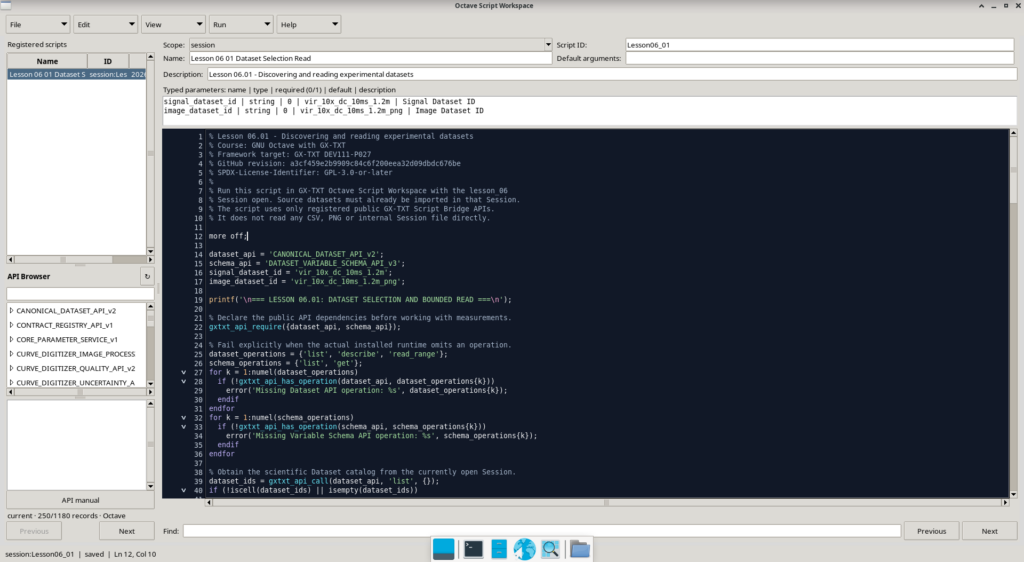
Preparing the script in the Octave Script Workspace
We open Octave Script Workspace and record the script in the scope of the current Session, selecting session as the Scope.
For this exercise we use:
- Script ID:
Lesson06_01 - Name:
Lesson 06 01 Dataset Selection Read - Version:
1.0.0 - Description:
Lesson 06.01 - Discovering and reading experimental datasets
The Workspace allows you to register code, assign it a stable identity and maintain revisions. Each execution uses a snapshot of the source, making it possible to trace the version actually executed.
In our example we have also filled in the Typed Parameters section, indicating the identifiers of the two Datasets:
signal_dataset_id | string | 0 | vir_10x_dc_10ms_1.2m | Signal Dataset ID
image_dataset_id | string | 0 | vir_10x_dc_10ms_1.2m_png | Image Dataset ID
Each declaration specifies the parameter name, type, requirement, default value, and a brief description. The value 0 indicates that the parameter is optional.
An important clarification: this first version of the script still uses the two Dataset IDs as constants defined in the source. The Typed Parameters are registered and visible in the Job Launcher, but the script does not yet retrieve their values during execution. The distinction between Job configuration and actual use of the parameters must be maintained.
Checking available APIs
Before reading the data, the script identifies the two necessary public APIs:
dataset_api = 'CANONICAL_DATASET_API_v2';
schema_api = 'DATASET_VARIABLE_SCHEMA_API_v3';

gxtxt_api_require({dataset_api, schema_api});
The gxtxt_api_require() function belongs to the Script Bridge and verifies that the required APIs are available in the execution environment.
The argument is a cell array, delimited by curly braces {}, which contains the identifiers of the requested APIs.
The script also uses gxtxt_api_has_operation() to check that the individual list, describe, read_range and variable schema operations are actually registered.
This way, if a needed feature is unavailable, the script reports an explicit error rather than proceeding with incomplete results.
Identifying Datasets and Variables
To obtain the list of Datasets present in the Session we use:
dataset_ids = gxtxt_api_call(dataset_api, 'list', {});The gxtxt_api_call() function represents the generic entry point to the registered public APIs for Octave scripts.
Its arguments are:
- The API identifier.
- The name of the operation.
- A cell array containing the operation arguments.
In this case list requires no arguments, so we pass the empty cell array {}.
The result is a list of Dataset IDs.
In the original execution there were three Datasets: the numerical signal, the oscilloscope screenshot and a previously imported Markdown document.
To identify the variables we instead use the DATASET_VARIABLE_SCHEMA_API_v3, first querying the list of variables and then the properties of each.
variables = gxtxt_api_call(schema_api, 'list', ...
                           {signal_dataset_id});
The list operation of the schema returns the descriptors of the variables belonging to the selected dataset.
The get operation, called with {dataset_id, variable_id}, instead allows you to read the descriptor of a specific variable.
In our case we recognize:
v0001: scientific roletime, units.v0002: scientific rolesignal, unitV.
This approach avoids relying exclusively on the position of a column: the script also selects the variables based on their scientific meaning.
The New Operation: read_range
We now come to the main news of Lesson 06.
The read_range operation of the Canonical Dataset API v2 allows you to read a range of samples of one or more variables belonging to the same Dataset.
The call is:
first_row = 100000;
row_count = 3000;

requested_ids = {time_id, voltage_id};

blocks = gxtxt_api_call(dataset_api, 'read_range', ...
    {signal_dataset_id, requested_ids, first_row, row_count});
The four operation arguments have precise meanings:
signal_dataset_id: identifies the dataset to read.requested_ids: contains the identifiers of the requested variables.first_row: indicates the initial position of the samples.row_count: specifies how many samples to read.
The framework returns an Octave structure containing the blocks of the requested variables, indexed by their respective Variable IDs.
The difference compared to Lesson 05 is fundamental: we are no longer just asking for information on the structure of the Dataset, but we are recovering its experimental values.
In our case we require 3,000 samples from an acquisition that contains 1,200,000.
Warning: the GX-TXT and Octave indices are different
The API’s first_row argument is zero-based: the first sample of the Dataset has position 0.
GNU Octave instead normally uses indices based on one: the first element of a vector is recalled with vector(1).
So, in our reading:
- First index requested from the API:
100000. - Last index requested from the API:
102999. - First element of the returned vector:
1. - Last element of the vector returned:
3000.
Confusing these two conventions can cause selection errors, especially when comparing intervals belonging to different datasets.
From GX-TXT blocks to Octave vectors
Once we receive the response, we can extract the values using dynamic access to structure fields:
time_block = blocks.(time_id);
voltage_block = blocks.(voltage_id);

time_s = time_block.values(:);
voltage_v = voltage_block.values(:);
The blocks.(time_id) syntax allows access to the field whose name is contained in the time_id variable.
The values(:) expression returns the values as a column vector.
At this point time_s and voltage_v can be manipulated with the normal GNU Octave instructions.
Our script also checks the length of the vectors, the presence of non-finite values, the possible missing data mask (missing_mask) and the ascending ordering of the time coordinate.
These checks are important: a technically successful data read does not guarantee, in itself, that the values can be used correctly in scientific processing.
Selecting a Time Window
Suppose we want to examine only samples between 0.300 ms and 0.450 ms.
We can directly construct a logical condition:
window_start_s = 0.00030;
window_end_s = 0.00045;

selected_mask = (time_s >= window_start_s) & ...
                (time_s < window_end_s);

selected_time = time_s(selected_mask);
selected_voltage = voltage_v(selected_mask);
The & operator performs the logical conjunction element by element.
selected_mask is a logical vector in which each element is true if the corresponding time satisfies both conditions.
By applying this mask to time_s and voltage_v, we extract only the samples of the desired window, maintaining the association between time and voltage.
We thus introduce one of the most useful mechanisms of Octave: logical vector indexing, which allows you to select data without writing explicit loops to check each individual sample.
We can also apply a threshold to the voltage:
threshold_v = 7.3;

low_mask = selected_voltage < threshold_v;
n_low = nnz(low_mask);
The nnz() function counts the number of non-zero elements in the mask, which in this case correspond to samples with a voltage lower than 7.3 V.
This threshold is used only as an example of numerical selection: it does not constitute a decoding of the infrared protocol.
Running the script and checking the results
Once the recording is complete, we open the Run command of the Script Workspace.
GX-TXT presents the Job Launcher, in which we can check any invocation parameters, input datasets and Job options.
In our example the two previously registered Typed Parameters appear with their respective default values.
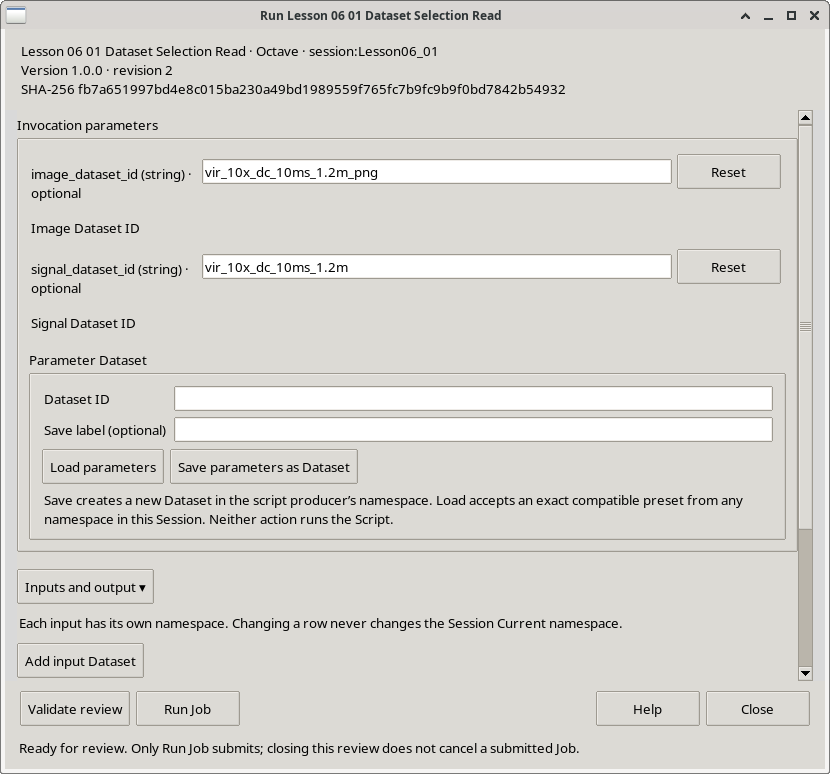
We then start the execution and consult the result using the GX-TXT Script Jobs system.
The first exercise, performed with the script version 1.0.0, revision 2, finished successfully with status COMPLETED and exit code 0.
The numerical result obtained is the following:
| Parameter | Result |
|---|---|
| Samples required | 3,000 |
| First half read | 0.000199998 s |
| Last time read | 0.000499898 s |
| Interval between samples | 100 ns |
| Selected window | 0.300–0.450 ms |
| Selected samples | 1,500 |
| Minimum voltage in the window | 6.04 V |
| Maximum voltage in the window | 8.80 V |
| Samples below 7.3 V | 801 |
These values coincide with those independently verified on the imported dataset.
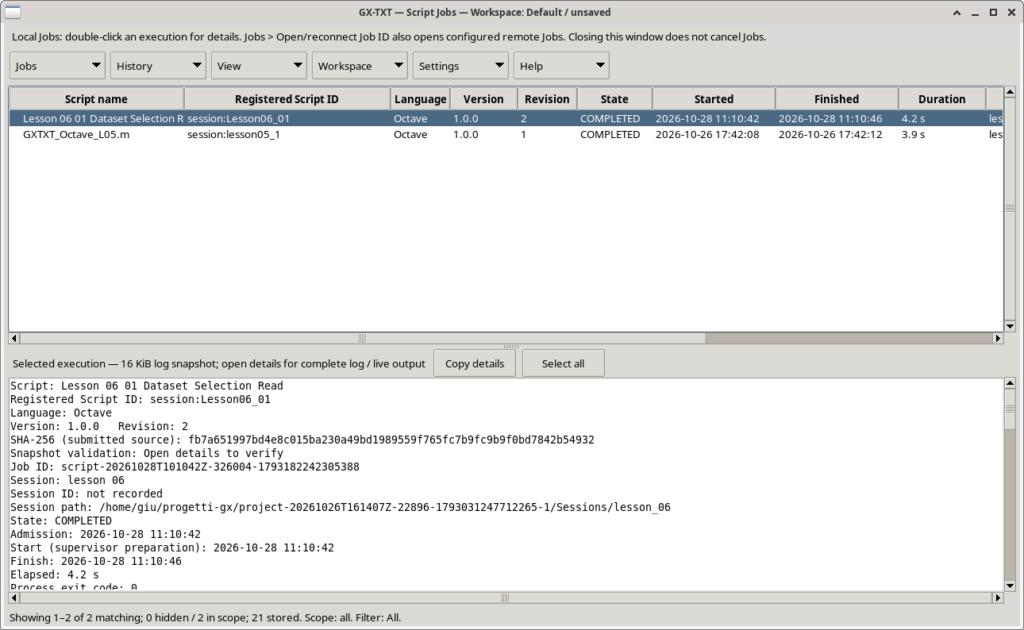
The result confirms that we have read a limited portion of the original signal, used the correct scientific variables and applied a temporal selection directly in Octave.
For this operation we did not have to access the original CSV file nor the internal Session directories: GX-TXT managed data access through the public API contract.
This is exactly the principle on which we will build the second exercise, dedicated to the comparison between several experimental acquisitions.
Exercise 06.02 — Read and compare multiple experimental datasets
In the first exercise we learned to read a numerical range of a single Dataset and to select samples through logical conditions.
Now we face a problem closer to normal laboratory activities: compare acquisitions carried out in different experimental conditions.
We will use four other measurements from the ProvaTelecomando IR project, obtained during the tests of the detection and maintenance circuit of the light indication.
This second exercise will allow us to apply the APIs already introduced to multiple datasets, using cycles, vectors and numerical controls to verify the consistency of the results.
The acquisitions of the ProvaTelecomando IR circuit
The measurements were carried out using a generator that simulates the photodiode signal, with a carrier of approximately 38 kHz and a burst of 100 pulses.
The test conditions included:
- RGAIN: 500 Ω
- Sensitivity adjustment P_SENS: 9.459 Ω
- Nominal Vgen amplitudes: 1, 2, 3 and 4 V
- CH2 channel: HOLD node voltage
- Channel CH3: node voltage
N_LED_ARANCIO
The HOLD node temporarily retains the information relating to the received signal. After excitation, its voltage progressively decreases, while the voltage of the node associated with the LED allows the response of the indication stage to be observed.
Each acquisition contains 300,000 samples per channel, recorded at 50 kSa/s, for a total duration of 6 seconds.
The sensitivity adjustment indicated as P_SENS should not be confused with the resistor used in the virtual photodiode circuit: they are two distinct elements.
Importing channels in GX-TXT
We imported the four CSV files using the Rigol CSV module of GX-TXT, leaving the default settings unchanged.
In this configuration, the module has generated a separate numerical dataset for each enabled channel.
For example, from the acquisition with nominal Vgen of 2 V the following were obtained:
vgen_2v_hold_led— containstime_sandCH2.vgen_2v_hold_led.CH3— containstime_sandCH3.
This behavior is documented in the implementation of the Rigol CSV module of the version used: each enabled signal is converted into a canonical dataset.
This is not a general limitation of GX-TXT Datasets, nor a rule that requires channels to always be separated. It is the structure produced by the module and import procedure used in this tutorial.
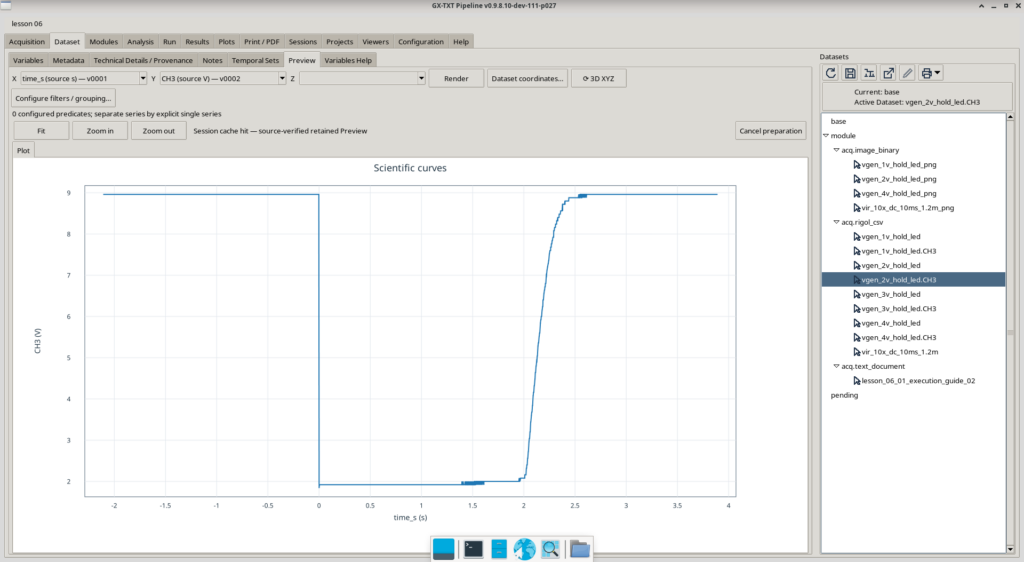
The selected Dataset shows the voltage of the node associated with the LED during the acquisition. We can observe the change in level and the subsequent return towards the initial condition.
By opening the scientific viewer of the Dataset we can directly examine the samples in the canonical table.
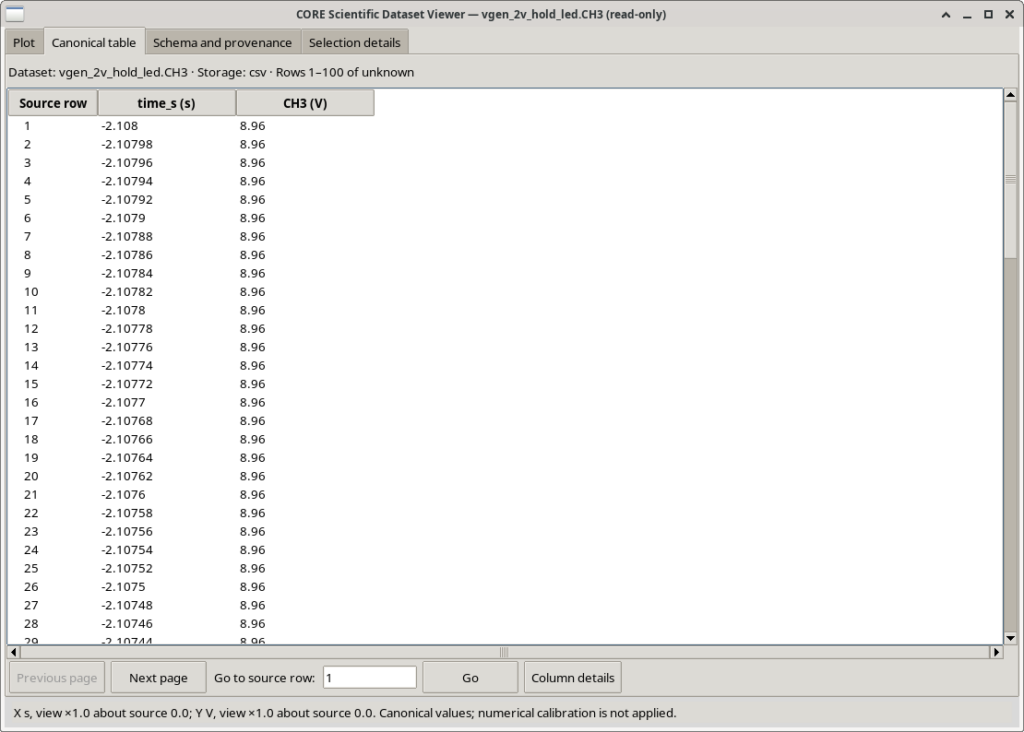
The table associates each row with the time, expressed in seconds, and the voltage of the CH3 channel, expressed in volts.
The distinction is important: the preview shows the overall trend of the signal, while the table and the API allow access to the numerical values actually recorded.
Why we need to consider the Dataset ID together with the Variable ID
All eight numerical datasets obtained from the four acquisitions have two variables, with identifiers:
v0001— time coordinatetime_s.v0002— voltage of the acquired channel, CH2 or CH3.
The Variable ID v0002 therefore appears in different datasets, but does not globally identify the same quantity.
Its complete scientific identity is made up of the pair Dataset ID + Variable ID.
This principle, introduced in Lesson 05, becomes essential when we simultaneously process data coming from different sources.
In our case we will first have to identify the Dataset relating to the desired channel, then identify the corresponding numerical variable.
Preparing the second Octave script
The script used in this exercise is called:
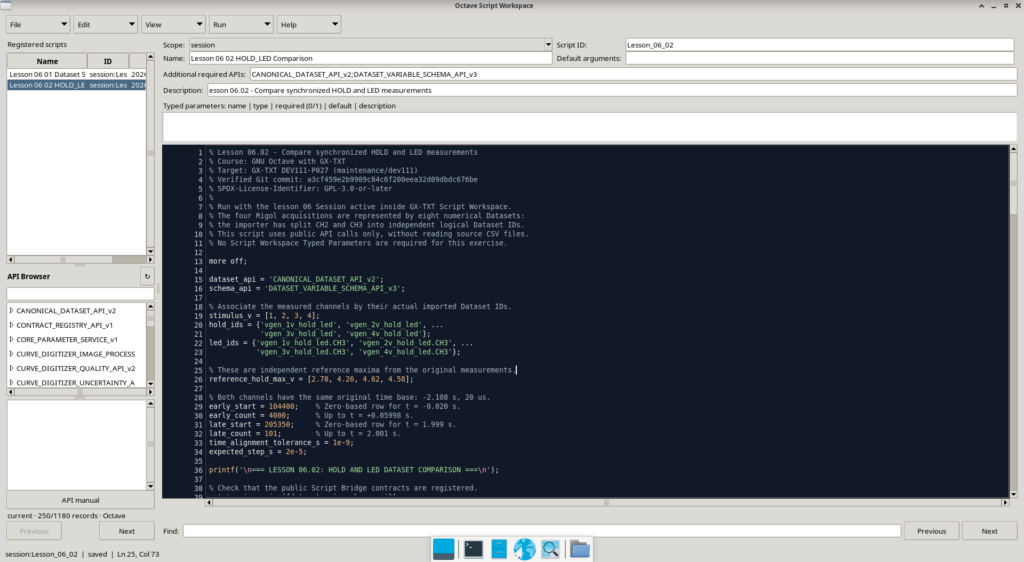
Lesson_06_02_HOLD_LED_Comparison.m
We recorded it in the Octave Script Workspace with Scope session and identifier Lesson_06_02.
In the Additional required APIs section we declared:
CANONICAL_DATASET_API_v2;DATASET_VARIABLE_SCHEMA_API_v3Unlike the first exercise, we did not use Typed Parameters: the identifiers of the necessary Datasets are defined directly in the source, to make the comparison of the four measurements reproducible.
Organize acquisitions with vectors and cell arrays
We begin by associating the nominal values of Vgen with the identifiers of the corresponding Datasets.
stimulus_v = [1, 2, 3, 4];

hold_ids = {'vgen_1v_hold_led', 'vgen_2v_hold_led', ...
            'vgen_3v_hold_led', 'vgen_4v_hold_led'};

led_ids = {'vgen_1v_hold_led.CH3', 'vgen_2v_hold_led.CH3', ...
           'vgen_3v_hold_led.CH3', 'vgen_4v_hold_led.CH3'};
The stimulus_v variable is a numeric vector, while hold_ids and led_ids are cell arrays of strings.
This organization allows maintaining the correspondence between an experimental condition and the two datasets that describe it.
For example, using the index k, we can retrieve the nominal value of the stimulus and the identifiers of the two channels:
vgen = stimulus_v(k);

hold_dataset = hold_ids{k};
led_dataset = led_ids{k};
Remember that in Octave the curly brackets {} allow you to extract the contents of a cell, while the round brackets () are used to normally index the elements of an array.
Read multiple datasets through a loop
In the script we use a for loop to repeat the process on the four acquisitions.
for k = 1:numel(stimulus_v)

  source_ids = {hold_ids{k}, led_ids{k}};

  % Process both channels for this generator setting.
  for channel = 1:2
    ds = source_ids{channel};

    % The Dataset is inspected and read through public APIs.

  endfor

endfor
These are two nested loops.
The outer loop selects one of the four Vgen conditions, while the inner loop considers the two channels of the same acquisition.
The complete code also contains calls to the Variable Schema API v3, used to identify variables by canonical name, scientific role and unit of measurement.
Once we recognize the variables, we use read_range again.
In this exercise we do not introduce another reading API: we explore the use of the one already studied, repeatedly applying it to different datasets.
Select only the necessary ranges
HOLD/LED acquisitions last 6 seconds, but for the proposed processing it is not necessary to read the entire signal.
The script defines two ranges:
early_start = 104400;
early_count = 4000;

late_start = 205350;
late_count = 101;
The first reading recovers 4,000 samples, corresponding to a time window between approximately −20 ms and +59.98 ms with respect to the acquisition time reference.
The second recovers only 101 samples, ranging from 1.999 s to 2.001 s.
These positions were determined based on the time coordinate of the acquisitions, which starts at −2.108 s and has an increment of 20 µs.
The offset used by read_range continues to be zero-based, regardless of normal indexing of Octave arrays.
Reading two different datasets requires two distinct calls to the API; it is not possible to pass two Dataset IDs as if they were variables belonging to a single source.
Check channel synchronization
We acquired CH2 and CH3 at the same time, but the framework registered them as separate datasets.
Before comparing the values, we must verify that the time coordinates are actually compatible.
In the code we use:
t_hold = channel_time{1};
t_led = channel_time{2};

if (max(abs(t_hold - t_led)) > time_alignment_tolerance_s)
  error('CH2 and CH3 timestamps are not aligned');
endif
The expression t_hold - t_led calculates the difference between the corresponding elements of the two time vectors.
The abs() function returns the absolute values of the differences, while max() identifies the largest one.
The result is compared to a tolerance of 1 ns, chosen to verify the numerical alignment of the imported coordinates.
This check does not replace a temporal calibration of the instrument: it verifies that the two datasets share the same temporal grid within the defined tolerance.
It is an essential precaution. The fact that two vectors contain the same number of elements does not guarantee that they represent temporally synchronized measurements.
Calculate the maximum HOLD voltage
For each acquisition we select the samples belonging to the time interval from 0 to 20 ms.
event_mask = (t_hold >= 0) & (t_hold < 0.020);

event_voltage = channel_values{1}(event_mask);
event_time = t_hold(event_mask);

[peak_voltage, peak_index] = max(event_voltage);

peak_time = event_time(peak_index);
The max() function, used with two output variables, simultaneously returns the maximum value and the position at which it was located.
We can then use peak_index to retrieve the corresponding time.
This example shows an important feature of GNU Octave: a function can return multiple results without having to create additional structures.
The script also calculates the average CH3 voltage in the small window centered around 2 seconds, using the mean() function.
The objective is to obtain, for each experimental condition, a few easily comparable numerical values.
Experimental results
The Job recorded in GX-TXT was executed on October 28, 2026 with script version 1.0.0, revision 2.
Execution finished with status COMPLETED, exit code 0 and duration of approximately 5.1 seconds.
The results are:
| Nominal Vgen | Maximum HOLD | Time of maximum | CH3 around 2 s |
|---|---|---|---|
| 1 V | 2.78 V | 2.60 ms | 8.96 V |
| 2 V | 4.26 V | 2.60 ms | 2.08 V |
| 3 V | 4.62 V | 2.60 ms | 2.00 V |
| 4 V | 4.58 V | 2.58 ms | 2.00 V |
The values indicated as Vgen are the nominal settings of the generator, while the HOLD and CH3 voltages derive from the measurements actually acquired.
The four acquisitions show that the maximum of the HOLD node initially increases as the stimulus increases, reaching values close to 4.6 V for the 3 and 4 V conditions.
This trend suggests a limit in the response of the stage, but to attribute its behavior to a specific circuit mechanism would require a more in-depth electronic analysis.
The CH3 voltage also changes significantly as the stimulus varies. However, we must not automatically interpret this voltage as the LED’s current nor as a direct measurement of its luminous state.
See the full result in GX-TXT
After execution, we can consult the Job through the Script Jobs system.
The summary list view can only show a portion of the log. By opening the detail of the Job, however, we can consult the complete output, including the summary table generated by the script.
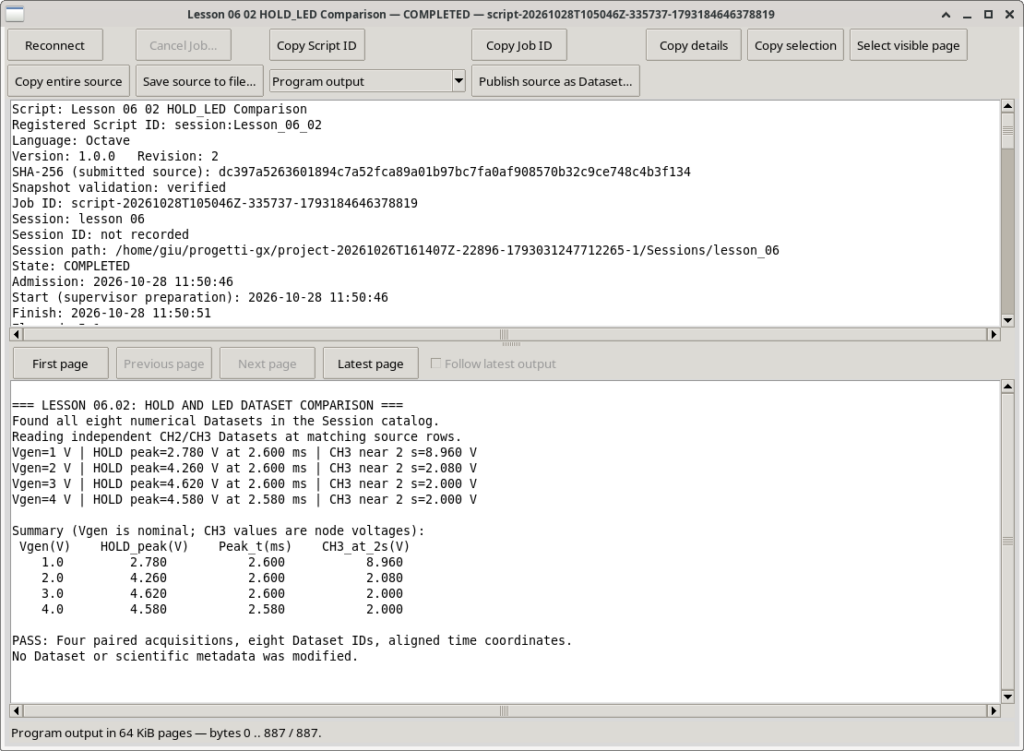
The result ends with the message:
PASS: Four paired acquisitions, eight Dataset IDs, aligned time coordinates.The message confirms that the script has completed the comparison of the four conditions, identified the eight required datasets and passed the required time alignment checks.
The verification was carried out without modifying the source datasets or their scientific metadata.
Markdown guides as Document Datasets
During the preparation of the course we also imported the operational guide for this exercise into GX-TXT, written in Markdown format.
The framework has registered it as a Documentary Dataset with identifier:
lesson_06_02_execution_guide
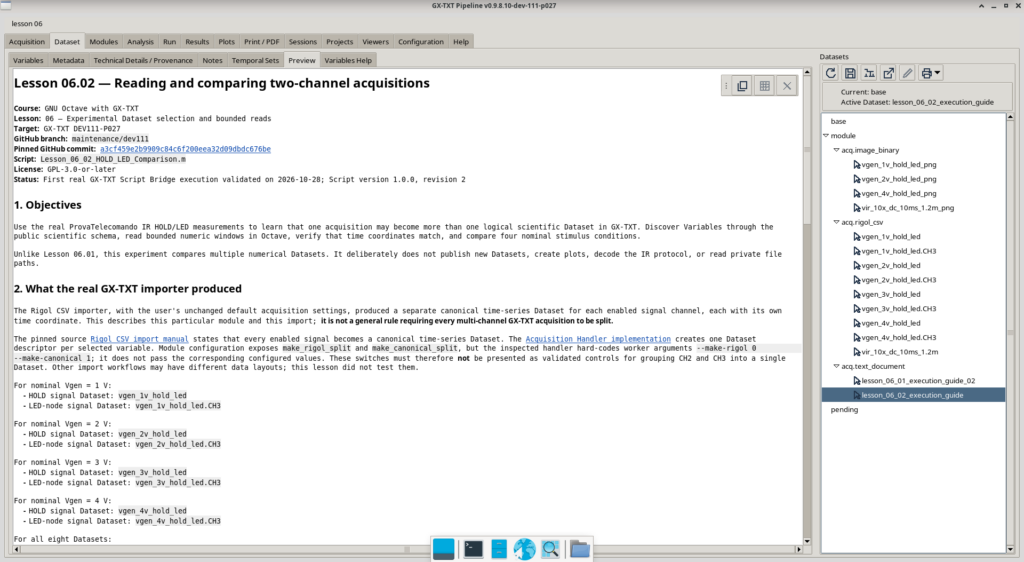
This example shows a further possibility of the framework: storing numerical data, images and descriptive documents in the same Session.
The experiment documentation can therefore be consulted directly in the environment where the acquisitions and processing results are present.
It is necessary to remember that subsequently modifying the external Markdown file does not automatically update the already imported dataset: each document acquisition retains the content recorded at the time of import.
What We Learned in Exercise 06.02
With this example we have extended the work of the first exercise to multiple experimental datasets.
We used vectors and cell arrays to organize the sources, nested loops to process different acquisitions, partial readings to limit the samples transferred to Octave and numerical controls to verify that the signals were correctly aligned.
We also extracted significant quantities, such as the maximum of the HOLD voltage, the temporal position of the peak and the average voltage of CH3 in a defined interval.
The results are now available as numerical values, but we have not yet built a graphical representation of the comparison.
In the next exercise we will use these results to produce a small summary Dataset and display it through the Plot Dataset API v4, without using Octave’s native graphics functions.
Exercise 06.03 — Visualizing Results with Plot Dataset API v4
In the two previous exercises we learned to read the numerical values of the Dataset, select time intervals and compare different experimental acquisitions.
We have thus obtained four maximum voltage values of the HOLD node of the ProvaTelecomando IR, corresponding to the four nominal settings of the generator.
The results are already available in numerical form, but a graphical representation allows them to be interpreted more quickly.
In this third exercise we will therefore take a further step: we will generate a summary dataset containing the results of the analysis and we will use it to build a scientific graph directly in GX-TXT.
We will not use GNU Octave’s native plot() or bar() graphics instructions. The graph will be created through the framework’s public APIs, using the Plot Dataset v4 system.
This example anticipates some features that we will explore in depth in the lessons dedicated to the publication and scientific visualization of data.
A Different Type of Graph
In the previous examples of the course we mainly encountered representations of quantities measured as a function of time.
This time we will instead create a vertical bar graph, in which each bar represents the maximum HOLD voltage obtained with a different generator setting.
The values to represent are:
| Nominal Vgen | Maximum HOLD voltage |
|---|---|
| 1 V | 2.78 V |
| 2 V | 4.26 V |
| 3 V | 4.62 V |
| 4 V | 4.58 V |
On the horizontal axis we will represent the nominal voltage of the generator, while on the vertical axis we will report the maximum HOLD voltage measured.
This is not a continuous curve: we have four distinct experimental conditions. The bar representation allows you to immediately compare the values without suggesting an interpolation between the measurements.
Preparing the Octave script
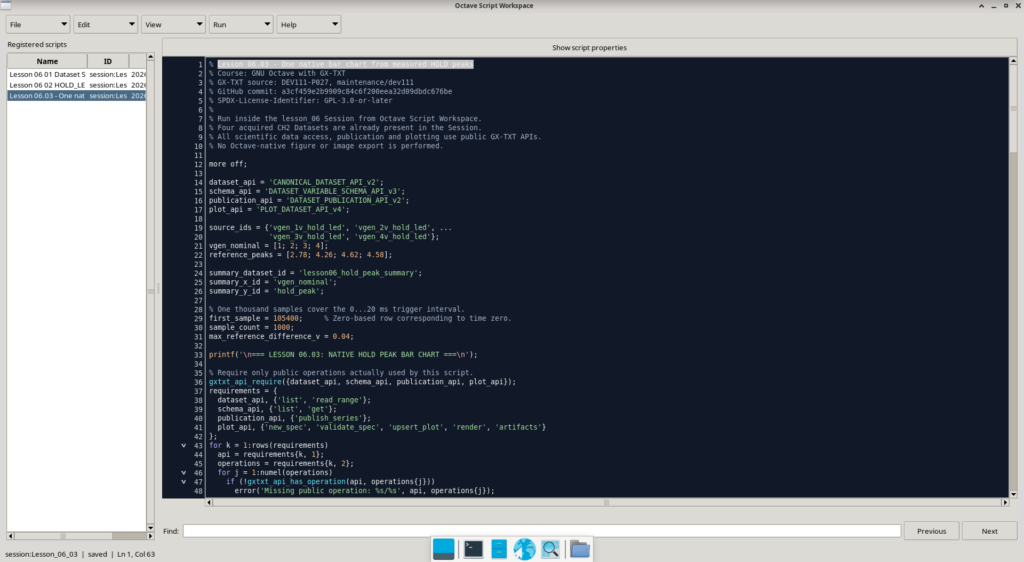
The script used is called:
Lesson_06_03_HOLD_Peak_Bar_Plot.m
We recorded it in the Octave Script Workspace of the Session lesson_06, using the identifier Lesson_06_03.
Compared with the previous exercises, the script requires four public APIs:
CANONICAL_DATASET_API_v2;DATASET_VARIABLE_SCHEMA_API_v3;DATASET_PUBLICATION_API_v2;PLOT_DATASET_API_v4The first two are already known: they allow us to identify the datasets, recognize the variables and read their numerical values.
The other two introduce different functionality:
DATASET_PUBLICATION_API_v2allows you to publish new scientific datasets through the framework.PLOT_DATASET_API_v4allows you to define, record and generate scientific graphs associated with Datasets.
Also in this case the script uses the identifiers of the acquisitions already verified in the Session, without requiring Typed Parameters.
Recalculate values from original datasets
An important aspect of the procedure is that we do not directly use the four maximums reported in the previous table to construct the graph.
The script recalculates them from the experimental samples, using CANONICAL_DATASET_API_v2/read_range.
For each acquisition we select a time window of 1,000 samples, corresponding to the interval from 0 to approximately 20 ms.
first_sample = 105400;
sample_count = 1000;
The reading uses the same principles illustrated in the first exercise: Dataset ID, Variable ID, initial offset and number of samples requested.
Once we have recovered time and tension, we identify the maximum in the selected interval:
event_mask = (times >= 0) & (times < 0.020);

hold_peaks(k) = max(voltages(event_mask));
The result is an Octave vector of four elements:
hold_peaks = [2.78; 4.26; 4.62; 4.58];This vector represents the result of the measurement processing, not a new acquisition of the instrument.
The script also compares the calculated maximums with reference values derived from an independent verification of the original data. A difference greater than the expected tolerance causes an error, preventing inconsistent results from being published.
From Octave processing to a new GX-TXT Dataset
Up to this point we have used GX-TXT mainly to read data already present in the Session.
Now we want to also preserve the result.
For this we introduce the publish_series public operation of DATASET_PUBLICATION_API_v2.
The function receives a structure that describes the new Dataset, the variables to publish, the units of measurement and the source information.
In our example we prepare two numerical vectors:
vgen_nominal = [1; 2; 3; 4];

hold_peaks = [2.78; 4.26; 4.62; 4.58];
The second vector, in the real program, is the one calculated from the readings of the source datasets. The values reported here serve only to show the final content.
We then define the structure of the request:
request = struct();

request.dataset_id = 'lesson06_hold_peak_summary';
request.contract = 'table.generic';
request.storage = 'csv';

request.x_values = vgen_nominal;
request.y_values = hold_peaks;
Through further fields of the same structure, the script declares the identifiers of the two variables, the physical units, the numeric type float64 and the provenance information.
In particular, the two Variable IDs chosen are:
vgen_nominal— generator nominal setting, in volts.hold_peak— measured maximum of HOLD voltage, in volts.
The publish request is then sent to the framework:
publication = gxtxt_api_call( ...
    publication_api, 'publish_series', {request});
Publishing is not the same as arbitrarily saving a CSV to a directory.
GX-TXT manages the operation through the public contract, recording the new Dataset in the Session and associating it with the expected scientific information.
The result is the Dataset:
lesson06_hold_peak_summary
Its storage format is CSV, while the scientific contract is table.generic.
The Dataset structure contains four rows and two numeric variables.
The provenance also records the four experimental datasets from which the results were obtained, allowing the original measurement to be distinguished from subsequent processing.
Avoid unintentionally overwriting results
The script contains an additional check.
Before publishing the summary Dataset, check whether a Dataset with the same identifier already exists in the Session.
If it is present, it reads the values and compares them with those just calculated.
When the results match, the Dataset is reused. If they differ, the script reports an error instead of automatically replacing the existing data.
This control makes the repetition of the experiment safer and introduces the concept of reproducibility of scientific calculations.
The complete publication of the Datasets, the transactions and the management of the different storage methods will be addressed in Lesson 07.
Introduction to Plot Dataset API v4
Now that we have a summary dataset, we can use it to generate the graph.
The public API PLOT_DATASET_API_v4 adopts a declarative model: the script describes the graph it wants to obtain and the framework takes care of interpreting the specification and producing the representation.
This description is called PlotSpec.
In our case we initially require a new specification:
spec = gxtxt_api_call(plot_api, 'new_spec', ...
    {'plot.dataset.xy', ...
     'ProvaTelecomando IR - maximum HOLD voltage'});
The new_spec operation provides a starting structure for a Cartesian graph.
Subsequently the script defines the properties of the axes and associates the published scientific dataset with the graph.
The essential part of the series is:
series = struct( ...
    'id', 'hold_peak_by_vgen', ...
    'label', 'HOLD peak', ...
    'dataset_id', summary_dataset_id, ...
    'x_variable_id', summary_x_id, ...
    'y_variable_id', summary_y_id, ...
    'axis', 'left', ...
    'kind', 'bar', ...
    'bar_width', 0.60, ...
    'style', struct('opacity', 0.85));
The most important properties are:
dataset_id: identifies the dataset containing the values to be represented.x_variable_idandy_variable_id: identify the two scientific variables.kind = 'bar': Select the bar representation.bar_width = 0.60: sets the width of the bars, in numerical units of the X axis.style: describes some presentation characteristics of the series.
The significant aspect is that the series does not contain a new copy of the numerical values: it refers to the variables of the published dataset.
In this way the graph remains connected to its scientific source.
Graph validation and generation
Once the PlotSpec is completed, the script submits it to the validation required by the API:
is_valid = gxtxt_api_call(plot_api, ...
    'validate_spec', {spec});
If the specification is accepted, we can register the graph and request its generation.
plot_ref = gxtxt_api_call(plot_api, ...
    'upsert_plot', {'lesson06_hold_peak_bar', spec});

render_result = gxtxt_api_call(plot_api, ...
    'render', {plot_ref});
The upsert_plot operation creates or updates a representation identified by a stable key, while render requests the framework to produce the graph.
Finally, through the artifacts operation, the script can consult information relating to the generated artifacts.
The entire process uses the public graphics API of GX-TXT.
The Octave functions figure(), bar(), print(), or saveas() are not called to generate a separate image.
The result in GX-TXT
The script was run in Lesson Session 06 on October 28, 2026.
The Job ended successfully with status COMPLETED and exit code 0.
The execution log confirms the calculation of the four maximums, the publication of the summary dataset and the generation of the graph via PLOT_DATASET_API_v4.
The graph is identified in the framework by:
- Graph ID:
plot.dataset.xy - Variant ID:
p0001
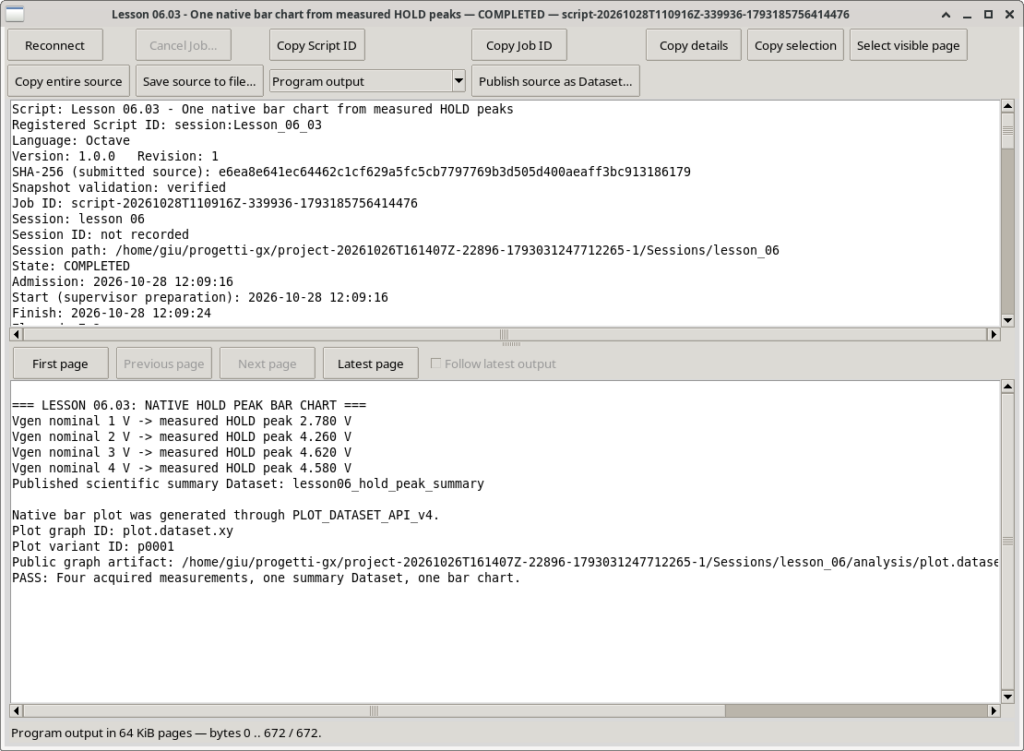
By opening the Plots tab of GX-TXT we can view the result directly in the scientific environment of the framework.
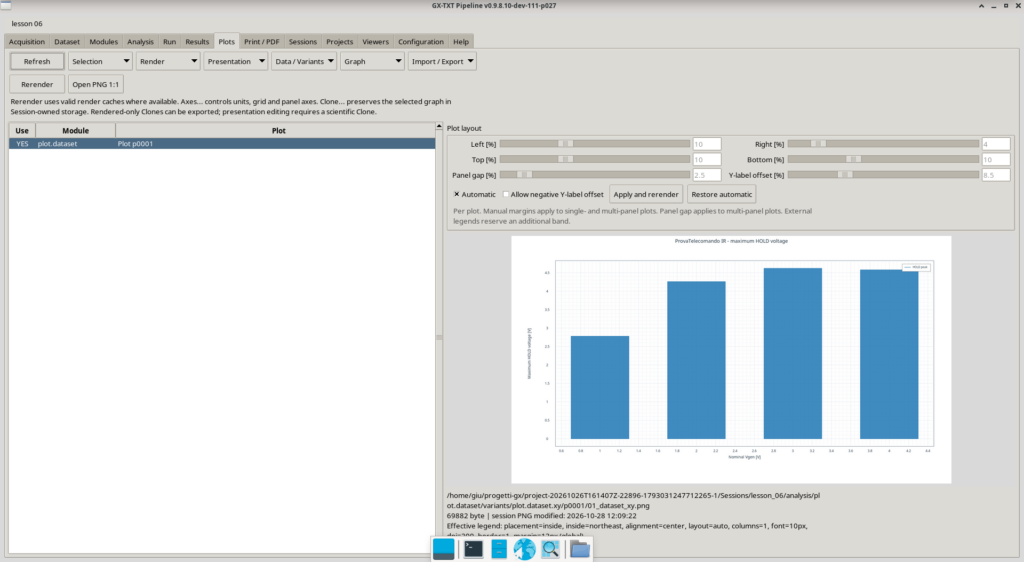
The representation contains four vertical bars. The horizontal axis shows the nominal Vgen, while the vertical one shows the maximum HOLD voltage.
The framework stores the graph as a resource associated with the Session, using the reference structure and artifacts of the Plot Dataset system.
We subsequently exported the representation in PNG format, obtaining an image of 1600 × 900 pixels, which can also be used in documentation and scientific articles.
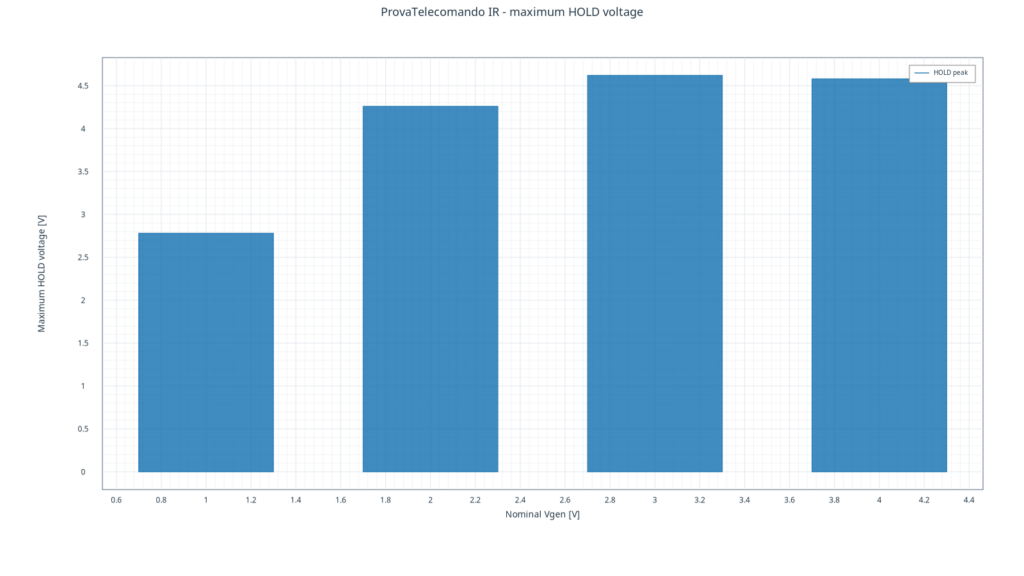
The exported PNG was compared to the original Session artifact and its identity was verified using SHA-256.
This confirms that the image used to document the experiment actually comes from the graph generated by GX-TXT, and not from a reconstruction created with an external program.
Interpreting the graph
The result highlights the trend of the maximum HOLD voltage as the nominal stimulus voltage varies.
The transition from 1 to 2 V produces a marked increase in the maximum value, from 2.78 to 4.26 V.
Switching to 3 V, the maximum reaches 4.62 V, while with nominal Vgen of 4 V a very similar value is observed, equal to 4.58 V.
The trend suggests that, in the experimental conditions considered, the maximum voltage of the HOLD node tends to stabilize around 4.6 V.
The graph alone does not allow us to establish the physical mechanism responsible for this behavior. To identify it it would be necessary to consider the structure of the circuit and further measurements.
From an educational point of view, however, we achieved the objective: starting from real acquisitions, we read the samples with Octave, calculated a significant quantity, published the result in GX-TXT and generated a native graphic representation.
The in-depth management of PlotSpec, series, axes, layouts and graphic variants will be resumed in Lesson 08.
For the moment, this example demonstrates how public APIs allow you to integrate numerical processing and scientific visualization without leaving the framework.
Exercise 06.04 — Selecting an Input Dataset Directly from the Job Launcher
In the previous exercises we used the Dataset identifiers defined directly within the Octave scripts.
This approach is useful when we want to perform a reproducible experiment on pre-established sources, but it has a limitation: to use the same script on another Dataset, it is necessary to modify the code or provide a configuration mechanism.
GX-TXT offers a different possibility, particularly useful in normal laboratory activities: select the input Dataset directly in the Job Launcher interface and make it available to the script via the Script Bridge.
This mechanism allows you to separate the processing code from the choice of the experimental source.
In the fourth exercise we will see how it works and why it is different from using Typed Parameters.
Three ways to identify a Dataset
During the course we encountered two configuration methods and we are now introducing a third.
| Mode | Feature |
|---|---|
| Dataset ID in code | The source identifier is defined directly in the script |
| Typed Parameters | The script can receive configurable parameters, if their reading is explicitly implemented |
| Input Dataset Binding | The user selects a Session Dataset via the Job Launcher |
In the first exercise we declared two Typed Parameters for the Dataset identifiers, but the code still used values fixed in the source. Their declaration, alone, therefore did not make the selection configurable.
With Input Dataset Binding we take a different approach.
The Job Launcher allows you to select an existing Dataset through the GX-TXT interface. The framework associates this choice with a semantic alias and makes the identity of the selected source available to the script.
In this way there is no need to manually enter the Dataset ID or use a textual parameter to communicate it to the program.
Preparing the Octave script
The new script is called:
Lesson_06_04_Dataset_Input_Binding.m
We recorded it in the Octave Script Workspace using:
- Scope:
session - Script ID:
Lesson_06_04_Dataset_Input_Binding - Version:
1.0.0 - Tested review:
1
The script requires the two APIs already used to read and identify the Datasets:
CANONICAL_DATASET_API_v2;DATASET_VARIABLE_SCHEMA_API_v3The Typed Parameters section is left blank.
The code does not contain a pre-established identifier of the input dataset, but retains the information necessary to correctly interpret the HOLD acquisitions used in the experiment.
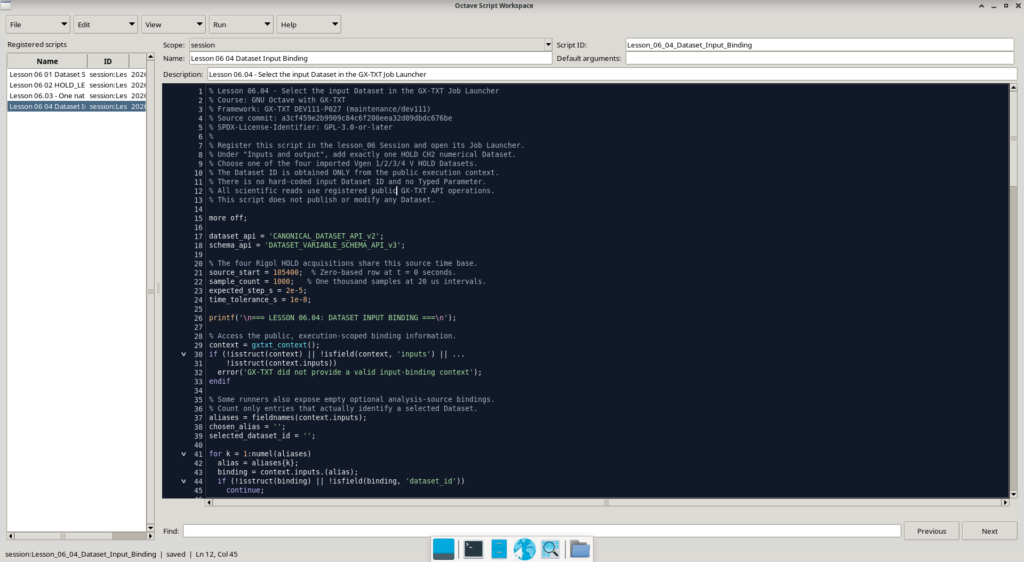
Select the Dataset in the Job Launcher
Once we have registered the script, we open the Run command.
In the Job Launcher we expand the Inputs and output section and use the Add input Dataset button.
For each input we can configure a semantic alias and select the Dataset we want to use.
In our test we chose:
- Semantic alias:
hold_measurement - Namespace:
module/acq.rigol_csv - Dataset ID:
vgen_3v_hold_led
This is the acquisition of the HOLD node carried out with a nominal Vgen of 3 V.
The hold_measurement alias represents the name by which the input is identified in the execution context. The Dataset ID, however, identifies the scientific source actually selected.
These two concepts are not equivalent.
The same alias could be used in another execution to associate a different Dataset, as long as it is compatible with the type of processing envisaged by the script.
The framework also records the reference to the source revision associated with the Job, so that the execution remains linked to the selection actually made.
The Public gxtxt_context() Function
To recover the identity of the selected Dataset we introduce the function:
gxtxt_context()
This function belongs to the Octave Script Bridge API v1 and returns a structure containing information about the current execution.
Among the available properties we find inputs, which contains the associations between aliases and selected datasets.
The fundamental call is:
context = gxtxt_context();The result is a GNU Octave structure.
We can then examine the inputs:
aliases = fieldnames(context.inputs);The Octave fieldnames() function returns the names of the fields in a structure.
In our case these names correspond to the aliases of the inputs made available by the framework.
If we know the alias used, we can directly access the relevant field:
binding = context.inputs.hold_measurement;

dataset_id = binding.dataset_id;
This example illustrates the fundamental mechanism: the Dataset ID is not written to the source, but retrieved from the execution context.
Locate input without knowing alias
The full script uses a more general solution.
Does not require the alias to be called hold_measurement.
Instead, examine the available inputs, look for those that contain a valid Dataset ID, and verify that only one Dataset has been selected.
A significant part of the code is:
context = gxtxt_context();

aliases = fieldnames(context.inputs);

chosen_alias = '';
selected_dataset_id = '';

for k = 1:numel(aliases)

  alias = aliases{k};
  binding = context.inputs.(alias);

  if (!isstruct(binding) || ...
      !isfield(binding, 'dataset_id'))
    continue;
  endif

  current_id = binding.dataset_id;

  if (!ischar(current_id) || ...
      isempty(strtrim(current_id)))
    continue;
  endif

  if (!isempty(selected_dataset_id))
    error('Select exactly one nonempty input Dataset');
  endif

  chosen_alias = alias;
  selected_dataset_id = strtrim(current_id);

endfor
This snippet introduces some interesting aspects of GNU Octave.
Dynamic access to fields with context.inputs.(alias) allows you to select a property of the structure using a name contained in a variable.
The isfield() function checks for the existence of a field, while isstruct() checks whether the object is actually a structure.
The strtrim() function removes leading and trailing spaces from a string.
Finally, the continue statement allows you to move directly to the next iteration of the loop when a condition makes the current element unusable.
These controls are also used to ignore any optional inputs without a Dataset ID.
If no valid source is found, or if more than one is selected, the script stops execution with a diagnostic message.
Input Binding does not replace the reading API
A fundamental point is that gxtxt_context() does not directly return the numerical samples of the Dataset.
Its function is to tell the script which sources have been associated with the Job.
To read the data we continue to use the APIs already studied.
After obtaining selected_dataset_id, the script checks the presence of the Dataset in the Session catalog and uses the Variable Schema API v3 to identify the correct variables.
In our exercise the following are required:
- A time variable with scientific role
timeand unitss. - A signal variable named
CH2, with rolesignaland unitV.
This control prevents, for example, accidentally treating an Image Dataset or the CH3 channel as if it were the HOLD node measurement.
Once we have identified the Variable IDs, we use read_range:
blocks = gxtxt_api_call(dataset_api, 'read_range', ...
    {selected_dataset_id, {time_id, hold_id}, ...
     source_start, sample_count});
The reading mechanism does not change compared to previous exercises.
The way in which the Dataset ID passed to the API is determined changes instead.
This is the truly new element of the experiment.
Processing selected samples
The script was prepared for the four HOLD acquisitions already present in the Session, which share the same sampling conditions.
For all measurements we use:
source_start = 105400;
sample_count = 1000;
The request retrieves 1,000 samples starting from the time reference of 0 seconds, with a sample interval of 20 µs.
After checking the presence of valid numerical values and the correct progression of the time coordinate, we select the event window:
event_mask = (time_s >= 0) & (time_s < 0.020);

event_voltage = hold_voltage_v(event_mask);
event_time = time_s(event_mask);

[peak_voltage, local_peak_index] = max(event_voltage);

peak_time_s = event_time(local_peak_index);
We then calculate the maximum value, the corresponding time and the average of the HOLD voltage in the selected window.
The script remains deliberately simple: it does not produce new datasets and does not modify the scientific information of the original acquisitions.
It should also be remembered that this version is designed for the specific family of HOLD acquisitions of the course. The Dataset ID is configurable through the interface, but the time window and expected characteristics of the signal are defined in the code.
It is therefore not a universal program capable of processing any GX-TXT Dataset without adaptations.
Execution result
We ran the script in the Lesson 06 Session on October 28, 2026.
The Job actually used the Dataset:
vgen_3v_hold_led
associated with the alias:
hold_measurement
Execution finished with status COMPLETED, exit code 0 and duration of 5.1 seconds.
The numerical results obtained are:
| Parameter | Result |
|---|---|
| Selected dataset | vgen_3v_hold_led |
| Samples read | 1,000 |
| Samples in the event window | 1,000 |
| Maximum HOLD voltage | 4.620 V |
| Time of maximum | 2,600 ms |
| Average HOLD voltage | 4.321 V |
The maximum value of 4.620 V coincides with that already obtained in the second exercise for the measurement with a nominal Vgen of 3 V.
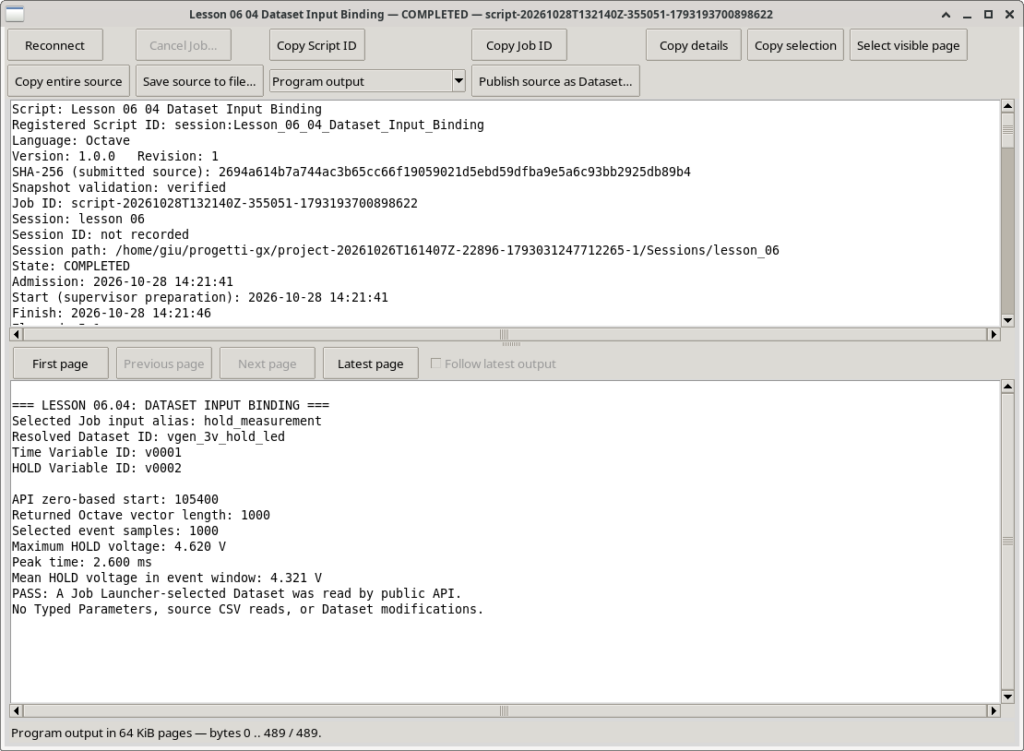
The log ends with:
PASS: A Job Launcher-selected Dataset was read by public API.This result confirms that the script obtained the identity of the Dataset through the public context of the Job and correctly read the experimental samples.
No Typed Parameters were used, nor direct readings of the original CSVs.
Why this mechanism is important
Input Dataset Binding makes scientific script design more flexible.
The same program can be associated with different measurements without modifying its source, provided that the selected datasets respect the scientific contract envisaged by the processing.
The selection is made in the framework, while the code continues to operate through logical identifiers and public APIs.
This approach allows three elements to be kept distinct:
- The Octave program, which describes how to process data.
- The scientific dataset, which represents the experimental source.
- The GX-TXT Job, which records which program was executed and with which inputs.
It is a particularly important distinction for building reproducible laboratory procedures.
With this fourth exercise we have completed the practical path of Lesson 06: from the identification of the variables to the reading of the samples, from the comparison between acquisitions to the generation of a graph, up to the dynamic selection of a Dataset via the Job Launcher.
Before concluding the lesson, we will systematically delve into the GNU Octave functions and the GX-TXT public APIs introduced or used, distinguishing those already addressed in the previous lessons from the new features of this tutorial.
In-depth analysis — The GNU Octave functions and the GX-TXT APIs of Lesson 06
We completed four exercises, using real acquisitions from the ProvaTelecomando IR to read, select, compare and represent experimental data.
It’s time to take a deeper look at the programming tools we used.
This section has a specific objective: to consolidate GNU Octave knowledge and understand how to use it correctly within the GX-TXT architecture.
We will not limit ourselves to listing the functions encountered. We will try to understand why they are necessary, what data they accept, what they return, what problems they allow to solve and what errors should be avoided.
To build a coherent teaching progression, we will also distinguish the actual innovations of Lesson 06 from the topics already addressed in previous lessons.
1. The connection with Lessons 01–05
Before delving into the code, let’s summarize the path taken.
| Lesson | Main topics | Knowledge reused in Lesson 06 |
|---|---|---|
| 01 — First Octave script | Execution environment, Script Bridge, first calculations, numeric API | Executing scripts, gxtxt_api_call(), gxtxt_api_require(), gxtxt_context() |
| 02 — Variables, types and operators | Variables, operators, types, vectors, structures and error handling | Numerical expressions, logical controls, structures and cell arrays |
| 03 — Vectors and matrices | Indexing, dimensions, matrix operations, reductions and publishing | diff(), mean(), max(), find(), all(), isfinite(), and vector access |
| 04 — Conditions, cycles and functions | if, for, while, reusable functions, numerical simulation and graphs | Nested loops, continue, break, functions, publishing, and Plot Dataset v4 |
| 05 — Dataset and Variable ID | Scientific identities, metadata and variable schema | Dataset ID, Variable ID, list, describe, get and identifier validation |
Lesson 06 does not start from scratch. Use this knowledge to tackle a new problem: accessing the numerical values of experimental measurements already recorded in GX-TXT.
The main innovations are:
- The
CANONICAL_DATASET_API_v2/read_rangeoperation. - Limited reading of sample ranges.
- Handling missing values returned by the framework.
- The comparison between distinct numerical datasets and the verification of temporal coordinates.
- Using the Job context to get a user-selected Dataset.
- The application of the
bargraph type in the Plot Dataset API v4. - The use of the
validate_specandartifactsoperations in the graph flow. - More in-depth use of some Octave functions, including
median(),nnz(),fieldnames(), andstrtrim().
The functions mean(), max(), diff(), find(), abs() and isfinite() are not new to the course: they had already been introduced, especially in Lesson 03.
Here, however, they take on a more concrete meaning because they are applied to data actually acquired.
2. Three distinct levels: Octave, Script Bridge and GX-TXT
To correctly understand how scripts work, we must distinguish three levels.
The first level is GNU Octave.
Octave is the language in which we write the program. It handles variables, arrays, loops, conditions, structures and numeric operations.
For example:
voltage = [2.78; 4.26; 4.62; 4.58];

maximum = max(voltage);
This is normal Octave processing: it does not require any GX-TXT API.
The second level is the Script Bridge.
The Bridge allows the Octave program to communicate with the public APIs registered by the framework.
For example:
dataset_ids = gxtxt_api_call( ...
    'CANONICAL_DATASET_API_v2', 'list', {});
This statement does not perform ordinary numerical calculation. Asks GX-TXT to return the identifiers of the Datasets available in the Session.
The third level is made up of the GX-TXT public services.
Canonical APIs manage scientific identities, reads, publishing, and graphical representations.
When we invoke read_range, the framework locates the requested Dataset and uses its storage provider to retrieve its values.
When we invoke publish_series, the framework manages the creation of the new Dataset.
When we invoke render of the Plot Dataset API v4, the framework generates the scientific graph representation.
The principle to remember is:
Octave expresses the algorithm; the Script Bridge allows you to invoke public services; GX-TXT manages scientific resources.
Our course exclusively uses public APIs to interact with the framework. The normal native Octave functions remain available to express the program logic.
3. Dataset ID, Variable ID and scientific identity
We introduced these concepts in Lesson 05, but now we can better understand their importance.
Let’s consider two datasets:
vgen_2v_hold_led
vgen_3v_hold_led
Both contain a variable with identifier:
v0002In the first Dataset, v0002 identifies the CH2 voltage of the acquisition with a nominal Vgen of 2 V.
In the second it identifies the CH2 voltage of the acquisition with a nominal Vgen of 3 V.
They are different variables, even if they have the same local Variable ID.
The scientific identity must therefore be considered as a pair:
(dataset_id, variable_id)For example:
(vgen_2v_hold_led, v0002)
(vgen_3v_hold_led, v0002)
This mechanism prevents confusing the position of a column with the identity of the measure.
A Dataset ID is not the path to the CSV file that contains the samples. Likewise, a Variable ID does not have to be the same as the original column name.
The distinction allows the framework to maintain a stable logical reference regardless of physical storage details.
4. The fundamental contract: CANONICAL_DATASET_API_v2/read_range
This is the main new public operation introduced in Lesson 06.
In Lesson 05 we used list and describe to get identifiers and metadata.
With read_range we can instead retrieve numeric values.
The syntax of the call through the Script Bridge is:
result = gxtxt_api_call( ...
    'CANONICAL_DATASET_API_v2', 'read_range', ...
    {dataset_id, variable_ids, start, count});
Let’s examine the four topics.
dataset_id — Dataset identifier
It is a string containing the identity of the scientific source.
Must refer to a Dataset accessible in the current Session.
variable_ids — Variables to read
It is a cell array containing the required Variable IDs.
For example:
variable_ids = {'v0001', 'v0002'};The reading will recover the values of the two variables indicated, belonging to the same Dataset.
start — Initial offset
Indicates the position of the first sample to be read.
The API contract uses zero-based indexes.
count — Number of samples
Indicates how many items need to be retrieved.
For example:
first_row = 100000;
row_count = 3000;
The request includes source positions from 100000 to 102999.
The range is expressed by an initial position and a number of elements, not by two time endpoints.
The function does not automatically interpret a start value as seconds, milliseconds, or other physical units.
It is the program that has to establish which numerical positions correspond to the desired time interval.
Why read only part of the data?
The first acquisition contains 1,200,000 samples.
Requesting them all would be possible under certain conditions, but is often not necessary.
If we want to study a single group of pulses, we can limit ourselves to a few thousand values.
This offers some advantages:
- Reduces the amount of data transferred across the Bridge.
- Limit the memory needed for Octave vectors.
- It allows you to concentrate processing on the significant interval.
- Makes the scientific selection made more explicit.
However, it is important not to confuse limited reading with necessarily efficient random physical access.
Performance characteristics depend on the provider used. The Canonical Dataset API v2 documentation specifies, for example, that the CSV provider supports interval reads but does not claim efficient random access, while the HDF5 provider has different capabilities.
The public interface remains common; the internal functioning of the provider may change.
5. What does read_range return?
The result is an Octave structure whose fields are associated with the required Variable IDs.
In our case:
blocks = gxtxt_api_call( ...
    dataset_api, 'read_range', ...
    {dataset_id, {time_id, voltage_id}, ...
     first_row, row_count});
We can recover the time block and the voltage block:
time_block = blocks.(time_id);
voltage_block = blocks.(voltage_id);
This syntax deserves attention.
When we write:
data.temperaturewe directly access a field called temperature.
When instead we write:
data.(field_name)the field name is taken from the contents of the field_name variable.
For example:
field_name = 'temperature';

data = struct();
data.temperature = 25;

value = data.(field_name);
value contains 25.
Dynamic access is particularly useful with GX-TXT because the Variable IDs are retrieved by the framework during execution.
We should not construct arbitrary names or assume that the requested variable always has the same identifier.
The read_range response includes the values and information required by the block contract, such as the numeric type and metadata of the range.
To access the samples we use:
time_s = time_block.values(:);
voltage_v = voltage_block.values(:);
The values property contains the values of the variable.
The expression (:) arranges the elements in a column vector.
This operation is appropriate for the one-dimensional series used in the lesson. However, we must not apply it indiscriminately to multidimensional data, because it would linearize the array, losing its original geometric structure.
The Canonical Dataset API v2 in fact distinguishes readings of monodimensional intervals from multidimensional ones, for which specific operations are foreseen such as hyperslab readings, when supported by the provider.
6. A fundamental distinction: do indices start from zero or from one?
APIs and language do not always use the same convention.
Our calling:
first_row = 100000;
row_count = 3000;
requires 3,000 elements starting from source position 100000.
Once received, the first element of the Octave vector is:
voltage_v(1)The last one is:
voltage_v(3000)This does not mean that source sample 100000 became the first sample of the original acquisition.
It just means that it is the first element of the returned block.
The correspondence is:
| Octave index of the block | GX-TXT source index |
|---|---|
| 1 | 100000 |
| 2 | 100001 |
| 3 | 100002 |
| 3000 | 102999 |
In general, for the returned block:
source_index = start + octave_index - 1This relationship is essential when we want to associate a position found in Octave with the original position in the acquisition.
Attention: The Octave indexing operator and the public API offset belong to two different systems. We must not directly transfer indexes from one to another without considering the convention used.
7. Logical selection: working on data without explicit loops
We have already learned to use vectors and logical operators in previous lessons.
In Lesson 06 we apply them to a concrete experimental problem.
Suppose we have:
time_s = [0; 0.1; 0.2; 0.3; 0.4];
voltage_v = [2.0; 2.5; 3.2; 2.8; 2.1];
We want to select samples between 0.1 and 0.3 seconds, including the first extreme and excluding the second.
We write:
mask = (time_s >= 0.1) & (time_s < 0.3);The result is:
false
true
true
false
false
The mask is a logical array: it contains one element for each time sample.
Applying it to vectors:
selected_time = time_s(mask);
selected_voltage = voltage_v(mask);
we get:
selected_time:

0.1
0.2

selected_voltage:

2.5
3.2
We selected time and voltage at the same time, maintaining the correspondence between the two vectors.
We didn’t have to write a for loop to check each sample.
This programming style is often called logical indexing and is one of the most important features of numerical processing in Octave and MATLAB.
The & Operator Versus &&
The & operator performs a logical operation element by element.
It is therefore appropriate when working with condition vectors.
The operators && and ||, however, are intended for scalar logical conditions with short-circuit evaluation.
To select elements of a vector we therefore use expressions like:
mask = (voltage_v >= 2.0) & (voltage_v <= 3.0);It is advisable to keep brackets around the individual conditions, to make the order of operations clear and prevent incorrect interpretations.
8. find() and nnz(): find or count samples
The find() function was already introduced in Lesson 03.
Returns the indices of non-null or logically true elements.
For example:
voltage = [2.1; 3.4; 4.2; 2.8];

mask = voltage > 3.0;

positions = find(mask);
The result is:
2
3
We can use these indexes to retrieve matching elements.
In Lesson 06 we also use nnz(), a particularly convenient function when we are only interested in knowing the number of elements that satisfy the condition.
The syntax is:
count = nnz(mask);nnz means number of nonzeros.
In our example the result is 2.
For a logical vector we can get the same count by:
sum(mask)or:
numel(find(mask))However, nnz(mask) directly expresses the intention to count true elements, without first having to explicitly construct a position vector.
In the first experiment of Lesson 06 we used this function to count the samples lower than the 7.3 V threshold.
The nnz() function does not determine the physical duration of the pulse: it counts samples. To transform the count into a duration we must also know the temporal behavior of the sampling.
9. max(): not just the maximum value
The max() function had already been studied in Lesson 03.
The novelty of the current application is its use with two output values.
In Octave we can write:
[peak_value, peak_index] = max(voltage);The function returns:
peak_value: the maximum value of the vector.peak_index: the position at which the maximum was detected.
Let’s consider:
voltage = [2.1; 3.7; 4.2; 3.8];Instruction:
[peak_value, peak_index] = max(voltage);produces:
peak_value = 4.2
peak_index = 3
If we have a corresponding time vector:
time_s = [0; 0.001; 0.002; 0.003];we can recover the maximum time:
peak_time_s = time_s(peak_index);getting:
0.002This procedure was used in HOLD acquisitions.
However, it should be remembered that peak_index identifies a position in the vector actually processed.
If we have first applied a temporal mask, the index refers to the selected vector and not necessarily to the entire original acquisition.
10. mean(): the meaning of the mean depends on the selection
We have already encountered mean() in Lesson 03, where we used it to calculate averages along the dimensions of experimental matrices.
Here we use it to obtain an average value over a time interval.
The basic form is:
average = mean(values);Let’s consider:
voltage = [2.0; 2.4; 2.8; 3.2];The arithmetic mean is:
2.6 VIn Lesson 06.04 the calculation is applied only to the samples selected in the 0–20 ms window.
The result obtained for the HOLD node, in the acquisition with nominal Vgen of 3 V, is:
4.321 VThis average does not represent the average voltage of the entire 6-second acquisition.
It represents exclusively the average of the samples belonging to the selected window.
It is important to specify this because a mathematical function can be correct from a numerical point of view but describe a scientific quantity different from the one we intend to measure.
For samples uniformly spaced in time, the arithmetic mean of the samples can be an appropriate estimate of the time average over the interval.
In the presence of non-uniform sampling, however, a temporal average may require weighting based on the duration of the intervals.
11. diff() and median(): control time coordinate
The diff() function was introduced in Lesson 03.
Calculates the difference between consecutive elements.
For example:
time_s = [0; 0.001; 0.002; 0.003];

intervals = diff(time_s);
The result is:
0.001
0.001
0.001
The function returns a vector with one element less than the initial one.
In Lesson 06 we used diff() to verify that the times were increasing and to estimate the sampling interval.
We also introduce median().
The syntax is:
value = median(x);The function returns the median of the elements of a numeric vector.
Let’s consider:
x = [1, 2, 3, 4, 100];The average is:
22The median is:
3The median is less sensitive to extreme values than the arithmetic mean.
In our acquisitions we use:
dt = median(diff(time_s));The expression performs two successive operations.
First diff() calculates the intervals between consecutive times.
Next median() returns the central value of their distribution.
For the first infrared signal we obtained:
100 nsFor HOLD/LED acquisitions:
20 µsThese values are consistent with their respective sampling frequencies.
An Important Limitation of the Median
Just because the median of the intervals is correct does not guarantee that all intervals are identical.
For example:
dt = [0.001; 0.001; 0.001; 0.050; 0.001];The median is still 0.001 seconds, even though one of the intervals is much longer.
For a more rigorous check we can combine the median with the control of the maximum deviation:
time_steps = diff(time_s);

typical_step = median(time_steps);

maximum_deviation = max(abs(time_steps - typical_step));
This example constitutes a possible in-depth study: it does not replace the tested code, but shows how to further develop the controls.
12. all(), any() and isfinite(): check data quality
We have already encountered all() and isfinite() in Lesson 03.
In Lesson 06 these functions are particularly important because we operate on experimental acquisitions.
The function:
isfinite(values)returns a logical array indicating which elements are finite numbers.
For example:
values = [1.2; NaN; 3.5; Inf];The result of:
isfinite(values)is equivalent to:
true
false
true
false
NaN represents an undefined numerical value (Not a Number), while Inf represents infinity.
With:
all(isfinite(values))let’s check that all the elements are finished.
With:
any(~isfinite(values))we instead check whether at least one non-finite element exists.
The all() function returns true only if all elements of the condition are true.
The any() function returns true if at least one element satisfies the condition.
For a control vector, this distinction is straightforward.
For multidimensional arrays, you need to pay attention to the dimension along which the logical reduction is performed.
In our exercise we operate on column vectors.
13. The missing samples and the missing_mask
fieldThis is one of the most important news from the point of view of the GX-TXT contract.
The Canonical Dataset API v2 can return, for CSV floating-point numeric variables, an additional field:
missing_maskThe field identifies originally blank numeric cells in the source data.
This is important because a blank cell is not necessarily equivalent to a NaN numeric value written explicitly in the file.
According to the documented API contract, empty cells in the float32 and float64 variables are represented in numeric values using NaN, accompanied by a mask that preserves the information about the original absence.
A NaN explicitly present in the source remains distinguished by this mask.
The script can check for the presence of the field:
if (isfield(voltage_block, 'missing_mask'))

  missing = logical(voltage_block.missing_mask(:));

  if (any(missing))
    error('Missing experimental samples detected');
  endif

endif
The logical() function converts values to the Octave logical type.
In this case it is used to ensure that the mask is treated as a sequence of true or false conditions.
If the mask is not present, we do not have to invent missing values.
Furthermore, for the scripts of Lesson 06, we have chosen to stop processing when the requested samples are not all finished.
This is a scientific decision of the program, not a mandatory behavior of all users of the API.
Another analysis might, for example, have an explicit policy of excluding or dealing with missing values.
This choice should however be documented and justified.
14. strcmp(), isfield() and isstruct(): correctly use the structures returned by the API
These functions are not all new to the course: some were already present in previous scripts, in particular in the Inspector of Lesson 05.
Now we understand its role better.
strcmp() — Compare strings
The syntax is:
result = strcmp(text1, text2);The function returns true when the two strings are equal.
The comparison distinguishes uppercase from lowercase letters.
For example:
strcmp('CH2', 'CH2')returns true, while:
strcmp('CH2', 'ch2')returns false.
In our lesson this function is used to recognize canonical names, scientific roles and units.
For example:
if (strcmp(details.semantic_role, 'time') && ...
    strcmp(details.unit, 's'))

  time_id = variable.variable_id;

endif
This condition identifies a time variable expressed in seconds.
We should not confuse strcmp() with == comparison between numeric arrays.
To compare identifier strings, strcmp() makes the program’s intent explicit.
isfield() — Check for a field
The syntax is:
present = isfield(data, 'field_name');An optional field may not appear in the response of a particular API.
Before using it we can therefore verify that it exists.
For example:
if (isfield(details, 'unit'))
  unit = details.unit;
endif
It is a particularly useful control when the contract provides optional metadata.
isstruct() — Check response type
The function:
isstruct(value)returns true when the value is an Octave structure.
In our case it is used to verify that the responses received have the type required by the public contract.
This precaution avoids accessing non-existent properties when the response structure does not match the program’s expectations.
15. fieldnames() and strtrim(): two useful tools for Input Binding
In the fourth exercise we explored a new use of structures, introducing in particular fieldnames() and strtrim().
fieldnames() — Get field names
The syntax is:
names = fieldnames(s);The function returns a cell array containing the names of the fields of the s structure.
Let’s consider:
measurement = struct();

measurement.time = 0.25;
measurement.voltage = 4.62;

names = fieldnames(measurement);
The names returned are:
time
voltage
In Lesson 06.04 the function is applied to the input structure of the Job:
context = gxtxt_context();

aliases = fieldnames(context.inputs);
This way the program can find out which aliases are available without having to know their names in advance.
You can then access the individual inputs via the dynamic syntax:
alias = aliases{k};

binding = context.inputs.(alias);
It’s the same principle used to access the read_range response fields, but applied to the execution configuration.
strtrim() — Remove leading spaces
The syntax is:
result = strtrim(text);For example:
name = '  measurement_A  ';

clean_name = strtrim(name);
The result is:
measurement_AIn our script we use strtrim() to exclude identifiers that are empty or consist only of spaces.
The function does not verify, by itself, that a Dataset ID exists or that the related Dataset is accessible.
After getting the string, the script still needs to verify the identifier using the public APIs.
16. gxtxt_context(): an already known function, used in a new way
The gxtxt_context() function was introduced in previous lessons as a tool for consulting information about the current execution.
In Lesson 06.04 we use the inputs field operationally for the first time to select a scientific source.
The call remains:
context = gxtxt_context();The result contains information relating to the execution supervised by GX-TXT, including Job identifiers, program references and any connected inputs.
The inputs structure is organized by semantic alias.
In our testing it was present:
Alias: hold_measurement
Dataset ID: vgen_3v_hold_led
The program retrieved the identifier using:
aliases = fieldnames(context.inputs);and subsequently through the dataset_id field of the selected binding.
It is essential to distinguish three elements:
Alias: logical name of the input within the execution.
Dataset ID: scientific identifier of the selected Dataset.
Variable ID: identifier of the variable to read within that Dataset.
There are three different levels of identity.
The context does not replace the numeric API: it gives the script the identity of the source, while the samples are read via CANONICAL_DATASET_API_v2/read_range.
Why is Input Binding different from a Typed Parameter?
A Typed Parameter is a value declared in the script’s parameter schema.
It can represent a threshold, a numerical range, an option or a textual identifier, according to the contract provided by the program.
An Input Dataset Binding, on the other hand, associates a specific GX-TXT Dataset with the Job through the scientific source selection system.
The framework records the binding and verifies the access conditions expected by the execution system.
In the verified Job of Lesson 06.04, the selected Dataset was frozen together with the reference to its revision.
This allows you to link the result to the source actually used.
The difference is not just a convenience of the interface: it also concerns the scientific traceability of the execution.
17. DATASET_PUBLICATION_API_v2: a service already studied, used for derived results
The publication of the Dataset is not an absolute novelty of Lesson 06.
In Lesson 03 we had already used DATASET_PUBLICATION_API_v2 to publish scientific series, also through the publish_series_batch operation.
In Lesson 04 we used the publication to preserve the numerical and analytical solutions of the cooling model.
In Lesson 06.03 we took up the same API in a different context: the publication of a result obtained by processing real experimental acquisitions.
The call used is:
publication = gxtxt_api_call( ...
    'DATASET_PUBLICATION_API_v2', ...
    'publish_series', {request});
The request structure contains the scientific description of the new Dataset.
In our example:
request.dataset_id = 'lesson06_hold_peak_summary';

request.contract = 'table.generic';

request.storage = 'csv';

request.x_values = vgen_nominal;
request.y_values = hold_peaks;
The complete request also contains the descriptors of the two variables, the units, the numeric types and references to the source datasets.
The API manages the publication and recording of the result according to its contract.
We must not confuse the new Dataset with the Octave vector temporarily stored in memory.
The vector exists during script execution.
The published dataset is instead a scientific resource registered in the Session, with identity and metadata.
What does it mean to publish a derived result?
In our case, the Dataset:
lesson06_hold_peak_summarycontains four nominal and four maximum HOLD Vgen values.
These values are derived from the original acquisitions, they do not represent new direct oscilloscope readings.
The scientific provenance must therefore allow us to distinguish the source datasets from the result of the processing.
The script of Lesson 06.03 also contains a check against the inadvertent replacement of already published results.
If the summary dataset exists, the program compares its content with the new calculated values.
If the results do not match, the program aborts the operation.
This check is not a general guarantee of idempotence for any GX-TXT release – it is a protection specifically implemented in our script.
18. PLOT_DATASET_API_v4: from Time-Domain Curves to a Bar Chart
Plot Dataset API v4 had also already been introduced in Lesson 04, where we compared two cooling curves.
In Lesson 06 we take up the same system, but change the representation.
The graph does not contain a continuous time curve, but rather four vertical bars corresponding to distinct experimental conditions.
The procedure remains declarative: we define a PlotSpec, associate the scientific variables, verify the specification and ask the framework to generate the graph.
new_spec — Prepare the specification
spec = gxtxt_api_call( ...
    'PLOT_DATASET_API_v4', 'new_spec', ...
    {'plot.dataset.xy', ...
     'ProvaTelecomando IR - maximum HOLD voltage'});
The call produces an initial specification for the requested Cartesian graph.
kind = bar — Define a bar representation
The series used contains:
series = struct( ...
    'id', 'hold_peak_by_vgen', ...
    'dataset_id', summary_dataset_id, ...
    'x_variable_id', summary_x_id, ...
    'y_variable_id', summary_y_id, ...
    'axis', 'left', ...
    'kind', 'bar', ...
    'bar_width', 0.60);
The kind field determines the type of representation.
With bar we ask for a bar series.
bar_width defines the width of the bars in units of the numeric X axis.
This distinction is important: width does not automatically represent the resolution or experimental uncertainty of the stimulus.
It is a graphical presentation property.
The X and Y coordinates continue to come from the scientific variables of the published dataset.
validate_spec — Check the specification
In Lesson 06 we explicitly used:
is_valid = gxtxt_api_call( ...
    'PLOT_DATASET_API_v4', ...
    'validate_spec', {spec});
This operation asks the framework to verify the specification according to the supported contract.
A positive validation means that the specification has been accepted for the required checks.
It does not automatically mean that the data represented are scientifically correct.
The correctness of the measurements and processing must be checked separately.
upsert_plot — Record the plot
plot_ref = gxtxt_api_call( ...
    'PLOT_DATASET_API_v4', 'upsert_plot', ...
    {'lesson06_hold_peak_bar', spec});
The function allows you to create or update a graph associated with the indicated key, in compliance with the property rules established by the framework.
In our case the key allows the script to maintain a recognizable identity for its representation.
render — Generate the representation
render_result = gxtxt_api_call( ...
    'PLOT_DATASET_API_v4', 'render', {plot_ref});
The framework interprets the specification and generates the graph.
artifacts — Consult the produced artifacts
Finally we use:
artifacts = gxtxt_api_call( ...
    'PLOT_DATASET_API_v4', 'artifacts', {plot_ref});
This operation allows you to obtain public information relating to the artefacts available for the graph.
In our testing a PNG of 1600 × 900 pixels was produced.
The exported image was found to be identical to the original Session artifact, as verified using SHA-256.
The combination of published dataset, PlotSpec, persistent reference and graphical artifact allows you to keep numerical data separate from their representation.
This is one of the central principles of the GX-TXT graphics system.
19. GNU Octave and MATLAB: which parts of the code are compatible?
GNU Octave and MATLAB share a very large part of the language.
The concepts studied in this lesson are largely common:
- Numerical vectors and matrices.
- Cell array.
- Structures with named fields.
- Ordinary and logical indexing.
- Cycles and conditions.
- Functions such as
mean,max,find,diff,median,fieldnames, andisfinite.
However, language compatibility must be distinguished from the availability of the GX-TXT framework.
A normal MATLAB script does not automatically have the gxtxt_api_call() or gxtxt_context() functions.
These functions belong to the Script Bridge provided by the GX-TXT execution environment.
Even when the numeric code is compatible, calls to the framework require an interface that is actually available and supported in the environment used.
Syntactic differences to be aware of
In our GNU Octave scripts we use statements like:
if (condition)
  disp('Condition satisfied');
endif
In MATLAB the ordinary termination is:
if condition
    disp('Condition satisfied');
end
The same principle applies to endfor and endfunction, used in our Octave scripts.
GNU Octave also allows operators like:
!
!=
by negation and inequality.
To write code that is more easily portable to MATLAB, we prefer the common forms:
~
~=
For example:
if (~isfinite(value))
  error('Invalid numeric value');
endif
In MATLAB we would also replace endif with end.
The differences are not just in syntax. They may involve versions, available toolboxes, numeric types, data formats, and behavior of specific functions.
For this reason, compatibility must be verified with actual tests: a syntactic similarity is not equivalent to a guarantee of identical functioning.
20. Error management and defensive scientific programming
In scientific scripts it is not enough to obtain a numerical result.
We must first verify that the data is compatible with the algorithm.
In Lesson 06 we used numerous controls.
For example:
if (!isnumeric(time_s) || !isnumeric(voltage_v))
  error('Expected numeric Dataset variables');
endif
This check verifies that the variables contain numeric data.
Another example:
if (numel(time_s) != numel(voltage_v))
  error('Time and voltage lengths do not match');
endif
Here we verify that the two series have the same number of elements.
And again:
if (!all(diff(time_s) > 0))
  error('Time coordinate is not increasing');
endif
The check prevents proceeding when the time is not strictly increasing.
These checks are not formalities.
An algorithm can produce seemingly plausible values even when the data does not correctly represent the intended experiment.
The risk is particularly high when comparing multiple acquisitions or selecting time ranges.
Numerical tolerances
Another important concept is the difference between exact comparison and within-tolerance comparison.
For floating-point numbers, an exact comparison may be inappropriate when the values arise from different numeric operations.
We can therefore write:
difference = abs(measured_value - reference_value);

if (difference > tolerance)
  error('Measurement differs from reference');
endif
The tolerance must be chosen according to the purpose of the control.
In our lesson we used numerical tolerances to verify expected results and timing alignment.
However, we must not confuse these tolerances with the measurement uncertainty of the instrument.
A software tolerance defines when two values are considered compatible by the program.
Metrological uncertainty instead requires the evaluation of the sources of uncertainty and an appropriate model of the measurement.
21. A General Method for Developing GX-TXT Scripts
After four exercises we can propose an operational sequence that can be reused for other experiments.
First phase — Identify scientific sources.
We open the Session and identify the necessary Datasets. We can retrieve the identifiers from the public catalog or receive them through the Job’s Input Binding system.
Second phase — Check the variable scheme.
We use the Variable Schema API v3 to recognize scientific identities, roles, types, units, and relationships.
We should not assume that a variable named v0002 always represents the same quantity.
Third phase — Check the available capabilities.
We declare the necessary APIs and control the operations we want to use.
The availability of the Bridge does not automatically imply the availability of all possible APIs.
Fourth phase — Read only the necessary data.
We use read_range to retrieve ranges appropriate for analysis.
If the Dataset is very large, limited selection may reduce sample transfer.
Fifth phase — Check the reading results.
We check dimensions, numeric types, possible missing samples, non-finite values and time coordinates.
Sixth phase — Process the data in Octave.
We use native functions, vector operations, conditions and loops to implement the scientific algorithm.
Seventh phase — Verify processing.
We compare the results with known values, independent controls or reference models.
A Job completed without errors does not, in itself, constitute sufficient scientific verification.
Eighth phase — Publish results when necessary.
If the result is to become a Session resource, we use the public publishing API, specifying identity, unit, schema and provenance.
Ninth phase — View the results.
When a persistent graph is needed, we use Plot Dataset API v4, keeping the representation linked to scientific variables.
Tenth step — Preserve information for reproducibility.
We record the framework version, reference GitHub commit, script identity, revision, inputs, parameters, results and Job ID.
GX-TXT offers tools to manage these elements, but it is the responsibility of the script developer to use them correctly and clearly describe the scientific conditions of the experiment.
22. Knowledge Check: Practice Exercises
The following exercises are not part of the original four tests. They are proposals to consolidate the knowledge acquired.
Exercise 1 — Changing the time window
Using script 06.01 as a reference, change the selected range to examine a different group of pulses.
Check how the number of samples and the minimum and maximum values change.
Exercise 2 — Comparing the mean and median
Select a range of the HOLD signal and calculate both the mean and the median.
Compare the results and explain under which conditions they might differ significantly.
Exercise 3 — Check the regularity of the sampling
Use diff() to calculate the intervals between samples, then determine the median and maximum deviation.
Check whether the time grid is consistent with the declared sampling rate.
Exercise 4 — Changing the input dataset
Use script 06.04 by selecting another HOLD acquisition in the Job Launcher.
Verify that the result changes without changing the Octave code.
Exercise 5 — Dealing with incompatible input
Try, in a test Session, to select a Dataset that does not contain the required CH2 signal.
Verify that the script stops processing with a diagnostic message, without producing an ambiguous scientific result.
Exercise 6 — Interpreting the summary dataset
Open the lesson06_hold_peak_summary Dataset and locate the two published variables, their units, Variable IDs and provenance references.
Explain why it should not be considered a new signal acquired by the oscilloscope.
These exercises can be carried out by creating separate revisions of the already tested scripts, avoiding replacing the original examples.
Summary of New Concepts
Lesson 06 added a fundamental element to the course path.
We did not limit ourselves to identifying the Datasets or consulting their properties: we learned to directly use the numerical samples.
We applied already studied tools, such as vectors, structures, cycles and reduction functions, to a real experimental problem.
We also explored the role of the Script Bridge as an interface between the Octave algorithm and the GX-TXT scientific services.
The new read_range operation allowed us to access limited portions of large acquisitions.
The management of Variable IDs and metadata allowed us to correctly select the physical quantities.
Input Dataset Binding showed us how to separate the choice of source from the processing code.
Finally, by publishing a summary Dataset and generating a bar graph through Plot Dataset v4, we have completed a scientific flow that starts from the original measurements and arrives at a verifiable representation.
The most important principle to maintain is that a scientific result is not just a number: it must be able to be associated with the data that produced it, the operations carried out and the conditions in which it was obtained.
It is on this basis that we will continue with the subsequent lessons of the course.
Technical references
The information on the GX-TXT public APIs used in this study refers to version DEV111-P027, GitHub branch maintenance/dev111, commit:
a3cf459e2b9909c84c6f200eea32d09dbdc676be
Official documentation:
- Octave Script Bridge API v1
- Canonical Dataset API v2
- Dataset Variable Schema API v3
- Dataset Publication API v2
- Plot Dataset API v4
- CORE Script Job API v1
The characteristics described are those verified in the configuration used for the experiments. Subsequent versions of the framework may introduce changes, new capabilities or different behaviors.
Lesson 06 — Teaching material, scripts and experimental datasets
GNU Octave with GX-TXT — Materials for the lesson dedicated to selection, reading, comparison and representation of experimental data. The path includes four .m scripts, operational documentation, original Rigol acquisitions and a processing flow diagram.
Reference version: GX-TXT DEV111-P027, branch maintenance/dev111, commit a3cf459e2b9909c84c6f200eea32d09dbdc676be. The four scripts were successfully executed in the session GX-TXT of the lesson.
Download the material
Octave scripts and guides (WordPress): Download GXTXT_Lesson_06_Scripts_and_Guides_v1.0.zip (about 58 KB). Contains the four .m scripts, the four .md how-to guides, objectives and teaching notes, bilingual README, GPL license and SHA-256 checksum.
Experimental Datasets (Google Drive): GXTXT_Lesson_06_Datasets_v1.0.zip (approximately 6.54 MB). Includes the five complete Rigol CSVs, four original PNGs, Italian/English README, manifest and checksum.
| Archive | Content | Destination |
|---|---|---|
| Scripts and Guides | 4 .m scripts + 4 .md guides + objectives and notes | Download from blog |
| Datasets | 5 CSV captures + 4 PNG screenshots + manifest | Shared Google Drive |
General operating scheme
Acquisitions are imported into a GX-TXT Session as canonical Datasets. The scripts work through the Script Bridge and public APIs: they do not directly open the CSVs present in the internal structure of the Session. The scheme represents four distinct exercises, not a mandatory chain of elaborations.
The four scripts and their processing flow
06.01 — Dataset Selection and Read
File: Lesson_06_01_Dataset_Selection_Read.m. Objective: move from the description of the Dataset to the actual numerical samples of the infrared signal.
- Gets the list of identifiers with
CANONICAL_DATASET_API_v2/listand checks for the presence of the CH1 Dataset and the Image Dataset. - Recognizes time (
v0001) and voltage (v0002) viaDATASET_VARIABLE_SCHEMA_API_v3/listandget. - Reads 3,000 samples from zero-based source offset 100000 via
read_range, checking for missing values, dimensions, and data. - Applies a 0.300–0.450 ms time selection and calculates voltage range and samples below the 7.3 V demonstration threshold.
Tested result: 1,500 samples selected, voltage 6.04–8.80 V, 801 samples below 7.3 V. The script does not modify the Datasets. The two Typed Parameters displayed in the Workspace are registered, but are not consumed by this version of the code.
06.02 — HOLD/LED Comparison
File: Lesson_06_02_HOLD_LED_Comparison.m. Objective: compare four acquisitions with nominal Vgen of 1, 2, 3 and 4 V.
- Associate the four experimental conditions with eight numerical datasets: for each Rigol CSV imported, CH2 and CH3 are separated.
- Identifies the scientific variables of the two channels and reads numerical windows limited by each Dataset.
- Checks that the time vectors CH2 and CH3 have aligned coordinates within the established tolerance.
- Calculate the maximum of the HOLD node and the average voltage of the CH3 node around 2 s, producing a table in the log.
Maximum HOLD verified: 2.78 V; 4.26V; 4.62V; 4.58 V. CH3 describes the node voltage associated with the LED, not the LED current. This test is read-only.
06.03 — HOLD Peak Bar Plot
File: Lesson_06_03_HOLD_Peak_Bar_Plot.m. Goal: Transform experimental measurements into a derived scientific result and a persistent GX-TXT graph.
- Directly rereads the four HOLD Datasets (CH2) and recalculates the maxima in the range 0–20 ms; does not use the numbers printed in the script log 06.02.
- Publish with
DATASET_PUBLICATION_API_v2/publish_seriesthe Datasetlesson06_hold_peak_summary, with four rows and the variablesvgen_nominalandhold_peak. - Constructs a PlotSpec with a series
kind = bar, validates it, records it withupsert_plot, and requests rendering. - Get a native scientific graph using
PLOT_DATASET_API_v4; does not use Octave’sfigure(),bar(), orsaveas().
Result: a derived dataset table.generic and a bar chart plot.dataset.xy, variant p0001. It is the only one of the four exercises that publishes new scientific resources in the Session.
06.04 — Dataset Input Binding
File: Lesson_06_04_Dataset_Input_Binding.m. Objective: Separate the Dataset selection from the Octave code.
- In the Job Launcher, the Inputs and output section allows you to use Add input Dataset and define a semantic alias.
- The script calls
gxtxt_context()and retrievescontext.inputs, without an input Dataset ID fixed in the source. - Checks that there is only one valid input, examines its CH2 pattern, and reads 1,000 samples using
read_range. - Calculate maximum, time of maximum and average of the HOLD voltage in the selected window.
Real Result: alias hold_measurement, Dataset vgen_3v_hold_led, maximum 4.620 V at 2.600 ms and average 4.321 V. No Typed Parameters are needed. The program can be reused with other compatible HOLD Datasets, selected from the interface.
How to Reproduce the Exercises
- Download both archives, then create a new Session in GX-TXT with a compatible version (tested reference DEV111-P027).
- Import the five original CSVs with the Rigol CSV module. Check the recognition of the CH1, CH2 and CH3 channels and the Dataset IDs indicated in the guides. For 06.01 also import the IR PNG as an Image Dataset.
- Open Octave Script Workspace, register the .m scripts in the Session scope and declare the required APIs as indicated in the .md guides.
- Run the Jobs in the order 06.01, 06.02, 06.03 and 06.04, checking logs, variable metadata and numerical results.
- For 06.04 choose only one HOLD/CH2 Dataset using Add input Dataset; the script will retrieve its identity from the Job context.
Integrity, Licensing and Reproducibility
The four .m scripts distributed coincide for SHA-256 with the sources of the executions tested on October 28, 2026. Each archive includes a manifest and a SHA256SUMS.txt file; on Linux systems you can verify them from the extracted folder with sha256sum -c SHA256SUMS.txt.
License: The scripts and documentation of the learning archive are distributed under GNU GPL-3.0-or-later.
Scientific Limits: Vgen indicates the nominal setting of the generator. The HOLD/LED acquisitions at 50 kSa/s describe the slow progress of the circuit nodes, they do not allow to directly reconstruct an IR carrier of approximately 38 kHz.
Framework documentation
Official GX-TXT repository · Reference commit DEV111-P027. Public contracts used include Octave Script Bridge API v1, Canonical Dataset API v2, Dataset Variable Schema API v3, Dataset Publication API v2, and Plot Dataset API v4.
Other steps of this project
- Lesson 01 — Your First GNU Octave Script in GX-TXT
- Lesson 02 — Variables, Data Types and Operators in GNU Octave with GX-TXT
- Lesson 03 — Vectors and Matrices in GNU Octave with GX-TXT: Temperature Measurement Analysis
- GNU Octave with GX-TXT — Lesson 04: Conditions, Loops, and Functions. Simulating Newton’s Law of Cooling
- Lesson 05: Scientific Datasets and Variable IDs