Build and orient the 3D scene
Cell and supercell, updating and views.
Render the selected originals
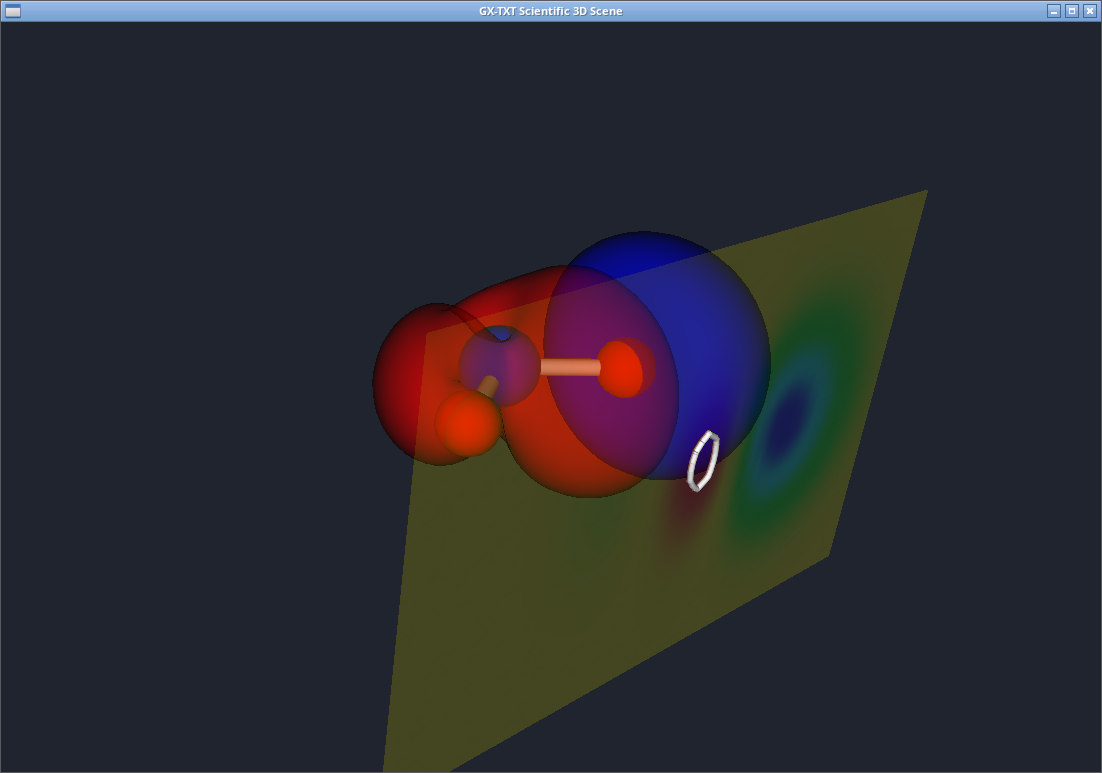
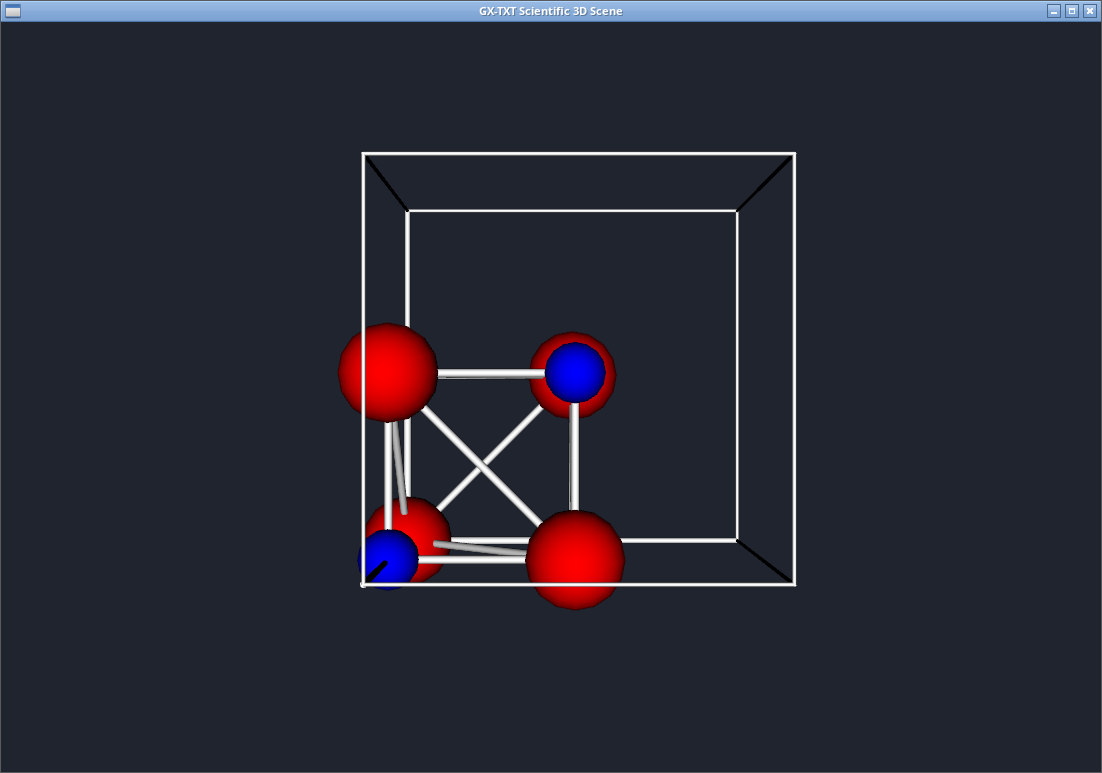
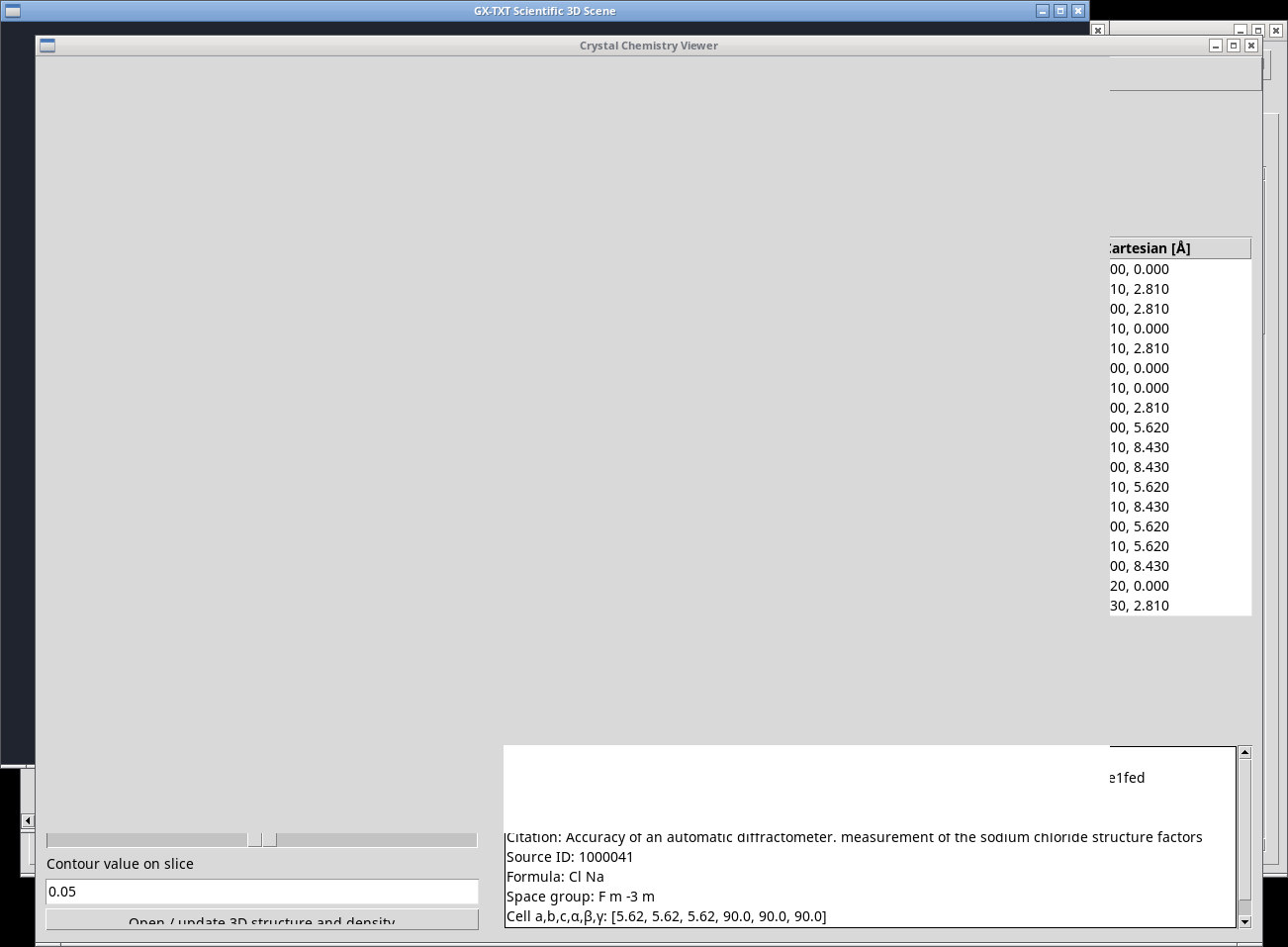
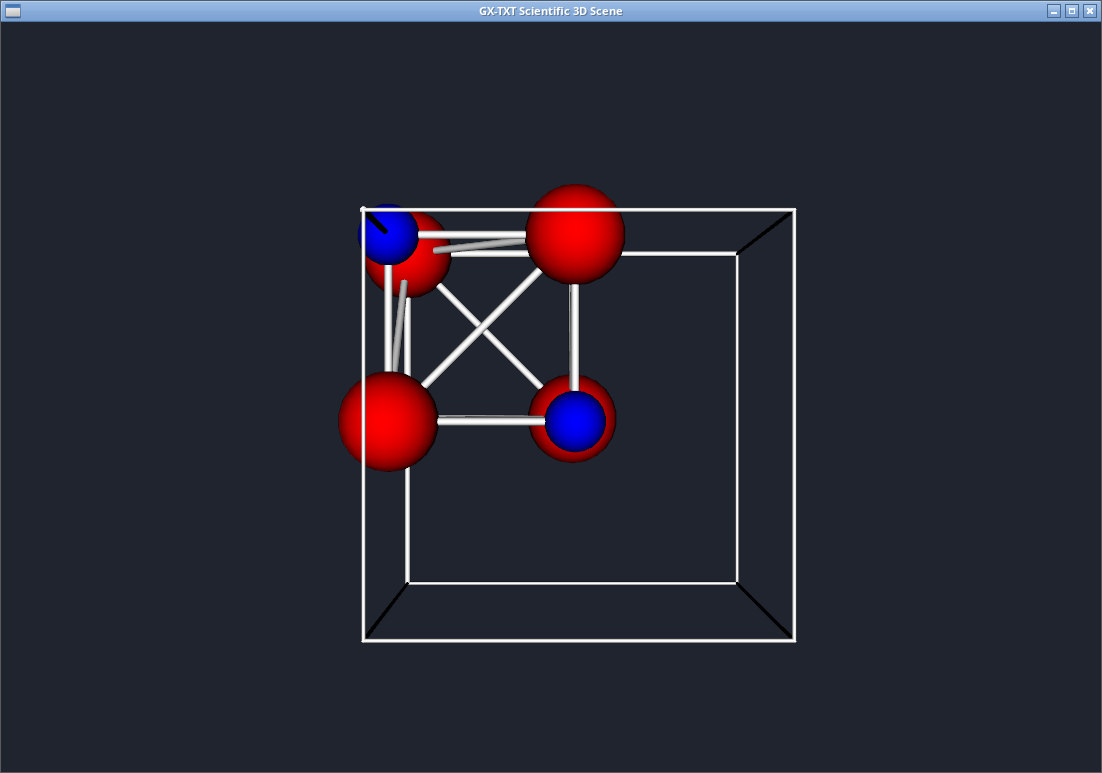
Select the structure, check the optional field, set the supercell and use Open / update 3D structure and density. Wait for Rendered … atoms and check the table. In the GX-TXT Scientific 3D Scene window you can recognise sites drawn as spheres, bonds when present, cell edges and axes. For a CUBE the scene also uses the objects of the chosen field. The display geometries are rebuilt from the originals in the Session.
If the first run asks for the Workspace database
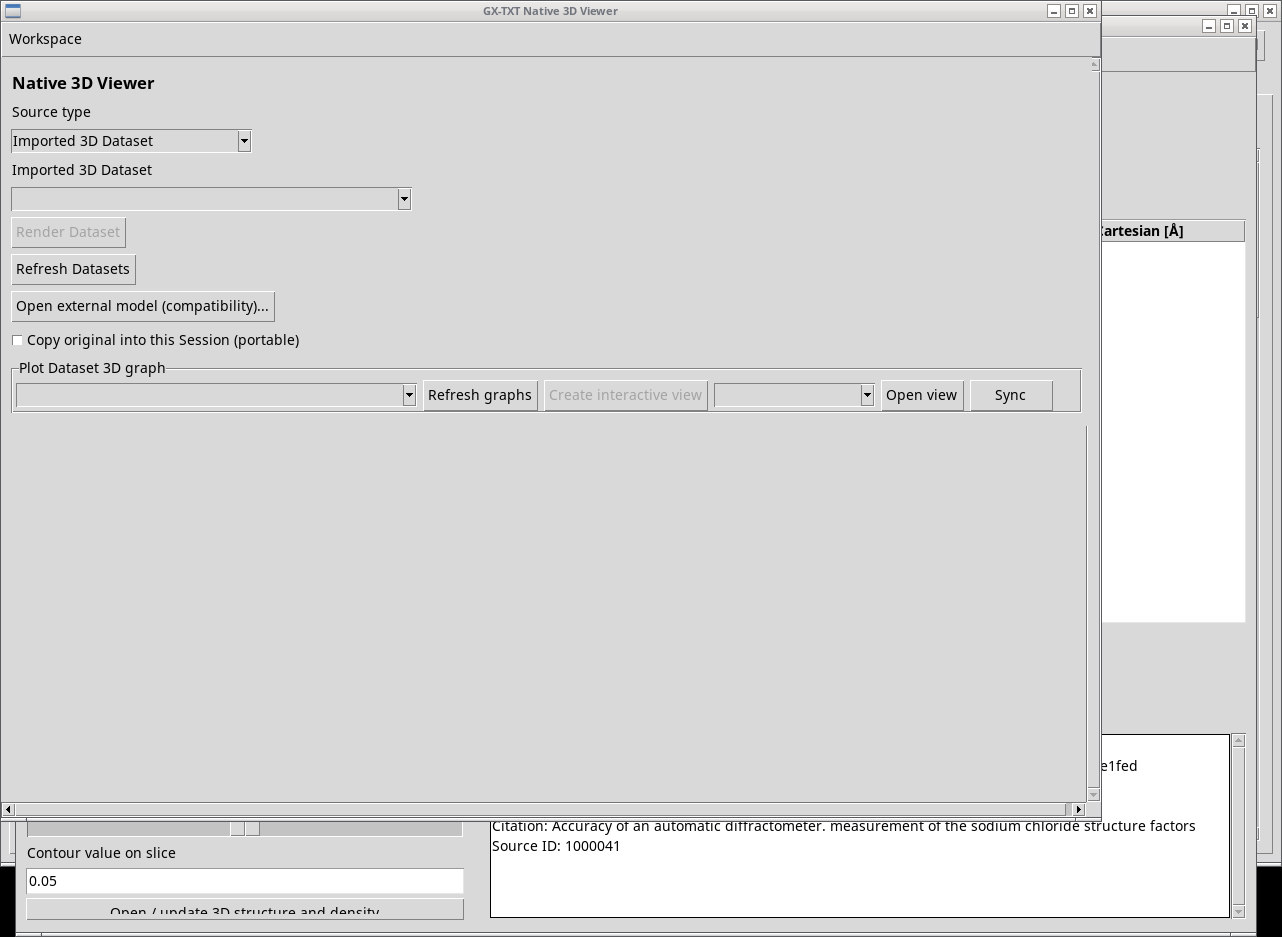
In a new Session the first render can open Native 3D and show Read-only Workspace database must already exist as a regular file. Close the message with OK, leave the Native 3D window open, go back to Crystal Chemistry and press Open / update 3D structure and density again with the same values. With halite, a successful update shows eight sites and Rendered 8 atoms. Bring GX-TXT Scientific 3D Scene to the front if the Native 3D panel hides the model. The scene may appear a few seconds after the command.
Update after every source change
Set the supercell
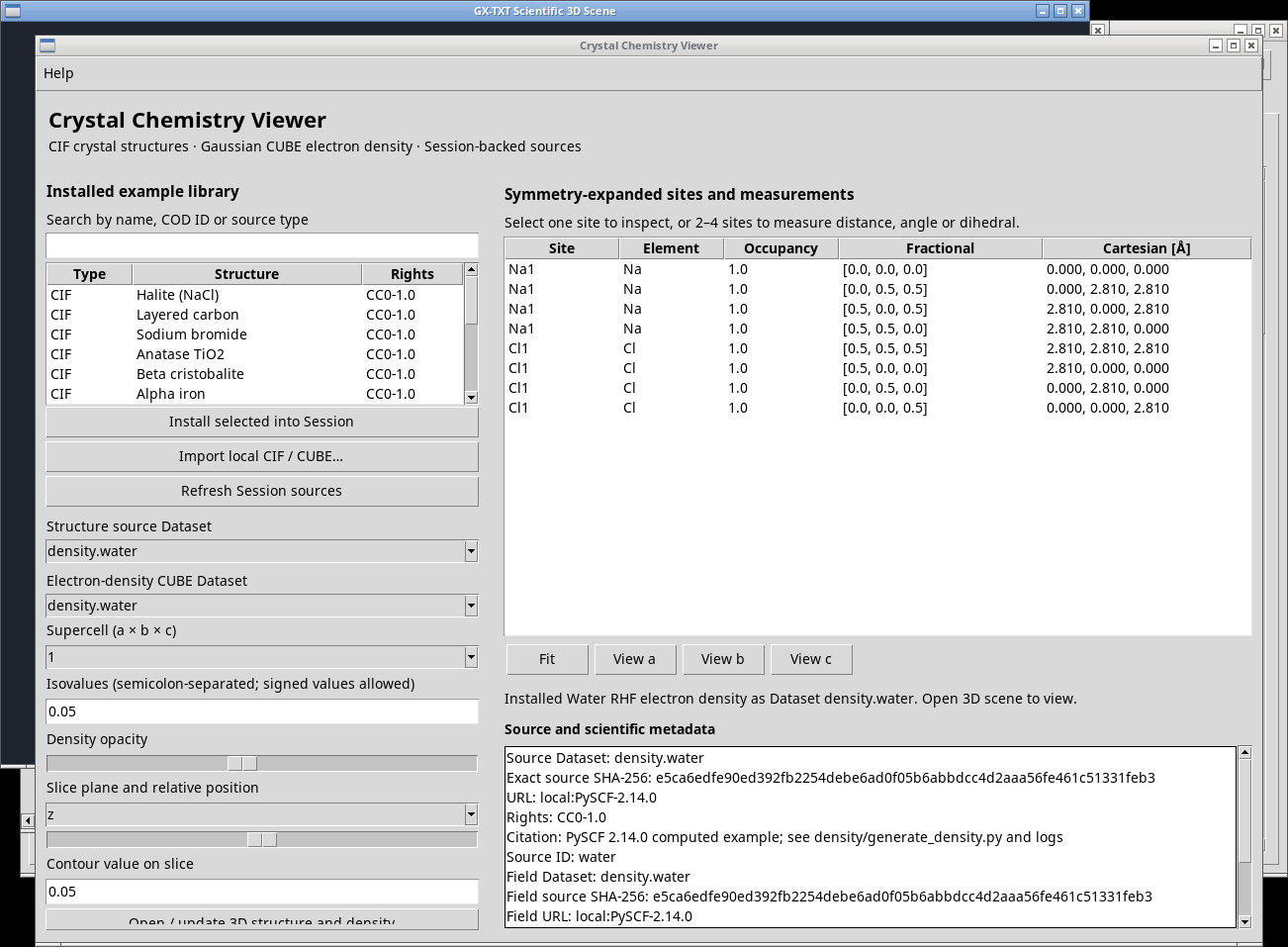
Supercell (a × b × c) offers one factor common to the three axes. 1 shows one cell, 2 repeats it twice in each direction, 3 three times. After the change, update the scene. For halite you get 8, 64 and 216 rows respectively. Extending the scene shows the neighbouring cells and can increase the rendering time. The command applies to the CIF. When the structure is a molecular CUBE, the atoms contained in the file remain.
Choose the framing
The buttons below the table act on the Native 3D window. Fit recentres and fits the framing to the content. View a recalls the front view, View b the side view, View c the top view. With the cubic cell of halite you can compare the three orientations. The views are camera presets. For an oblique cell, use the drawn axes as the geometric reference. The buttons change the view, while rows, measurements and source files stay the same.
Interact with the separate scene
Bring GX-TXT Scientific 3D Scene to the front. Drag with the left button to rotate the model, use the wheel to change the magnification and drag with the middle button to pan the framing. To find the model again, use Fit in the Crystal Chemistry window. For measurements, select the rows in the Crystal Chemistry table.