

Open Crystal Chemistry
Session, window, status and online help.
Open the viewer
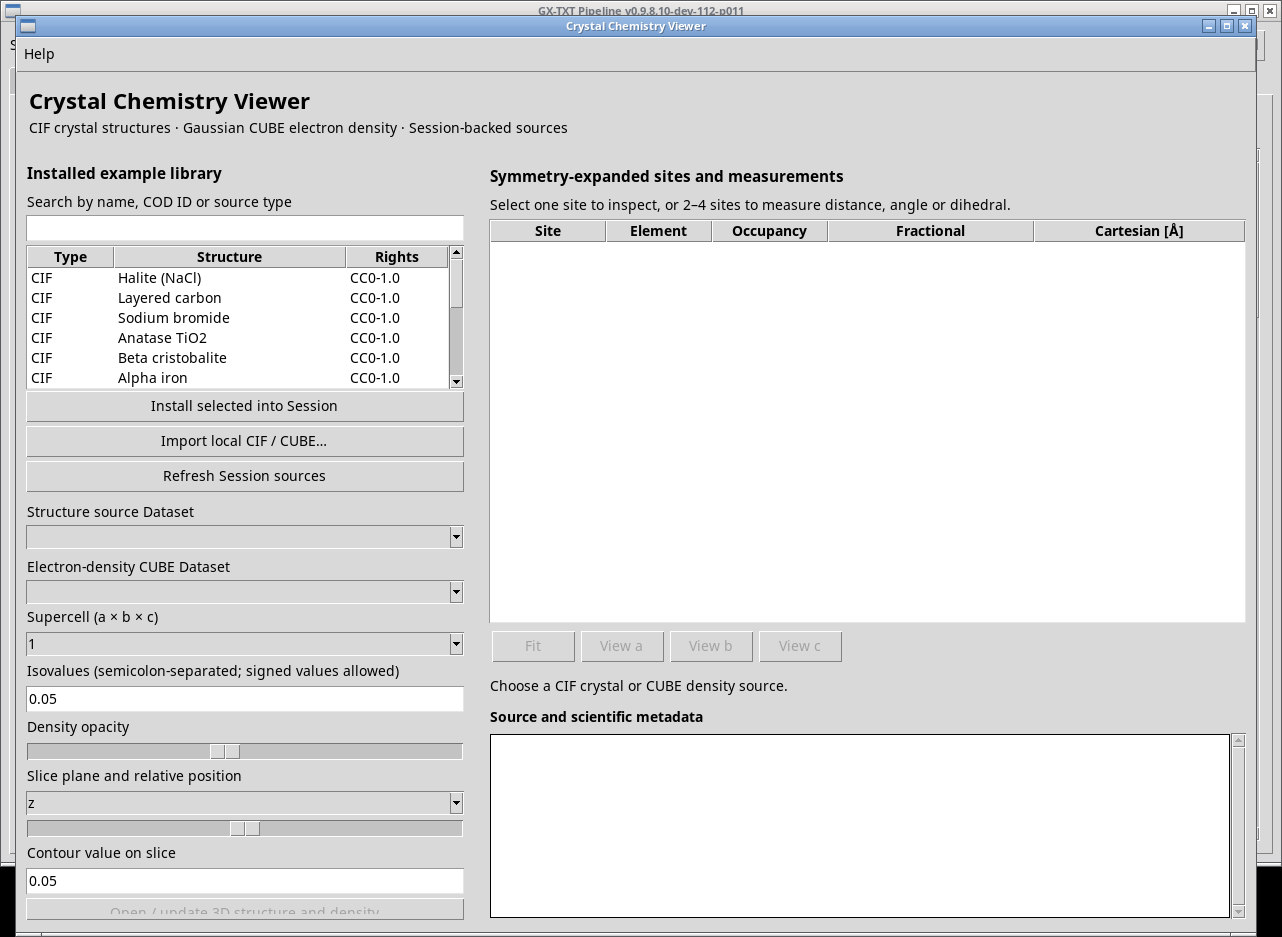
With GX-TXT open, choose Viewers → Chemistry & Structures → Crystal Chemistry. Crystal Chemistry Viewer opens. The window holds the source controls and the scientific summary. Rendering uses the GX-TXT Native 3D Viewer panel and draws the model in the separate GX-TXT Scientific 3D Scene window.
Prepare and reopen the Session
Open or create a GX-TXT Session before using the tile. If the main bar reads No Session open, the tile may not open the viewer. Installed and imported files become Datasets of that Session. Consultation uses the originals and their SHA-256 hashes. To resume work, reopen the same Session and the tile. After a successful render the viewer keeps the source choices and the scientific settings. Use Open / update 3D structure and density to rebuild the result and check that sites and metadata match.
Find your way around the panels
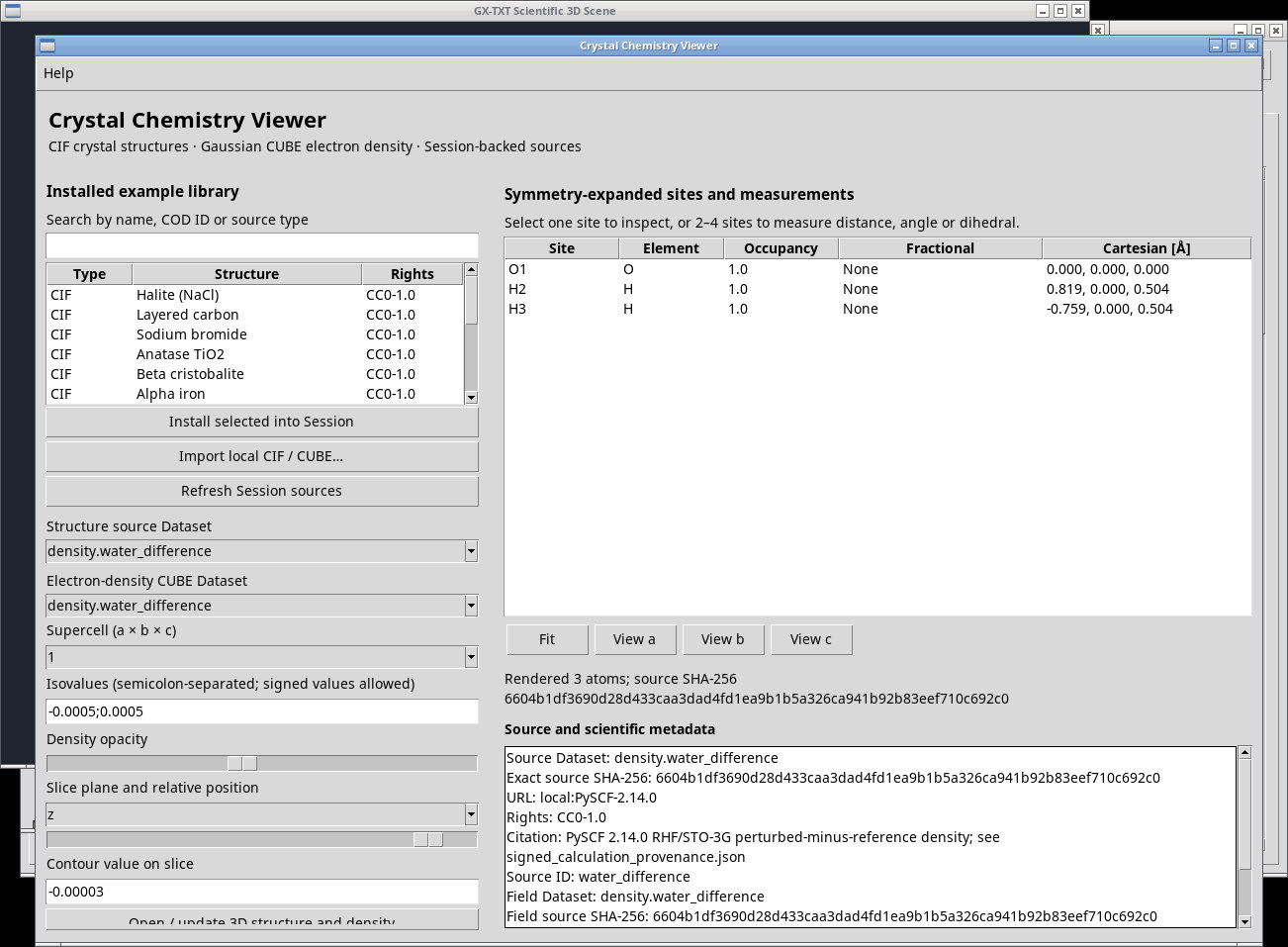
On the left you find the library, the Dataset selectors and the settings. On the right are sites, measurements, framing commands and metadata. Drag the vertical splitter if you need more room. The scroll bars let you read the list of examples and long metadata. The selection summary and the message at the bottom report progress, results and instructions. With no source the render command is disabled. Fit and the three views become active after a render with atoms.
Open the manual and identify the module
Help → User Manual… opens the built-in manual. You can also call it with F1. Help → About Module… shows the identity, version and information of the module. Close the dialog with OK to return to the viewer.