Open and find your way around
Enter from the Session, recognise the panels and reach the built-in documentation.
Open Circuit Workbench
Open or create a Session in GX-TXT. Go to Viewers → Simulation & Modeling → Circuit Workbench. In the catalogue you can search for the tile by the name of the viewer. A separate window opens. The Workspace just opened contains an initially empty circuit, and the analyses require a valid circuit or Session Datasets, depending on the operation.
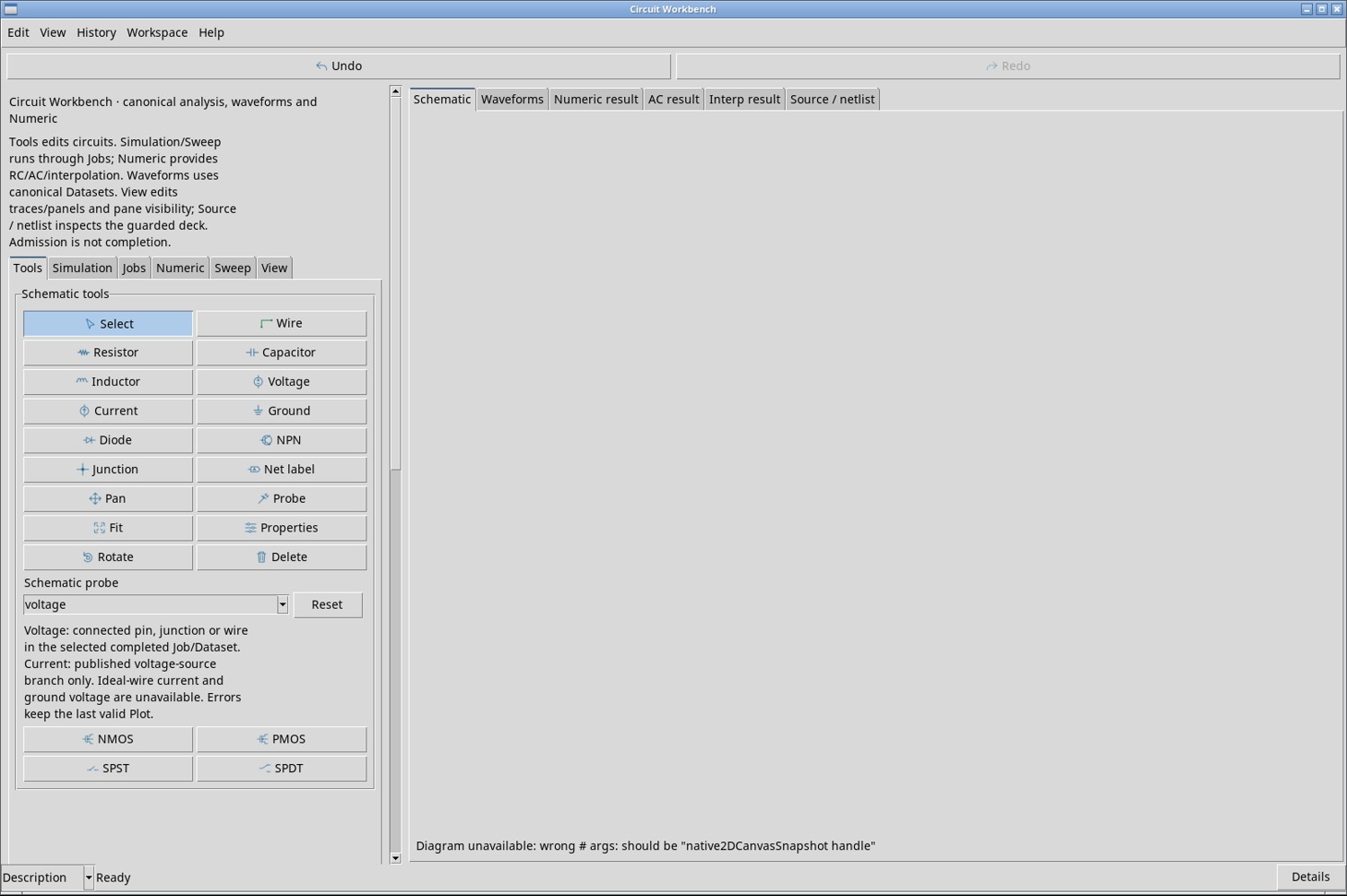
This guide describes GX-TXT DEV112 P011-bis with Circuit Workbench 1.10.1. In the tested version Schematic can stay grey and show Diagram unavailable: wrong # args: should be “native2DCanvasSnapshot handle”. Clicks can still change the document. Before starting a circuit, check that the grid and the symbols are visible. For the workflows you can use while the error is present, open the chapter on the schematic.
Move between the panels
| Inspector | What you prepare or change | Area where you check the effect |
|---|---|---|
| Tools | Circuit tools and probes. | Schematic |
| Simulation | Analysis type and Job destination. | Source / netlist for the validated source, Jobs for the execution. |
| Jobs | Status, log, sweep case and published Dataset. | Waveforms for the published curves. |
| Numeric | RC, AC and Interpolate on canonical data. | Numeric result, AC result and Interp result. |
| Sweep | Physical grids A and B of the component values. | Jobs and Source / netlist for the chosen case. |
| View | Traces, panels and visibility. | Waveforms and the panels of the window. |
The tabs on the left and on the right are independent. Drag the divider to widen the inspector. Use the side and bottom scroll bars to reach fields out of view. The footer shows the last action and the Description / History selector. Details opens the details of the history. The Edit → Undo command or the Undo button goes back one recorded action. Redo repeats the available step.
Open the manual and the module information
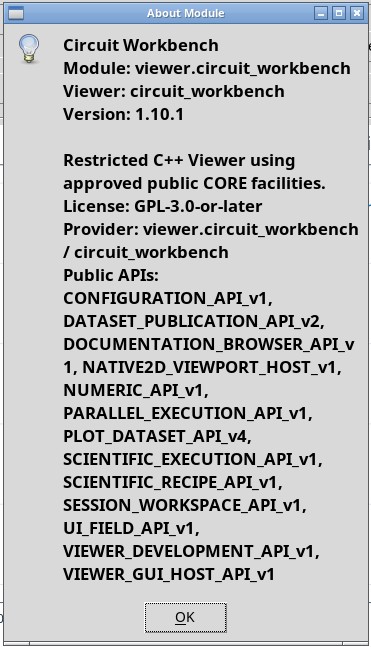
The Help → User Manual… menu opens the built-in manual. Help → About Module… shows the name and version of the module. Use the module version together with the GX-TXT version to compare the behaviour with the one described here. The built-in manual also keeps material about earlier revisions.