Use History and keep Workspaces
Navigate the recorded changes and keep a circuit with the scientific references of the Session.
Read and move through the History
Use the selector in the footer to switch from Description to History. The first mode shows the description of the action. The second shows the recorded step. Details and History → History details… open the list of steps. Show / hide Description / History strip hides and restores the strip.
Press Undo or Ctrl+Z to go back to the previous step and Redo or Ctrl+Y to move forward. The same commands are in Edit and History. At the limit of the history the corresponding command is disabled. A new change during a historical branch can ask for confirmation to replace the Redo queue. To keep the queue, cancel the confirmation and reach the current step before making the change.
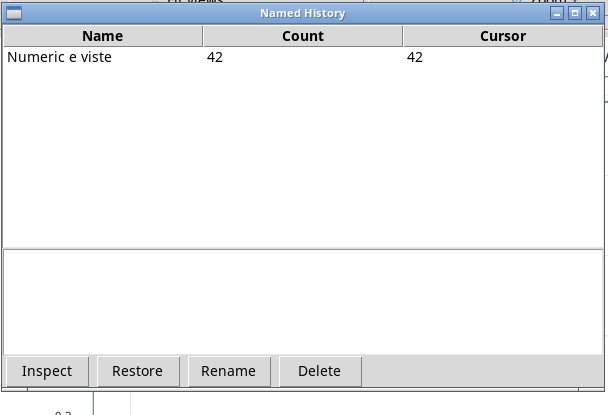
Save History As… records a history with Name and Apply. Named History… shows Name, Count and Cursor. Select an entry and use Inspect to read it, Restore to resume the recorded state, Rename to change its name and Delete to delete the named copy. Any Restore named History confirmation lets you save the Workspace first with Yes, replace the draft with No or continue without restoring with Cancel. Check origin and state before restoring.
Create, save and find a Workspace
| Workspace command | Use and check |
|---|---|
| New workspace… | Opens a new Workspace of the viewer. Use a name that identifies the new circuit. |
| Save | Records the current Workspace in the Session. Check that the operation ends and that the object is in the manager. |
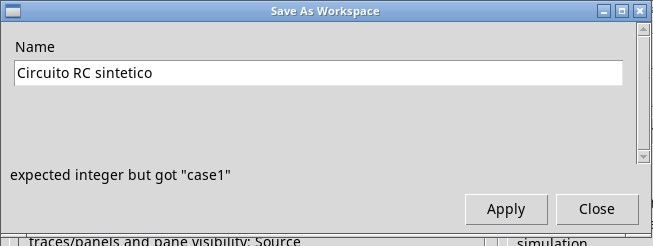
| Save As… | Type Name and press Apply for a copy with a distinct name. Close abandons the dialog. |
| Open workspace… | Select a compatible Circuit Workbench Workspace and open it in its Session. |
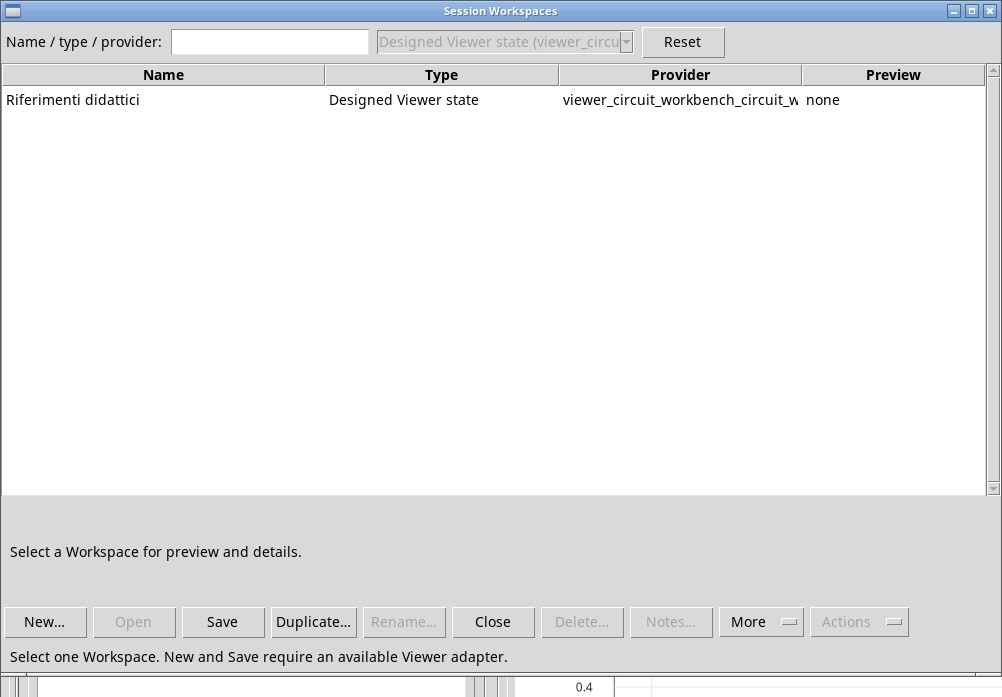
| Session Workspaces… | Shows the list of the Session. Filter by Name / type / provider and use Reset to return to the full list. Check Name, Type, Provider and Preview before pressing Open. |
| Rename… | Changes the name of a saved Workspace. The IDs of the Jobs and Datasets do not depend on the label shown. |
| Notes… | Reads or adds notes for the selected Workspace, if available. |
| Preview… | Shows the associated preview if present. A selection without a preview can show none in the manager. |
| Refresh | Updates the list from the Session. |
| Close | Closes the working view. First check that the necessary changes are saved. |
| Delete… | Removes the chosen Workspace from the Session after confirmation. Check the name in the dialog before confirming. |
| Actions | Shows any commands of the selected provider. If there is no usable selection, the menu is disabled. |
In the manager New…, Open, Save, Duplicate…, Rename…, Close, Delete… and Notes… act on the selection or on the active viewer depending on the command. More groups Preview, Import…, Export… and Refresh. Without a saved entry you cannot rename, export or open objects from the manager.
Import, export and reopen
Export… for a saved Workspace opens the destination dialog of the package. Import… opens the archive to insert into the Session and asks you to resolve any duplicate names. A Workspace keeps settings and references; to carry dependent sources and Datasets use, when needed, the complete Session. Open the item from the manager after importing. If the Workspace changes dialog asks what to do with the current Workspace, choose Yes to save it, No to abandon the test changes or Cancel to keep editing it. In the test with the Workspace package alone, the import succeeded but opening showed Saved diagram differs from current authority. The complete Session instead reopened the circuit with the same netlist. Check the source in Source / netlist and the provenance before reusing a result. On reopening, the in-memory preparations must be done again. In Jobs you can use Reconnect for a saved Job.
When Save As stops after the sweep
In P011-bis, after publishing case1 of a completed campaign, Workspace → Save As… returned expected integer but got “case1”. The manager stays without the new Workspace. The Jobs and the published Dataset can still be consulted in the Session. Reset on the case selector cleared the visible choice, but the same Save As operation was still rejected. Save a separate Workspace before the sweep to keep a restart point, and check the Datasets already published in the Session. Persistence and reopening of the campaign must be tried again after the fix.