

GX-TXT Curve Digitalizer — Tutorial 02: Digitizing a Curve Family with Multiple Calibrations
In the first tutorial, we covered the fundamentals of scientific curve digitization. Now we move on to a more involved case: extracting several curves from the same image, applying different calibrations, and publishing the results as a scientific Dataset in GX-TXT.
This exercise uses a synthetic family of closely spaced curves. It illustrates a real challenge of assisted digitization: identifying the correct curve when an image contains many similar traces.
We will learn how to use guide points, correct an automatic tracing proposal, exclude neighboring traces, and compare different sampling settings. We will complete the exercise by publishing a Dataset containing three curves under three calibrations, then inspecting it with the Preview tools.
1. The source Dataset
For this exercise, we use the synthetic source calibrated_curve_family, available in GX-TXT.
The Session contains three main Datasets:
calibrated.family.image: the image to digitize;calibrated.family.raw: the original numerical data for the curve family;calibrated.family.source: the reference data associated with the calibration transformations.
The image has a resolution of 1201 × 1001 pixels and contains 50 colored curves with gently parabolic shapes.
The curves are numbered sequentially and are separated by relatively small vertical distances. This makes it possible to see just how important tracing verification becomes, especially when working with an assisted recognition algorithm.
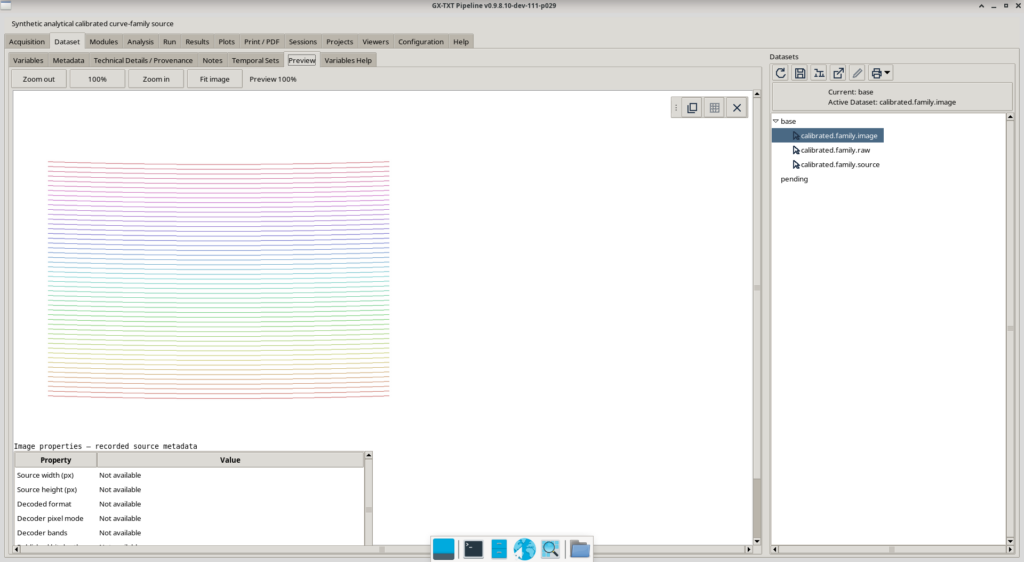
The initial preview lets us identify the traces and decide which ones to digitize.
We will not use all 50 curves. Instead, we will select three at different positions in the image.
| Selected curve | Family index | Display name |
|---|---|---|
| Curve 6 | 5 | Source curve 06 |
| Curve 16 | 15 | Source curve 16 |
| Curve 26 | 25 | Source curve 26 |
The numeric family value is different from the curve’s displayed name: for example, Source curve 06 corresponds to the value c = 5.
Opening the image in Curve Digitalizer
From the Session, we open the Image Dataset in GX-TXT Curve Digitalizer and create a configuration named:
Tutorial 02 - Family
In the Source tab, we check that the selected Dataset is calibrated.family.image.
The application displays the source properties, including its dimensions, format and SHA-256 fingerprint. These details identify the specific image being used.
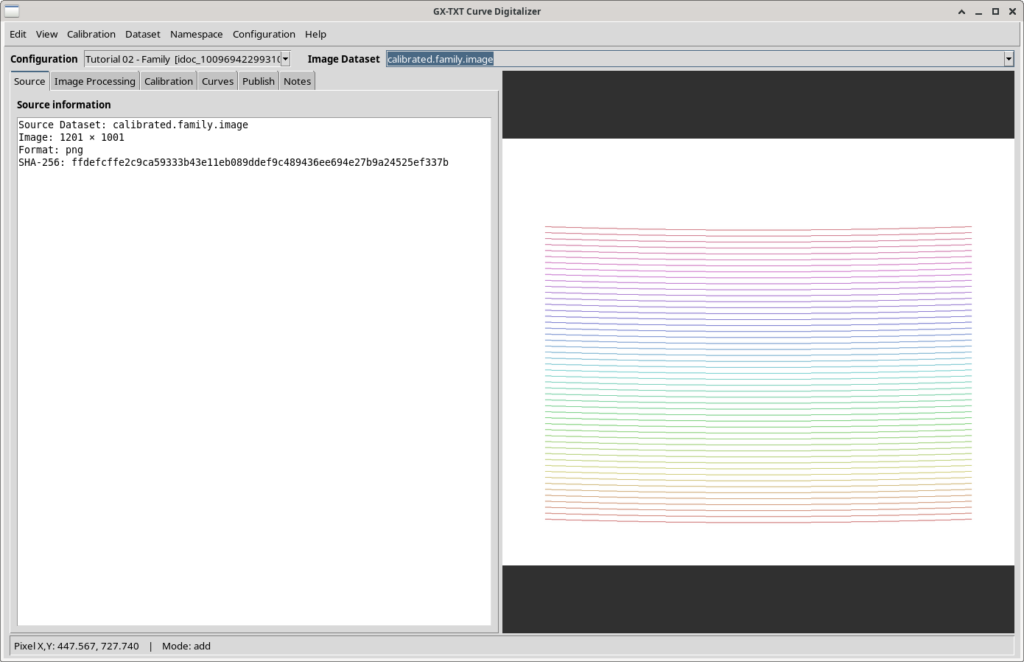
It is important to work with a configuration associated with the correct source: the coordinates of digitized points are meaningful only relative to the image from which they were extracted.
2. Creating three calibrations
Digitization begins with pixel coordinates. To obtain scientific values, we need to specify how image coordinates are transformed into physical coordinates.
In our experiment:
- the X-axis represents a time quantity, expressed in seconds (
s); - the Y-axis represents a voltage, expressed in volts (
V); - both axes are linear.
The image does not contain explicit graphical corner markers for the plotting area, so we use full-image calibration.
In the Calibration tab, set Y direction → Upward (Cartesian) and use Auto-calibrate full image.
This operation identifies the four corners of the image:
| Corner | X pixel | Y pixel |
|---|---|---|
| BL — Bottom Left | 0 | 1000 |
| BR — Bottom Right | 1200 | 1000 |
| TL — Top Left | 0 | 0 |
| TR — Top Right | 1200 | 0 |
We then define the physical axis limits. The order matters: automatic full-image calibration initially sets pixel-based limits, which must subsequently be replaced with the scientific limits.
The three calibration realizations
We create three realizations, labeled k0, k1 and k4, using the following values:
| Calibration | X minimum (s) | X maximum (s) | Y minimum (V) | Y maximum (V) |
|---|---|---|---|---|
| k0 | −1 | 11 | −1 | 9 |
| k1 | −0.991 | 11.021 | −1.0045 | 8.9905 |
| k4 | −0.964 | 11.084 | −1.018 | 8.962 |
For each realization, we define the geometry, apply the axis settings, and accept the valid calibration.
At the end, the calibration list contains three accepted measurements. One may be active for the current display, but this does not prevent us from retaining and later publishing the others.
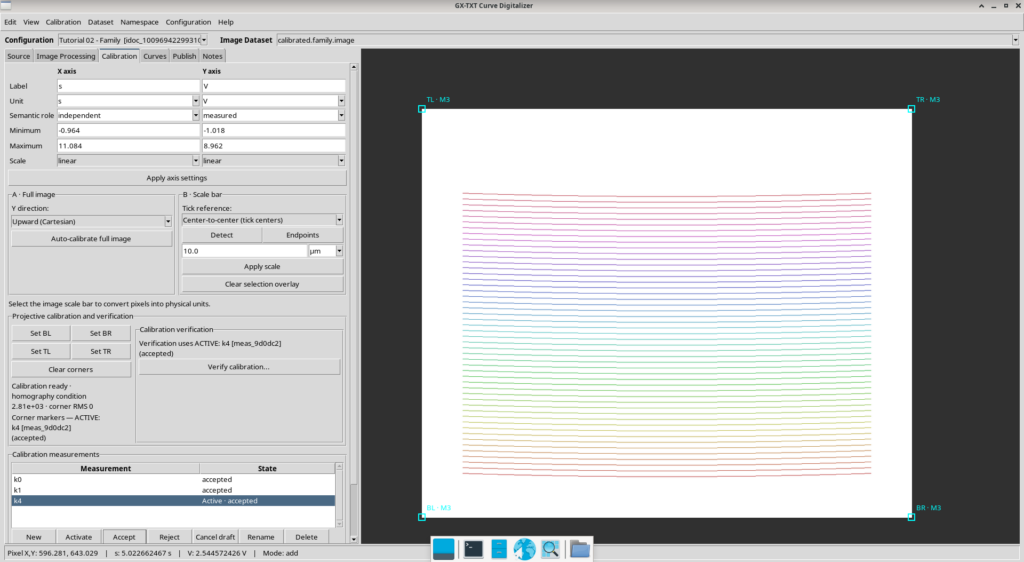
The screenshot shows k4 as the active calibration, while k0 and k1 are also accepted.
Why use multiple calibrations?
The key point is that a single raster point can correspond to different scientific coordinates depending on the calibration applied.
The three realizations share the same image and the same digitized points. They are not three independent acquisitions of the same physical phenomenon.
Here, they allow us to explore publication with alternative calibrations and verify how GX-TXT preserves the identity of the transformation applied.
3. Preparing the curve family
Switch to the Curves tab and enable:
This configuration is a numerical curve family
Set the following properties:
| Property | Value |
|---|---|
| Family quantity | c |
| Family unit | 1 |
| Semantic role | family |
The value 1 denotes a dimensionless unit. It must not be left blank: it is part of the scientific declaration of the curve family.
We then create three curves with values 5, 15 and 25.
We are now ready to begin assisted digitization.
How assisted tracing works
The system uses a set of guide points, placed by the operator, to identify a likely path among the traces in the image.
The main controls are:
- Add guide: adds guide points along the desired curve;
- Propose: computes a tracing proposal;
- Edit proposal / Add correction point: allows the proposal to be corrected;
- Exclusion paths: defines regions to avoid, reducing the chance of following neighboring curves;
- Accept: accepts the reviewed result.
Other important settings are Corridor, Step, Smooth curve prior and Output points (Accept).
The Corridor setting defines the search region around the guided path. Step controls the sampling distance used when searching the raster, while Output points determines the number of points produced when the trace is accepted and resampled.
These last two parameters must not be confused: increasing the output point count does not create new independent observations from the image.
4. First curve: Source curve 06, Step 2 px
We begin with the curve having family value c = 5.
We add the initial guide points, set a search corridor of approximately 6 pixels and use a 2-pixel Step.
The first proposal reveals a difficulty: the desired trace is surrounded by many similar curves. In some intervals, we need to correct the proposed path to keep it on the right curve.
Reviewing and correcting the proposal
To prevent the search from moving onto neighboring traces, we can use Exclusion paths.
In our experiment, we defined exclusion paths above and below the target curve. They appear as red bands and control points.
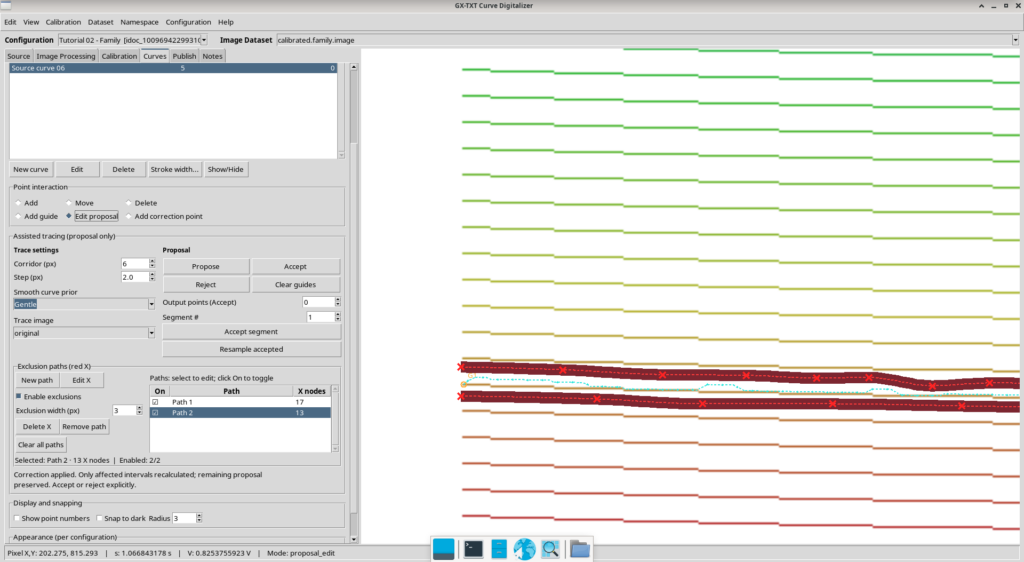
The screenshot shows the assisted trace, the exclusion paths, and the need to adjust the proposal.
We then switch to Edit proposal and add correction points in the problematic regions. The goal is not simply to obtain a line that looks continuous, but to verify that the points follow the intended raster trace.
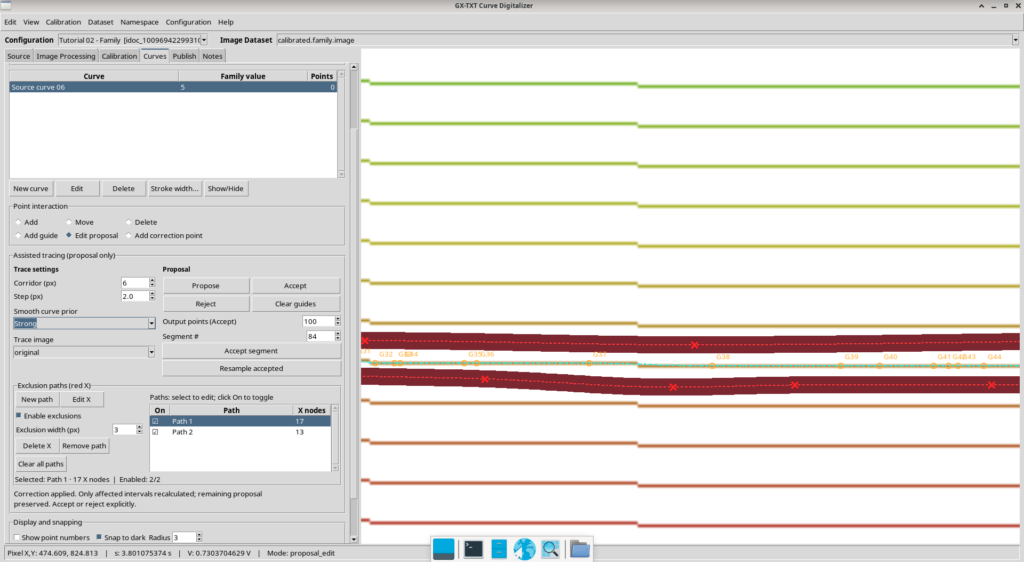
This step proved particularly demanding: approximately 83 correction guide points were needed to obtain a usable path.
This result deserves attention.
An automatic proposal can generate many points relatively easily. However, if it requires extensive corrections, it may not save time compared with careful manual tracing.
Accepting the result
After checking the path, we set Output points (Accept) = 100 and accepted the trace.
The screenshot reports 86 out of 86 accepted segments and the addition of 100 assisted points.
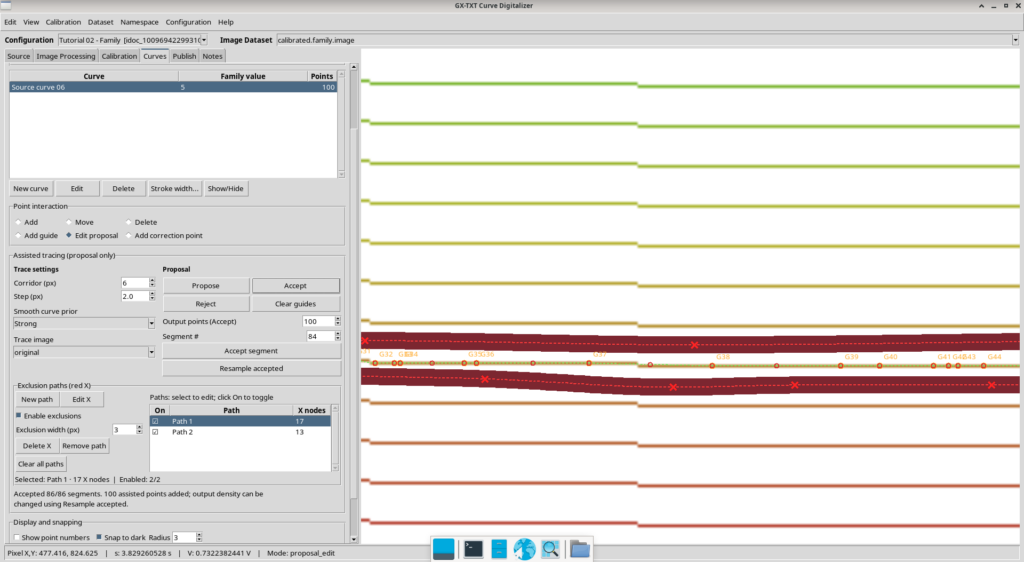
These 100 points form the digitized series that we will retain in the configuration.
They must not be interpreted as 100 independent physical measurements: they originate from observing and processing the same trace in the image.
5. Second curve: Source curve 16, Step 10 px
For the second curve, we choose family value c = 15.
We again use assisted tracing, but increase the Step to 10 pixels, with an 8-pixel corridor and the setting Smooth curve prior = Strong.
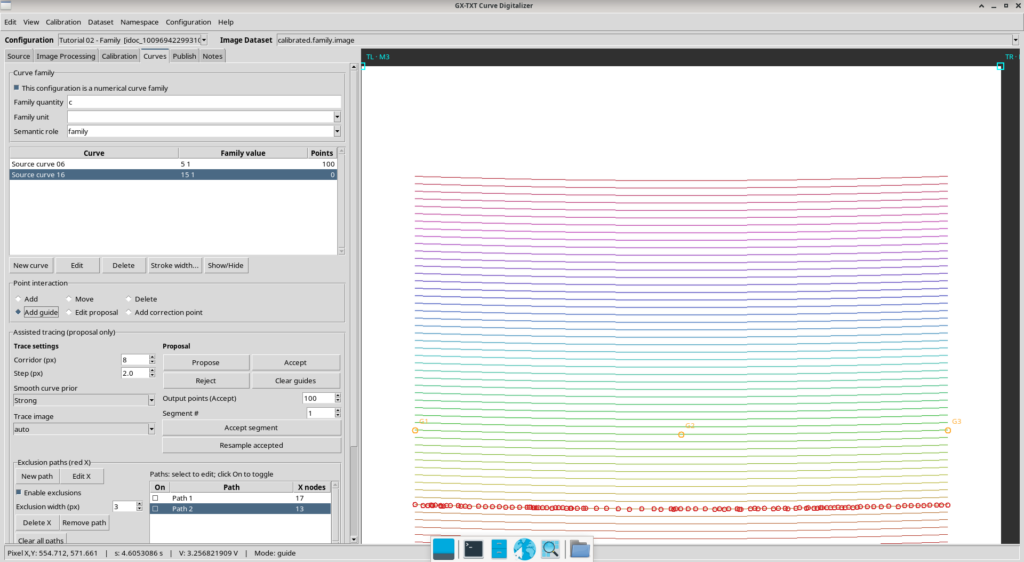
We place guide points on the intended trace and ask the system to generate a proposal.
Increasing Step makes the search sampling less dense than in the first case. In this trial, the proposal was easier to correct.
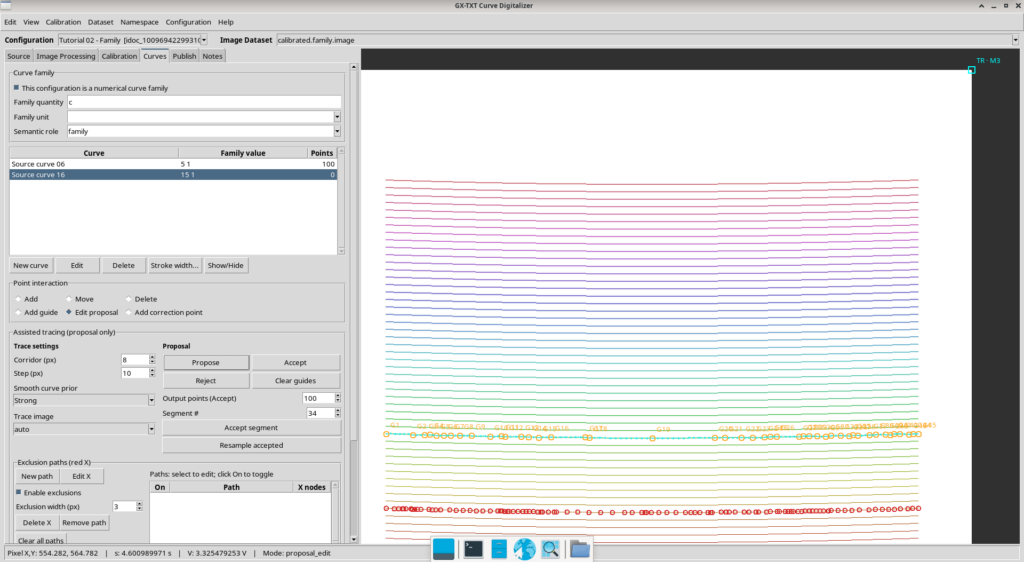
Several correction points were still necessary, but fewer interventions were needed than for the first curve.
After checking the proposal, we again accept an output of 100 points.
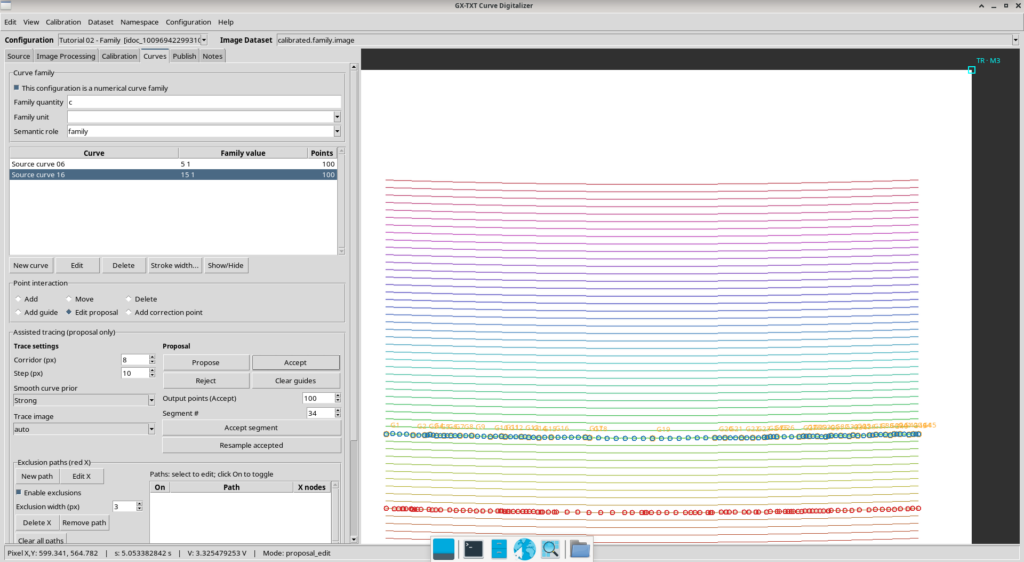
The configuration now contains two digitized curves, each consisting of 100 points.
This comparison suggests a practical lesson: maximum search-sampling density is not necessarily the most effective choice.
The quality of a proposal also depends on curve geometry, contrast, guide point placement, and separation between traces.
6. Third curve: Source curve 26, Step 20 px
We complete the experiment by selecting the curve with family value c = 25.
This time we use:
| Parameter | Value |
|---|---|
| Corridor | 6 px |
| Step | 20 px |
| Smooth curve prior | Strong |
| Trace image | auto |
| Output points (Accept) | 100 |
We add just three guide points, labeled G1, G2 and G3: one near the beginning of the curve, one around its midpoint, and one toward the end.
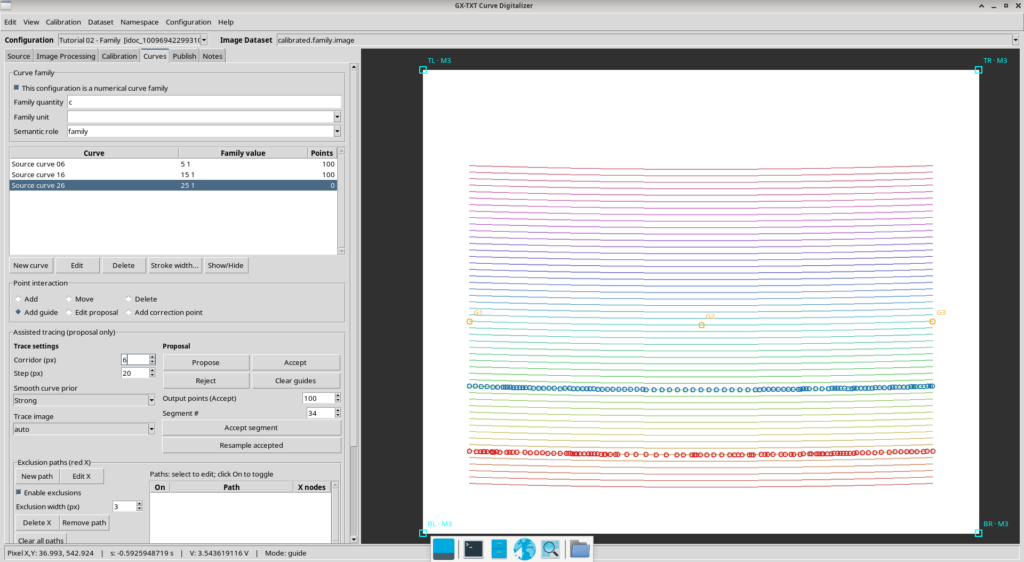
Click Propose.
The application returns a proposal with 52 search points, two segments, and no segments flagged as potentially ambiguous.
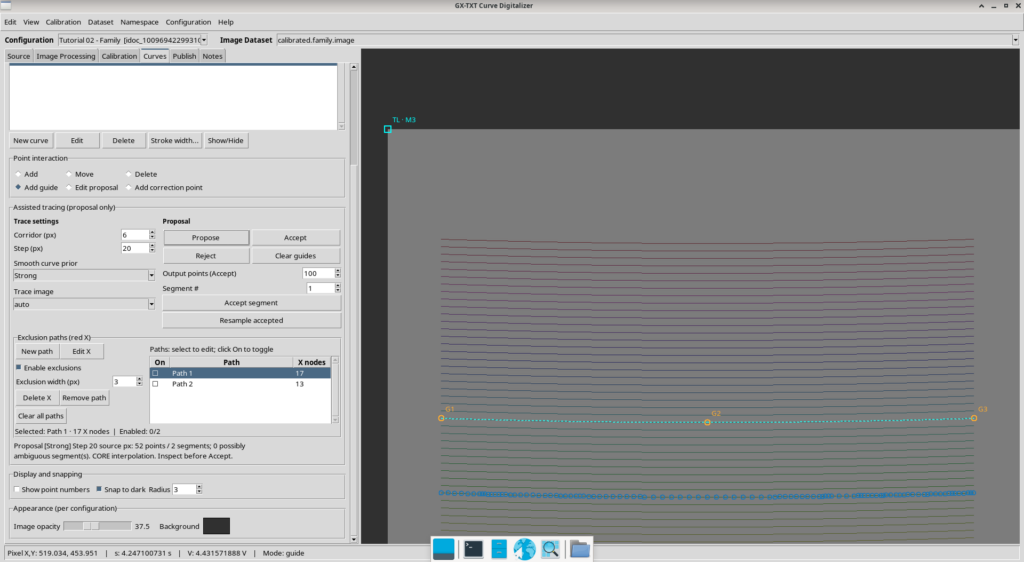
The path appears visually consistent with the target curve, without any need to add further correction points.
After reviewing the result, click Accept.
The confirmation reports 2 out of 2 accepted segments and the addition of 100 assisted points.
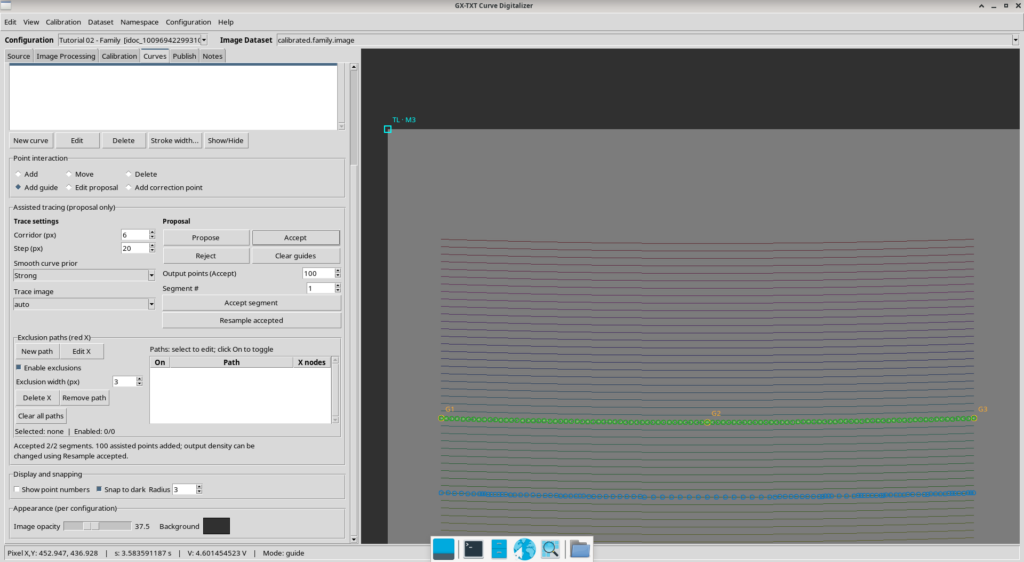
The increase from 52 proposal points to 100 accepted points results from the requested resampling. It does not mean that another 48 independent observations were made from the image.
Comparing the three trials
| Curve | Step | Accepted output | Observations |
|---|---|---|---|
| Source curve 06 | 2 px | 100 points | Extensive corrections, approximately 83 |
| Source curve 16 | 10 px | 100 points | Fewer corrections |
| Source curve 26 | 20 px | 100 points | Three initial guides, no additional corrections |
This is an interesting operational result, but it must be interpreted cautiously.
We worked on three different curves. Therefore, this is not a controlled comparison of the same signal under otherwise identical conditions.
We can conclude that, in this exercise, the configuration with a 20 px Step required fewer interventions. We cannot conclude that a 20 px Step is universally more accurate or faster.
Improving visibility during review
To inspect the proposals, we also used the Image opacity control, reducing it to 37.5% and selecting a dark background.
This makes the points and guides easier to see against the raster traces.
Opacity is a display setting: it does not change the coordinates or the scientific contents of the points.
7. Checking the three curves before publication
Before publishing, we return to the curve family list and verify that it contains the three intended curves:
- Source curve 06,
c = 5, 100 points; - Source curve 16,
c = 15, 100 points; - Source curve 26,
c = 25, 100 points.
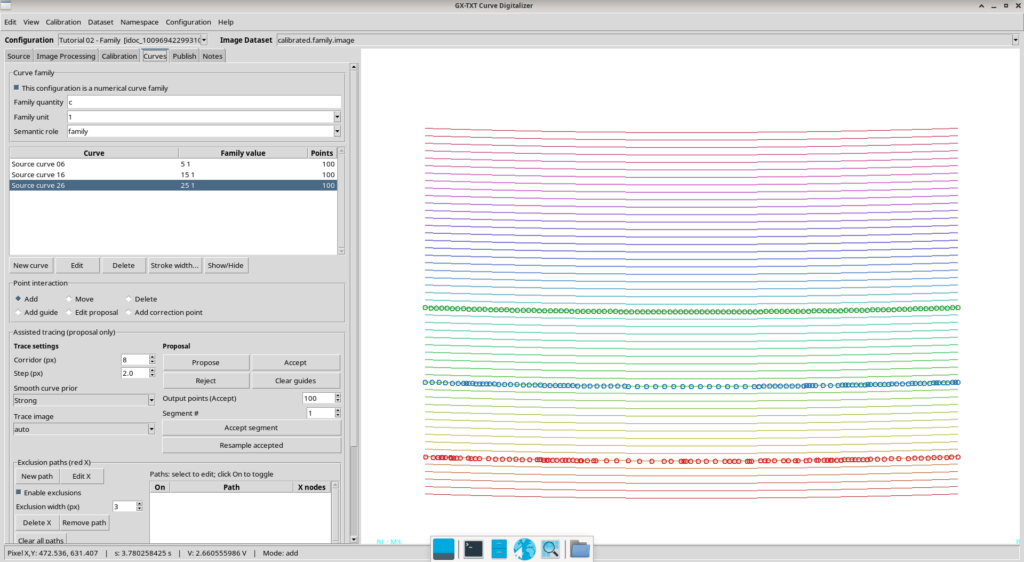
The configuration now contains 300 digitized points.
Family values, units, and curve identities are all part of the data we intend to publish. Checking the overall point count is not enough: we must also verify that each point belongs to the correct curve.
8. Publishing the Combined Dataset
Switch to the Publish tab.
Our goal is to publish the three curves using all the previously accepted calibrations: k0, k1 and k4.
Set the following properties:
| Property | Value |
|---|---|
| Publication base Dataset ID | digitized.tutorial02.family |
| Display name | Tutorial 02 - Three curves |
| Curve contract | curve_family.table |
| Publication layout | combined |
| Selected calibrations | k0, k1, k4 |
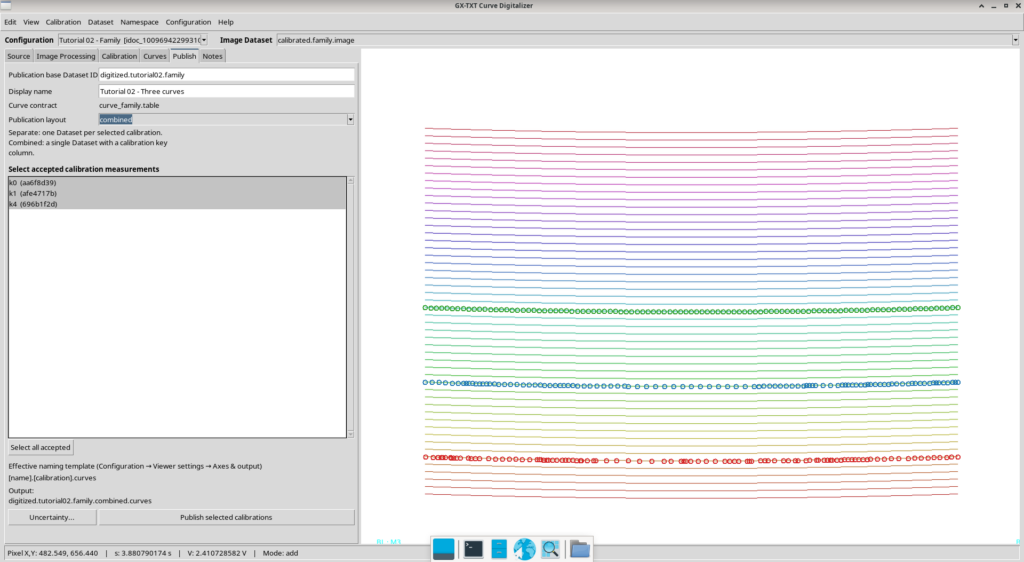
Separate versus Combined: what is the difference?
In Separate mode, the system produces a separate Dataset for each selected calibration.
In Combined mode, which we use here, all combinations are stored in one Dataset, with a column identifying the calibration.
This second option makes it convenient to compare results from several transformations without confusing the origins of the points.
The expected row count is:
3 curves × 100 points × 3 calibrations = 900 rows
For this exercise, we do not declare an uncertainty. Not declaring an uncertainty is not the same as declaring zero uncertainty.
Click Publish selected calibrations.
The application confirms:
Published 1 Dataset(s)
with the identifier:
digitized.tutorial02.family.combined.curves
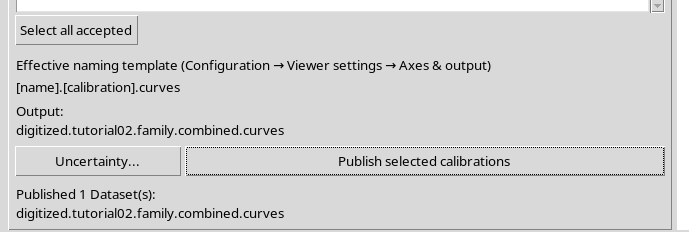
We have now obtained a scientific Dataset containing 900 rows.
The most important point is that these rows originate from 300 distinct raster points, represented under three different calibrations.
9. Inspecting the result in Dataset Preview
We can now leave Curve Digitalizer and work directly with the published Dataset.
In GX-TXT, open the Dataset → Preview tab and select:
digitized.tutorial02.family.combined.curves
Dataset Preview lets us inspect coordinates, grouping, the source image, and the quality report.
9.1 The scientific plot
In the Plot tab, select X in seconds and Y in volts.
The grouping controls let us distinguish Family, Curve and Calibration.
To display every combination, we need to select all three family values, all three curves, and all three calibrations, then click Render to apply the settings.
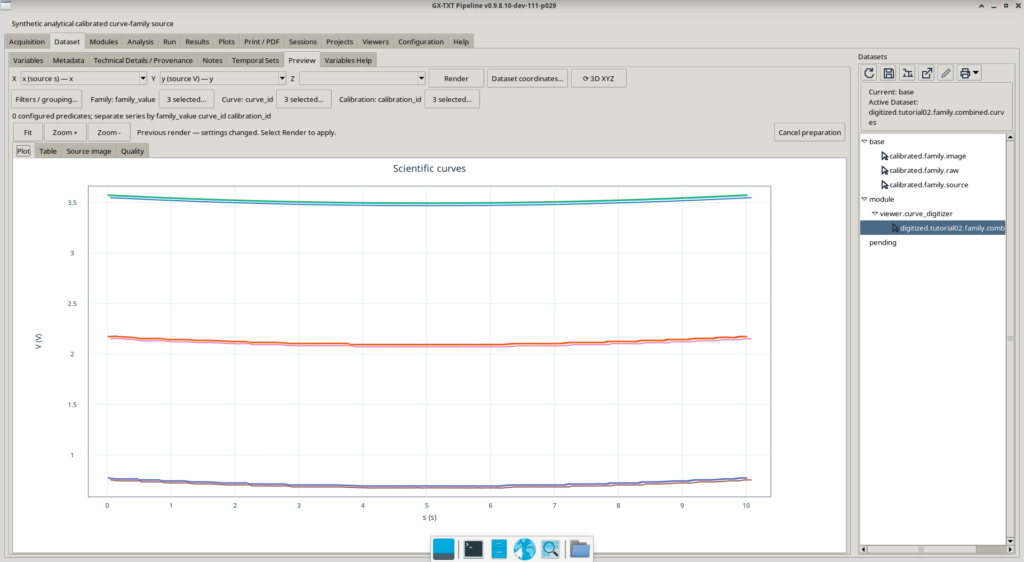
Traces corresponding to the same raster curve may appear very close together, because different calibrations transform the same points using slightly different parameters.
This is why curve and calibration identifiers must remain distinct even when plotted lines appear to overlap.
9.2 Source image: returning to the original pixels
Switch to the Source image tab.
Here we see the original image with the digitized points overlaid on the three curves. Using Show / Hide, we can hide or show one curve at a time and visually check how well its points match the raster.
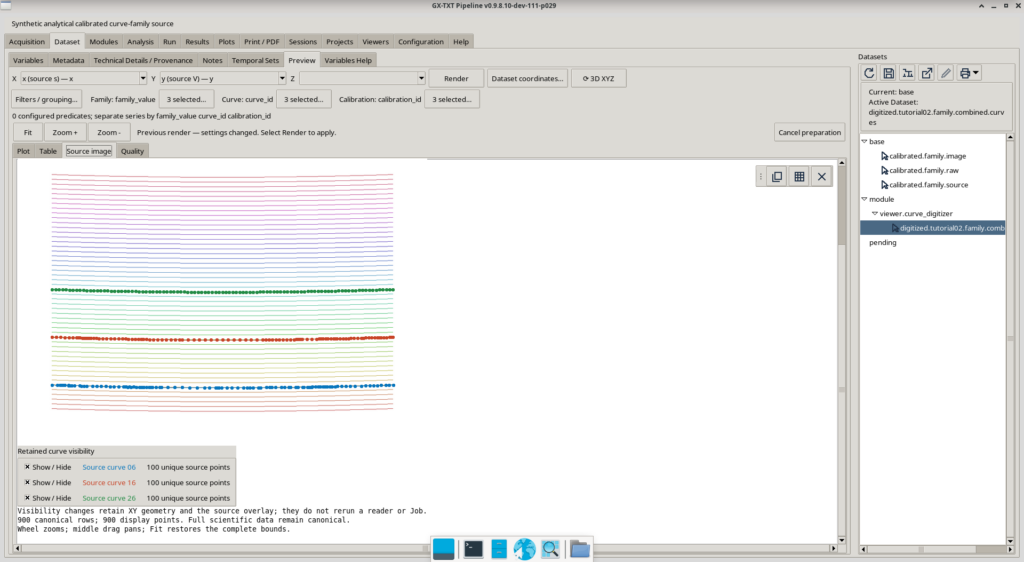
There is one fundamental distinction:
Source image does not refer to any particular calibration.
This panel uses the original raster coordinates. The calibrations k0, k1 and k4 change the scientific coordinates, but not the position of a point in the image.
Therefore, we see 300 distinct original points, not 900 geometrically different points.
The overlay is a way to check digitization against the source; it is not a certification of physical accuracy.
9.3 The canonical table
The Table tab lets us inspect the Dataset rows.
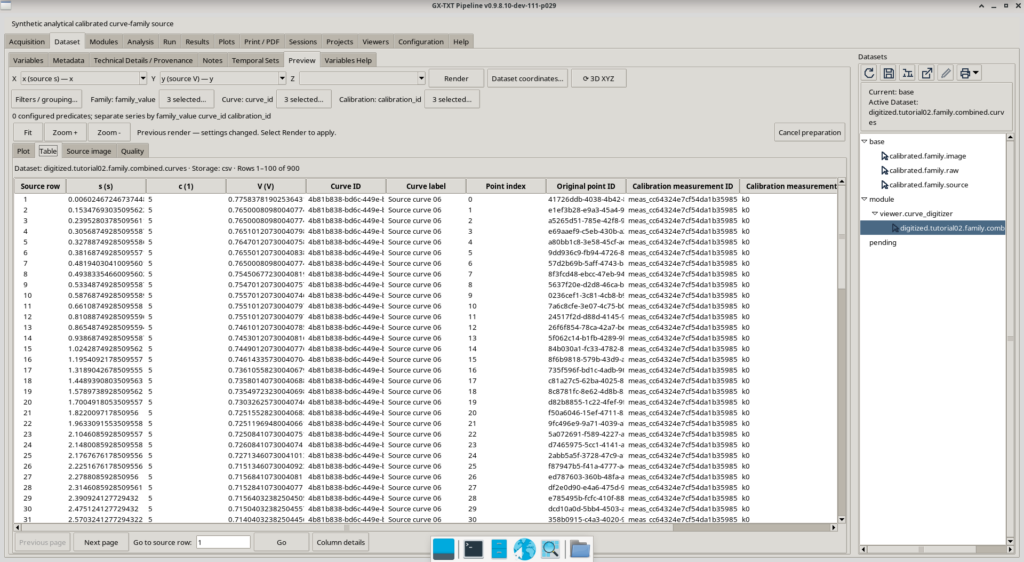
The screenshot shows rows 1–100 of 900. Pagination does not remove data: it simply allows us to inspect the table one page at a time.
Important fields include:
- X and Y coordinates with their respective units;
- family value;
- curve identifier and name;
- point order index;
- original point identifier;
- calibration identifier and name.
To identify a series correctly, we must consider both the curve and the calibration applied.
9.4 The Quality report
The Quality tab contains the diagnostic information published with the data.
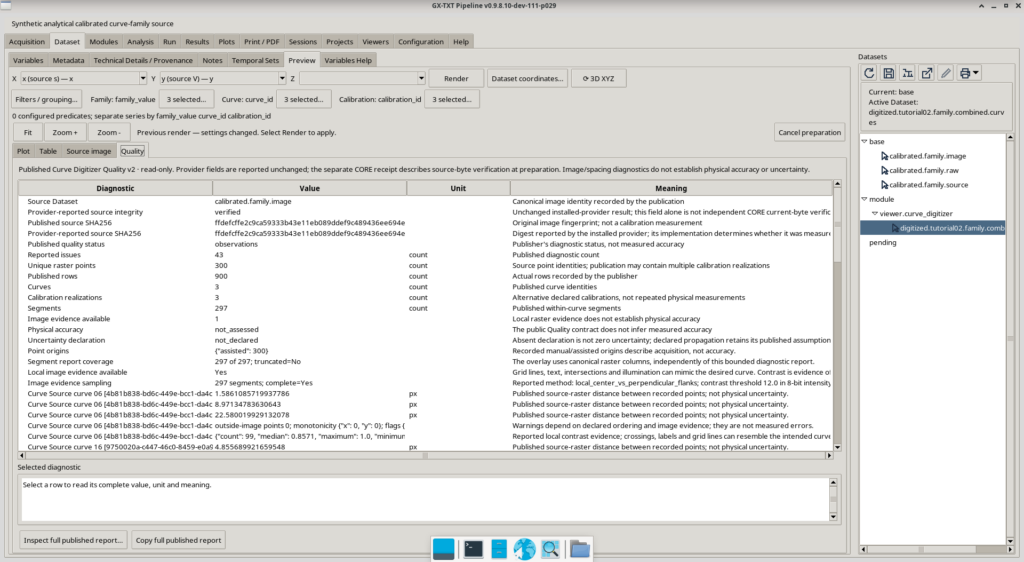
In our case, the report shows:
| Information | Value |
|---|---|
| Curves | 3 |
| Distinct raster points | 300 |
| Published rows | 900 |
| Calibration realizations | 3 |
| Segments | 297 |
| Diagnostic findings | 43 |
The report also includes information about image provenance and the checks performed.
It is important to distinguish the different levels of assessment.
The 43 diagnostic findings do not automatically mean that 43 points were digitized incorrectly. These are observations that must be interpreted in the context of the report.
Likewise, distances and other checks expressed in pixels describe geometric properties of the raster and tracing process; they are not, by themselves, measures of physical error.
The report states:
- Physical accuracy:
not_assessed; - Uncertainty declaration:
not_declared.
We therefore cannot attribute metrological accuracy to the Dataset when it has not been measured or declared.
10. Final considerations
This second tutorial has allowed us to tackle a more complex case than digitizing an isolated curve.
We selected three traces from an image containing a large curve family, used assisted tracing with different settings, corrected a difficult proposal, and checked the results against the original raster.
We then applied three calibration realizations to the same 300 points and published a 900-row Combined Dataset, preserving both curve identities and transformation identities.
The experiment highlights three essential points.
First: automatic tracing is an aid, not a substitute for operator review. A very dense proposal may require more correction work than a simpler one.
Second: the number of points returned by resampling does not necessarily equal the number of independent observations made from the raster.
Third: calibration and digitization are different operations. The original raster point identities can be retained once and represented through several scientific transformations, without mistaking those transformations for new physical acquisitions.
The final result is not merely a series of exported coordinates. It is a Dataset that can be used within the framework, accompanied by the information needed to understand its origin, structure, and limitations.
In the next tutorial, we will explore further cases of calibration and digitization, while continuing to distinguish tracing quality from the validity of scientific transformations.