

Strings, Unicode and Scientific Formatting
Scientific Python in GX-TXT · Module 1 · Lesson 3
A scientific result must be understandable as well as correct. In this lesson we will use the Python strings to create a short summary in GX-TXT, include a Greek character and present a small number in decimal and scientific form.
Objectives: create str strings, use Unicode characters, escape sequences and concatenation; build f-string; choose visualization accuracy without confusing it with data accuracy.
Prerequisites: the first two lessons, in particular print, allocation and float values.
The strings are text
A string is a sequence of characters, represented in Python by the type str. You can delimit it with double or single quotes:
display_name = "campione"
unit = 'mol/L'
print(display_name, unit)
The quotes delimite the text in the code and normally do not appear in the output of print. A string can be empty (""), contain non-Latin spaces or characters. The 4 number and the "4" text are different type values: the first is suitable for arithmetics, the second is a textual representation.
Python uses Unicode for the text. We can then write "Campione α" or "temperatura °C". The correct display also depends on the encoding of the file and the interface font: save the scripts in UTF-8 and check the result in the Viewer. The α character in the example is a label, not a mathematical operation.
Escape and concatenation
Some sequences preceded by a reverse bar have a special meaning. \n inserts a return to head, \t a tabulation and \" a quote within a string bound by double quotes. To get a literal reverse bar, use \\.
print("Riga one Riga two")
print("Etichetta: \"controllo\"")
The + operator chains two strings: "Campione " + "A" produces "Campione A". Does not automatically convert a number: "value " + 4 generates TypeError. We can write "value " + str(4) or, more comfortably, use print("valore", 4) or a f-string.
F-string: combine text and values
A f-string begins with f before the quotes. The expressions in brackets are evaluated and inserted in the text:
number = 4
print(f"Number of samples: {number}")
The result is Numero di samples: 4. A format after the two points in the staples controls the presentation. For example, :.2f shows two digits after the decimal point; :.3e uses the scientific notation with three digits after the point in the mantis.
value = 0.000123456
print(f"{value:.3e}")  # 1.235e-04
print(f"{value:.6f}")  # 0.000123
1.235e-04 means 1,235 × 10−4. The displayed text is rounded according to the format; the value value is not changed. In particular, the three digits after the point in the mantiss produce four significant digits when the figure before the point is different from zero. Do not confuse this format with a statement of measurement uncertainty.
Synthetic scientific example
We consider a synthetic concentration, chosen as 0.000123456 mol/L. It doesn’t come from a measure and we don’t give you uncertainty. The 1.235e-04 mol/L notation is useful to read a small number; the 0.000123 mol/L shape with six decimals shows less detail. For real scientific relationships, the choice of digits must be consistent with uncertainty and the purpose of communication.
The script also uses gxtxt_bridge_info(), the public function encountered in the first lesson, to show the identity of the bridge available in the execution. .get("api_id") reads a structured result key; if it does not exist, it returns None. We will deepen the dictionaries in lesson 5.
Full code
from gxtxt import gxtxt_bridge_info

sample = "Synthetic sample α"
concentration = 0.000123456
unit = "mol/L"
print("Summary of the Session")
print("Campione:", sample)
print(f"Concentrazione: {concentration:.3e} {unit}")
print(f"Decimal value: {concentration:.6f} {unit}")
print("Bridge:", gxtxt_bridge_info().get("api_id"))
The first assignment creates a text label; the second retains the number as float; the third is the text of the unit. The two f-string produce different representations of the same number, without changing it. The bridge function is called in the Runner of GX-TXT, where the necessary context is available.
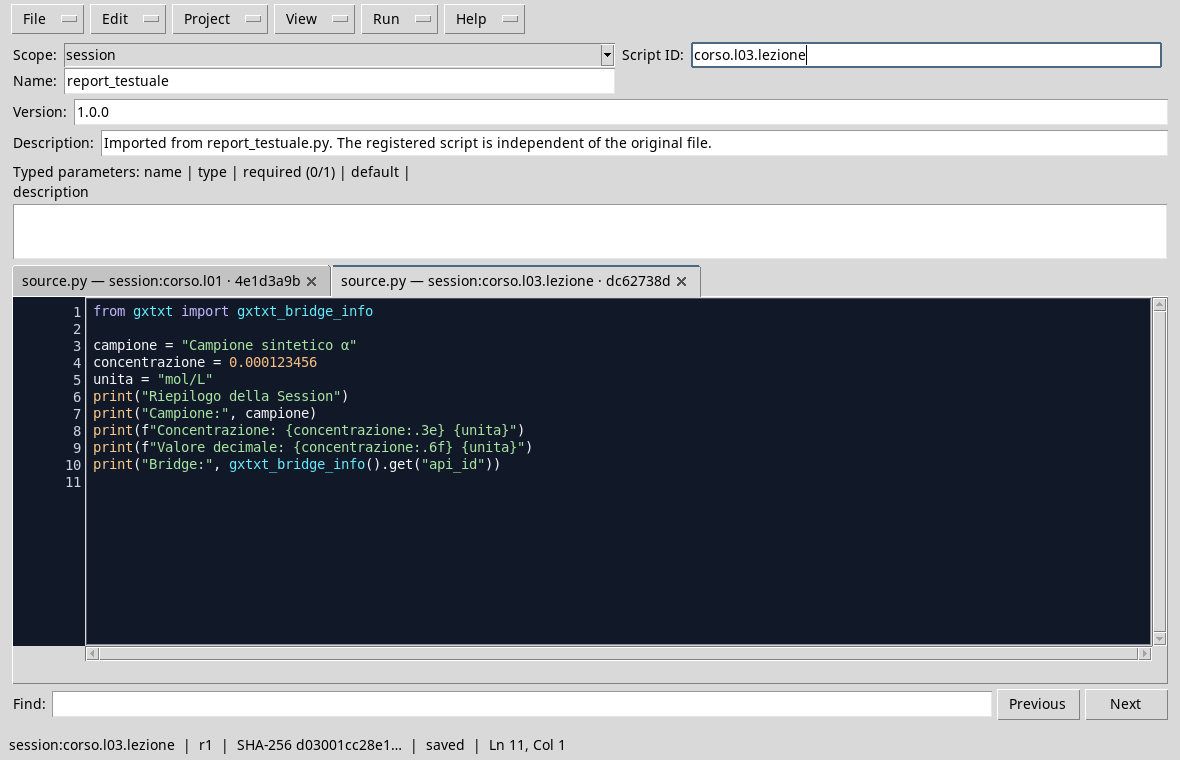
The script in the editor with the Rich Dark palette.
Run in GX-TXT
- Open a Session, then Viewers → Python Scripts.
- Import
text_report.pyfrom File → Import .py… or enter the code into the editor. - Set the
session, a name and a Script ID, for examplecorso.l03.lezione, then save. - Open Run → Open Script Runner…, press Run Job and wait for completion.
- Open output: control the
α,1.235e-04 mol/Land0.000123 mol/Lcharacter. The bridge identifier can depend on the version of GX-TXT.

The same value appears in two formats; the figures displayed do not change the original data.
Common Errors
If you forget the f in "Valore: {value:.3e}", Python considers the content between text letter scratches and does not enter the number. If you write f"{value:.3e" without closing the scratch, you get a syntax error. Always check both the code and the output.
A formatted value is a string: f"{value:.3e}" is used to show the number, not to keep all the information for subsequent calculations. Keep separate and formatted numeric value only when preparing the report.
Exercise
For a synthetic temperature of 21.456 °C, build an f-string that shows a figure after the point and includes the unit. What value remains in the original variable?
Worked solution
temperatura = 21.456
print(f"Temperatura: {temperatura:.1f} °C")
The output is Temperatura: 21.5 °C. The variable remains 21.456 as the float value: the rounding concerns the shown string. The value is invented and does not represent a measure.
In the next lesson we will organize more values using lists and tuples.