

Your First Python Script in GX-TXT
Scientific Python in GX-TXT · Module 1 · Lesson 1
Open the GX-TXT Python Viewer, save your first script in the Session and run it with the Script Runner. You will learn how to use print and import and read the output of the program.
Objectives. Recognize a script and a module, use print and import, distinguish an expression from an instruction and understand the role of indentation.
Prerequisites. You need a working installation of GX-TXT and an open session. You can follow the lesson even if you’ve never used Python.
A script is an instruction sequence
A script is a text file that contains Python code. The interpreter performs the instructions in the order specified by the program. In GX-TXT you can save the script in the Session and run it from the Viewer. The framework prepares the execution context and shows the result in the interface.
A module provides names that you can use in another file, such as functions and constants. The same Python file can be run as a script or imported as a module. Here first_script.py is the script you run and gxtxt is the module from which it amounts two functions.
When you change a line in the editor, save and run the script again to update the output.
Expressions, instructions and prints
An expression produces a value. With two synthetic contributions of 2 and 3 counts you get the \(2 + 3 = 5\) sum. A call to print shows the calculated value.
print(2 + 3)
print("Sum:", 2 + 3)
The brackets contain the arguments. The second call passes two, separated by a comma. Python shows the "Sum:" string as text and calculates the 2 + 3 expression, producing Sum: 5. Among quotes, "2 + 3" would instead be a string. In a real measure you would also document the origin of data, units and uncertainty.
Import GX-TXT public functions
from gxtxt import gxtxt_context, gxtxt_bridge_infofrom identifies the form and import lists the names to use. The brackets in gxtxt_context() and gxtxt_bridge_info() perform the calls.
gxtxt_context() returns information about the execution context. gxtxt_bridge_info() describes the public connection between the script and GX-TXT. In this lesson we print the complete answers to recognize the structure. The values depend on the Session and the version in use. Run the file from Runner, which provides the client and context of GX-TXT.
The full code
Copy the code to the Viewer editor or save it to a file called first_script.py to import it.
from gxtxt import gxtxt_context, gxtxt_bridge_info

print("My first script in GX-TXT")
print("Synthetic measurement: 2 + 3 =", 2 + 3)

context = gxtxt_context()
bridge = gxtxt_bridge_info()
print("Session context:", context)
print("Bridge details:", bridge)
The first two calls to print show a message and the sum. With =, you check the function results with the context and bridge names. The last two lines show this data with their respective labels.
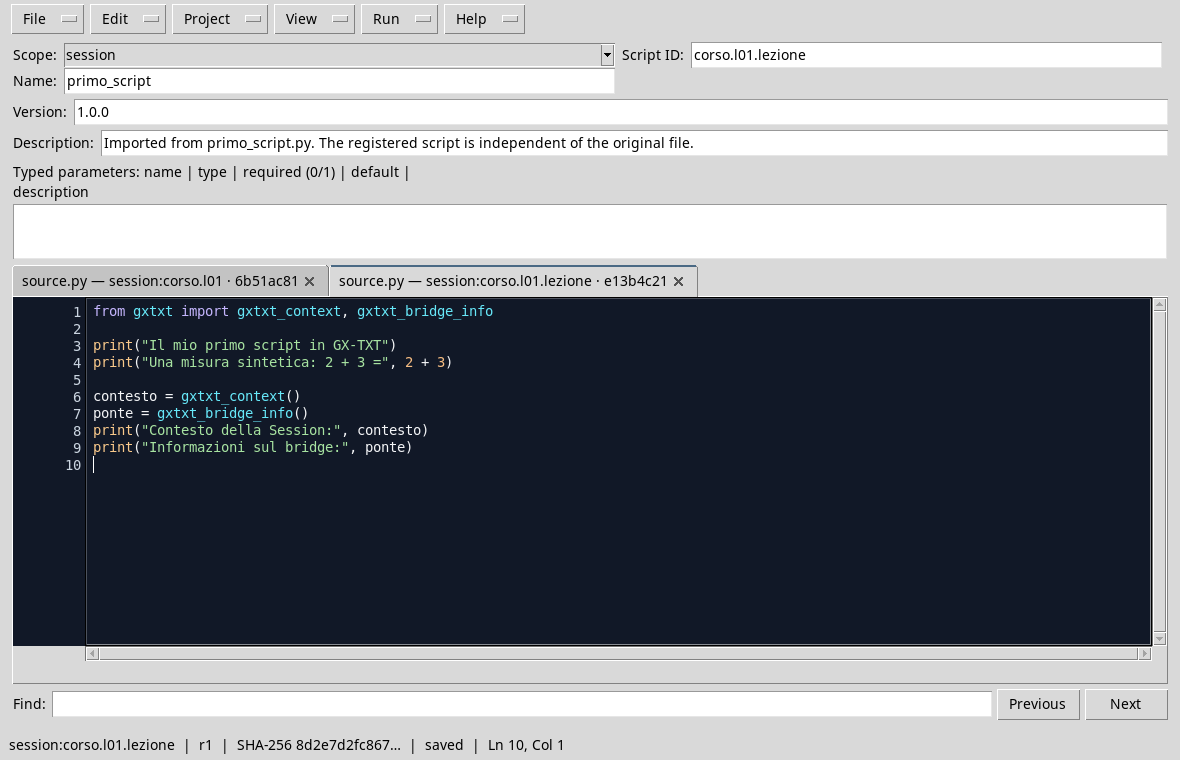
Preparation and execution in the Viewer
- Open GX-TXT and create or open a Work Session.
- Go to Viewers → Python Scripts to open the Python Script Workspace.
- Write the code in the editor or choose File → Import .py… and select
first_script.py. - Choose the
sessionbroom, enter a name and a Script ID, for examplecorso.l01.lezione, then save with File → Save. - Choose Run → Open Script Runner…. This example works without Dataset or additional parameters.
- Run Job. When the execution is completed, open the details and observe Program output.
To give more space to the code, use View → Focus source / restore panes. The same command restores the side panels.

Read the result
Check the first two lines. The message must be readable and the sum must give 5. They follow Session context: and Bridge details:. Paths and identifications may vary with the environment.
In this exercise the expected value is known and just compare it with the output. When you use datasets and templates, you will also need to check data units, assumptions and quality.
Common Indentation and Errors
Python uses the spaces at the beginning of the line to delimit the blocks. In this script all instructions start at the first column.
If you write print("Ciao", the missing bracket causes a syntax error. Check brackets and quotes, save and try again. If the error concerns the gxtxt module, check to start the script from the Runner with an open session.
Exercise
Change the second call to print to sum 4 and 7 synthetic counts. Predict the value, start the script and compare the result.
Worked solution
print("Synthetic counts: 4 + 7 =", 4 + 7)Python shows Conteggi sintetici: 4 + 7 = 11. The string provides the label and the expression after the comma produces the value.
In the next lesson, we will use variables and scalar types to represent values and measurements.