

Adjust colours and highlighting
Global settings of the reading surface, palettes and schemes.
Open the source settings
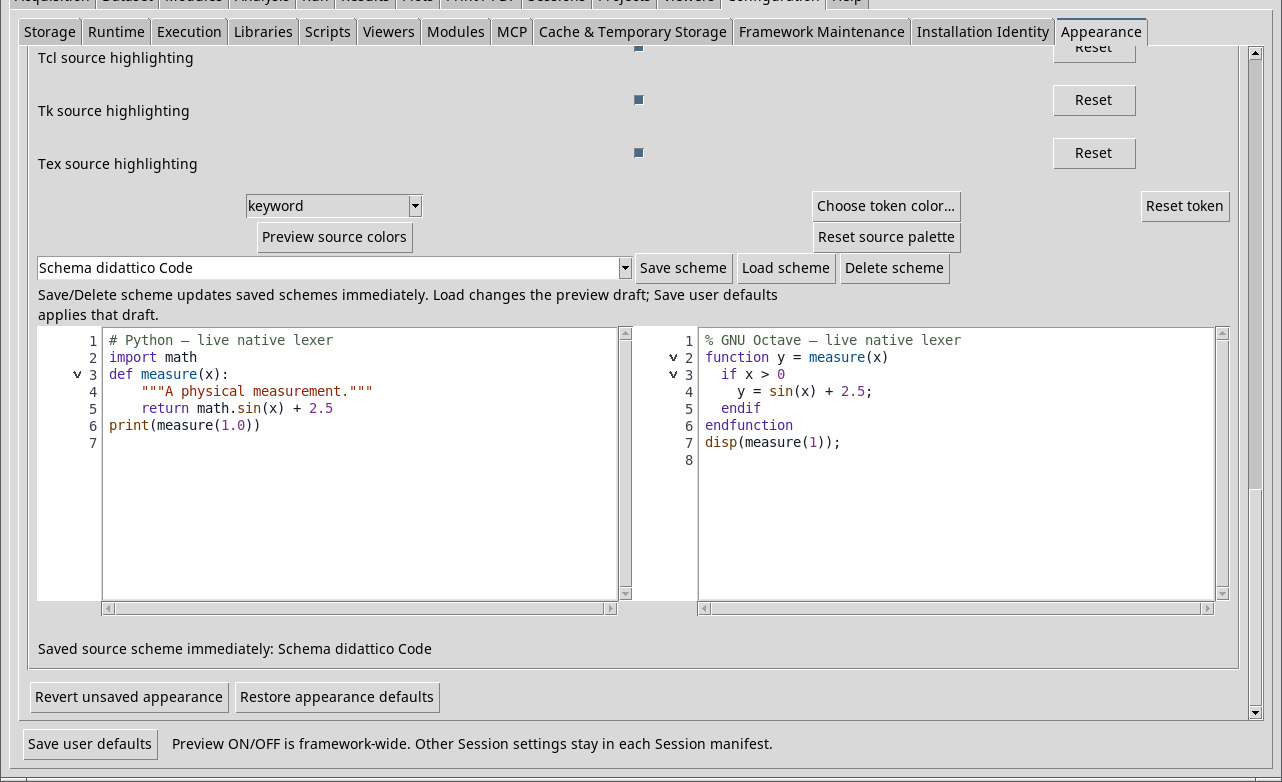
In the main window open Configuration → Appearance and scroll down to Source colors and syntax — independent of the GUI theme. The panel controls the shared source surface. Preview source colors updates the Python and Octave samples. Check both samples, then press Save user defaults to apply the settings to the reading surfaces. The theme of the surface is chosen separately from the look of the windows.
Choose the theme
- Automatic
- Leaves the choice of palette to GX-TXT. In the test environment the sample matches Readable Light.
- Readable Light
- Dark text on a white background with coloured lexical categories. It is the initial value of the test configuration.
- Rich Dark
- Light text on a dark background with a coloured lexical palette.
- High Contrast Light
- Black base text on a white background with a high-contrast palette.
- High Contrast Dark
- White base text on a black background with a high-contrast palette.
- Custom
- Start from the base palette and assign colours to single categories. The overrides are visible in the preview.
The Reset next to Source color theme restores the default value of the selector. Reset source palette sets the palette back to Readable Light and clears the colour customisations. Use Save user defaults to keep these changes.
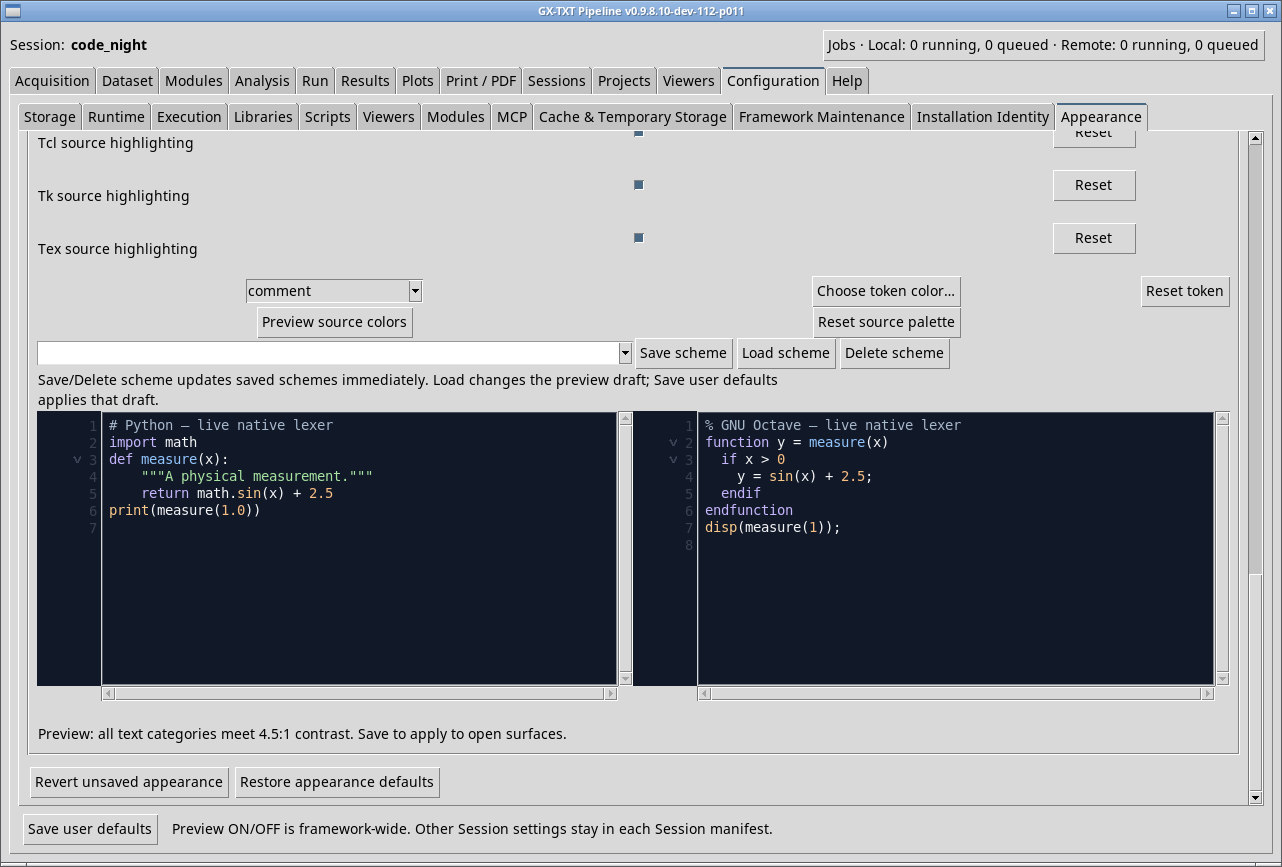
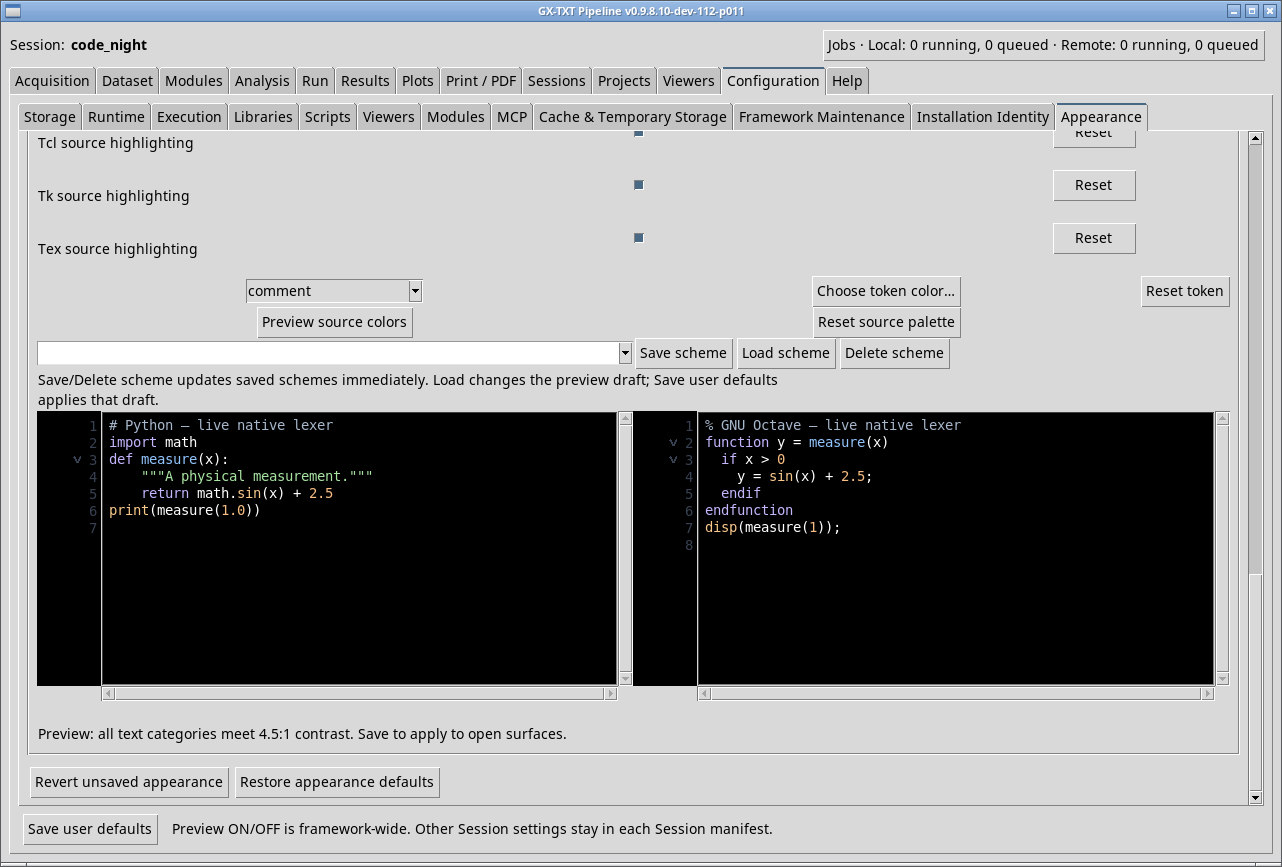
Change the colours of single categories
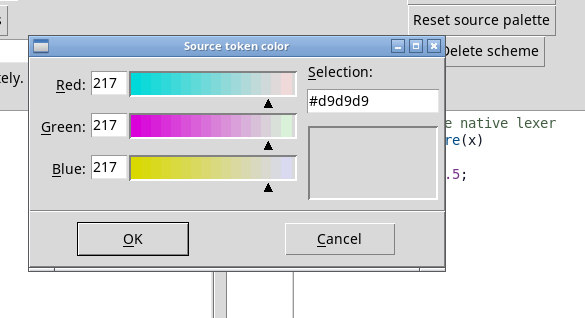
With Custom, choose an entry in the token selector and press Choose token color…. In the dialog you can adjust Red, Green and Blue or enter a hexadecimal value in Selection. The sample shows the current colour. OK assigns it to the category and Cancel closes the dialog without applying the change. Reset token restores only the colour of the selected category.
| Choice | What it colours |
|---|---|
| background | Background of the text area. |
| foreground | Base text. |
| selection | Selected range of text. |
| caret | Text cursor. |
| gutter | Line-number gutter. |
| breakpoint | Breakpoint markers on the surfaces that support them. |
| current_line | Highlighting of the current line. |
| search | Highlighting of the match found. |
| comment | Comments detected by the scanner. |
| string | String literals. |
| escape | Escape sequences in strings. |
| keyword | Keywords. |
| definition | Names introduced by recognised definitions. |
| builtin | Built-in names of the language recognised by the scanner. |
| number | Numeric literals. |
| constant | Recognised constants. |
| bridge | Lexicon of the bridge calls recognised by the profile. |
| decorator | Recognised decorators. |
| tag | Tags of markup documents. |
| attribute | Attributes of the recognised tags. |
| identifier | Identifiers. |
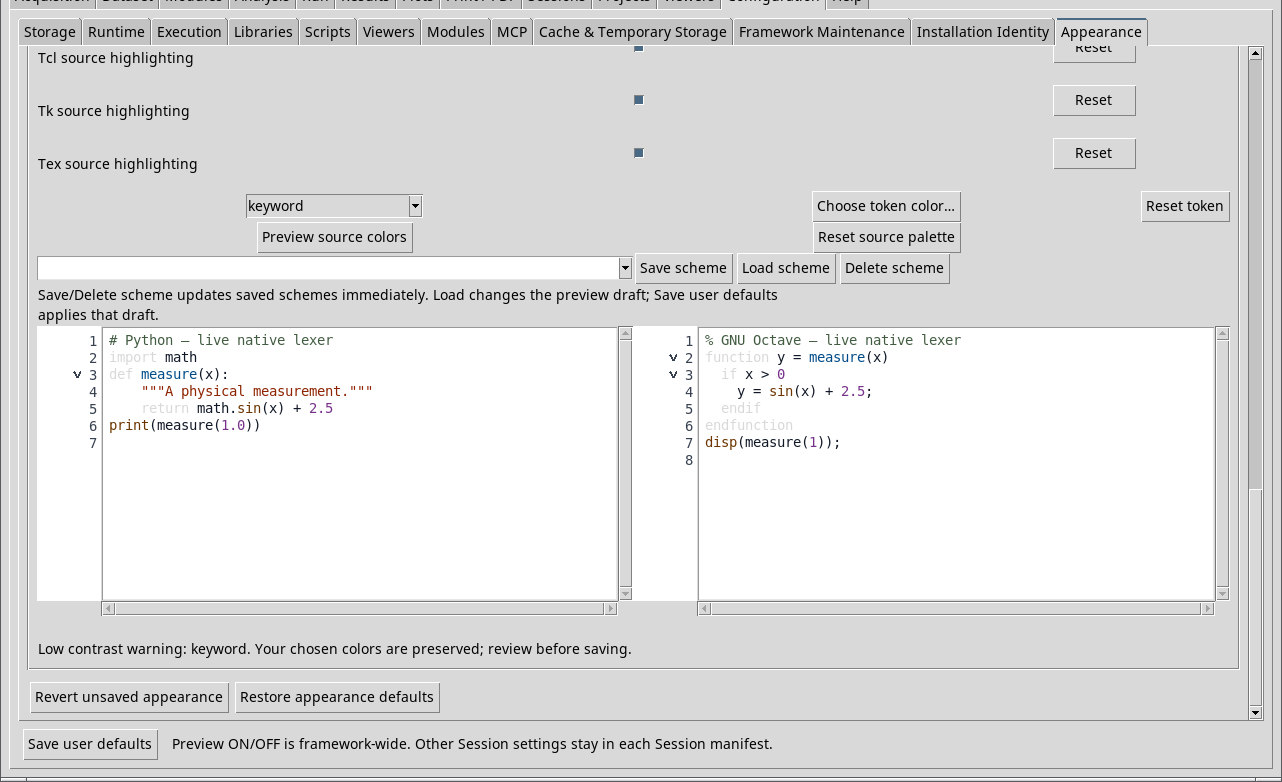
Low contrast warning lists the categories with insufficient contrast. The preview keeps the colour you chose. Correct it and repeat the preview if the text is hard to read. When all categories meet the threshold shown, the status reports all text categories meet 4.5:1 contrast.
Save and load a scheme
Type a name in the scheme field and press Save scheme to save the palette under that name. If needed, reopen Appearance to refresh the names offered. Select the scheme and press Load scheme to load it into the current settings. Check the preview and press Save user defaults to make it the active preference. Delete scheme removes the named scheme from the list. To change the active appearance as well, choose another theme and save it.
Control highlighting by language
The check boxes in this panel are initially selected. Clear a check box to show the source of that family without lexical highlighting. Use Reset on the same row to turn it back on, check the available sample and save the preferences. The choice applies to the sources classified in the relevant family.
- Python source highlighting
- Controls the syntax colours of Python source and of the Python sample.
- Octave source highlighting
- Controls the MATLAB/Octave profile, also used by the Octave sample.
- Javascript source highlighting
- Controls the JavaScript profile.
- C source highlighting
- Controls the C profile.
- Fortran source highlighting
- Controls the Fortran profile.
- Xml source highlighting
- Controls the colours of tags and attributes in XML sources.
- Html source highlighting
- Controls the lexical colours of the HTML profile on the surfaces that use it.
- Perl source highlighting
- Controls the Perl profile.
- Tcl source highlighting
- Controls the Tcl profile.
- Tk source highlighting
- Controls the Tk profile.
- Tex source highlighting
- Controls the TeX profile on the surfaces that use it.
The settings are shared with other GX-TXT surfaces. For selecting Datasets in this window, see Open Code.