Open Code and choose the Dataset
Catalogue, acquisition, compatibility, encoding and help.
Open Code from the catalogue
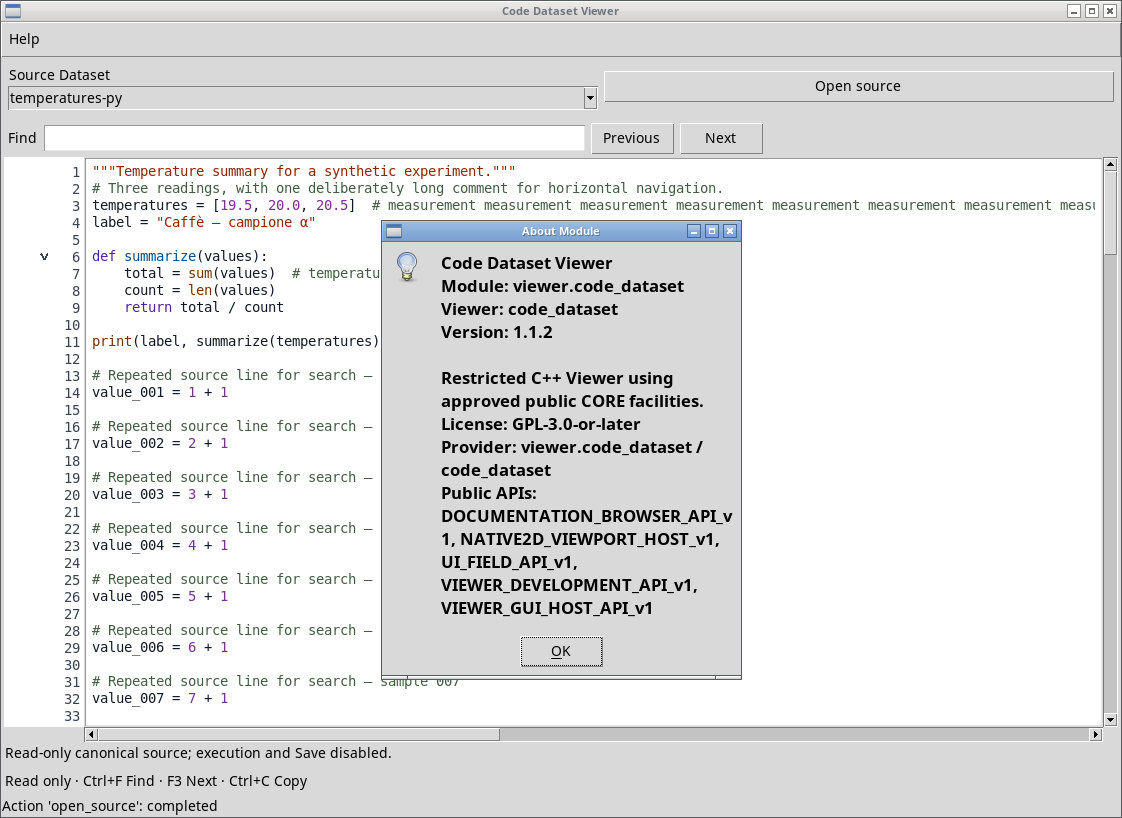
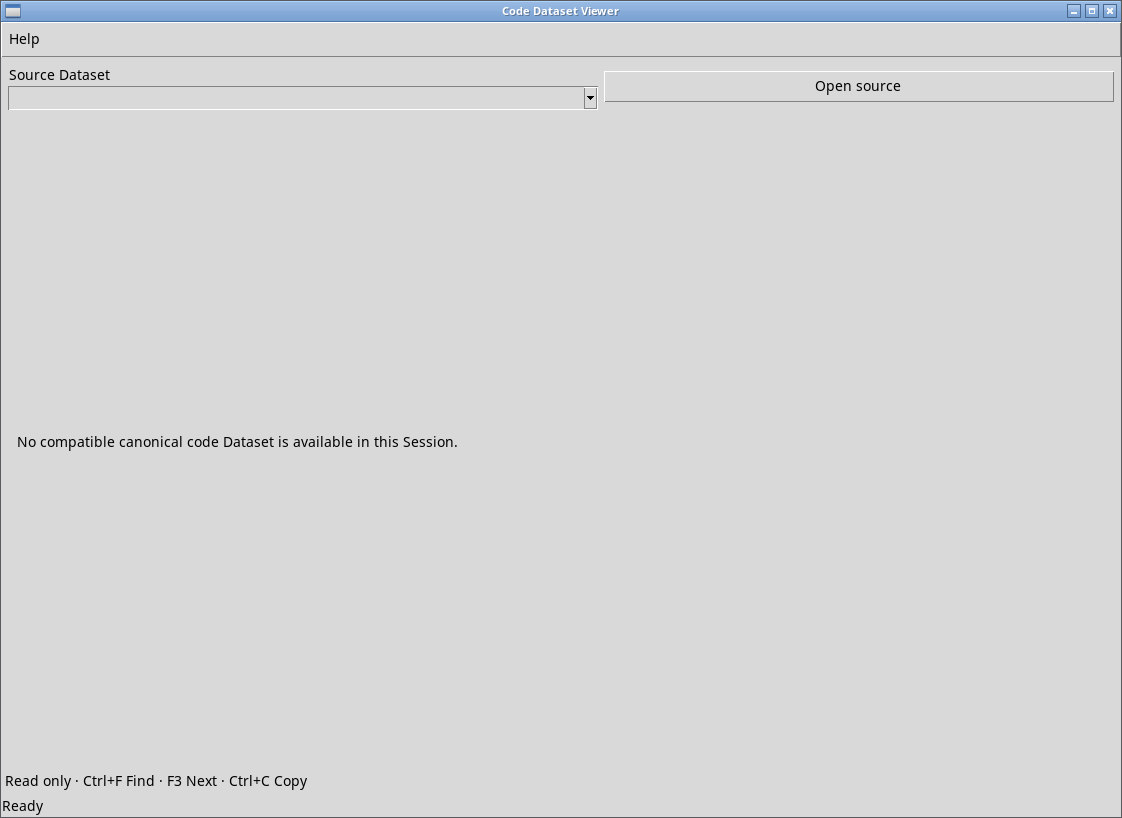
Open a Session in GX-TXT and go to Viewers → Documents → Code. The tile opens Code Dataset Viewer. The window contains Source Dataset, the Open source button, the source area and the reminders at the bottom. If No compatible canonical code Dataset is available in this Session. appears, the Session does not yet have a source Code can use.
Prepare a code Dataset
- Open Acquisition and select Text and Source Code Import in the Acquisition / Documents category.
- Set Destination to
dataset. Withauto, a Python file can end up as a Session script. For.mfiles choose the destination explicitly.session_scriptis for Session scripts, whereas Code consults Datasets. - Keep Import as on
autofor ordinary classification, choosesource_codeto request the source contract, ortext_documentto treat a file as a text document. - Use + Add file for one original or Add files… for several. Check the included rows and assign distinct Dataset IDs, especially if the files share the same base name. Press Import and wait until the Datasets are available.
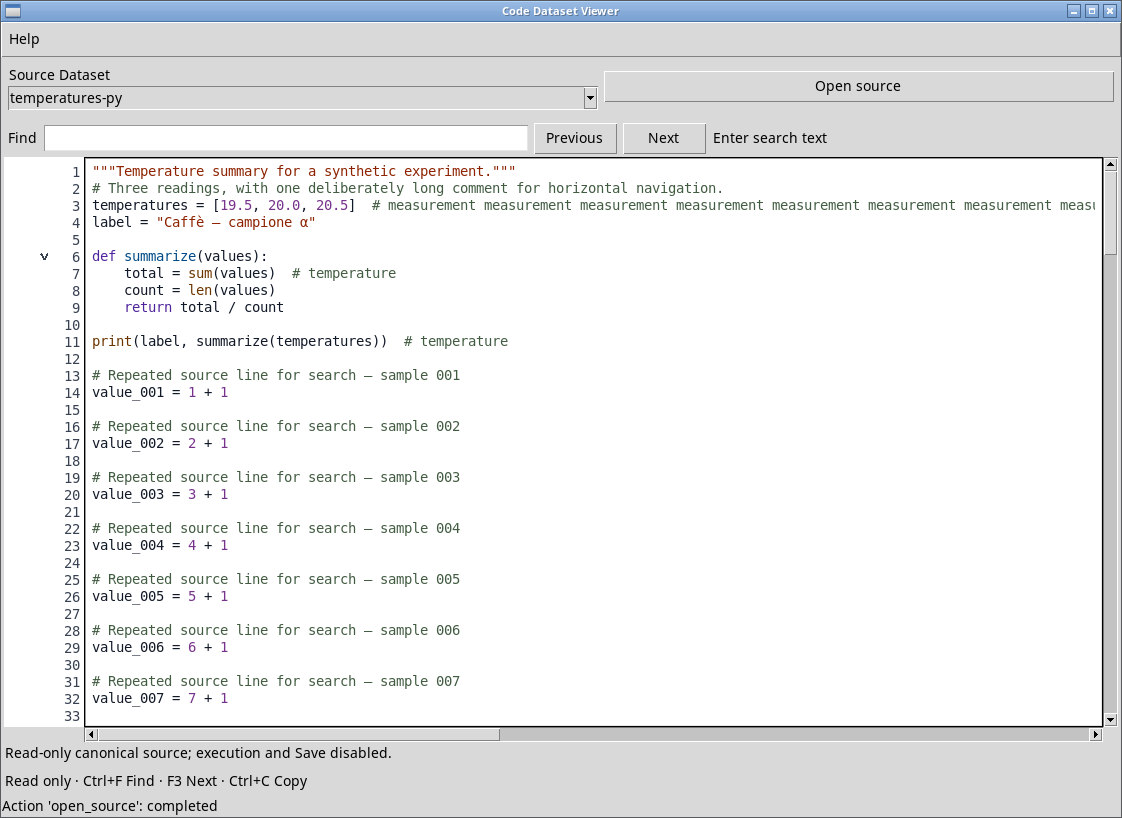
To repeat the procedure, use the teaching originals below. Import them as Datasets. In Code select the assigned identity, for example temperatures-py. Python example (ZIP) · UTF-8 text (ZIP) · XML (ZIP).
Choose detection, language and encoding
In Acquisition, Language (detection override) set to auto uses language detection. plaintext treats the source as plain text and unknown leaves the language unknown. The other choices name the language or format to assign. An explicit value changes the language metadata on which highlighting is based. For files in different languages, leave detection automatic or prepare separate groups. Encoding set to auto uses the BOM, the Python declaration where relevant, or UTF-8. If the source requires a different encoding, select the actual one before importing. Choose utf-8 for variable-length Unicode and utf-8-sig if the file includes the UTF-8 BOM. ascii covers the ASCII set. utf-16 and utf-32 use the BOM for the byte order, while the suffixes -le and -be specify little-endian and big-endian respectively. cp1252 and iso-8859-1 select the respective single-byte encodings. The encoding is an attribute used to decode the stored text. The Code view has no selector to rewrite the language or encoding of the Dataset.
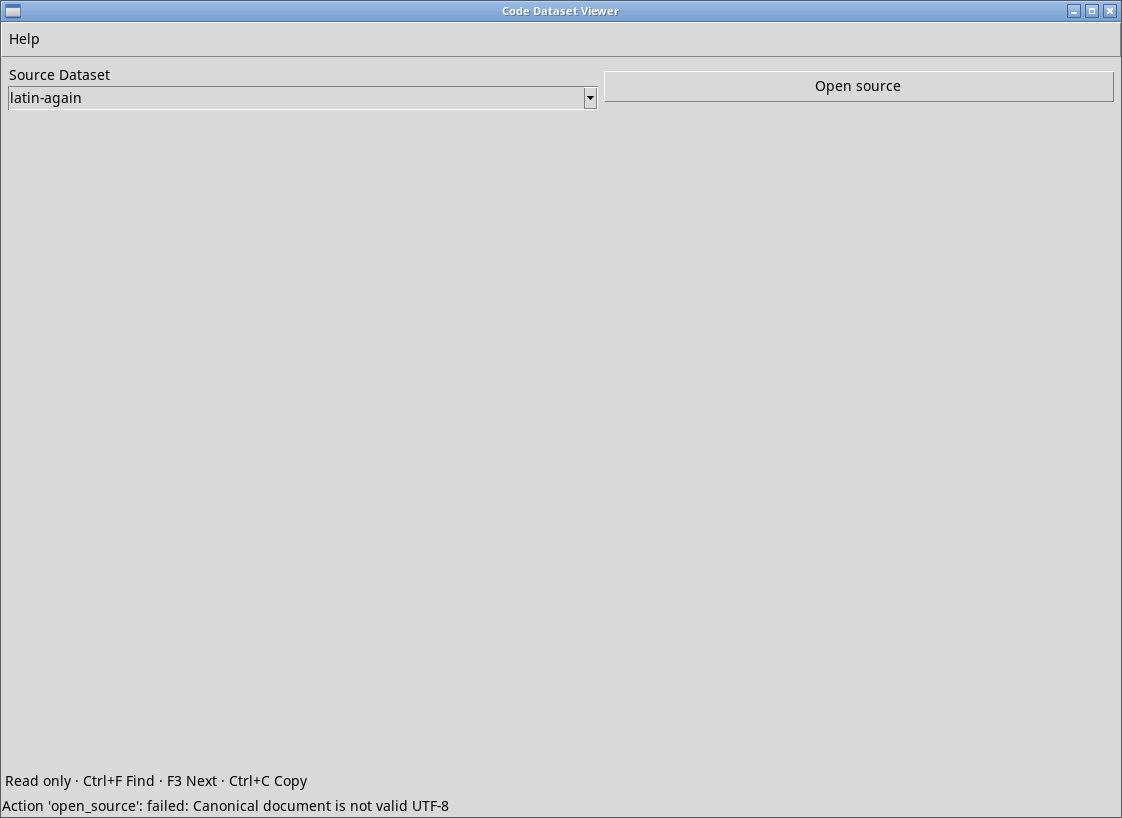
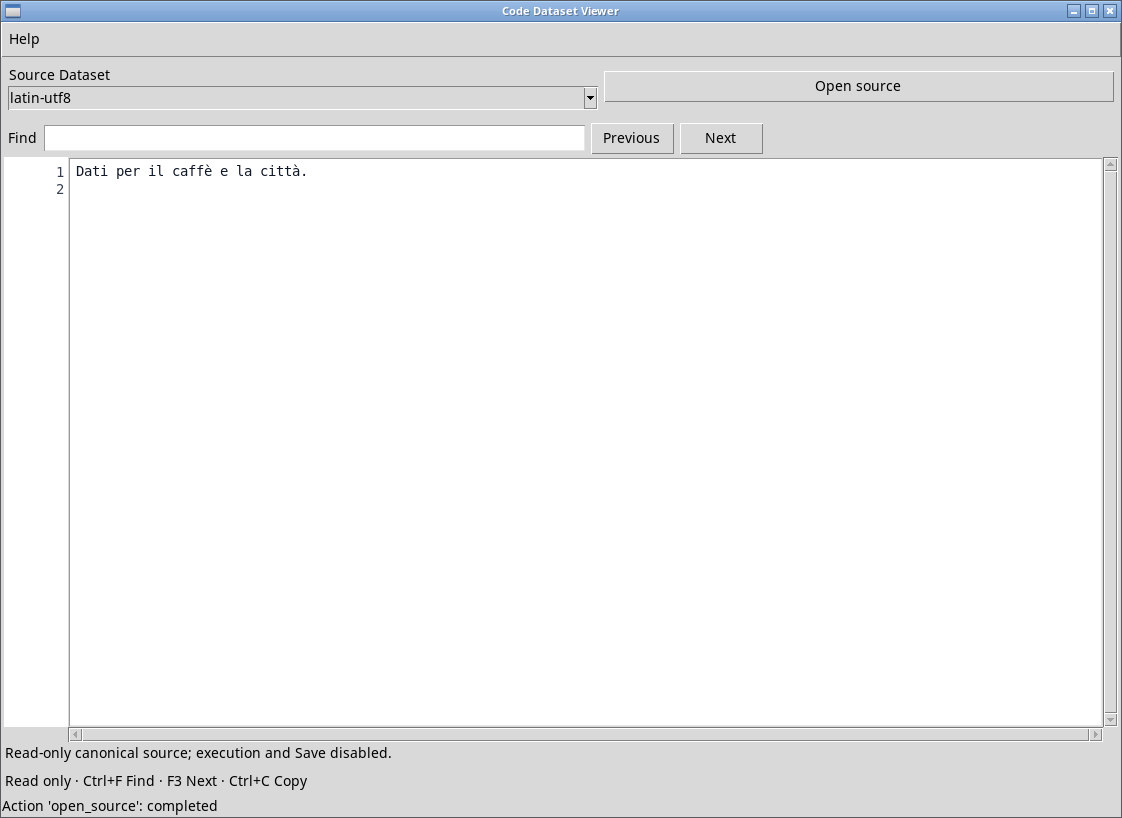
A Windows-1252 Dataset imported with cp1252 can appear in the selector even when Code rejects it with Canonical document is not valid UTF-8. In that case, open a copy of the text in your editor with the correct source encoding, save it as UTF-8 and import it with Encoding = utf-8 and a distinct ID. Choose the new ID in Code and check how the accented characters are rendered.
Recognise the compatible entries
The menu contains the canonical code.source Datasets and the compatible variants of document.text. The test opened, for example, Python, C, Fortran, JavaScript, Tcl, Perl, a MATLAB/Octave file, plain text and XML. HTML and Markdown classified as specialised documents can stay out of the menu even with the document.text contract. The actual classification matters more than the extension. For a file that is in the Session but missing from the menu, check the contract and the intended viewer.
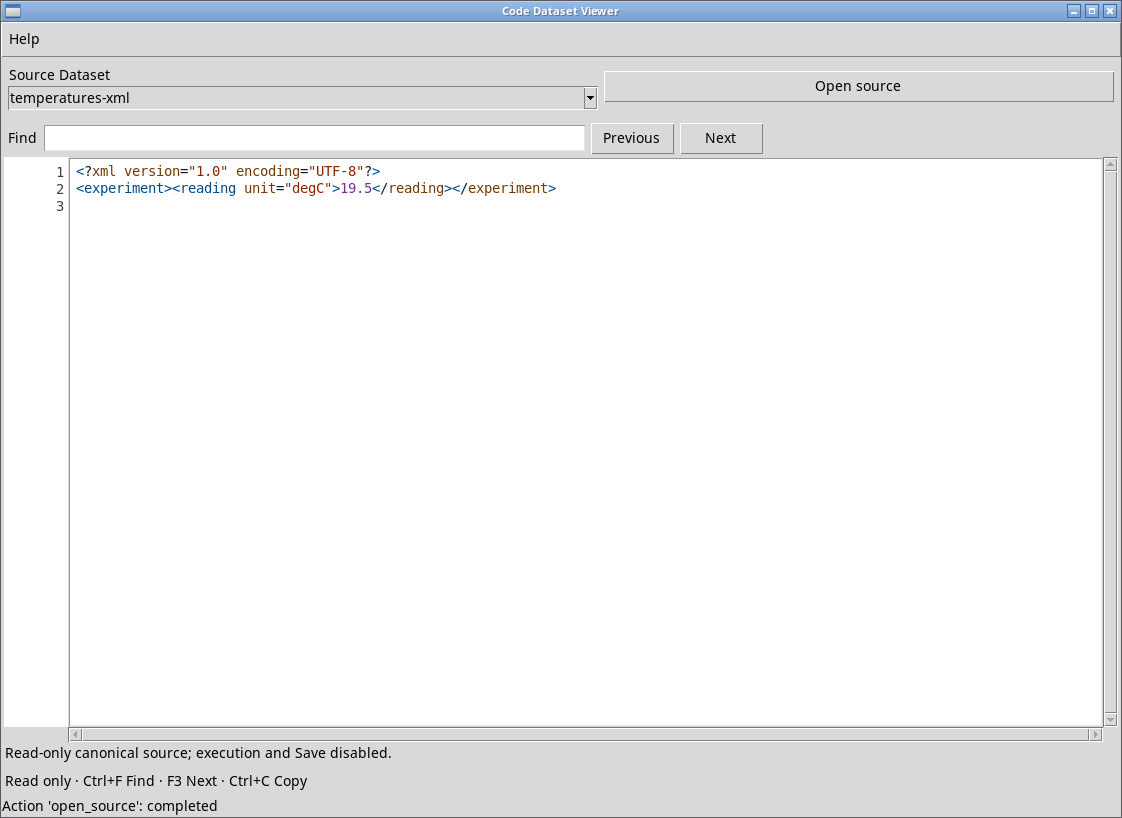
Choose an entry and refresh the reading
Open the Source Dataset list. Read its ID and select a row. The selection opens the source view. Use Open source to reread the Dataset already selected. If you have just imported, reopen the list to reread the available entries. The message at the bottom reports that open_source has completed; also check the content and the status of the source. For a Session change, follow the procedure in the chapter on identity.
Open the manual and the module information
Use Help → User Manual… or F1 to open the built-in manual. Help → About Module… opens the module information. Use OK to close the dialog.