

Save Models and Workspaces
Tell scientific models, Workspaces, jobs and Datasets apart
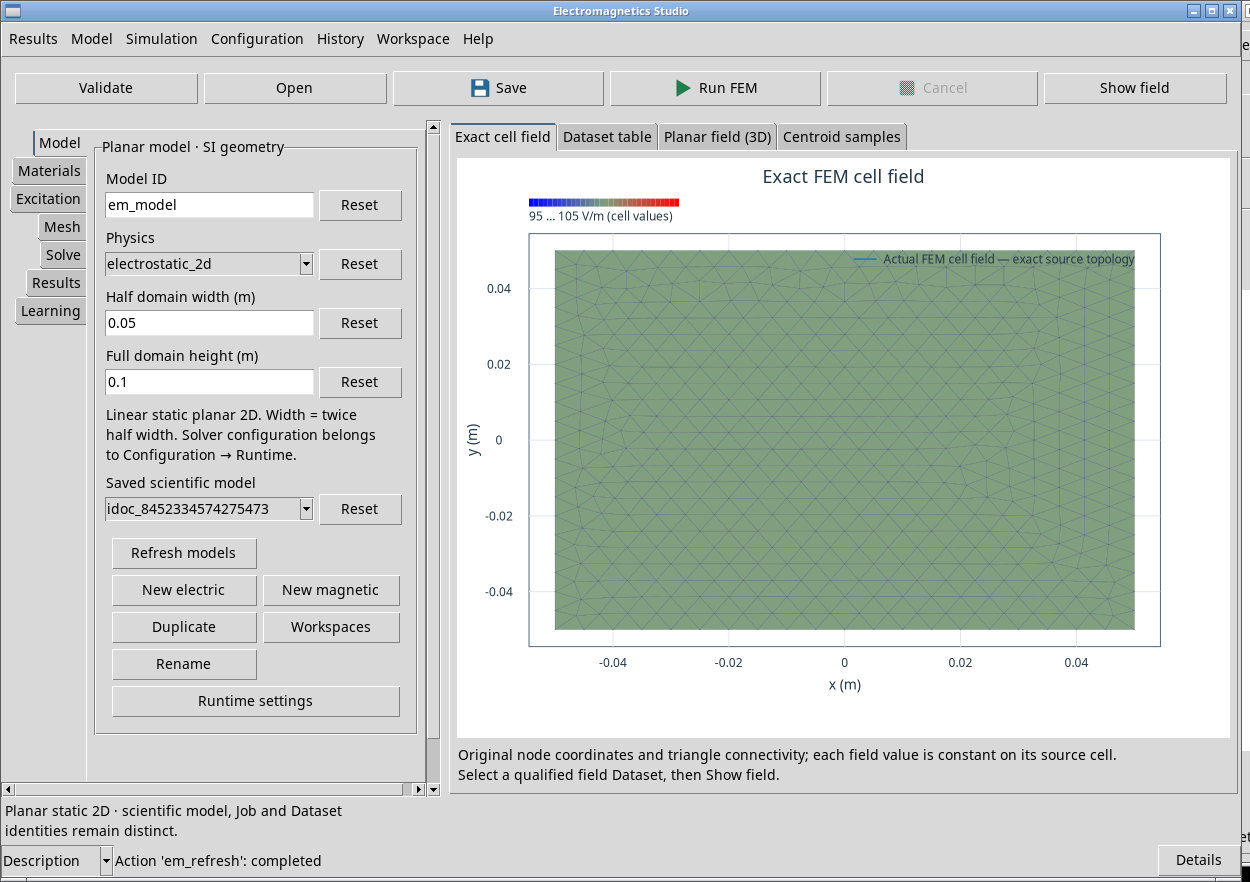
A scientific model stores the physics, geometry, materials, excitation and mesh size. The interface Workspace stores the viewer setup and resource associations. A job identifies a specific run on a particular model revision. Publishing creates canonical Session Datasets containing values and connectivity. Use the Model menu for the scientific model and the Workspace menu for the interface configuration.
Save and reopen a scientific model
- Save
- The toolbar button and Model → Save validate and save the scientific model. Solve displays Saved original electromagnetic model with the saved record’s ID.
- Refresh models
- Available in Model and on the tab. This reloads the list of saved models in the Session. Solve shows the model count and maps internal IDs to the names in the list.
- Saved scientific model
- Choose the record ID to open. Verify the matching name in the Solve log. Reset clears the selection. Without a selection, Open is disabled.
- Open
- Use the toolbar or the Model menu to load the selected model. If you have unsaved changes, respond to the save prompt. Use Solve → List Jobs → Reconnect to reconnect the retained job.
- Duplicate
- Use Model or the tab button to create an independent scientific model with a name based on the original. The job stays associated with the original. Check the copy’s job list and, if the old ID is still displayed, use that field’s Reset.
- Rename
- Rename the scientific record to identify it in the manager. Fill in Name and press Apply. Close closes the dialog. Verify the name in Workspaces. The record keeps its scientific identity.
Use the two Workspace managers
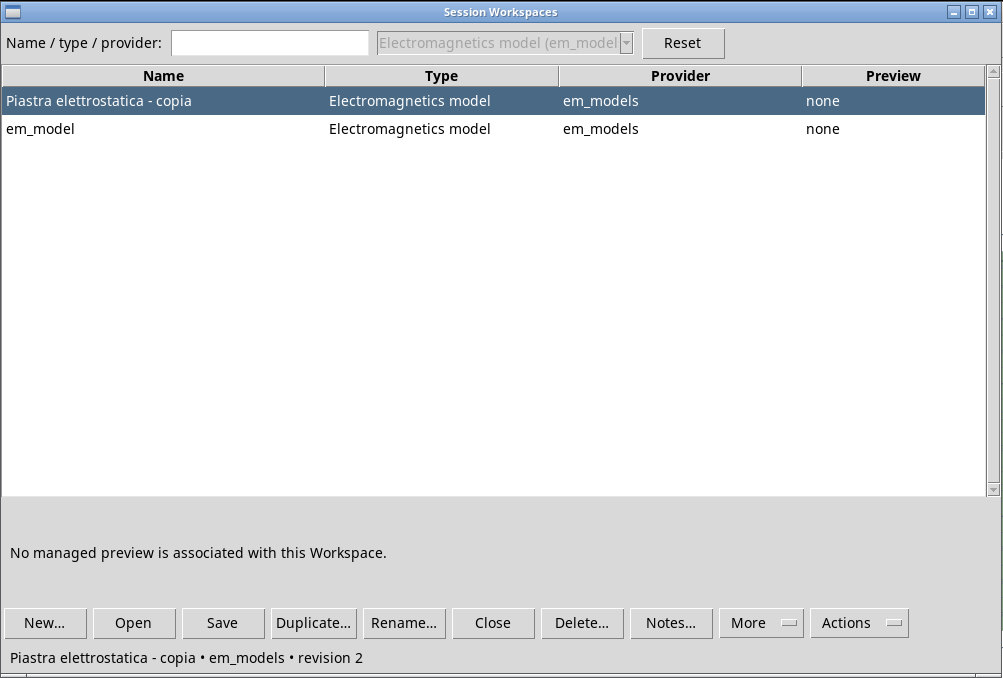
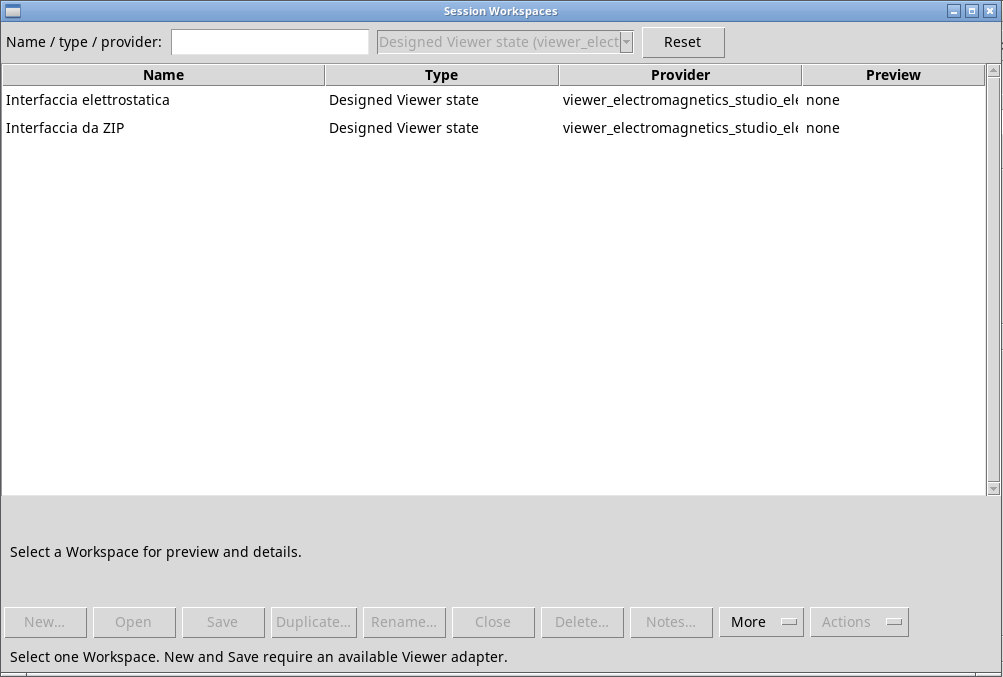
Model → Workspaces opens the scientific model manager, with provider em_models. Workspace → Session Workspaces… opens the interface Workspace manager. Both show your options for Name, Type, Provider and Preview. Selecting a row shows the name and revision below. Check the provider before choosing a record.
Enter part of the name, type or provider in Name / type / provider:. Reset clears the search. The viewer opens each manager with its own scope, so the provider selector is locked. Actions that require a record stay disabled until you select an available row.
In the manager, New… creates a record of the displayed type, Open opens the selected row and Save saves through the active viewer. Double-clicking the row or pressing Invio on it does the same as Open. Duplicate… copies the selected record. Rename… renames it. Close closes the Workspace in its associated viewer when available. More lists items that do not appear on the toolbar. Actions shows any actions provided by the selected provider.
Export or import a scientific model
- From Model → Workspaces, select the model and choose Export… from the toolbar or More. Choose a name and destination for the ZIP package.
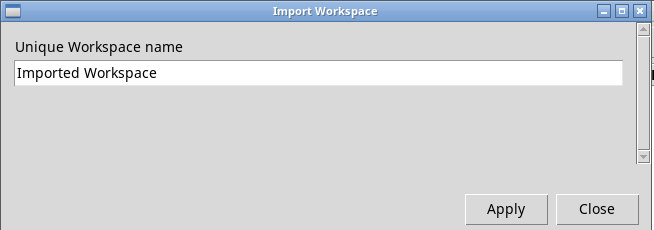
- In the destination Session’s model manager, use Import…, select the package, fill in Name and press Apply.
- Select the imported model and use Open. Verify the parameters and start a new Run FEM to create a job in the destination Session.
The electrostatic exercise package contains the 10 V model on a 0.10 × 0.10 m domain. Reopen it and repeat the electrostatic comparison.
Save and reopen the interface Workspace
- New workspace…
- From Workspace, open a new interface Workspace. Enter an unused name and press Apply. Save it so that it appears in the list. To give the Workspace a different name when saving, use Save As….
- Open workspace…
- Opens the interface manager. Select the entry and press Open. Reopening restores the associations that the Session can still resolve.
- Save
- Saves the interface state and its associations. Use Model → Save to save the physics and parameters in the original model.
- Save As…
- Saves a copy of the interface state under a new name. Fill in Name and press Apply. Scientific associations depend on the resources available in the Session.
- Rename…
- Rename the current Workspace. Check the name in the manager. The title of the window can continue to show simply Electromagnetics Studio.
- Refresh
- Reloads the Workspace list. Use it after creating, importing or modifying a Workspace in another window.
- Preview…
- Opens the manager and shows a preview when available. No managed preview is associated with this Workspace. indicates that you can still open the record to inspect it.
- Actions
- Lists actions specific to the selected provider. No owner-defined actions indicates that the common actions are available.
If Workspace changes appears before you close an interface Workspace, choose Yes to save and continue, No to discard the pending draft, or Cancel to keep editing it.
When changing the scientific model, No discards pending changes and continues, while Cancel returns to the draft. In this version, Yes saves the model, but the switch may stop with History Document belongs to a different module. Use Model → Save before choosing New electric or New magnetic. After explicitly saving, you can switch models.
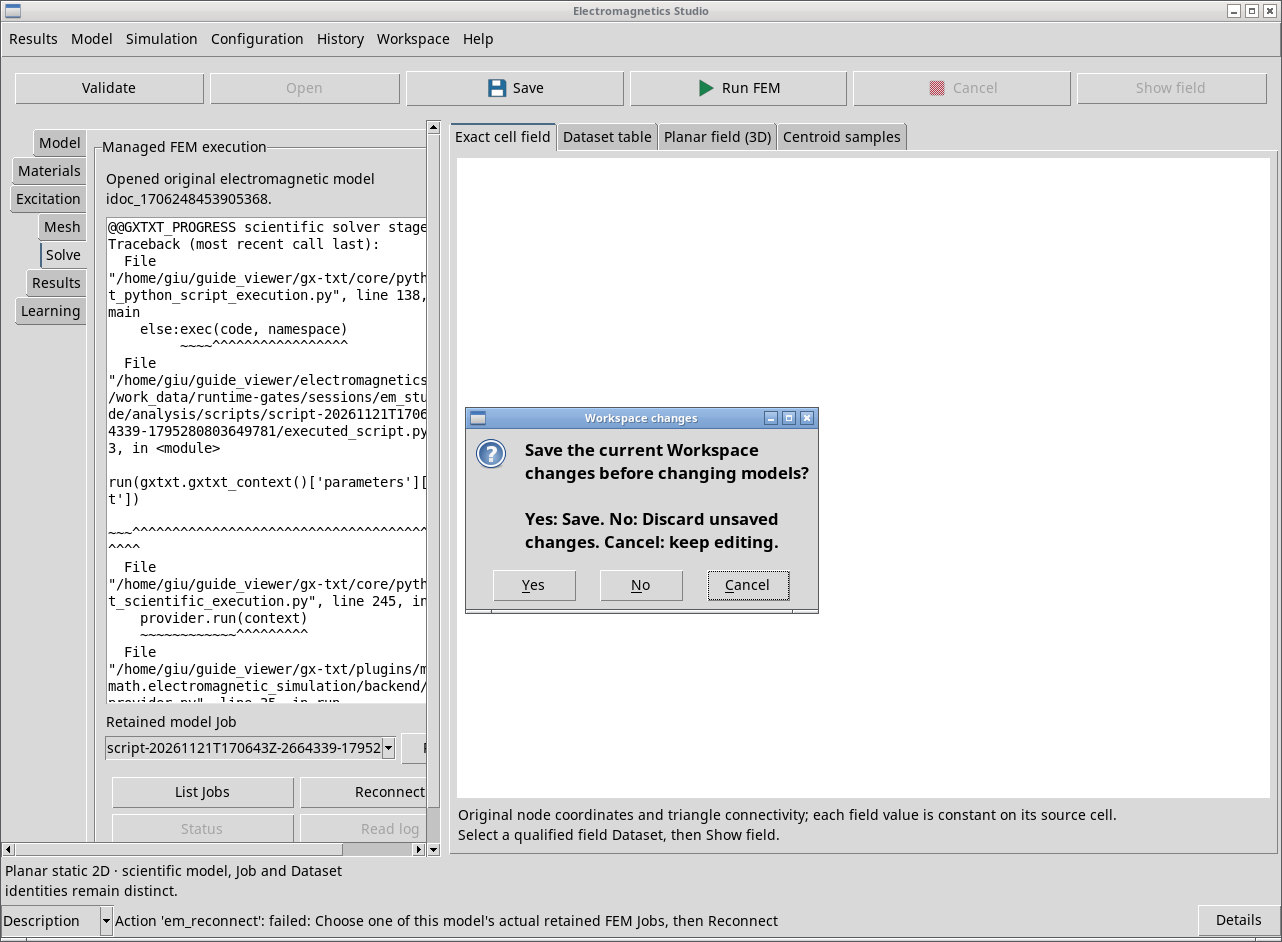
Before saving a Workspace for later reopening, clear Retained model Job with Reset. In the test, the field Dataset was selected. Reopening also worked with only Saved scientific model filled in. If a job ID is still selected, reopening may stop with Interface construction failed: Choose one of:. Save a copy with empty selectors, close the original window and reopen the copy. If History recovery requires the active writer to close first appears, close the other window using that Workspace and try again.
Workspace → Close closes the Workspace view. After reopening the Studio, use Open workspace… to reopen the saved record. The Session manages jobs, which you can reconnect from the models they belong to.
Transfer an interface package
Workspace → Export… exports the interface record as a ZIP. Keep the original model and associated Datasets as well.
Workspace → Import… adds the ZIP to the list. Give it an unused name and open it with Open workspace…. Model, job and Dataset associations must refer to the Session and to available revisions. To rerun the model in another Session, use the package of the scientific model.
Notes and deletion
Workspace → Notes… or Notes… in the manager opens the notes for the chosen record. Use Edit to edit, Preview to see the rendered result, Save to save and Close to close the editor. Reopen the note to verify its content.
Delete… affects the current record when invoked from the menu, or the selected row when invoked from the manager. Check the name and confirm with OK. Cancel keeps the entry. Deletion removes notes and History associated with the Workspace. Published Datasets belong to the Session.