

Browse and Save History
Use the Description / History bar
At the bottom, choose Description to read about the current action or History to access the timeline. History → Show / hide Description / History strip toggles the bar. Its context menu also offers Hide Description / History strip.
Details shows the text for the selected mode. In History, it includes the slider, step count, Baseline status and available operation times. The menu item is History details….
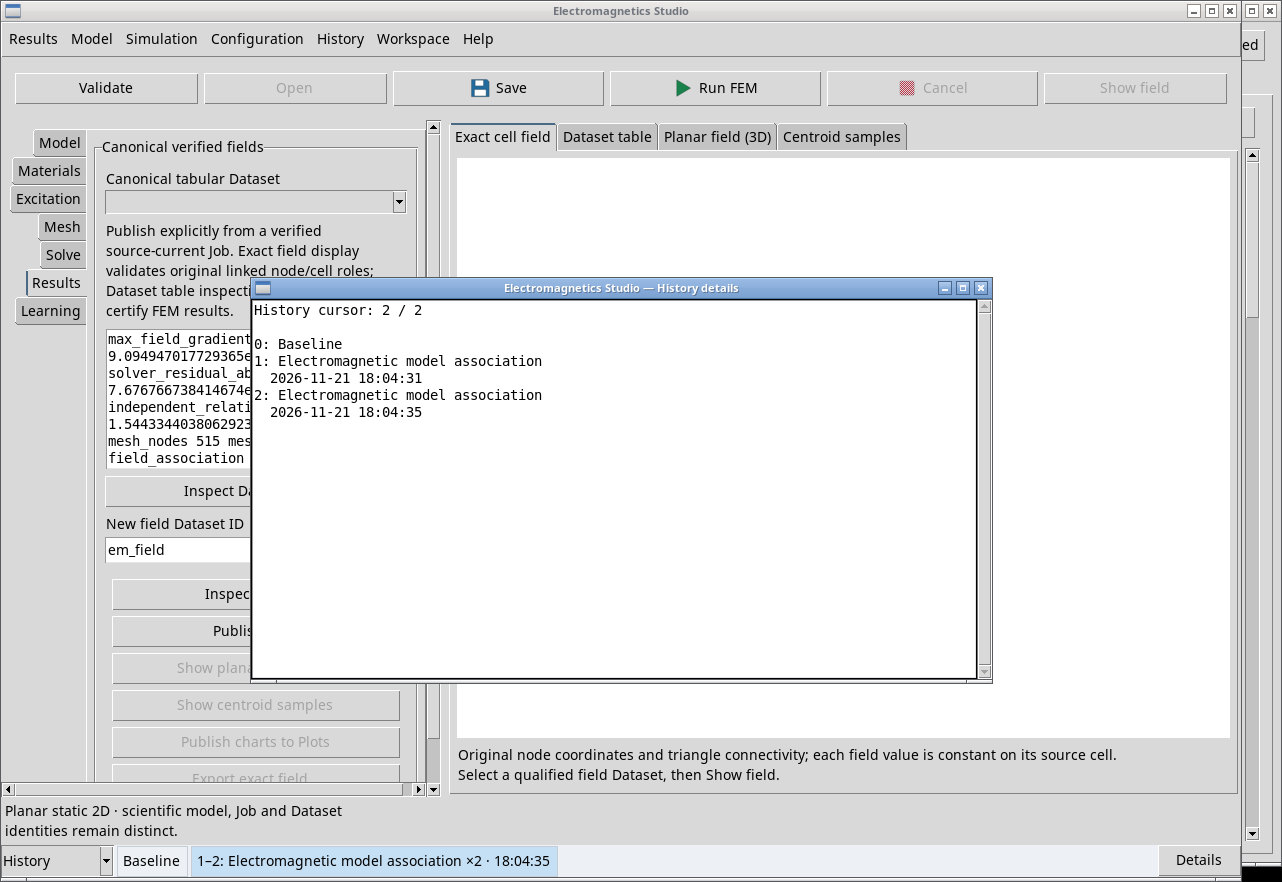
Review an earlier step
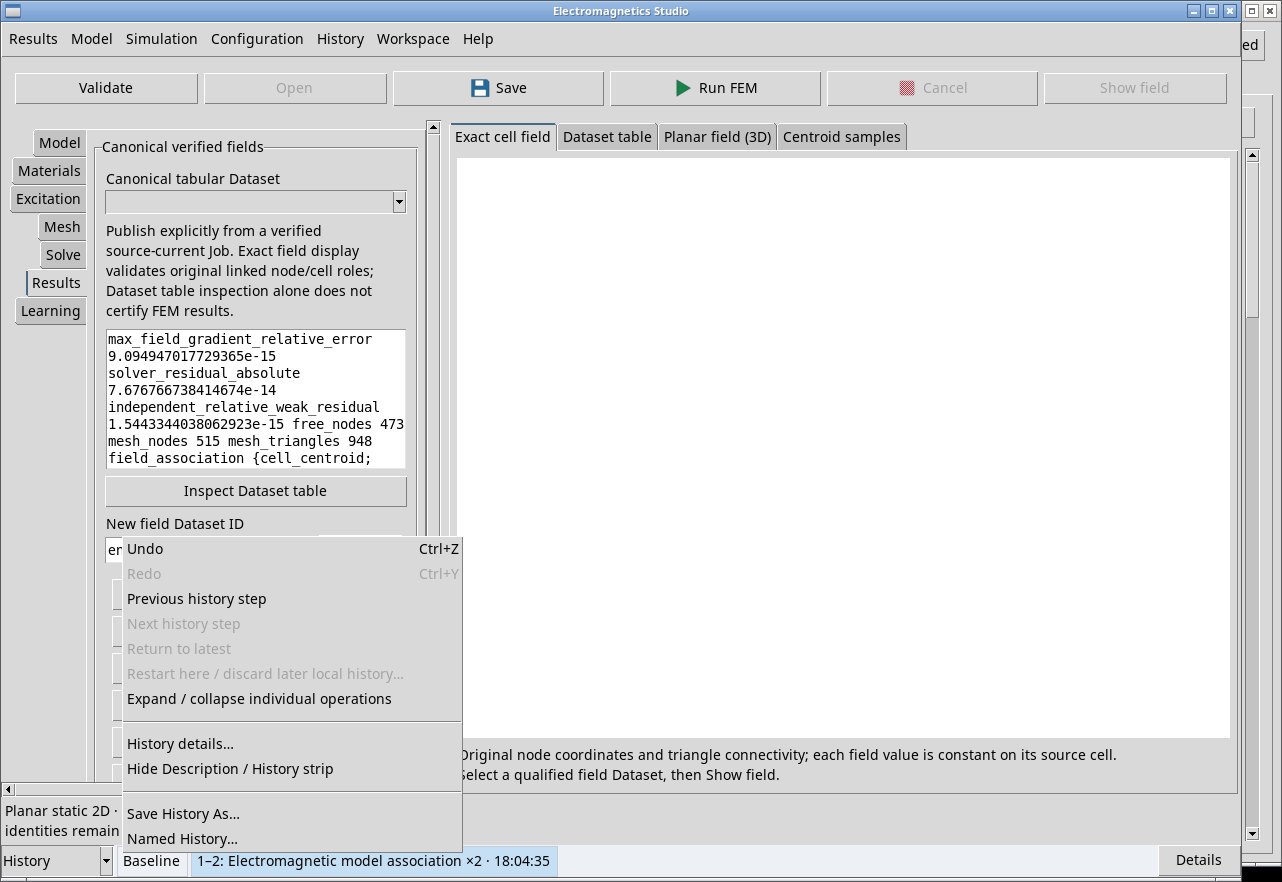
Click a timeline entry to inspect its state. History is read-only in this mode. Right-click to open the commands below.
- Undo
- Go back one step in active History. Also available from the History menu or with Ctrl + Z. It is disabled at the first step and in review mode.
- Redo
- Go forward one step in active History. Use the menu or Ctrl + Y. It is disabled at the last step.
- Previous history step
- Show the step before the current selection. Disabled at the first step.
- Next history step
- Show the next step. Disabled at the last step.
- Return to latest
- Leave review mode and return to the current work state.
- Expand / collapse individual operations
- Expand a grouped entry to see its individual operations or collapse it to read the summary.
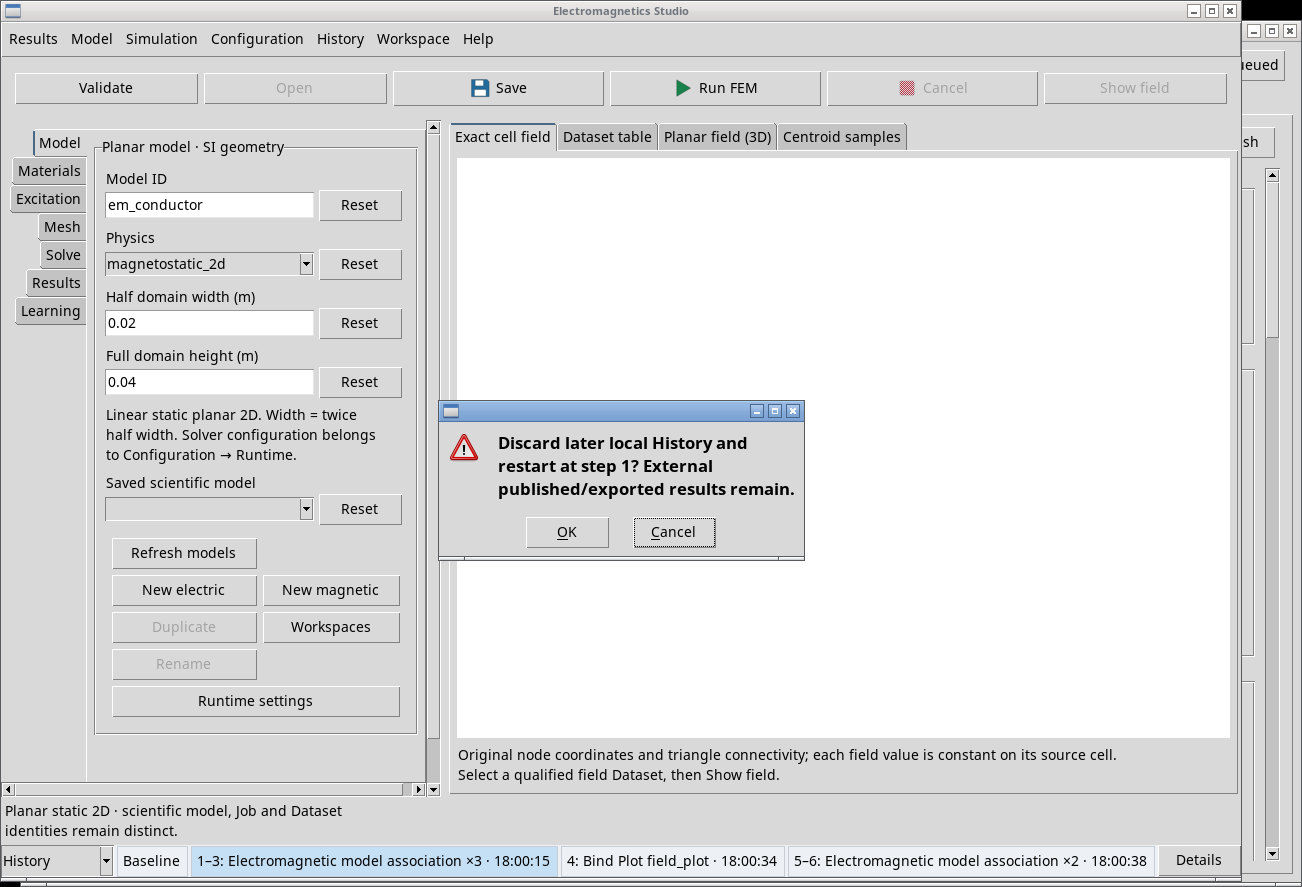
- Restart here / discard later local history…
- Resume editing from an earlier state, discarding later local History after confirmation with OK. Files and Datasets already published stay in the Session or at their export destinations. Use Cancel to keep the steps. Before leaving, you can save a snapshot with Save History As….
Save a named History snapshot
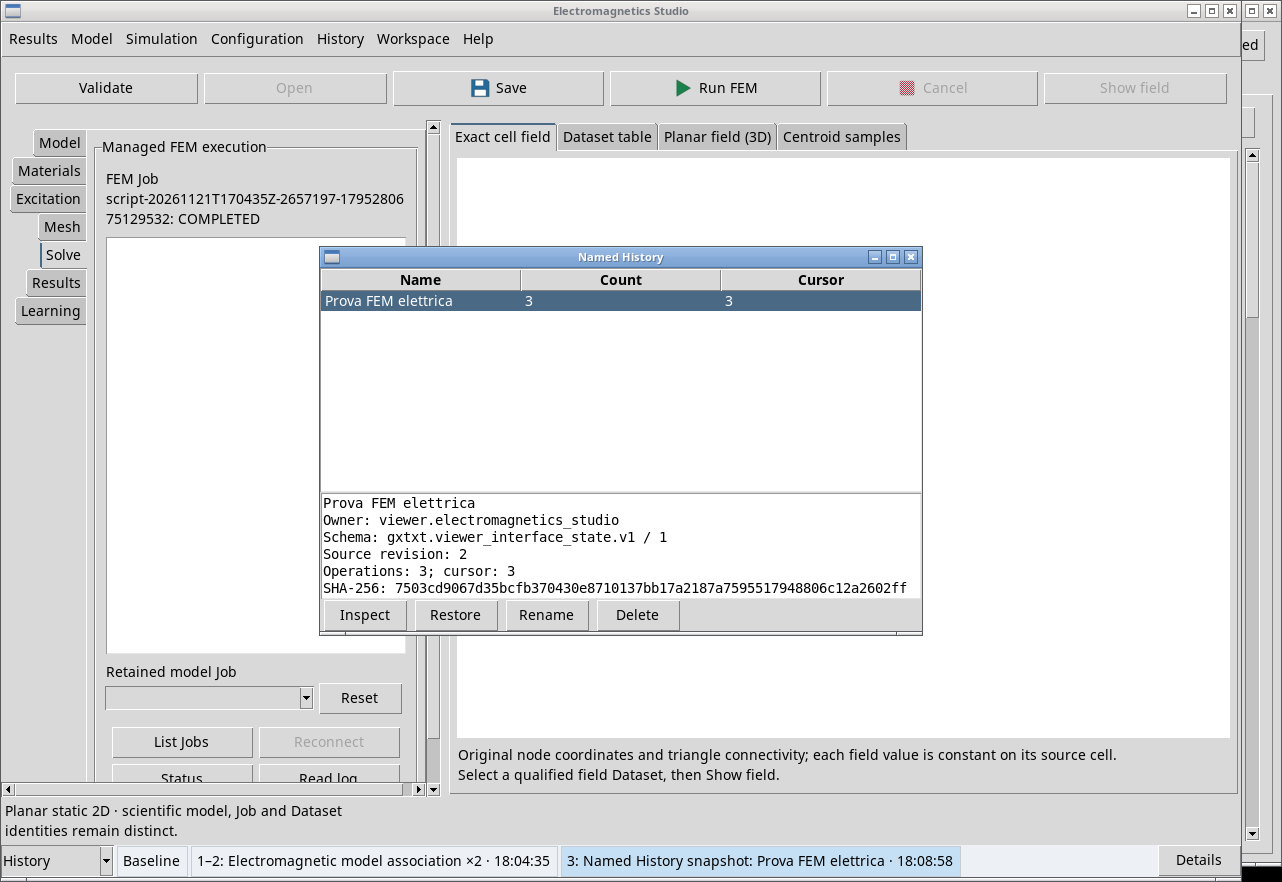
Save the interface Workspace first. Choose History → Save History As…, fill in Name and press Apply. The snapshot belongs to that Workspace. In Named History…, you can see its name, operation count and cursor position.
- Inspect
- Shows the name, owner, schema, base revision, operation count, cursor position and SHA-256 hash of the selected snapshot.
- Restore
- Reloads the recorded History for the current Workspace. Check the name and any confirmation prompt before continuing.
- Rename
- Renames the selected snapshot. Fill in Name and press Apply.
- Delete
- Delete the selected snapshot after confirmation. Active history and scientific resources remain available.
Clear local History
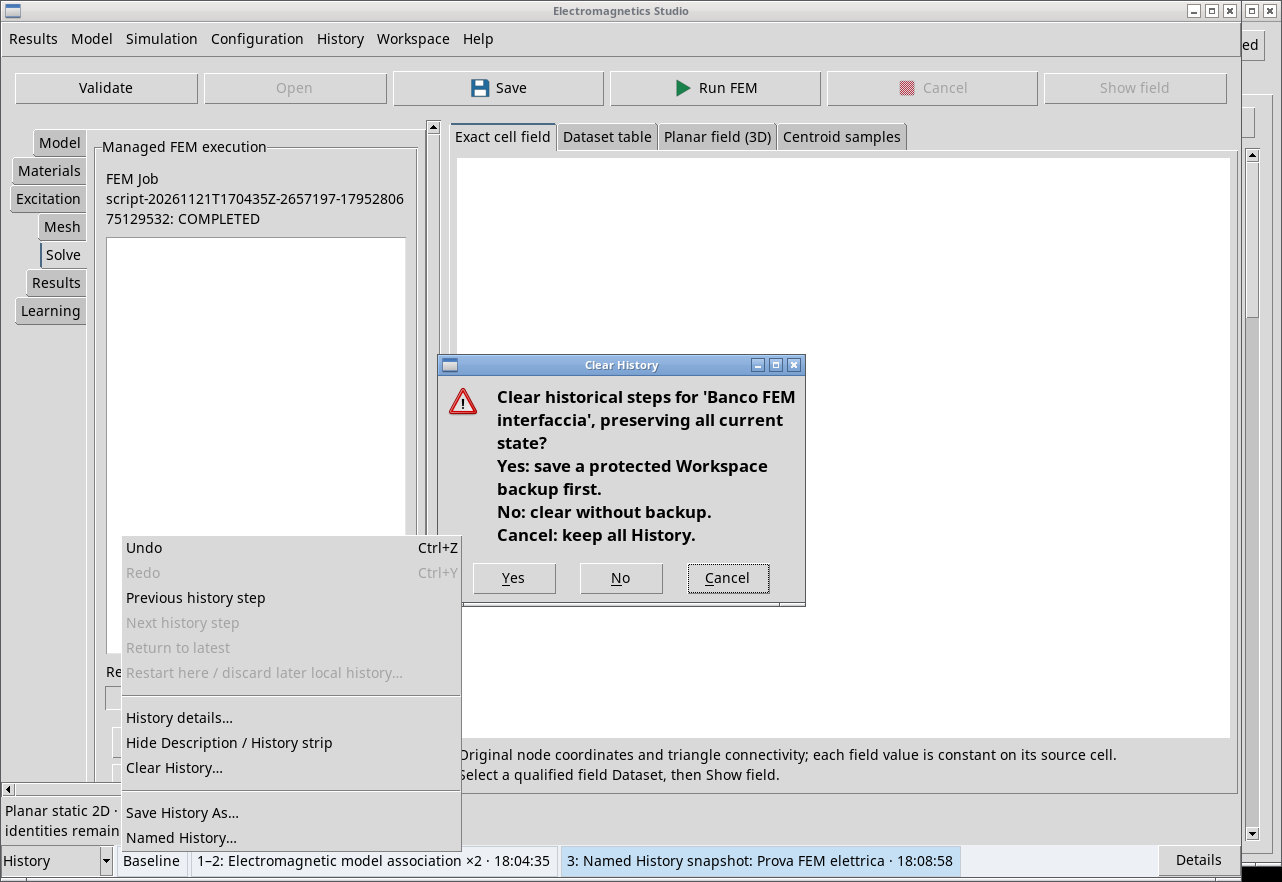
Clear History… appears in the context menu when a Workspace has been saved. It is available at the latest step, outside review mode, when earlier steps exist. In the confirmation dialog, Yes opens Save protected Workspace backup. Choose a ZIP destination for the backup before clearing History. No clears History without a backup and Cancel keeps it intact. The current work state becomes the new starting point.
Handle a History draft left in the Session
When the Studio opens, A verified unsaved History draft remains in this Session. indicates a recoverable draft. Yes recovers the most recent draft. No archives it and starts the new Workspace. Cancel keeps the draft as it is and stops opening the Workspace. If Unsaved History recovery cancelled appears, close the warning and reopen the tile to choose again. Then verify the model and the Workspace name before leaving.