

From the Workspace to the Results
Register a Python script in the Session, find both APIs, validate the Job, and check the Datasets and plots after reopening the Session.
Register a script in the Session
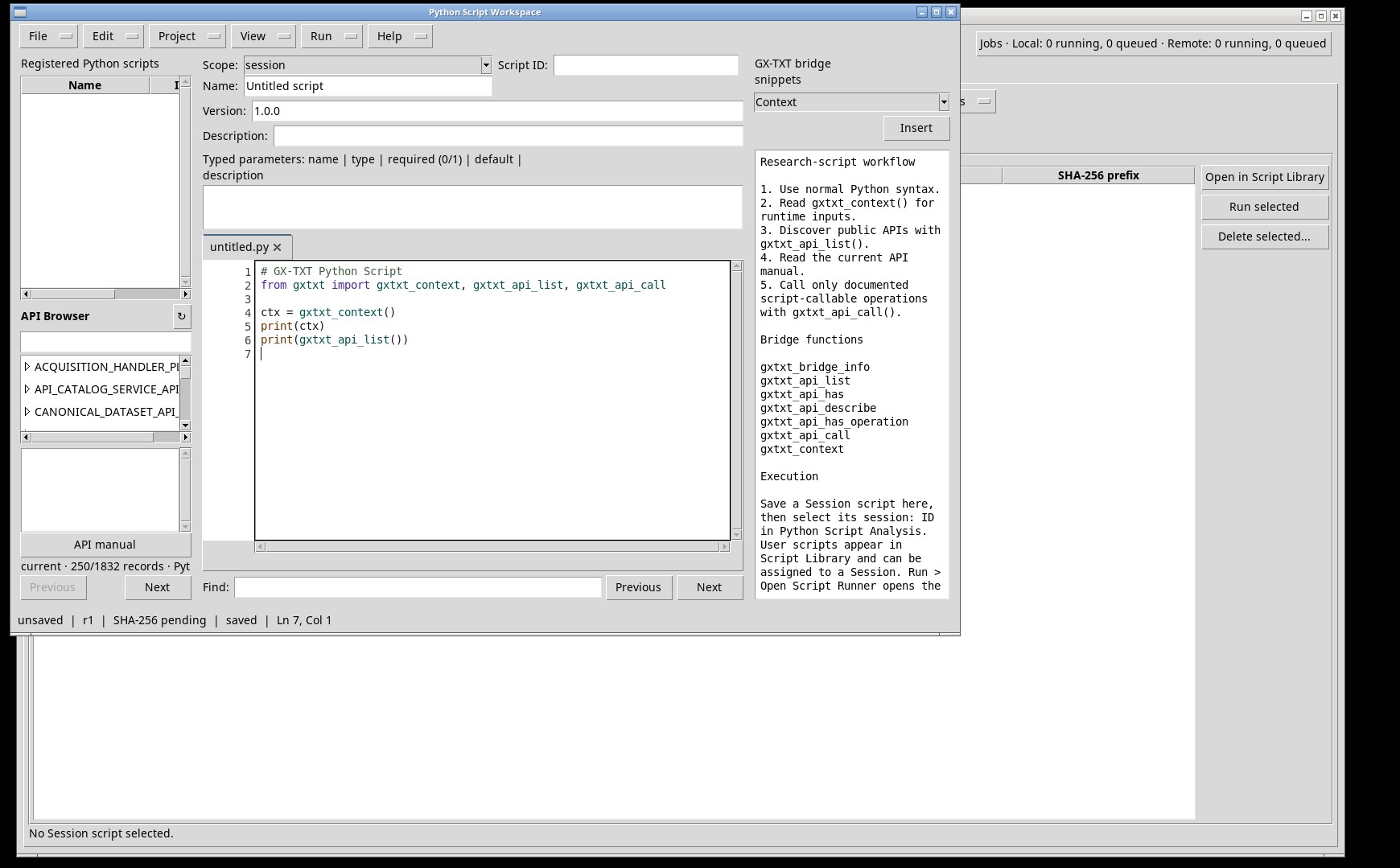
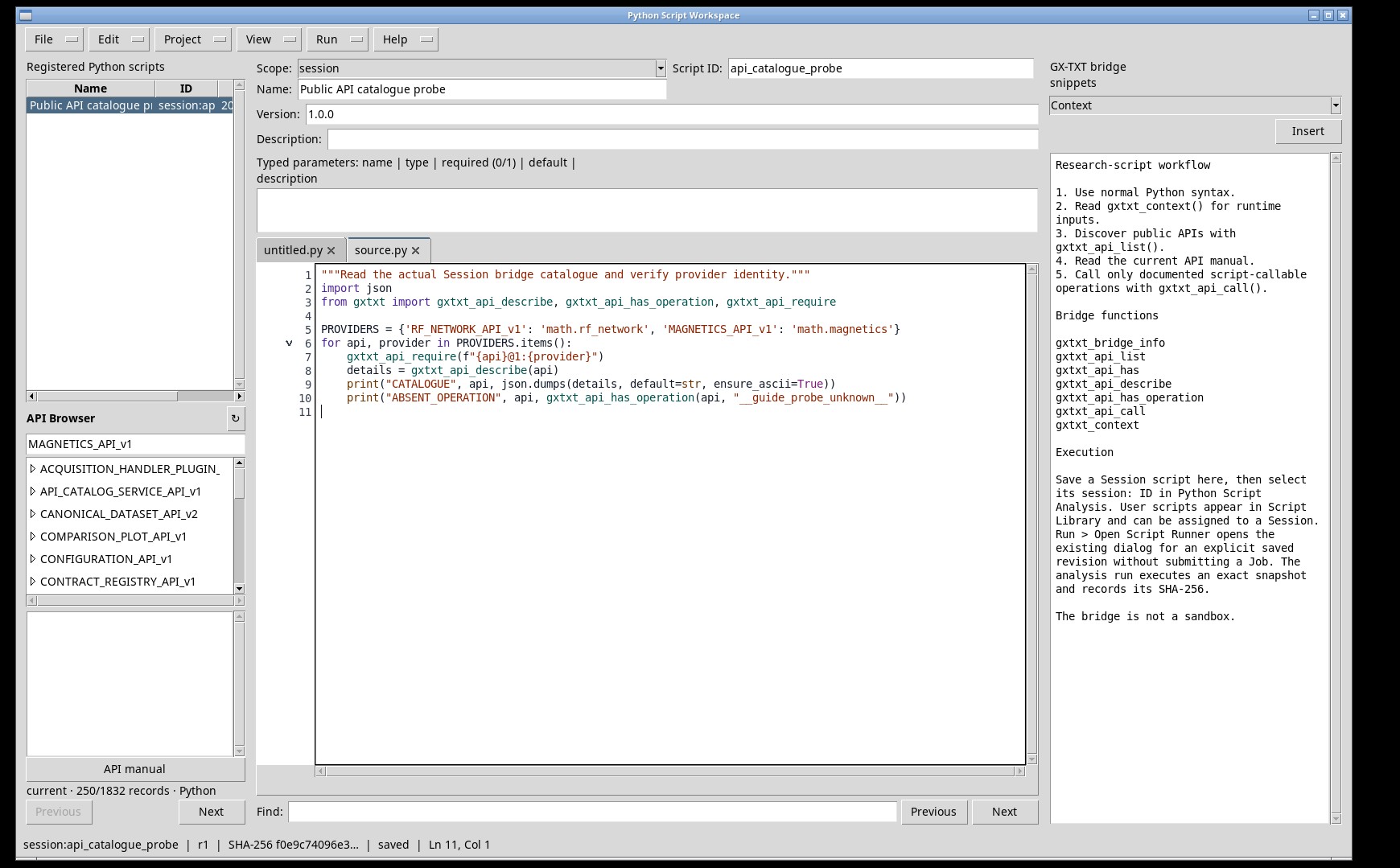
Open GX-TXT and click New Session in the top bar. Choose a distinct name, specify a project if you want to associate one, and confirm. On the Viewers tab, find and open Python Scripts. Choose File → New Script. Enter a stable identifier without spaces in ID and the name to display in the Runner in Name. Keep Scope set to Session to share the script in the current context. Paste the code into the central pane and choose File → Save. After saving, check that the status bar shows session: followed by your ID.
Pane controls and states
- Chooses which Session content the Workspace shows: files, scripts, Workspaces, configuration, parameters, experiment, instrumentation, or preview cache. Observed state: read-only.
- Select Session files from the drop-down menu. The selection changes the contents or context of the associated pane. Observed state: available option.
- Select Session scripts from the drop-down menu. The selection changes the contents or context of the associated pane. Observed state: available option.
- Select Workspaces from the drop-down menu. The selection changes the contents or context of the associated pane. Observed state: available option.
- Select Configuration / Manifest from the drop-down menu. The selection changes the contents or context of the associated pane. Observed state: available option.
- Select Session Parameters from the drop-down menu. The selection changes the contents or context of the associated pane. Observed state: available option.
- Select Experiment from the drop-down menu. The selection changes the contents or context of the associated pane. Observed state: available option.
- Select Instrumentation from the drop-down menu. The selection changes the contents or context of the associated pane. Observed state: available option.
- Select Preview Cache from the drop-down menu. The selection changes the contents or context of the associated pane. Observed state: available option.
- Refresh
- Reloads the list of Session files and scripts shown in the Workspace. Observed state: normal.
- Copy file text
- Copies the text of the file selected in the Workspace to the clipboard. Observed state: normal.
- Session: Ricognizione_RF_Magnetics — 5 text/data file(s)
- Workspace status line: name of the open Session and number of text or data files it contains. Observed state: normal.
- Jobs
- Opens the Session Jobs manager. Observed state: normal.
- Edit note…
- Opens the note attached to the Session or to the selected file for editing. Observed state: normal.
- ⌂ Project Home
- Returns the Workspace to the project home page. Observed state: normal.
- Session
- Main-bar tab with the Session commands. Observed state: normal.
- Instruments
- Main-bar tab with the configured instruments. Observed state: normal.
- Configuration
- Main-bar tab with the Session configuration and manifest. Observed state: normal.
- Tools
- Main-bar tab with the additional tools, including the Python editor. Observed state: normal.
- Workspace list
- List of the Session files and scripts. Select a row to open its content and details. Observed state: active.
- Open in Script Library
- Opens the selected entry in the library, with the actions allowed by its registration. Observed state: normal.
- Run selected
- Opens the review for the script selected in Session scripts. Observed state: normal.
- Delete selected…
- Deletes the items selected in the list, after asking for confirmation. Observed state: normal.
- No Session script selected.
- Message shown when no script is selected in the Session scripts list. Observed state: normal.
- File
- Editor File menu: new script, open, save, register, export, and close. Observed state: normal.
- Edit
- Editor Edit menu: undo and redo, clipboard, search, and note formatting. Observed state: normal.
- Project
- Editor Project menu: Python projects, project files, entry point, and public APIs. Observed state: normal.
- View
- Editor View menu: side panes, debugger, API Browser, script properties, and notes. Observed state: normal.
- Run
- Editor Run menu: debugging, review and run, Script Library, and Script Jobs Manager. Observed state: normal.
- Help
- Editor Help menu: Script Bridge help, viewer manual, and program information. Observed state: normal.
- Registered Python scripts
- List of the Python scripts registered in the Session or in the user profile. Observed state: normal.
- Scope:
- Choose session to register the script within the experiment or user to make it available in the user profile’s Library. Observed state: normal.
- Scope (menu)
- Registration scope menu: session or user. Observed state: read-only.
- Scope: session
- Registers the script in the open Session. The ID uses the session: prefix. Observed state: available option.
- Scope: user
- Registers the script in the User catalog. The ID uses the user: prefix. Observed state: available option.
- Script ID:
- Persistent identifier, separate from the display name. Use an ID valid for the registration. Observed state: normal.
- Script ID (field)
- Field for the script ID, without spaces. Observed state: normal.
- Name:
- Display name in the Workspace, Runner, and Script name column in Jobs. Observed state: normal.
- Name (field)
- Field for the script display name. Observed state: normal.
- Version:
- Declared script version. The manager stores the revision and SHA of the executed code separately. Observed state: normal.
- Version (field)
- Field for the declared version, for example 1.0.0. Observed state: normal.
- Description:
- Registration description. Use it to specify expected data, purpose, and units. Observed state: normal.
- Typed parameters: name | type | required (0/1) | default | description
- Table of the typed parameters declared by the script: name, type, required (0/1), default, and description. Observed state: normal.
- Typed parameters (field)
- Typed parameters text box: one line per parameter, in the format shown in the heading. Observed state: normal.
- Find:
- Enter the search text for the source or active view. Move between results with Find next or Find previous. Observed state: normal.
- Previous
- Shows the previous page when available. Observed state: normal.
- Next
- Shows the next page when available. Observed state: normal.
- Source tabs
- Tabs of the sources open in the editor, such as untitled.py and source.py. The active tab is the one being edited. Observed state: active.
- Source
- Python source editing area, with line numbers and block folding. Observed state: normal.
- Status
- Pane status area: shows the result of the last action. Observed state: normal.
- GX-TXT bridge snippets
- Pane with the GX-TXT Bridge snippets that can be inserted into the source. Observed state: normal.
- Snippet (menu)
- Menu of GX-TXT Bridge snippet categories: context, API discovery, requirements, signature, and call. Observed state: read-only.
- Snippet: Context
- Inserts an example that reads parameters and keys from the current context. Observed state: available option.
- Snippet: Discover APIs
- Inserts code to discover available public APIs. Observed state: available option.
- Snippet: Require API
- Inserts a requirement declaration and availability check. Observed state: available option.
- Snippet: Describe API
- Inserts a query for the signature and registered operations. Observed state: available option.
- Snippet: Call API
- Inserts a template for calling a public operation. Observed state: available option.
- Insert
- Inserts the selected Bridge snippet at the current editor position. Observed state: normal.
- Snippet reference
- Reference text for the selected snippet, read-only. Observed state: disabled.
- unsaved | r1 | SHA-256 pending | saved | Ln 7, Col 1
- Editor status bar: save state, revision, SHA-256 fingerprint of the code, and cursor position (line and column). Observed state: normal.
- Save or explicitly register this script in Session or User scope first. Existing legacy documents remain unchanged. Run > Script Library is available for other registered scripts.
- Editor notice: save or register the script in Session or User scope before running it. Other registered scripts are available in Run > Script Library. Observed state: normal.
- Icon
- Notice icon. Observed state: normal.
- OK
- Closes the notice. Observed state: normal.
- File / New Script
- Creates an empty source tab. Set ID and Name before saving it. Observed state: normal.
- File / Import .py…
- Opens the file picker and imports the text of a Python file into the editor. Check ID and Scope before saving. Observed state: normal.
- File / Save
- Saves the current tab. A new registration appears in the list of scripts available to the Runner. Observed state: normal.
- File / Save All
- Saves editable Workspace tabs with changes. Observed state: normal.
- File / Save As…
- Creates a registration using the destination or ID selected in the dialog. Observed state: normal.
- File / Export .py…
- Writes a copy of the source to a Python file. Observed state: normal.
- File / Delete
- Removes the selected registration after confirmation. Select an editable registration first. Observed state: disabled.
- File / Copy ID
- Copies the saved script ID for use when referring to the same registration. Observed state: disabled.
- File / Close tab
- Closes the current tab. A modified document may prompt you to save it. Observed state: normal.
- File / Close
- Closes the current window. A Job already submitted from the Runner continues independently. Observed state: normal.
- Edit / Undo
- Undoes the most recent available change in the active buffer. Observed state: disabled.
- Edit / Redo
- Redoes the most recently undone change when available. Observed state: disabled.
- Edit / Cut
- Copies the selection to the clipboard and removes it from the editable source. Observed state: disabled.
- Edit / Copy
- Copies the current selection to the clipboard. Observed state: disabled.
- Edit / Paste
- Pastes the clipboard contents at the cursor. Observed state: normal.
- Edit / Select all
- Selects all text in the active pane. Observed state: normal.
- Edit / Manage imports…
- Opens the script’s import manager so you can inspect dependencies before running the script. Observed state: normal.
- Edit / Find
- Opens the search in the source, with Find next and Find previous. Observed state: normal.
- Edit / Find next
- Moves to the next match for the current search. Observed state: normal.
- Edit / Find previous
- Moves to the previous match for the current search. Observed state: normal.
- Edit / Go to line…
- Moves the cursor to the specified line in the source. Observed state: normal.
- Edit / Fold current block
- Folds the recognized block around the cursor. Observed state: normal.
- Edit / Fold all
- Folds recognized code blocks in the document. Observed state: normal.
- Edit / Unfold all
- Expands folded blocks in the document. Observed state: normal.
- Edit / Edit Notes
- Opens the notes associated with the script for editing and formatting. Observed state: normal.
- Edit / Note format
- Submenu for formatting note text. Available only while editing a note. Observed state: disabled.
- Edit / Note format / Heading
- Submenu with the heading levels for the note. Observed state: disabled.
- Edit / Note format / Heading / Heading 1
- Turns the current note line into a level 1 heading. Observed state: disabled.
- Edit / Note format / Heading / Heading 2
- Turns the current note line into a level 2 heading. Observed state: disabled.
- Edit / Note format / Heading / Heading 3
- Turns the current note line into a level 3 heading. Observed state: disabled.
- Edit / Note format / Bold
- Applies bold to the selected note text. Observed state: disabled.
- Edit / Note format / Italic
- Applies italic to the selected note text. Observed state: disabled.
- Edit / Note format / Inline code
- Formats the selected note text as inline code. Observed state: disabled.
- Edit / Note format / Code block
- Inserts a code block into the note. Observed state: disabled.
- Edit / Note format / Text color…
- Opens the color picker for the selected note text. Observed state: disabled.
- Edit / Note format / Bullet list
- Turns the selected note lines into a bulleted list. Observed state: disabled.
- Edit / Note format / Numbered list
- Turns the selected note lines into a numbered list. Observed state: disabled.
- Edit / Note format / Insert table
- Inserts a table into the note. Observed state: disabled.
- Edit / Note format / Insert link
- Inserts a link into the note. Observed state: disabled.
- Edit / Note format / Insert quote
- Inserts a quotation into the note. Observed state: disabled.
- Edit / Note format / Insert rule
- Inserts a horizontal rule into the note. Observed state: disabled.
- Edit / Note images
- Submenu for note images. Available only while editing a note. Observed state: disabled.
- Edit / Note images / Insert image…
- Inserts an image into the note. Observed state: disabled.
- Edit / Note images / Replace image…
- Replaces the selected image in the note. Observed state: disabled.
- Edit / Note images / Remove image
- Removes the selected image from the note. Observed state: disabled.
- Project / New Project…
- Creates a new Python project. Observed state: normal.
- Project / Open Project…
- Opens an existing Python project. Observed state: normal.
- Project / Import Project…
- Imports a Python project from a folder or an archive. Observed state: normal.
- Project / Manage Project…
- Opens the management of the current project: files, dependencies, and settings. Observed state: normal.
- Project / Public APIs
- Submenu for the public APIs declared by the project. Observed state: normal.
- Project / Public APIs / Saved Public APIs
- Shows the project’s saved public APIs. Observed state: normal.
- Project / Public APIs / Preview draft APIs
- Shows a preview of the APIs declared in draft and not yet saved. Observed state: normal.
- Project / Public APIs / Open implementation
- Opens the implementation of the selected API in the source. Requires an entry selected in the API inventory. Observed state: disabled.
- Project / Public APIs / Cancel API inventory
- Stops the API inventory in progress. Available only while the inventory is running. Observed state: disabled.
- Project / Open project file…
- Opens a file of the current project. Requires an open project. Observed state: disabled.
- Project / New file…
- Adds a new file to the current project. Requires an open project. Observed state: disabled.
- Project / Rename/move file…
- Renames or moves a project file. Requires an open project. Observed state: disabled.
- Project / Remove file
- Removes a file from the project. Requires an open project. Observed state: disabled.
- Project / Set entrypoint
- Sets the current file as the project entry point. Requires an open project. Observed state: disabled.
- Project / Return to code
- Returns from the project file to the script source. Requires an open project. Observed state: disabled.
- View / Script Explorer / Registered scripts
- Shows or hides the Script Explorer pane with the registered scripts. Observed state: normal.
- View / GX-TXT Bridge Snippets
- Shows or hides the GX-TXT Bridge snippets pane. Observed state: normal.
- View / Debugger
- Shows or hides the debugger pane. Observed state: normal.
- View / Call Stack
- Shows or hides the debugger call stack. Observed state: normal.
- View / Variables / Locals
- Shows or hides the debugger local variables. Observed state: normal.
- View / Debug Output / Console
- Shows or hides the debug output console. Observed state: normal.
- View / Breakpoints
- Shows or hides the breakpoint list. Observed state: normal.
- View / API Browser
- Shows or hides the API Browser pane. Observed state: normal.
- View / Focus source / restore panes
- Enlarges the source by hiding the side panes, or restores them. Observed state: normal.
- View / Reset editor layout
- Restores the editor panes to the default layout. Observed state: normal.
- View / Script properties
- Shows or hides the script properties: scope, ID, name, and description. Observed state: normal.
- View / Parameters
- Shows or hides the typed parameters table. Observed state: normal.
- View / Version
- Shows or hides the declared version field. Observed state: normal.
- View / Additional required APIs
- Shows or hides the list of additional APIs required by the script. Observed state: normal.
- View / Show Notes
- Shows or hides the script notes. Observed state: normal.
- View / Note panes and zoom
- Submenu for the note panes and zoom. Available only while a note is open. Observed state: disabled.
- View / Note panes and zoom / Source
- Shows the Markdown source of the note. Observed state: disabled.
- View / Note panes and zoom / Rendered preview
- Shows the rendered preview of the note. Observed state: disabled.
- View / Note panes and zoom / Outline
- Shows the outline of the note headings. Observed state: disabled.
- View / Note panes and zoom / Properties
- Shows the note properties. Observed state: disabled.
- View / Note panes and zoom / Resources
- Shows the resources attached to the note, such as images. Observed state: disabled.
- View / Note panes and zoom / Zoom in
- Zooms in on the note view. Observed state: disabled.
- View / Note panes and zoom / Zoom out
- Zooms out of the note view. Observed state: disabled.
- View / Note panes and zoom / Reset zoom
- Resets the note zoom to the default. Observed state: disabled.
- View / Note panes and zoom / Reset note layout
- Restores the note panes to the default layout. Observed state: disabled.
- Run / Debug Session script…
- Starts debugging the script in the Session so you can inspect its state and execution steps. Observed state: normal.
- Run / Open Script Runner…
- Opens the review for the current registration. Use Save first to create a runnable ID. Observed state: normal.
- Run / Script Library…
- Opens the registrations available in the Session or User scope. Select a script to inspect or run. Observed state: normal.
- Run / Script Jobs Manager…
- Opens run receipts, log previews, and actions for the selected Job. Observed state: normal.
- Help / Script Bridge help
- Opens the Script Bridge help. Observed state: normal.
- Help / Viewer manual / Debugger guide…
- Opens the debugger guide in the viewer manual. Observed state: normal.
- Help / About…
- Shows the editor version and information. Observed state: normal.
Inspect the installed API
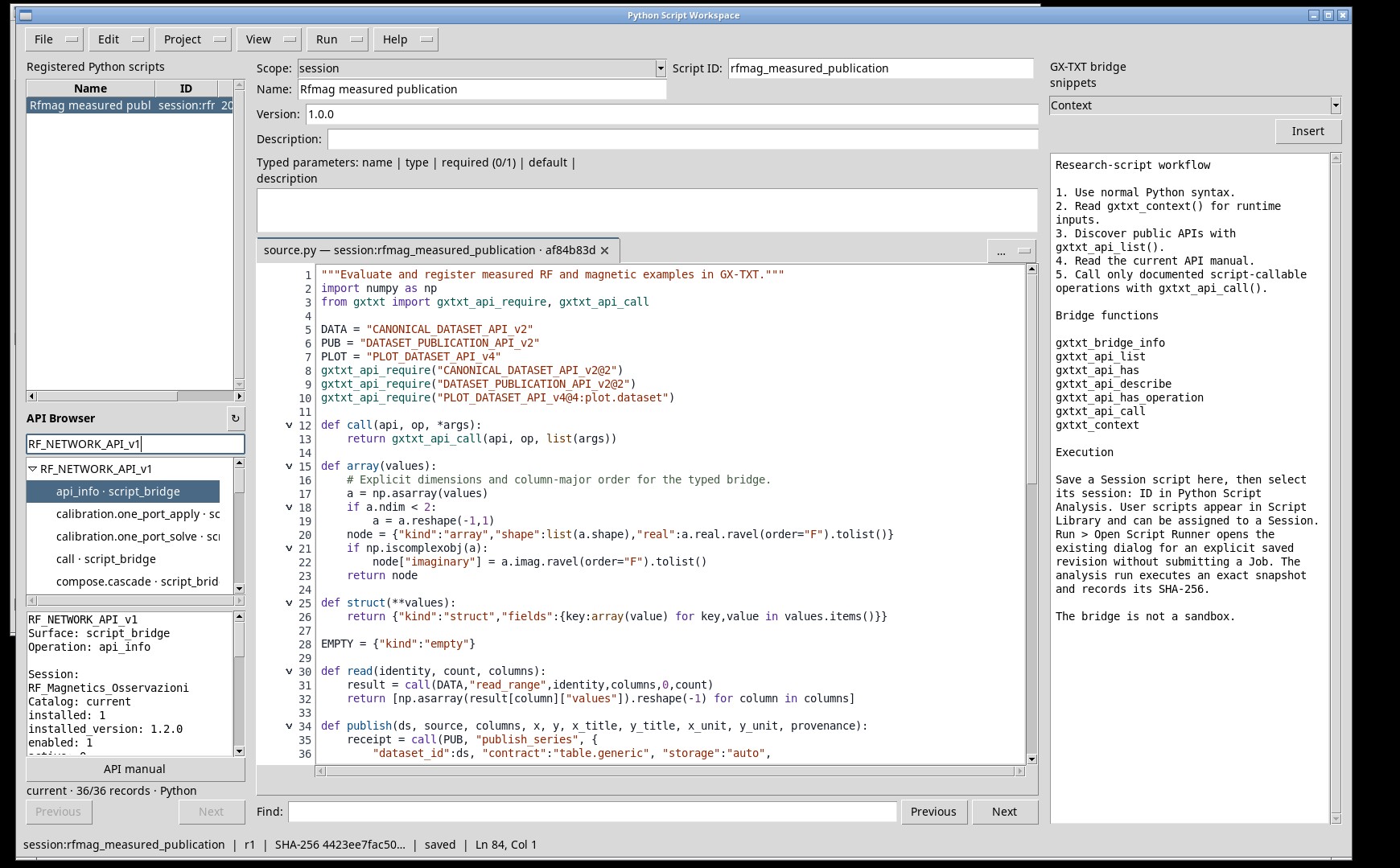
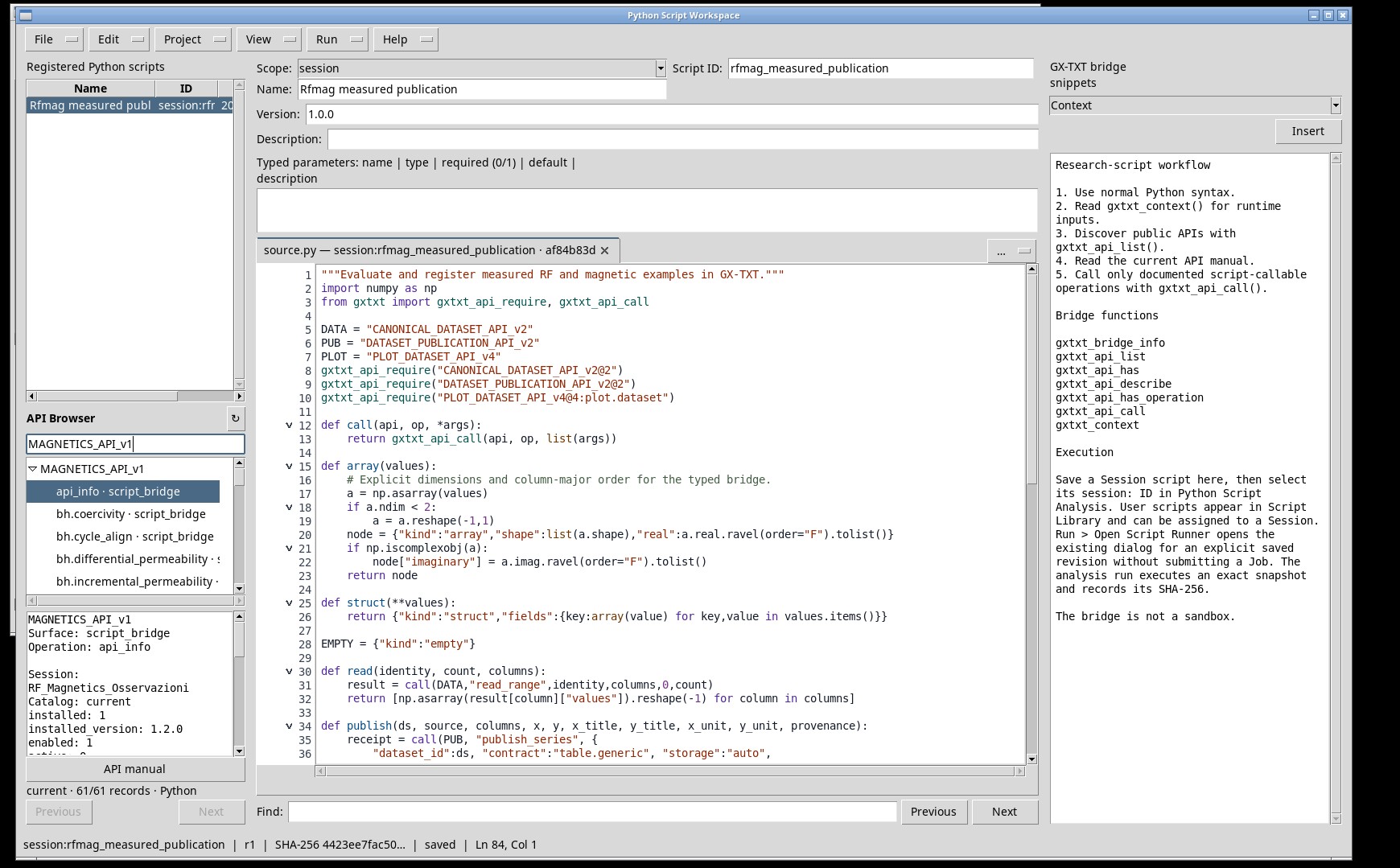
In View → API Browser, enter the full API ID and press Enter. Expand the family and select a Script Bridge entry. Check its exact name, signature, type, and status in the details pane. Previous and Next page through the results. Manual opens the reference for the selected family. Change the query to find another family. To confirm whether the Job can call an operation, run gxtxt_api_has_operation(api, nome) in the same context.
Pane controls and states
- API Browser
- Title of the API Browser window. Observed state: normal.
- ↻
- Reloads the catalog of installed APIs. Observed state: normal.
- query
- Enter a query for the family or operation and press Enter. Observed state: normal.
- Previous
- Shows the previous page when available. Observed state: disabled.
- Next
- Shows the next page when available. Observed state: normal.
- current · 250/1832 records · Python
- Catalog summary: current version, entries shown out of the total, and filtered language. Observed state: normal.
- API manual
- Opens the reference for the selected family in the API manual. Observed state: normal.
- API tree
- Tree of API families and operations. Expand a family and select an operation to see its details. Observed state: active.
- Detail
- Detail text area, read-only in the screenshot. Observed state: disabled.
Validate and run the Job
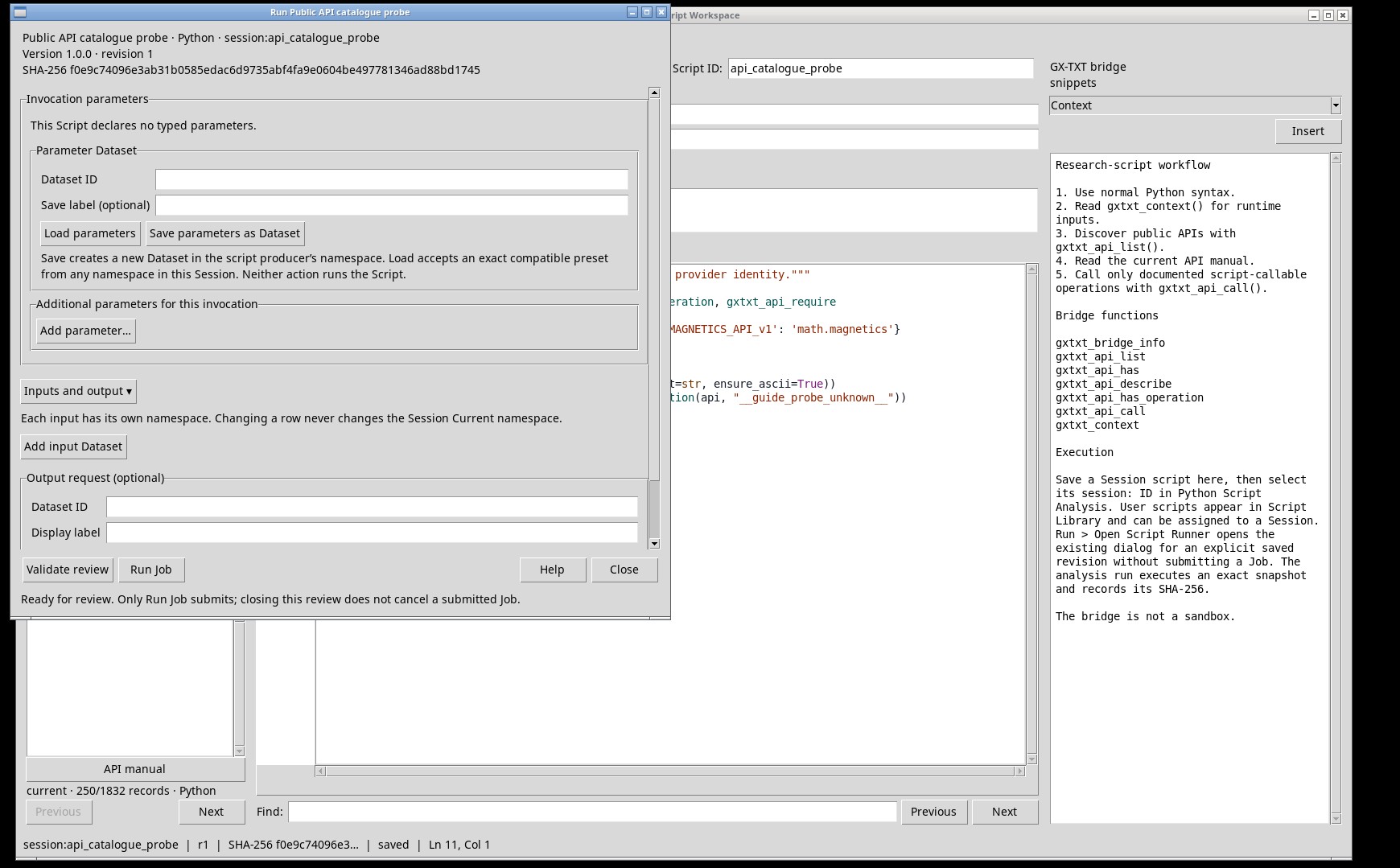
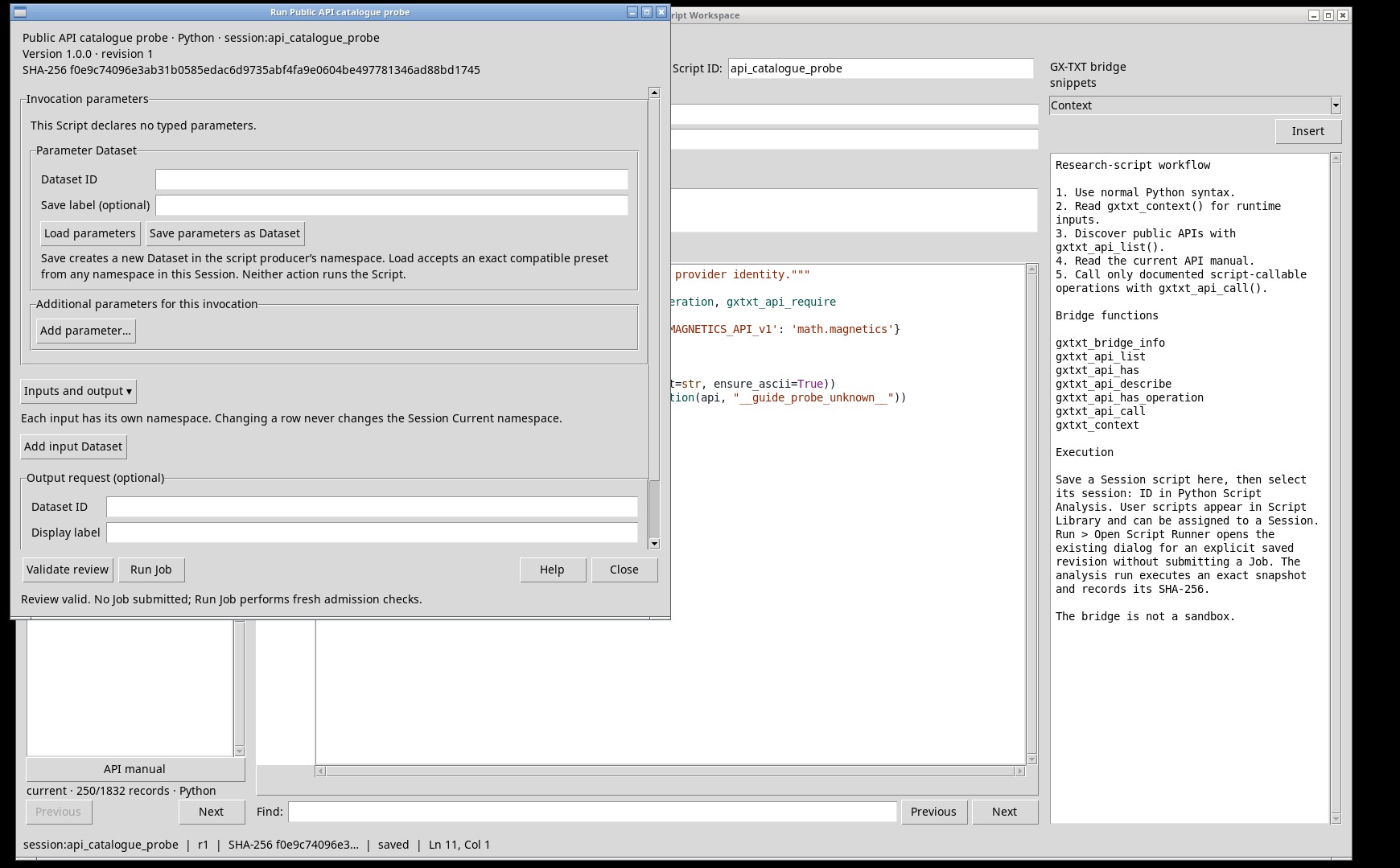
Open Run → Open Script Runner…. Check the script and Session. If the script declares parameters, select the Datasets or enter values of the displayed type. Additional required APIs lists the declared requirements. Click Validate review and read the receipt. Click Run Job to start the run. The review validates requirements and configuration. The API checks the numerical constraints on each operand when it receives the call.
Pane controls and states
- Public
- Indicates that the script is registered as public. Observed state: active.
- This Script declares no typed parameters.
- Message shown when the script declares no typed parameters. Observed state: normal.
- Dataset ID
- Identifies the Dataset or preset for the row. Use the persistent ID shown in the Dataset browser. Observed state: normal.
- Dataset ID (field)
- Field with the ID of the Dataset to save the preset to or load it from. Observed state: normal.
- Save label (optional)
- Optional display name for the stored parameter Dataset. Observed state: normal.
- Save label (field)
- Field with the optional name of the saved preset. Observed state: normal.
- Load parameters
- Loads a compatible preset from the Session and repopulates the parameters. Observed state: normal.
- Save parameters as Dataset
- Saves the parameters as a preset in the producer’s namespace. Observed state: normal.
- Save creates a new Dataset in the script producer’s namespace. Load accepts an exact compatible preset from any namespace in this Session. Neither action runs the Script.
- Runner note: Save creates a new Dataset in the script producer’s namespace; Load accepts an exactly compatible preset from any namespace in the Session. Neither action runs the script. Observed state: normal.
- Add parameter…
- Creates a typed parameter for the current run only. You can edit or remove it without changing the registration. Observed state: normal.
- Inputs and output ▾
- Expands the panel to bind Dataset inputs and configure publication authorization. Observed state: normal.
- Each input has its own namespace. Changing a row never changes the Session Current namespace.
- Runner note: each input has its own namespace, and changing a row never changes the Session’s current namespace. Observed state: normal.
- Add input Dataset
- Adds a row for a Dataset. Choose the namespace, ID, and label for the individual binding. Observed state: normal.
- Display label
- Name shown for the bound input in the Runner. The Dataset ID field retains the data identity. Observed state: normal.
- Display label (field)
- Field with the input name shown in the Runner. Observed state: normal.
- Replace owned output
- Authorizes replacement of output owned by the same producer when the policy permits it. Observed state: normal.
- Publication defaults to the script producer’s private namespace. Input namespaces grant no output rights. Blank keeps the script’s output policy; only a real Publication commit creates output.
- Runner note: publication defaults to the producer’s private namespace, and input namespaces grant no output rights. A blank field keeps the script’s output policy, and only a real publication commit creates output. Observed state: normal.
- Validate review
- Checks the registration, parameters, dependencies, and context policy. Read the result before choosing Run Job. Observed state: normal.
- Run Job
- Submits the current revision for execution. The manager displays the new Job with its ID and status. Observed state: normal.
- Close
- Closes the current window. A Job already submitted from the Runner continues independently. Observed state: normal.
- Help
- Opens the Runner help. Observed state: normal.
- Ready for review. Only Run Job submits; closing this review does not cancel a submitted Job.
- Runner state: ready for review. Only Run Job submits the execution, and closing the review does not cancel a submitted Job. Observed state: normal.
- Review valid. No Job submitted; Run Job performs fresh admission checks.
- Runner state: review valid, no Job submitted. Run Job repeats the admission checks when it submits. Observed state: normal.
Read Job status and logs
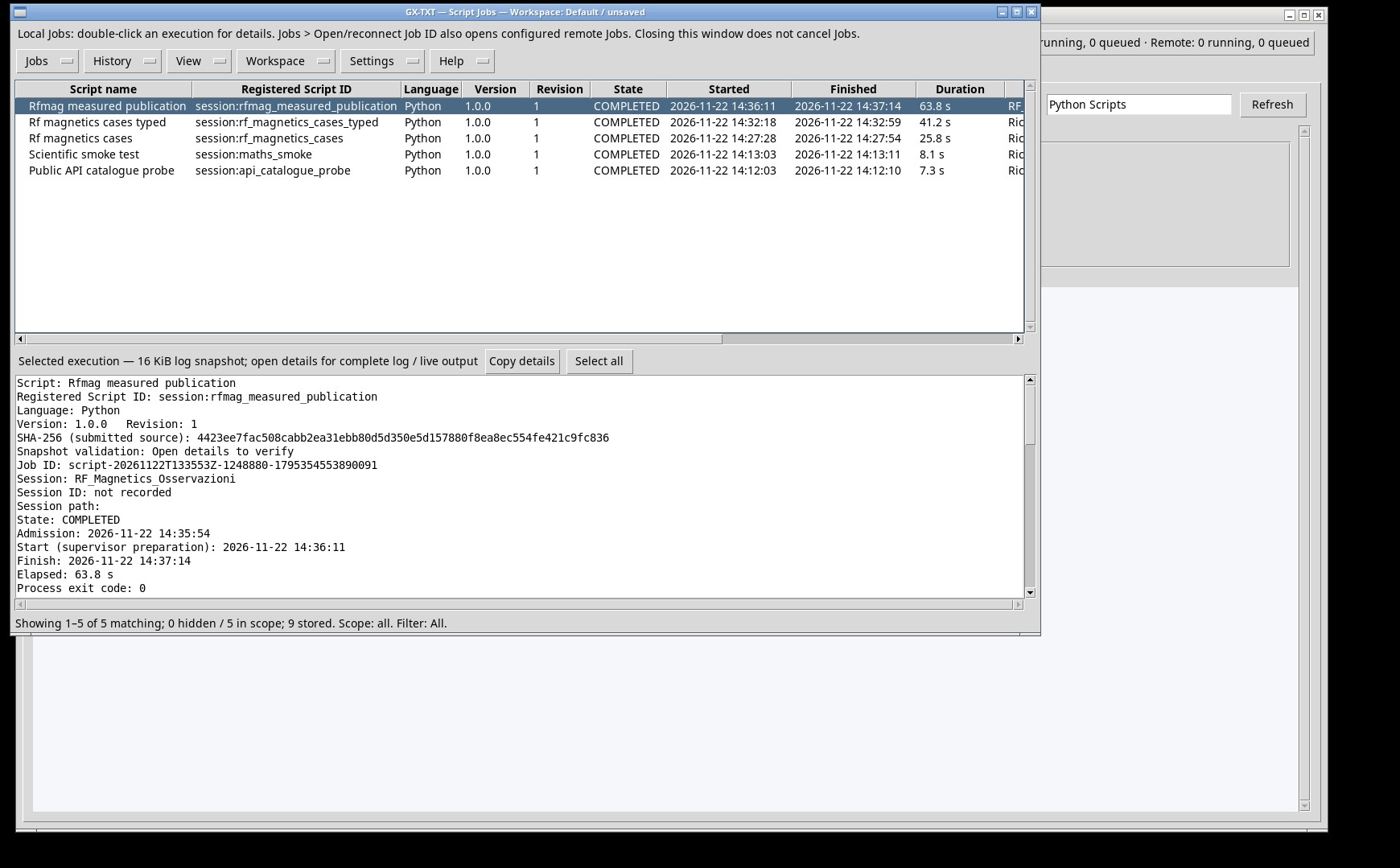
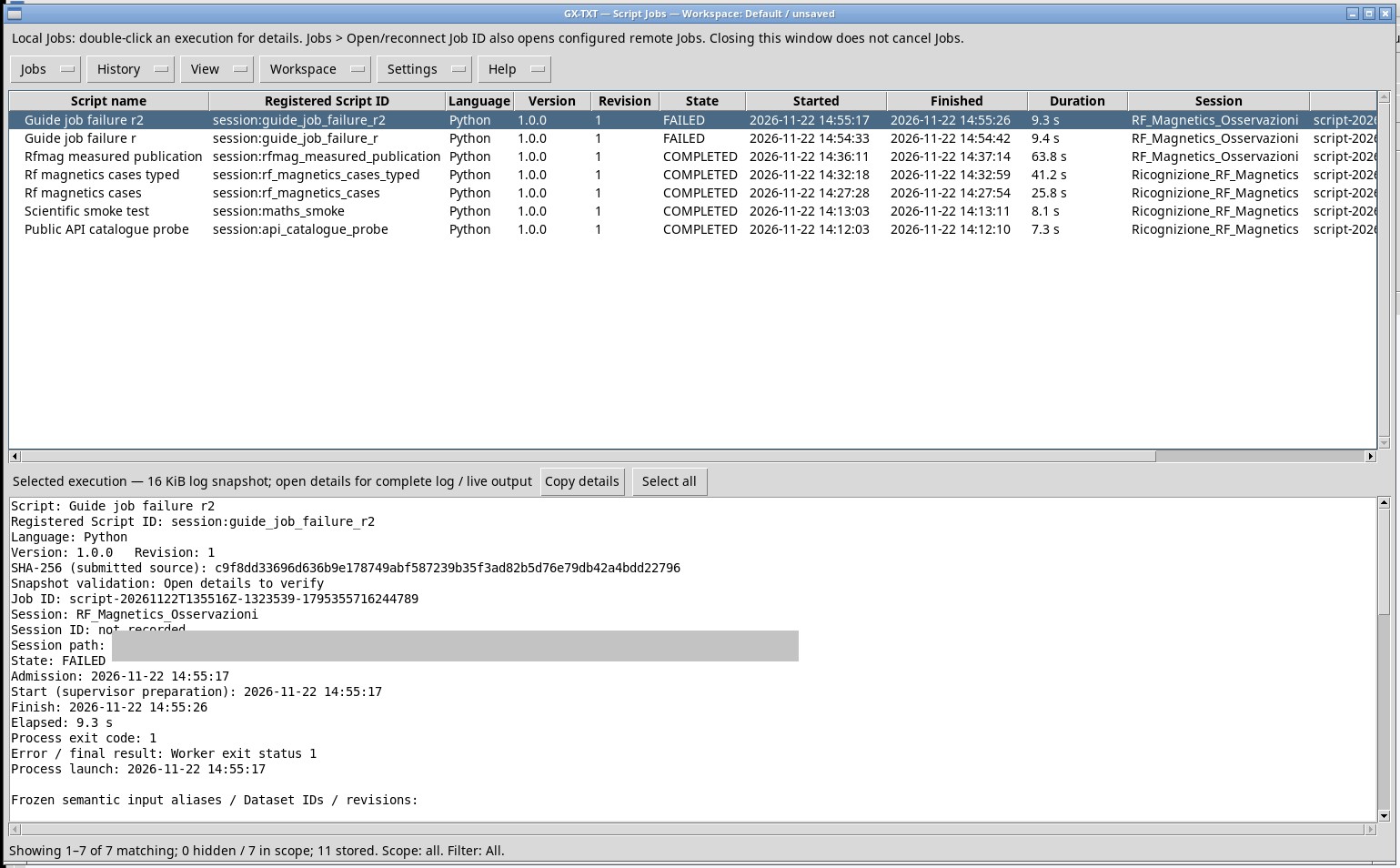
Use Run → Script Jobs Manager… or the Session’s Jobs entry. Select the run you just started, check its ID and name, and open the summary. The stdout log contains test output and any receipts. The stderr log shows exceptions that propagated out of the script. A script may report a condition it handled in stdout even when the Job succeeds. To cancel an active run, select its exact ID and choose Jobs → Cancel running jobs. Follow the same row until the Job reaches a terminal state. A Job may have committed a publication before the cancellation request. Check the commit receipts and the resulting Dataset.
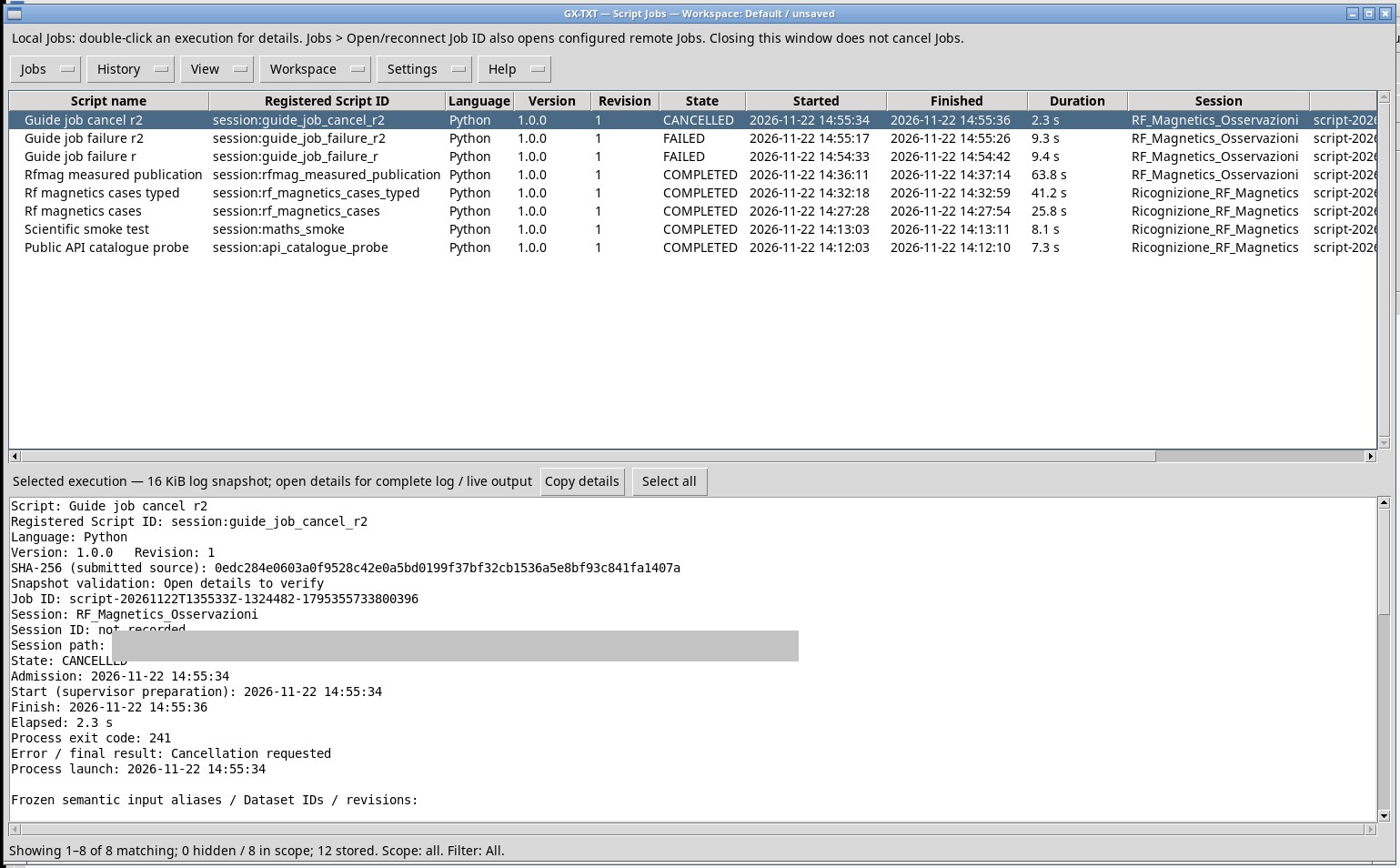
Pane controls and states
- Local Jobs: double-click an execution for details. Jobs > Open/reconnect Job ID also opens configured remote Jobs. Closing this window does not cancel Jobs.
- Manager note: double-click an execution for its details. Jobs > Open/reconnect Job ID also opens configured remote Jobs. Closing this window does not cancel Jobs. Observed state: normal.
- Jobs
- Jobs menu: open or reconnect a Job by ID and act on the selected Job, including cancellation. Observed state: normal.
- History
- History menu: history of the stored executions. Observed state: normal.
- View
- View menu: filters and columns of the execution list. Observed state: normal.
- Workspace
- Workspace menu: links to the Session Workspace. Observed state: normal.
- Settings
- Settings menu: Jobs manager settings. Observed state: normal.
- Help
- Help menu: Jobs manager help. Observed state: normal.
- Selected execution — 16 KiB log snapshot; open details for complete log / live output
- Log pane for the selected execution: shows the last 16 KiB. Open the details for the complete log or live output. Observed state: normal.
- Copy details
- Copies the details text for comparing IDs and diagnostics. Observed state: normal.
- Select all
- Selects all text in the active pane. Observed state: normal.
- Execution list
- List of executions. Select a row to see its log and actions; double-click for the details. Observed state: active.
- details
- Opens the details of the selected execution. Disabled until you select a row. Observed state: disabled.
- List summary: executions shown, hidden, in scope, and stored, with the active scope and filter. Here the list is empty. Observed state: normal.
- List summary with a single execution shown and stored. Observed state: normal.
Datasets and plots in the Session
Import the CSV on the Acquisition tab with the Generic CSV provider. Add the file, assign the ID used by the example, configure Variables, and set the roles and units before clicking Import current. The Job reads columns by Variable ID and publishes new Datasets with provenance. An XY variant stores links to the Datasets and Variable IDs. After reopening the Session, go to Plots and open the required variant. In the Dataset browser, expand the producer’s namespace, click the small activation icon on the row, and choose Open active Dataset. In the viewer, open Canonical table or Schema and provenance. Use the Dataset and receipt to verify the numbers because the plot may decimate points during rendering.
Pane controls and states
- Refresh
- Refresh menu of the Plots window: reloads the plots and linked Datasets. Observed state: normal.
- Selection
- Selection menu: choose the plot or variant to display. Observed state: normal.
- Render
- Render menu: plot drawing options. Observed state: normal.
- Presentation
- Presentation menu: plot appearance, such as axes, legend, and titles. Observed state: normal.
- Data / Variants
- Data / Variants menu: Datasets linked to the plot and saved variants, including those created by the script. Observed state: normal.
- Graph
- Graph menu: commands for the current plot. Observed state: normal.
- Import / Export
- Import / Export menu: import and export of plots and data. Observed state: normal.
- Plot list
- List of the Session plots and variants. Select a row to open it in the view. Observed state: active.
- No graph selected.
- Message shown when no plot is selected. Observed state: normal.
- views
- Plot views tab, active in the screenshot. Observed state: active.
- Use
- Selects the columns to include in acquisition and in the Dataset schema. Observed state: normal.
- CSV col
- Column index in the imported file. Check it against the header row. Observed state: normal.
- Original header
- Column name in the source file. Use it to check the mapping before import. Observed state: normal.
- Canonical variable
- Identifier assigned to the canonical column. The Job uses this key with read_range. Observed state: normal.
- Unit
- Variable unit metadata. Use the scale of the values already present in the CSV. Observed state: normal.
- Semantic role
- Assigns the variable’s scientific role, such as x for the horizontal coordinate or y for the measurement. Observed state: normal.
- Instrument
- Variables column with the instrument associated with the variable, if declared. Observed state: normal.
- Instrument channel
- Variables column with the instrument’s physical channel, if declared. Observed state: normal.
- refresh
- Viewer toolbar button: reloads the active Dataset. Observed state: normal.
- save
- Viewer toolbar button: saves the current view or variant. Observed state: normal.
- open
- Viewer toolbar button: opens a variant or a Dataset. Observed state: normal.
- edit
- Viewer toolbar button: edits the view settings. Observed state: normal.
- Viewer toolbar button: prints or exports the view. Observed state: normal.
- actions
- Viewer toolbar button: opens the Dataset actions menu. Observed state: normal.
- manage
- Viewer toolbar button: manages the saved variants. Observed state: normal.
- Current:
- Shows the variant or Dataset currently open in the viewer. Observed state: active.
Typed parameters, presets, and bindings
In the source, declare a field with gxtxt_parameter_declare('frequency_hz','double',default=8.,min=1.,max=40.). Save to update the registration schema. The Runner shows a numeric field for double and a menu for choice, with the default value and the Reset command. Add parameter… creates a field for the current run only. Give the preset a Dataset ID and an optional Save label, then choose Save parameters as Dataset. Change the values and use Load parameters with the same ID to restore them. Once the Job starts, inspect gxtxt_context()['parameters']. Use Inputs and output to assign a namespace to each input and, if needed, authorize replacement of output owned by the same producer.