

Algebra with Session Functions
Operands and admission
Open Algebra. Select Operand A, then Operand B when the operation requires two sources. The lists show the Functions admitted in the Session. Wait for the identity and the revision to be resolved and for the formula to appear. A missing entry, a changed source or two incompatible signatures leave operations disabled. A sampled CSV does not provide an Algebra formula. In two test Sessions with Functions already published the IDs appeared in the P012 catalogue, while reading returned FAILED. The standard profile was missing jsonschema. With the dependency available in the isolated profile only, the rejection by the Host profile remained (225 and 226). In both cases Operation stayed empty and Apply disabled. These bugs will be fixed in P013. Introductory procedure in Graphs
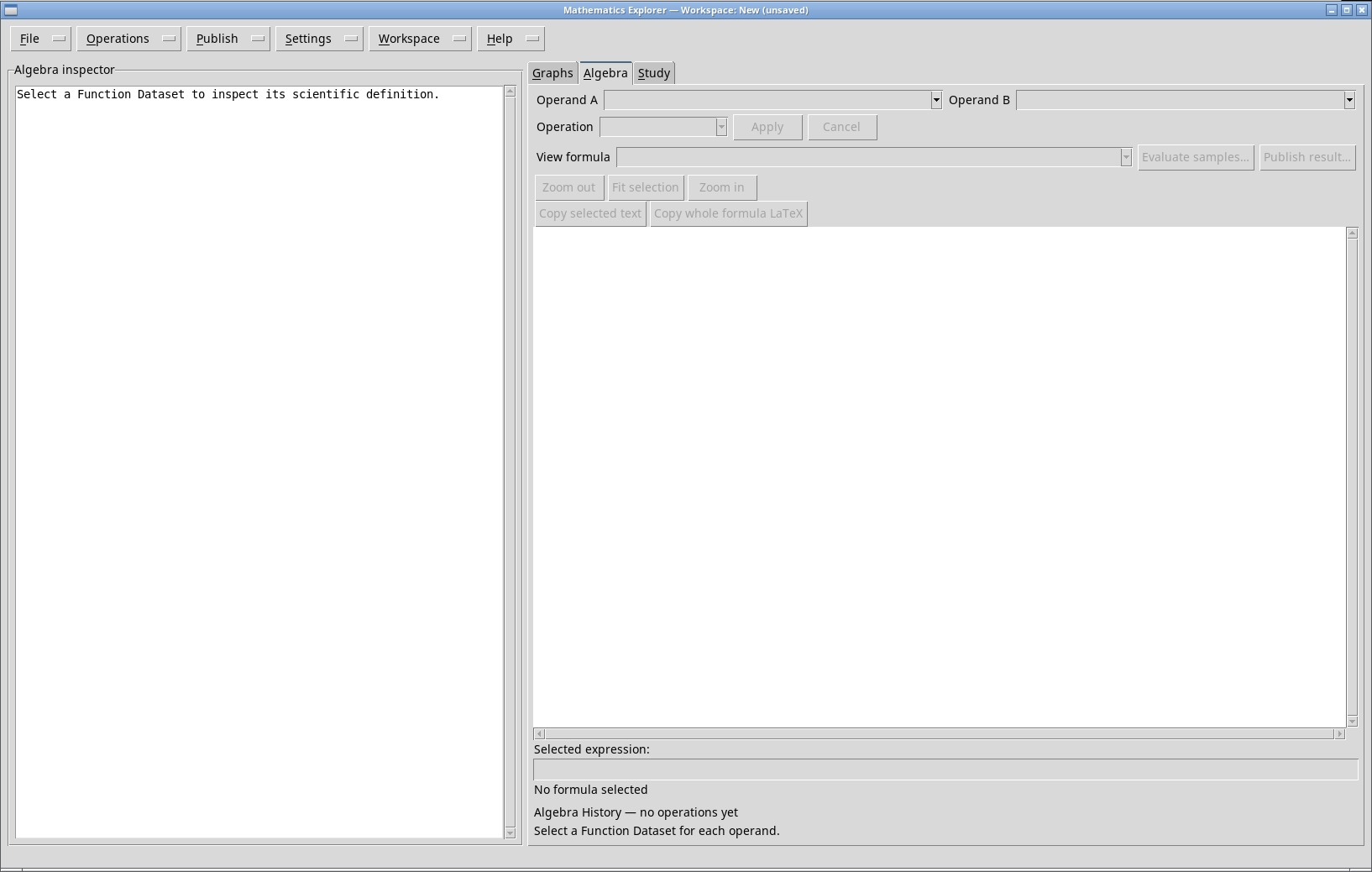
Choosing the operation
The Operation list varies with provider, arity, units and A/B order. The parameters appear next to the relevant operation. Apply creates a result in the calculation context. Cancel or Workspace → Cancel Algebra request stop the request that can be cancelled. Wait for the feedback before changing operand.
| Choice when exposed | Condition and effect |
|---|---|
| Add Functions, Subtract Functions | Combines compatible values on the domain admitted to both. Subtraction follows A−B. |
| Multiply Functions | Forms the product on the common points. The units of the response follow the product. |
| Scale Function | On one operand applies a scalar factor. A negative factor changes the sign, a zero keeps the admitted domain with zero response. |
| Quotient or power | The provider decides which denominators, exponents and domain qualification it admits. Check zeros and excluded points. |
| Composition | Read the order in the entry. Compose Fitter after Mathematics requires the fit in A and the inner Function in B, with compatible intermediate units and domains. |
| Selection of terms, offset, renaming or substitution | Only if the palette offers it. Choose the term or symbol proposed and enter the value in the field that becomes active. Read the expression again before publishing. |
In the P012 exercises two operands 2*x+1 on [−1,2] give a sum 4*x+2. The expected values at −1, 0 and 2 are −2, 2 and 10. For the P012 piecewise example the product at −1, 0 and 1 is 2, 0 and 4. Scaling A by −2, the expected values are 2, −2 and −4. At a boundary read which branch has priority. A hole stays outside the domain, even if a side formula could be evaluated there.
Notation and selection
In View formula select A, B or a result. The canvas, the details and the copy actions follow the chosen occurrence. Select a subterm, pan or zoom to read it. The view keeps selection and framing per occurrence when supported. Fit goes back to an overall view.
Algebra history
Description and History shows results and position in the sequence. Workspace → Undo Algebra operation goes back to the previous entry and Redo Algebra operation reactivates an undone entry. If you want to reopen formula and history use File → Save model. After reopening, a result may be inspectable while the sources are still being checked. Before publishing again use current operands, repeat Apply and select the new result.
Job 214 blocks the creation of the canonical Sine operand on P012. The exercises on this page require canonical Functions already available or generated with a working provider. The expected values of the P012 materials help you check the outcome when the inputs are admitted.