Getting started and editor layout
Catalogue, new draft, panels, selection and help.
Open UML Editor
In a GX-TXT Session choose Viewers → Modeling & Diagrams → UML Editor. The initial window contains an empty draft. If you see Source diagnostics — draft retained, create a model from the File menu. The diagram needs the pair @startuml and @enduml. In this version the identity line may already say Publish New available while the command is disabled. Creating a diagram with New class diagram or New sequence diagram gives a valid draft and the command becomes available.
Create the diagram type
File → New class diagram or Ctrl+N prepares a draft for classes and interfaces. File → New sequence diagram prepares a draft for actors, participants and messages. The annotation ' @gx-family identifies the type even when there are no elements. Use the Model menu to populate the draft. The relevant commands depend on the type, on the selection and on the validity of the source.
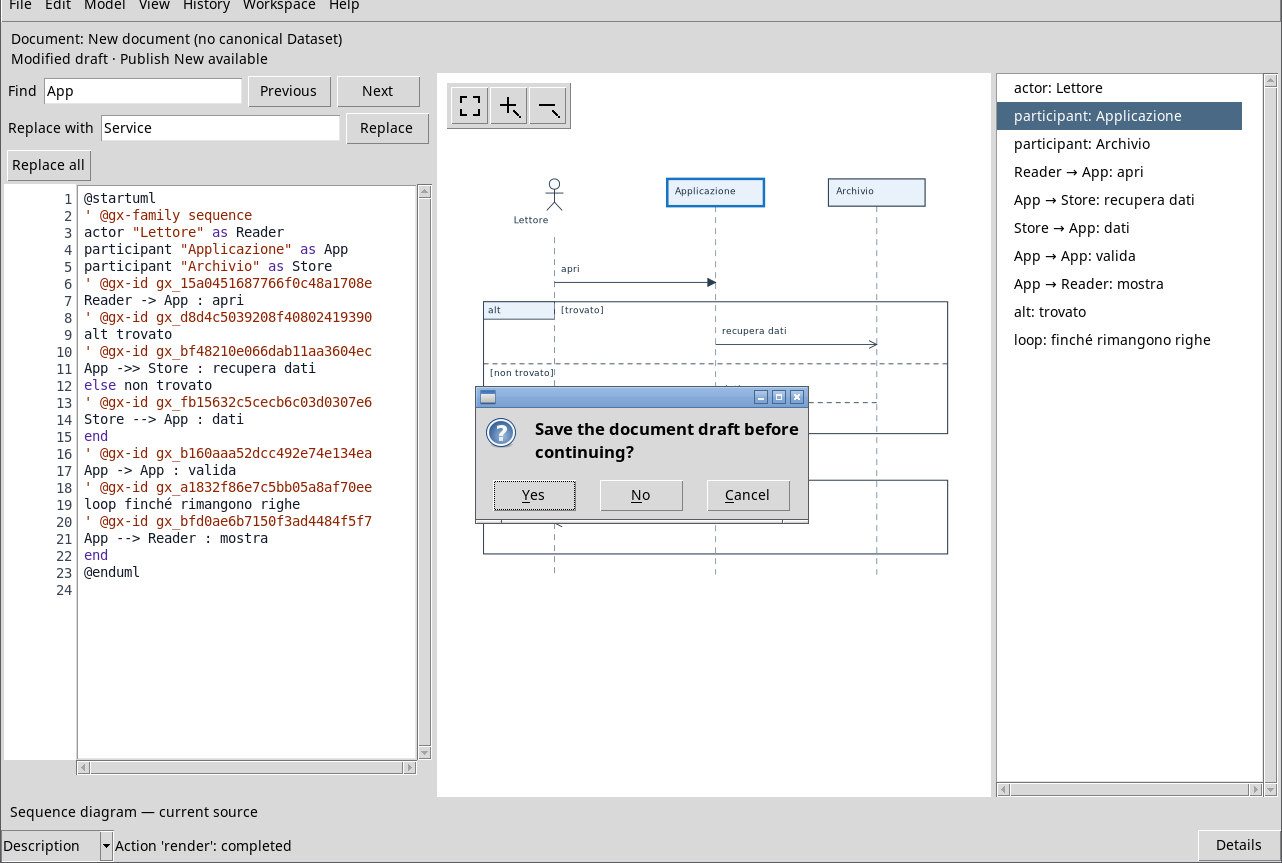
If you have an edit in progress, at the prompt Save the document draft before continuing? choose Yes to start saving, No to abandon the edit of the current draft, or Cancel to return to the draft. The same choice can appear before opening another Dataset.
Read Source, Diagram, Outline, Properties and Diagnostics
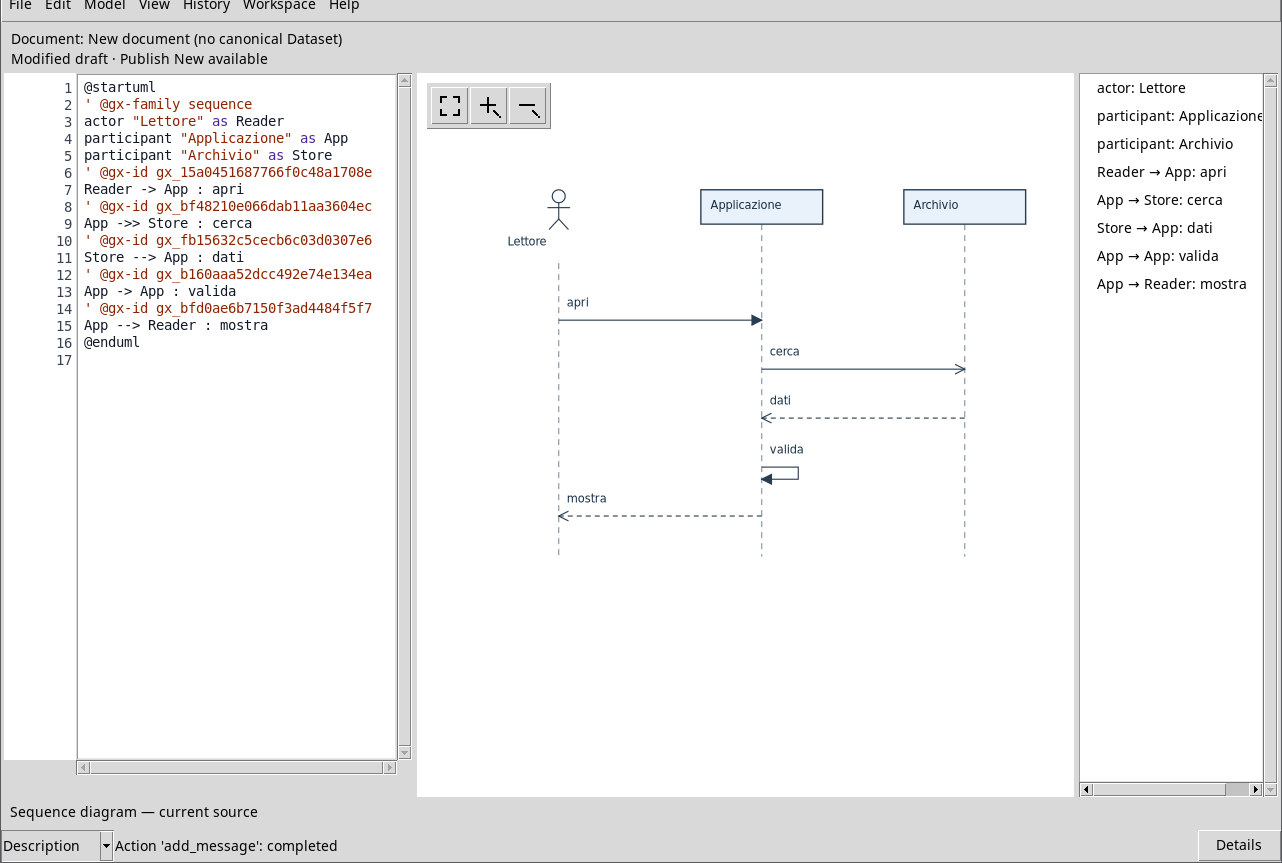
- Source
- Edits the literal text and uses the line numbers to follow the diagnostic messages.
- Diagram
- Shows the drawing produced from the valid source. You can explore it and select its elements.
- Outline
- Lists the relevant elements, members, relationships, messages and frames. Expand a class to see its members. Use the scroll bars to move through long entries and titles.
- Properties
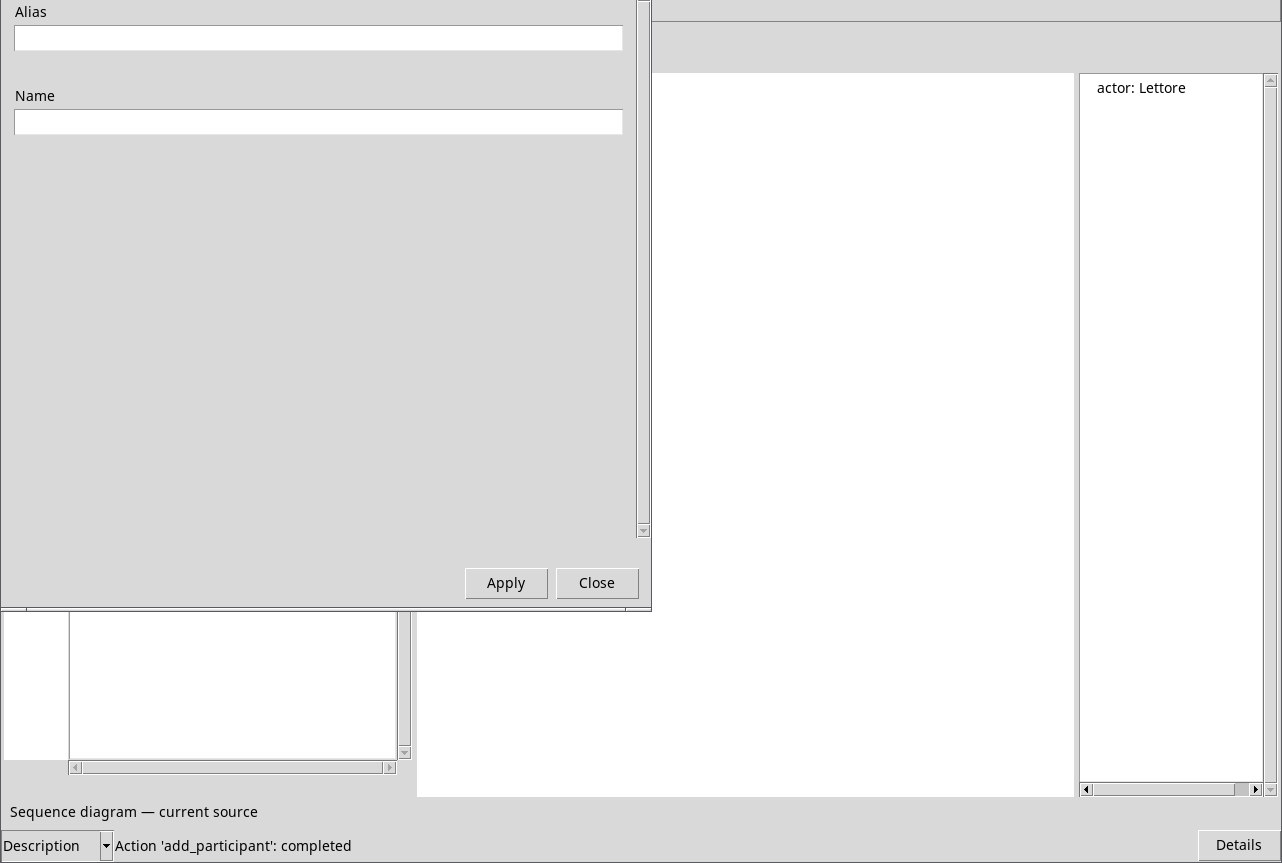
- Summarises the stable identity and the attributes of the selection. The Edit selected properties… button opens the editing form.
- Diagnostics
- Lists the lines and reasons that make the source invalid or prevent drawing.
Click an entry in Outline or an object in Diagram. The editor synchronises the selection and moves the cursor to the declaration in the source. Double-clicking the drawing, or Enter with the drawing focused, opens the properties of the selected object.
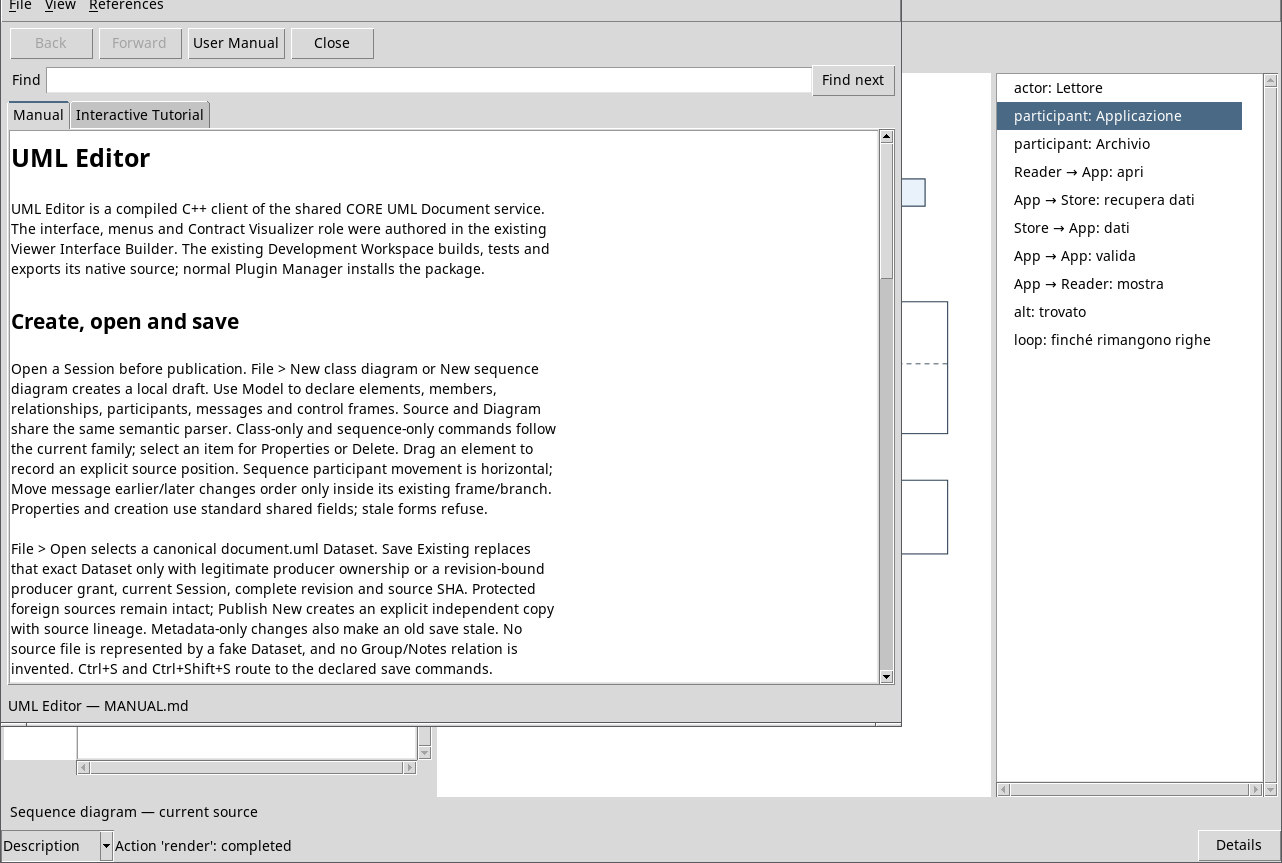
Open the module guide
Help → User Manual… or F1 opens the built-in manual. Help → About Module… shows the identifier viewer.uml_editor, the version and the declared interfaces. Use OK to close the information window.