Edit and validate the source
Text, search, replacement, meaning of the messages and errors.
Write in the GX-TXT PlantUML profile
Use a single pair of @startuml and @enduml. You can add a title on one line. For names with spaces use quotes and an explicit ASCII alias, for example class "Ordine cliente" as Order. The ends of relationships and messages must be declared. The ' @gx-id comments keep the stable identity of the entries during edits, while ' @gx-position Alias x y keeps the explicit position.
The gxtxt.plantuml.v1 profile covers classes and sequences. Use cases, activities, state machines, includes, macros, concurrent activations and out-of-profile fragments produce a diagnostic. Labels are plain text. The limits of the profile are 4 MiB of UTF-8, 20,000 lines, 8,192 characters per line and 512 characters per label. For classes up to 256 elements and 1,024 relationships are allowed. For sequences up to 64 participants, 2,048 messages, 256 frames and eight nesting levels are allowed.
Use the operations in Source
Write and select the text in the Source pane. In the Edit menu, Cut cuts the selection to the clipboard, Copy copies it, Paste inserts the copied text and Select all selects the whole source. Undo source edit undoes the last reversible text edit and Redo source edit reapplies it. Availability depends on the stack of text edits. The History → Undo / Redo commands concern instead the workflow operations recorded by the viewer.
Find literal text
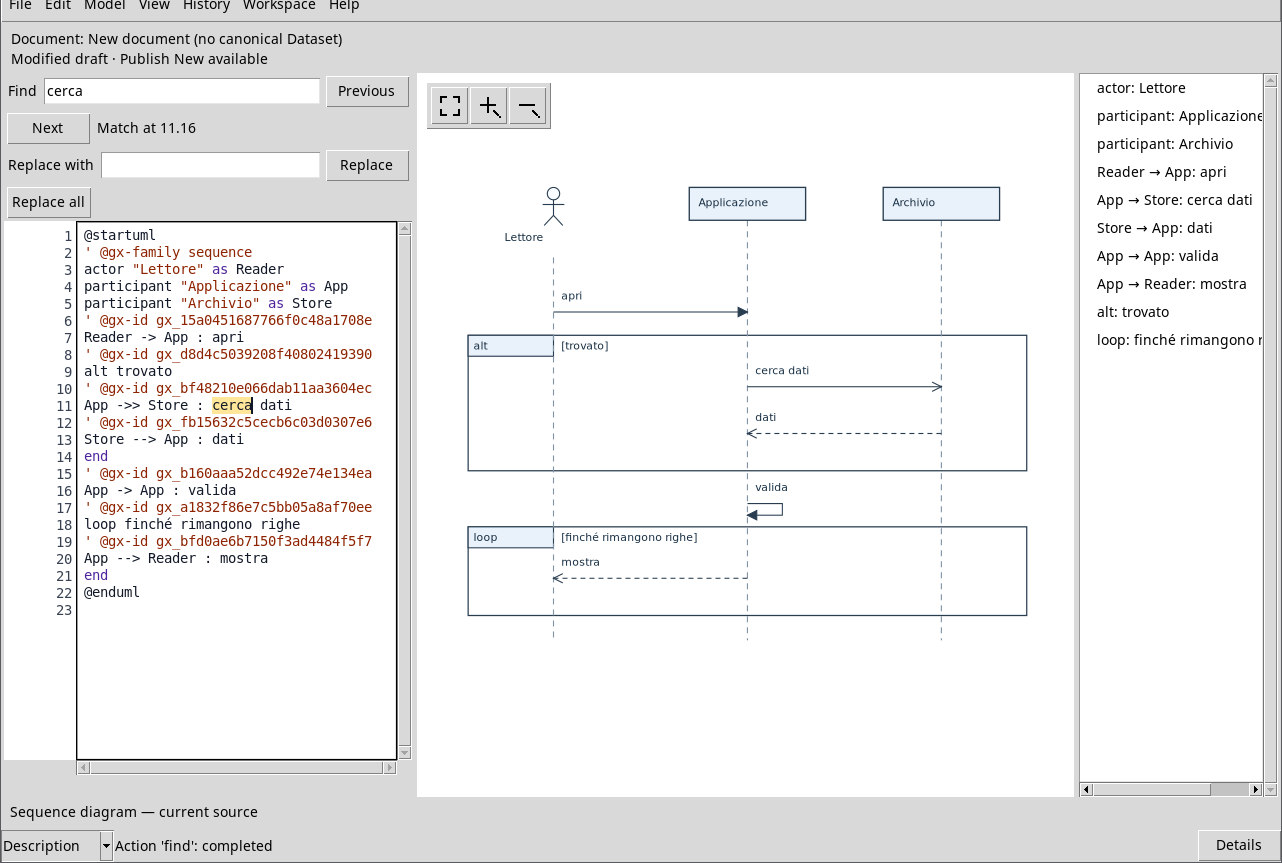
Edit → Find… or Ctrl+F opens the Find bar. Type the text and press Next to go forward or Previous to return to the previous occurrence. Match at gives line and column. The source found is highlighted. In the pane use F3 to go forward, Shift+F3 to go back and Esc to close the search.
Replace one or more occurrences
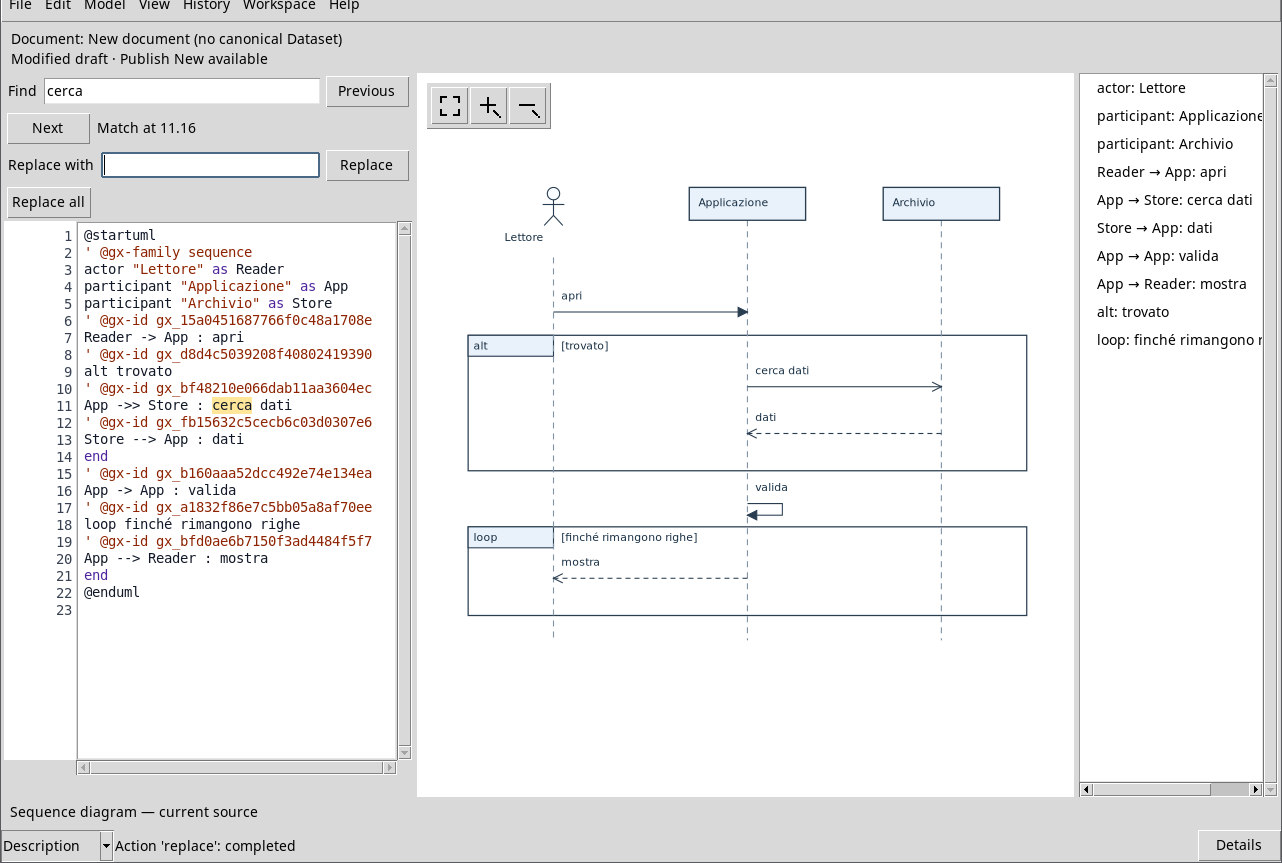
Edit → Replace… or Ctrl+H also shows Replace with. Type the new text, locate the occurrence and press Replace to replace it. Replace all applies the same change to all the literal occurrences. After replacing an alias check declarations and references in Diagnostics. To restore the text use Undo source edit.
Recognise and fix an invalid draft
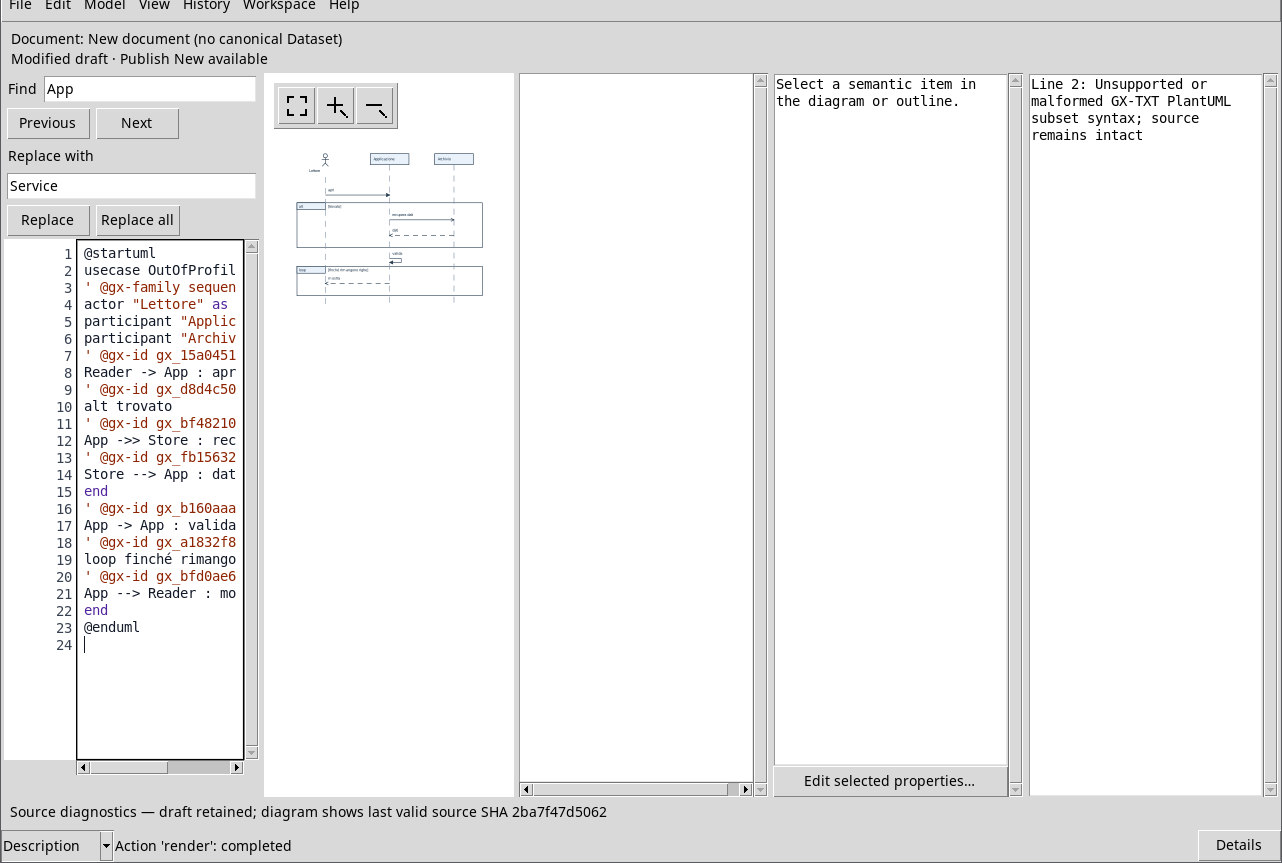
Show Diagnostics from View. The message Line … locates the problem. For example, inserting usecase OutOfProfile causes a profile syntax error. The editor keeps the text. If it had already drawn a valid state, it keeps showing it with diagram shows last valid source SHA and the prefix of the fingerprint. In this state the semantic commands, publishing and graphic exports are disabled. Remove or correct the line, or use Undo source edit. With View → Refresh diagram run the check again and wait for current source.
Use the gutter and the local markers
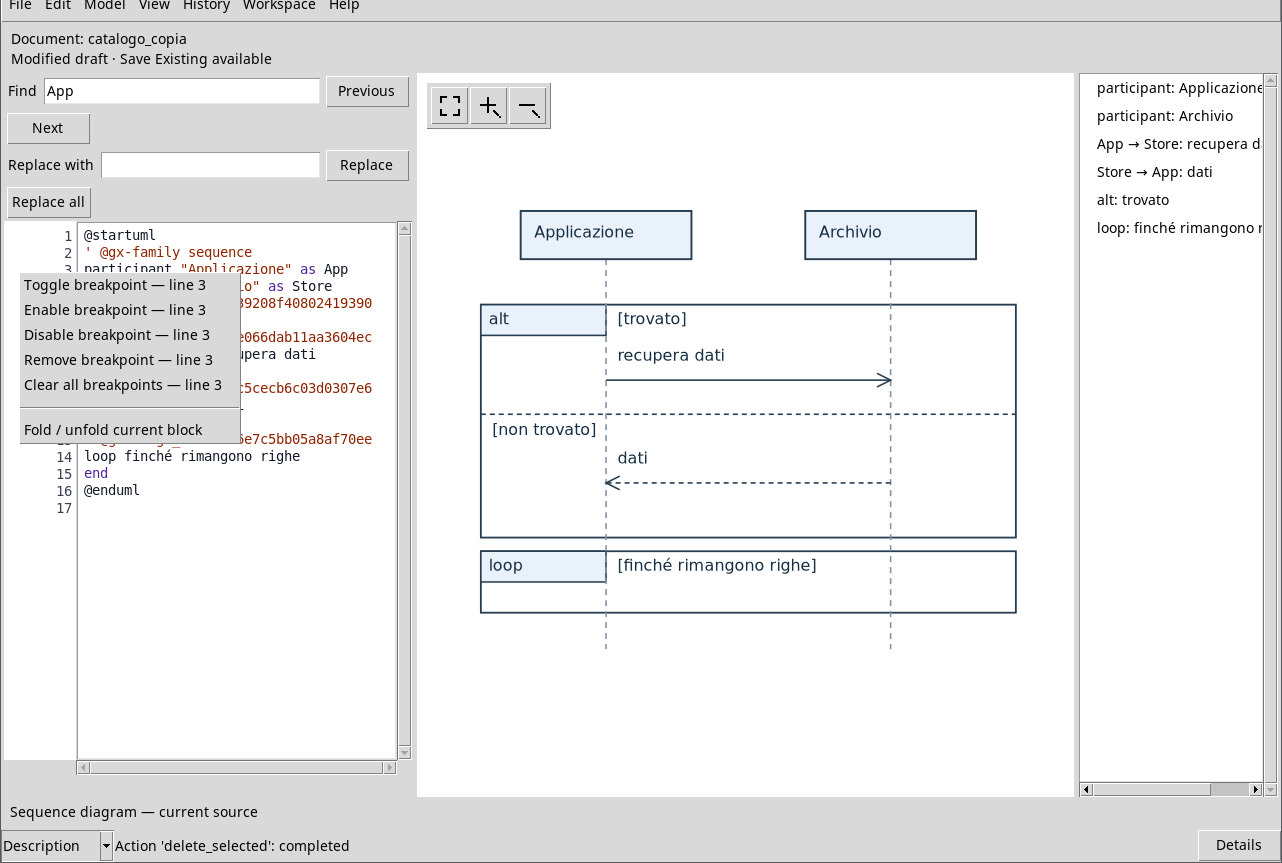
The gutter shows the line numbers. Open the context menu with the right button. Toggle breakpoint or F9 toggles the local marker of the line, Disable breakpoint disables it and Enable breakpoint enables it again. Remove breakpoint removes the marker of the line. Clear all breakpoints or Ctrl+Shift+F9 clears all the markers of the view. These commands come from the shared text surface. The markers are visual and the UML model stays unchanged. The menu also contains Fold / unfold current block. In the UML editor the test sources are displayed as plain text, with no recognised blocks to fold.