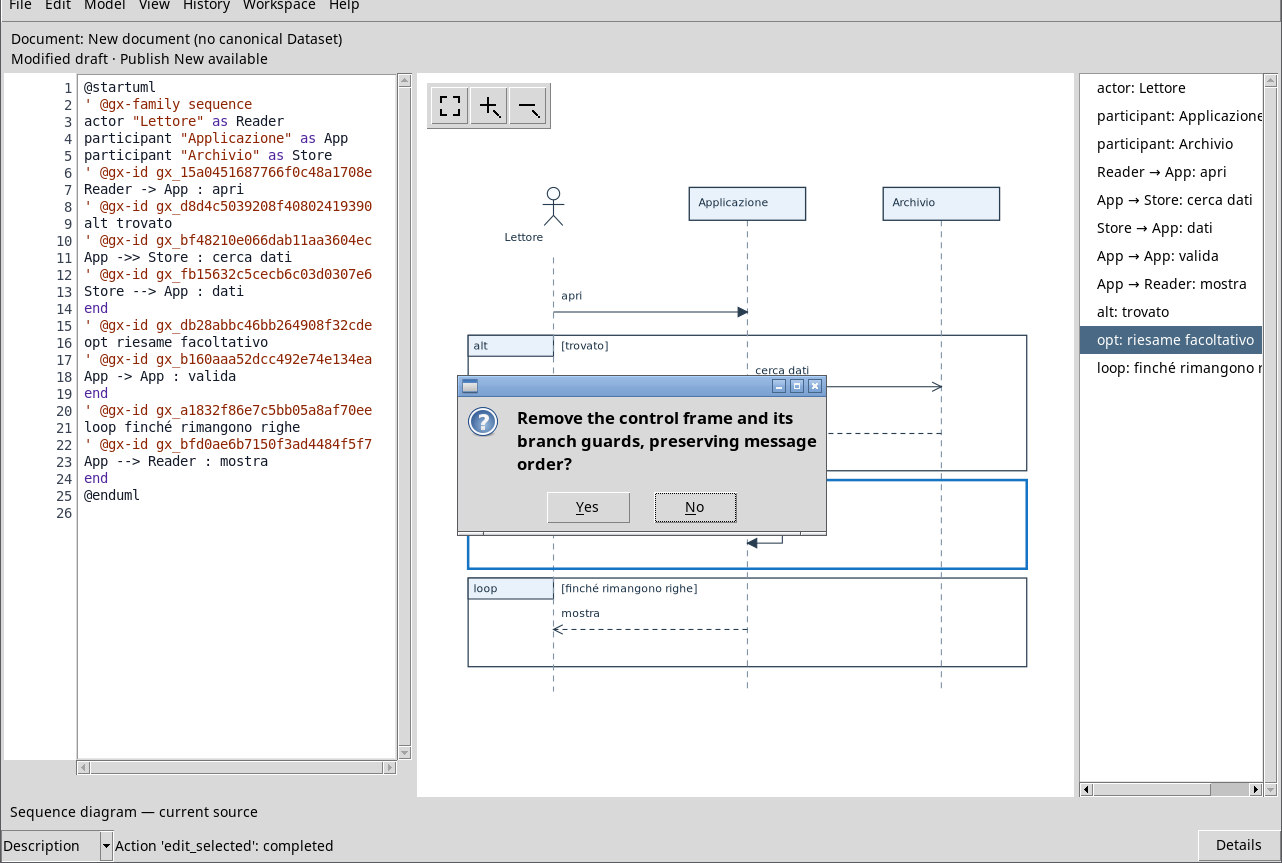
Model sequence diagrams
Actors, participants, messages, order and control frames.
Declare actors and participants
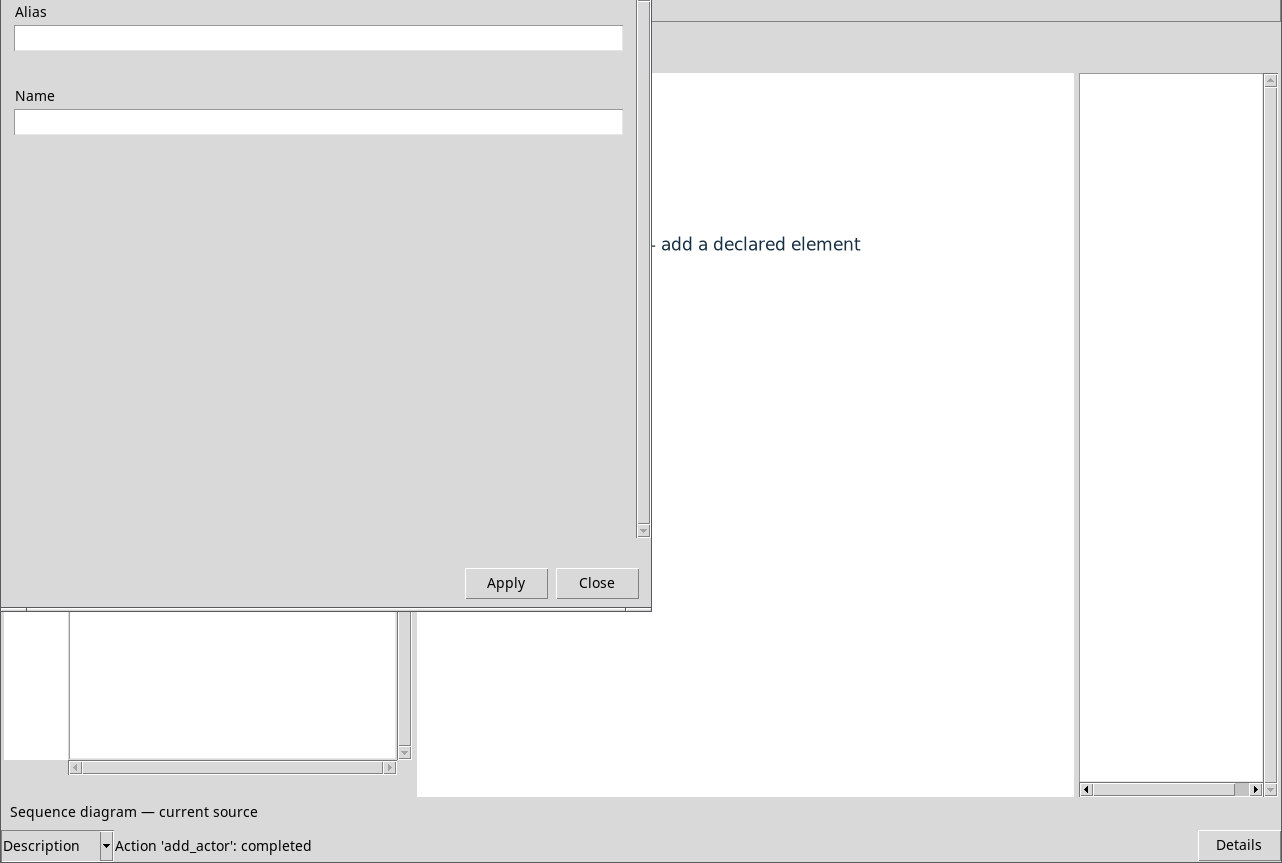
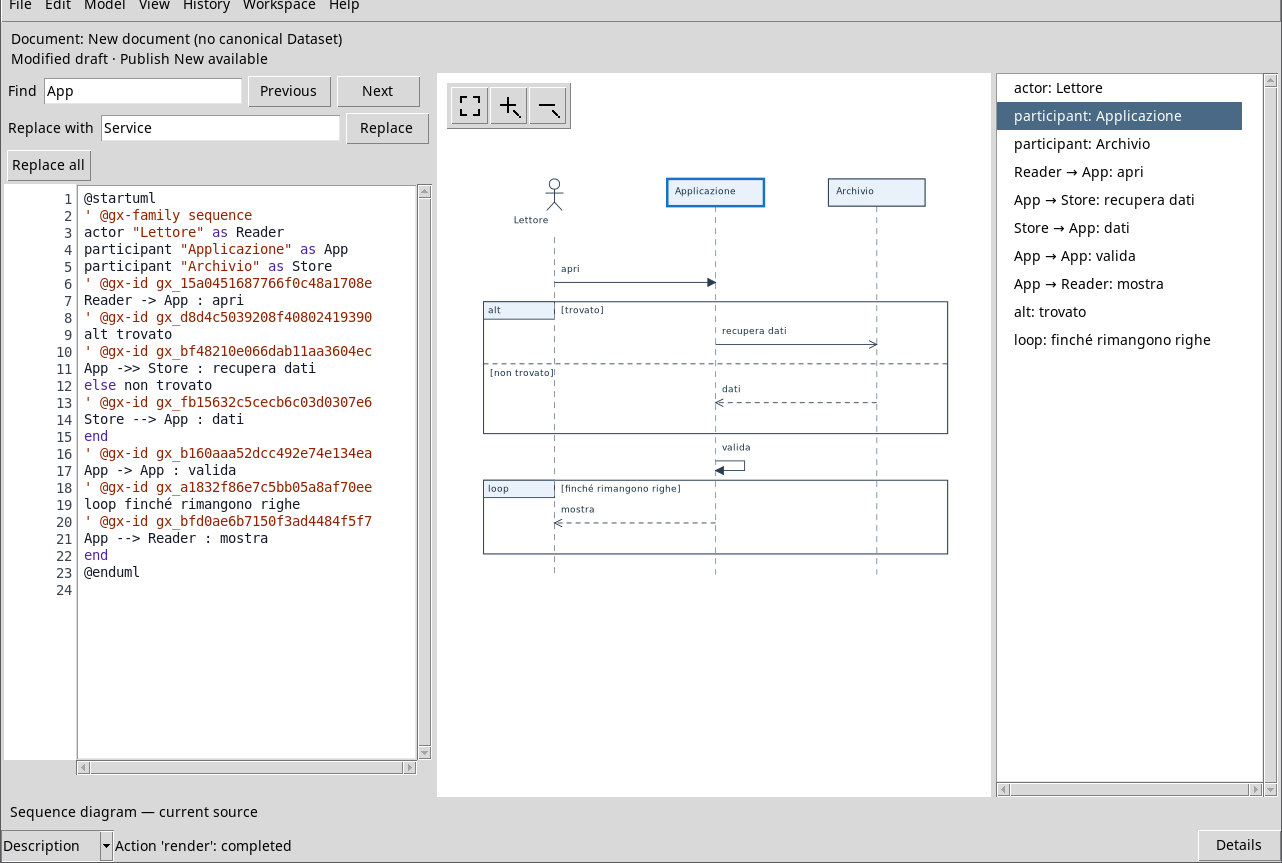
With File → New sequence diagram you open a sequence draft. Use Model → Add actor… for whoever interacts from outside and Add participant… for an object or component. In both, enter a unique Alias and a visible Name, then press Apply. For the example use the aliases Reader, App and Store.
Add messages
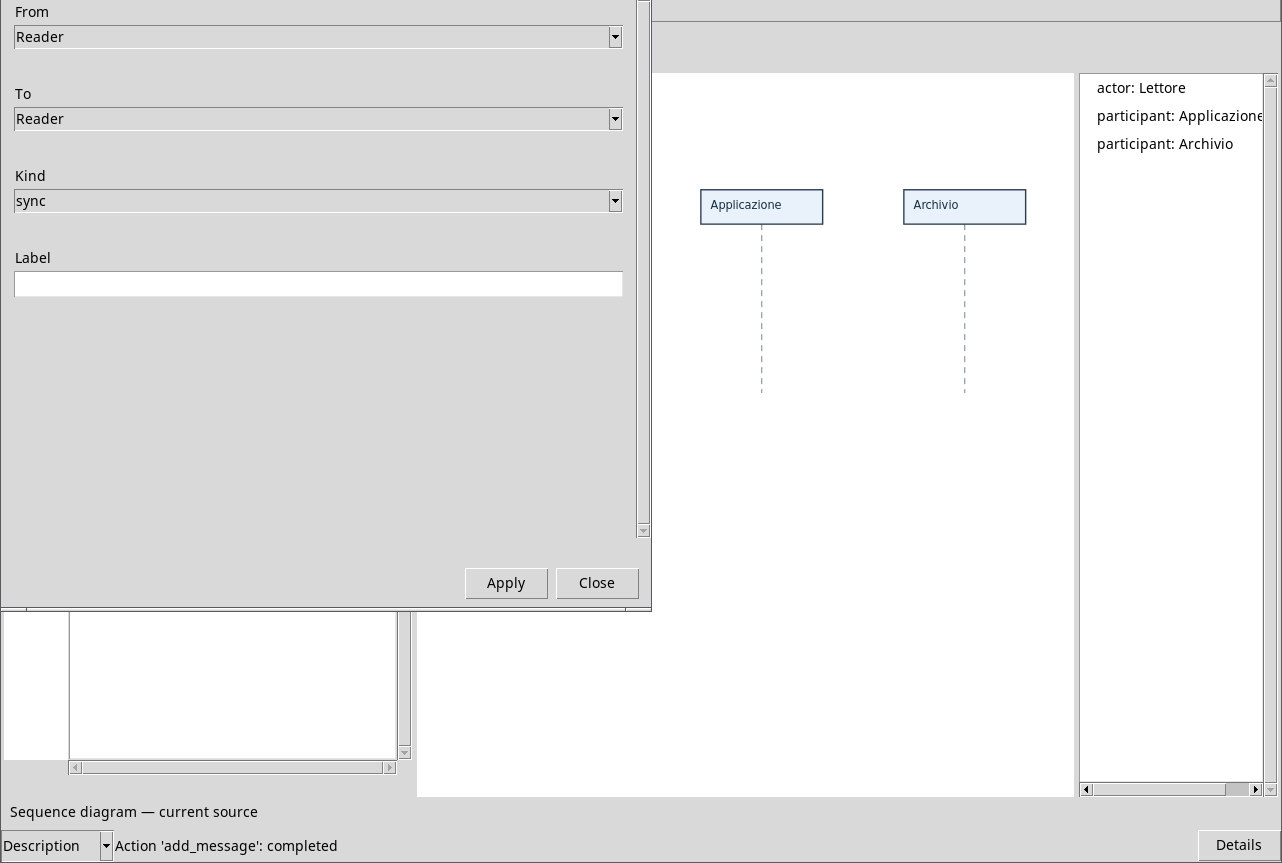
After creating at least one participant or actor, open Model → Add message…. Select the sender From, the receiver To, Kind and Label. Press Apply to add the message at the end of the sequence. If the two ends are the same, the message is addressed to the same participant.
- sync
- Synchronous call with arrow
->. Initial value of the kind. - async
- Asynchronous message with arrow
->>. - reply
- Reply with dashed arrow
-->.
Move a message
Select the message in the Outline and use Move message earlier or Move message later in the Model menu to swap it with the adjacent one. The command stays disabled at the limit of the sequence or when the neighbour belongs to another frame or branch. Check the order in the source and from top to bottom in the drawing.
Wrap messages in a control frame
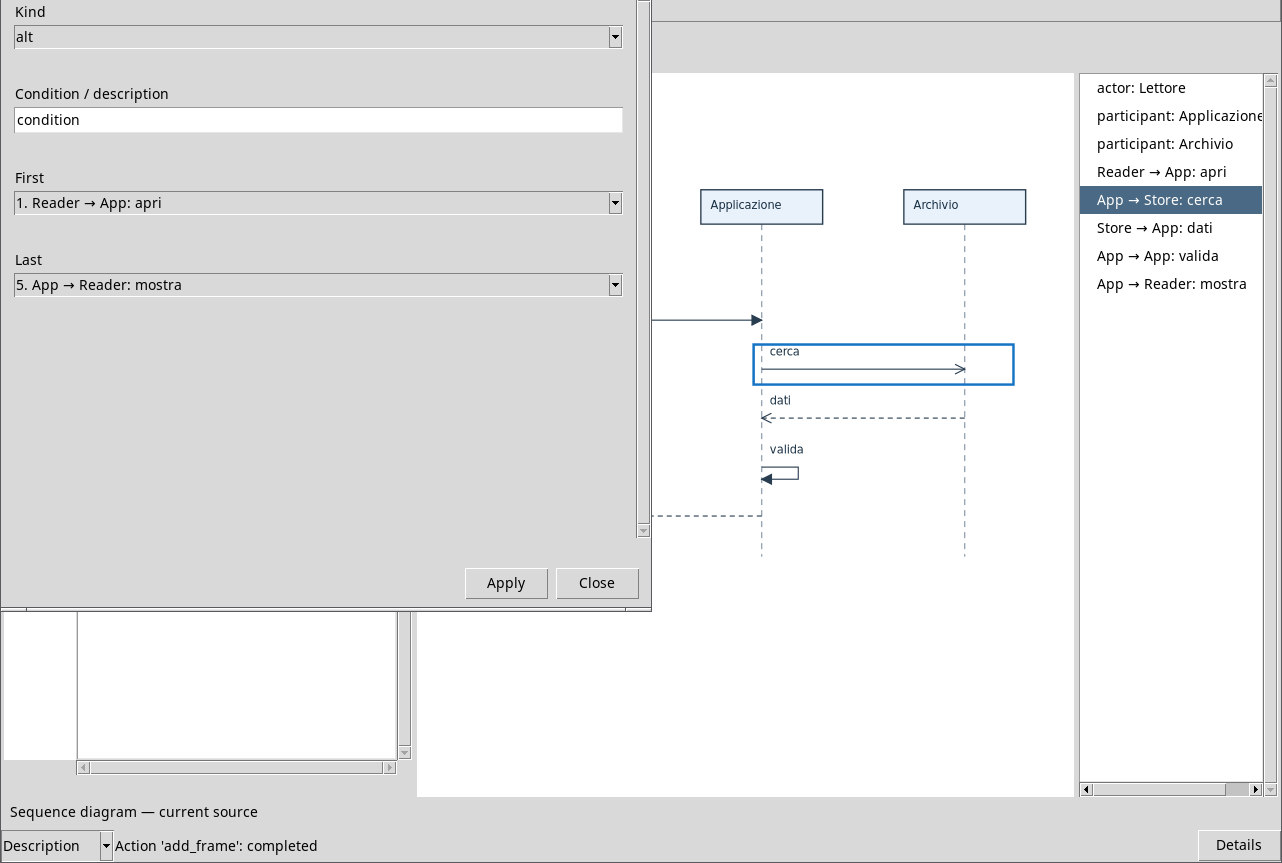
With one or more existing messages use Model → Add control frame…. Select Kind, enter the condition in Condition / description and set in First and Last the first and last message to include. The proposed starting point is the whole current sequence. You can choose the same message in both fields for a frame of a single message.
- alt
- Conditional branch. The form creates
alt condizioneandend. For an alternative branch insertelse altra condizionein the source before the relevant lines and check the drawing. - opt
- Optional branch, delimited by
optandend. - loop
- Repetition described by the condition and delimited by
loopandend.
Update participants, messages and frames
In Edit selected properties… you can rename the actor or participant, correct From, To, Kind and Label of the message, or change the condition through Label for a frame. Delete selected… removes a selected message or an element together with its links. For a frame, the dialog confirms the removal of the guards while keeping the messages in their order.