Save and Resume Work
Save or close the Workspace
The Workspace holds the draft, source bindings, retained scientific results and History. Datasets belong to the Session. Save the current changes with Save Workspace on the toolbar or in File, or with Workspace → Save. The File menu shows Ctrl + S as the shortcut. Workspace saved. confirms that the Workspace was saved. This also stores the XY evaluation coordinates and output settings. To create an accepted fit, use Accept fit.
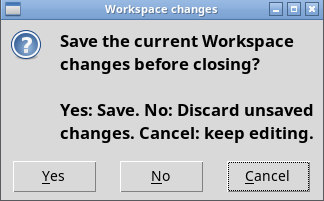
File → Close, Workspace → Close and closing the window end the current work in the viewer. If Workspace changes appears, choose Yes to save, No to discard pending changes or Cancel to return to the draft.
Navigate History
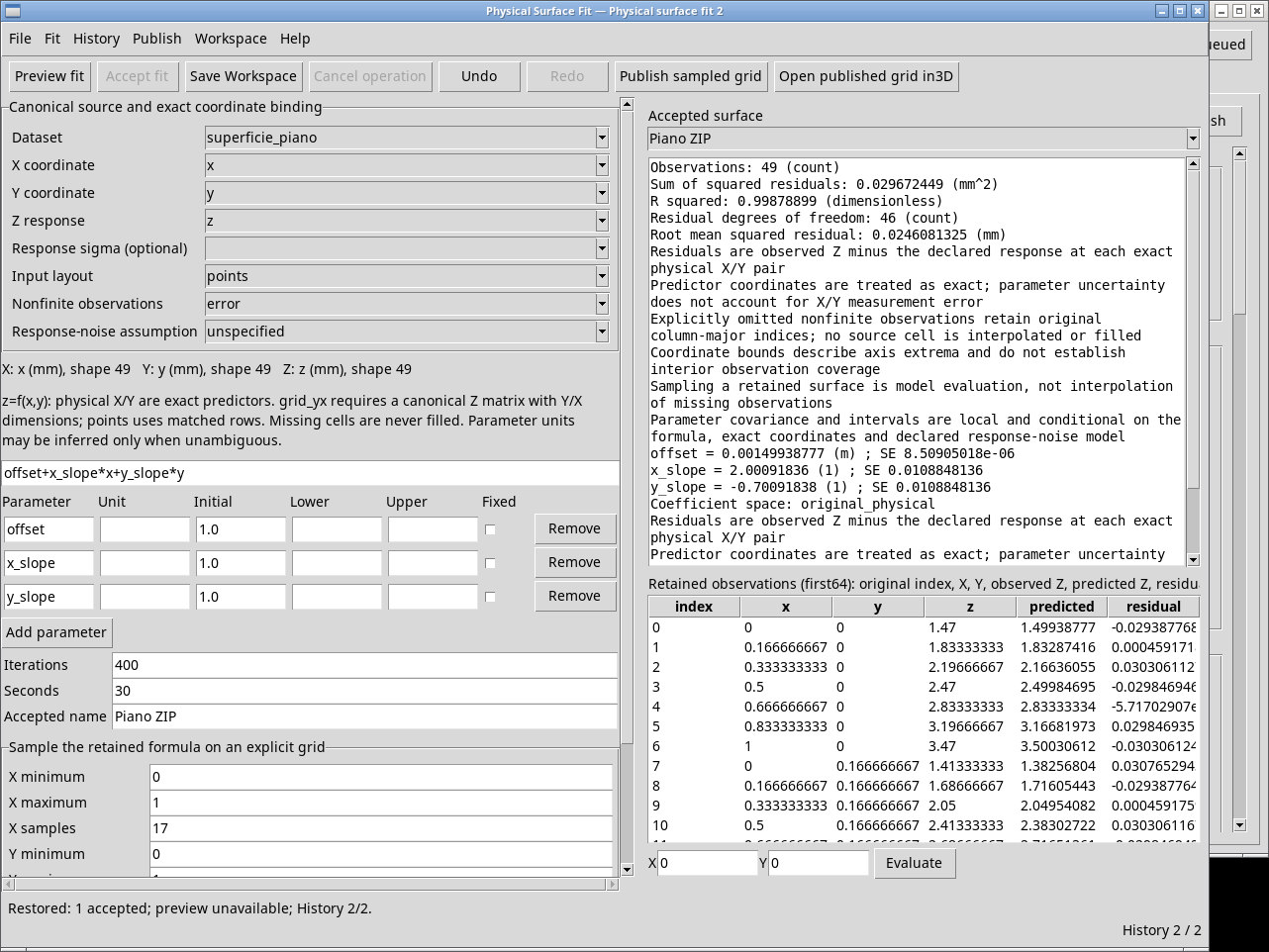
Use History → Undo or the Undo button to go back one step. The shortcut is Ctrl + Z. After the first acceptance, Undo restores the preview and clears the result selector.
Use History → Redo or the Redo button to go forward one step, or press Ctrl + Maiusc + Z. In the example this restores the accepted fit. The counter shows the current position and total number of steps. Each command is disabled at its corresponding end of History.
Manage the Workspace list
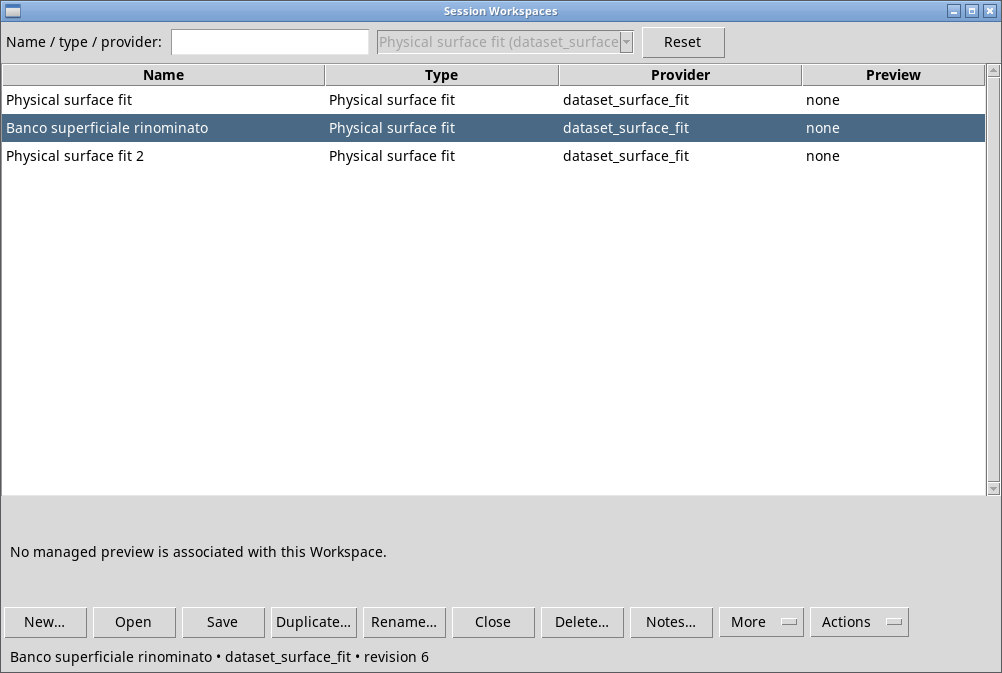
Open Workspace → Session Workspaces…. Open workspace… and Preview… open the same list. When opened from Surface Fitter, it lists that viewer’s Workspaces. Name gives the name, Type and Provider identify the type, and Preview indicates a managed preview. Select a row to read the details and revision below.
Type part of the name, type or provider in Name / type / provider:. Reset clears the search. The provider selector is locked when you open the manager from Surface Fitter. Commands that require a Workspace stay disabled until you select a row.
Workspace → Refresh, or Refresh in the manager, reloads the list without changing the current fit. Open More for Preview, Import…, Export… and Refresh. The manager’s Close button closes the active Workspace when its adapter is available.
In the manager, Preview shows a managed preview if available. A Surface Fitter Workspace may show No managed preview is associated with this Workspace.. Open the Workspace normally to read the model report in the viewer.
Workspace → Actions contains provider-specific actions. If No owner-defined actions is disabled, use the other Workspace commands or the Fit and Publish menus.
Create, open or rename
- New workspace…
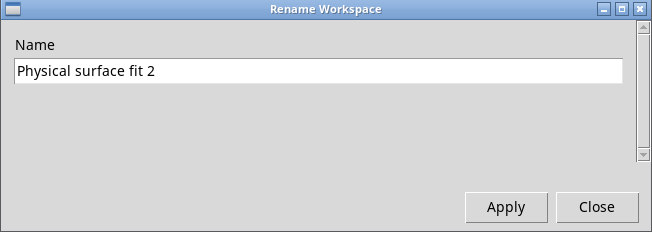
- Use Workspace or New… in the manager to start an independent Workspace. Enter Name in the dialog and click Apply. Use Close to leave before applying. In this release, the window may open as Physical surface fit with a numeric suffix despite the name you entered. Use Rename… after creation.
- Open workspace…
- In the manager, select a row and click Open, double-click the row, or press Invio. The viewer switches to the selected Workspace. Use this also to reopen the saved original after trying a copy or import.
- Rename…
- Use the Workspace menu to rename the active Workspace. In the manager, select the Workspace to rename. Enter an unused name and click Apply. Use Close to leave before applying. Check that the list updates. If the active window title still shows the old name, reopen the Workspace.
Duplicate, export and import
- Save as / Duplicate…
- Give the copy of the current state an unused name. In the manager the command is Duplicate… and applies to the selected row. Check the copy’s title, source and settings.
- Export…
- Use Workspace, or export the selected row from the manager, to save the Workspace as a ZIP package. Select the destination in Export workspace package. Keep the source Dataset as well so you can refit elsewhere.
- Import…
- Select the ZIP in Import workspace package. Give it an unused name, click Apply, then select the new row with Open workspace…. Check that the source is available and verify the fit using Evaluate.
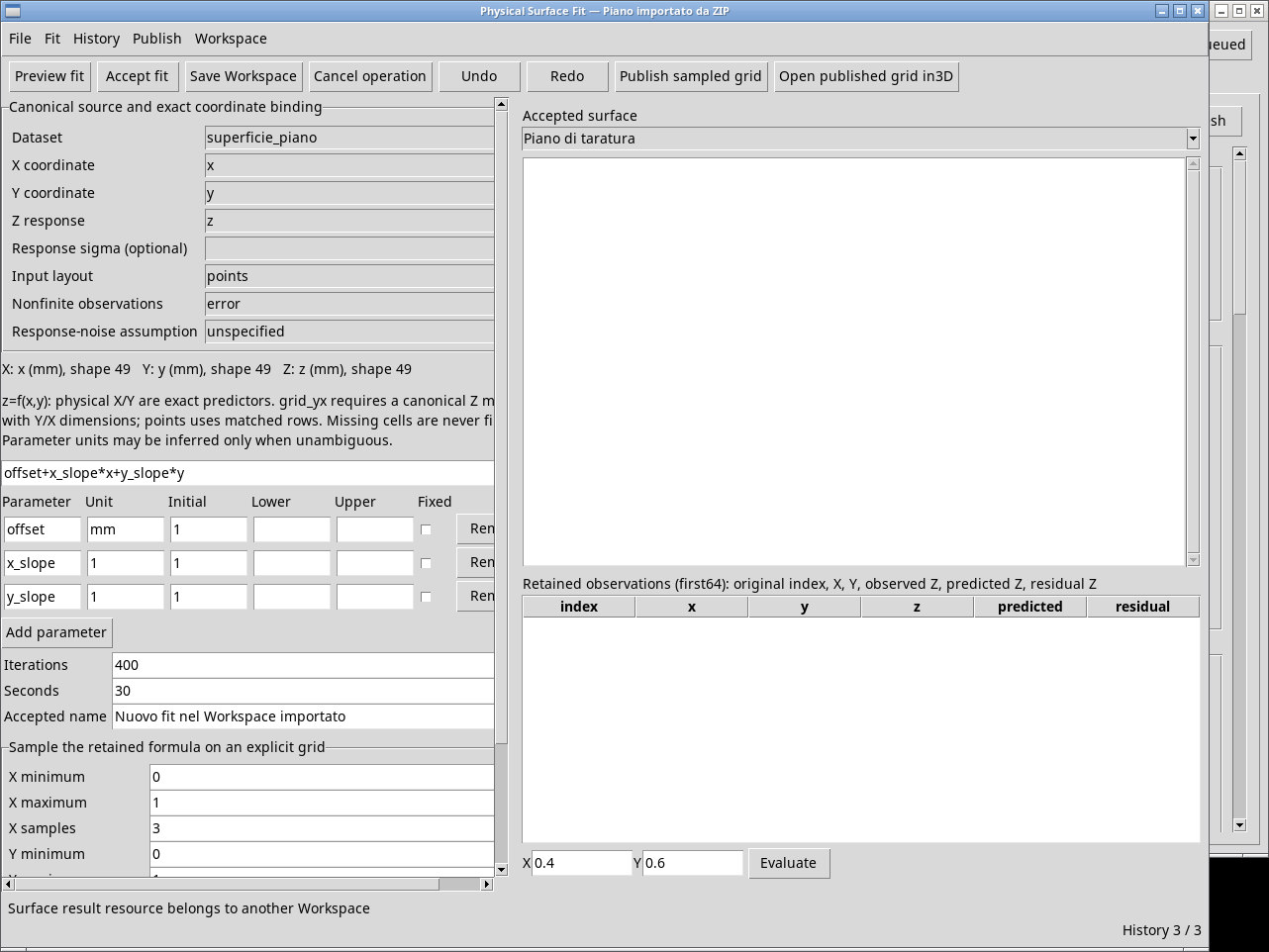
In this release, a copied or imported Workspace can still show the old fit name but reject access with Surface result resource belongs to another Workspace. If the inherited fit is inaccessible, avoid running Preview fit in the imported Workspace. After the rejection, switching to another Workspace can be blocked with Finish or cancel the active surface operation, even after Esc. Open the original to use its accepted fit. To work in an independent Workspace without the inherited reference, create an empty Workspace, bind the Dataset again, re-enter the expression and recalculate with Preview fit. This creates a new fit.
To transfer settings, save and export a draft-only Workspace before running the first preview. Import the package in the destination Session, ensure the source Dataset is available under the same ID and open the imported entry. Check the source and bounds, then run Preview fit and Accept fit to create a new local fit.
Manage notes and delete a Workspace
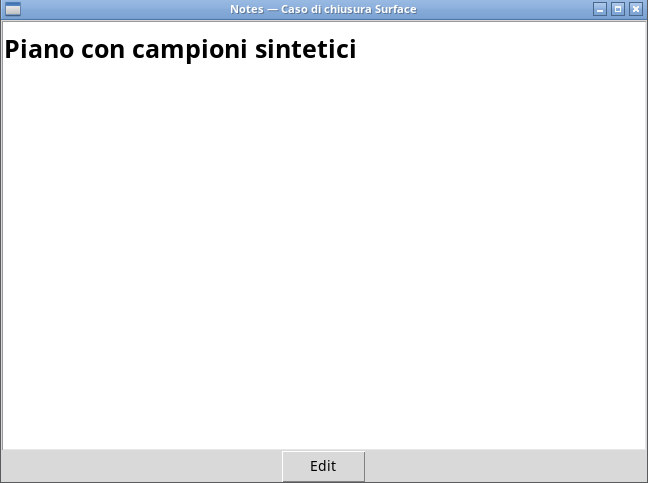
Workspace → Notes… opens the active Workspace notes. In the manager, use Notes… on the selected row. Click Edit to write notes in the editor. Preview lets you inspect the rendered note. Save with Save, close the editor with Close, and reopen the notes to verify the text.
Workspace → Delete… applies to the active Workspace. For another item, select it in Session Workspaces and click Delete…. Check the name in the dialog and confirm with OK if you want to remove it. Cancel keeps the Workspace. Deletion removes its notes and History. Source Datasets, published Datasets and referenced scientific resources are retained.
Open the manual and identify the module
Help → User Manual… and F1 open Dataset Curve Fit — User Manual when available. On the Manual tab, look for surface with Find and Find next to find the physical surface instructions.
If Help and F1 disappear after Open workspace…, return to the GX-TXT main window and open Help. In Plugin manuals, select Dataset Curve Fit — Manual. To open About Module…, launch a fresh viewer from its tile.
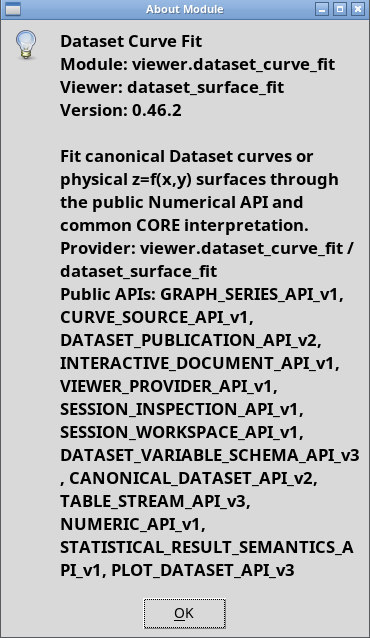
Help → About Module… shows module information shared with Curve Fitter. Use it to check the provider, module and version.