Validate, Run and Recover a Job
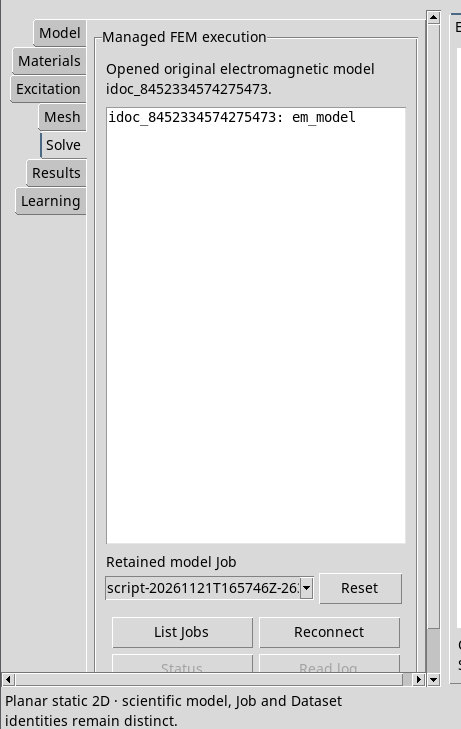
Validate the draft
Press Validate on the toolbar or choose Simulation → Validate. Open Solve and look for Native EM model validation succeeded; no solver ran.. The log displays the normalized parameters. If validation fails, read the reason in the status bar and correct the indicated setting before continuing.
Run the FEM calculation
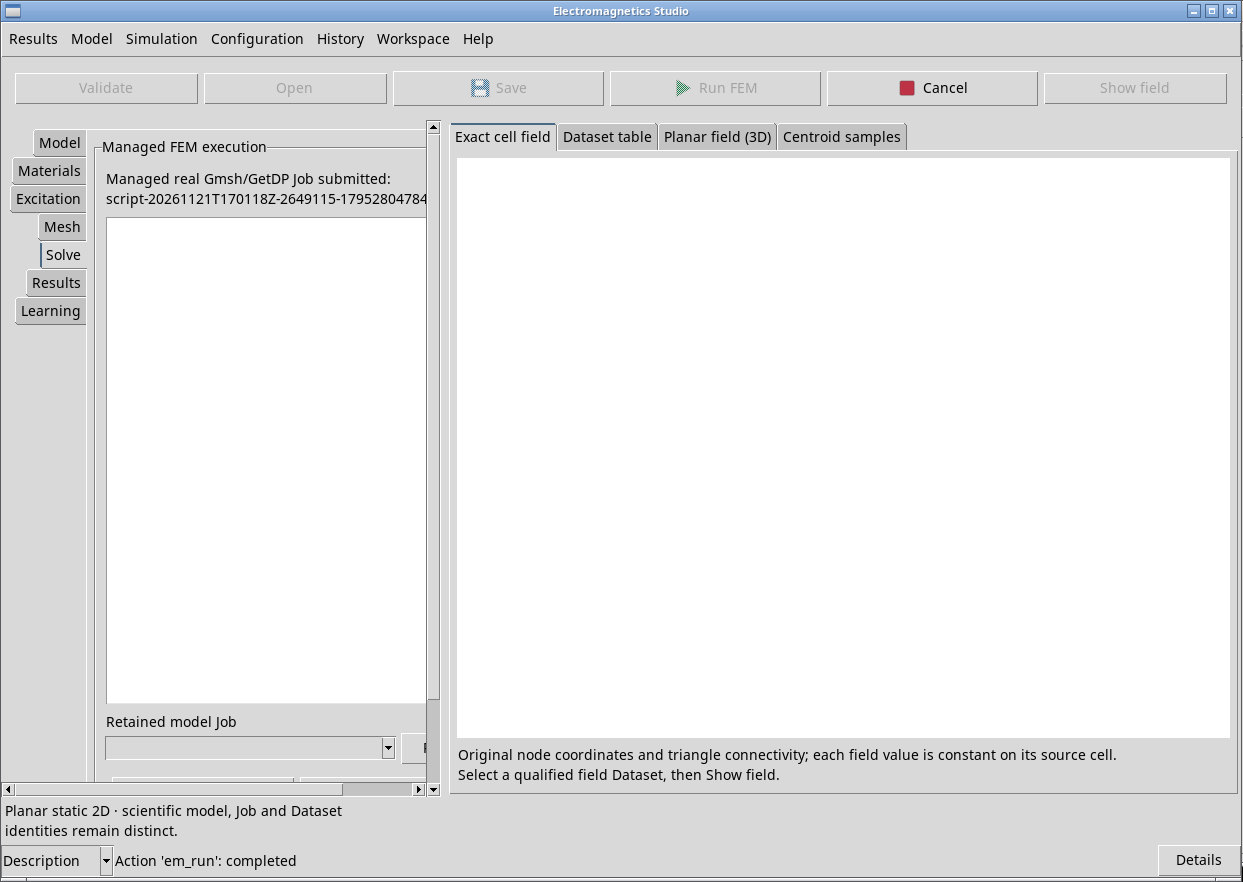
Press Run FEM on the toolbar or in the Simulation menu. The viewer validates and saves the scientific model, then starts a managed job that runs Gmsh and GetDP and verifies the results. Use Model → Save beforehand if you want to save a validated model for later use. In Solve, note the ID reported by Managed real Gmsh/GetDP Job submitted.
While a job is active, the physical inputs and commands that change the model are locked. Status, Read log and Cancel remain available. The viewer panels stay open.
Read status and logs
- In the Simulation menu or in Solve, refresh the status of the associated job. The active states are
QUEUED(queued),PREPARING(preparing),RUNNING(running),FINALIZING(finalizing) andCANCELLING(cancellation in progress). Fast jobs can pass through several states between checks. - COMPLETED
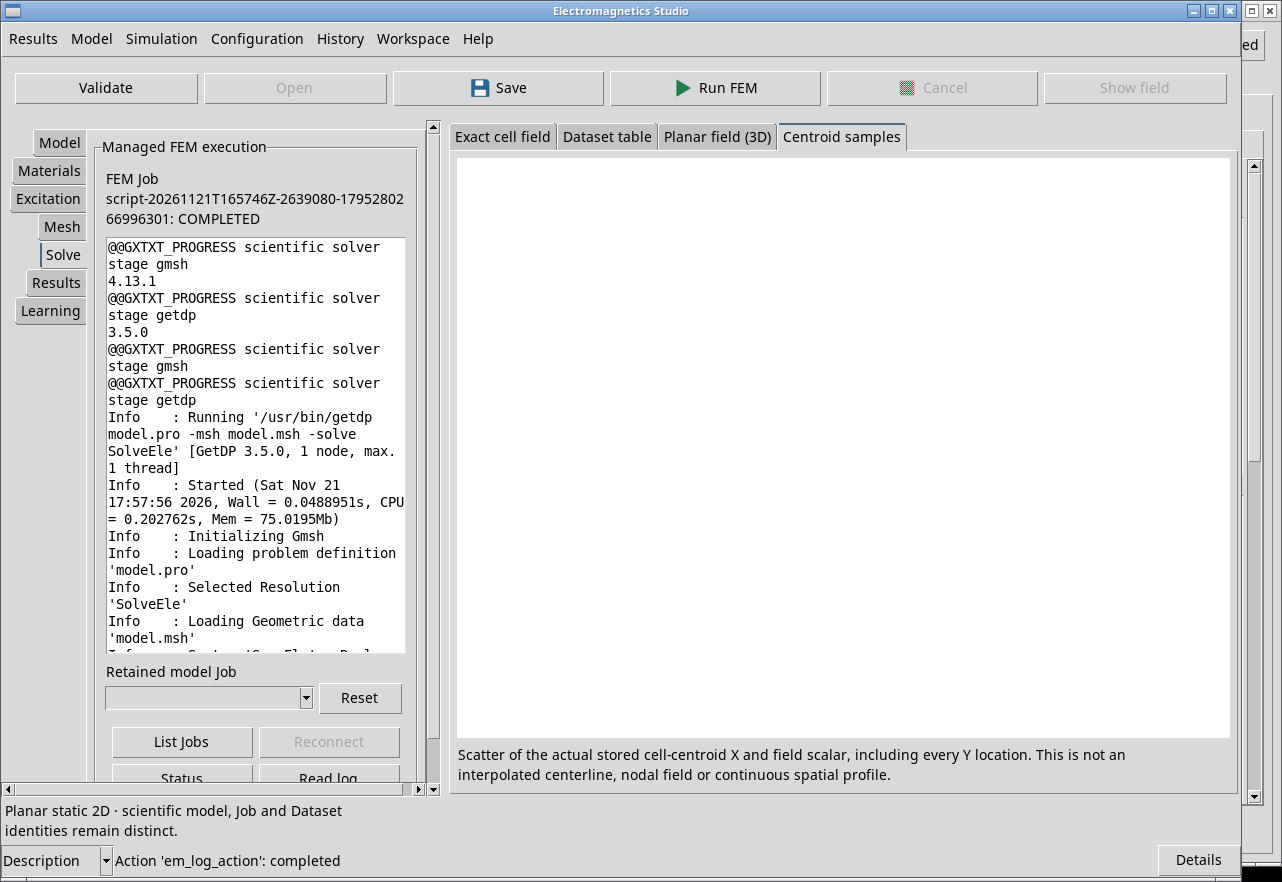
- The job finished. You can inspect the results if the scientific model revision matches the one used to run the job. Use Inspect results to review the numerical checks.
- FAILED
- The job ended with an error. Open Read log to see where it stopped. An invalid Gmsh or GetDP path can cause rejection before a job is created. Correct the path in Runtime settings and try again.
- CANCELLED
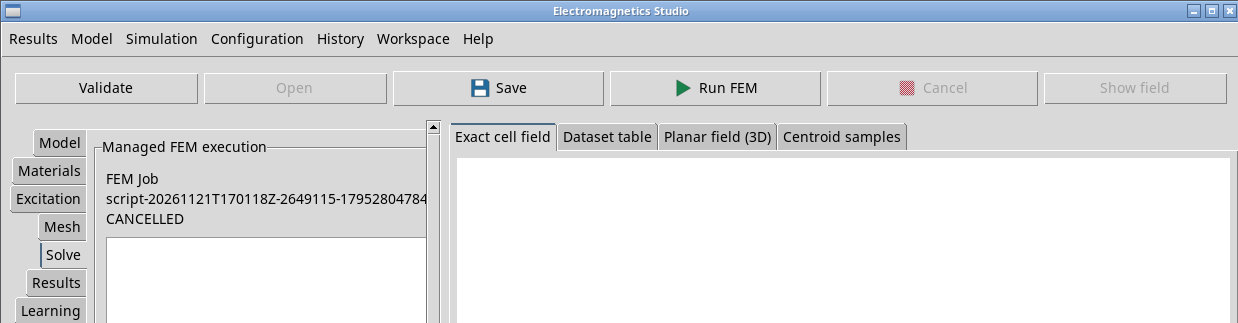
- Terminal state after successful cancellation. Inspect results and Publish field stay disabled for this job.
- Read log
- Displays the stored job log in Solve, up to 64 KiB on the first read. Scroll to see the Gmsh and GetDP stages, version numbers, messages and residual. If the log is truncated, read the full log in the shared Scripts & Jobs… area.
Cancel a Job
While the job is active, press Cancel on the toolbar or in the Simulation menu. The initial response is Cancellation requested; terminal cancellation is not yet confirmed.. Press Status until the terminal state appears. A short calculation may finish before cancellation takes effect.
Reconnect to a retained job
- Back in the same Session, use Refresh models in Model and Open to open the original model. Open Solve and press List Jobs in the Simulation tab or menu. The list applies to the open model.
- Choose the ID in Retained model Job. If there is only one entry, it may be selected automatically. After Duplicate, an ID from the previous model may still be visible. Reconnect rejects it with Choose one of this model’s actual retained FEM Jobs. Check the drop-down even if the field already shows an ID. If the list is empty, Reset clears the field and disables Reconnect.
- Press Reconnect to reconnect the job to the window, then read its status. Reconnecting does not start Gmsh or GetDP. If no job is listed for the current model, reopen the original model or run a new calculation for the active model.