

Python scripts and Jobs
Open the Scripts panel, run a Job, and review the proposed changes before applying them to the Worksheet.
Prepare a Python Job from the sheet
Open Edit → Scripts or press Py. In the Scripts panel, use the name box to create or select an associated script. Write the source code in the editor. Save records the script under that name in the Workbook. Open loads the selected source. Saving the script and saving the whole Workspace are separate actions.
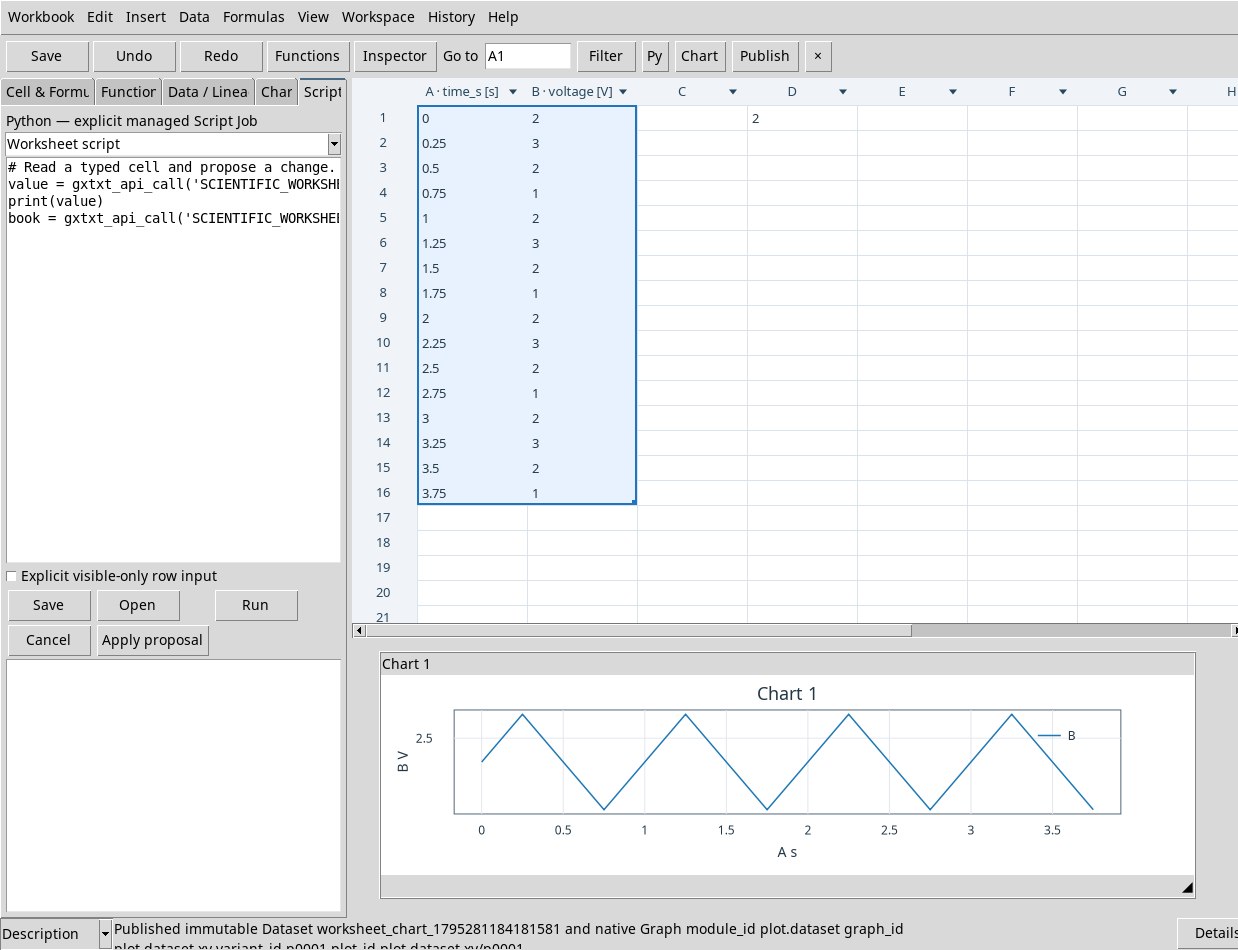
For example, open the pre-registered template and bind time and voltage in A:B. The script reads B1 and proposes 42 in E2. Use the book that the Job receives from the Worksheet and the Worksheet API already exposed in the editor.
cell = gxtxt_api_call("SCIENTIFIC_WORKSHEET_API_v1", "inspect_cell", [book, "B1"])
print("Measured value:", cell["value_utf8"])
book = gxtxt_api_call("SCIENTIFIC_WORKSHEET_API_v1", "set_cell", [book, "E2", "42"])
Run the Job and apply the proposal
- Select the input rectangle. With Explicit visible-only row input the Job receives the explicitly requested subset of visible rows. Check the selection and the active filter before enabling it.
- Press Run. The log pane shows the information produced by the Job. The status line reports the identifier and the phase.
- With the Job
COMPLETED, check the log and press Apply proposal. Before applying, cell E2 is empty. After applying, it contains 42. A change made between submission and adoption can make the proposal obsolete.
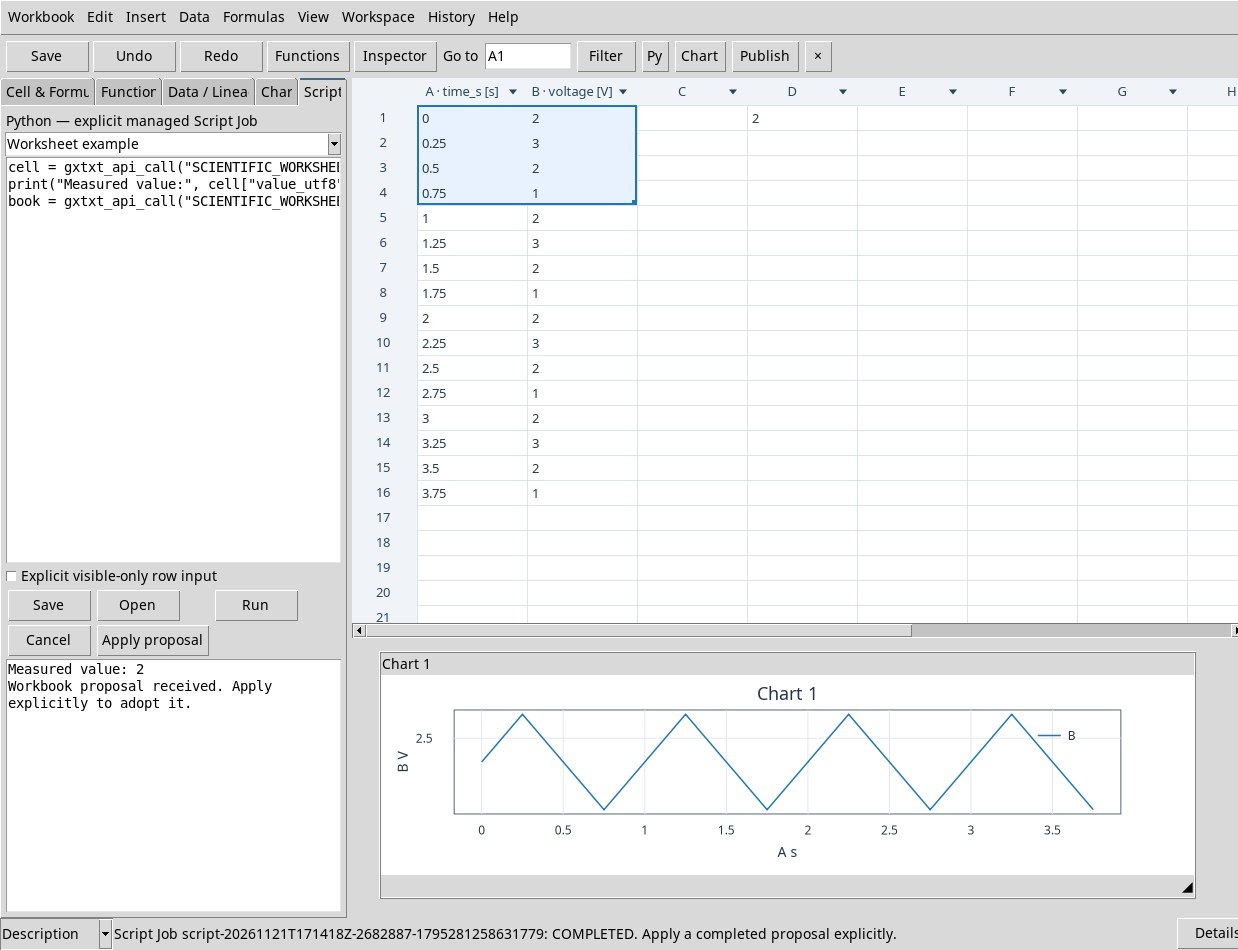
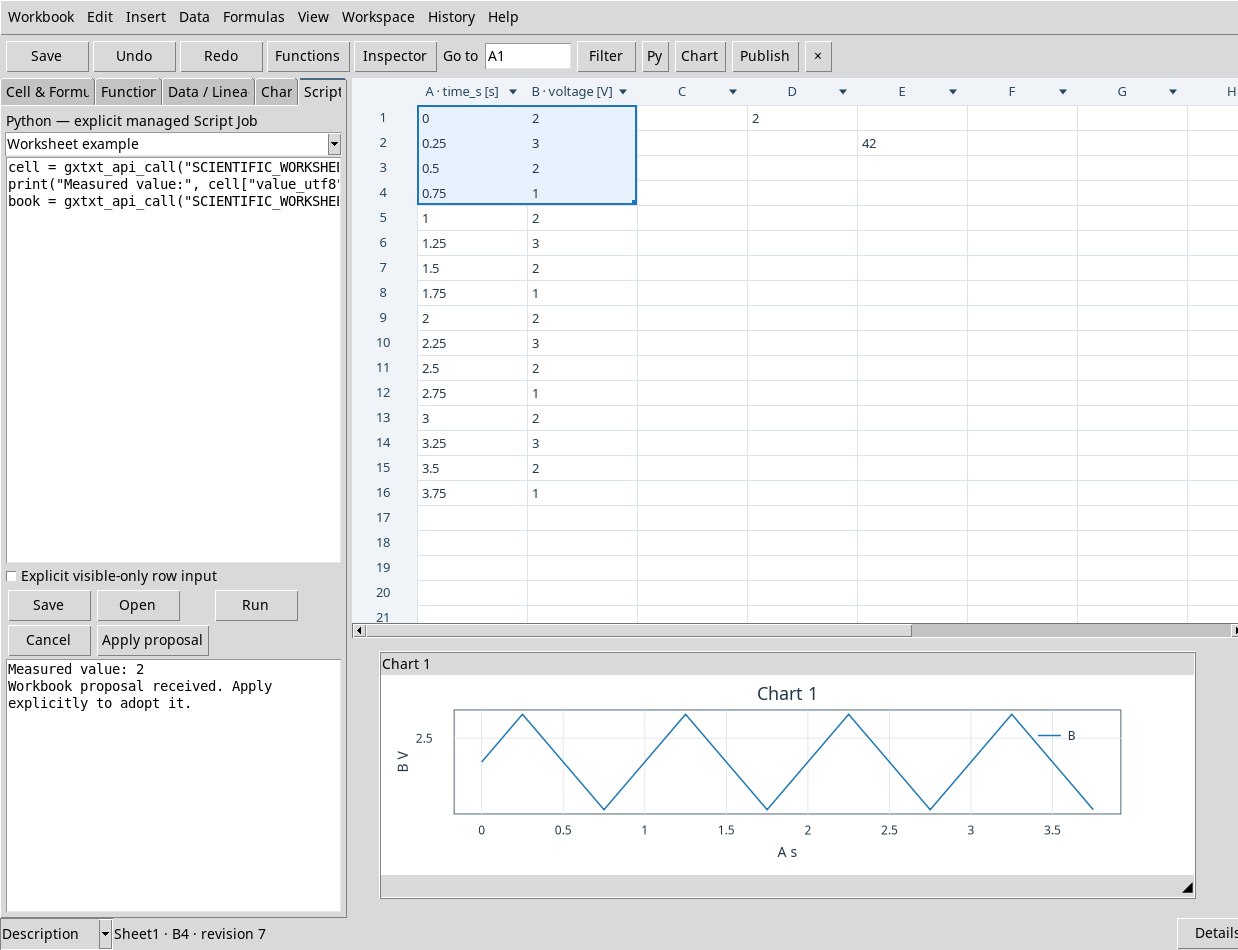
Cancel asks CORE Jobs to stop a running execution. Check the final status and the output cell. For FAILED or INTERRUPTED, look for the Job details in the main window. After the service restarts, an interrupted Job remains recorded as such, and Apply proposal requires a Job that has actually completed. Use Run to submit a new execution. The new Job receives another ID. Undo concerns the change to the sheet after adoption.