

Datasets, units, and lineage
Import measurements and Datasets, check units and lineage, and publish a canonical table from a GX-TXT Session.
Load the exercise Dataset
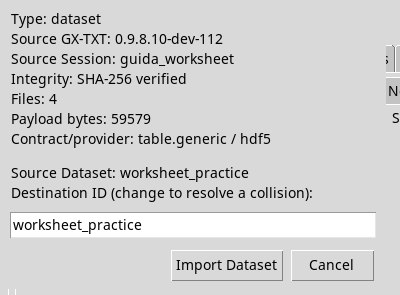
Download worksheet_practice.gxtxt-dataset.zip. From the Dataset tab of the main window choose Actions → Import Dataset ZIP…. Check the integrity, keep the Destination ID worksheet_practice and confirm with Import Dataset.
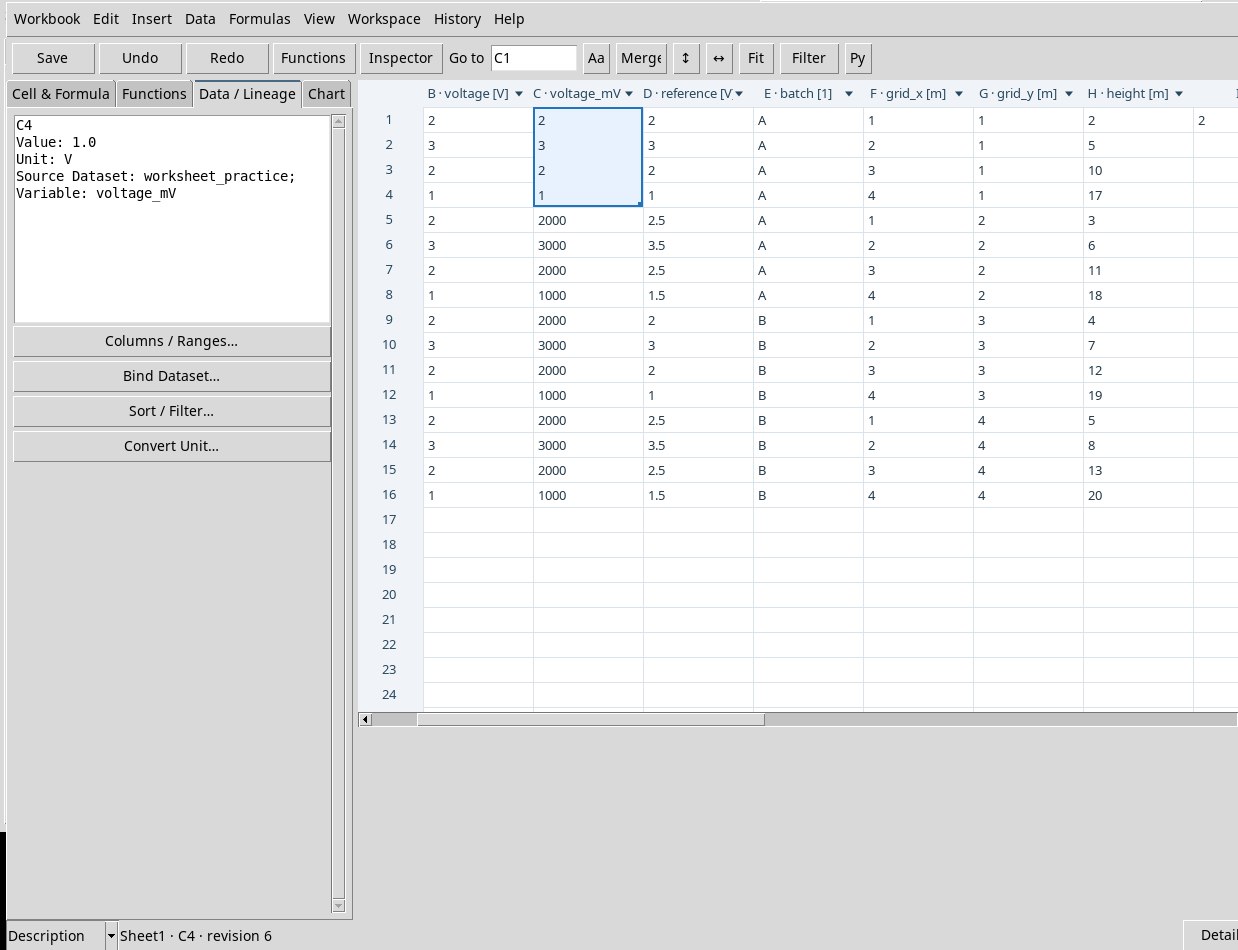
The readable CSV (extract the ZIP first) contains 16 synthetic measurements. time_s increases in steps of 0.25 s from 0 to 3.75 s. voltage repeats 2, 3, 2, 1 V. voltage_mV contains the same sequence in mV, reference contains a second measurement in V, and batch contains labels A and B. grid_x, grid_y, and height form a 4 × 4 grid. Coordinates and elevation are expressed in meters. The Dataset computes elevations from the coordinate values using x² + y.
Bind the source columns
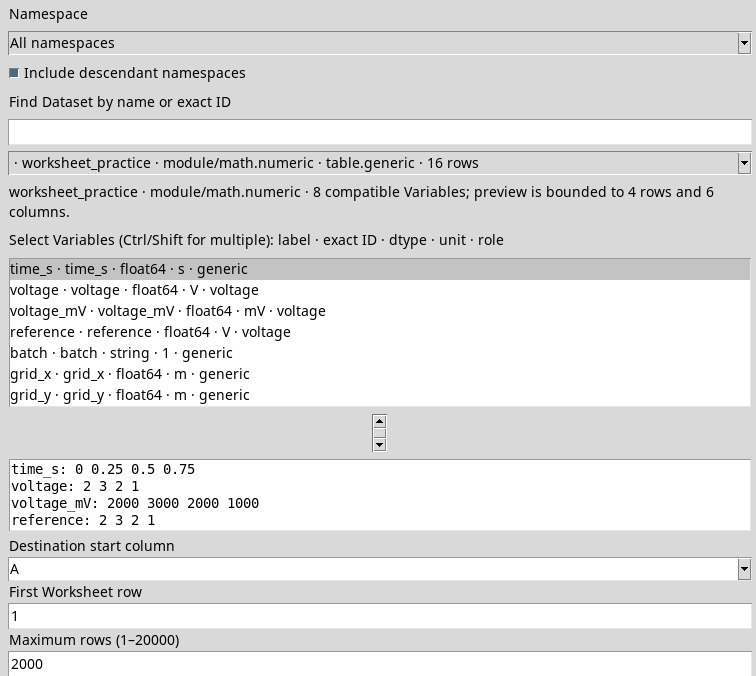
- In Worksheet open Data → Bind Dataset… or the Data / Lineage tab button. With Namespace you filter the catalog. All namespaces shows compatible sources in all namespaces. With a specific namespace, Include descendant namespaces adds its sub-namespaces. If the catalog is long, search for part of the name or the exact ID in the field above the list.
- In the Dataset selector choose
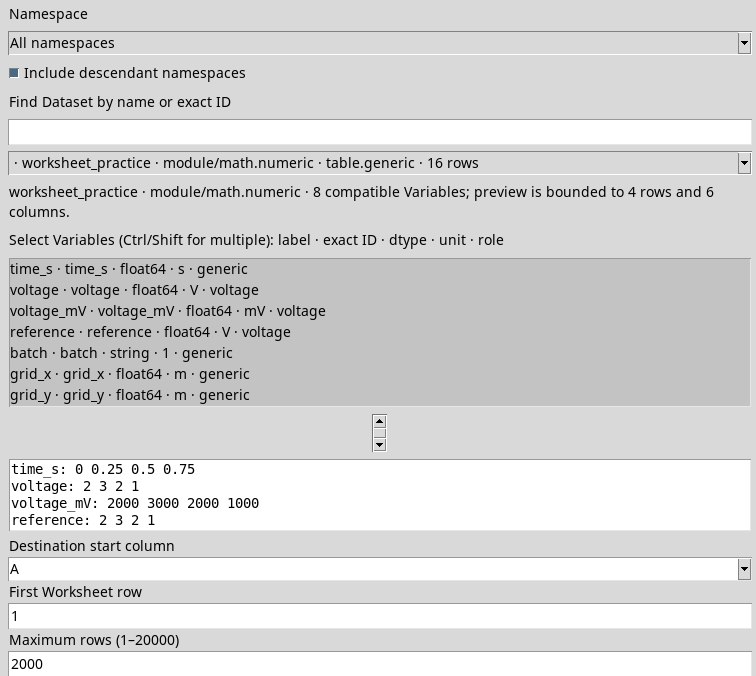
worksheet_practice. The list of variables shows label, exact ID, type, unit and role. Selecttime_sandvoltage, or all eight variables for the later exercises. Use Ctrl to add non-contiguous items or Shift for a range. Check the preview of the first rows. - Set Destination start column to A and First Worksheet row to 1. Maximum rows (1–20000) starts at 2,000. The maximum is 20,000 rows per binding. Optional subset belonging to this Dataset selects a subset already defined for that source, or stays empty. Leave the subset empty for the 16 test rows.
- Press Bind selected columns. The columns are written in the selector order. With all variables the block is A1:H16. For a targeted mapping, enable Advanced explicit column mapping and write, for example,
A=time_s B=voltage D=reference. Use exact IDs and destinations from A to ZZ.
Bind a Selection and map columns explicitly
When there is already a compatible Selection, select it in Optional subset belonging to this Dataset. The list refers to the active source. Set First Worksheet row and Maximum rows to place and limit the rows already selected. With Advanced explicit column mapping you associate each variable ID explicitly with its destination column. Check A and B in Data / Lineage before using them in a formula.
With a test Selection from 0.50 to 1.50 s, destination starting at row 3, limit 3 and associations A to time_s and B to voltage, the sheet showed 0.50, 0.75 and 1.00 s in A3:A5, with source rows 2, 3 and 4. The tutorial ZIP provides the source. To repeat this variant you need a Selection in the Session.
Read units and lineage
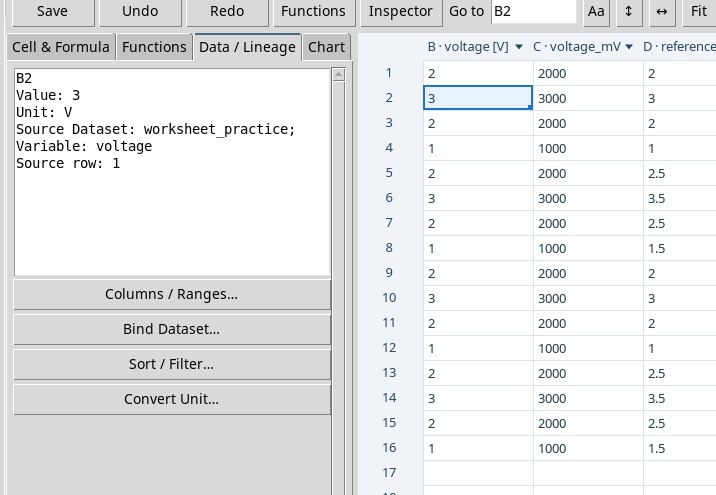
Select B2 and open Data / Lineage. In the test you see 3 V, Dataset worksheet_practice and voltage variable. The Source row: 1 value indicates the second source row, because the ordinal shown starts from zero. The sheet coordinates start from one. A selection, a sort or a change of destination can make them diverge.
The binding is a copy of the values at the time of reading. To update a changed source, repeat Bind Dataset…. A typed cell has its own local content. A formula on bound cells can keep the lineage and the interpretation of its inputs even after a transformation. If you assign units or rewrite a cell, check how the inspector changes.
Name a range and declare a unit
Columns / Ranges… contains two actions. For Apply column name/unit sets the column coordinate, the name and the explicit unit. For Define range enter the name and the addresses First cell and Last cell. For the test, name amplitude column B and define subset from B1 to B4. Then use =numeric.mean(subset).
Declaring the unit of a column specifies the meaning of the values. To go from mV to V with a numerical transformation, use Convert Unit….
Convert units while preserving the physical meaning
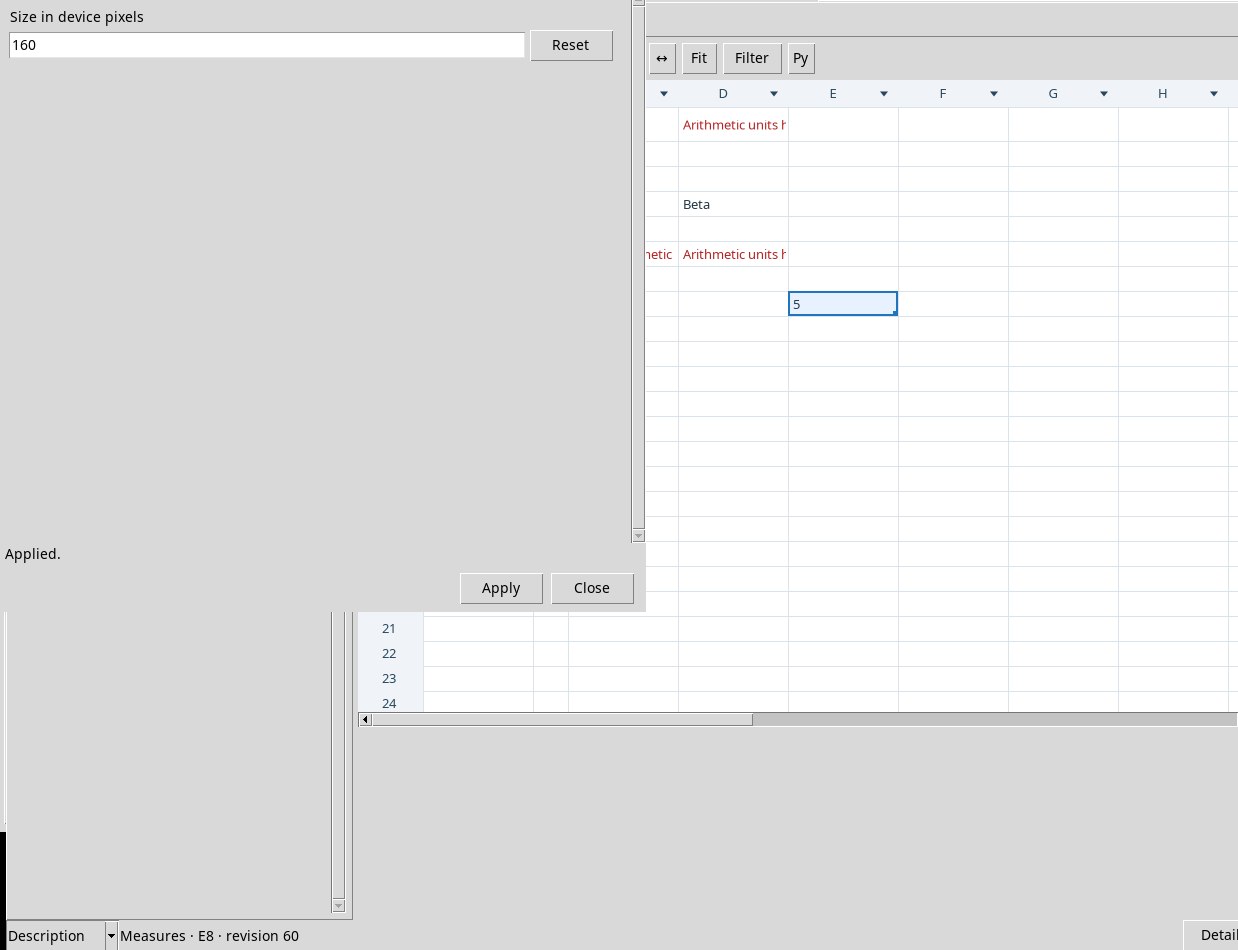
Select C1:C16, open Convert Unit… and choose V in Destination unit. Press Convert. For example, 3,000 mV become 3 V. The unit registry checks compatibility. If you select only C1:C4, C5 keeps mV. A column that is only partly converted can end up mixed and prevent a chart or publication over the whole range.
Publish a Session Dataset
- Open an already registered template. If Save shows the
navigation_extenterror, use the exercise Workspace. - Data → Publish Dataset… asks for X column, Y columns (space separated), Z column (3-D only) if relevant, First row, Last row and a free Output Dataset ID for publication . For example, use A,
B D, leave Z empty, use 1–16 andworksheet_lesson_export. - Press Publish as Dataset. Read the confirmation in the status bar. In the main window, look for the ID in Results or Dataset. The published Dataset keeps the available rows, units and provenance correlations. X becomes
xand the Y columns becomey1,y2in the order set.
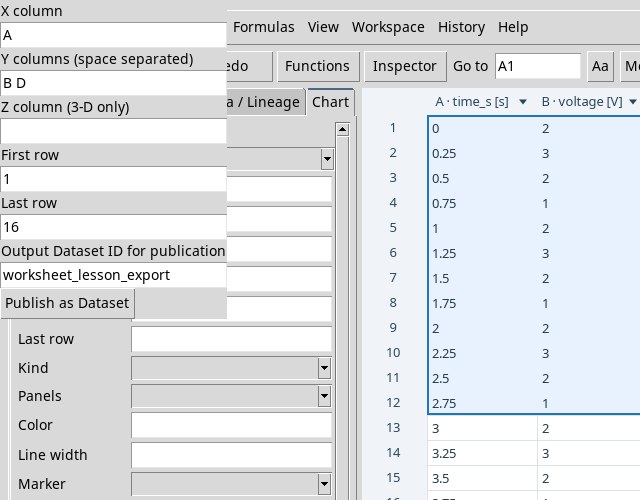
The publication covers the selection configured in the dialog. A later change to the sheet requires a new publication to represent the new state. If you see Save the Worksheet before publication, the Workbook does not yet have a Session identity.