

Workspace and History
Import the example Workspace, save and reopen the workbook, and use History and its recovery options.
Save and open a Workbook
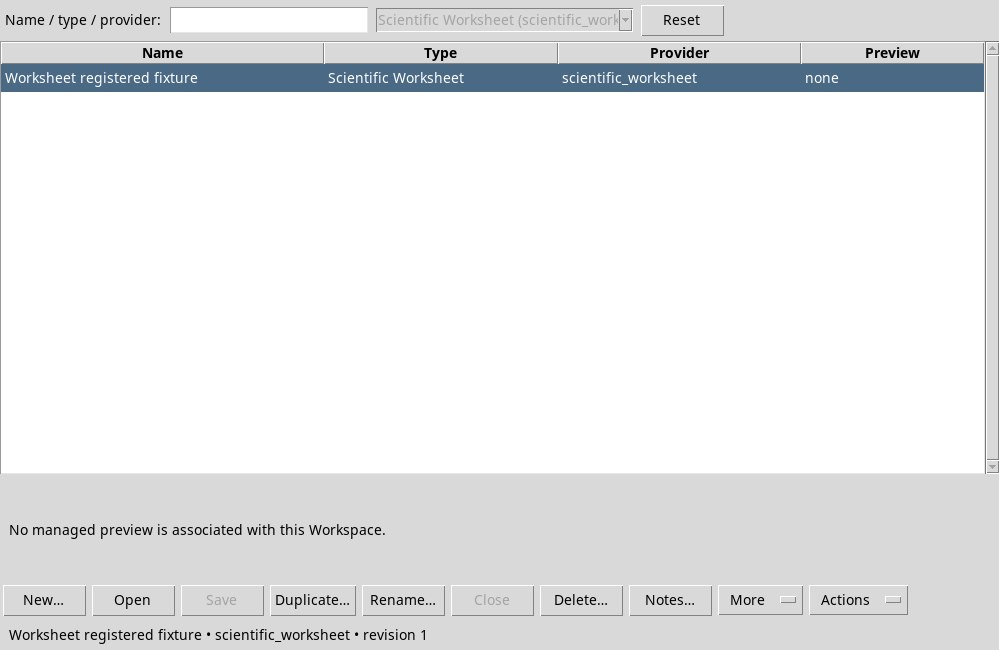
Save, Workbook → Save Workspace, Workspace → Save and Ctrl+S require saving the whole Workbook. The title identifies the Workbook to which sheets, formulas, styles, views, charts and history belong. Workbook → Open Workspaces…, Workspace → Open workspace… and Session Workspaces… open the template manager. Select a row and press Open.
In Scientific Worksheet 2.1.2 on DEV112 P011-bis, Save can display Workspace schema has no typed field 'navigation_extent' even for an empty Workbook. A title without “unsaved” indicates a registered Workbook. Check the status line to see whether the current save succeeded. The template below makes workflows that require a registered identity available. Saving changes can still encounter the issue.

Open the pre-registered template
- Download worksheet_template.gxtxt-workspace.zip. It contains an empty sheet with an importable Workspace identity.
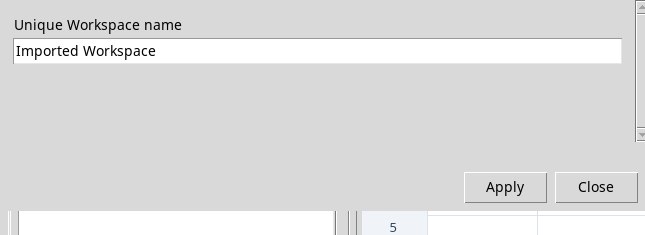
- Open Workspace → Import…, choose the file and assign a unique name, for example
Worksheet exercise. Press Apply. - Open Workspace → Open workspace…. Select the template you have just imported and press Open. Check the name in the title. For the exercise, bind the Dataset.
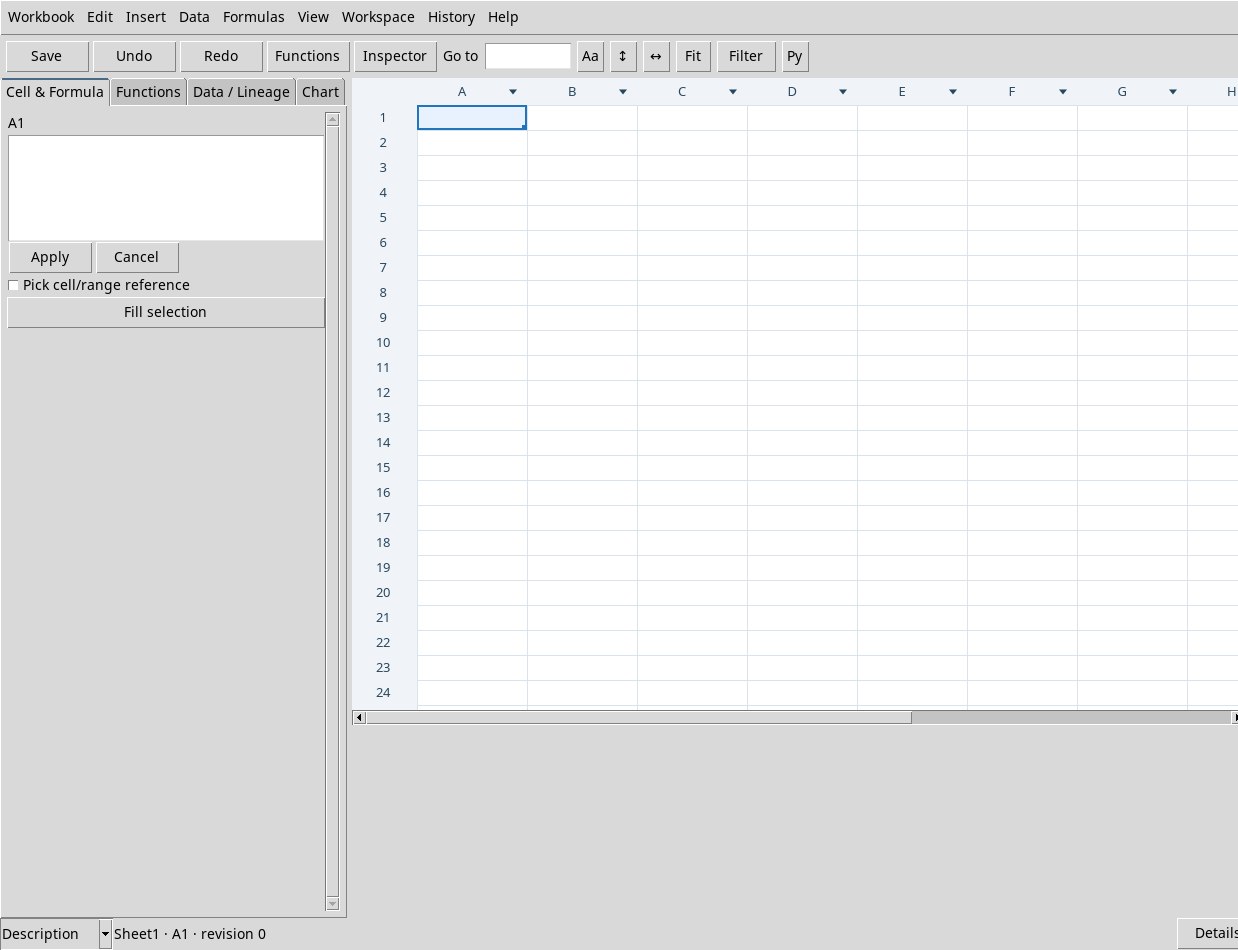
With this procedure, scientific Jobs, adoption of Python proposals, Dataset publication and Graphs are available. Results already published have a life of their own in the Session. If Save fails, use the open Workbook to finish the exercise. Reopening may show the registered version. For later changes, check whether journal recovery is offered. To keep the values, publish a Dataset or copy the range into an editor that can save it as CSV.
Create, transfer, and manage Workspaces
- New workspace…
- Assign a name to the new empty Workbook. If some work is already open, read any confirmation before replacing it.
- Close
- Closes the Viewer or the current Workbook. When the dialog offers to save, Yes attempts it, No sets the current changes aside, and Cancel keeps the work open. Because of the Save defect, use Cancel if you still need the draft.
- Save as / Duplicate… and Duplicate…
- Create a copy with another name. Check whether the command acts on the selected registered version or on the Workbook being edited. Actions that require a Workspace are disabled when the registered template is missing.
- Rename…
- Choose the template and assign a unique name. Check the name and identity in the manager.
- Delete…
- Check the template shown in the dialog and confirm only if you want to delete its configuration, notes and History. Session Datasets have their own life cycle. Cancel keeps the template.
- Notes… and Preview…
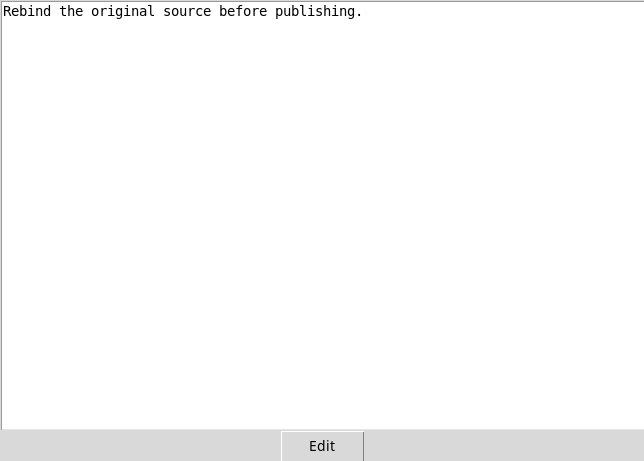
- Notes opens the template notes. Use Edit and Save in the editor to add one. Preview looks for an already associated preview. A sheet without a preview shows No managed preview is associated with this Workspace.
- Export… and Import…
- Export saves a ZIP of the registered template and of the references managed by the package. Import asks for a unique name. Check the scientific dependencies in the destination Session. The Dataset archive uses its own import action instead.
- Refresh, Actions, More
- Refresh updates the list. In the manager, More groups the secondary commands. Actions shows the provider’s actions or an unavailability notice. Actions are enabled according to the selected row and the opening state.
Consult and step through History
The lower strip alternates Description and History. In Description you read the status, in History you see the baseline and the steps. Details or History → Details / Timeline… opens the corresponding detail. Undo and Redo are in the toolbar and in the menus. They restore sheet operations such as insertions, styles and adoption of results. Publications already recorded in the Session remain available.
Previous and Next move the consultation cursor. You can also click a step in the strip. Use Return to latest to resume editing. Right-clicking the strip shows the corresponding commands, with Expand / collapse individual operations if several steps are grouped. The mouse wheel scrolls through the sequence.
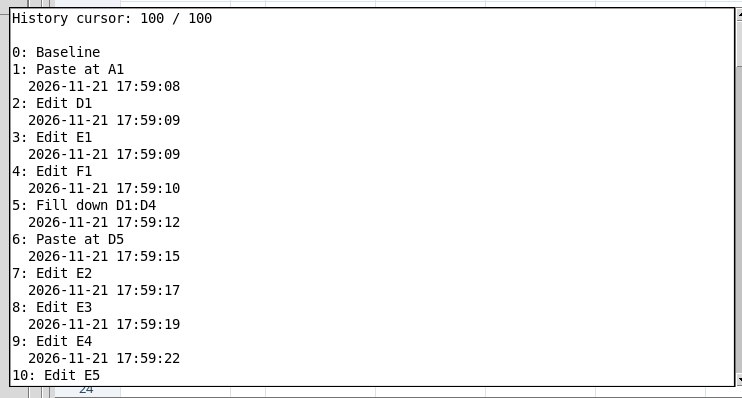
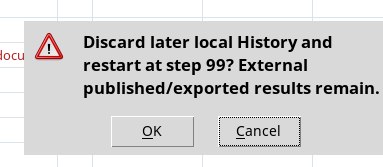
Branch / Restart here… prepares a restart from the step being consulted. Read the confirmation about truncating the local History. Clear History… requires a registered Workspace and a current state. Choose Yes for a protected backup, No to delete the steps while keeping the current state, or Cancel to cancel. In the tested version, with Yes a ZIP is created and the steps are reset. The backup restored during testing contained the empty starting Workbook, without the added values and without the steps just reset. If you need to keep the history still visible, choose Cancel. If you need the values, you can publish or copy them before closing the Workbook.
Recover the journal after a crash
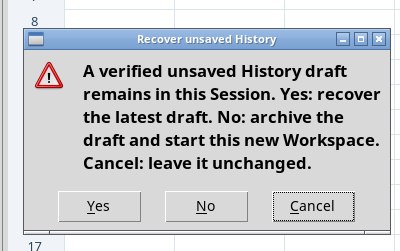
After a GX-TXT crash, when you open the tile, Recover unsaved History may offer a draft. On DEV112 P011-bis, choosing Yes, History snapshot belongs to another Worksheet appeared in the main status line. In that case the Viewer remained incomplete and the values did not appear. Cancel leaves the draft pending.
- If a registered Workspace already exists and the draft fails, close the incomplete window. Reopen the tile and choose No in Recover unsaved History to archive the draft associated with that first message.
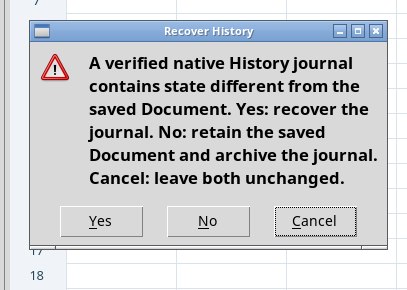
- Open Workspace → Open workspace…, select the registered Workbook and press Open. If Recover History appears with a native History journal verified for the document, choose Yes in this second dialog to recover the journal. No here keeps the saved version and archives the journal. Cancel leaves both versions available.
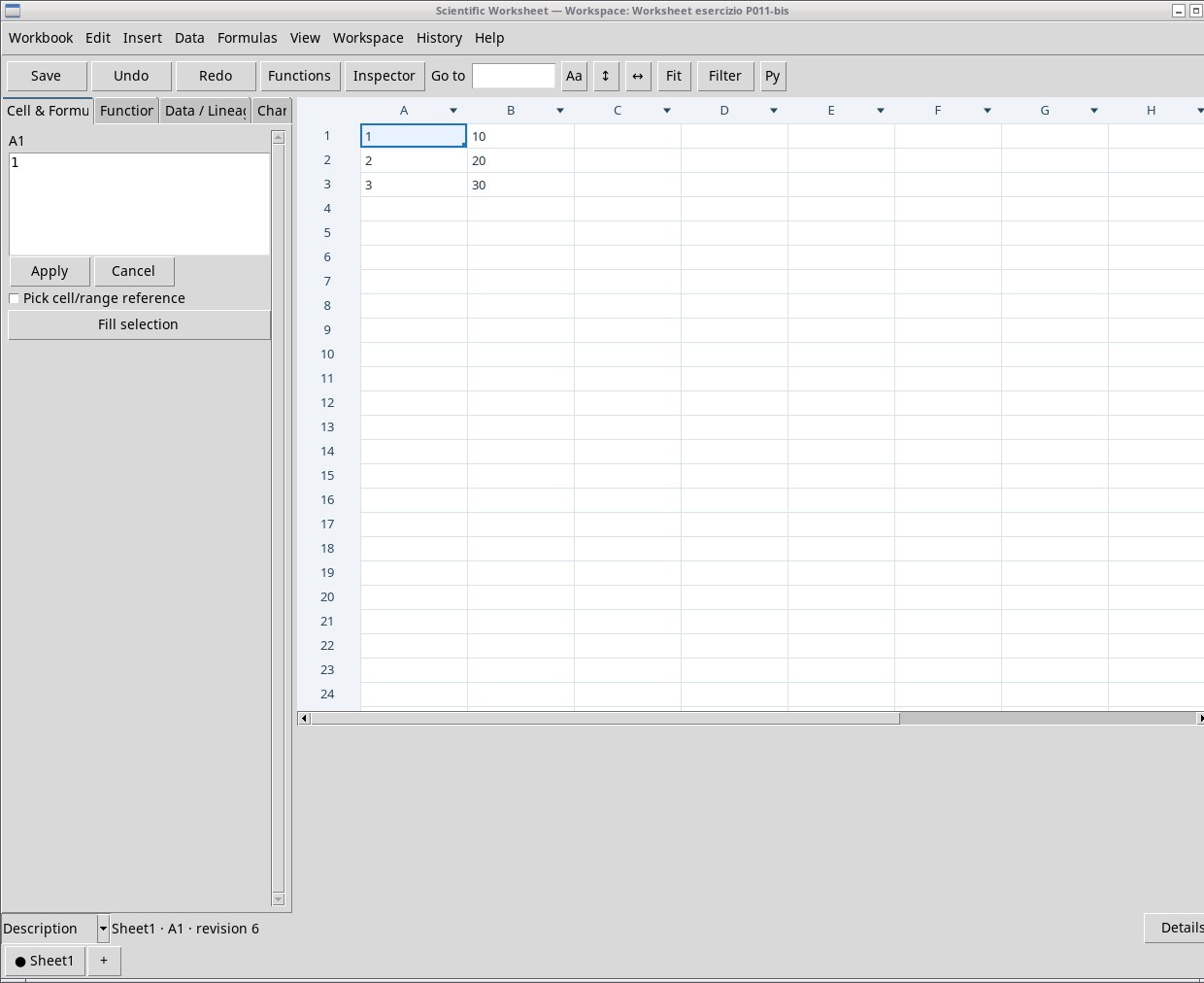
- Check the title, the revision and the cell values. In the exercise, recovering the journal restored A1=1, B2=20 and B3=30 at revision 6. The Dataset with the three pairs already published had remained in the Session. Save remains subject to the
navigation_extentrefusal.
This procedure requires a registered Workbook and a valid journal. If the second message does not appear, check the open version directly. To keep important values while the sheet is available, use Publish Dataset… or export a copy of the values before closing it.
Archive a named history
Save History As… saves a named copy in the Workspace, if the requested save succeeds. Named History… opens the list. Choose a copy for Inspect, Restore, Rename or Delete. Before Restore, read any request to save, replace the draft or cancel. A named copy and the active History are distinct items.
With the tested release, Save History As… stops on the same navigation_extent error as Save. Named History… opens, and the list for the test Workbook remains empty. Consultation and restarting from the active History can be done during the same session.