Read the source
Lines, scrolling, blocks, gutter and messages.
Read without moving the physical lines
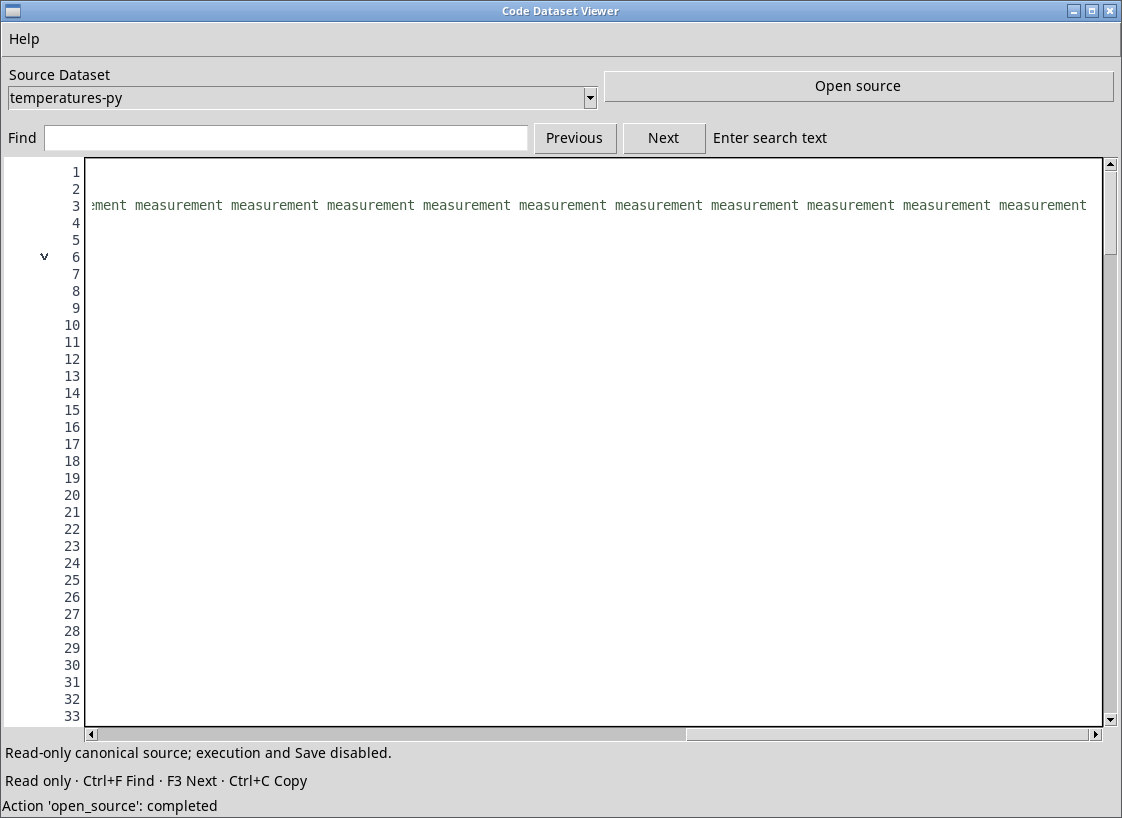
Click in the text to move the focus there. The column on the left shows the numbers of the physical lines even when some are folded into a block. The viewer keeps long lines without wrapping them automatically. Widen the window or use the horizontal bar to read their end. Colours distinguish lexical classes such as keywords, strings or comments according to the declared language. Colour indicates a lexical reading and can be approximate in complex constructs.
Line numbers, lanes and blocks
Hovering over the gutter shows an indication of the line and the lane. The number lane is used to locate the line. The shared gutter also has lanes for breakpoints and the execution pointer. Code is for consultation and the execution pointer has no active position.
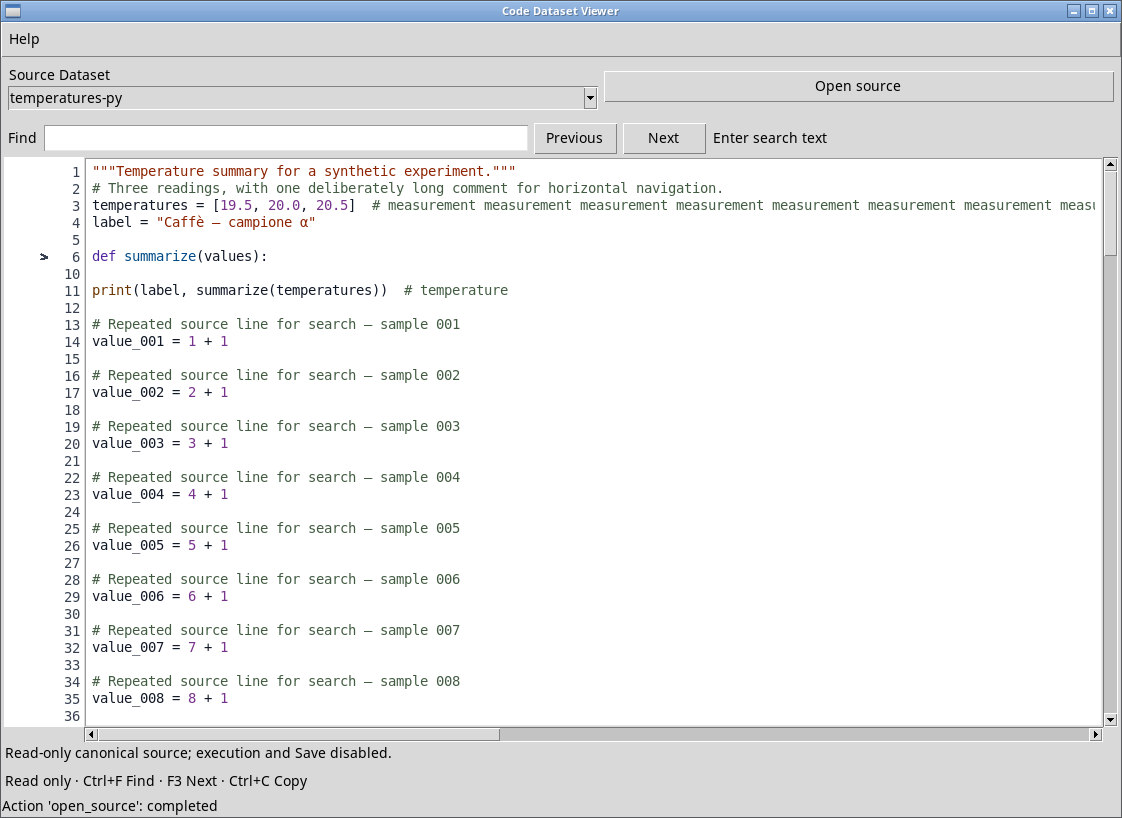
A small chevron next to a line marks a recognised block. Click the chevron to fold or unfold it. Right-clicking the gutter, Fold / unfold current block uses the block of the line pointed at. In the Python example, folding the function at line 6 hides lines 7–9 and the numbering jumps to 10. Unfolding the block makes the lines visible again.
Recognise the shared debug commands
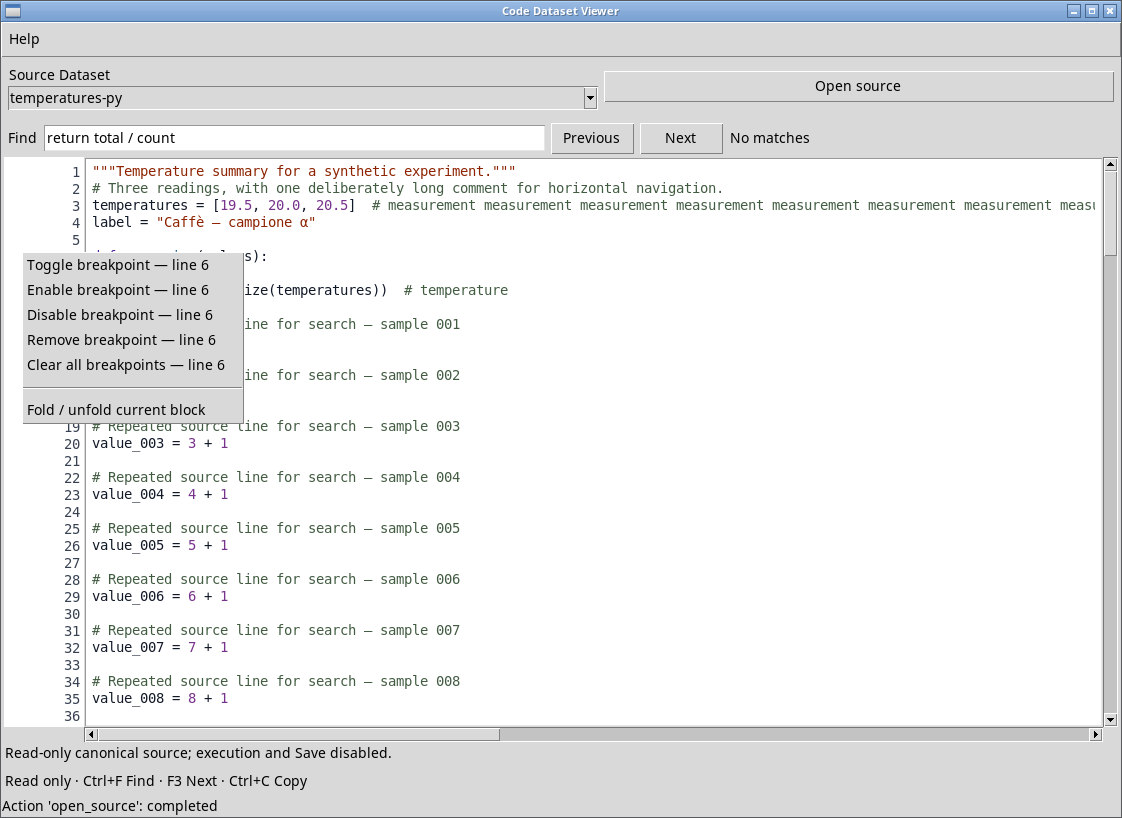
In the gutter’s context menu, Toggle breakpoint would toggle the breakpoint, Enable breakpoint would enable it, Disable breakpoint would disable it, Remove breakpoint would remove it and Clear all breakpoints would remove all of them. Code rejects each of these commands with Read-only source cannot have editable breakpoints. The same applies to F9, to clicking in the first lane and to Ctrl+Shift+F9. Use the gutter for reading and folding blocks.
Open and copy the complete message
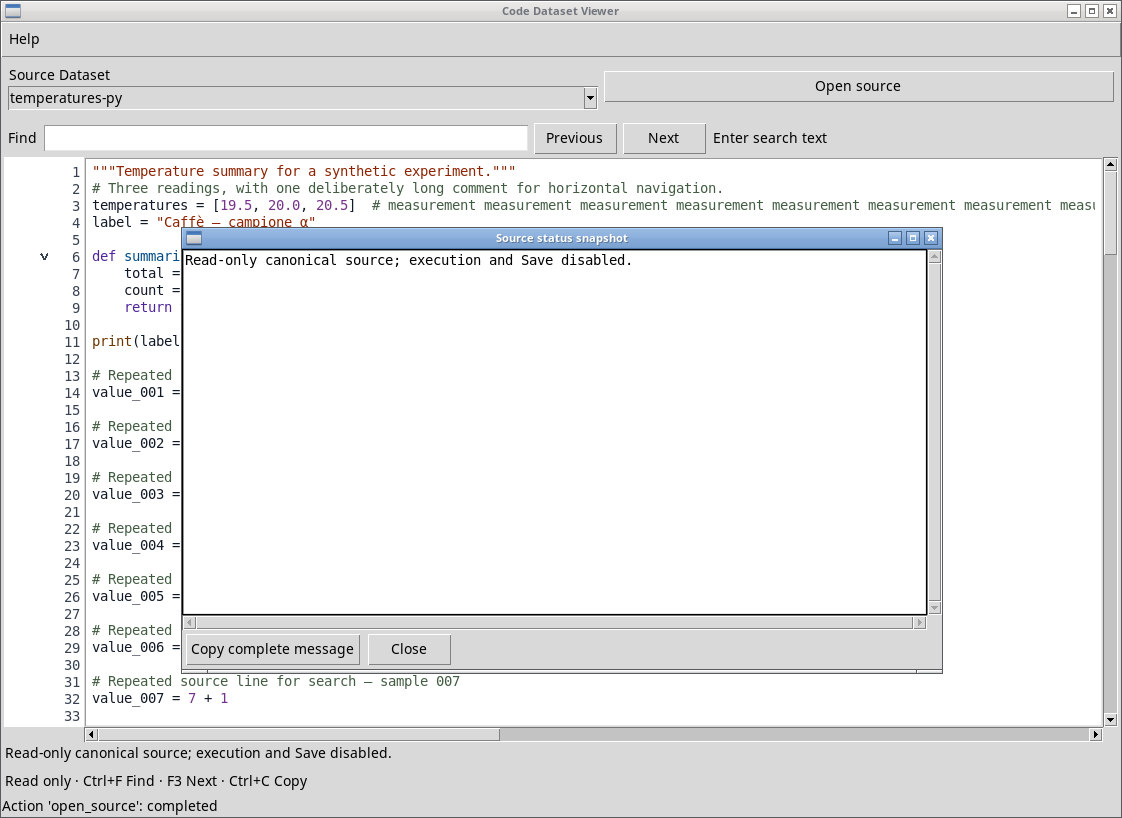
Click the message below the source to open Source status snapshot. When the message has the focus, Enter or Space open it as well. Use the scroll bars if the message is long. Copy complete message copies the snapshot. Close returns to the source. The message is a snapshot of the status at the time it is opened.