Model classes and interfaces
Identity, members, relationships, multiplicity and properties.
Add a class or an interface
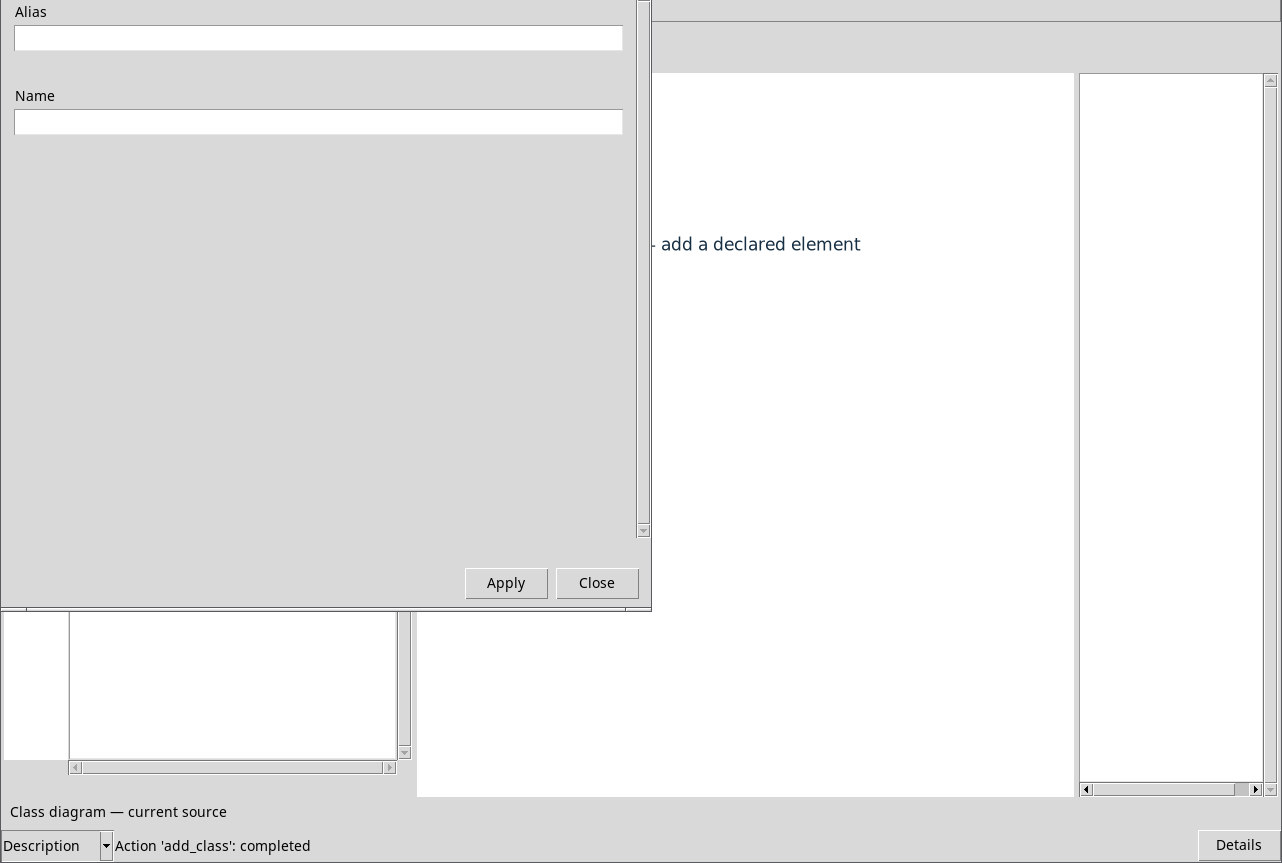
From a class diagram, open Model → Add class… or Add interface…. Fill in Alias with a unique identifier, for example Order, and Name with the visible name, for example Ordine cliente. Apply adds the declaration to the source, the Outline and the drawing. Close closes the form. A class groups attributes and operations, while an interface declares a contract.
Declare visibility and members
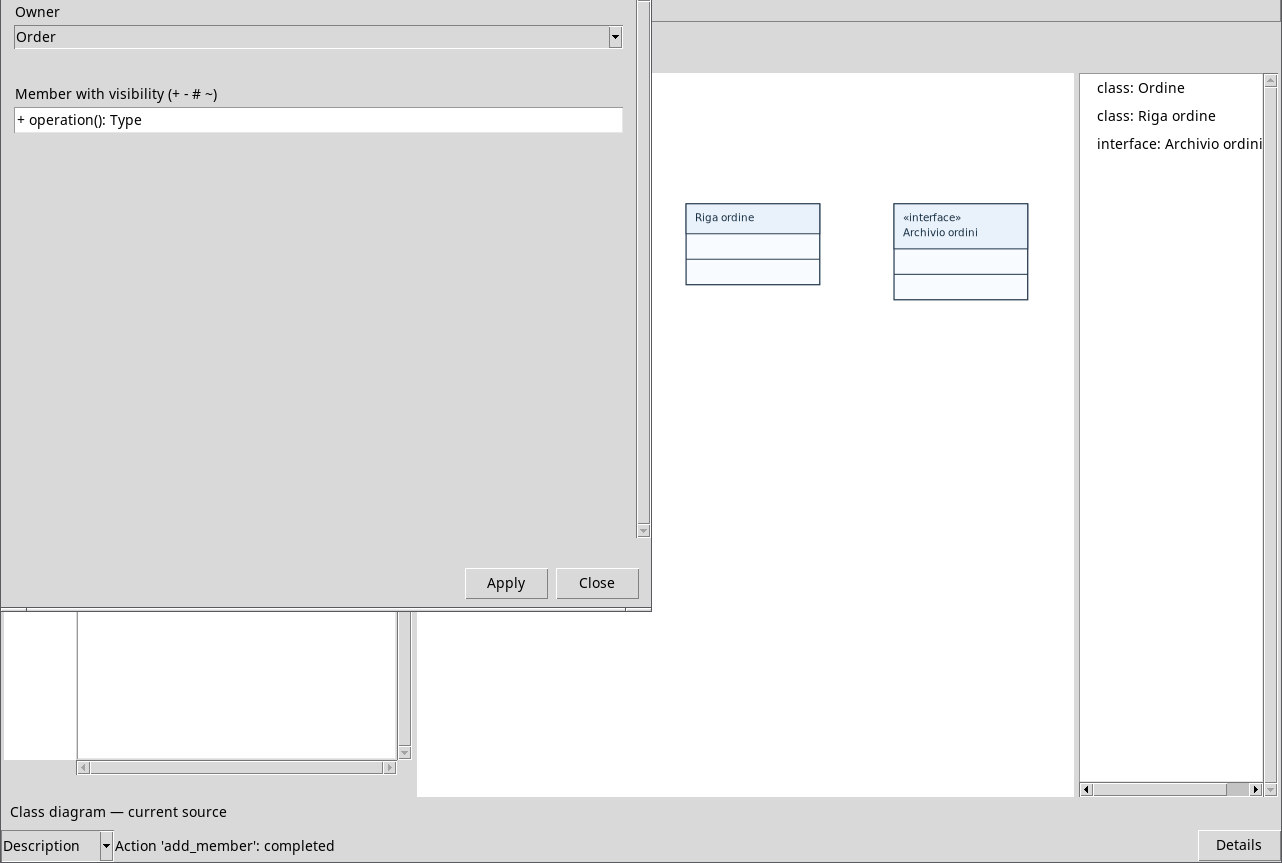
After creating at least one element, choose Model → Add member…. Owner indicates the declared class or interface. If you select a class first, the form proposes it as owner. Write the member in Member with visibility (+ – # ~), for example - totale: Valuta or + cerca(id: int): Ordine. The prefix + means public, - private, # protected, ~ package visibility. Apply updates the Owner’s block.
Choose kind, ends and multiplicity
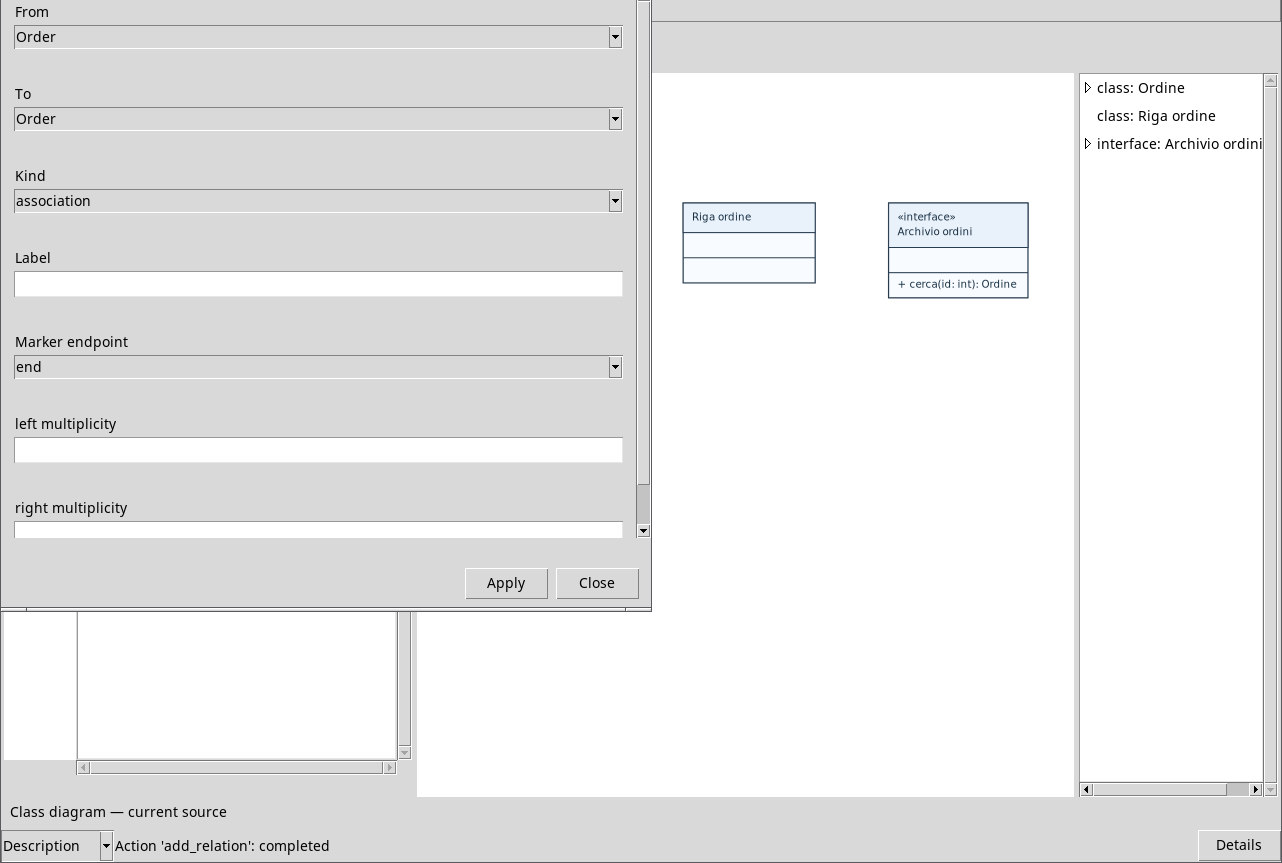
Open Model → Add relationship…. Choose the aliases in From and To, the relationship in Kind and, optionally, the text in Label. Marker endpoint start puts the marker on From, end on To. The initial value is end. For an association without an arrowhead the marker does not change the line.
- association
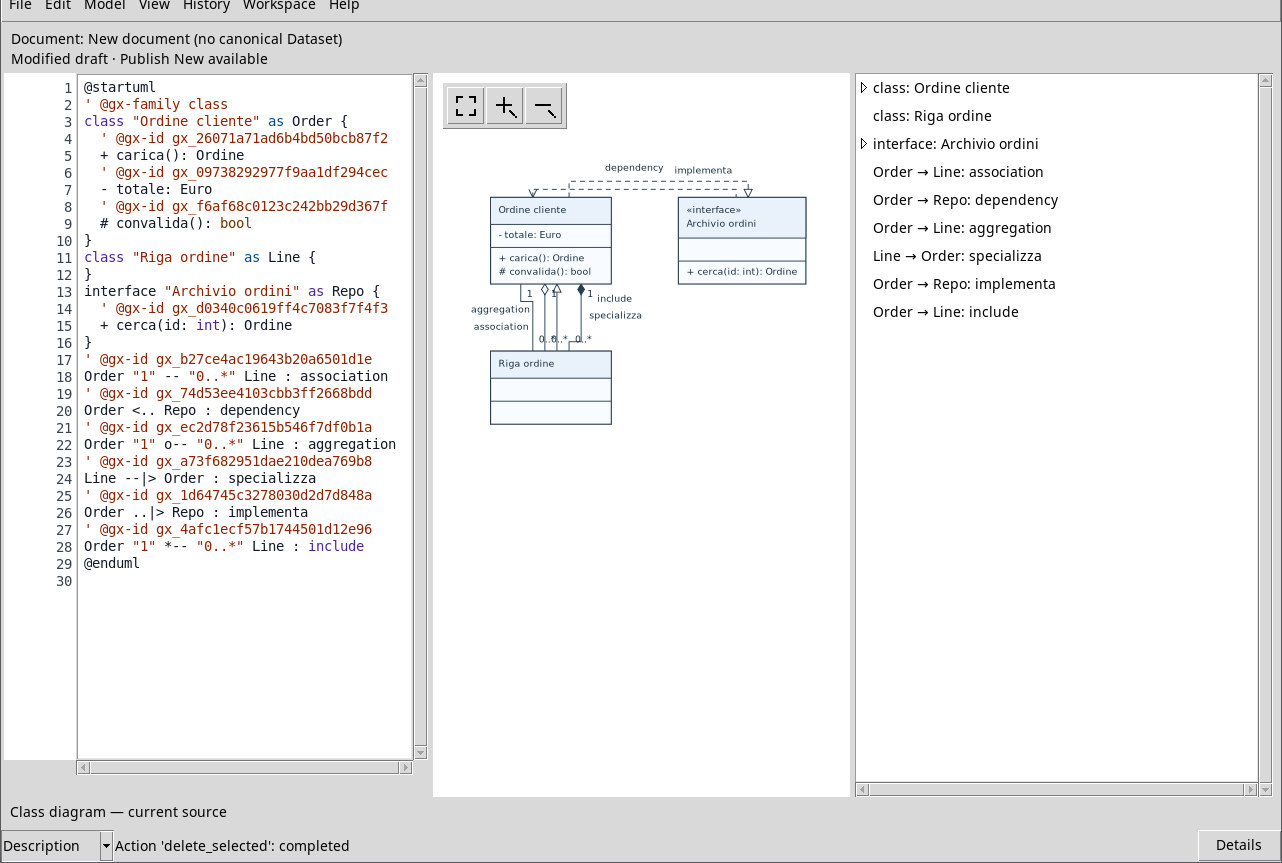
- Structural link with a solid line, for example Order and Order line.
- dependency
- Dependency with a dashed line and the arrowhead pointing to the element being used.
- generalization
- Specialisation with a triangle towards the more general type. For example
Line --|> Order, used as a test of the symbol. A class towards an interface requires realization. - realization
- Dashed triangle towards the realised interface. For
OrderrealisingRepo, selectFrom = Order,To = Repoandend. - composition
- Filled diamond on the whole. With
Orderas the whole usestart, left multiplicity1and right0..*. The upper bound on the side of the whole must be at most one. - aggregation
- Hollow diamond on the side of the aggregate. Set the marker on the element that represents the whole.
left multiplicity and right multiplicity refer to From and To respectively. Leave an end empty when it has no declared multiplicity. 1 means exactly one and 0..* from zero to many. If Edit refused appears, read the constraint shown below the form and correct the fields before pressing Apply again.
Edit or delete an object
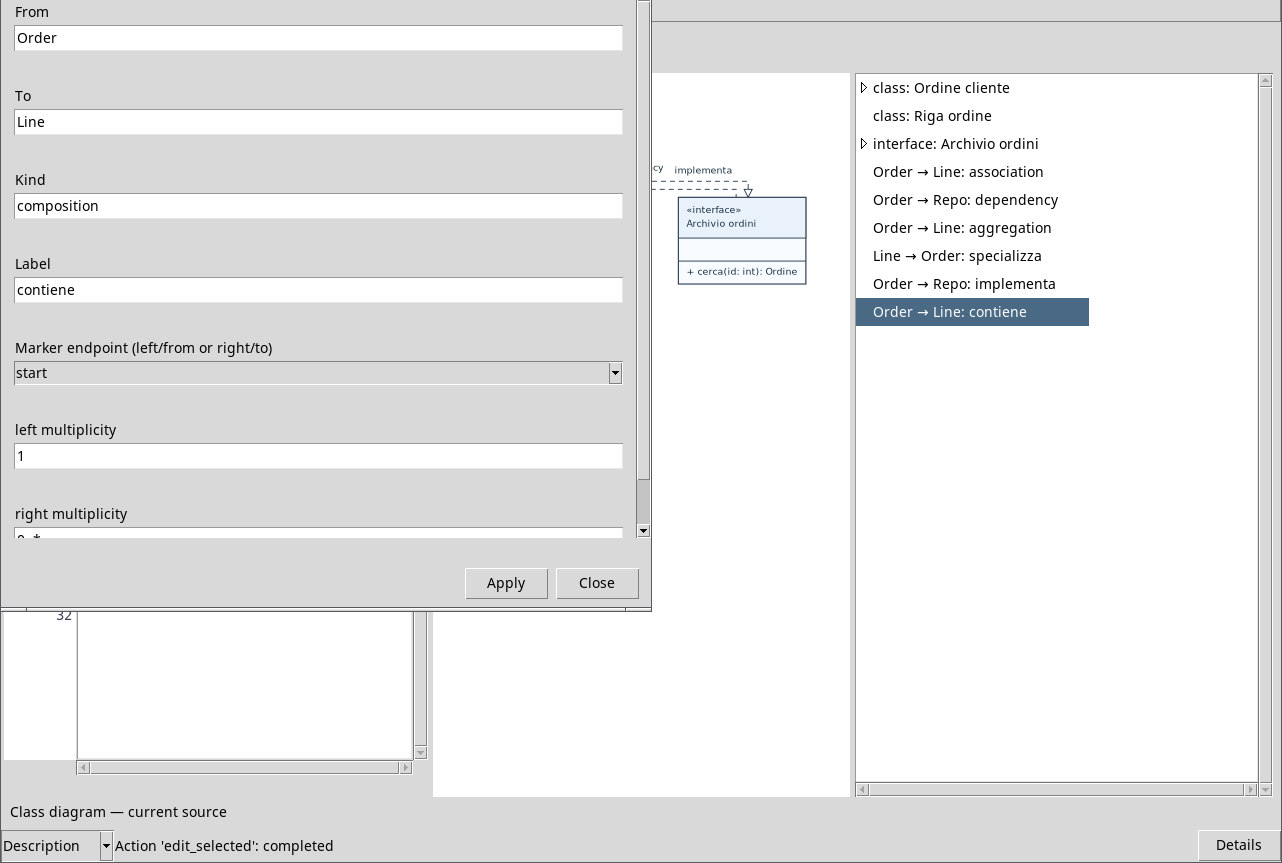
Select in the Outline or in the drawing and use Model → Edit selected properties… or the button in the Properties panel. On a class or interface you change Name while keeping the alias. On a member you edit Text, visibility included. On a relationship you find the fields for ends, kind, label, marker and multiplicity. In this form From, To and Kind are text fields, so use the aliases and the allowed kinds.
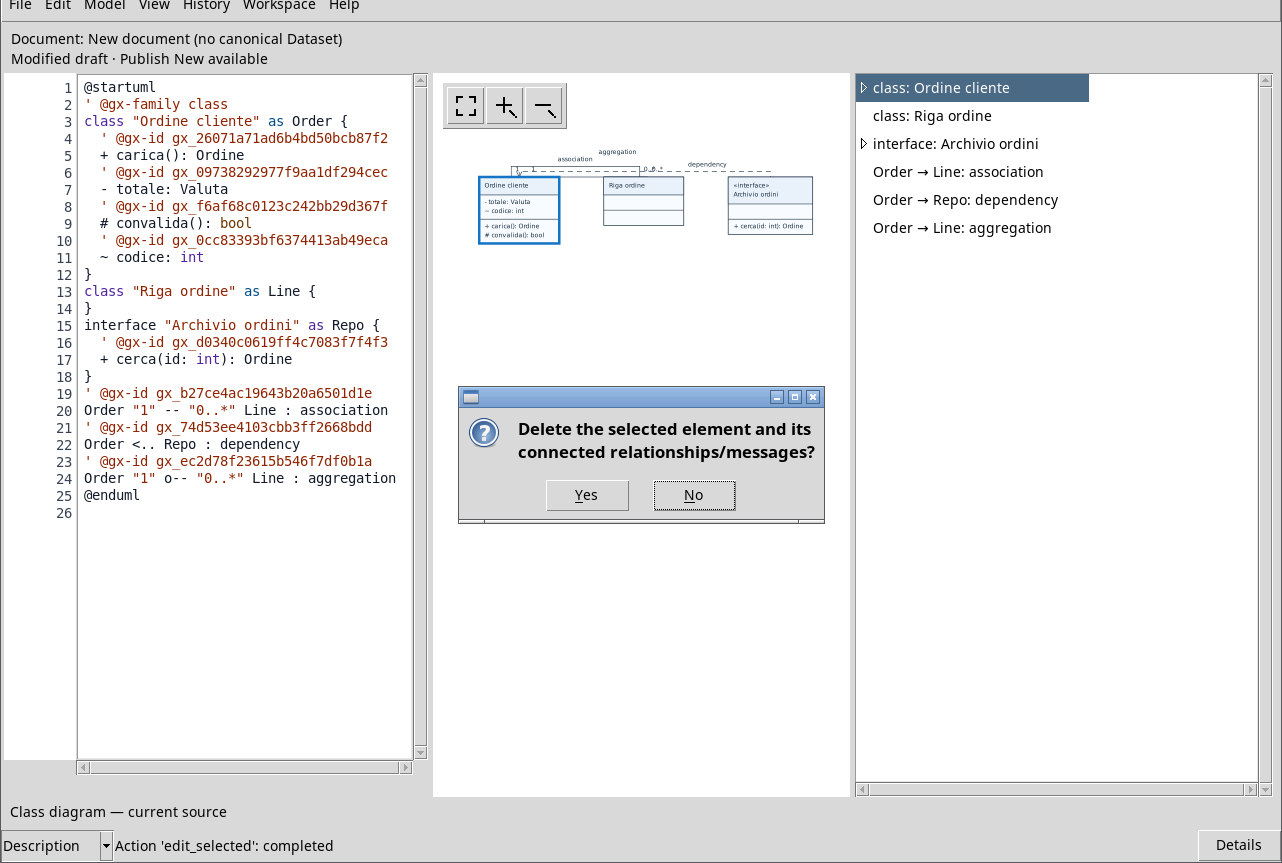
Model → Delete selected… shows a specific confirmation. For a class, Yes deletes the element and its connected relationships. For a member or a relationship, Yes deletes the selection. No keeps the model. If you edited the source while a form was open, reopen the properties to start from the current version of the object.